How to Review Submissions and Manage Points for Games for In-person Events in Zuddl
Last updated: August 1, 2025
Reviewing submissions
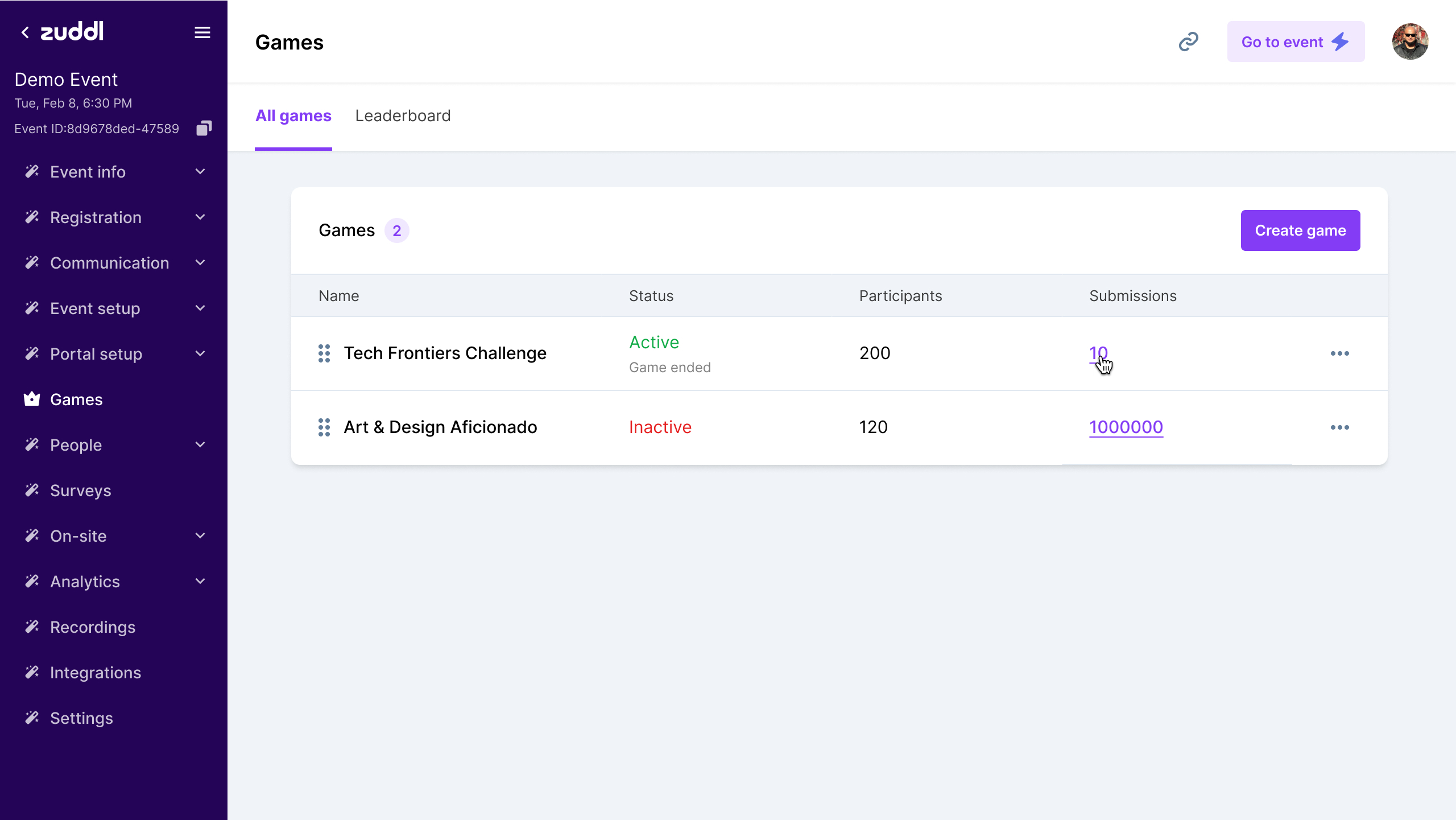
You can review submissions for game tasks. Follow these steps to review submissions:
- On the Games page, click the Submissions next to the game you want to review.
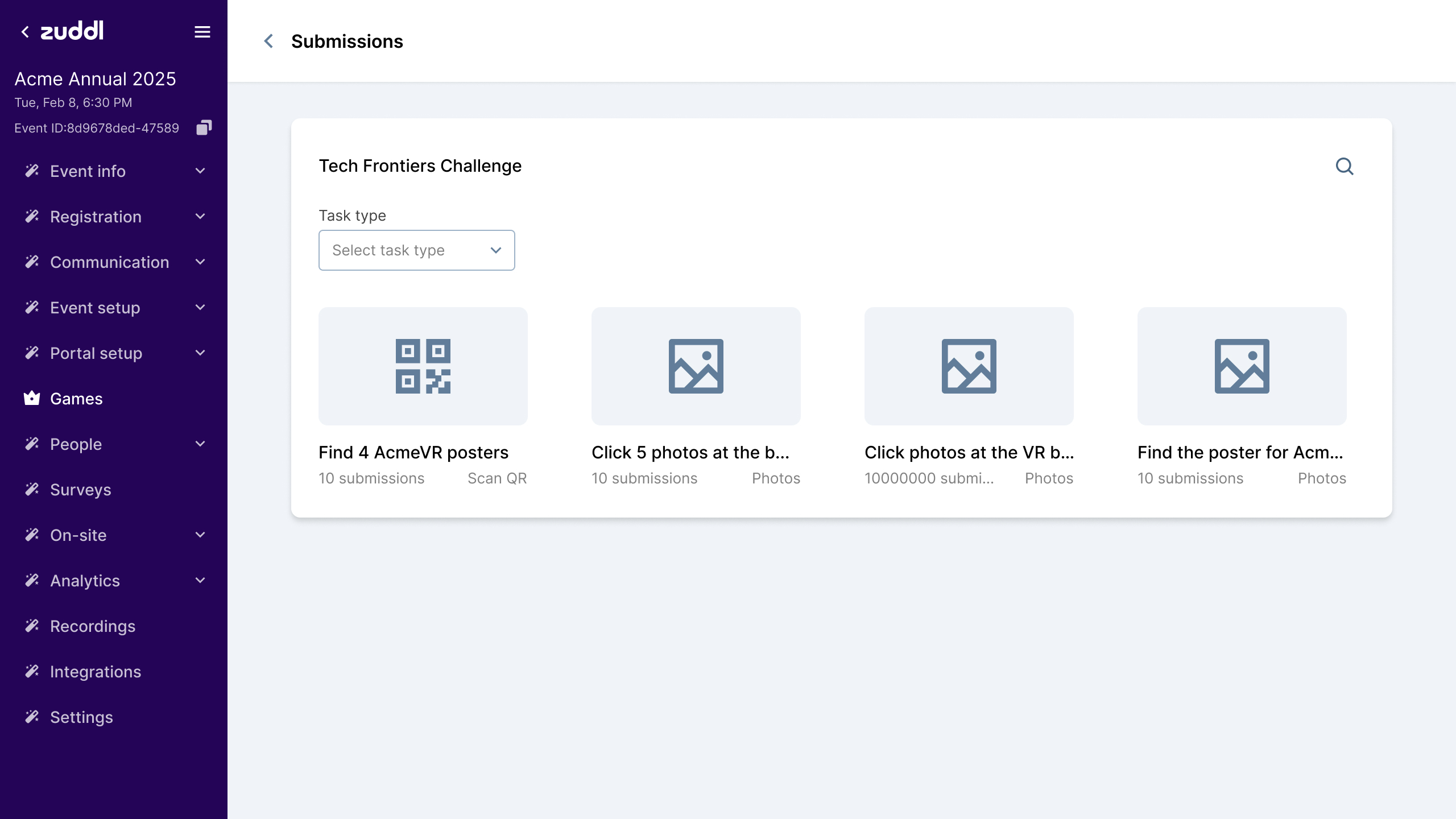
- Here you can see the different tasks for the game. Click on a task to view submissions.
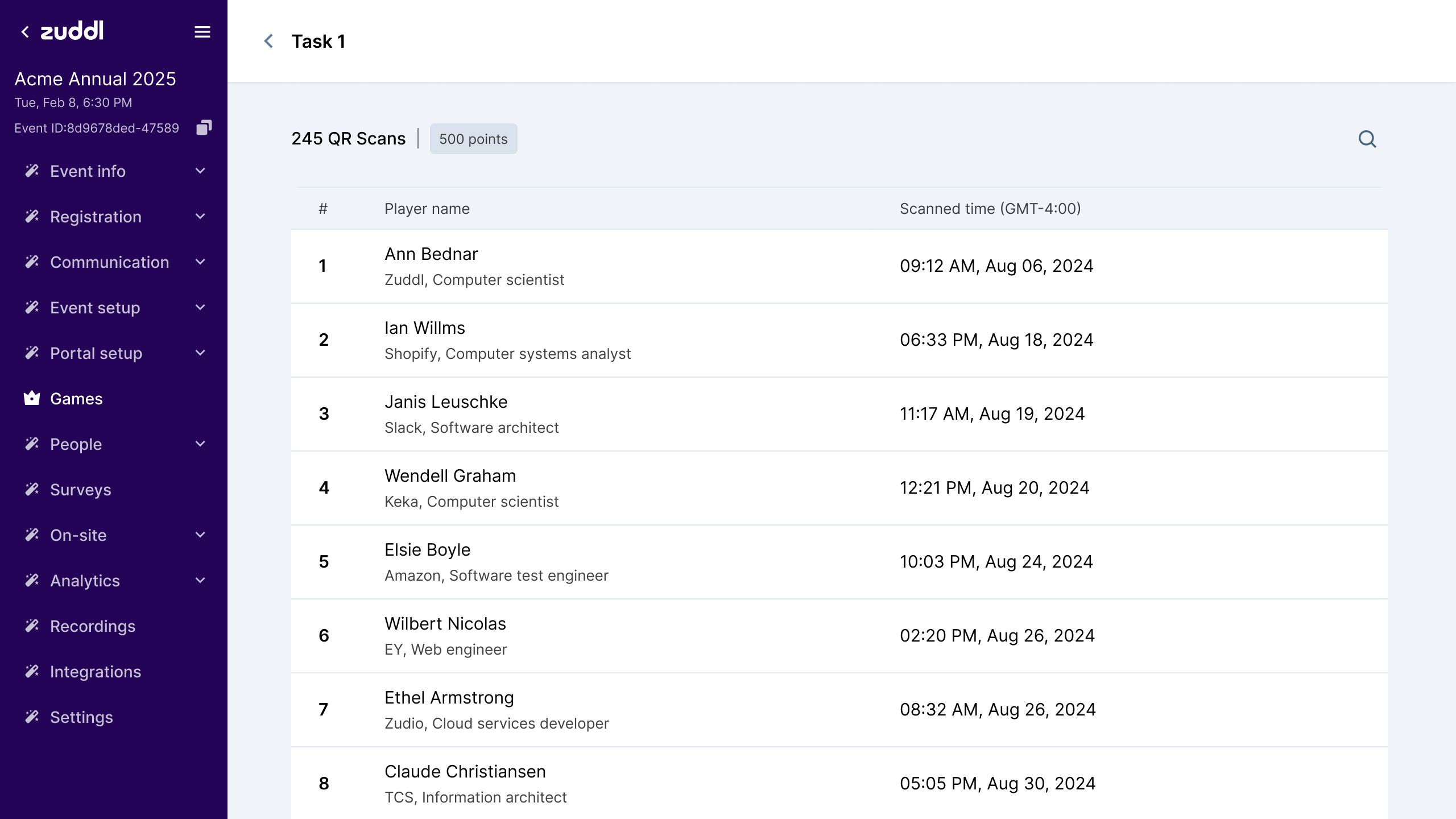
- For QR code tasks, you can view the names of players who scanned the code, along with the date and time when scanned.
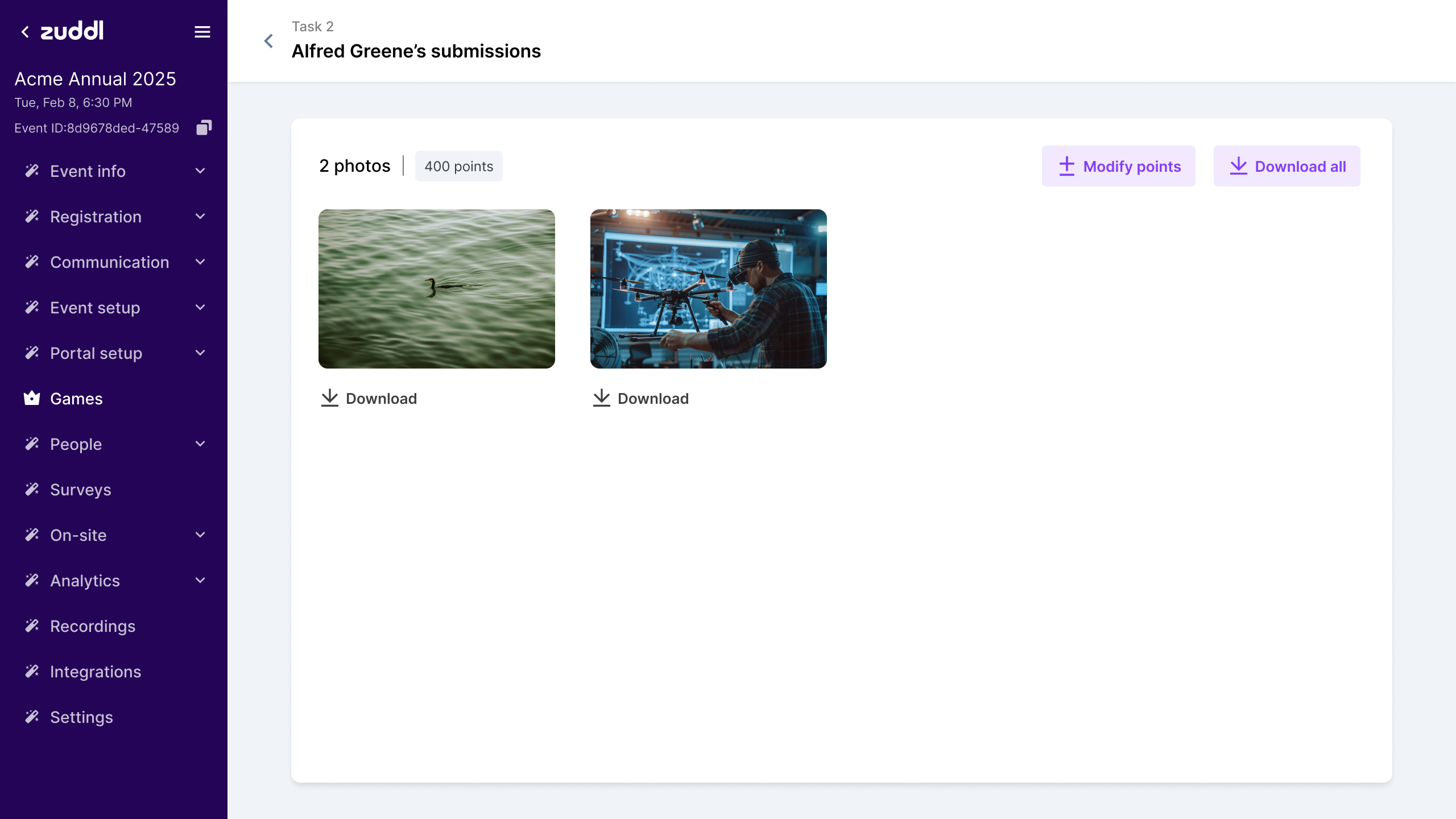
- For photo submission tasks, you can view the photos uploaded by the players.
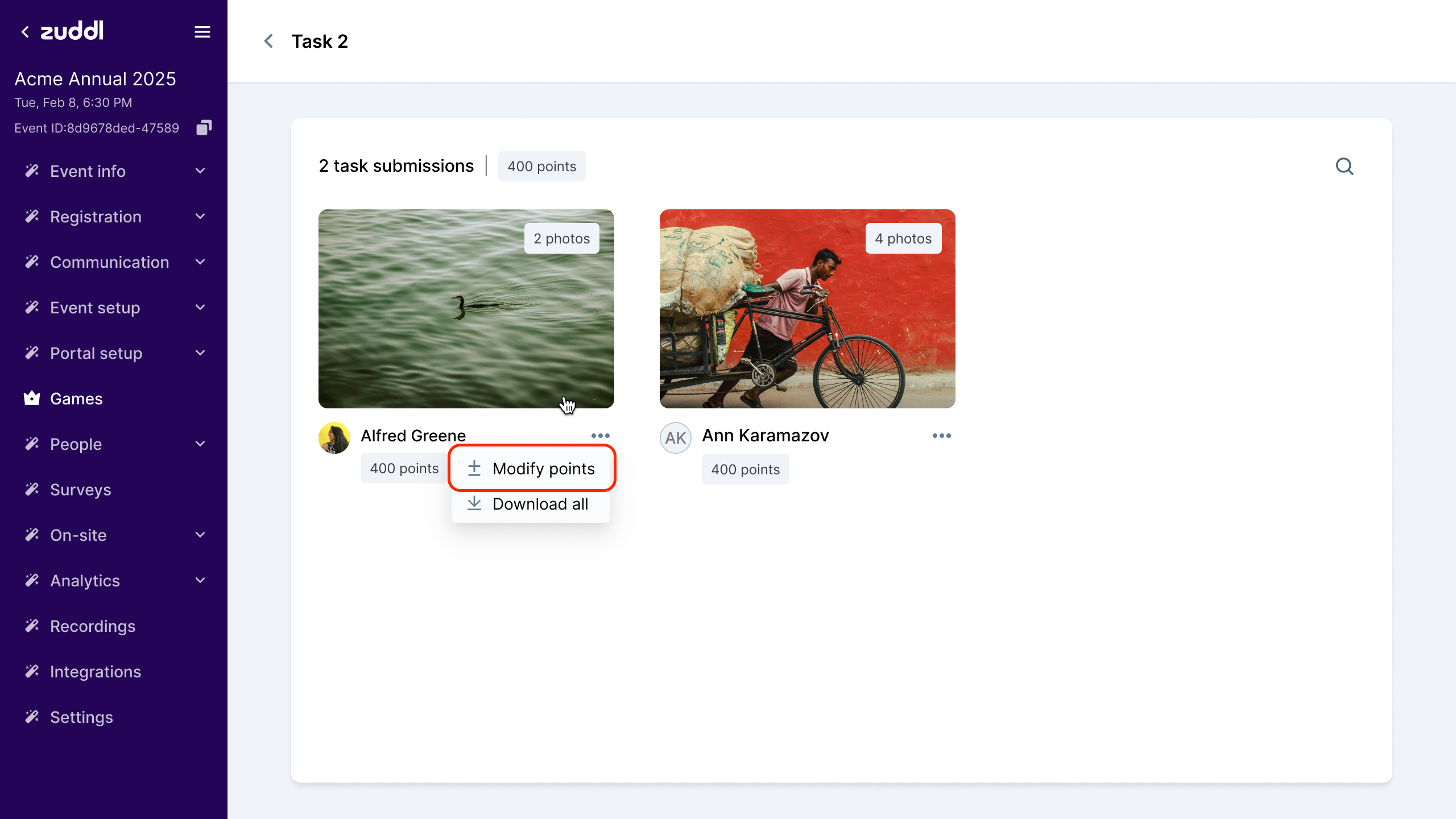
Modifying points (photo submissions)
- To change the points awarded to players for photo submission tasks, click Modify points.
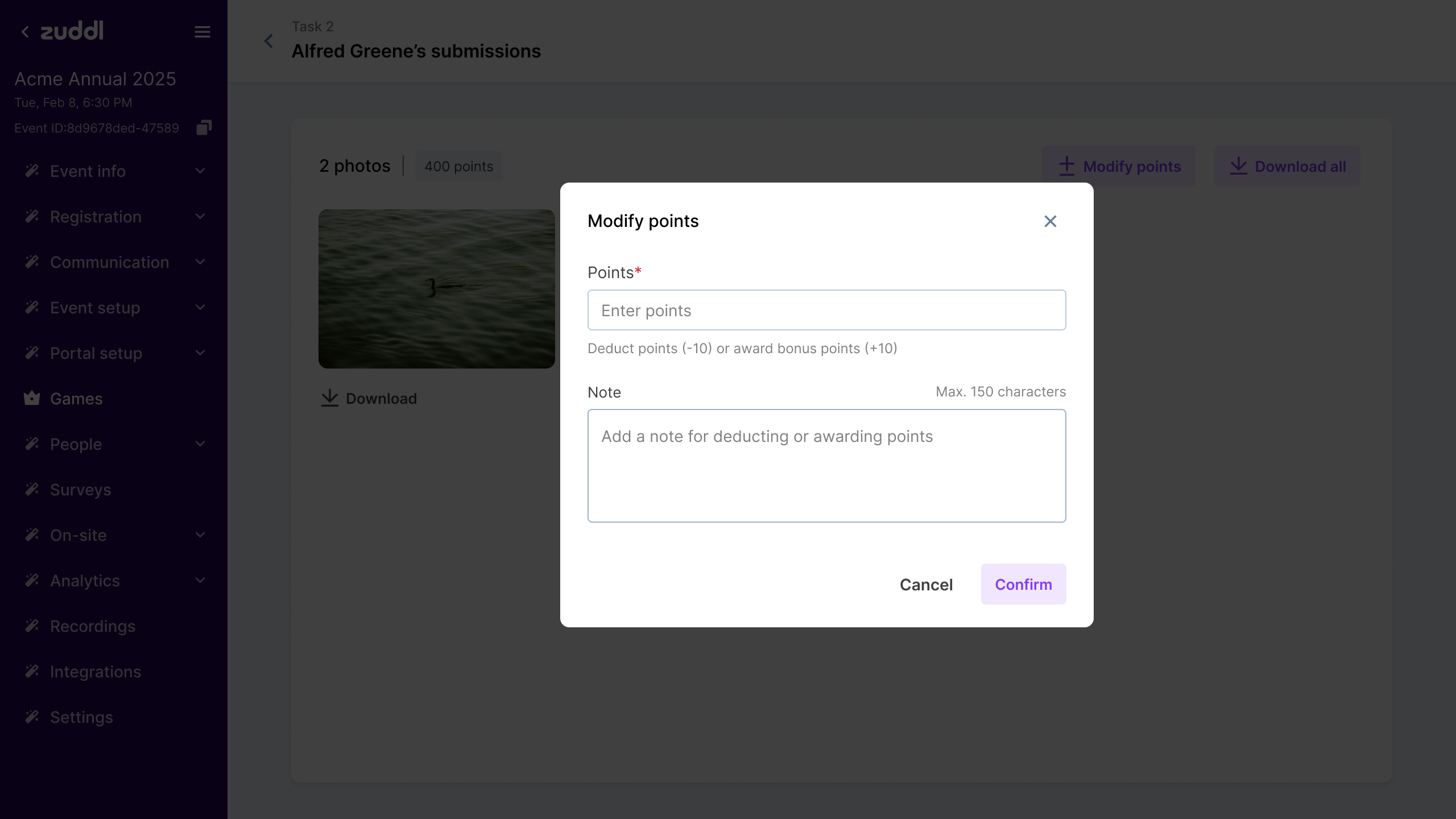
- In the modal, enter the points to add or deduct. Use the + operator to award bonus points (e.g. +50), or - to deduct points (e.g. -50). Optionally, add a note to explain the bonus points or deduction.
- Click Confirm to modify the points.
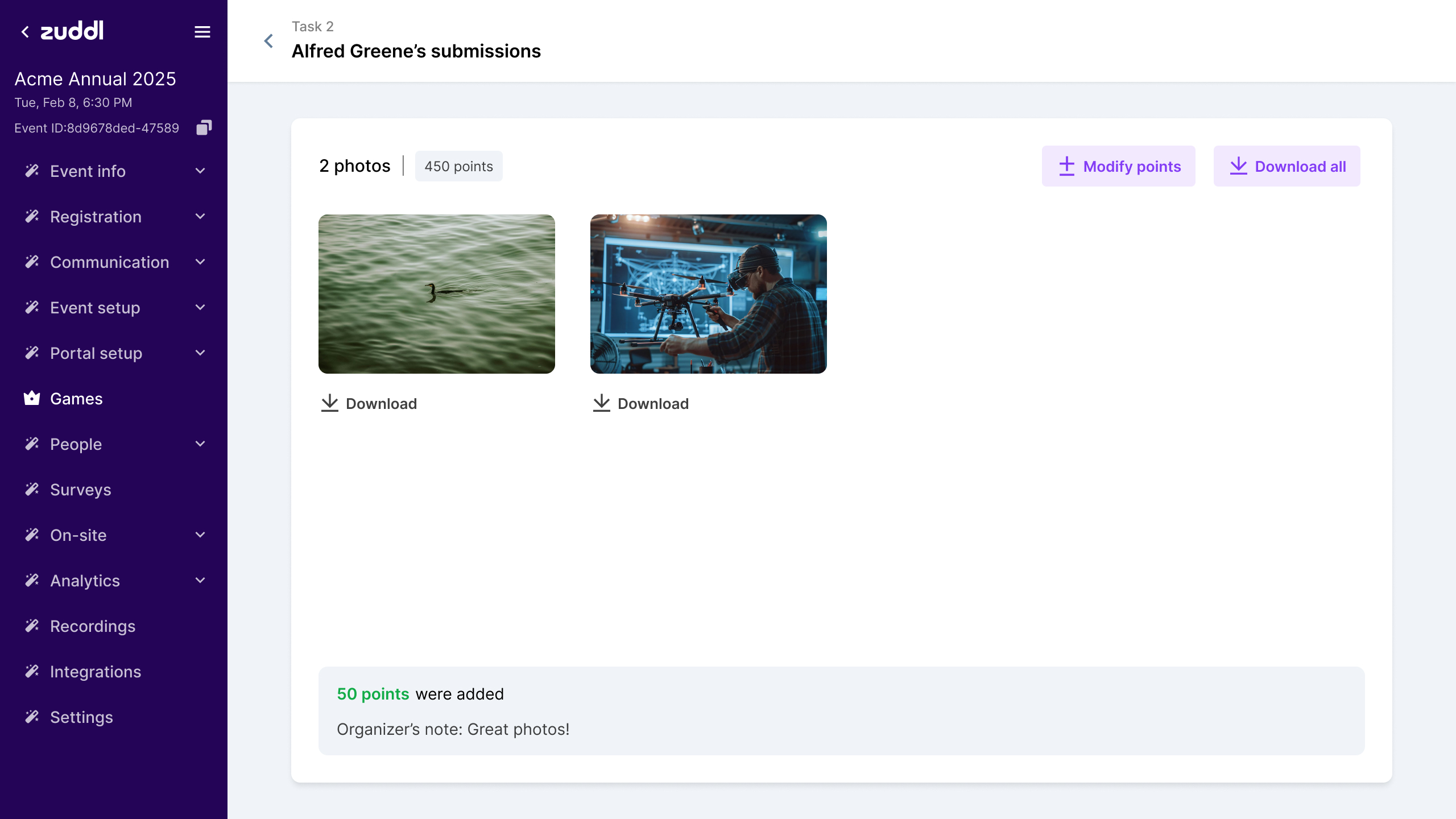
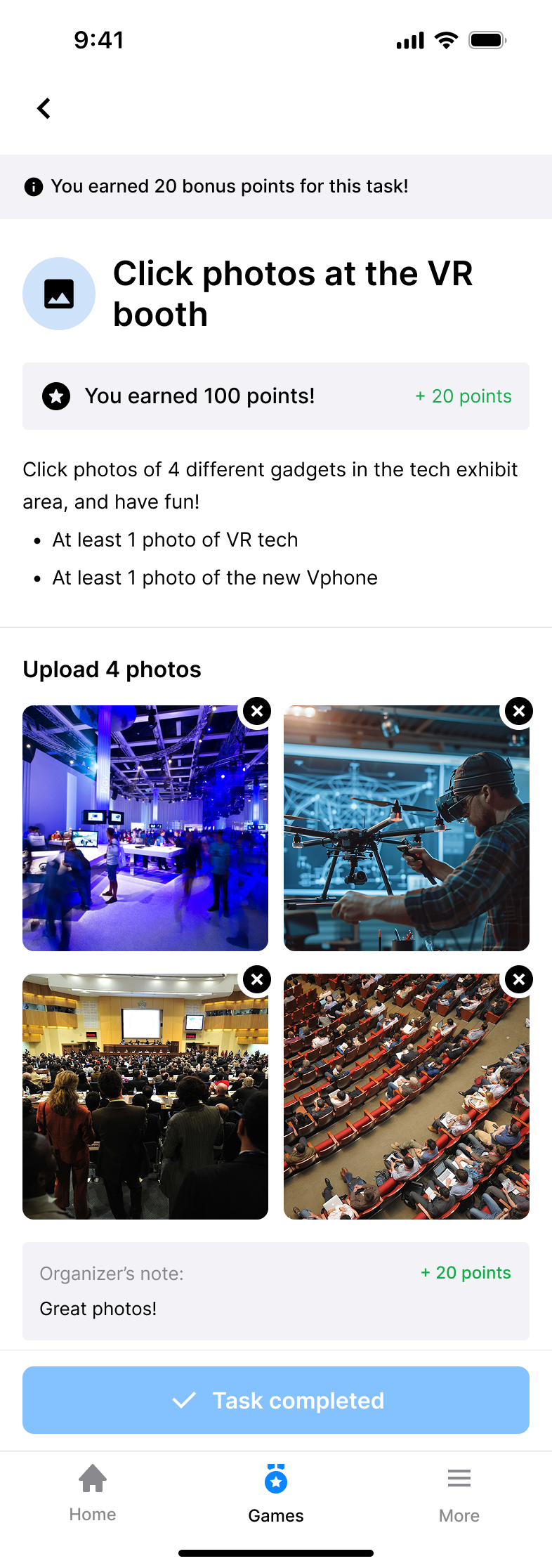
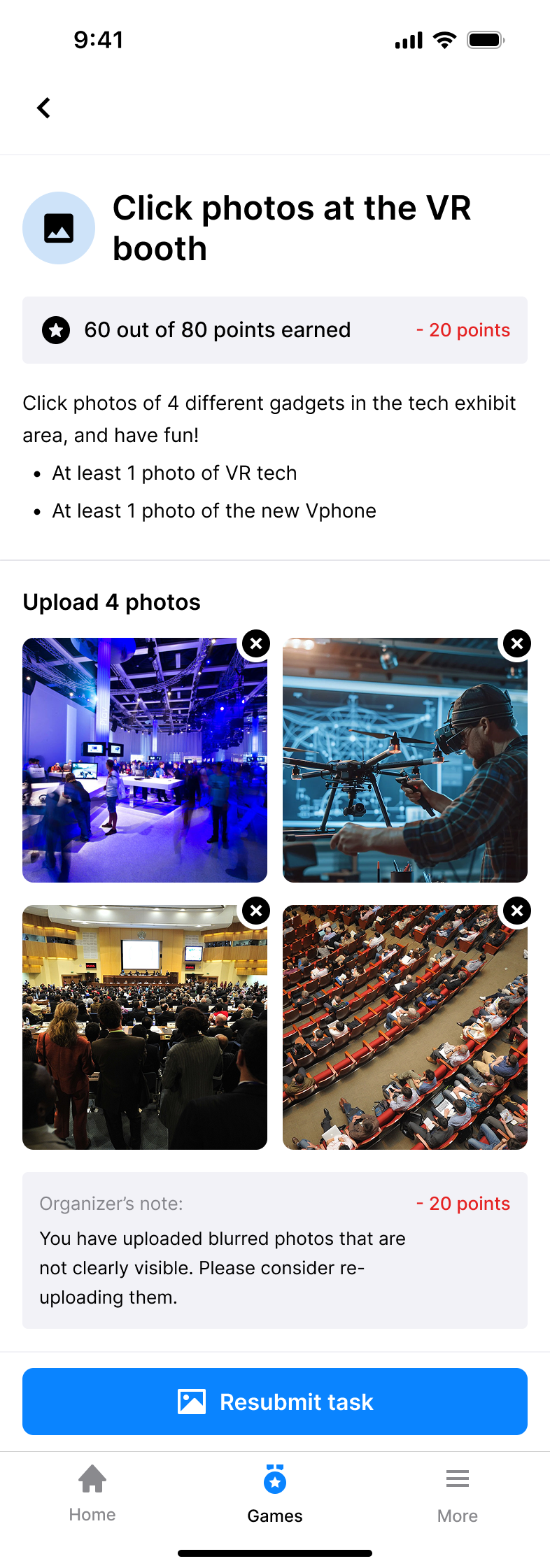
In the app, attendees can see point changes and reviews:
 |  |
Viewing the leaderboard
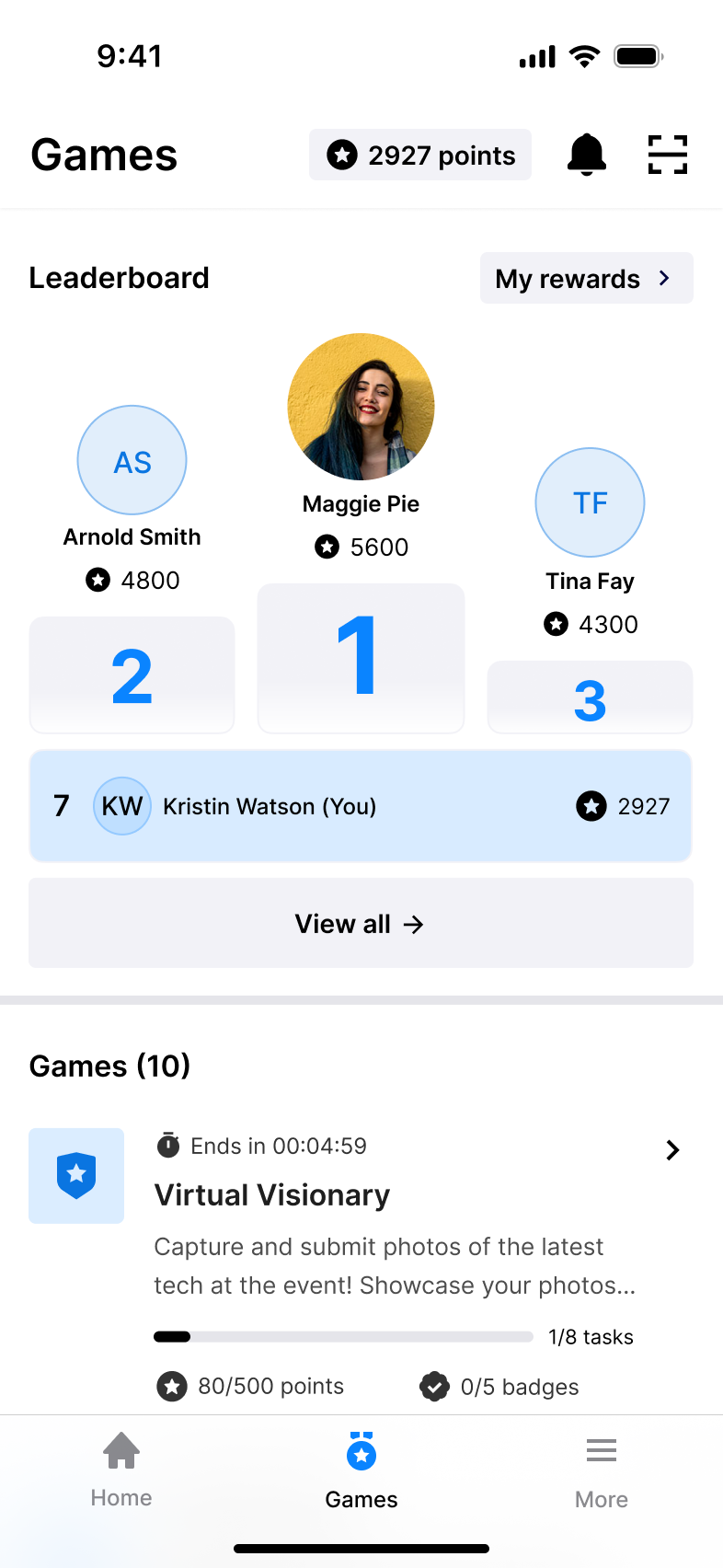
The leaderboard for the event is shown in Games > Leaderboard. Players are shown in order of points.
If two or more players have the same number of points, the player who reaches the score first will be ranked higher.
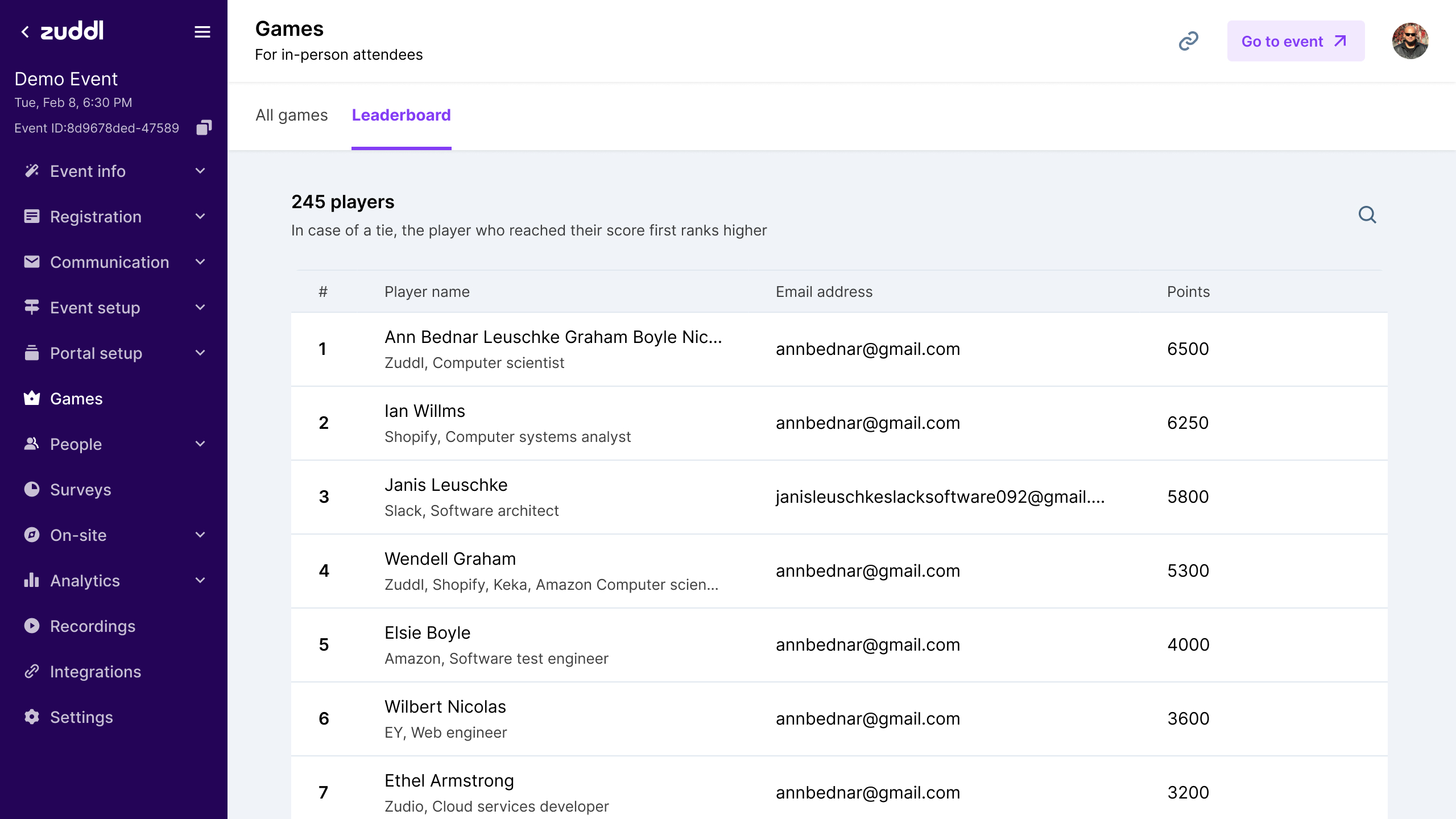
In the app, the leaderboard shows different players and their rankings: