How to Enable Multilingual Support for a Virtual Event in Zuddl
Last updated: August 1, 2025
Zuddl integrates with Interprefy to support the simultaneous translation of the spoken content in an event into any desired language. Interprefy uses live interpreters to translate the incoming audio source(s). This capability allows your event to be multilingual and accessible to audiences across the globe.
Please note that the support for multilingual audio is available only on a per-stage basis.
Note: Interprefy is currently available for only the Enterprise plan. However, there are some additional costs based on your specific event requirements, such as the number of languages to interpret and languages to interpret into, event duration, and a few others.
Setting up the integration
The first step to set up an interprefy is to fill up the order form.
After you've filled up the form, Interprefy will ask for specific event details based on which they will evaluate their offering. Refer to the event requirement table below for the required event details.
Event Requirement
Name | Description |
|---|---|
Event Title | Title of the event |
Event Date | Date of the event |
Event Location & Time Zone | Location and timezone of the event |
Event Start-End Time | Event start and end time |
Event Format/Type (Live or Pre-recorded?) | Whether it is a live or prerecorded event |
Subject Matter/Topic | The subject of the event |
Draft/Final Agenda | Agenda of the meeting. Can be shared when available |
Estimated # of interpreting listeners | Number of listeners for the interpreters. Defaults to 200. |
Source Language/s | Language of the original (incoming) audio stream that needs interpretation. There can be up to 2 additional languages besides the main source. |
Interpreting Language/s | List of the languages to be interpreted into |
*One-way/Two-way interpretation | Whether the event would have only speakers talking (one-way communication) or both speakers and attendees having simultaneous conversations (two-way communication) |
Meeting & Interpreting Platform | Zuddl |
Is the event intended for private or public access? please advise | Whether it would be a private or public event. |
Post-event Recording (Raw Interpreting Audio-.mp3 or Edited Source Video w/ Interpreting Audio over-.mp4?) | Specify the type of recording you require after the event.
2. Source video with interpreted audio in .mp4 |
Once you’ve provided these details, Interprefy will provide you with a token that would be used to enable multilingual support in Zuddl.
Note: Based on your requirements, it may take a minimum of 2 weeks to confirm the integration.
On the Zuddl dashboard, go to Venue Setup > Stage.
Under the Advanced tab, expand the Accessibility features.
Under Audio translations, enter the unique token.
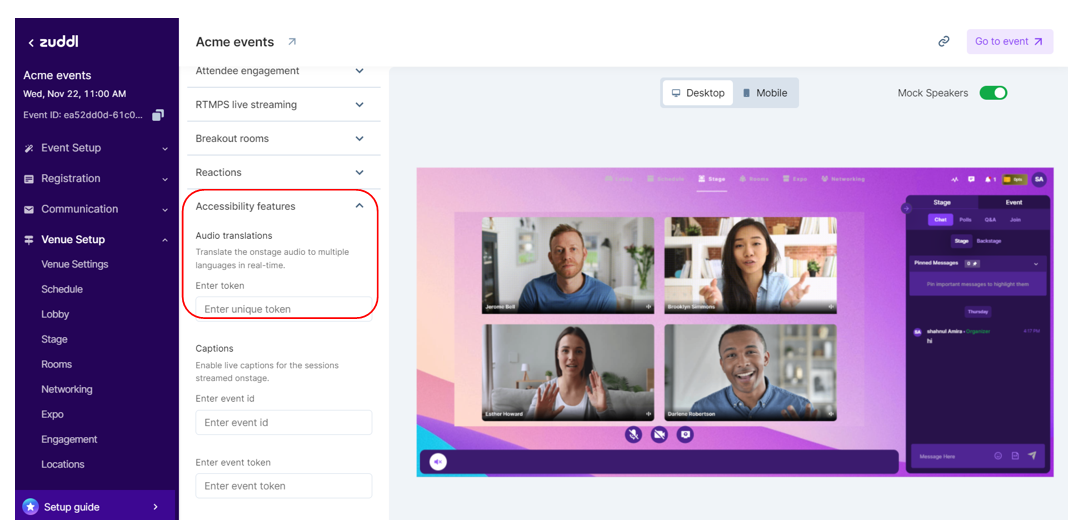
This enables multilingual audio support for the particular stage.
Once multilingual support has been turned on, attendees can select a language of their choice on a stage and start listening to the simultaneously translated version of the spoken content in real-time.
Caution: Since the audio translation is done by a real human interpreter and not a bot, you should expect a lag of approximately 5 seconds.
How to configure captions
Organizers can configure the widget to show only audio, only captions, or both captions and audio. This can be done by appending the following parameter to the Interprefy token in a specific format:
Parameter | Value |
|---|---|
audio | “true”: to enable audio translation |
caption | “true”: to enable captions |
Sample token code for only caption: qoU29VBz&captions=true&audio=false

Attendee instructions
An attendee should follow the below steps in a live stage to enable interpretation:
Click the translation icon (beside the settings gear icon) on the stage to open the interpreter widget.

Select the desired language from the available dropdown options.

Click Connect.
This enables the interpretation of the incoming audio into the selected language.
The attendee must mute the primary audio output to avoid listening to it with the interpreted audio.