Email Customization - Best Practices
Last updated: August 1, 2025
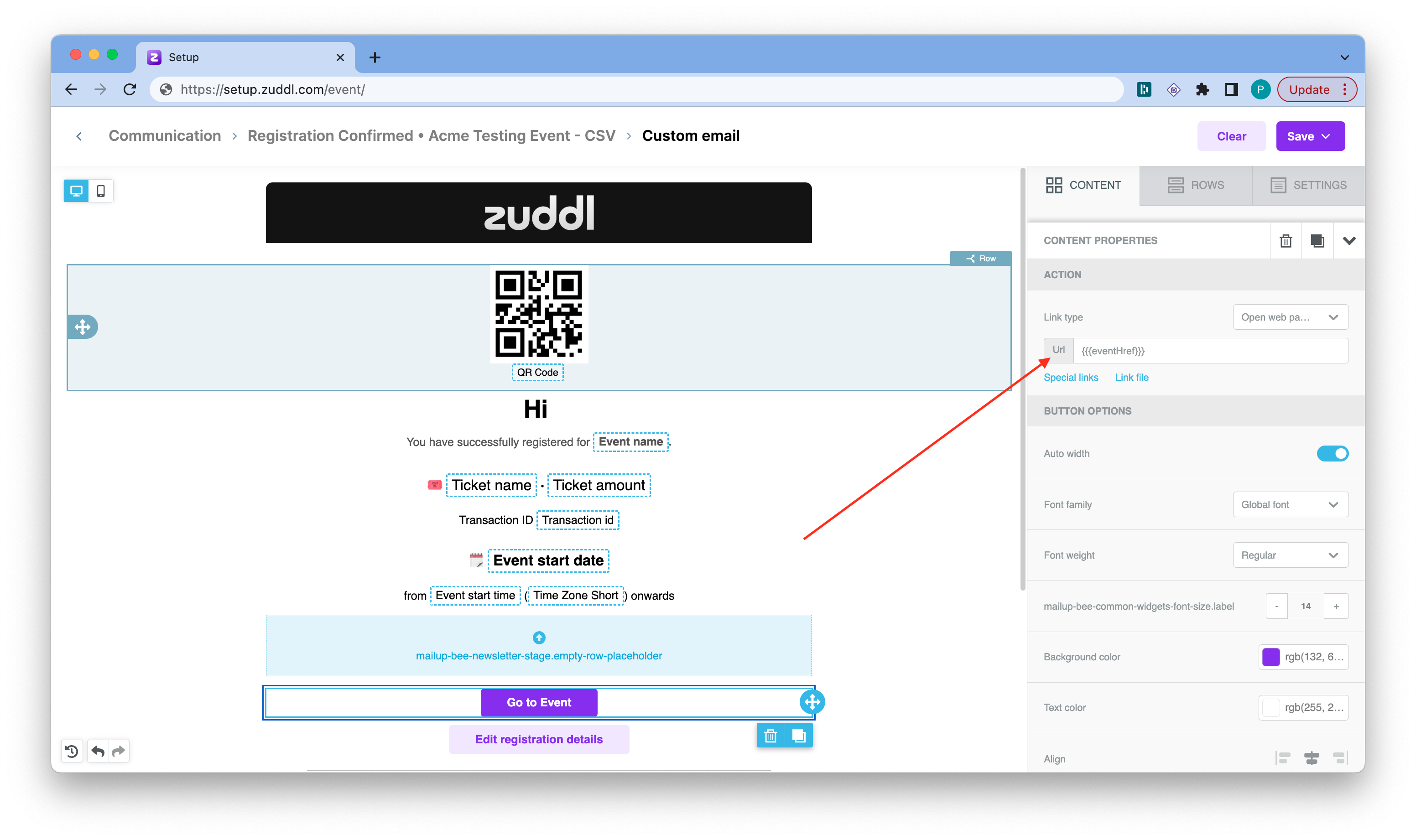
Cross-check if all the required CTAs are present in your email.
For instance, if the Go to Event button is not present, magic links won’t be sent in the email.
This doesn’t hold true if you wish to add another custom link or button using the required content properties (the merge tag {{eventHref}}).
The merge tags; “QR code image” and “Event logo” shouldn’t be used with text as they will render the image url rather than the image.
Do not edit the double curly brackets ({{}}) under the Content Properties.
The doubly curly brackets ({{}}) such as {{eventHref}}, are Zuddl-specific variable key-value pairs and they are sourced from Zuddl backend. The curly brackets can be found for the following components.
- Buttons
- QR codes
- Links
Ticket Ids
Repositioning of components is allowed but if you delete and re-add these components, the content properties values are also removed and will not be set.
Test the mails
After you have customized your email, perform the intended action to receive the email. For example, perform a test registration. Ensure that all components are there in the email.- Test the links in the mail such as magic links. Ensure the event/webinar magic link has the ‘mt’ parameter in the URL.
Test the calendar links
Do test the calendar link to check if they trigger the correction actions
Troubleshooting steps
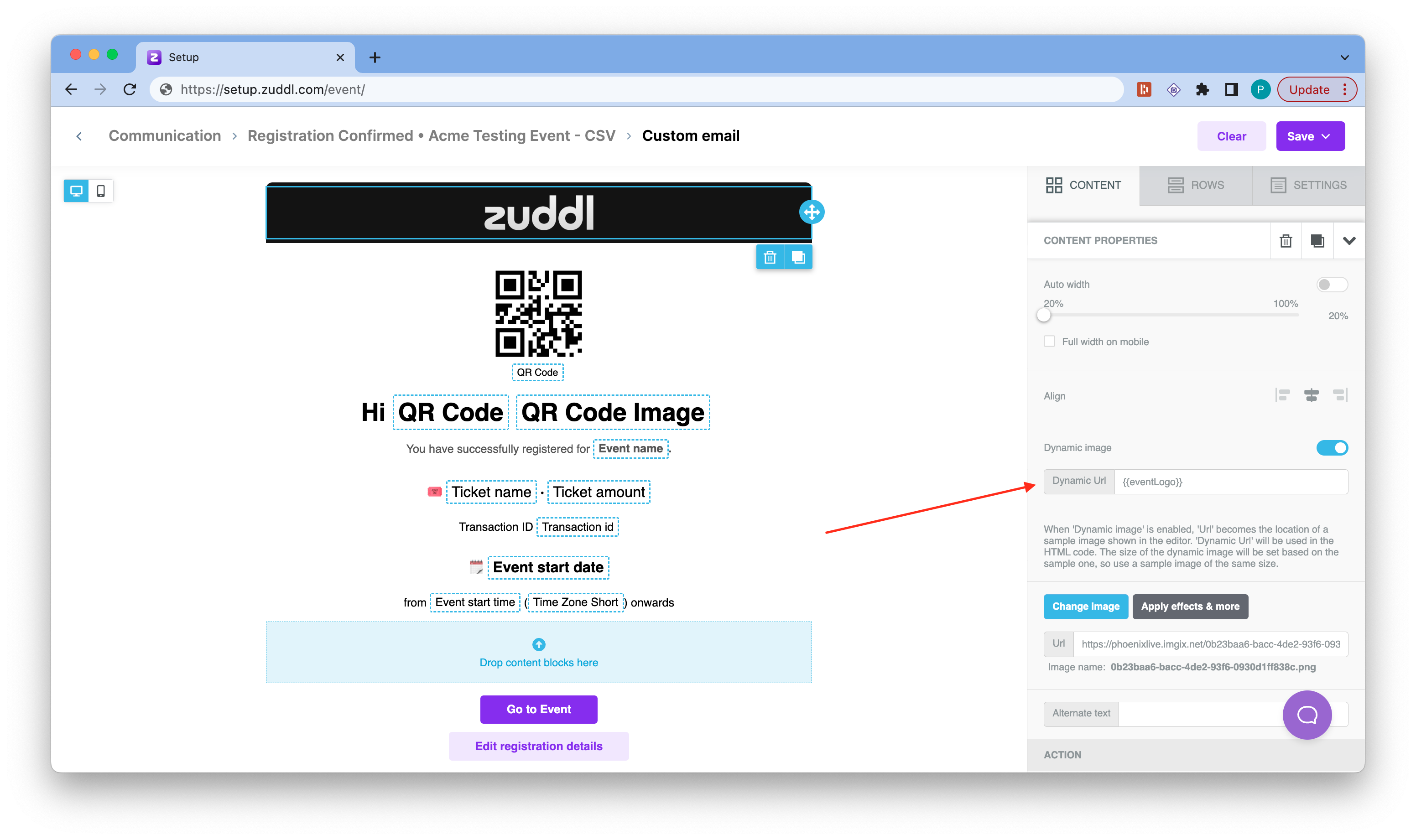
Component: Event Logo
- Code: {{eventLogo}}
- Fields: Dynamic Image URL
- Instructions: Input the code in the URL field of the merge tag.
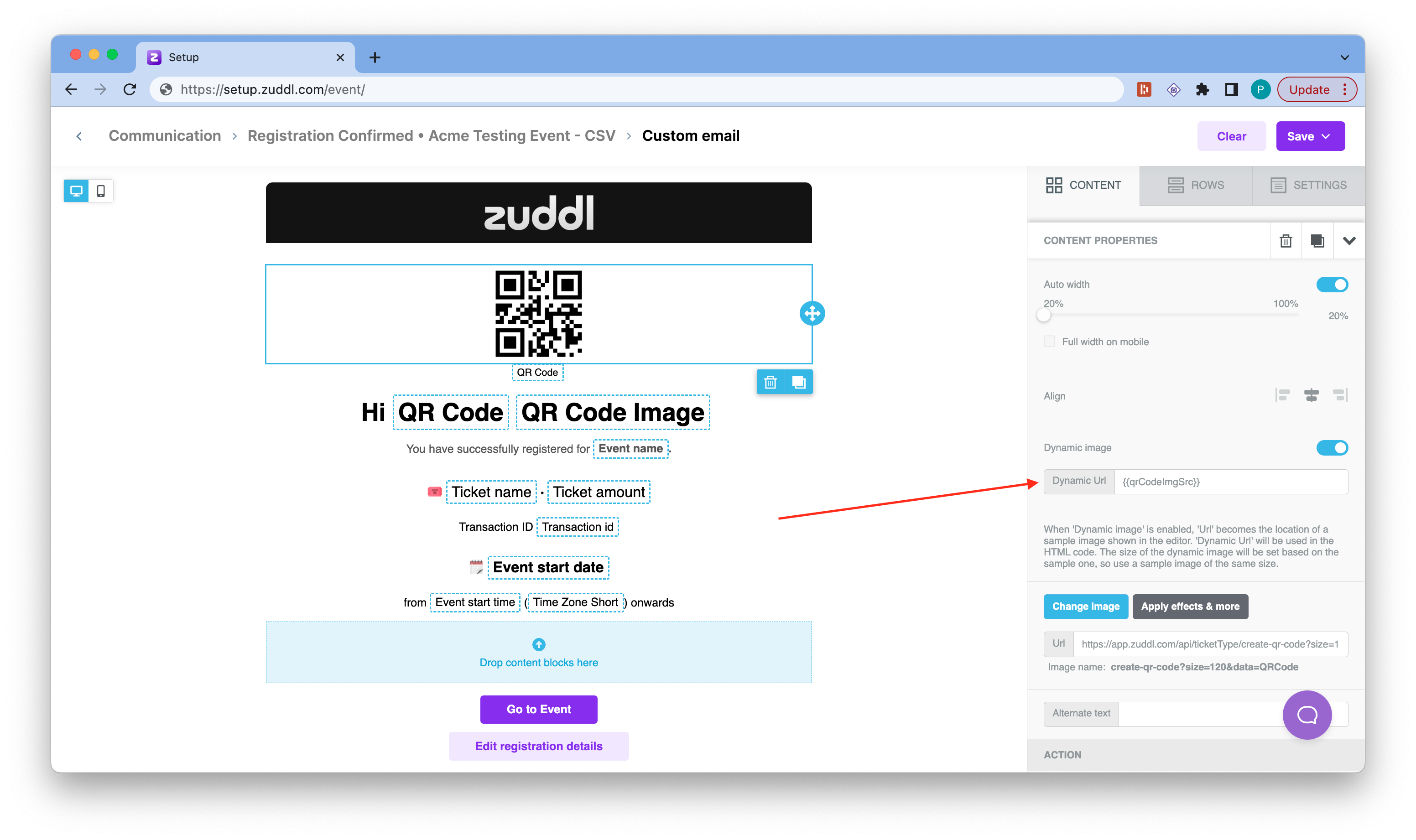
- Component: QR code (dynamic)
- Code: {{qrCodeImgSrc}}
- Fields: Dynamic Image URL
- Instructions: Toggle Dynamic url option and input the code in the URL field of the merge tag.
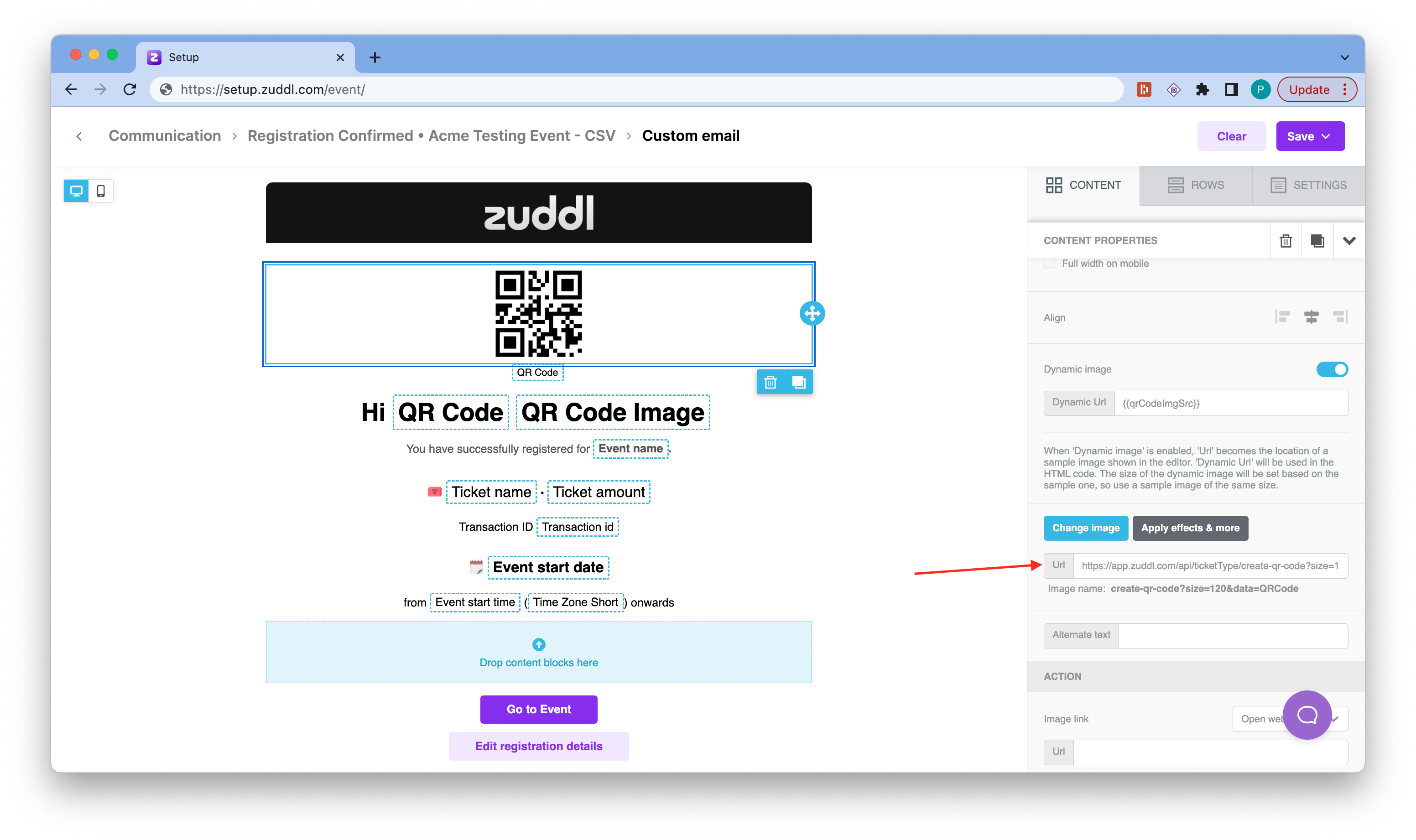
- Component: QR code (static)
- Code: https://app.zuddl.com/api/ticketType/create-qr-code?size=120&data=QRCode
- Fields: Static URL
- Instructions: Add the dynamic URL for QR code and input the code in the URL field of the merge tag.
- Component: QR code
- Code:
- Before - {{#qrCode}}
- After - {{/qrCode}}
- Fields: Display condition
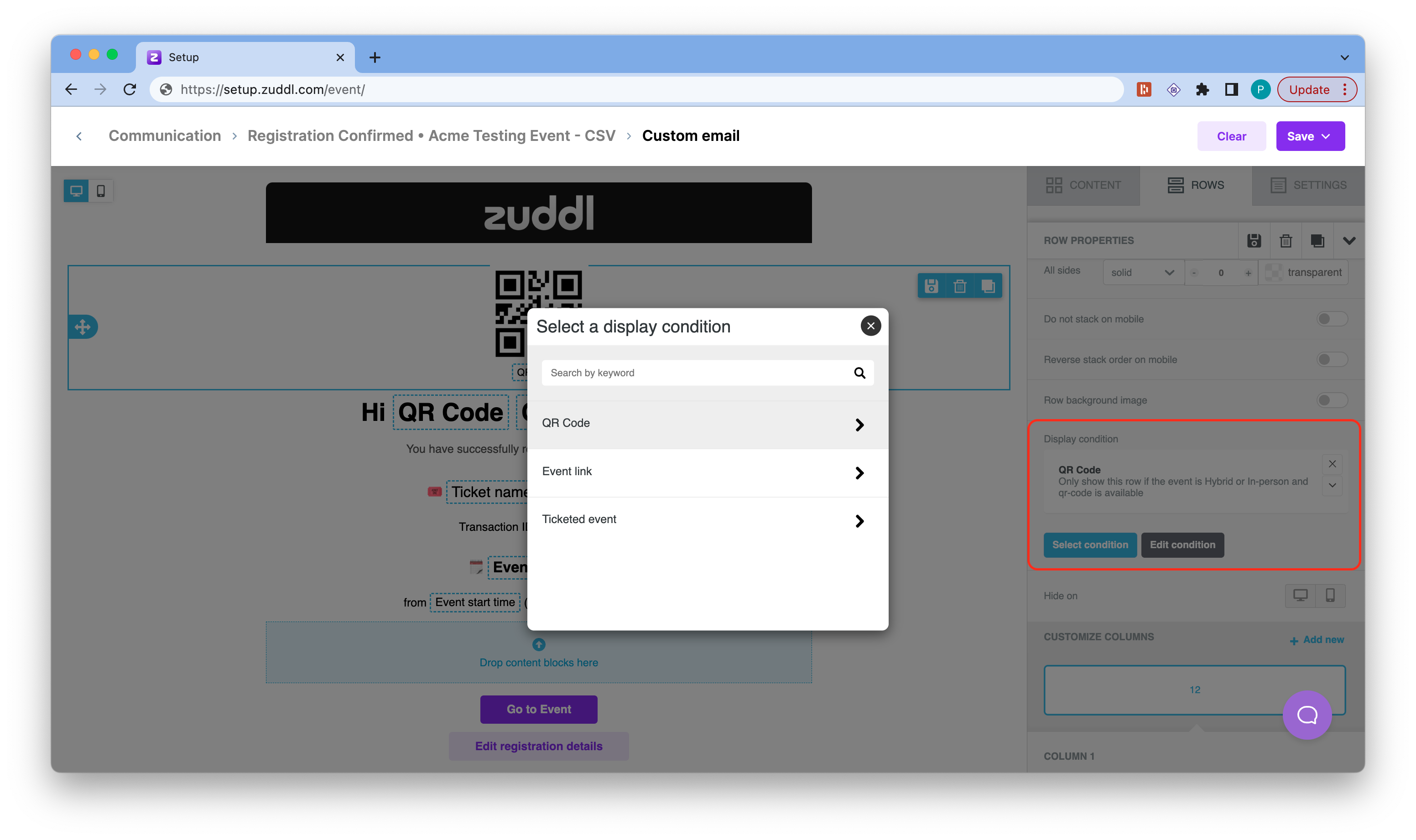
- Instructions: Conditions are pre-defined. For QR Code, under Display conditions, click the Select conditions button and choose the QR code-specific conditions. Display conditions can only be applied to Rows and not to specific components. So this condition needs to be applied to the row which contains the QR code image component.
- Component: Go to Event button
- Code: {{{eventHref}}}
- Fields: Dynamic Image URL
- Instructions: To add a button, go to Content tab and drag a new button into the email as our button is configured to be a “Go to event” button by default.