How to Create a Registration Page for a Zuddl Webinar
Last updated: November 19, 2025
Using Zuddl's Template
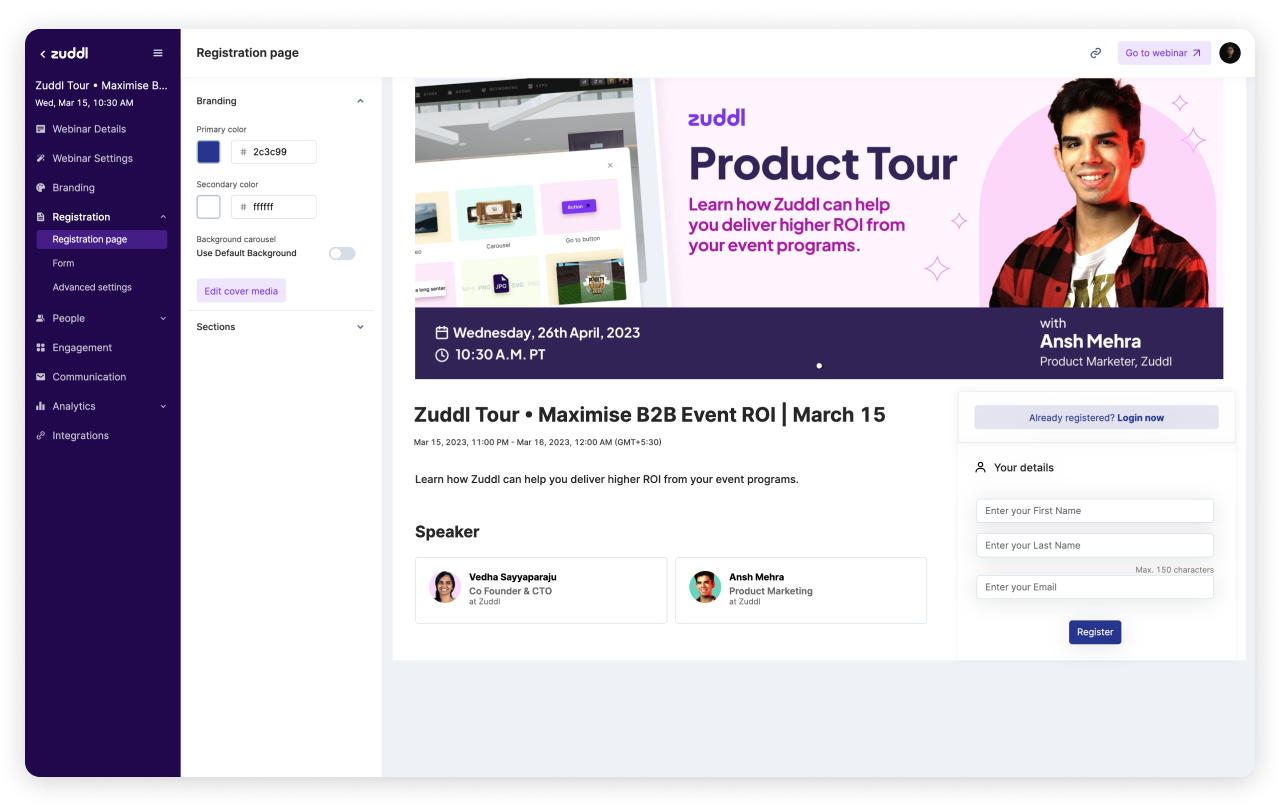
We have a ready-to-use template that can edited to fit your brand. Go to Registration > Registration Page, and you'll see the editor like this:

Branding your registration page
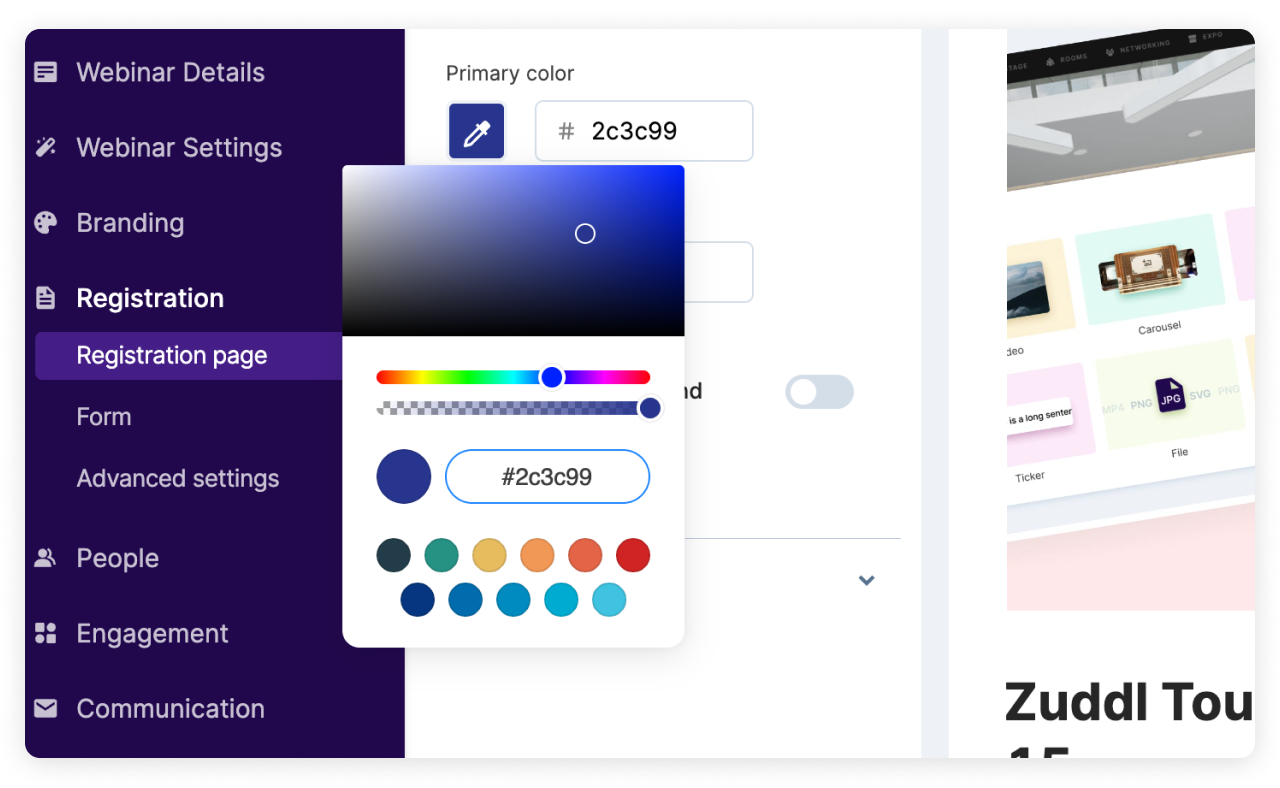
You can select the Primary Color and the Secondary Color. The Primary color would fill all the buttons, whereas the Secondary Color would fill all the text that comes on top of the button.
Editing the cover image
By default, Zuddl uses your brand's primary color to fill the header and shows the Title and Date of your webinar in the center.
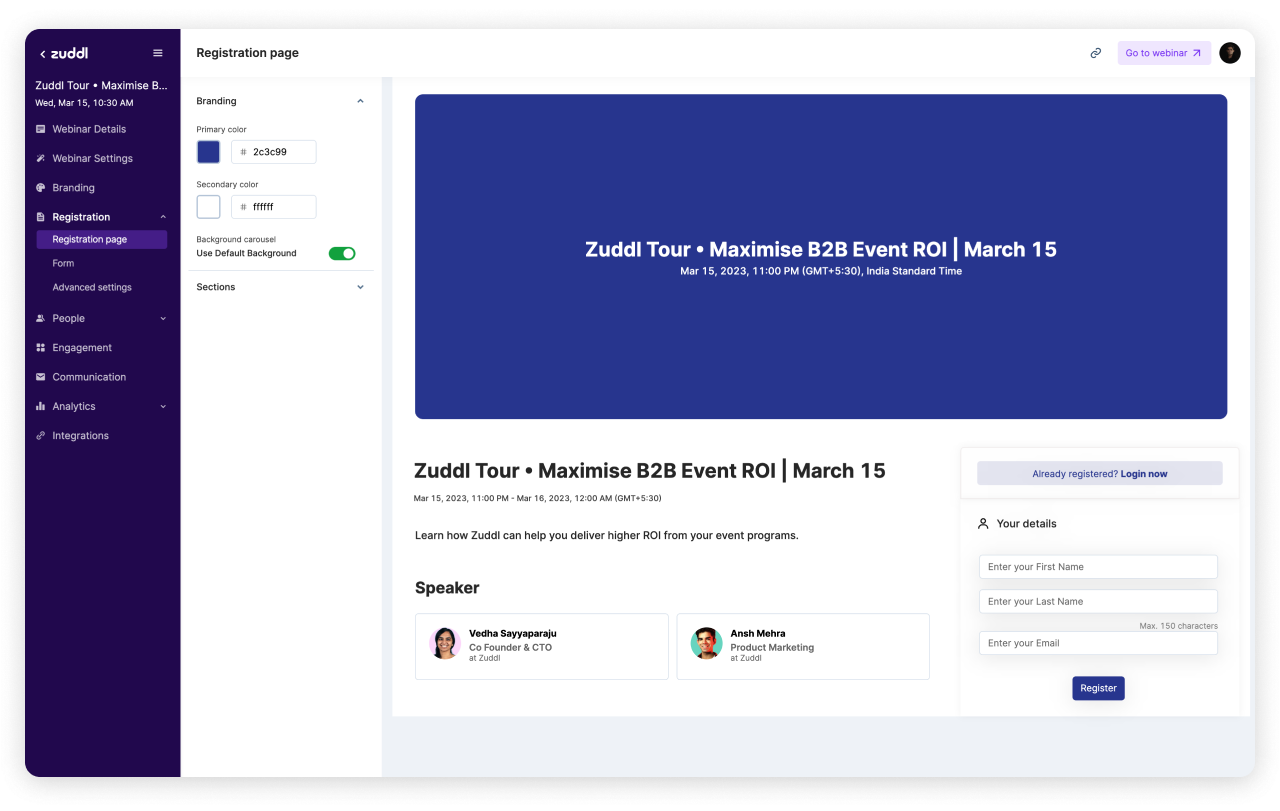
To upload your own cover image, turn off the 'Use Default Background' toggle and click on 'Upload cover media'.
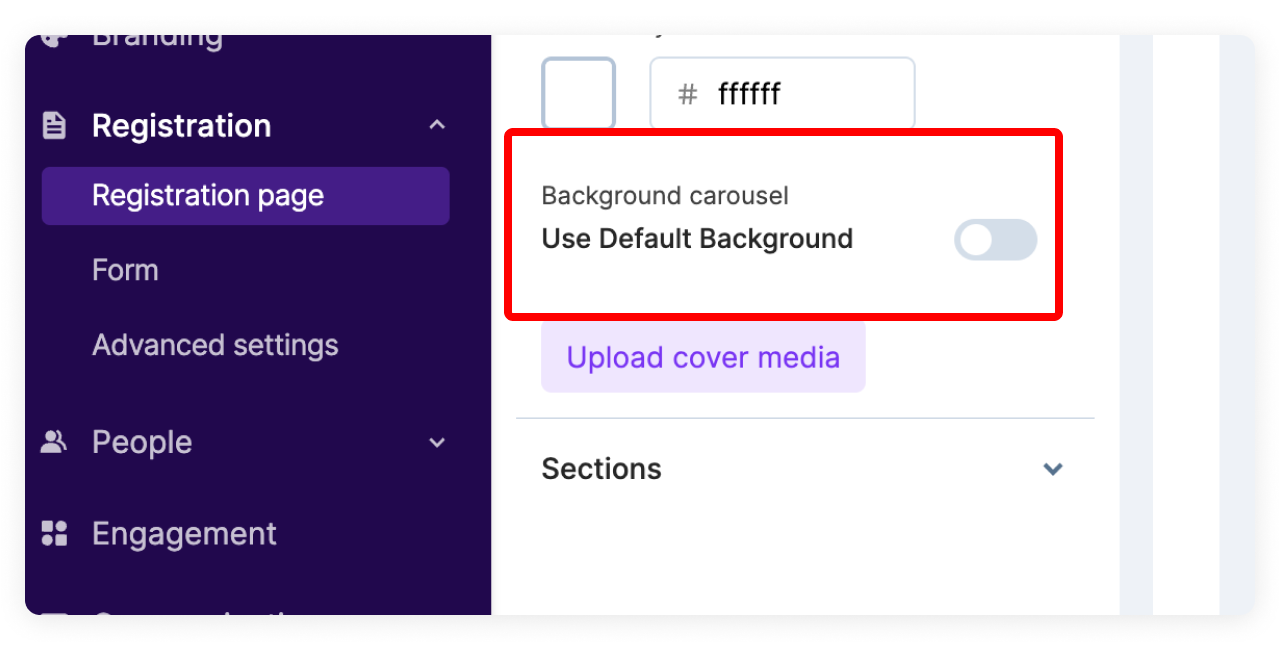
Turn off this toggle to upload your own cover
Once done, you'll see an option to upload your own custom cover image.

Please upload a 1150 x 428px JPEG cover image to ensure compatibility.
You can use your cover image to:
Highlight your speakers.
Describe what your webinar is about.
Mention the date and time (people pay more attention to images than the text below).
Once you've uploaded your cover, click on Save.
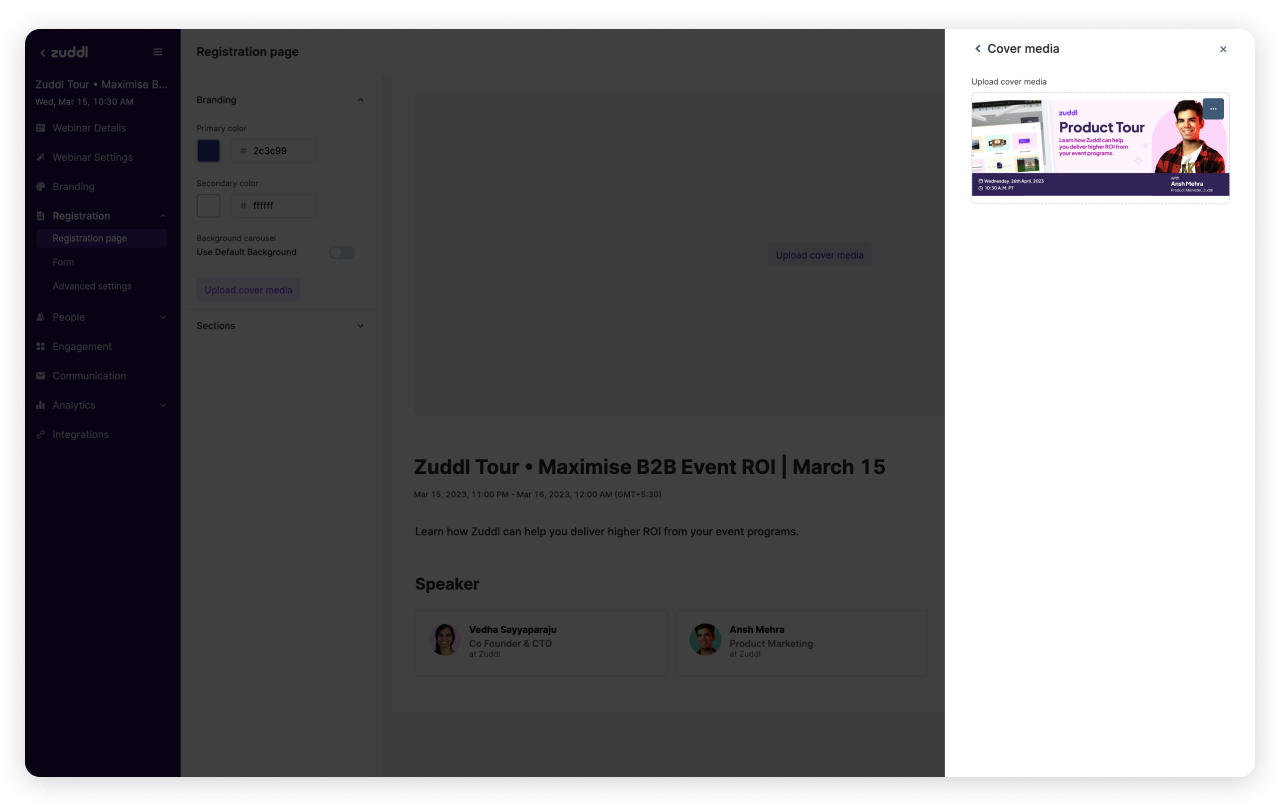
After saving, you'll see your cover added to the library. Click on Save again to apply it.
Customize sections
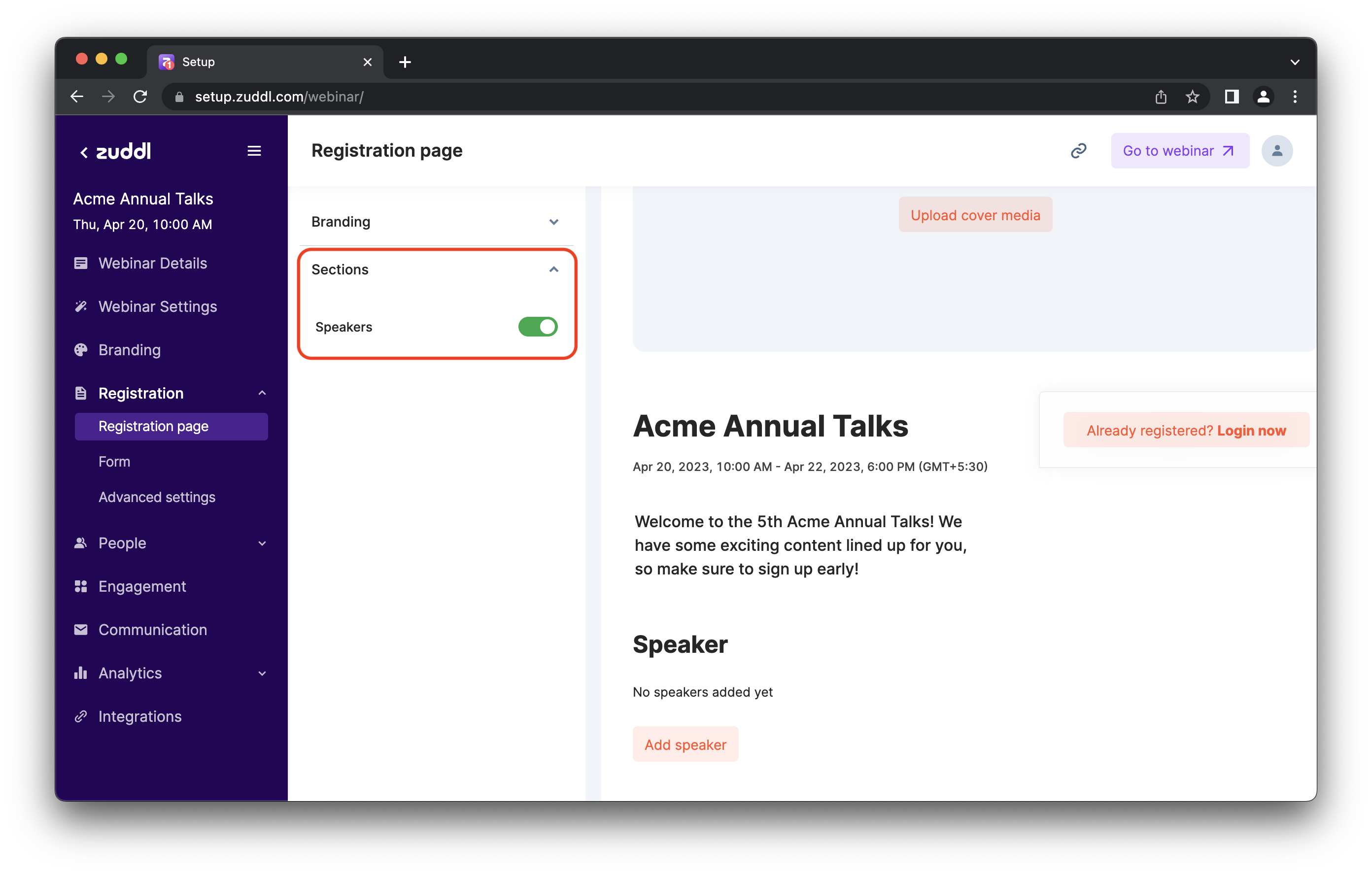
You can toggle off sections of the page that you don’t want to show your attendees.
Click Sections to see the different information sections of the registration page and toggle off the Speakers section if you want it hidden.
Adding additional fields and disclaimers
Registration form fields
The form fields shown on your registration page can be customized with the fields you need. Go to Registration > Form.
In the Form details tab, you can see the Fields that are currently added to your form.
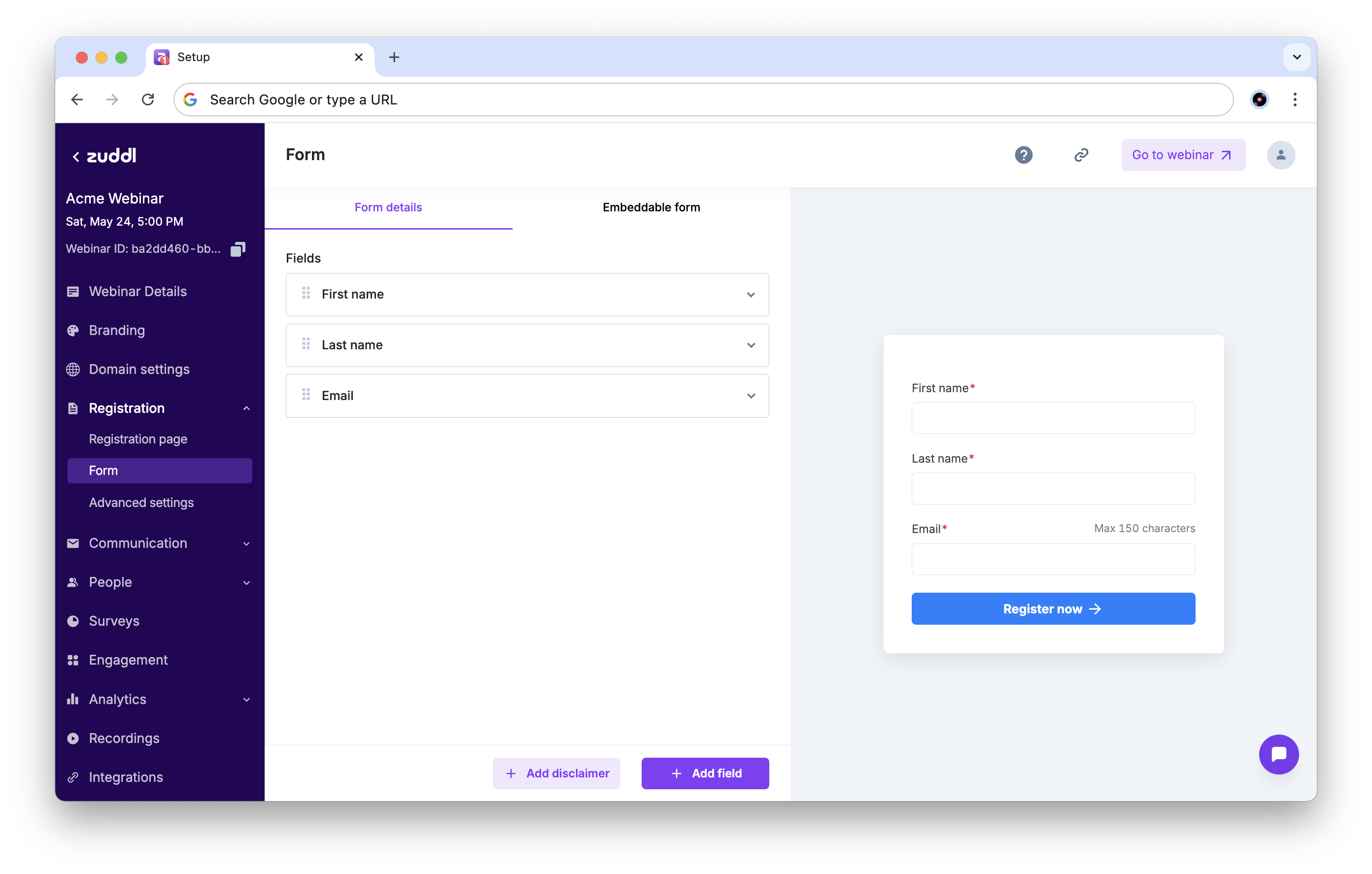
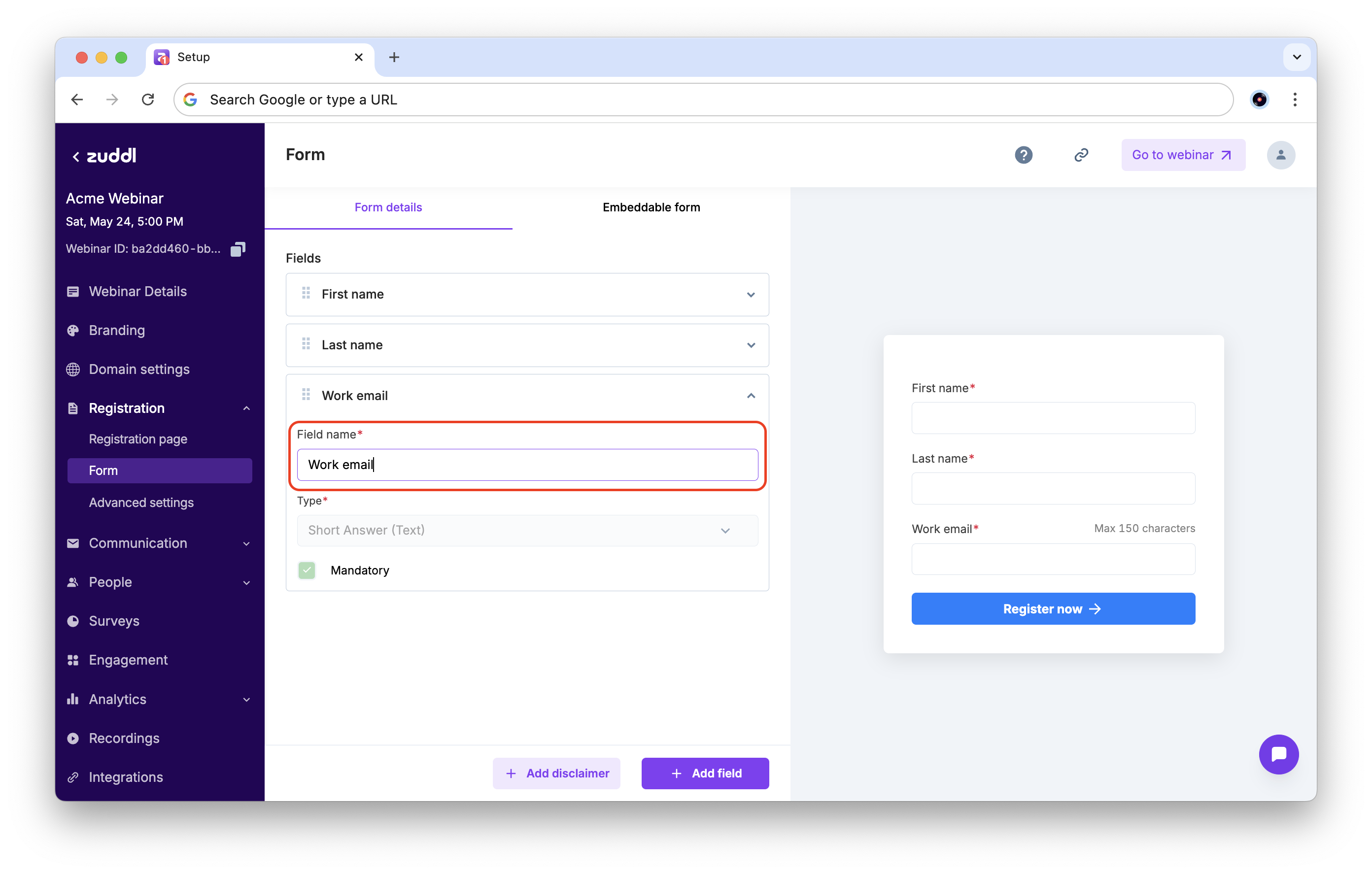
First Name, Last Name, and Email are default fields and cannot be removed. You can edit labels for them, but they are still mandatory fields.
Changing the labels for the mandatory fields updates the labels on all embedded registration forms and attendee landing pages.
Add a new form field
Click Add field. A new card will be added to the list that you can now customize.
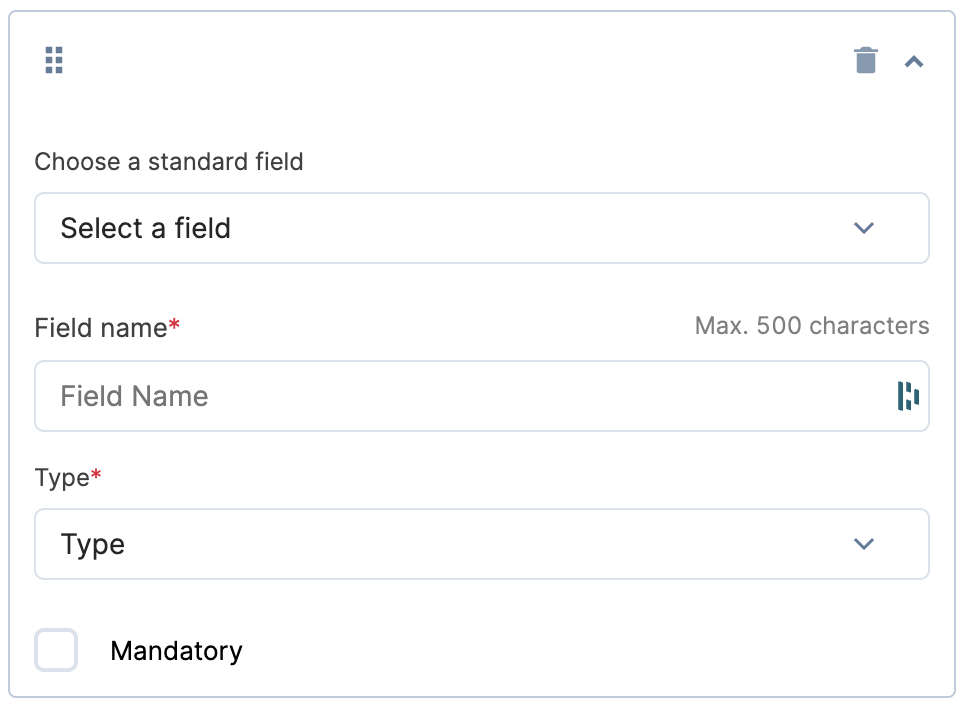
The Choose a standard field drop-down has a ready list of commonly added fields. You can choose a field from this list or select Custom to add a new custom field.
Enter the Field name, which will be visible to attendees.
Choose a field
Short Answer: For short text answers.
Dropdown: Add dropdown options for attendees to select in a comma-separated format.
Multiselect: Add multiple options applicable for attendees in a comma-separated format.
Number: Accept only numbers as input.
Click Save.
Add a Disclaimer
Disclaimers can be shown after the registration fields on your form. Click Add disclaimer and enter your disclaimer text in the text box.
Optionally, select the Add a checkbox, and Checking is mandatory option as you need.
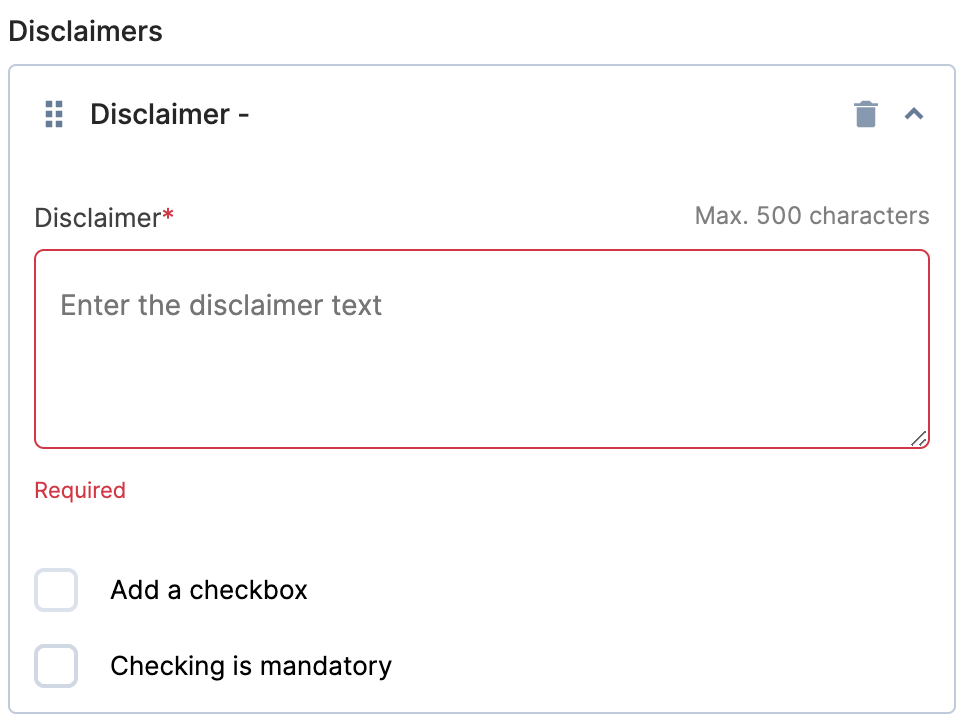
To delete a disclaimer, click the bin icon on the disclaimer card.
You can click and drag the disclaimers to re-order them in the form.
Embedding the form on your website
To craft the perfect registration experience for your potential attendees, you can embed the registration form on your webpage without redirecting your users to a separate URL.
Go to Registration > Form > Embeddable form.
Click the Embed button and click the Copy button in the popup to copy the embeddable link.
Paste the code in your HTML webpage inside the tag.
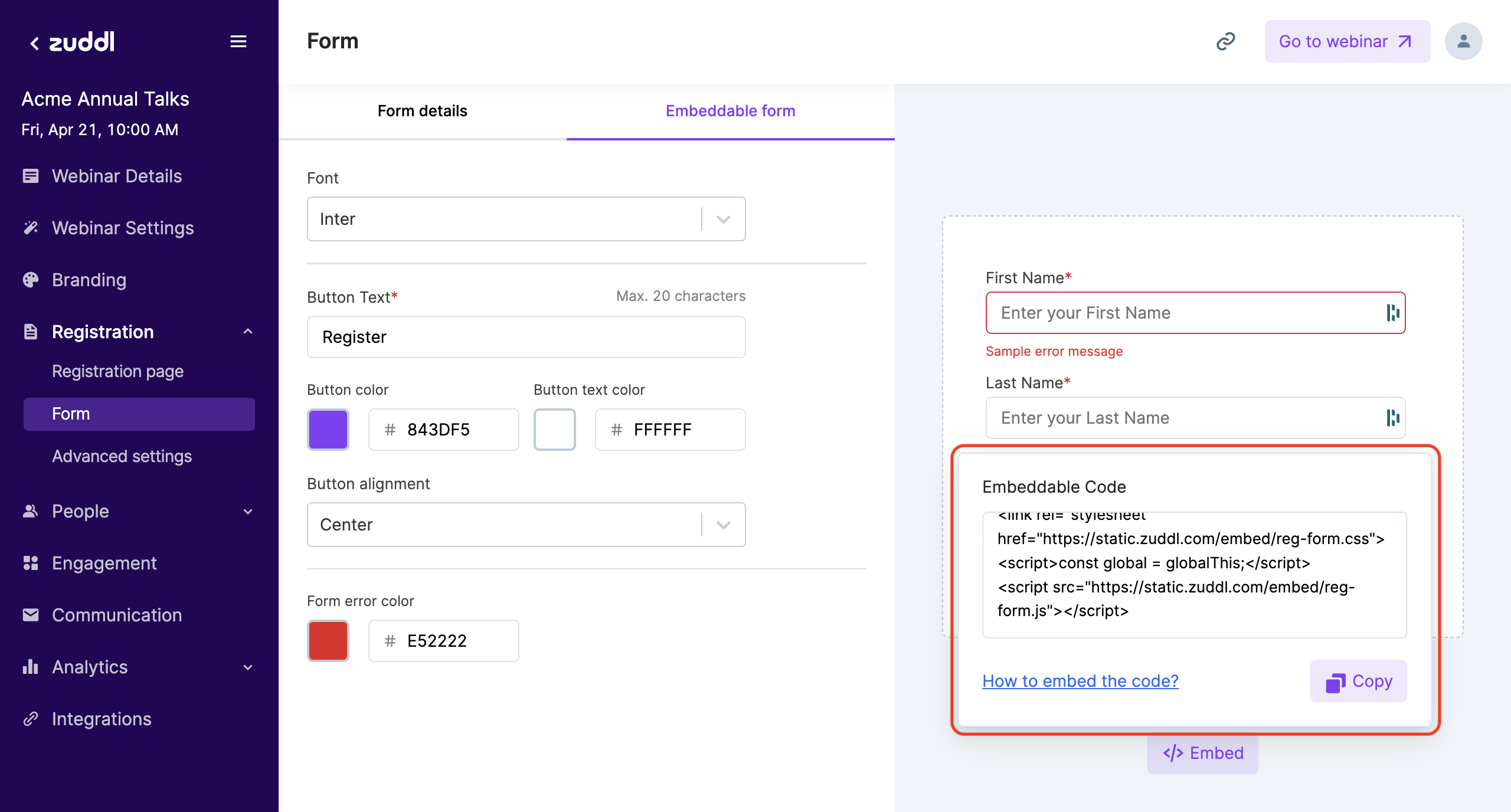
This embeds the registration button, which upon clicking, opens the registration form.
All changes made to the registration form are instantly synced to the embedded form.
You can customize the branding of your form based on the page where it will be embedded.