How to View the Nested Sessions
Last updated: November 18, 2025
Currently, you can't set up nested sessions on the product. It can only be set up via our APIs.
As the name suggests, nested sessions maintain a parent-child relationship, allowing a parent session to contain multiple child sessions. This allows you to organize sessions and provide a structured UI for your attendees to navigate around easily. The child sessions inherit actions that you apply to a parent session, like search or filters.
What is a parent session?
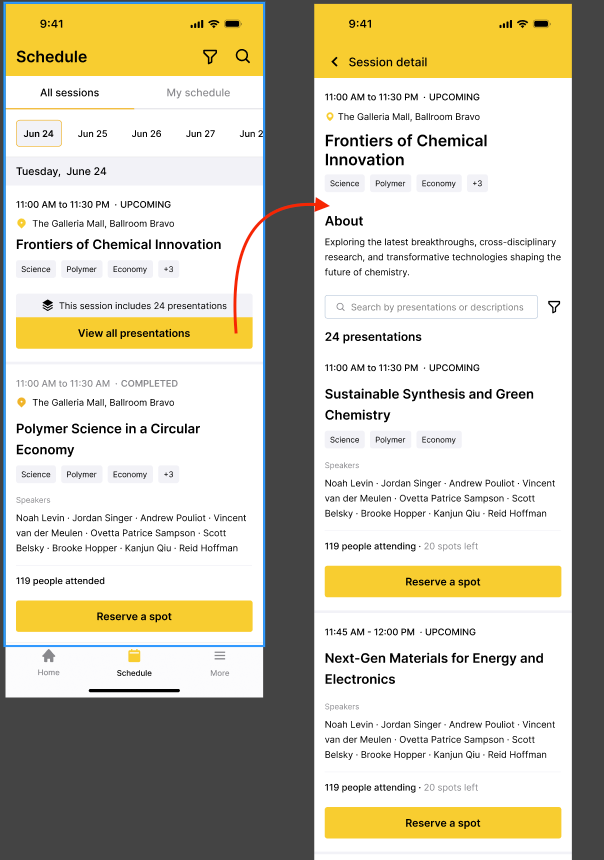
A parent session is a regular session but contains one or more child sessions scheduled within its timeframe. A parent session displays the following details:
Title: the name or title of the session. For example, “Frontiers of Chemical Innovation”.
Tags: search tags added from the dashboard
Location (hall/room): Physical location of the session
Time slot (start & end time): The time range of the parent session as created on the setup side.
Presentation count: The number of presentations within the parent session, subject to any filter or search operation.
View all presentation CTA: Shows the session details page with child sessions listed out.
What is a child session?
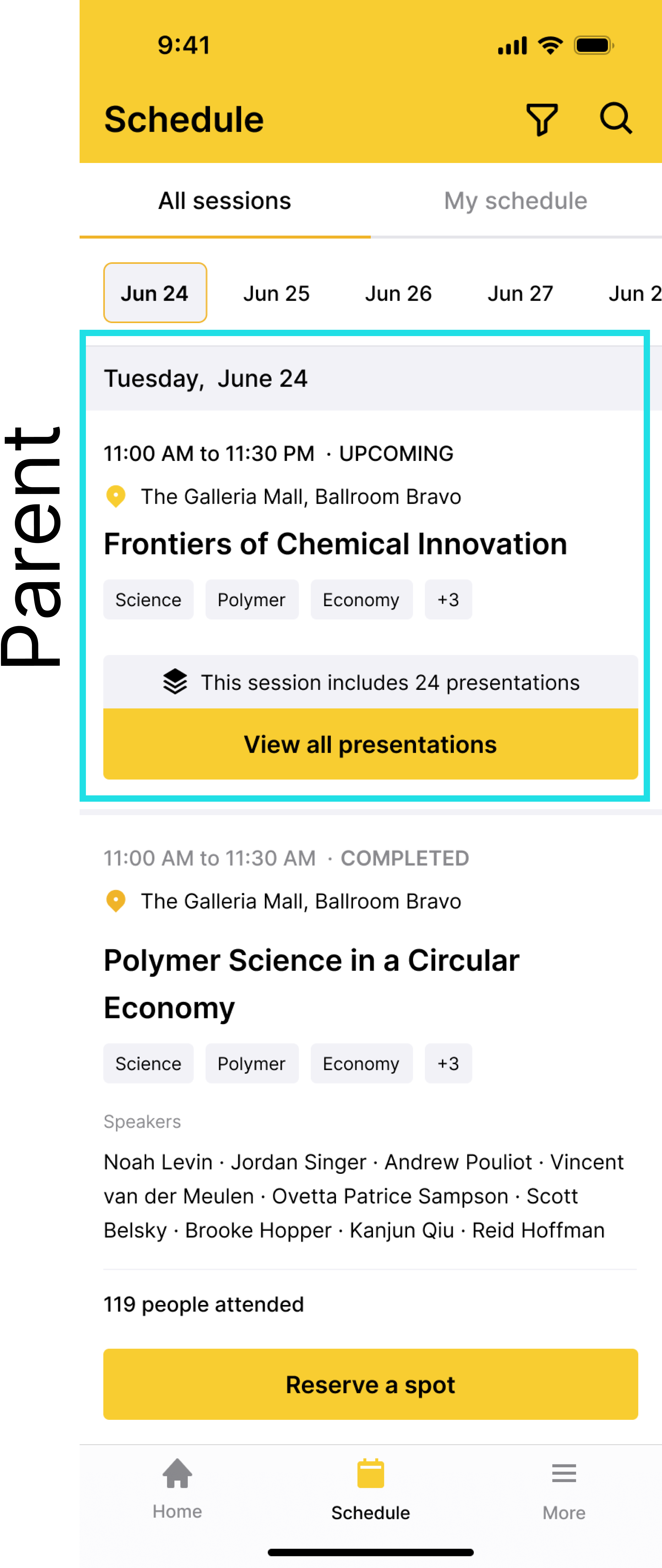
A child session has a permanent linkage to a particular parent session and is displayed with other child sessions on the schedule page of the app. They are also known as presentations, as shown below.
Search behaviour
How search works at the parent and child level is explained below:
Search at parent-level
Searching for a particular session by its session title or description can be done at the parent-level and at a child-level as well.
At the parent-level, click the search icon on the top bar as shown below:

The search looks up parent sessions with the keywords and also looks up child sessions within a parent session. So, if a child session title matches the global search keyword, it appears in the search result.
When only the child session title matches the search keywords and not the parent, the parent session still appears in the search results.
The parent session card will display a small card carousel with a maximum limit of 10.
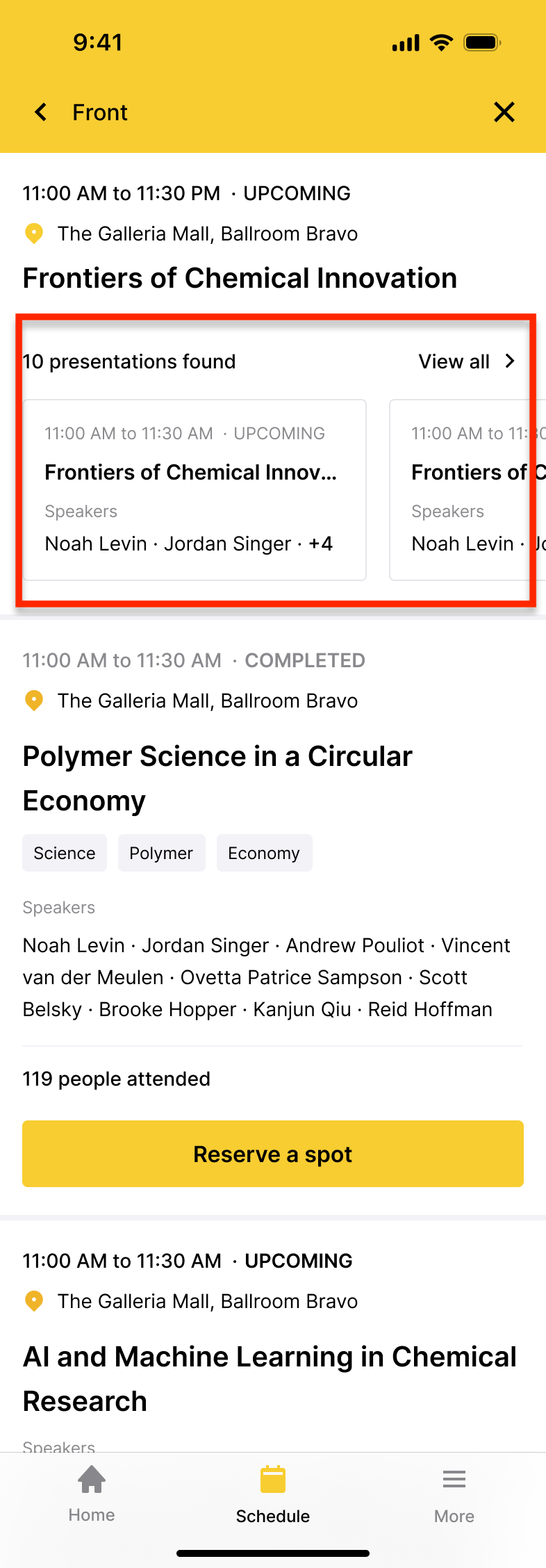
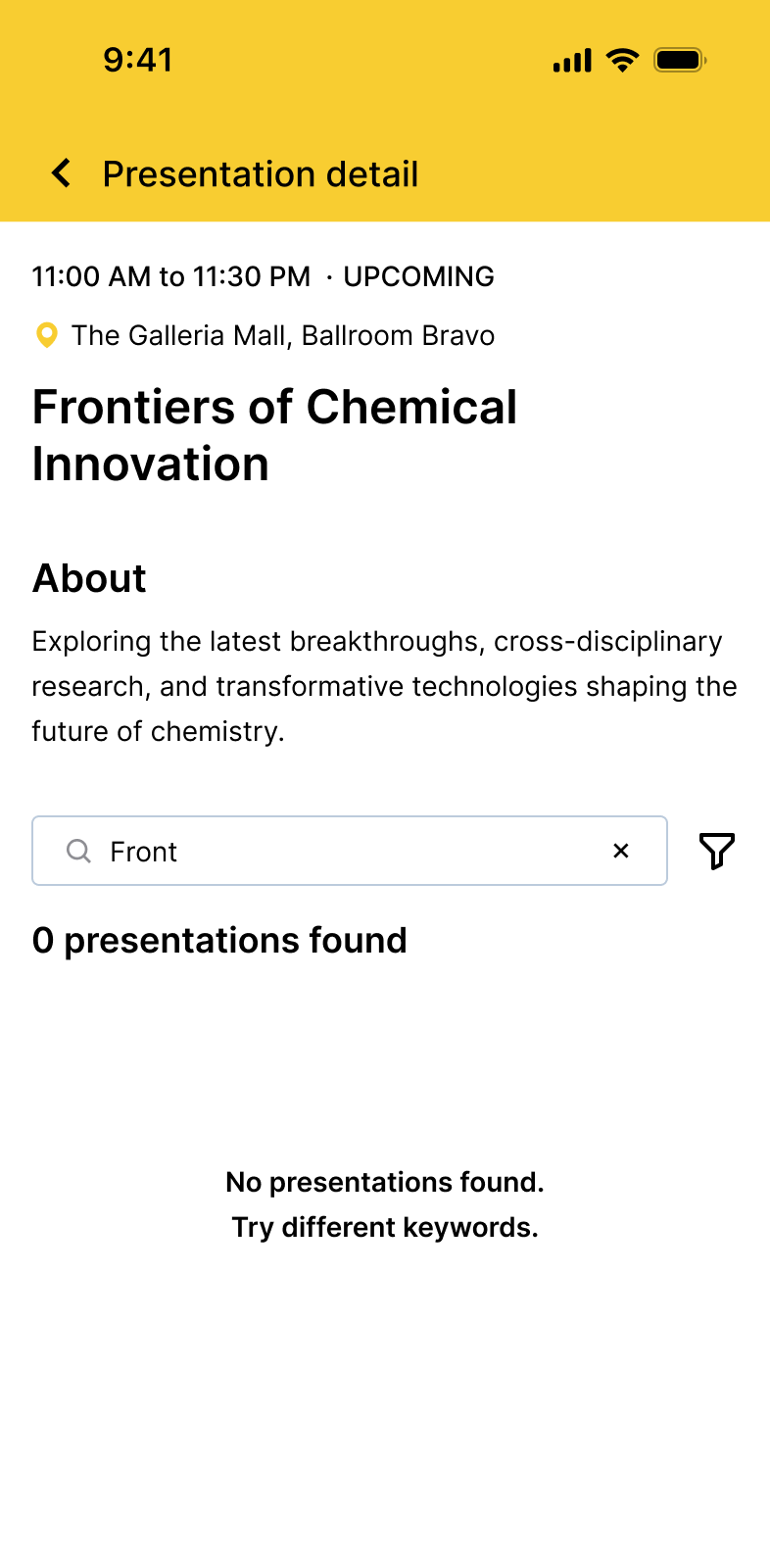
If the search keywords match the parent session title but not the child session title, it would show 0 presentations available.
Search at child-level
To search for a session, at a child-session-level, click on the search icon and enter the keywords.
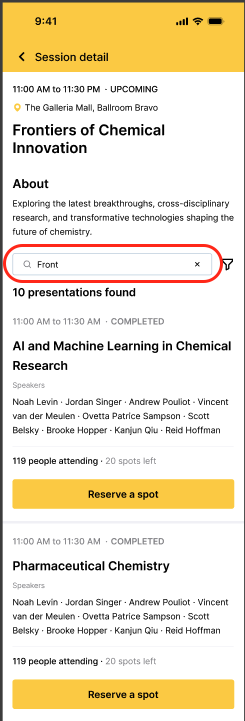
The results populate as they match.
When the search keywords don't match any child session, the following message is shown.
Searching using filters
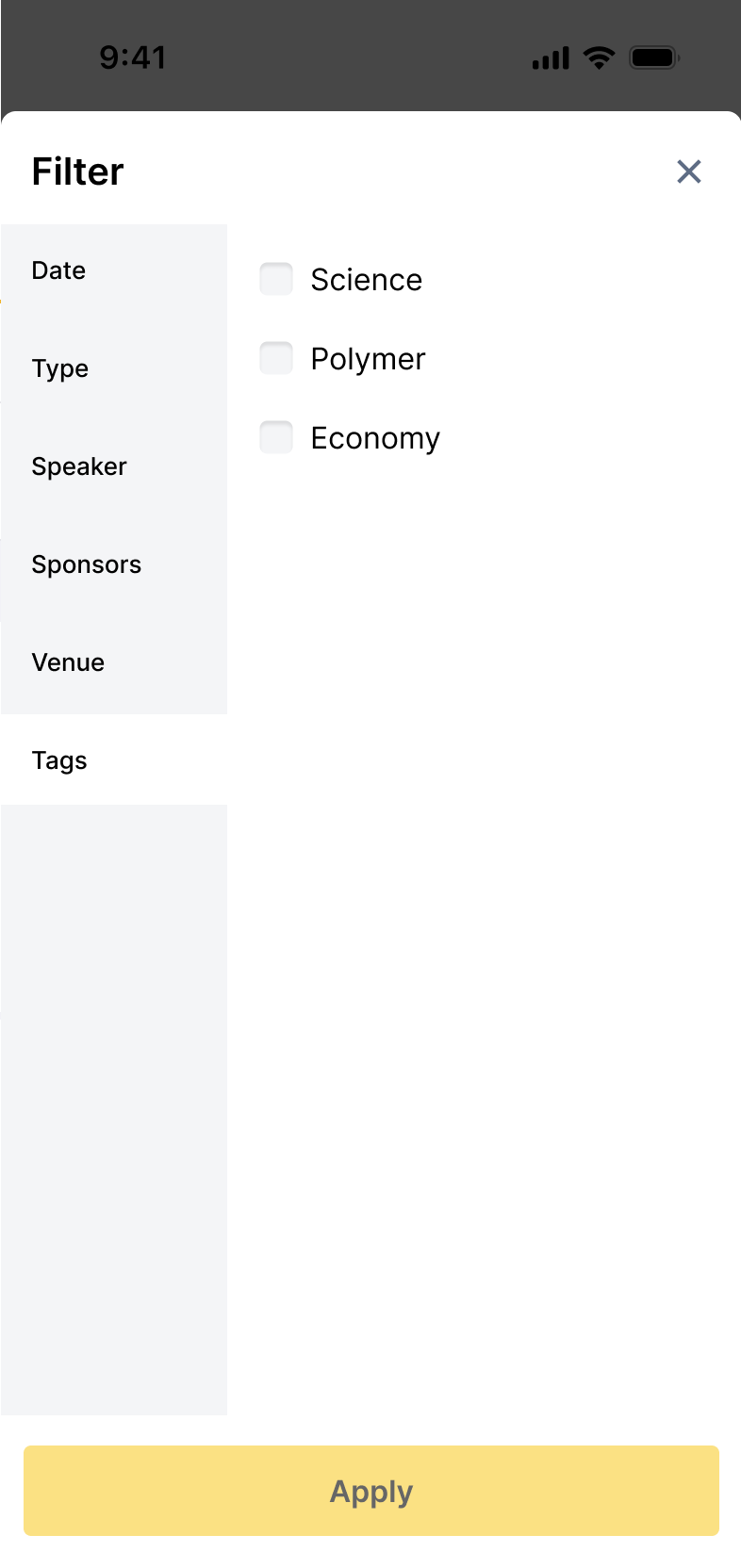
To add a filter, click the filter (funnel) icon on the top bar as shown below:

Filters include global speakers and tags.
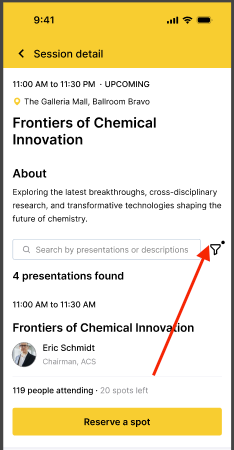
Once the filter is applied, the filter icon appears with a dot as shown below:

Unidirectional filters
Filters you apply at a parent level are also applicable to the child sessions, but not vice versa.
Inside a parent session, you can use filters to search for child sessions. The filtering action is uni-directional i.e. the filter you modify at child-level will not change the filter applied at the parent-level.
Reserving sessions
There are two ways you can reserve a spot in a particular session. If a session does not have a child session, you can directly click the Reserve a spot button displayed.
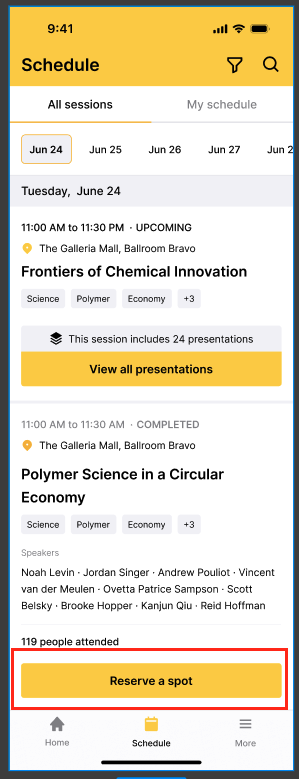
If a session has child session, you can enter the parent session details by clicking the View all presentation button.
and reserve the individual child sessions by clicking the Reserve a spot button for the desired sessions.
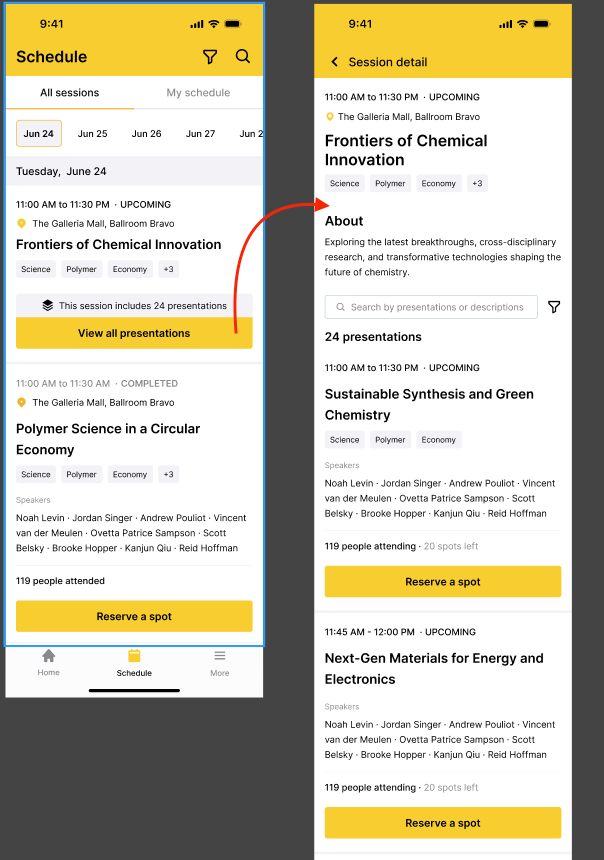
When you reserve a child session, the parent session is shown under the My schedule tab. Inside the parent session, the selected child session shows the Added to my schedule button.
Speaker details page In the speaker details page, the parent and the child sessions assigned to speaker are shown
