How Set up a Livestream for your Virtual Event in Zuddl
Last updated: August 1, 2025
Using the Live Stream option, you can stream your event sessions out to multiple destinations such as YouTube, Facebook, or LinkedIn.
Streams are configured session-wise; therefore, you must add a session before creating a live stream.
Currently, we only support manually configuring streaming using the Custom RTMP option.
Prerequisite
Create a session before adding a live stream. Learn more about creating a session.
Add a live stream
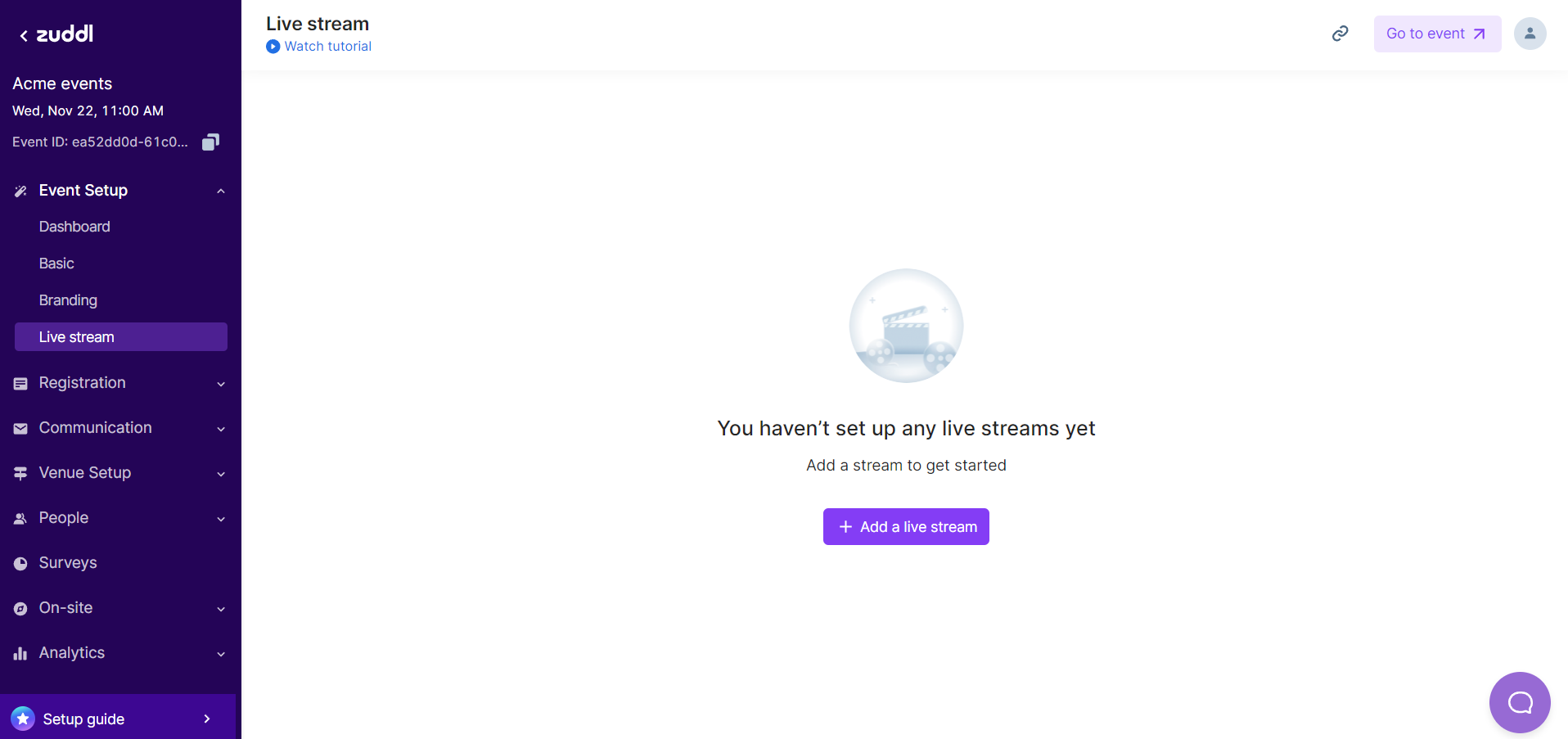
Go to Event Setup > Live Stream from the left navigation and click +Add live stream.
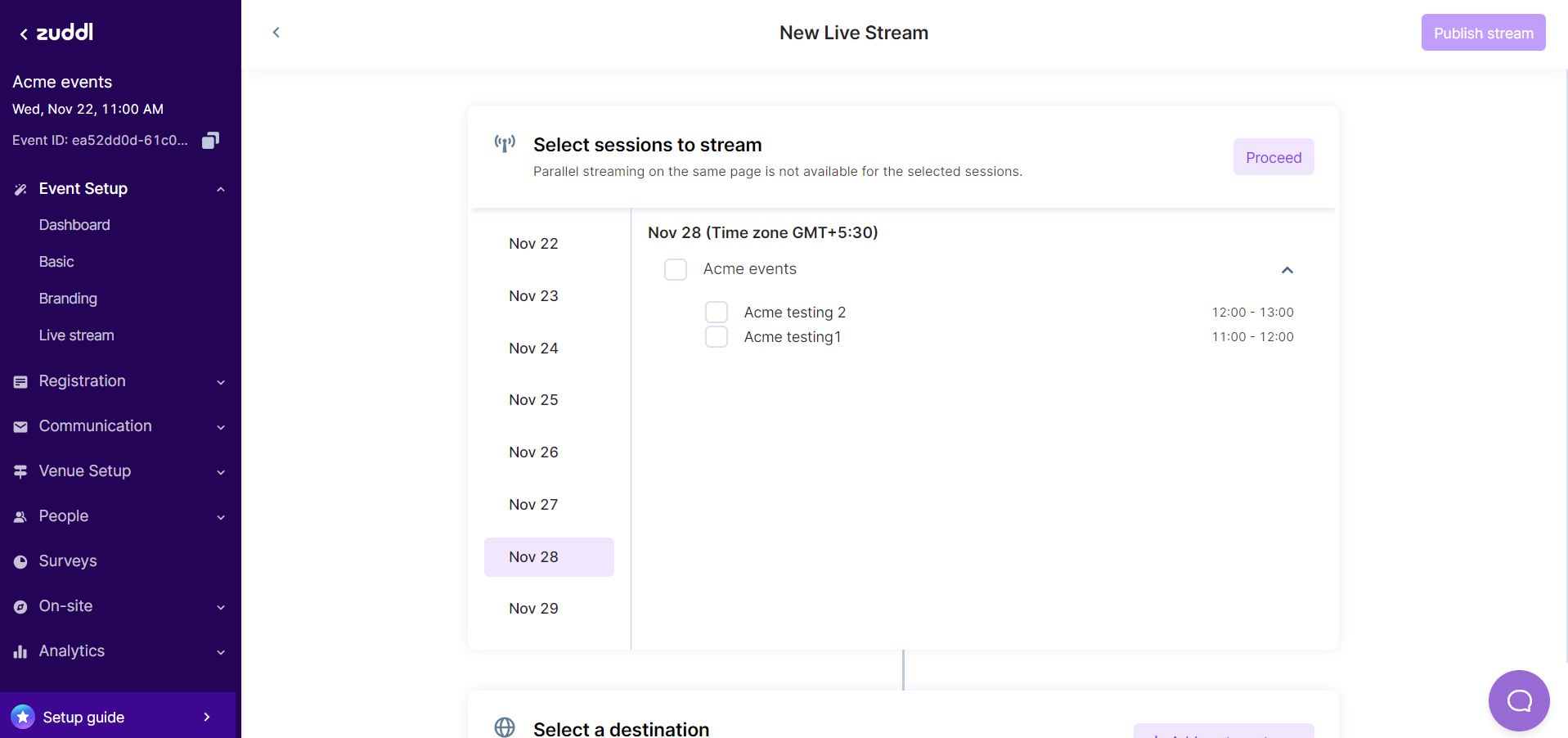
On the session selection screen, the sessions are displayed date-wise. On the navigation scroll bar, select the date for the session you want to stream. The sessions scheduled for the selected date and the stage name appear on the right as checkboxes.
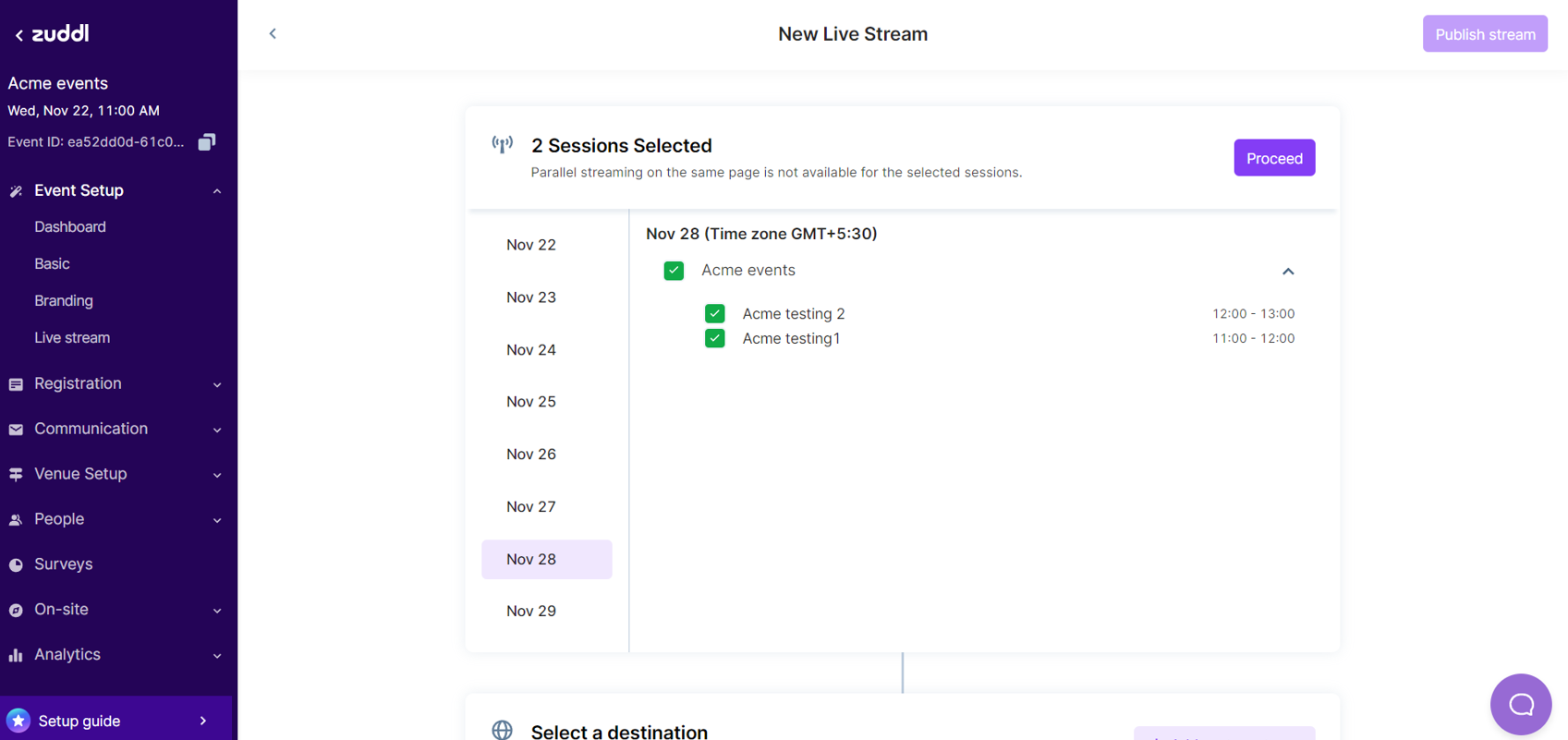
- Select the checkboxes for the sessions you wish to stream. Select the stage to stream all the sessions on the particular stage.
Click Proceed.
On the Select a destination card, select the suitable destination checkboxes. All the previously added destinations appear under the Recently Added Streams section.

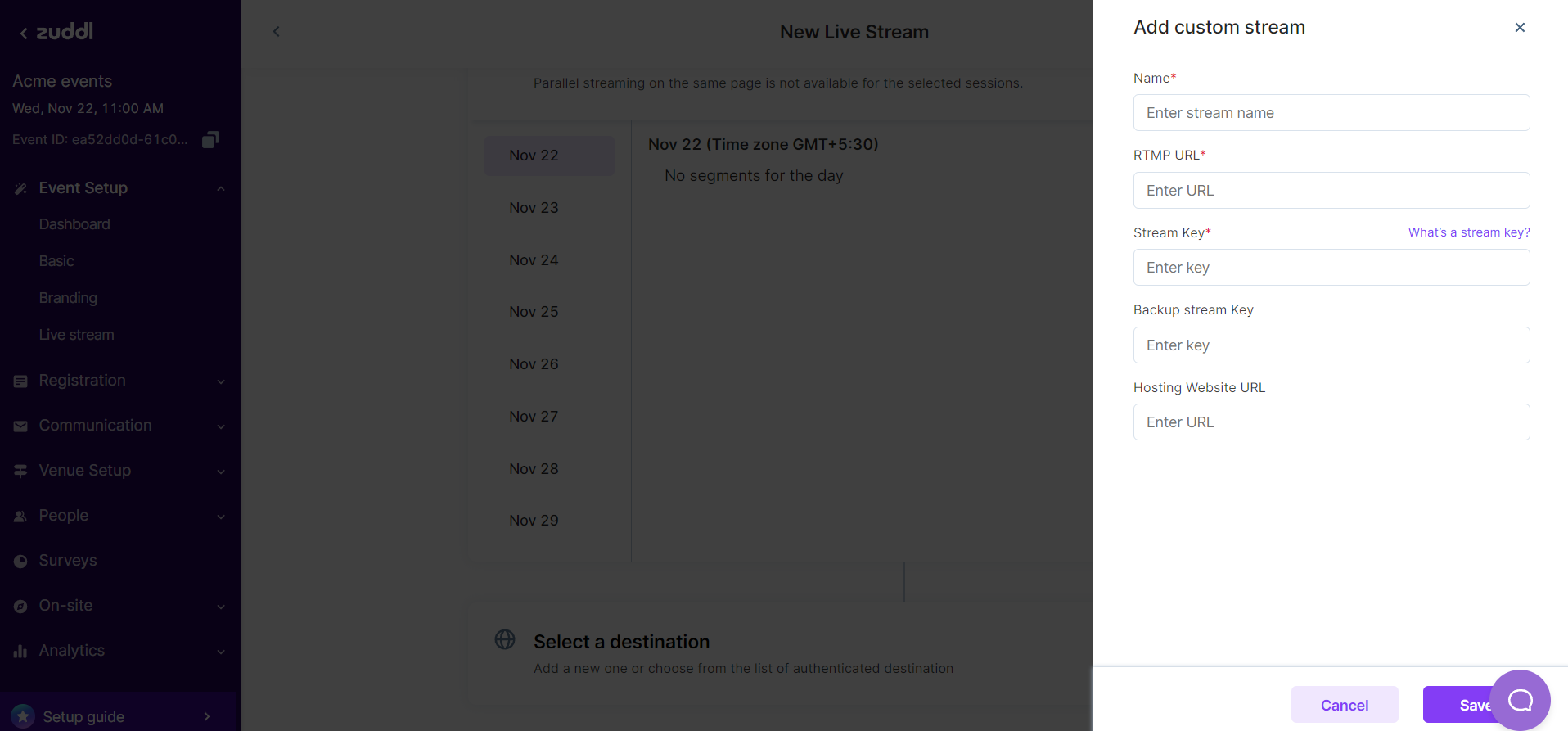
- Click +Add custom stream if you wish to add a new custom stream.
- Enter the following details to configure your custom streaming service.
- Name: A unique name to identify your destination.
- Stream Key: One of the two critical resources used to authorize live stream service to the desired destination. A stream key is usually a random alpha-numeric string.
RTMP URL: A unique URL for RTMP-based streaming service. An RTMP URL has “rtmp” as the scheme—for example, rtmp://live-stream.com.
Currently, Zuddl does not support the RTMPS (secure) protocol. So, ensure that you locate and copy the correct URL from your streaming application.
- Backup Stream Key (optional): This functions the same as the Stream Key; this is the backup of the authentication key in case the Main Stream Key does not work.
Hosting Website URL (optional): The URL of the streaming website.
The newly added destination appears on the list and is selected by default. At this point, you can also add other destinations from the list for your live stream.
You cannot use the same destination to stream another session with an overlapping time.
- Click the Save button to add a new custom stream to the list.
- After you’ve added all the custom streams, click Update session. This saves all the changes made.
Now, Click on the Publish stream button.
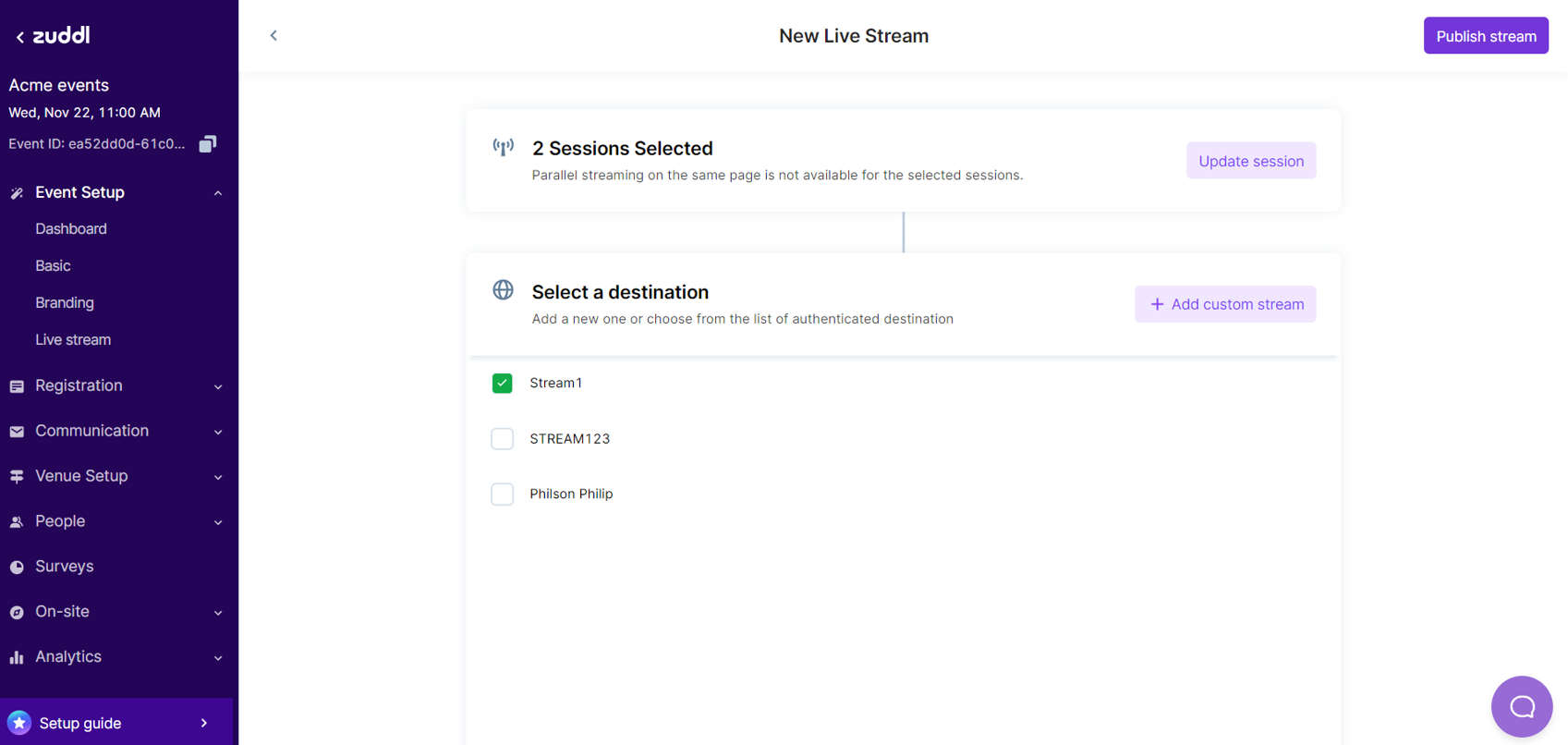
This configures your destination for live streaming your session, and your stream name appears on the list of added streams.

Important
Currently, we support live streaming only when the session recording is turned on. Ensure the session recording is turned on from the backstage before you start live streaming.
Edit a Stream
You can edit the configuration by clicking on the three dots in the stream summary.
To edit a stream.
Click the three dots of any custom stream.
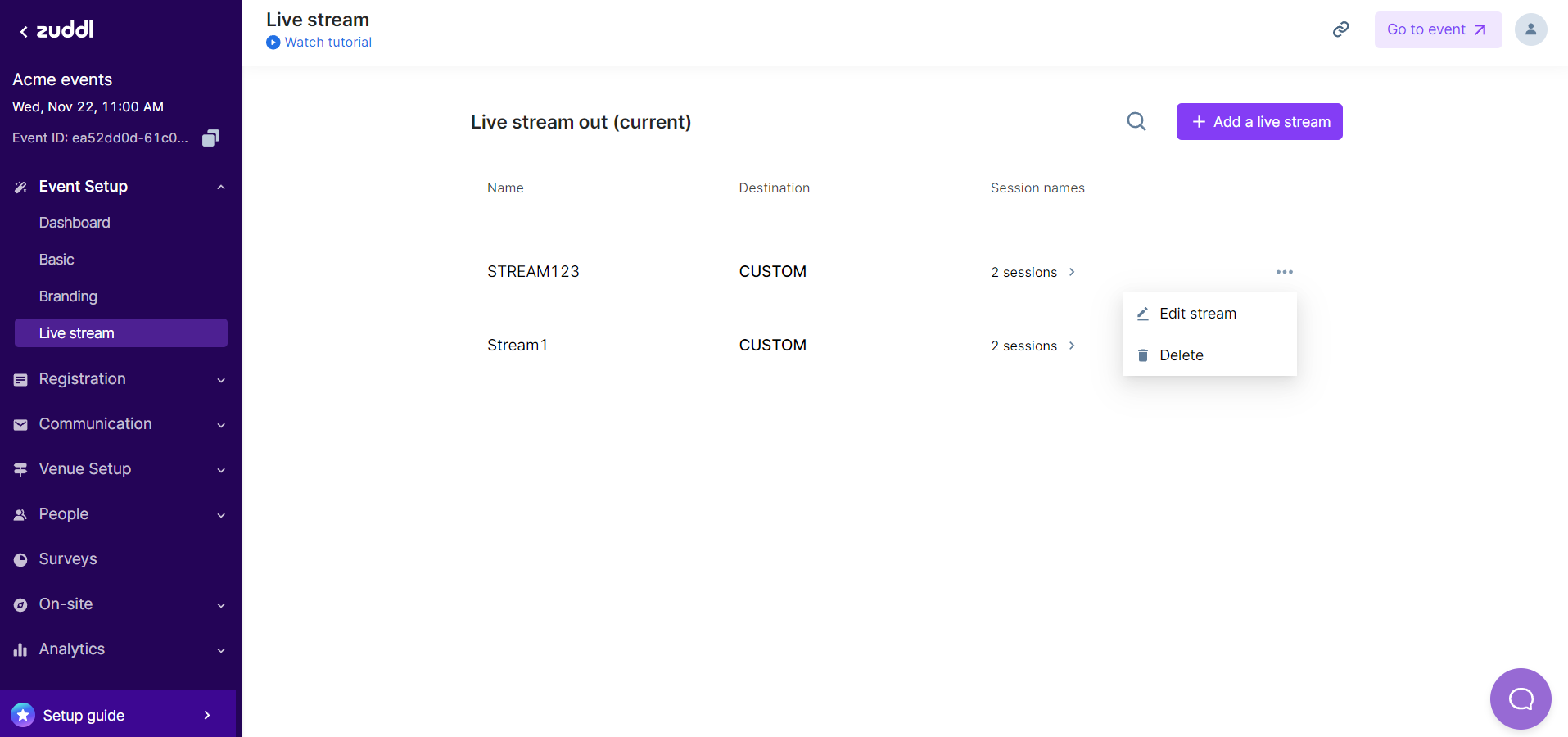
Make changes on the Select Sessions to stream popup by selecting/clearing checkboxes for the desired sessions to live stream to the added destination.

Click the Save Changes button on the top right corner. You can see a message at the bottom of the screen, " RTMP output settings updated successfully."

Delete a Stream
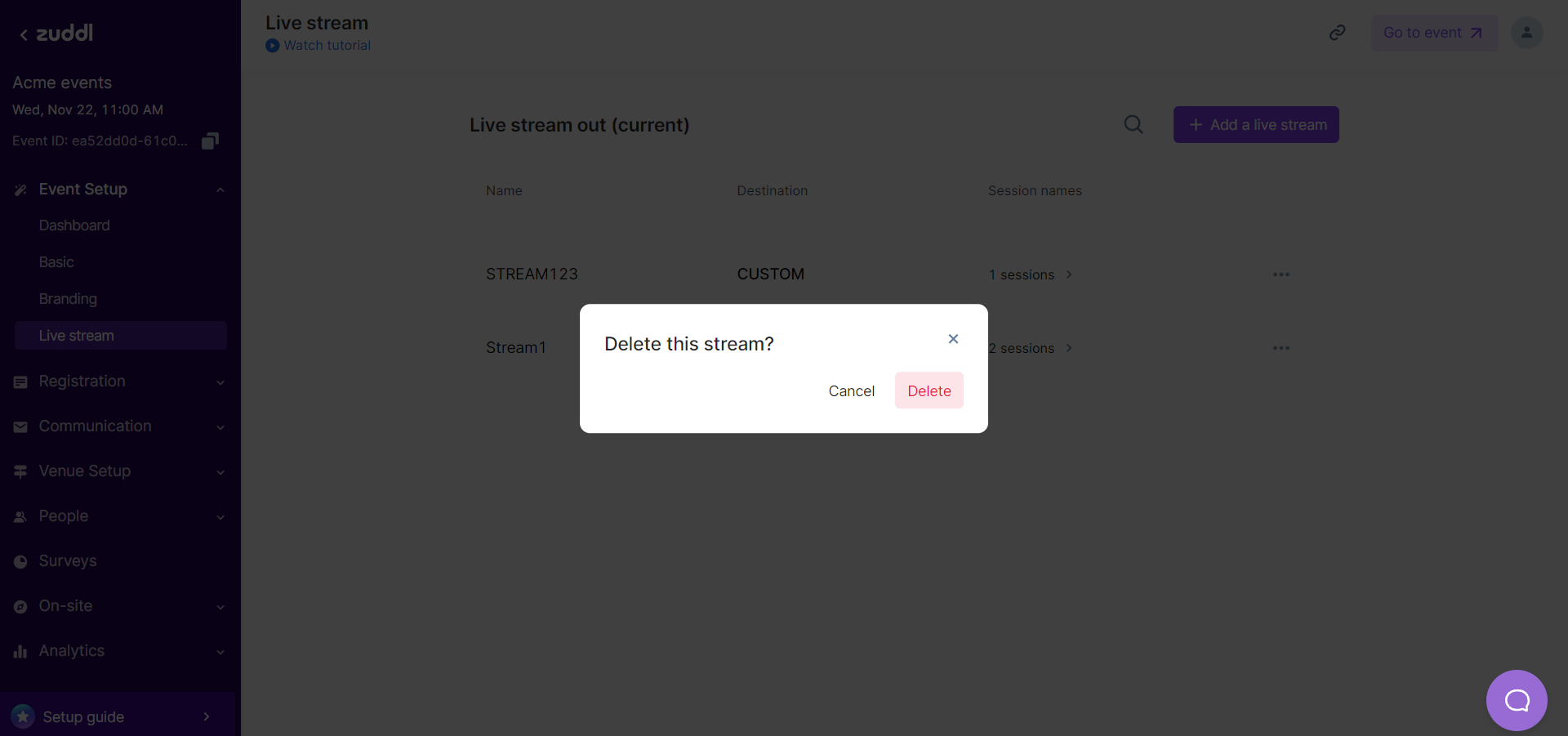
You can also delete a stream by clicking the delete option from the three dots.