How to Manage Access Controls for a Virtual Event in Zuddl
Last updated: March 30, 2026
Create Access controls for your event participants to provide customized access to the Zuddl events. Using access control, you can configure a set of rules for an audience group instead of having to provide access to users individually. In other words, access control helps you assign & manage roles by user actions in a Zuddl event.
Access controls are event-specific and need to be configured separately for each event.
Understand the audience groups
Before we move into understanding the types of accesses, lets understand what are the different audience groups:
Standard group: the audience group with base access. Standard groups are like roles in the event: Audience, Speakers, and Sponsors.
Custom group: the audience group with group access. Custom groups are segmented into 3 types:
- Flow-based groups (created automatically by the system based on the flows that are created in the event).
- Ticket-based groups (created automatically by the system based on the tickets that are created in the event).
- Any other custom groups (created by organizers for better event management).
There are two types of access that you need to manage :
Base access: The pre-configured access settings for standard groups (i.e. Attendees, Speakers, and Sponsors) based on which access can be configured for the custom groups groups.
Group access: The access settings for custom groups that are derived from the base access.
Modifying base access
Before you derive group access out of base access, you must first modify the base access settings to easily derive custom group access. The base access settings are available for three primary audiences: Attendees, Speakers, and Sponsors.
The default settings for Attendees, Sponsors, and Speakers are the same.
Any changes you make to a base access will be automatically applied to all groups that uses this base.
The default settings for an audience are shown on the right. To modify or edit the default access settings:
Go to People > Audiences > Access control.
Click on an audience under the Base access section on the left, let's say Attendees.
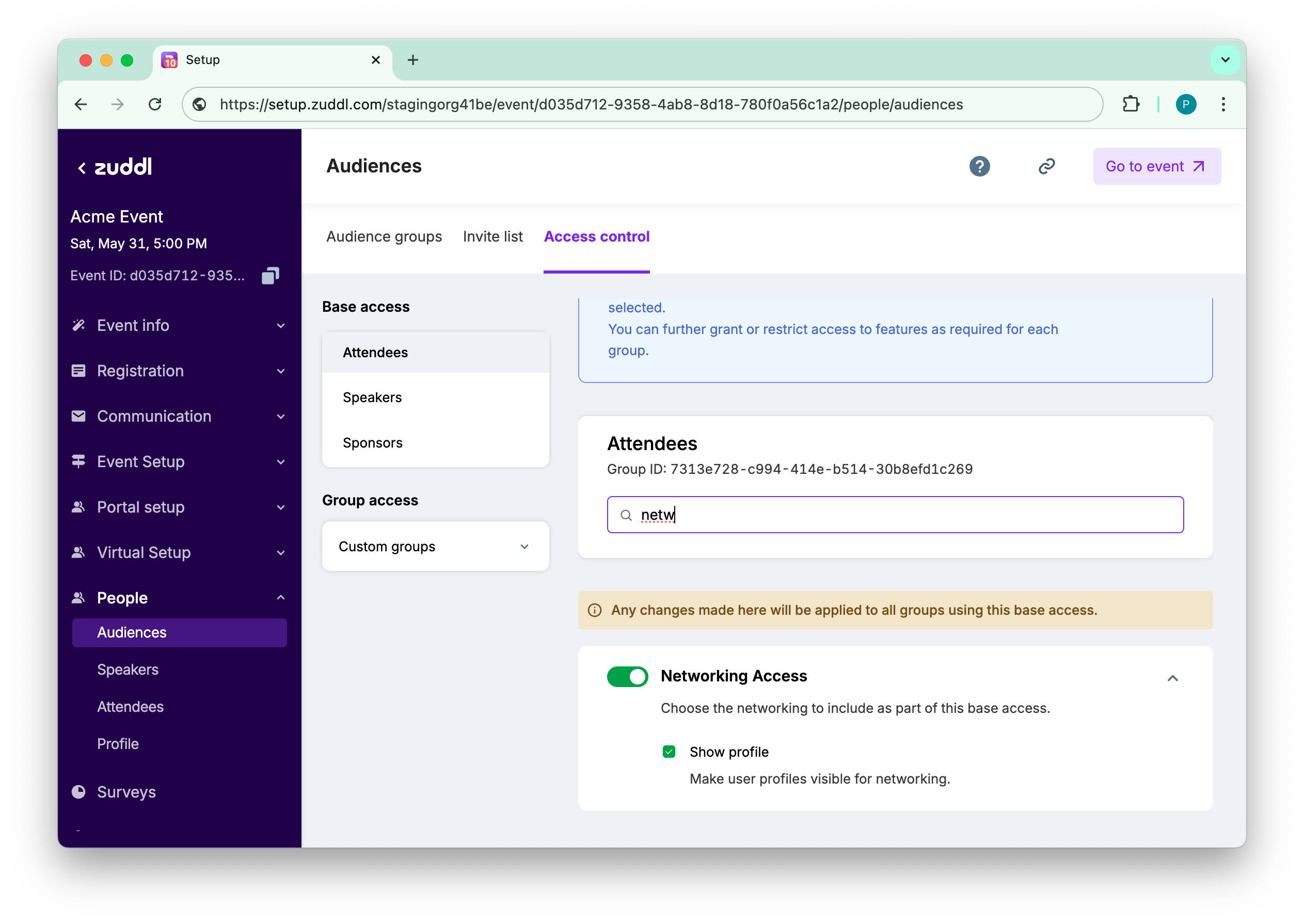
On the right there, you can view/modify the preset access settings for Attendees.Search for the setting you need to modify or scroll to it.
Every group will have an alphanumeric identifier
If a feature, for instance, “Private Meetings,” is disabled for an event, that setting is also disabled in access control.
Editing access controls
The access controls for the event feature are shown on this screen
Allow/deny access to the sessions in an event. By default, all the audience groups have access to the sessions.

To configure session access for individual audience
Click the configure button.
You can either select/clear sessions in bulk or search the individual sessions using Tags, Segment Type, and Days dropdown menus.
Select/clear the check box for the session. The selected session go to Accessible tab and unselected go to the Restricted tab.
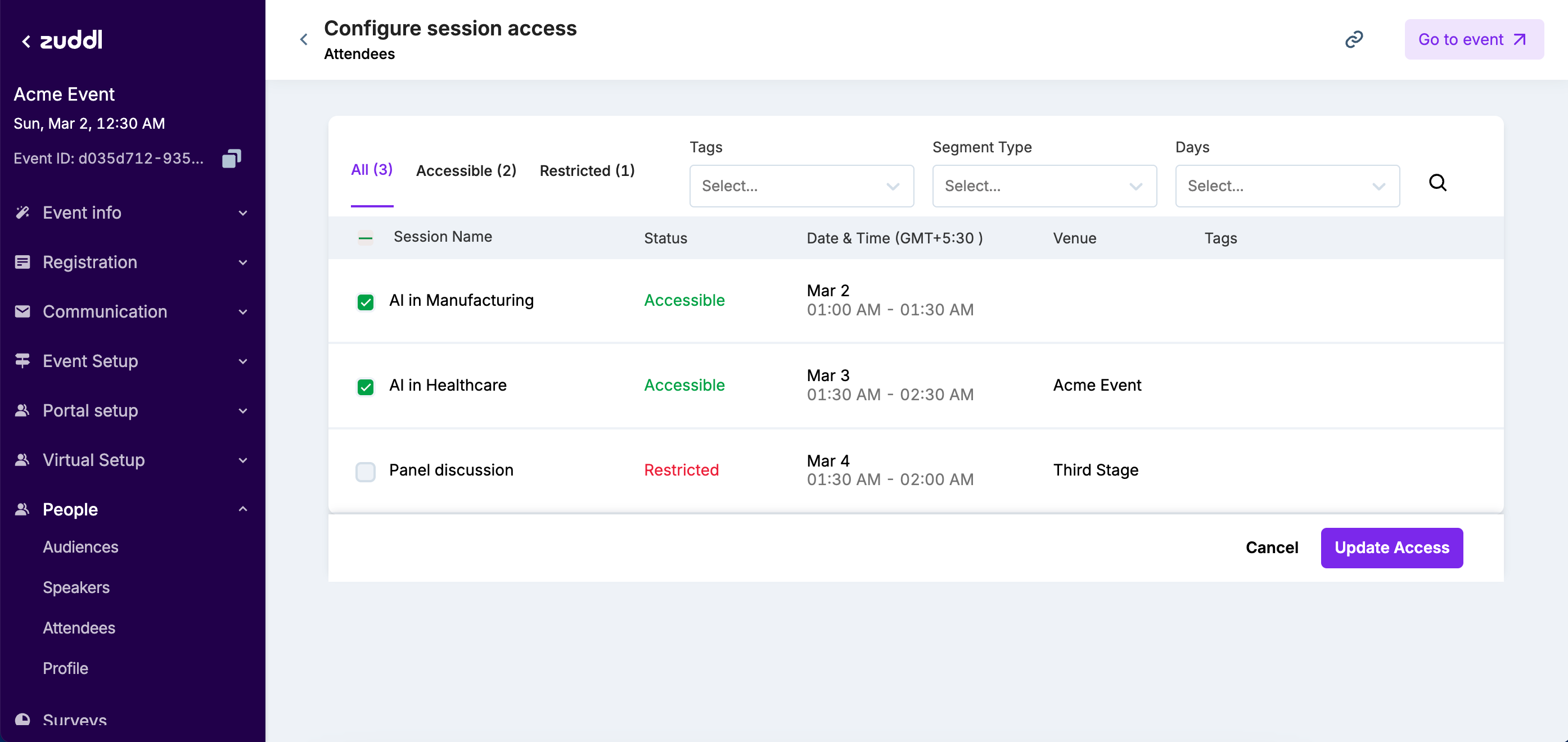
Click the Update Access button to update the session configuration.
Day Access
For a multi-day event, the accessible days will be listed in the section as shown below:
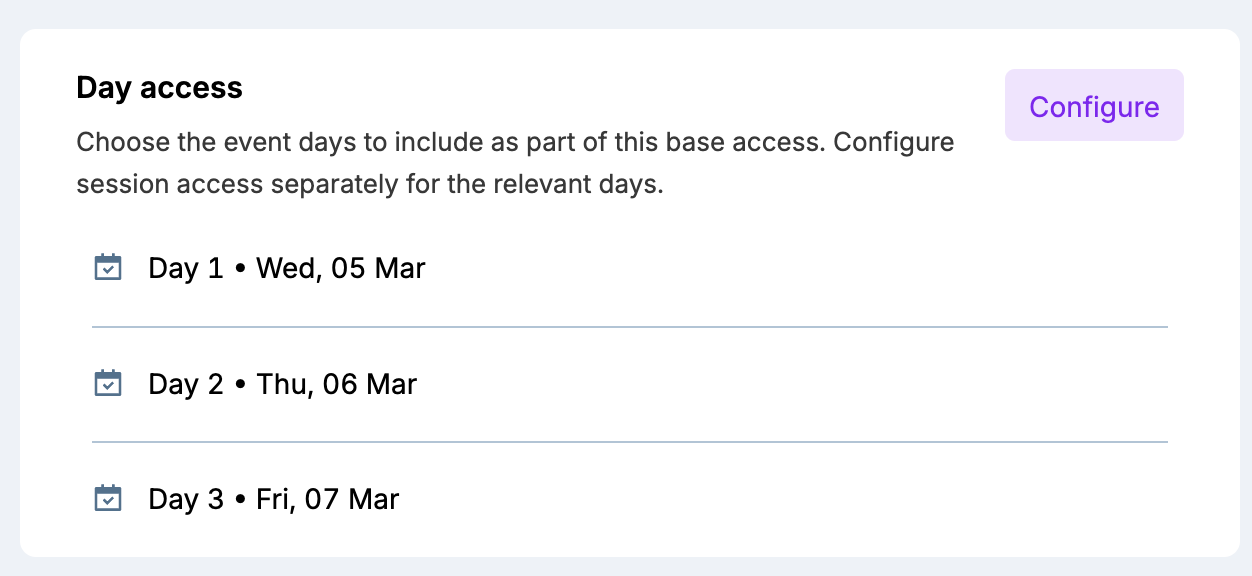
You can click Configure to select/clear the day-wise accessibility checkbox for a particular audience group.
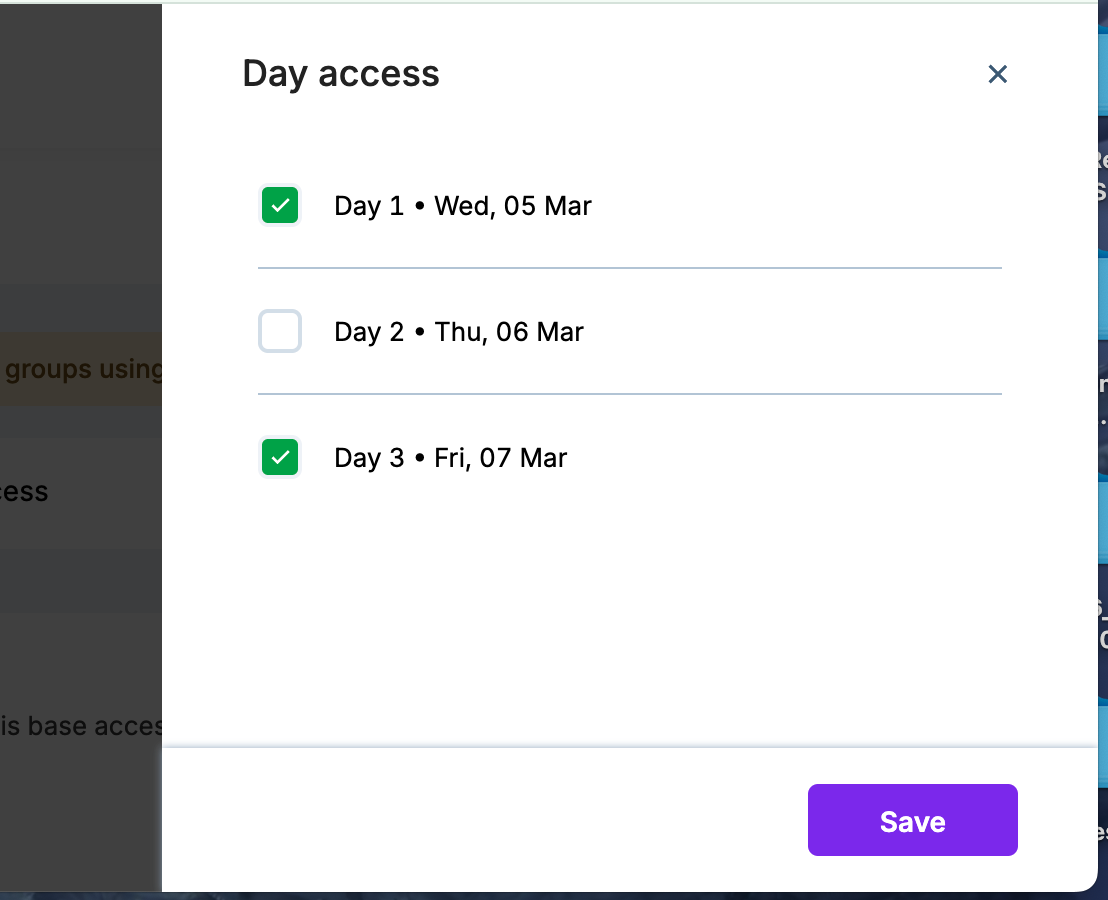
If event dates have changed, this would be reflected in the Day Access option.
Event Venues
Toggle on/off the different event venues for an audience group.
If a venue is toggled off from the Venue Setup, that venue does not appear on the venue navigation bar in an event. The access control settings would show the option as disabled.
Access Area | Description | Default State |
Lobby Access | Access to the Lobby venue | On |
Schedule Access | Access to the Schedule venue | |
Stage Access | Allow/deny access to stages in an event. Select/clear individual stages to grant and revoke access, respectively. Toggle off Stage Access to disable access for all stages. This also removes the Stage venue from the attendee side. Similarly, clearing all the stage checkboxes individually eliminates the Stage zone from the attendee side. If stage access is disabled, stage notifications are not sent to the user. | On |
Room Access | Allow/deny access to the Room venue.
| On. |
Networking Access | Allow/deny access to Networking venue
| On |
Expo Access | Access to Expo venue | On |
Event engagement
Allow attendees to engage during the event. The default is on.
Options | Description | Default State |
People | Show/hide People tab, which shows all event attendees | On |
Chat | Enable/disable chatting with attendees. On if event-wide chat is enabled. | On |
Private chat
Allow/deny private chat with group members. Select the checkboxes of the standard groups with whom private meetings can be set. The default is on.
Private meetings
Allow/deny private meetings with group members. Select the checkboxes of the standard groups for which you wish to allow private meetings. The default is on.
Leaderboard
Turn on/off Leaderboard and its related options. The default is on.
Access Area | Description | Default State |
Allow profile in ranking | Show/hide profile picture in the leaderboard ranking list | On |
Show point distribution | Show/hide points received for the participant | On |
Show ranks | Show/hide the rank of the participant on the Leaderboard | On |
Access to Session Recordings
Turn on/off the toggle to allow/restrict access to session recordings by the group member. The default is on.
Receive organizer announcements
Allow/restrict organizer announcements to be received by group members. The default is on.
Receive notifications
Allow/restrict notifications to be received by group members. The default is on.
Perform system checks before joining an event
System checks refer to the welcome screen that guides you through the series of compatibility checks, such as the browser or internet speed required for a seamless event experience. This permission is not necessary for organizers.
Speakers only
The following controls are only available for speakers.
Backstage
Allow/deny entry to the backstage. This default is on.
Options | Description | Default State |
Allow for all stages (default) | Backstage access is allowed for all stages | On |
Allow for tagged stages only | Allow users to access the backstage only for the stages where they are added as speakers. | Off |
How to configure controls for custom groups
The custom group that you create appears in the Custom groups option under Group access navigation on the left.
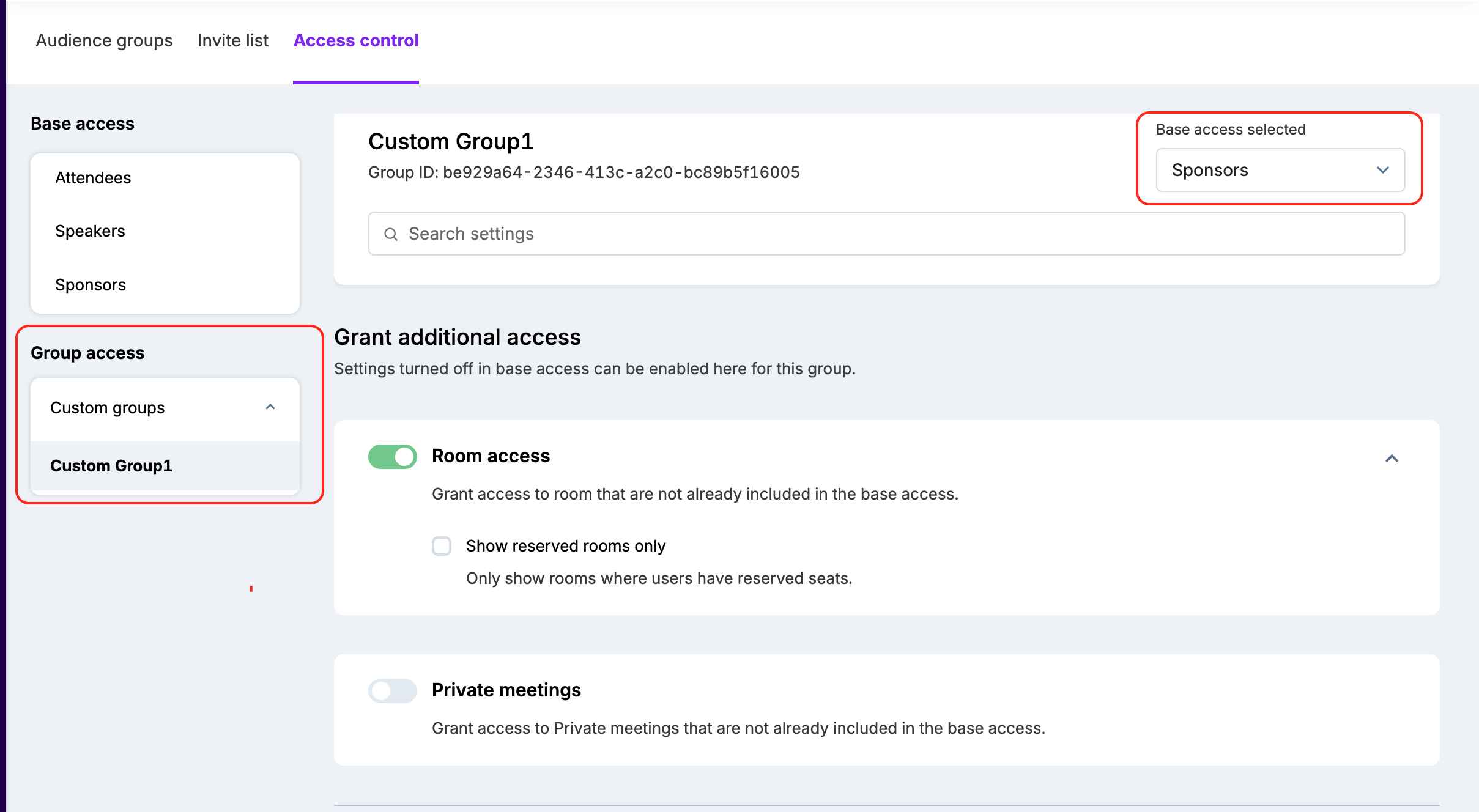
To configure access controls to a custom group, you need to first assign a base access using the Base access selected option on the top. Choose from Attendees, Speakers, or Sponsors base groups for a configuration that is most similar to your desired configuration.
Ticket-based groups | Flow-based groups |
Ticket-based groups are automatically created as you create tickets on the dashboard. 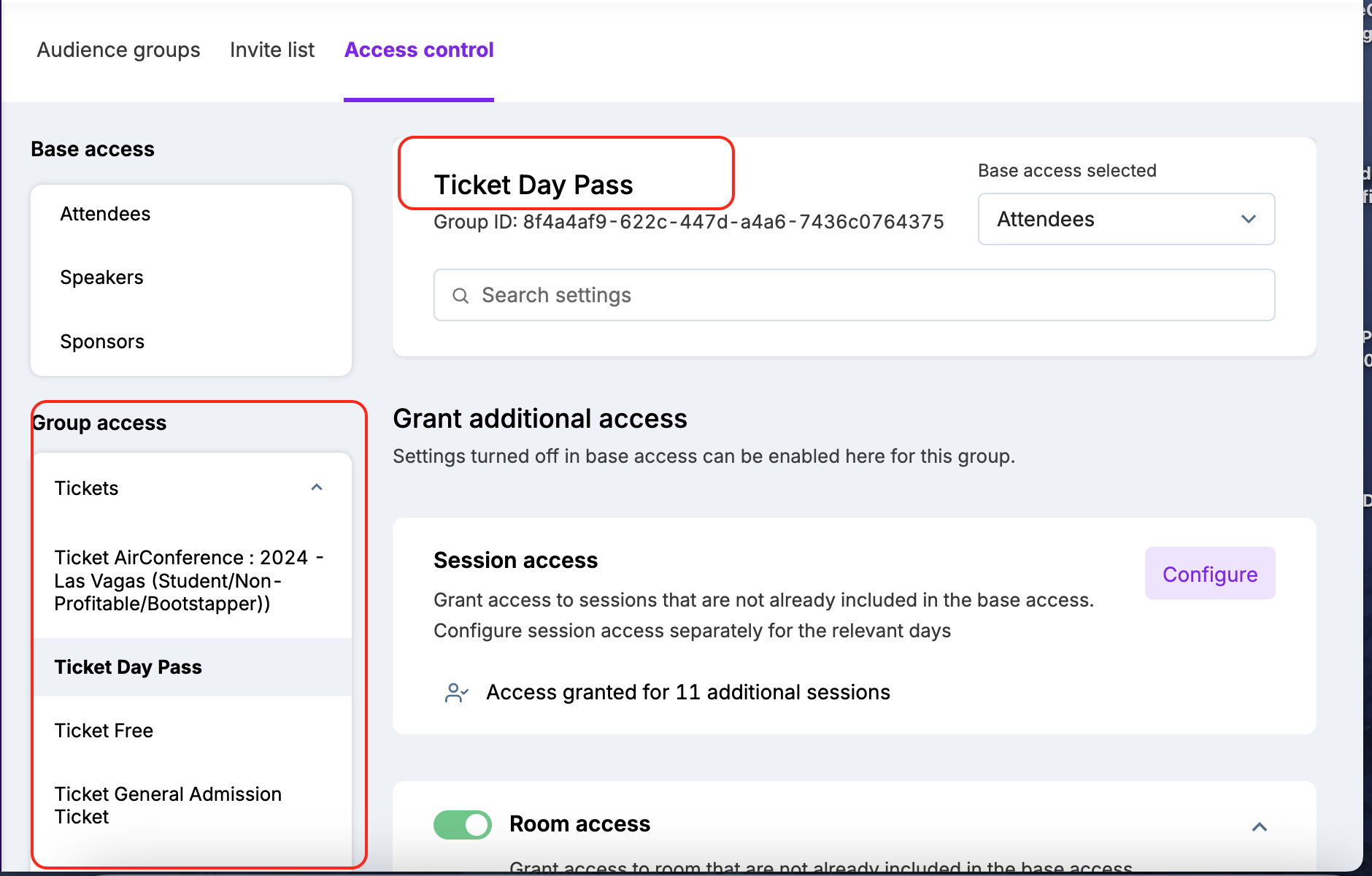 | Flow-based groups are automatically created as you publish registration flow on the dashboard. 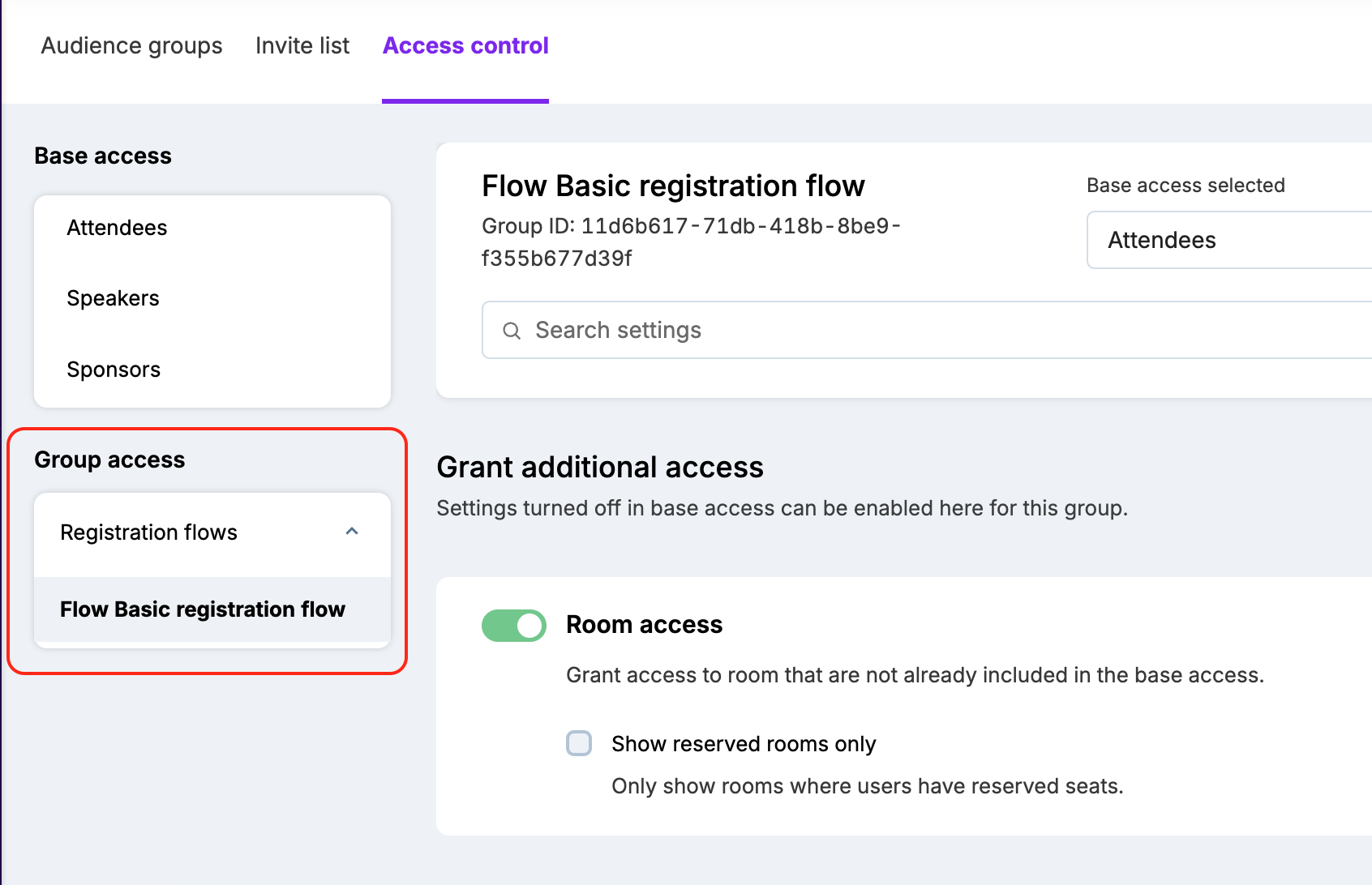 |
Granting additional access
The controls that are not enabled for the selected base group appears in this section. You can individually toggle on/select checkbox as required for the custom group.
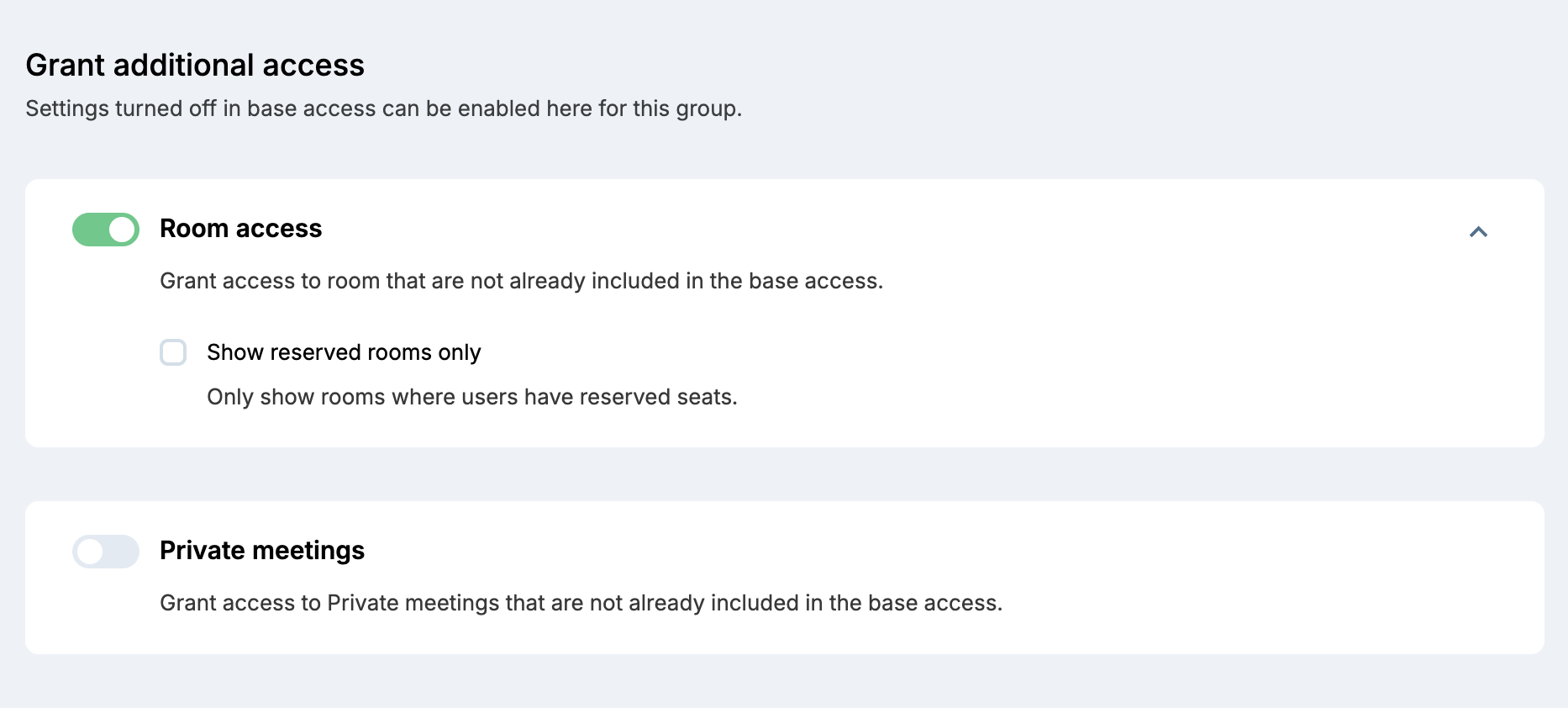
Sub-controls like the 'Show reserved rooms only' under Room access in the image above are also shown in the additional access setting.
Session access
When additional sessions are added to a custom group, the section shows access granted for # additional sessions.

Revoking base access settings
Under this section, all the access controls that came with the selected base group are listed. You can revoke control for a custom group as required.
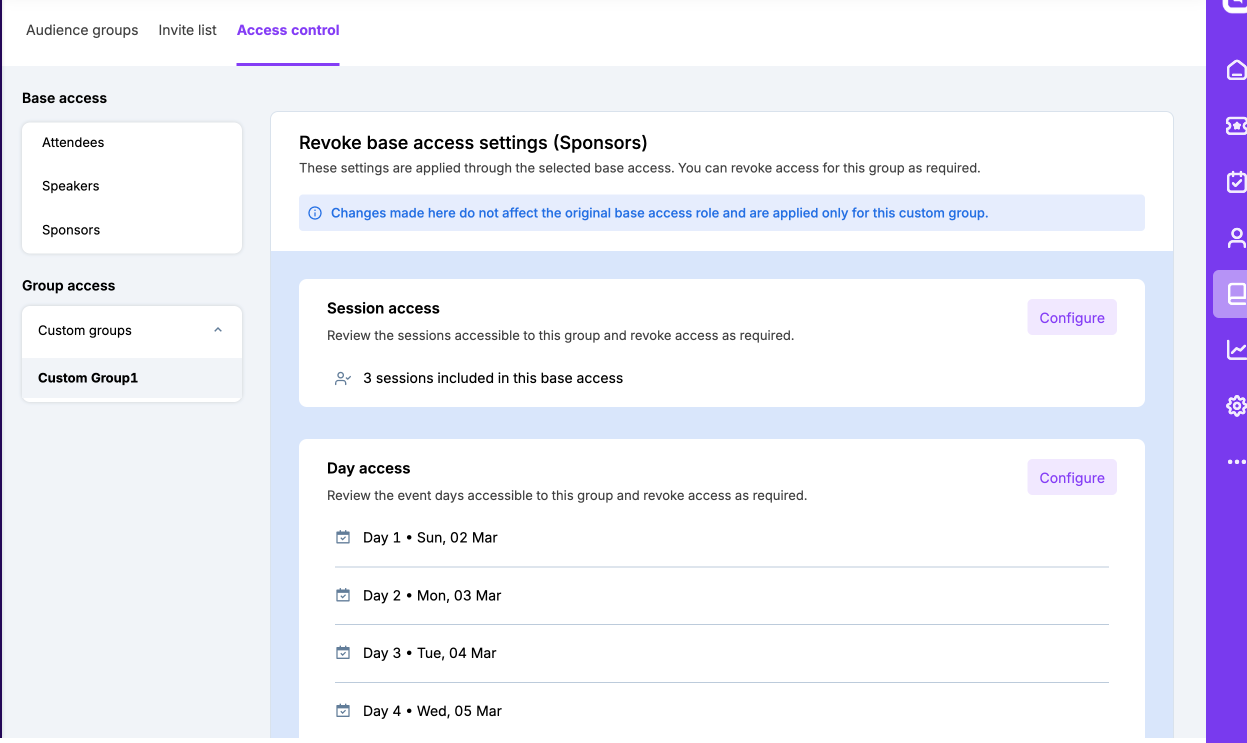
The changes made here do not affect the original base access role and are applied only for this custom group.
You can modify the controls for individual sections here. Once the access has been revoked for a particular feature, it shows the 'Access revoked' label, but it can be enabled again.
Revoking day access
When you revoke one or more day access from the list, the following confirmation pop-up is shown:
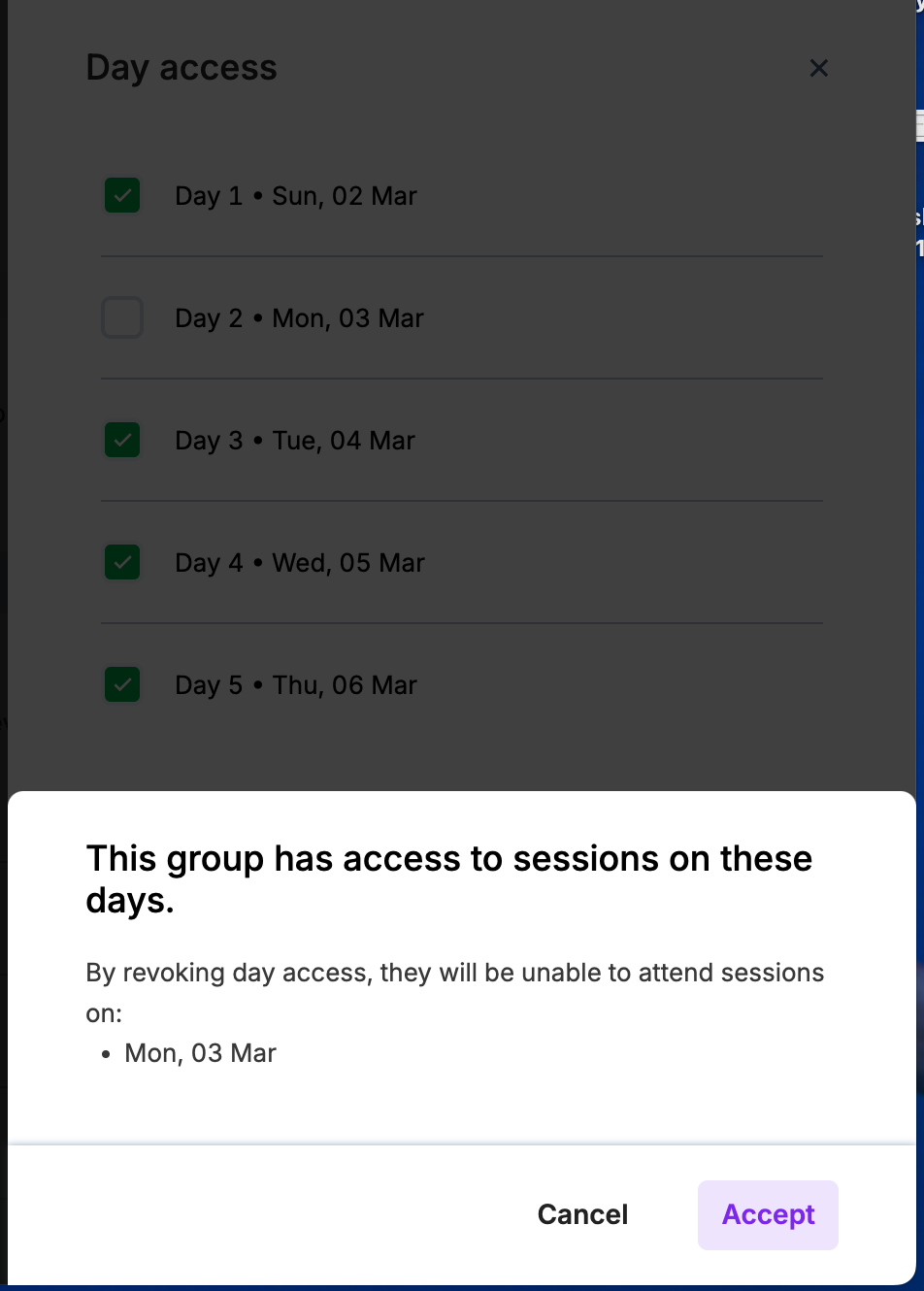
After the day access is revoked, it appear on the list with a Access revoked label.

Revoking session accesss
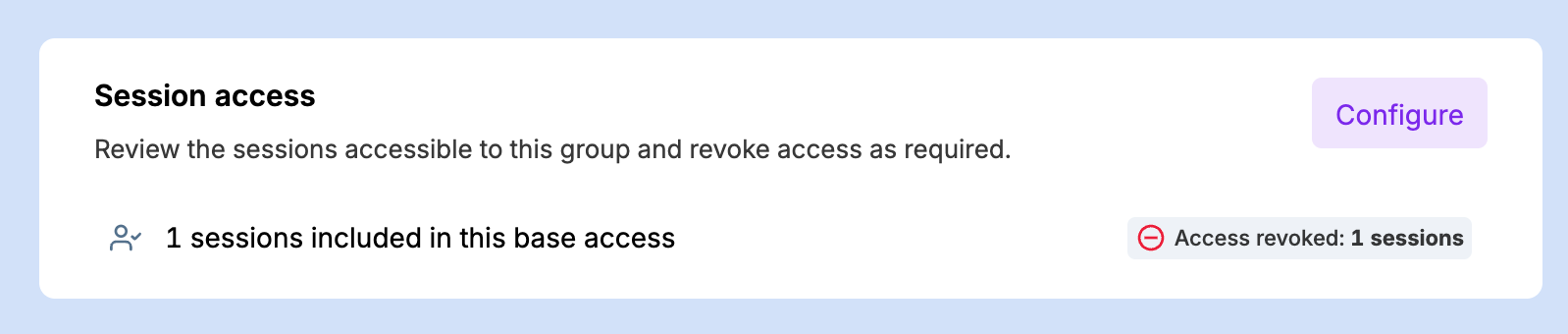
When you revoke one or more day access from the list, it appear on the list with a Access revoked label.
Changing base
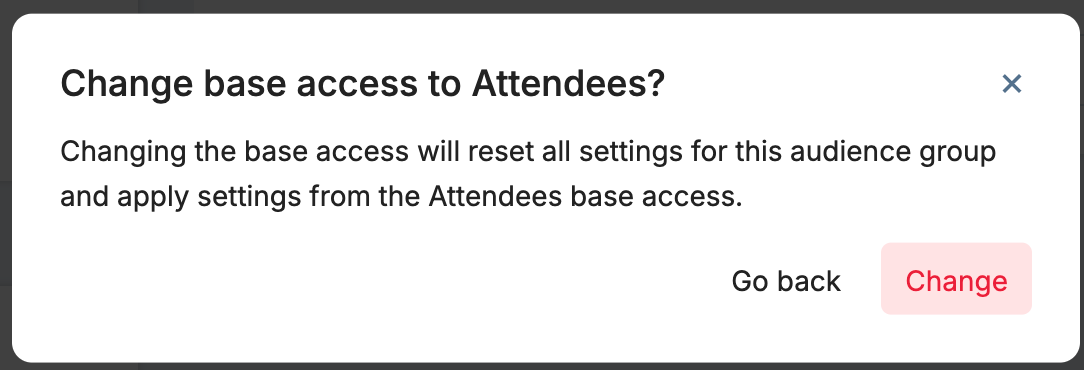
When you change the selected base after editing the access, the following screen is shown