How to Add a Background Image in Zuddl Studio
Last updated: August 1, 2025
Background images add depth to your live video feed and provides an immersive experience for your audience. You can either add an image or a continuously running video.
Add a Background Image
To add a background,
- Under Backgrounds, click the add icon to upload a background to the live video feed. You can view the supported file formats when you hover over the button.
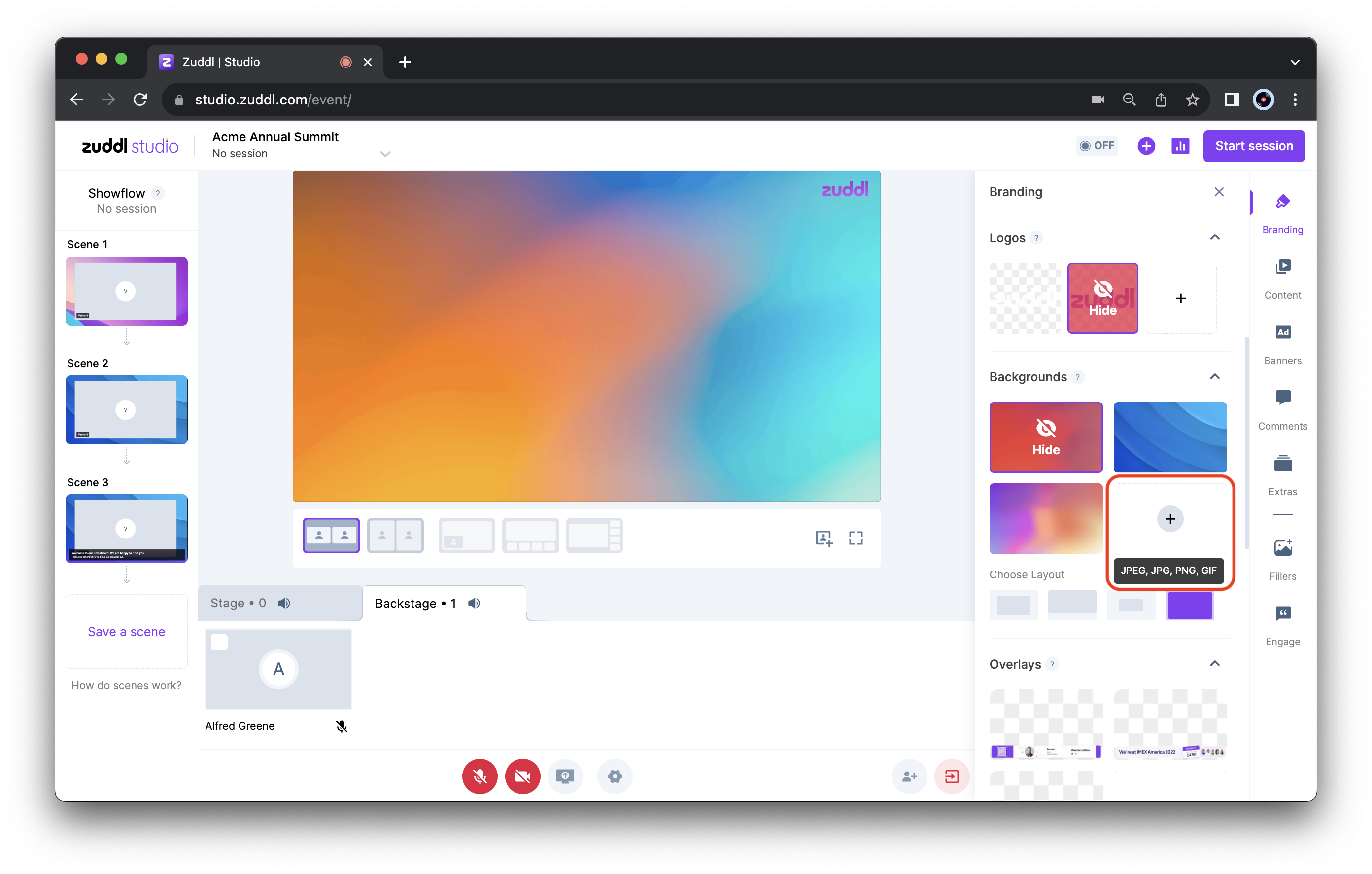
You can add multiple backgrounds onto the dashboard and apply them (one at a time) to the live feed as and when required.
- On the Choose Background window, select:
- Library: choose from the list of sample backgrounds
- Unsplash: choose from the Unsplash public repository of background images and videos
- Upload: browse a suitable image or video from your device and upload.
The supported format is a 1920 x 1080 resolution PNG file with a size of up to 1 MB.
- Choose a suitable layout for the selected background:
- Centered
- Center tile
- Fit to top
Apply Background Images
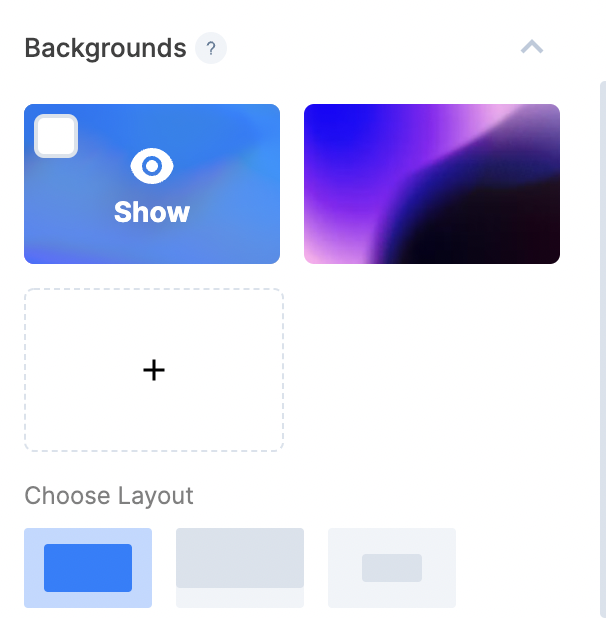
To apply a background image from the list, hover over the desired image and click the blue Show icon. To remove a logo, hover again over an applied logo and click the red Hide icon.