How to Add Custom Apps to the Stage
Last updated: October 15, 2025
Using custom apps, you can engage attendees in the stages by allowing them to participate in activities using apps such as surveys, polls, quiz games, and more. These apps are shown in an inline frame (or iframe) inside the sidebar.
You need an active account with the custom app you intend to use. Zuddl does not provide this support natively.
To add a custom app:
From the left navigation, go to Event Setup > Schedule.
Select the desired session.
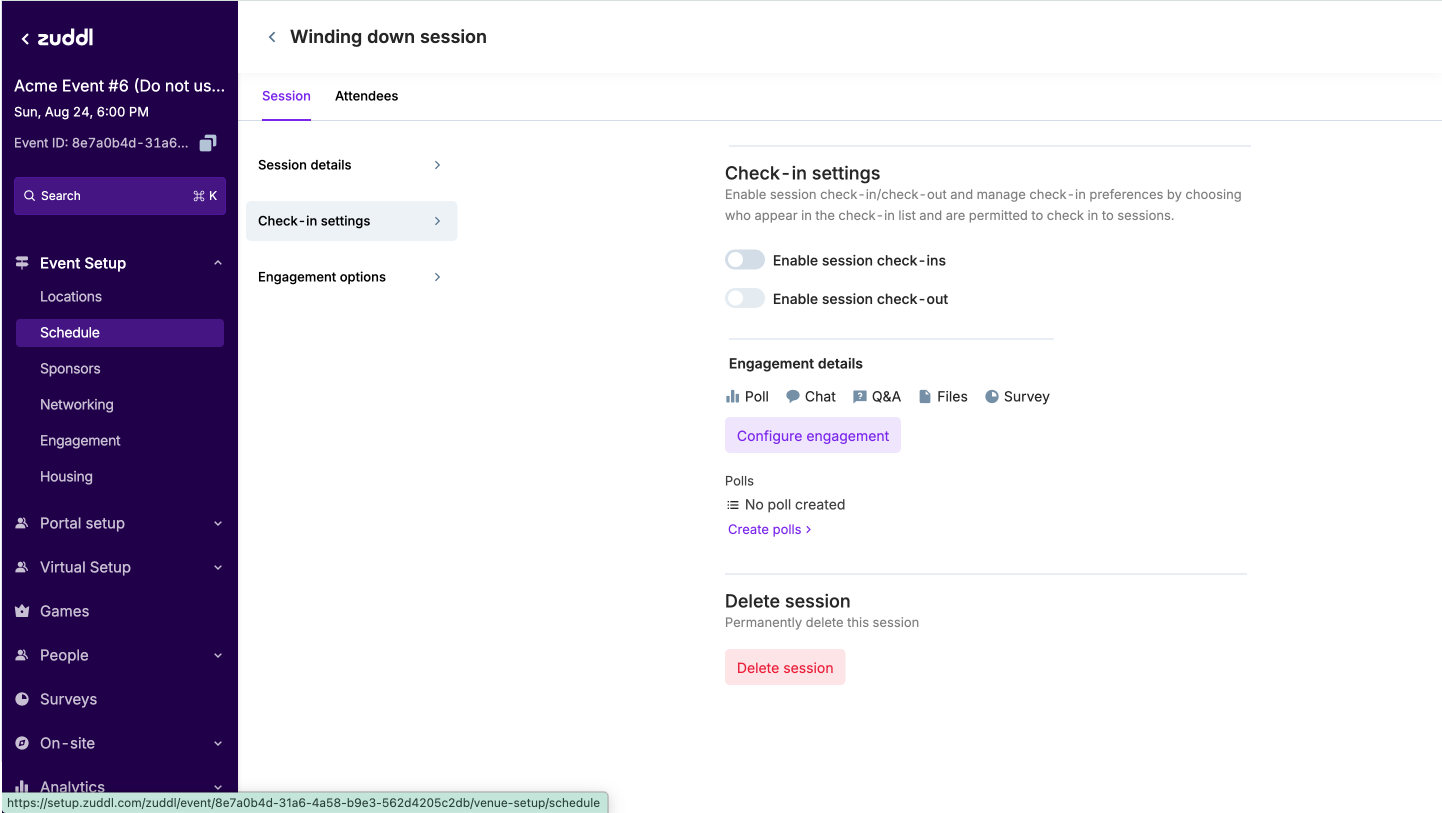
Under the Session tab, go to Engagement options.
Click Configure Engagement.
At the bottom, click the Add Custom App button.
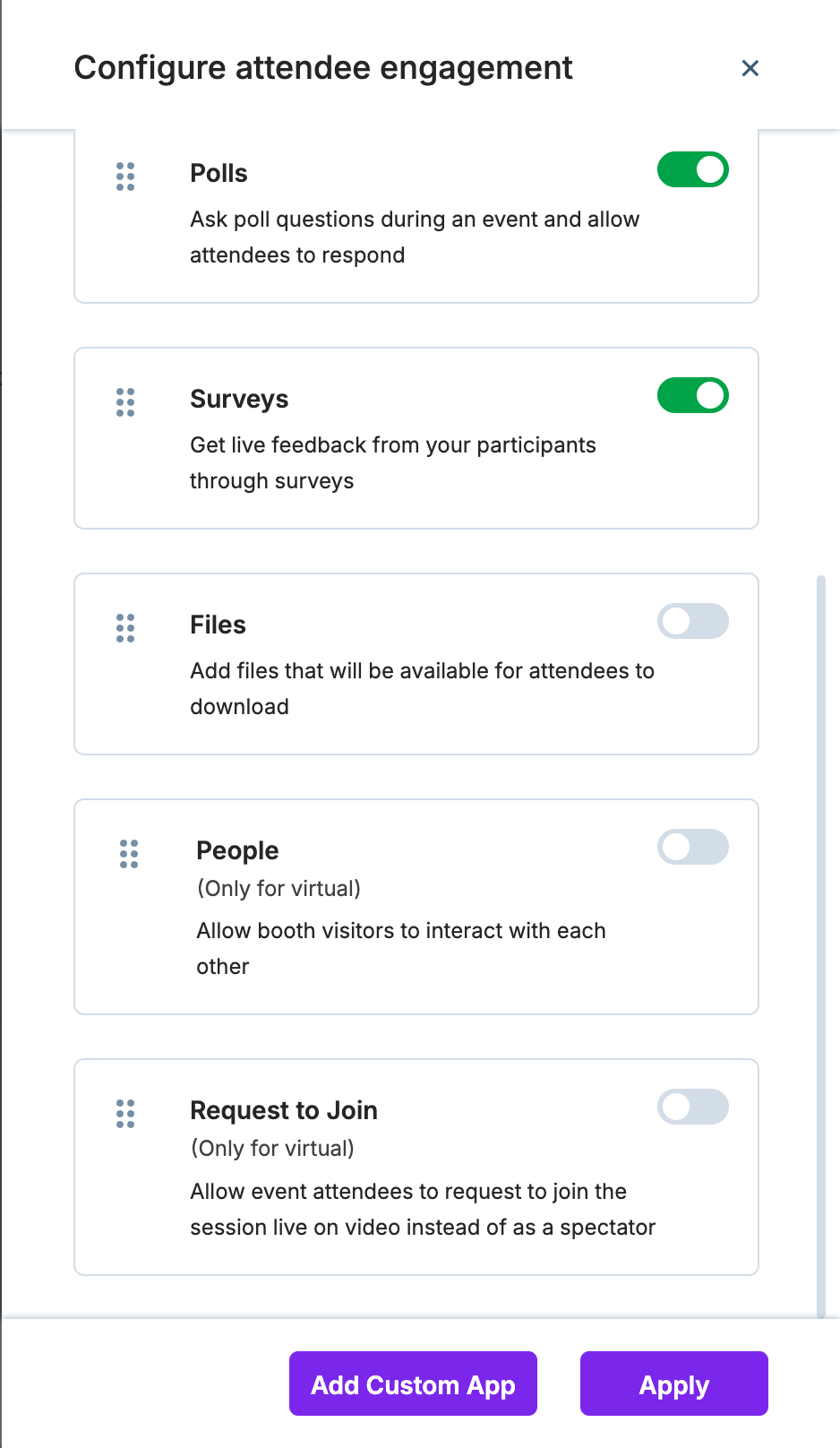
Click the Add Custom App button.
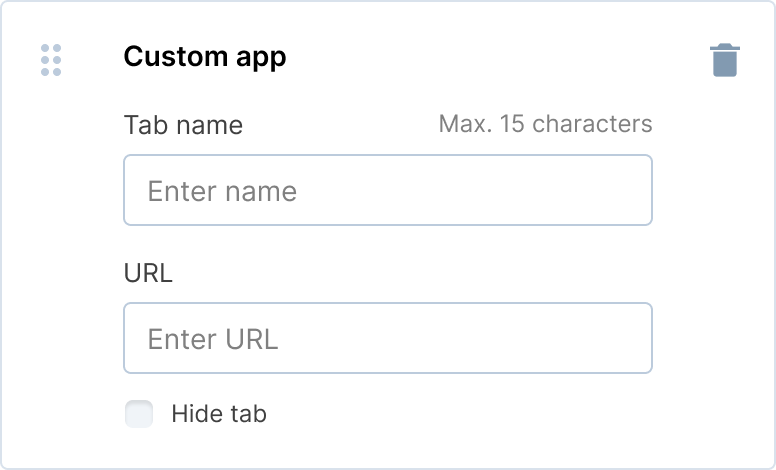
Enter a Tab Name and paste the app URL.
Fetching the App URL
Typeform
Login to your Typeform account.
Create a form and click Publish. Learn how to create a typeform.
Under Get the link section, click the Copy button to copy the URL.
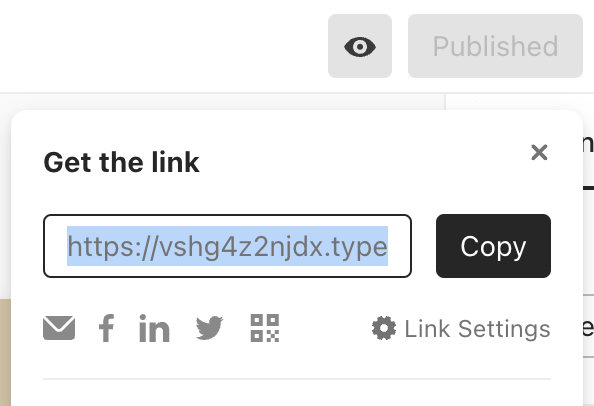
Alternatively, you can click Share in the main tab bar to get the form link.
Kahoot
Login to your Kahoot account.
Create a Kahoot game. Learn how to create a Kahoot.
Go to Settings and change the default visibility to Public.
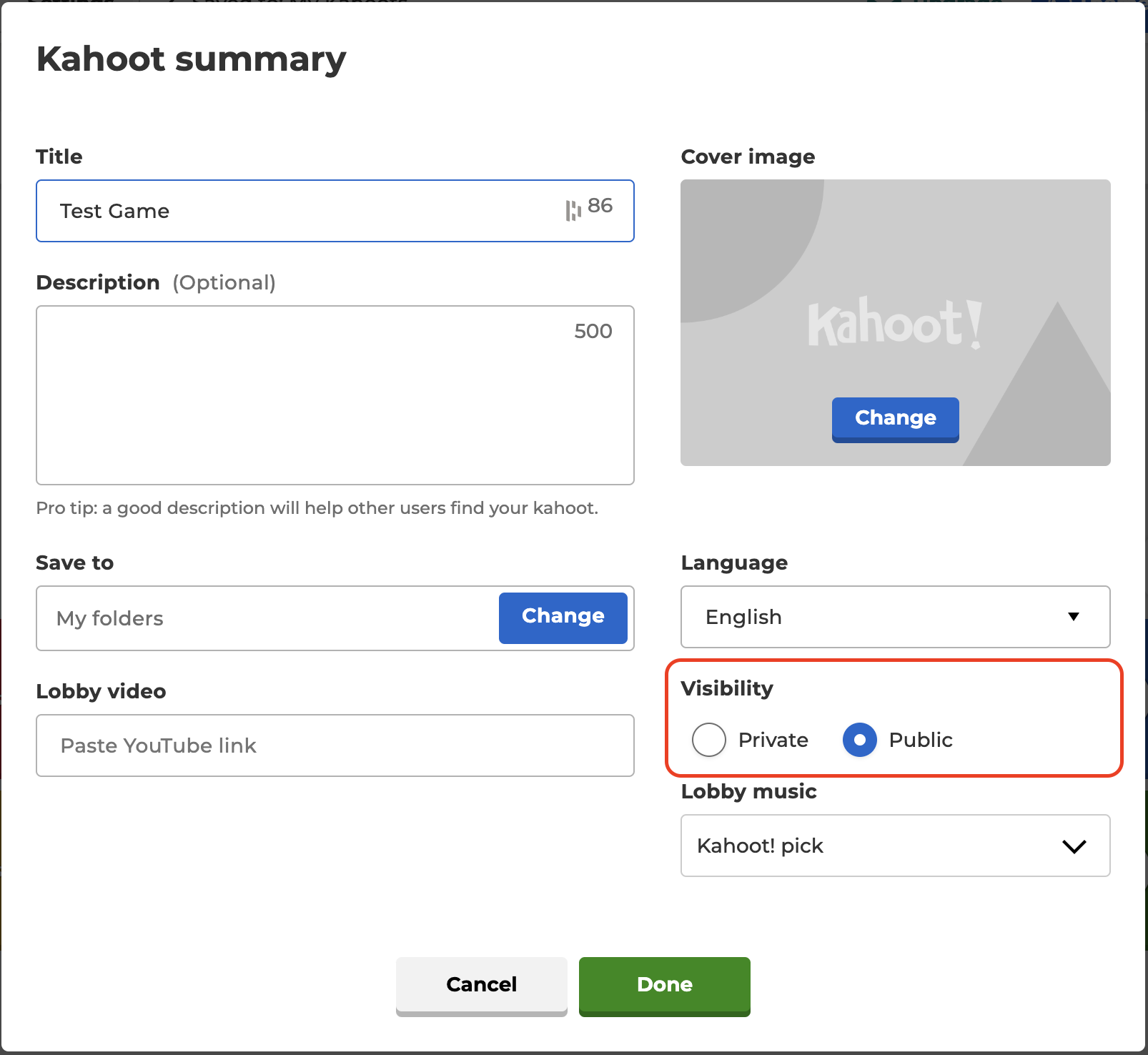
Kahoot Settings.png
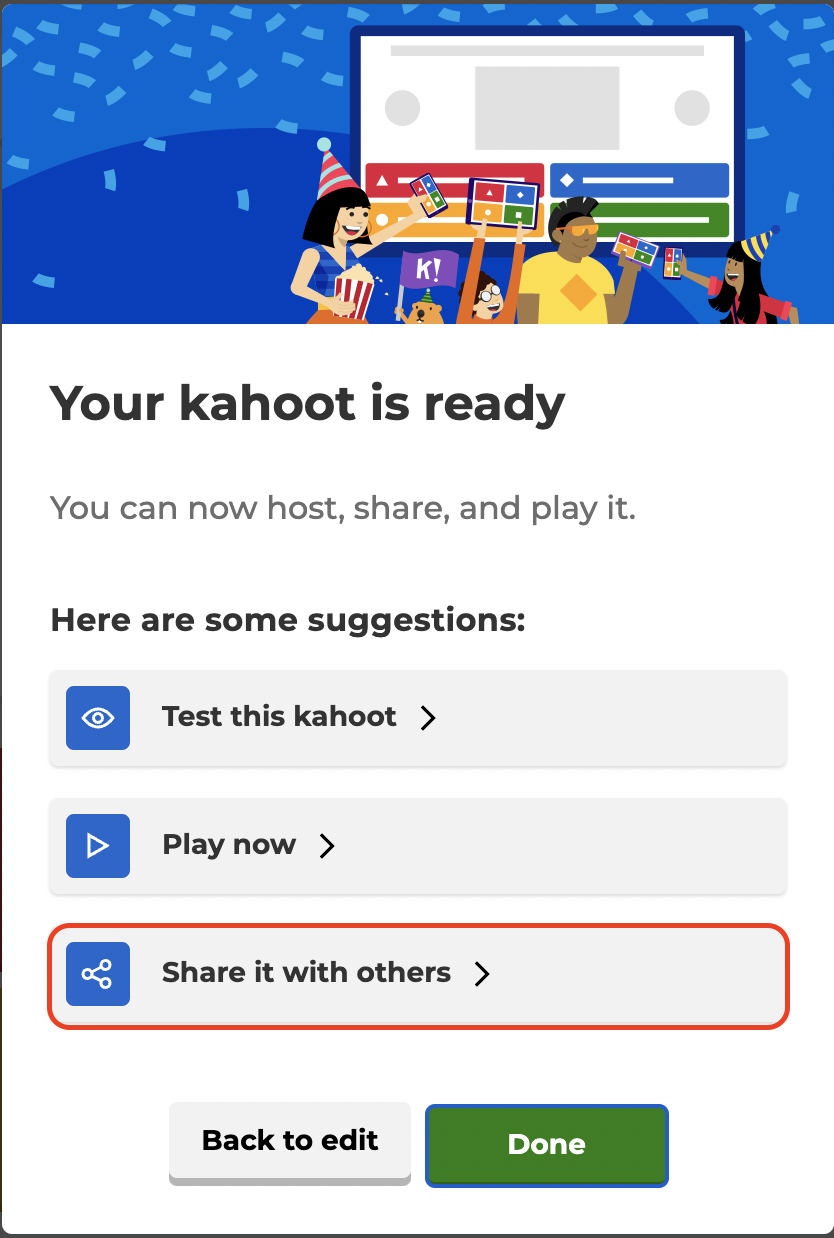
Click Save. This shows how you can use the new Kahoot.
Select Share it with others.
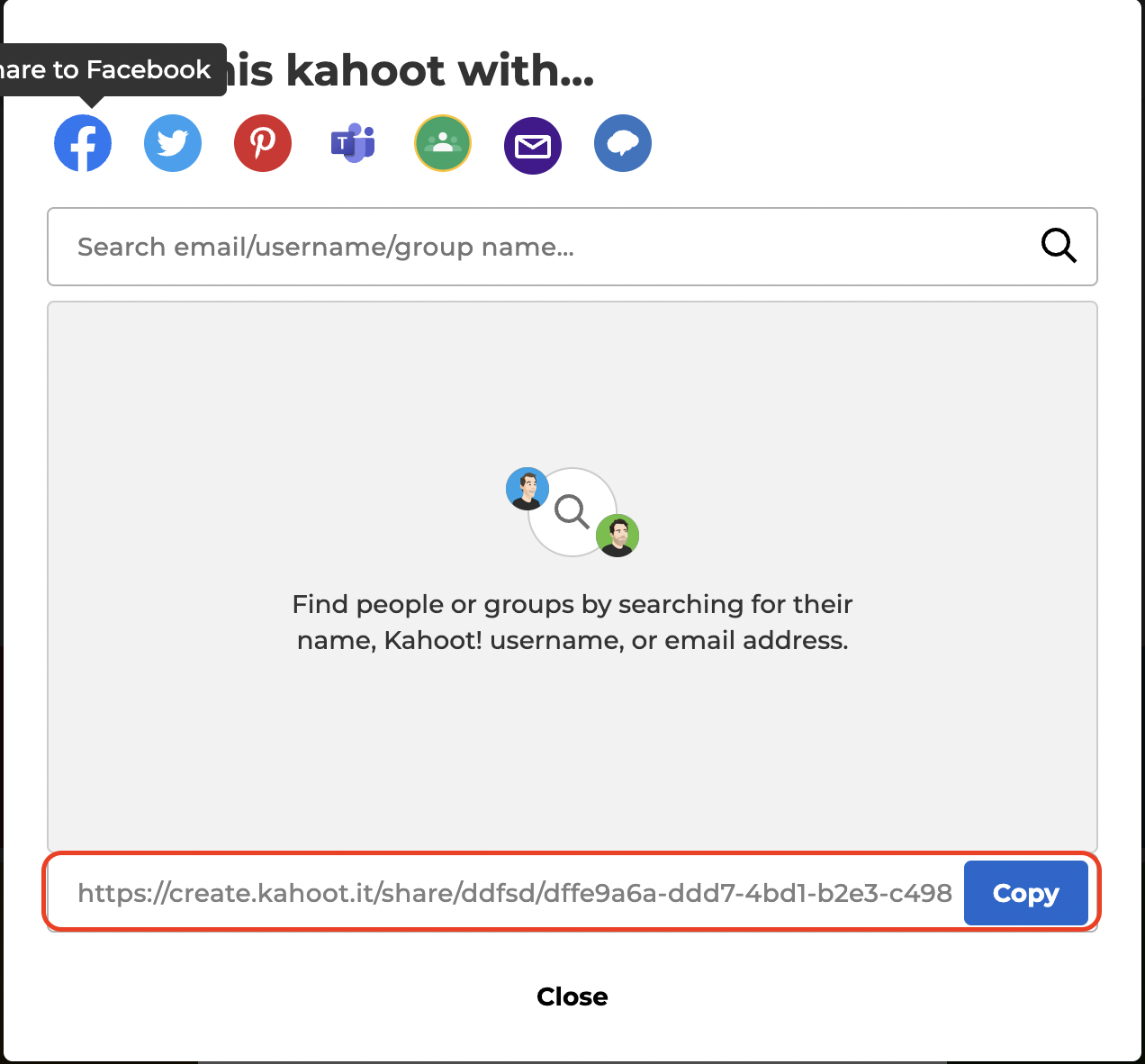
Click Copy to copy the URL.
Slido
Login to your Slido account.
Create a Slido event. Learn how to create a slido event.
Click on Share and select Share link with participants.
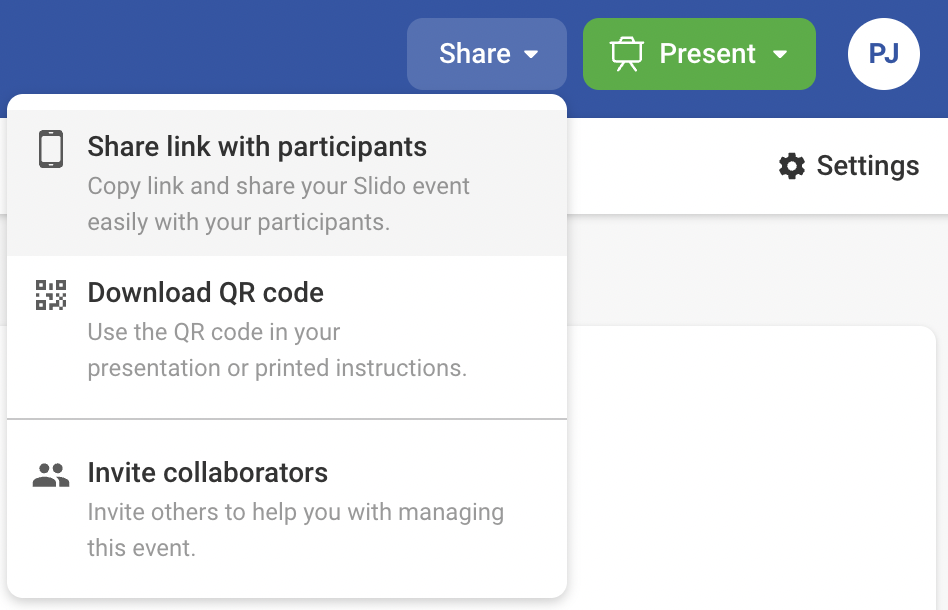
The link gets copied to your clipboard.