Using display conditions in email templates
Last updated: August 4, 2026
What This Does
A display condition is a rule you attach to a row in the drag-and-drop email editor. The row is included in the email only for recipients where the condition is true. If it is false, the whole row — text, buttons, images, spacing — is dropped from that person's email.
Zuddl evaluates conditions per recipient, at send time, against that recipient's own registration data. One template can therefore produce different-looking emails for different attendees, instead of you maintaining several near-identical templates.
Behind the scenes a display condition wraps the row in a template tag pair — for example {{#qrCode}} … {{/qrCode}} — so the row renders only when that value exists for the recipient.
Tip: Display conditions apply to rows, not to individual content blocks. To hide a single button or paragraph, put it in its own row first.
Why Use Them
Avoid broken or empty content. A "Scan your QR code at the entrance" row is confusing for a virtual attendee, and a merge field with no value renders as a blank space or a dead link. The condition removes the row instead.
One template instead of many. Ticketed and free registrants, in-person and virtual attendees can all receive the same confirmation email, each seeing only the sections that apply to them.
Keep emails short and relevant. Refund lines, coupon lines, add-on lines and portal links only appear for the people they actually concern.
Example
You run a hybrid event and send a single registration confirmation email to everyone. In the template you build three rows:
A common header row with the event name and date — no condition, so everyone gets it.
A row with the entry QR code and venue directions — condition QR Code.
A row with "Join the livestream" instructions — condition Virtual instructions.
Result: an in-person ticket holder receives the header and the QR code row. A virtual ticket holder receives the header and the livestream row. Nobody sees a section that does not apply to them, and you maintain one template.
Before You Begin
You need organizer access with edit permission on the event's communication settings.
The email must be opened in the drag-and-drop editor (Edit email). Display conditions are a feature of that editor and are not available in Edit HTML code.
Decide which conditions you need. The list available to you depends on the event format and the email type — see Available display conditions below.
Warning: If you save an email through Edit HTML code, that email switches to HTML mode and the drag-and-drop editor is no longer offered for it. Add and finalise your display conditions before moving an email to HTML.
Steps
In event setup, go to Communication and open the email you want to edit (a standard campaign, a custom email, or a saved template).
Select Edit email to open the drag-and-drop editor.
In the canvas, click the row you want to make conditional. Make sure you have selected the row — the outer container — and not a single content block inside it.
In the settings panel on the right, open the Row properties and find the Display conditions section.
Select Add condition. A list of the conditions available for this event and email type opens, grouped by category (QR Code, Event link, Ticketed event, Modify registration, and so on). Each entry shows a short description of when the row will be shown.
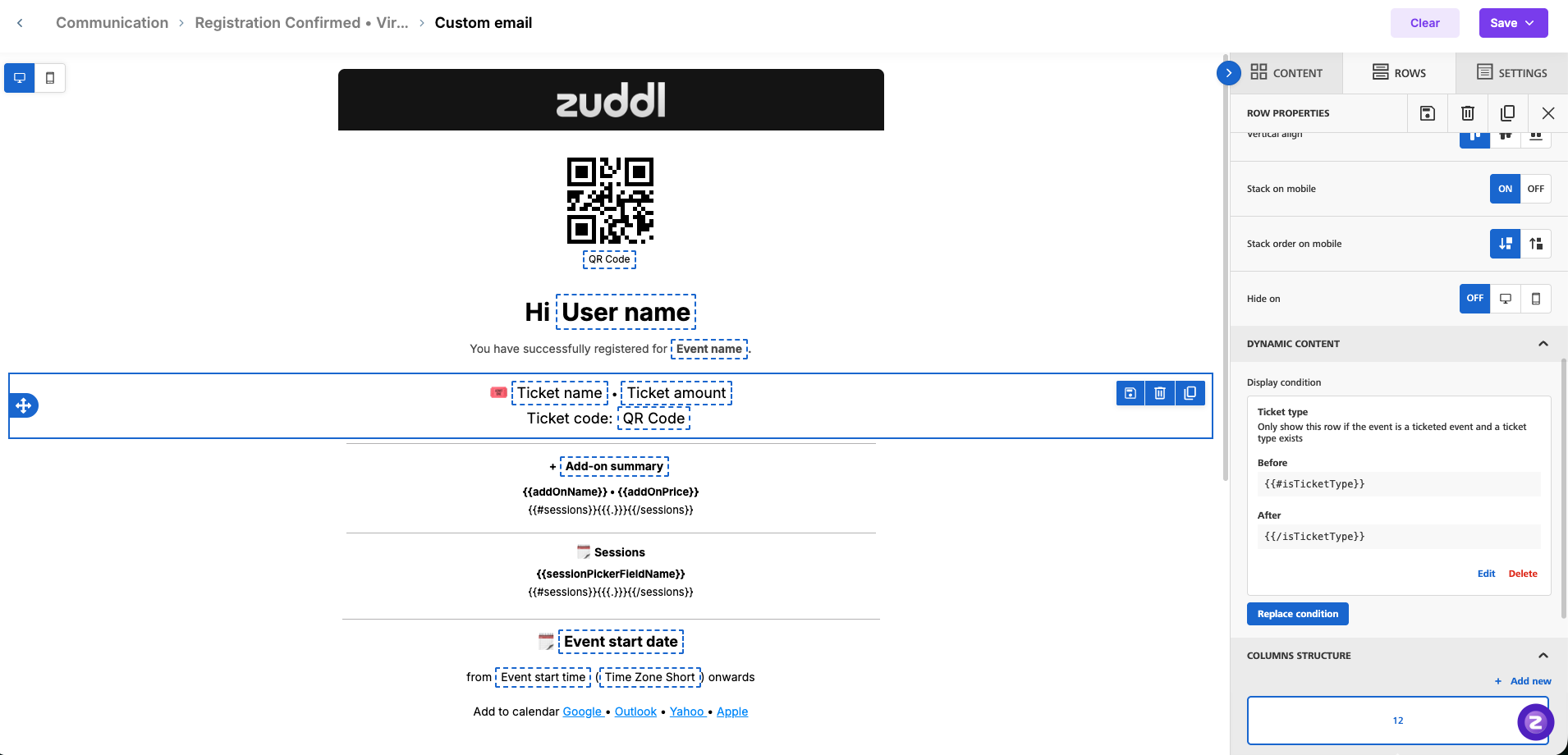
Pick the condition you want and confirm. The row is now marked as conditional in the canvas, and the applied condition is shown in the row's settings.
Repeat for any other rows that should be conditional. Rows you leave untouched are sent to everyone.
Select Save (or Save and exit) to store the changes on the email. Use Save as template if you also want to reuse this layout on other emails.
Removing or changing a condition
Select the conditional row in the canvas.
Open Display conditions in the row settings.
Remove the existing condition, then add a different one if needed.
Save the email.
What Happens Next
The condition is stored with the email template, not with a specific recipient list. From the next send onwards, Zuddl evaluates each condition for every recipient as the email is generated:
Condition true — the row is rendered normally.
Condition false — the entire row is removed, and the rows above and below close up. No empty gap is left.
To verify, send a test email from the email's settings page. Note that a test email is generated against sample data, so the safest check is a real registration on a test event that matches the case you want to see (for example, register for an in-person ticket to confirm the QR code row appears).
Available display conditions
These are the conditions Zuddl offers in the drag-and-drop editor. The list is filtered automatically, so you will not see conditions that cannot apply to the event or email you are editing.
QR Code — show the row only when the event is hybrid or in-person and a QR code is available for the recipient.
Event link — show the row only when the event link is available.
Ticket type — show the row only for a ticketed event where a ticket type exists.
Transaction id — show the row only for a ticketed event where a transaction ID exists.
Edit registration link — show the row only for a ticketed event where the edit-registration link is available.
Virtual instructions — show the row only when the event is hybrid and the ticket type is virtual, or the event itself is virtual.
Modify registration link — show the row only for a flex event where the edit-registration link is available.
Cancel registration link is available — show the row only when a cancellation link is available for that recipient. Offered only on emails where attendee cancellation links are enabled.
Cancellation reason is available — show the row only when a cancellation reason exists. Offered only on self-cancellation emails.
Add-on purchased — show the row only when add-ons were purchased in the transaction.
Is coupon applied — show the row only when a coupon code was applied to the ticket.
Sponsor portal link / Speaker portal link / Attendee portal link — show the row only when that portal is enabled for the event.
Ticket cancellation/refund items — show the row only for a ticket cancellation or refund.
Ticket refund — show the row only when a refund amount exists.
Event venue and Event location map link — show the row only when the venue (and, for the map link, the map URL) is available. Offered on field and in-person events.
Notes
A row with no condition is always sent. Conditions only ever remove content; they never add it.
You can apply a condition to any row, including one that contains only an image or a spacer.
Conditions are tied to data Zuddl already holds for the recipient (ticket, QR code, refund, portal access). You cannot write a custom expression or condition on an arbitrary registration form field.
If a conditional row never appears in real emails, check that the underlying data actually exists for that recipient — for example, portal links only resolve when the portal is enabled for the event, and refund rows only when a refund was processed.
If the whole email looks empty for some recipients, check whether every row carries a condition; a common cause is applying a condition to a header or footer row by accident.