How to Print Badges Using PrintNode for your Hybrid Event in Zuddl
Last updated: September 3, 2025
You need to integrate PrintNode with Zuddl in order for the Zuddl mobile app to give print commands for ZC10L via PrintNode.
Prerequisite - PrintNode API Key
To access your PrintNode API key:
1. Login to the PrintNode account.
2. Click API Keys.
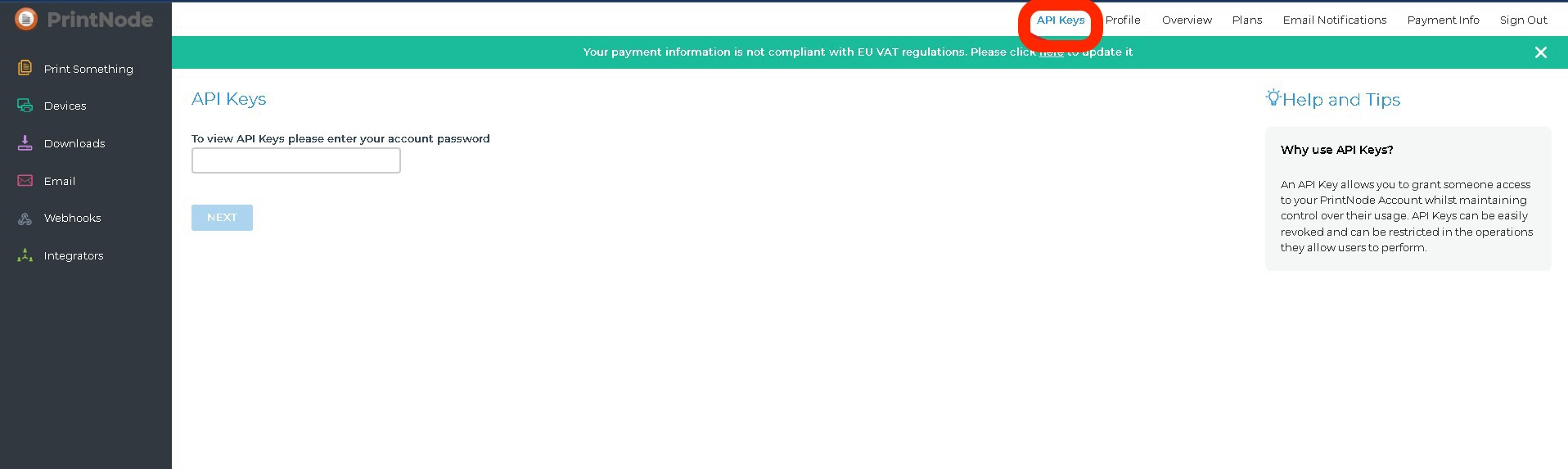
3. Enter your password and click Next.
4. Enter your API key description and click Create.
5. Copy the generated API Key.
1. In Zuddl’s dashboard, navigate to Onsite > Badges > Settings.
2. Enable PrintNode by toggling the Enable PrintNode option.
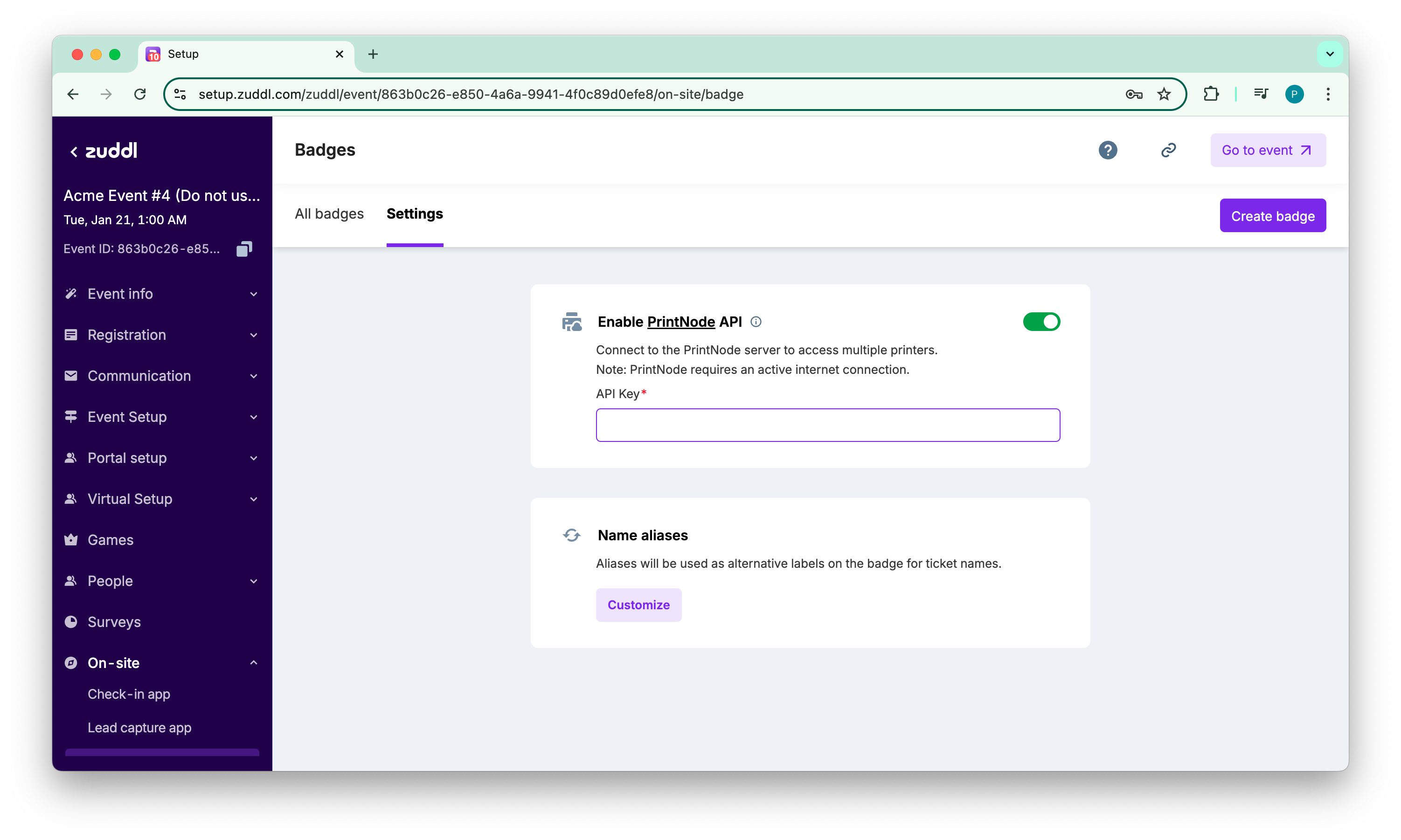
3. Enter your PrintNode API key to complete the integration.
If you are using the ZC10L Zebra printer, refer the step-by-step guide