Lead Capture 2.0 — Badge Calibration
Last updated: August 14, 2026
Lead Capture 2.0 — Badge Calibration lets reps teach the app an event's badge layout once, then capture clean, correctly-mapped lead data (name, company, title) on every scan afterward — reducing enrichment failures. Works both online and offline.
Why it exists
Badge OCR without guidance often maps the wrong text into the wrong field, causing enrichment to fail or produce dirty data. Badge Calibration solves this by learning the badge's layout from a single scan before the rep starts capturing leads.
Setup takes ~2 minutes: a one-time step per event.
Reused for every scan after: the layout is saved as a template.
Reduces enrichment failures: clean, consistent field mapping on every scan.
End-to-end flow
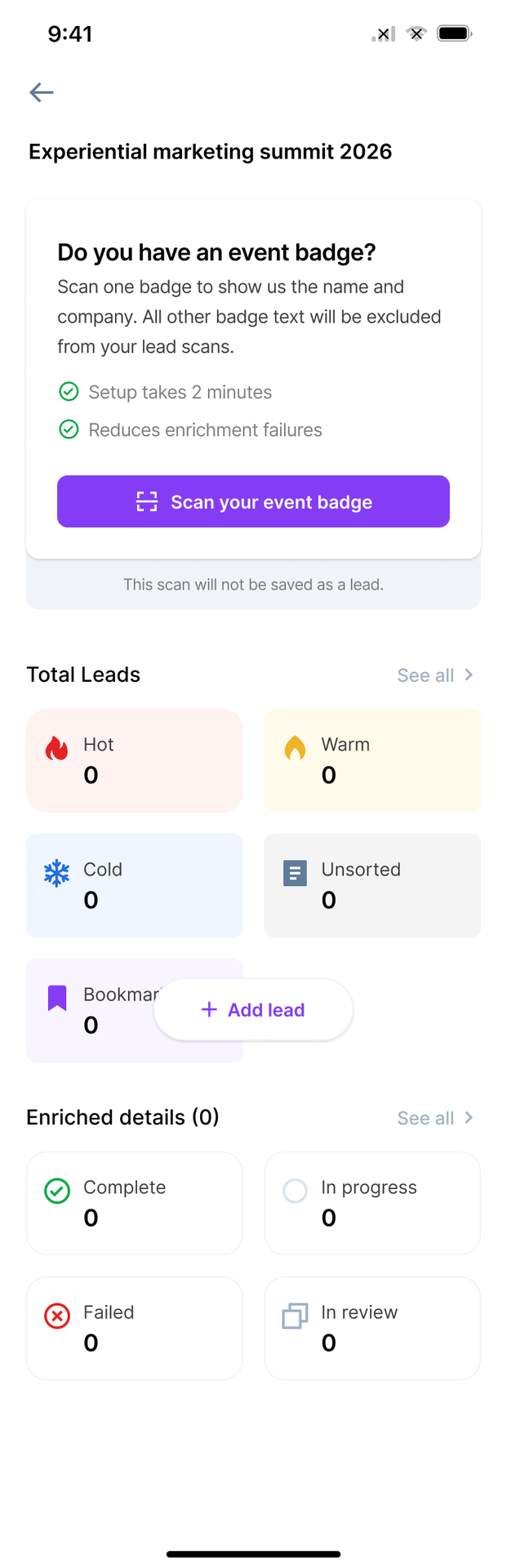
Setup prompt — a setup card asks the rep to calibrate the badge before scanning leads.
Scan one badge — the app captures a badge image and auto-detects the fields.
Confirm & map — the rep confirms the auto-mapped fields, fixes any wrong ones, and adds skip rules.
Save as template — calibration is saved and applied to all future scans for the event.
Capture leads — every subsequent badge scan captures leads instantly using the saved layout.
Enrich & qualify — each captured lead is auto-enriched and moves into qualification.
1 · Setup card (Event landing page)
Shown on the Lead Listing screen.
2 · Badge scanner
A segmented scanner adds a dedicated Badge mode alongside QR code and Card. Badge capture is guided with live states.
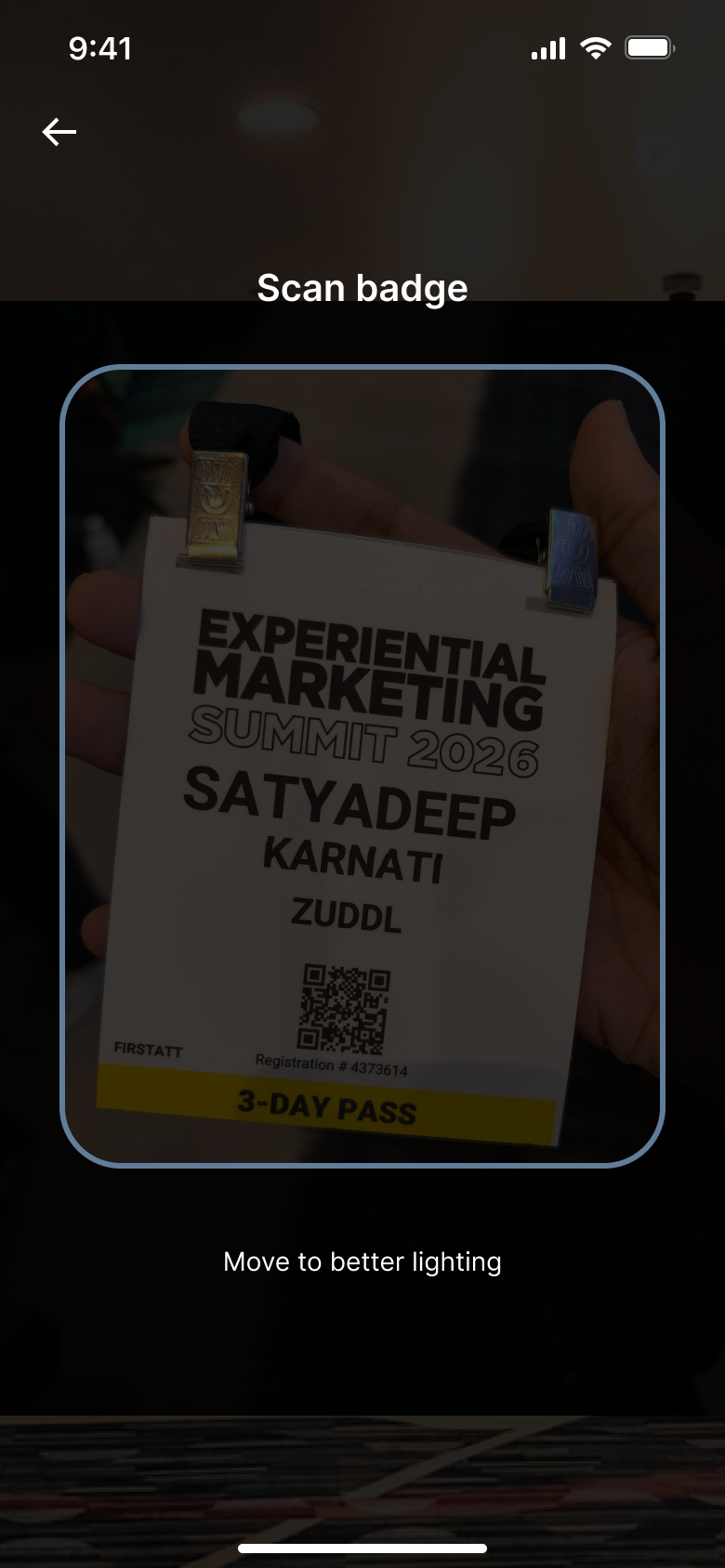
Badge scan mode with live guidance (“Move to better lighting”).
3 · Confirm scan & map fields (Scan badge template)
After the calibration scan, the app auto-detects each field and maps it to the right place. The rep reviews and corrects before saving.
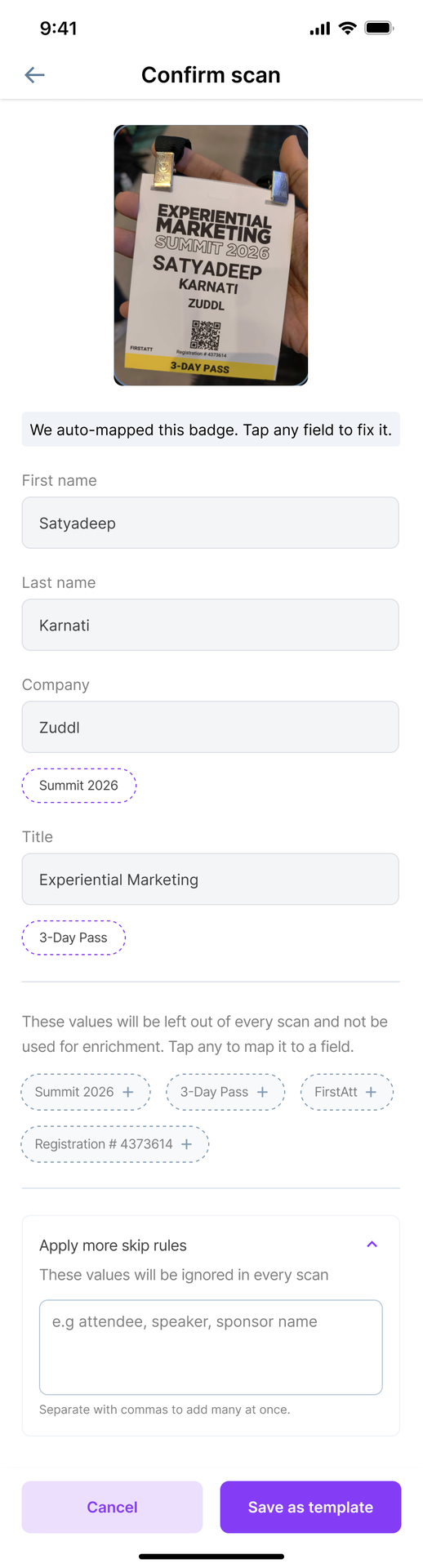
Confirm scan — auto-mapped fields, tap-to-fix, and skip rules.
Auto-mapping
The app automatically detects the lead data needed for enrichment (name, company, title) and maps each to the correct field.
If a field was mapped incorrectly, tap it → “Select a field to add to” → reassign it before saving.
Skip rules
Skip rules exclude badge text that should never be captured (e.g. registration number, “attendee/speaker/sponsor”, role). These values are left out of every scan and excluded from enrichment.
“Apply more skip rules” — add values that should be ignored on every scan.
Multiple values can be added at once, separated by commas (e.g. “attendee, speaker, sponsor”).
If the scan didn't pick up a value you want excluded, you can type it in manually so it's skipped on every scan.
4 · Enrichment & qualification
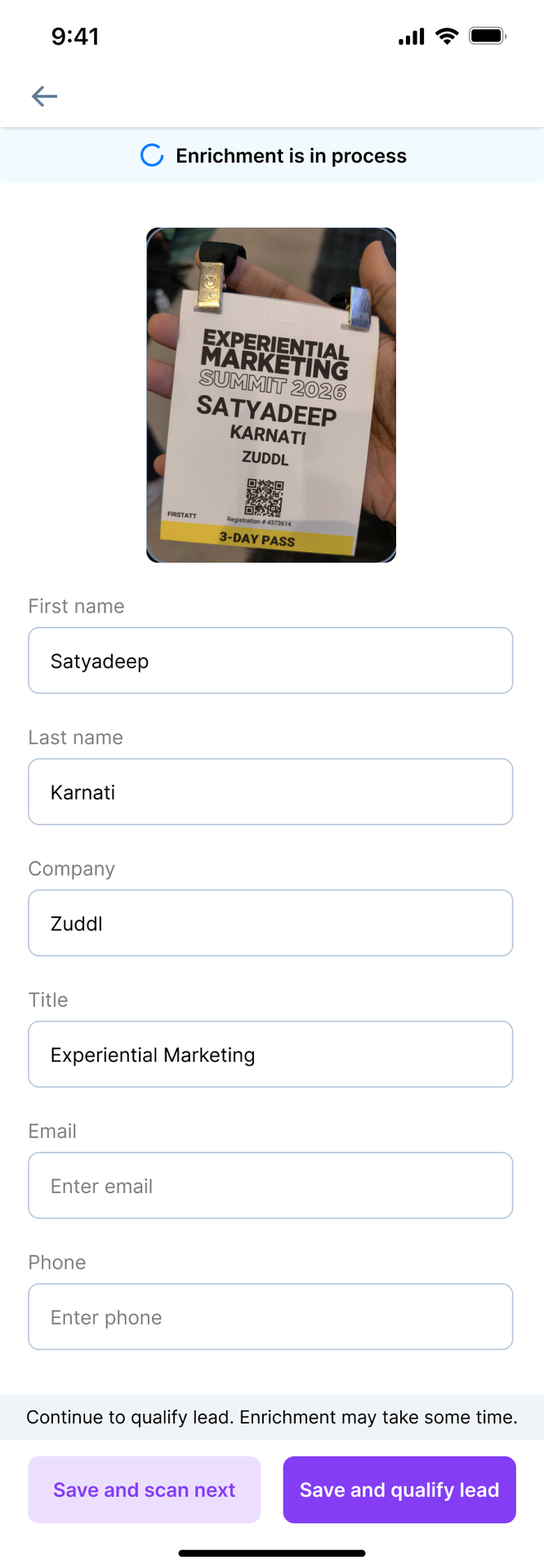
After each scan, the lead is auto-enriched with clear status states.
Complete: enrichment succeeded.
In progress / In review: “Enrichment is in process” — the rep can continue to qualify; enrichment may take some time.
Failed — email not found: “Enrichment failed — email not found.”
6 · Offline mode
The full flow works offline. Setup and captured leads apply to all scans and sync automatically once back online.
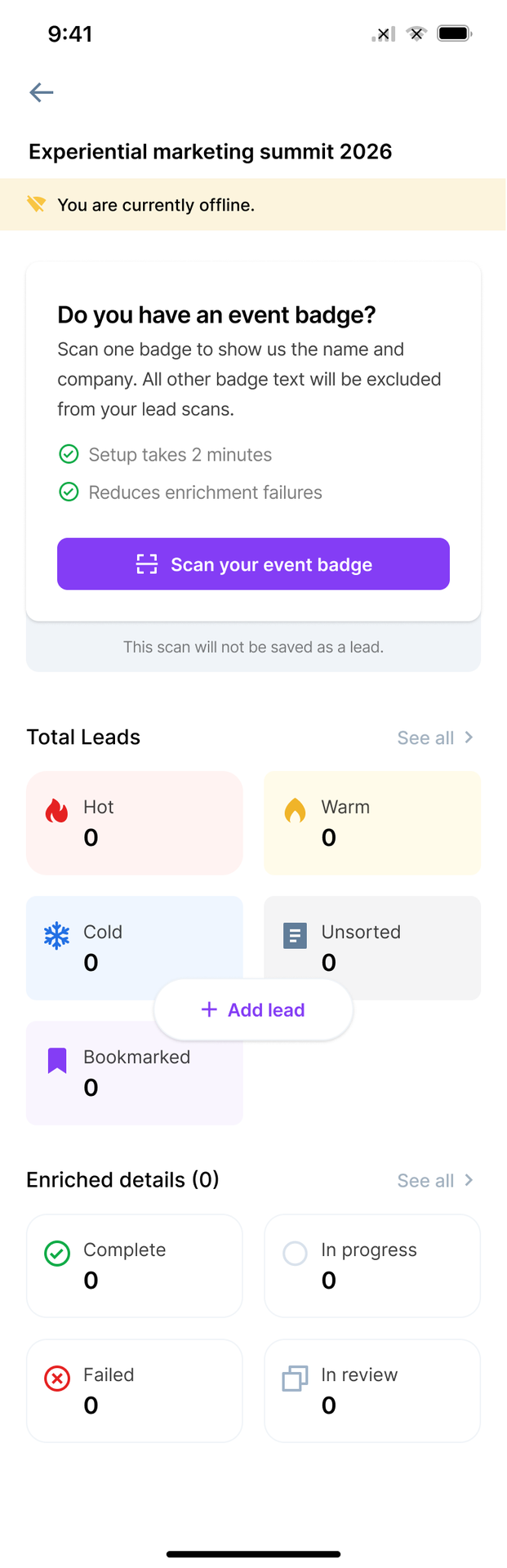
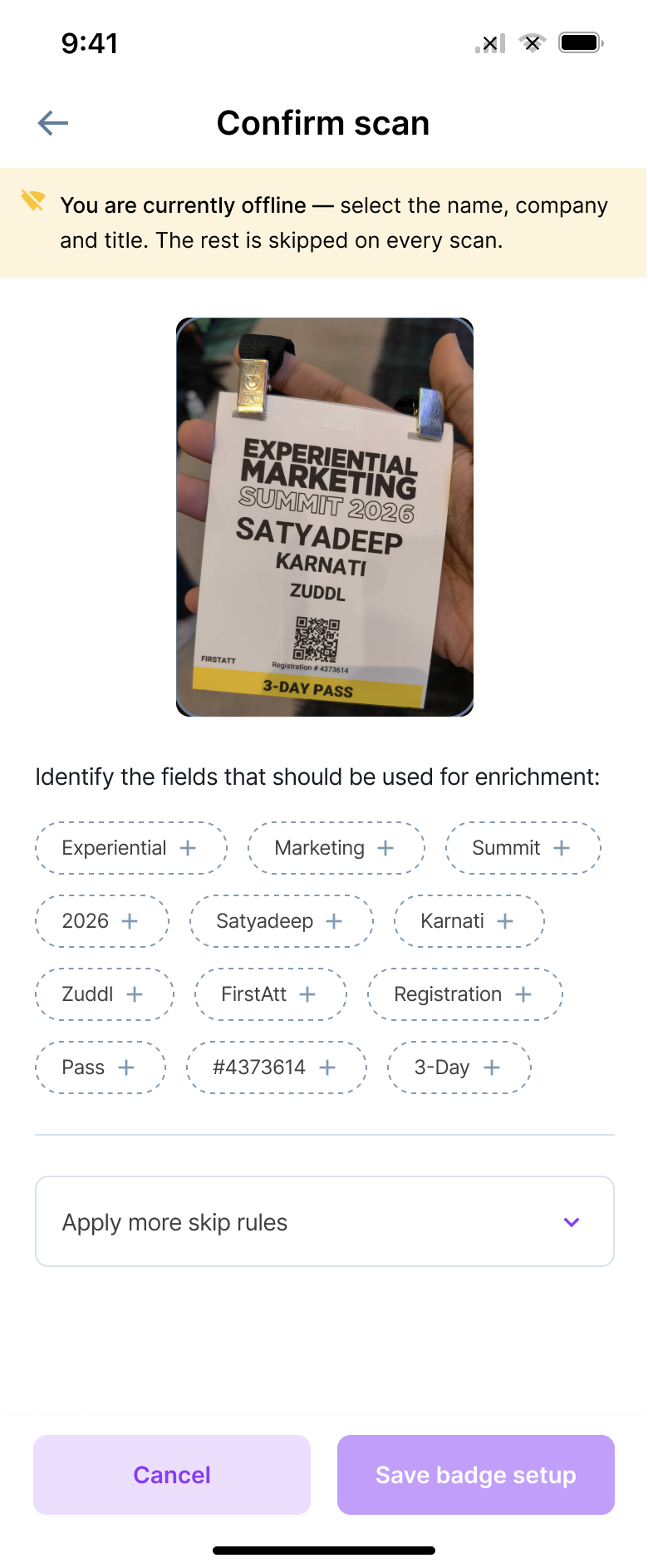
A banner indicates offline state: “You are currently offline — select the name, company and title. The rest is skipped on every scan.”
Offline calibration: “Save this offline, it applies to all scans once you're online.”
Captured leads show a “Yet to sync” state until connectivity returns, then sync automatically.
Confirm-scan and skip-rule behavior is identical to the online flow.
Key rules & behaviors
Calibration is per event and saved as a reusable badge template.
A new/changed template applies to new scans only — previously scanned leads are not affected.
Saving a new setup replaces the current one from that point onward.
Works online and offline; offline leads sync automatically once back online.