Using Zuddl Merge Tags on Custom Registration Page
Last updated: August 28, 2025
You can use Zuddl merge tags on Custom Registration page for your Zuddl event. Using merge tags, you can quickly and easily add event-related details onto registration page that you have already entered while creating the event, instead of having to add them manually.
You can use the following event merge tags:
Merge tagDescription | |
Event name | Name of the event |
Event start date | start date of the event |
Event start time | start time of the event |
Event end date | end date of the event |
Event end time | end time of the event |
Event description | Event description you have added while creating an event |
Event timezone | Timezone of the event |
Event location | Location of event. For in-person/hybrid events |
Event logo (image) | Event Logo (not a merge tag) |
To add merge tags on the custom registration page:
Enter the editor for your custom registration page (old/new).
Click to select any text component on the page where you need the merge tag.
On the toolbar, click Connect to Data option.
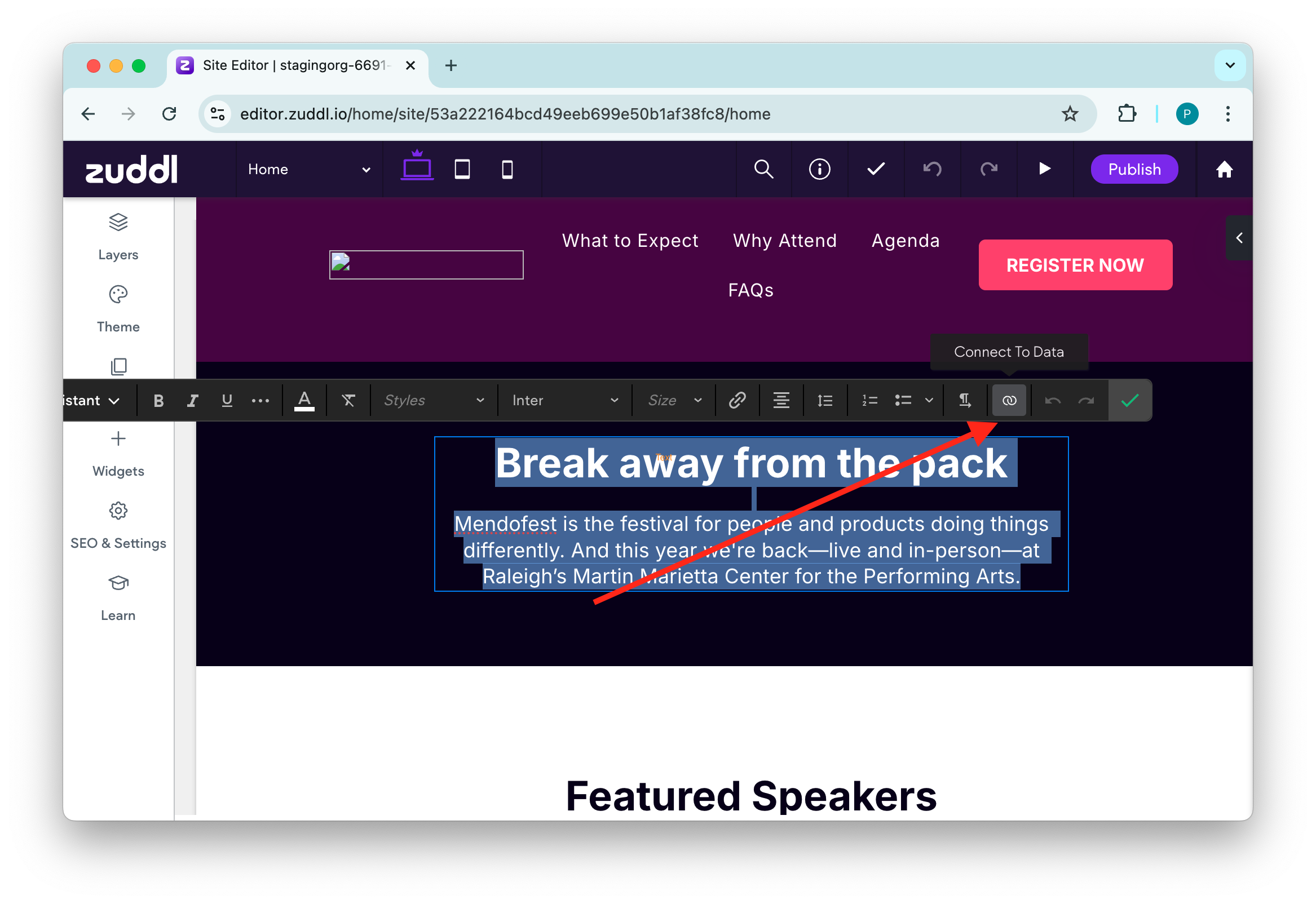
On the Connect to Data tool pop-up, expand the dropdown to select the data you want to connect.
This list shows all the event merge tags.
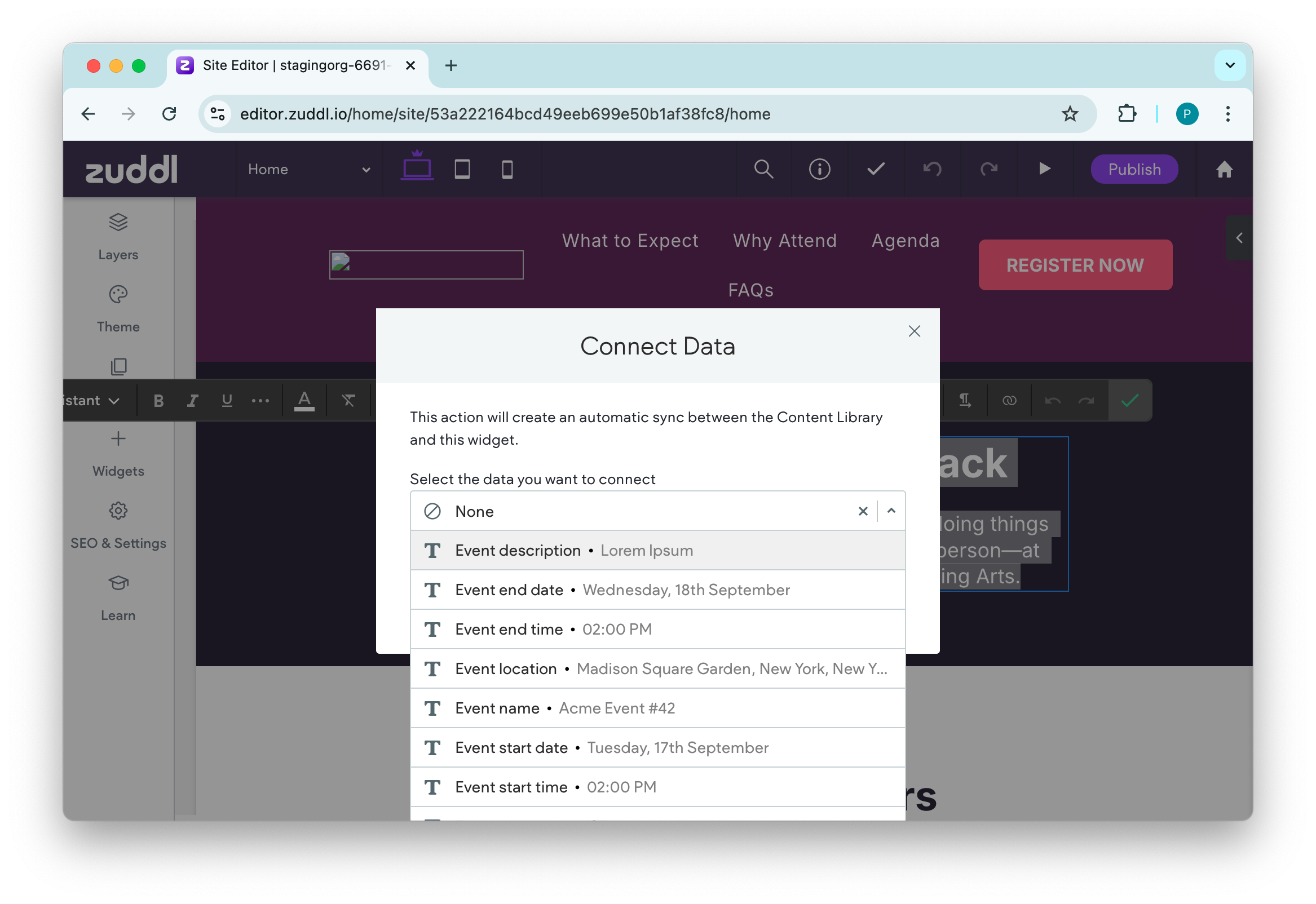
Event location merge tags shows up only when an in-person location is added.
Click Save. The component shows the merge tag values.
Alternatively, you can use double curly brackets (‘{{’)to show merge tags.
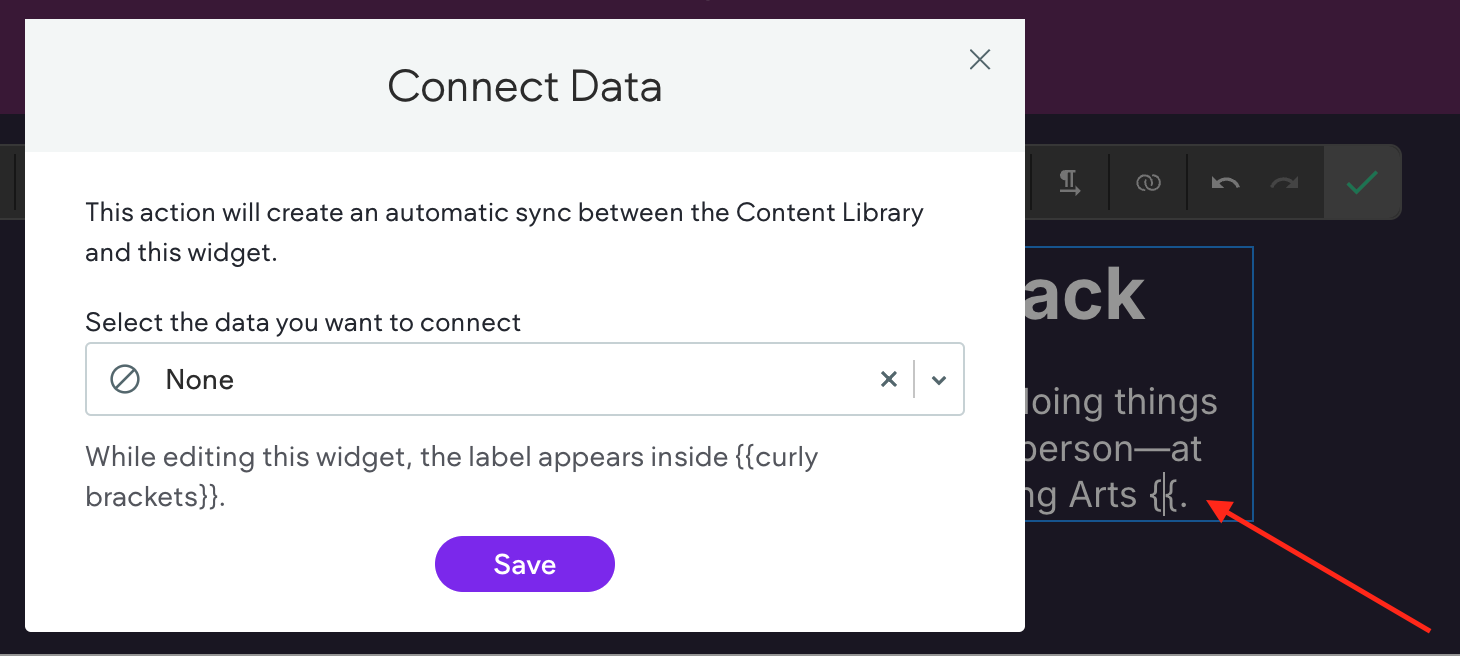
Any changes to the event details you make on the dashboard, for example you change the ‘event description’ on the dashboard, the same is updated on all published landing page (wherever used) automatically.
Using event logo
To show event logo use image widget. When you upload logo on the dashboard,
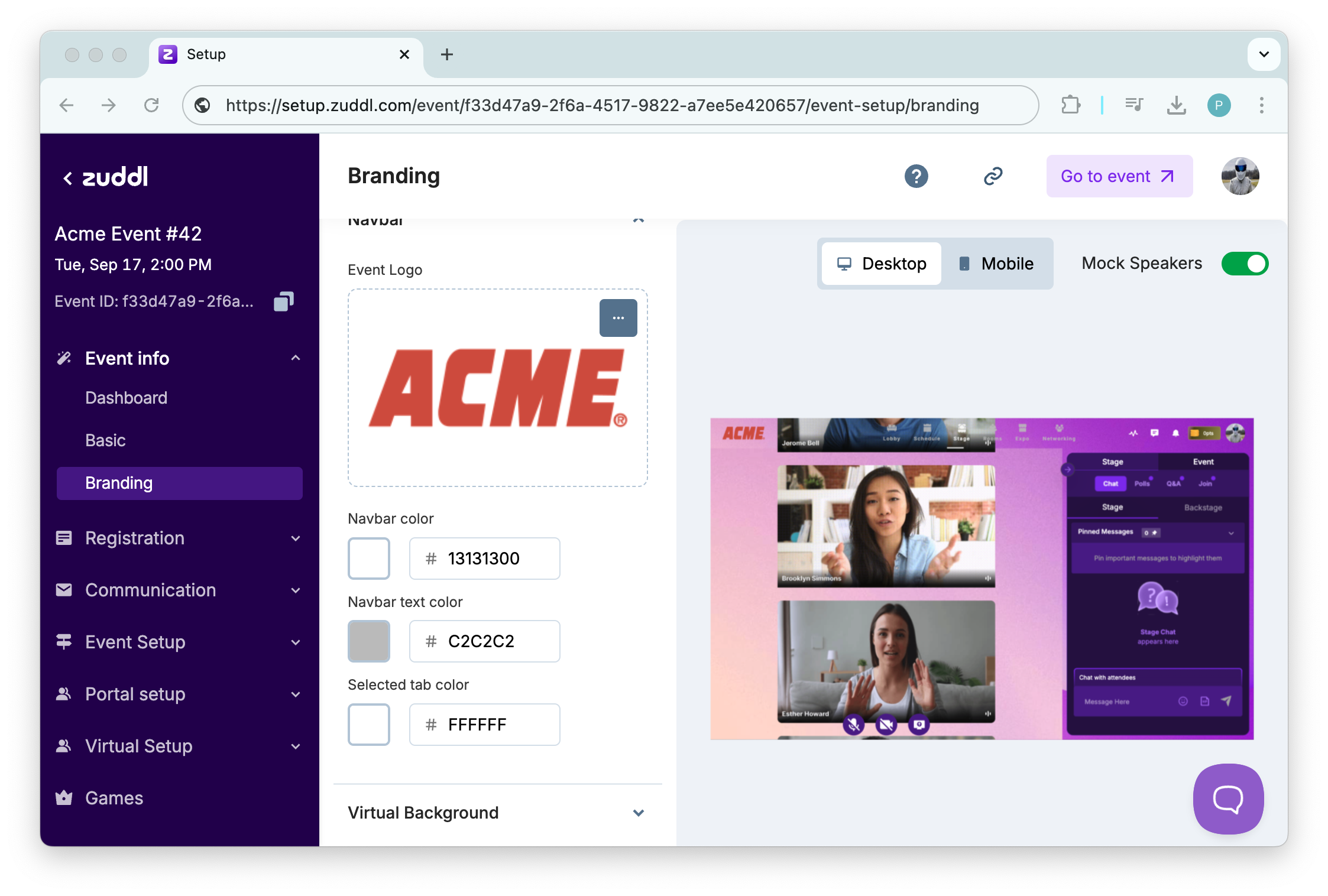
the uploaded logo also appears in the list of predefined site images in the landing page editor.
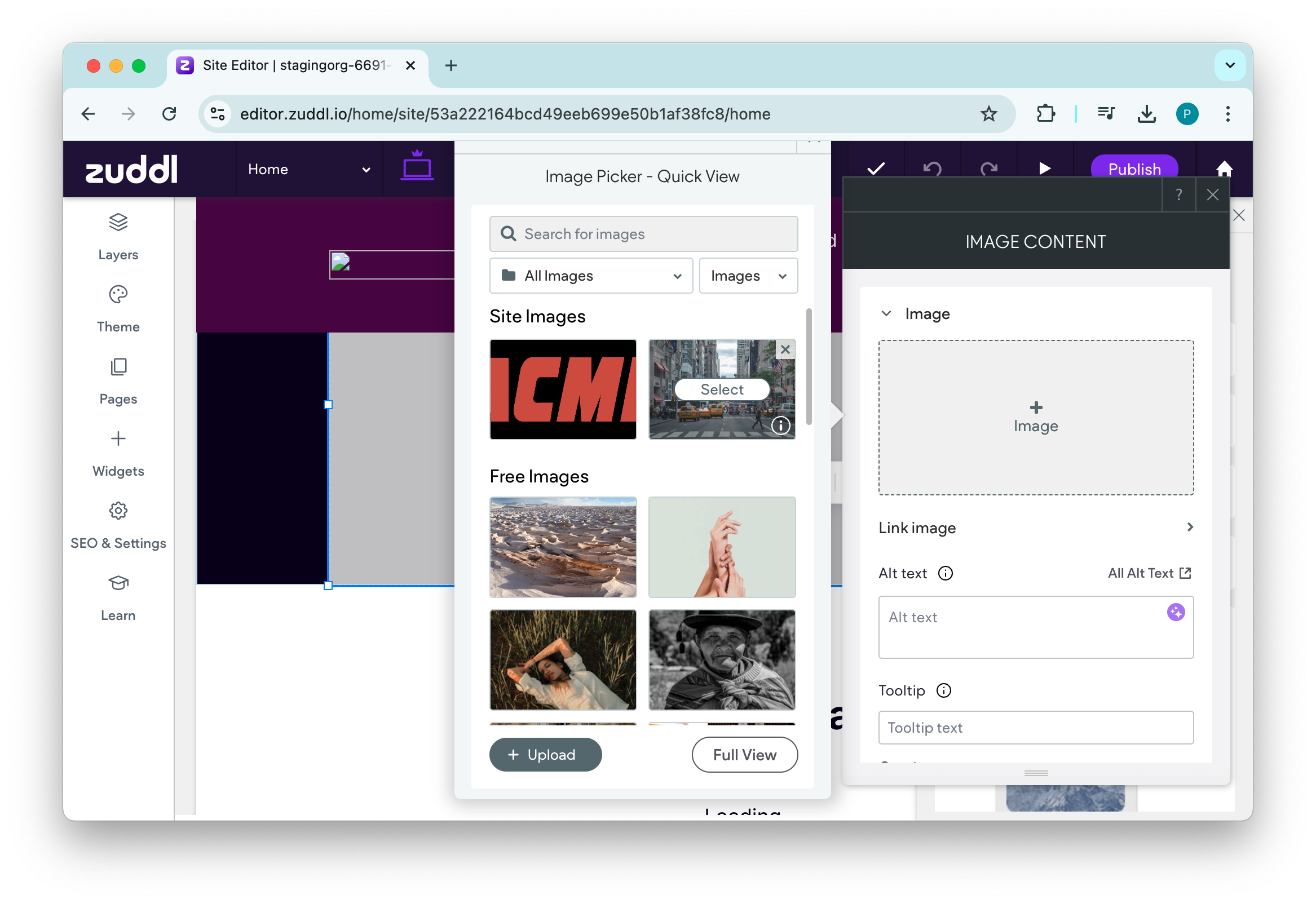
Updating logo on landing page builder takes a few seconds depending on the size of the image.
Logo change on the setup side does not change the logo on the landing page.
Merge tags are also available for registration page for older events