How to Troubleshoot Stream and Connection Issues
Last updated: August 17, 2026
In this article, you will learn how Zuddl handles internet and browser issues for you during a live session, and what to do if the stream still does not play.
What This Does
When you join a live session, Zuddl runs a quick background check of your browser and your network connection. If it finds a problem — an unsupported or outdated browser, or a firewall/VPN blocking the live stream — Zuddl automatically switches you to Lite Mode and shows a short Lite mode enabled message explaining why.
Note: You no longer need to turn Lite Mode on yourself. Zuddl enables it for you when it detects a browser or network problem, both when you join and during the session. You can still turn it on or off manually while a session is live.
Before You Begin
You are joining as an attendee. Automatic Lite Mode applies to attendees watching a live session, not to organizers, speakers on backstage, or embedded stages.
The session must be live. Lite Mode is only available while a session is broadcasting.
Use the latest version of Chrome, Safari, Firefox, or Edge.
Be ready to disconnect any VPN and switch to a different network if needed.
What Lite Mode is
Lite Mode is a lightweight version of the session stream, so that if you face internet bandwidth issues you can still attend the session.
The stream has a delay of up to 30 seconds compared to the live stream.
In-stream interactions, such as answering a poll, are not available on the Lite Mode stream.
The stream automatically adjusts its resolution to your available bandwidth.
You can tell you are on Lite Mode from the Lite mode label on the top left corner of the stream.
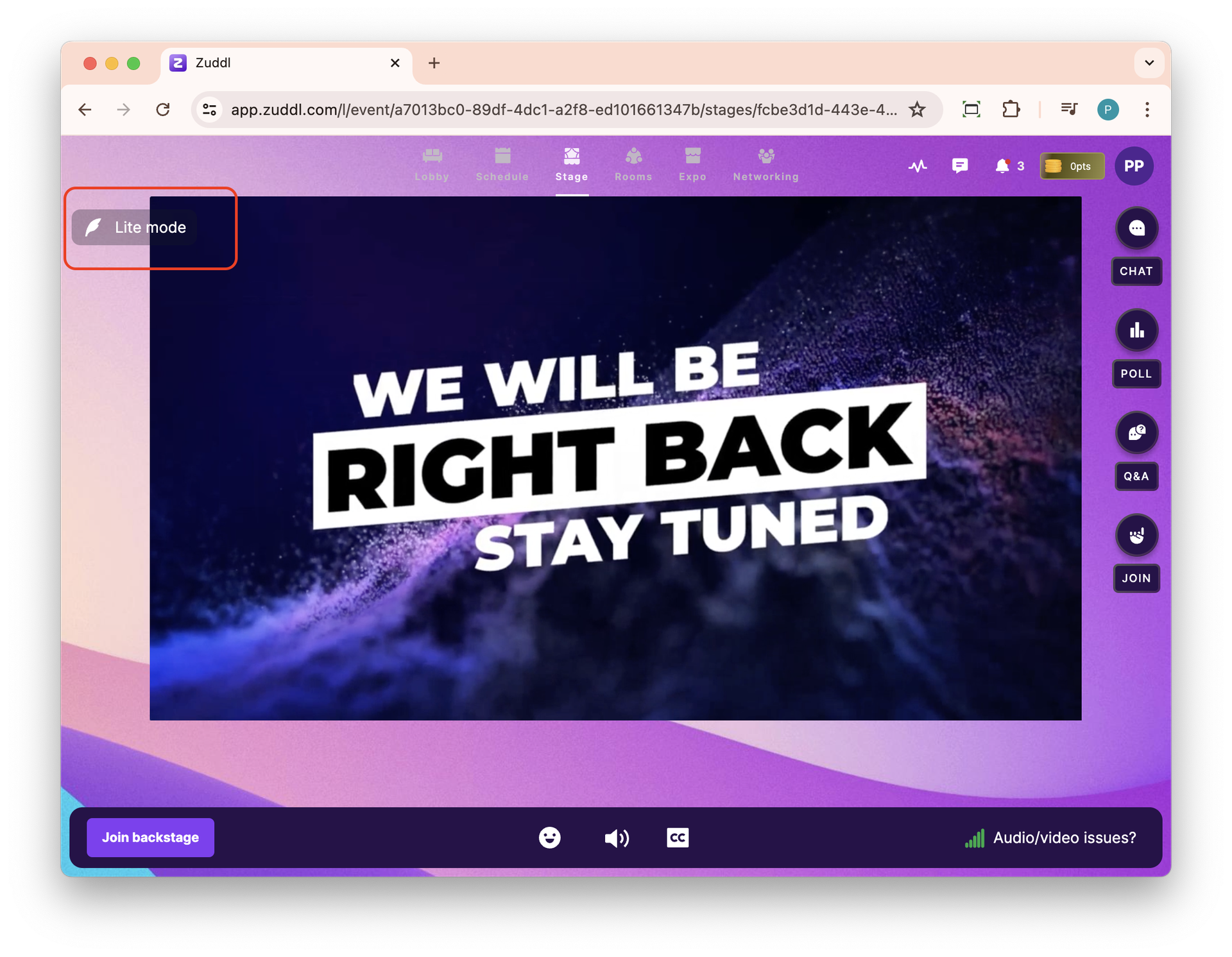
Warning: For one-way sessions such as webinars, the delay has little impact. For sessions where you are expected to interact, your interactions will be delayed.
When Zuddl turns Lite Mode on for you
When you join. Zuddl checks your browser and runs a short connection test before the session opens. If either check fails, Lite Mode is switched on automatically and the Lite mode enabled message tells you whether the cause was your network (typically a firewall or VPN) or your browser. If the cause is your browser, the message also offers a Copy session link button so you can paste the link into a supported browser.
During the session. Zuddl keeps monitoring your connection. If it stays poor, you will briefly see a Reconnecting… message while Zuddl tries to restore the stream. If it does not recover, Zuddl moves you to Lite Mode automatically and tells you why.
If Lite Mode still cannot play. You will see a Stream unavailable message with Reload page and Get help options. Follow the steps below.
Steps
If the stream is still not playing, or you see Stream unavailable, work through these steps in order.
Click Reload page, or refresh your browser tab, and wait for the session to load again.
Disconnect your VPN, if you use one, and reload the page. See Disable VPN below.
Switch to a different network. If you are on office or hotel Wi-Fi, a corporate firewall may be blocking the stream. Try a personal network or your phone's hotspot.
Open the session link in the latest version of Chrome, Safari, Firefox, or Edge. Close other tabs and applications that use bandwidth.
Check that Lite Mode is on. If the Lite mode label is not on the stream, turn it on manually as described below.
Test your internet speed and confirm it meets the minimum bandwidth requirement. See Minimum bandwidth requirement below.
If the stream still does not play, contact the event organizer with the name of the session and the time the issue started.
Turn Lite Mode on or off yourself
Lite Mode can be switched manually while a session is live.
To turn Lite Mode on:
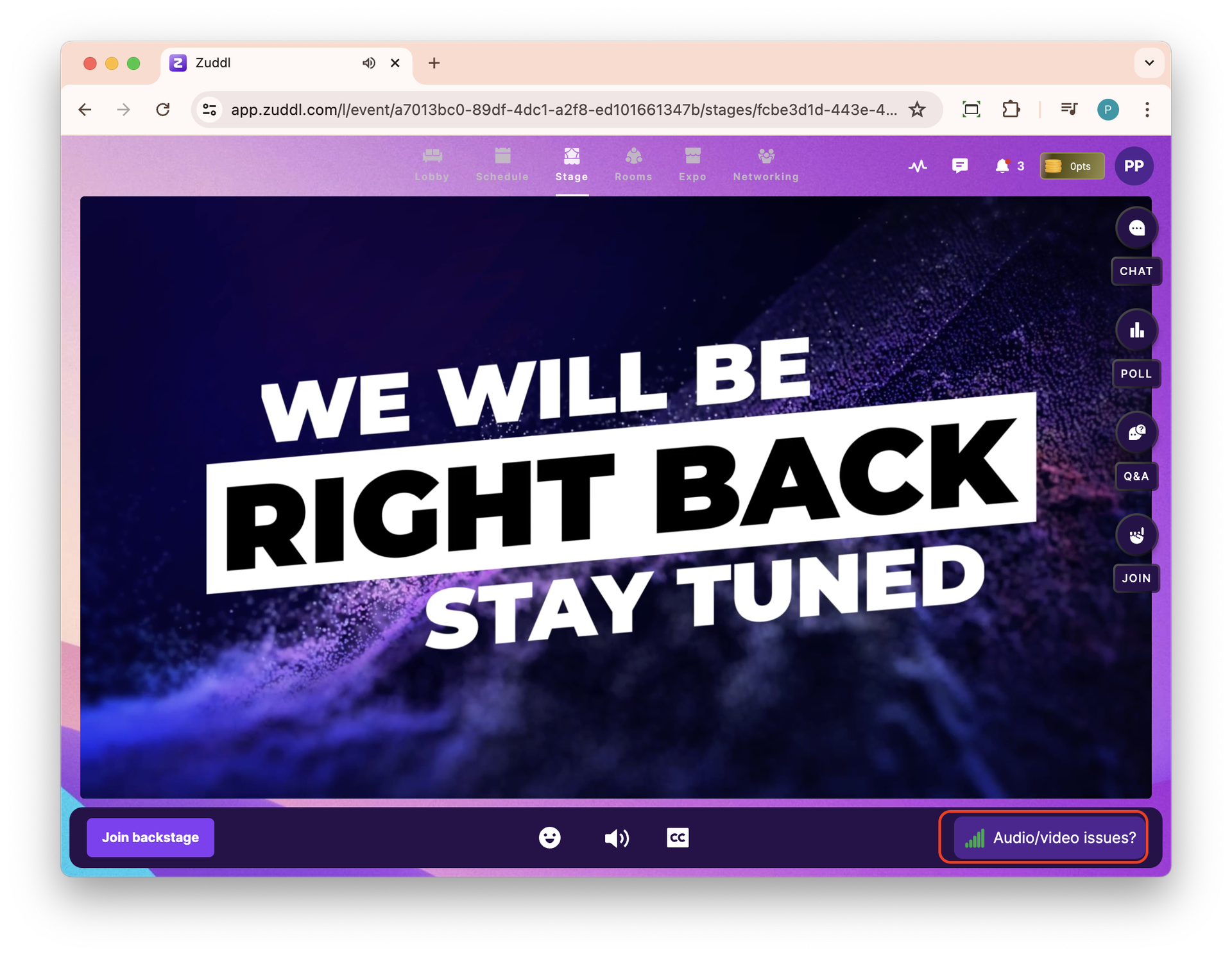
Click the Audio/video issues? button on the bottom bar.
Toggle on Enable lite mode.
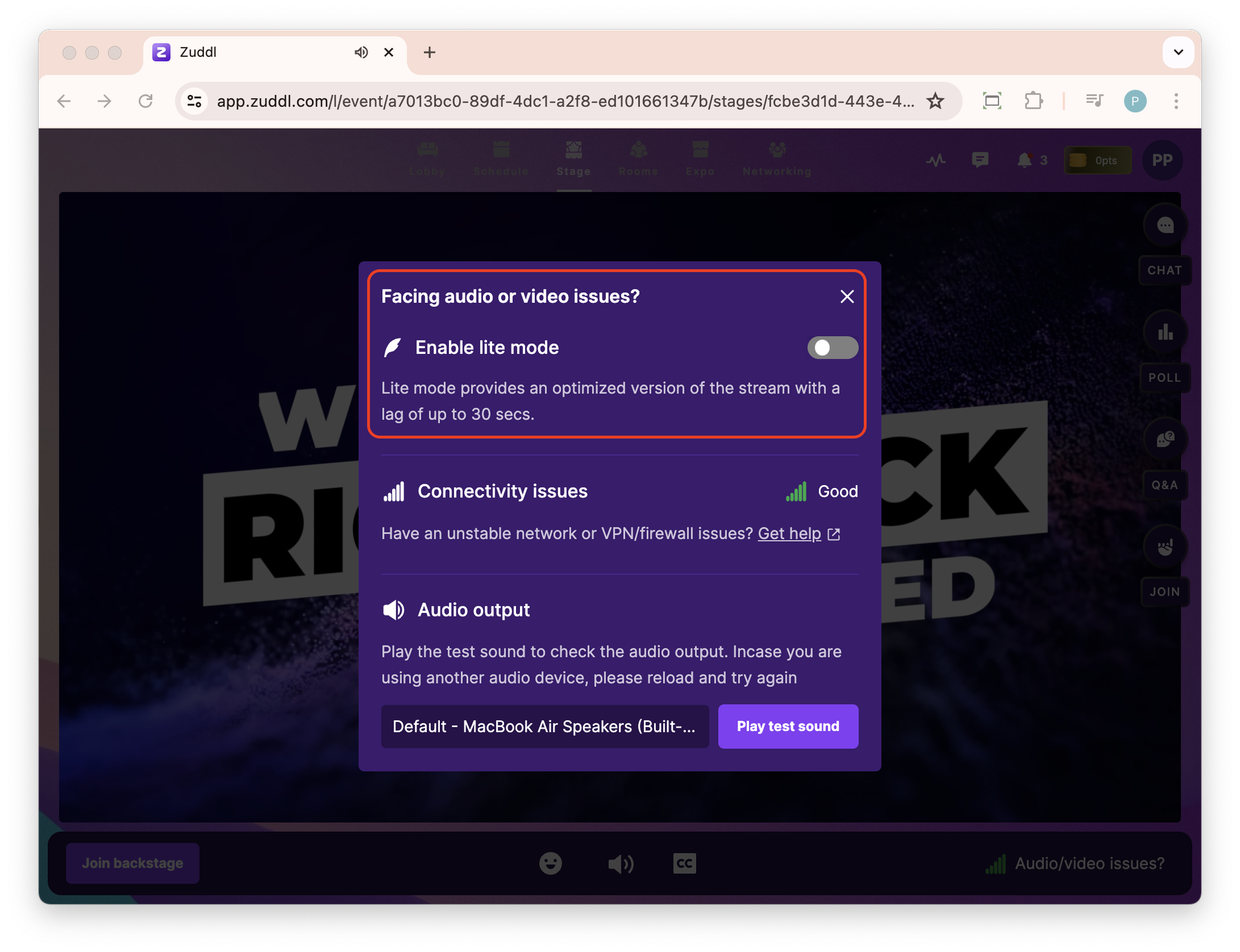
To turn Lite Mode off, click the Lite mode label on the stream and select Disable.
Note: The Enable lite mode toggle is only active while the session is live. It may take a few seconds for the Lite Mode stream to start playing.
Disable VPN
If you are on a VPN (Virtual Private Network) service, we highly recommend temporarily disabling it, as VPNs can sometimes interfere with the platform's connectivity. To disable a VPN, follow these steps:
For Windows: Locate the VPN software in your system tray, or go to Control Panel and choose to disconnect or turn off the VPN.
For macOS: Open System Preferences > Network, and disable the VPN connection.
For mobile devices: Go to your device's settings, select Network or Connections, and disable the VPN.
Minimum bandwidth requirement
It is imperative to establish a stable internet connection to guarantee a smooth streaming experience. Your internet connection speed must meet the minimum bandwidth requirement. Learn about the minimum bandwidth requirement based on speakers and resolution.
You can use any online tool to test your internet speed, for example Speedtest by Ookla.
Connect to a stable Wi-Fi or hotspot
If you are using Wi-Fi, please follow the steps below:
Verify that your Wi-Fi connection is stable.
If you are unable to connect to the internet, try restarting your router.
If you are still unable to connect, contact your ISP (Internet Service Provider) for further assistance.
Meanwhile, consider connecting to the internet through your phone's hotspot.
What Happens Next
Once Lite Mode is active, the Lite mode label appears on the top left corner of the stream and playback continues with a delay of up to 30 seconds. If your connection recovers, you can turn Lite Mode off at any time to return to the full-quality, real-time stream.
Notes
Automatic Lite Mode is not applied to organizers, to speakers on backstage, or to stages embedded on an external website.
The result of the connection check is remembered for a short period, so re-joining the same session shortly after does not re-run the full check.
Interactions such as polls, Q&A responses, and chat replies will feel delayed while you are on Lite Mode, because the stream itself is behind the live session.
If Lite Mode cannot be started, Zuddl keeps you on the standard stream rather than blocking your entry to the session.