How to Edit Invoices for Transactions for a Zuddl Virtual Event
Last updated: August 28, 2025
For every transaction, you can cancel and re-sissue invoice, and update invoice details such as purchaser information, organizer information, and others. This gives organizers the flexibility to fix any incorrect invoices right from the dashboard.
Only latest invoice can be edited Invoices of transactions where partial refunds or cancellations are done cannot be edited.
To edit an invoice
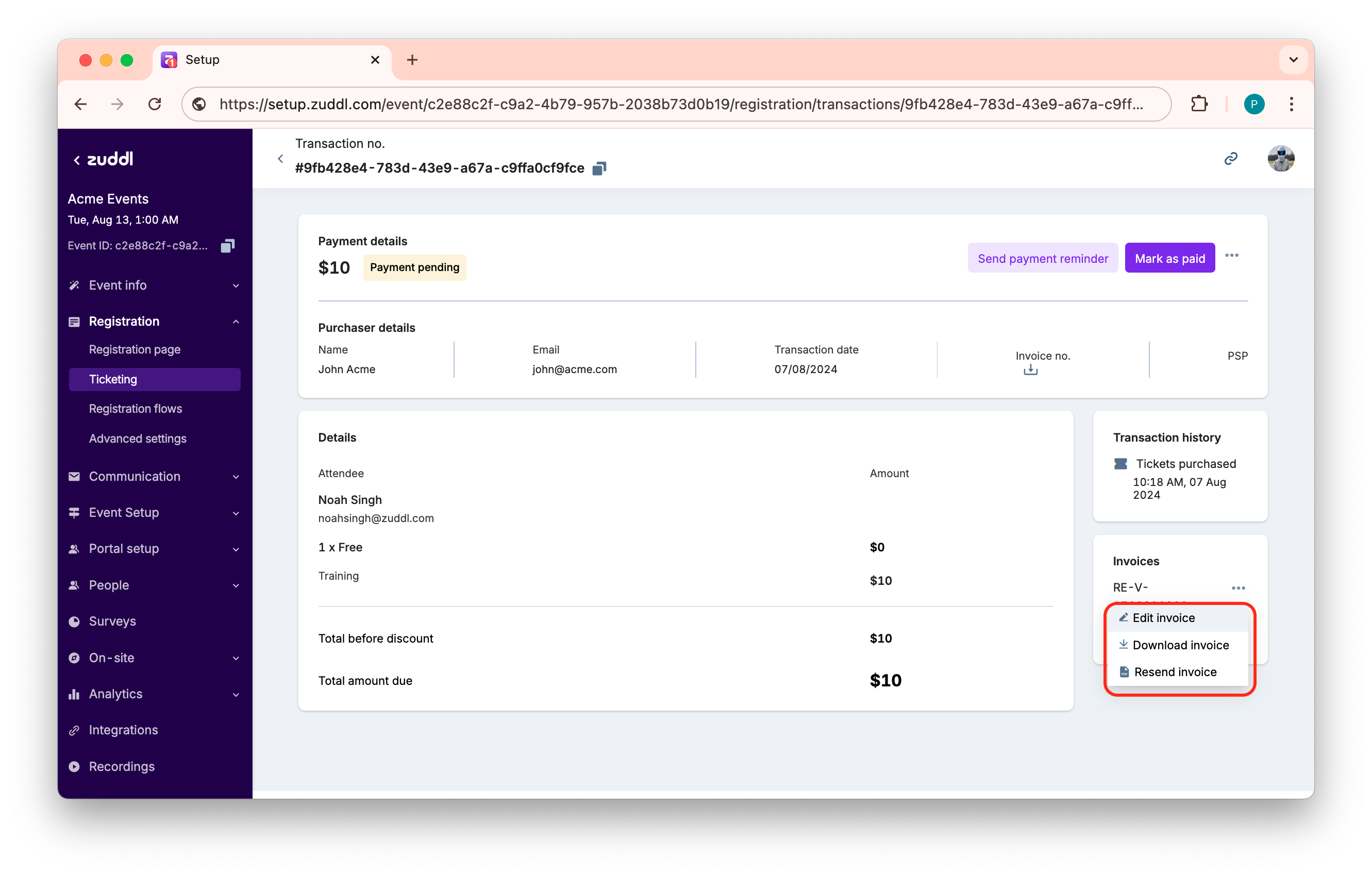
Go to the required transaction and click on three-dot button
Click Resend invoice
Choose an edit type
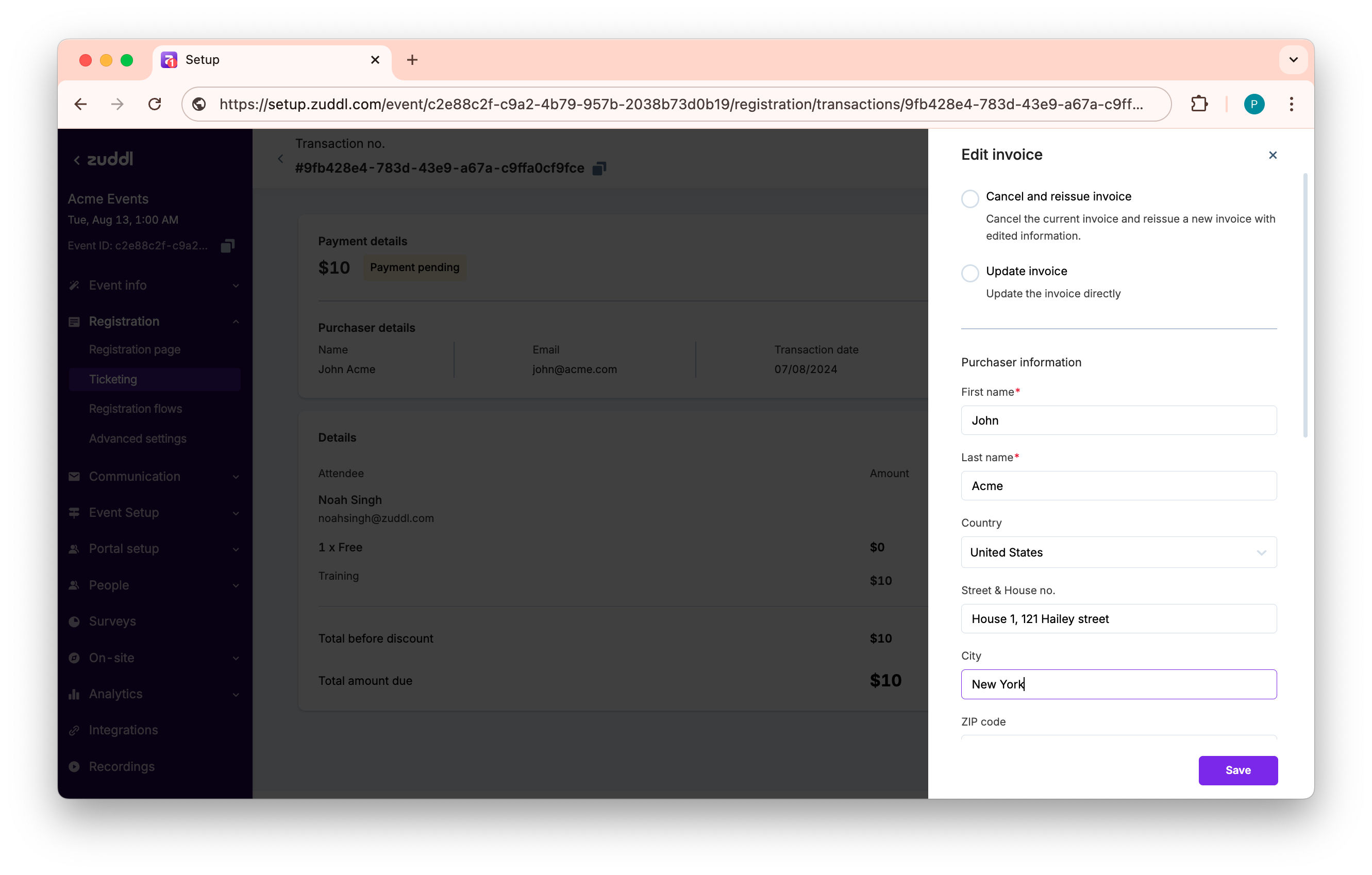
Cancel and resissue invoice: This action cancels the current invoice and reissues a new one with updated information.
Update invoice: Updates the invoice with the edited information
Country-wise invoice update policy
Certain countries, editing invoices, such as changing the first name, last name or address, may only be done by cancelling and issuing a new invoice. Violations of these regulations can result in fines and legal consequences. Please check the invoice update policies in your country.
4. Edit purchaser information
First name
Last name
Country
Street & House no.
City
Zipcode
Likewise, edit your details under organizer information
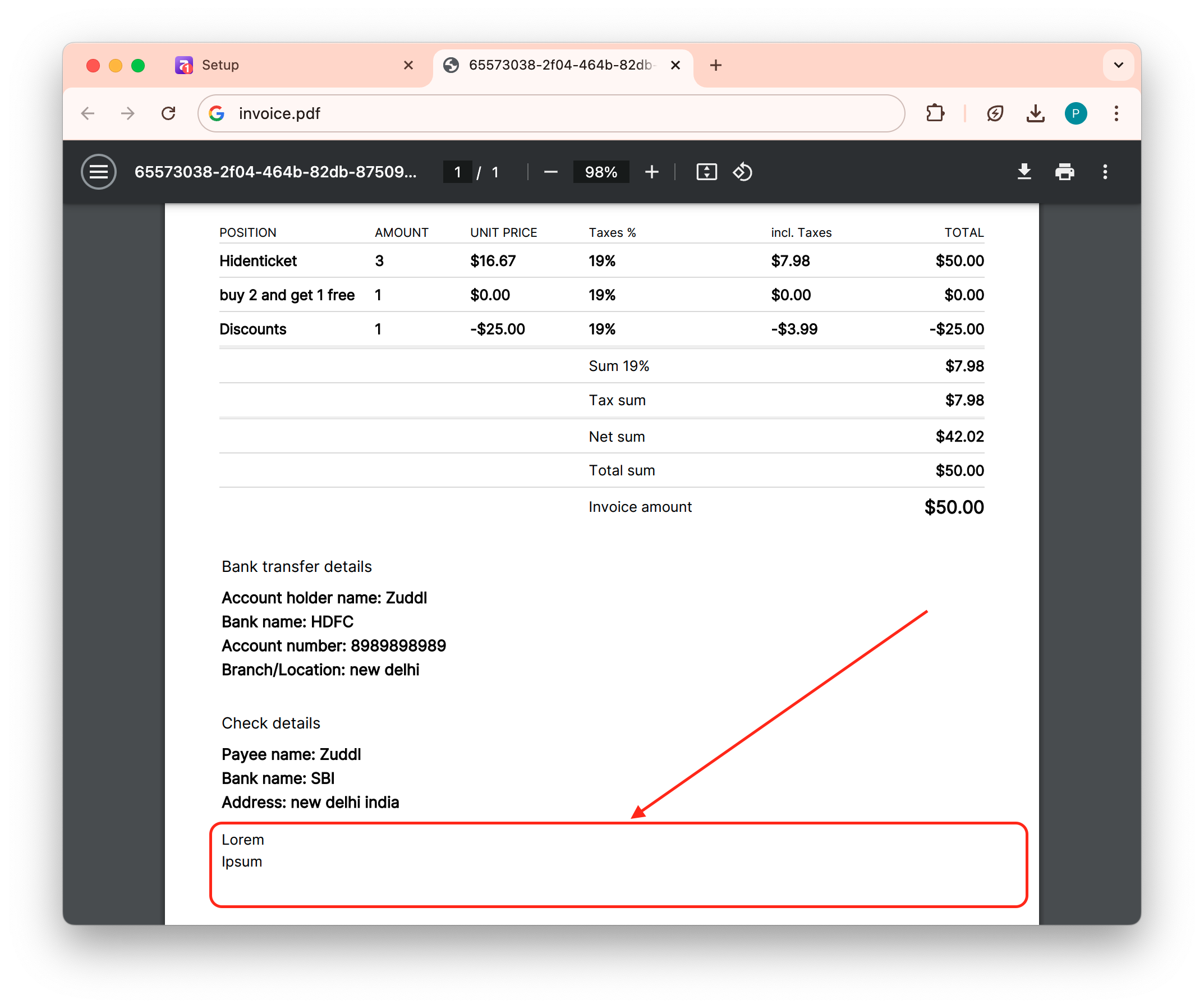
Add an invoice footer. On the invoice your footer will appear as shown below:
7. Click Save.
The latest invoice appears at top of the invoice history list under Transactions.
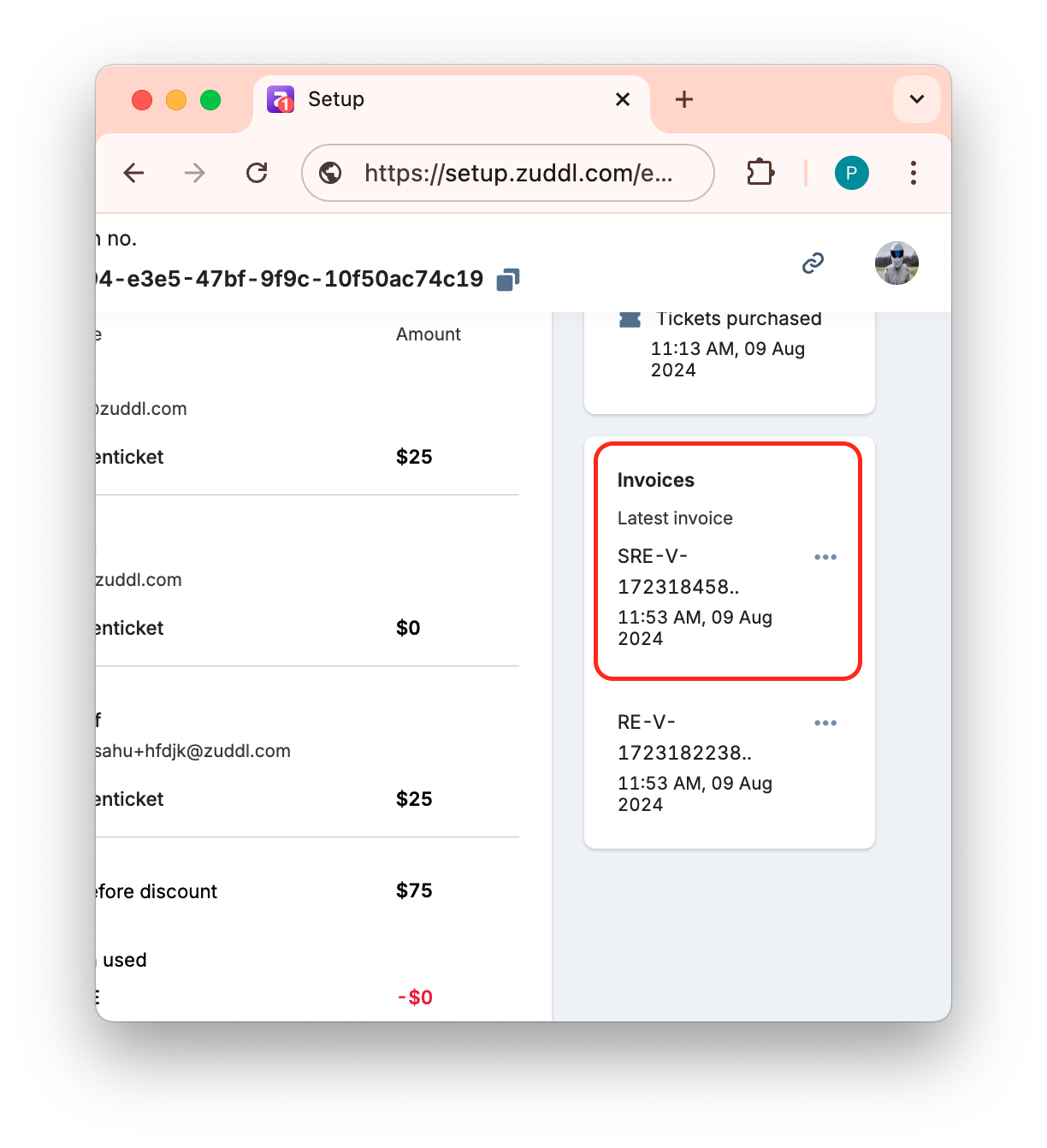
You can also Download or Resend older invoices