How to Customize Schedule Widget for a Hybrid Event in Zuddl
Last updated: September 29, 2025
The Schedule widget lets you create a widget that displays your event schedule, customize it using CSS, and embed it on your website.
To set up the Schedule widget:
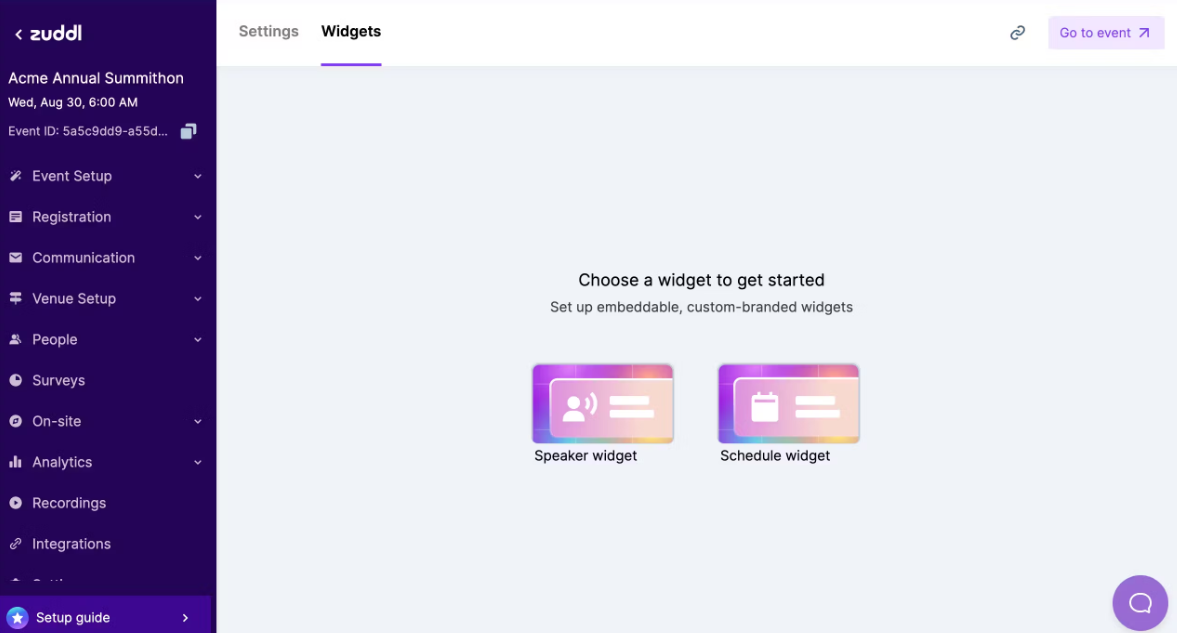
In the event setup, go to Settings > Widgets tab.
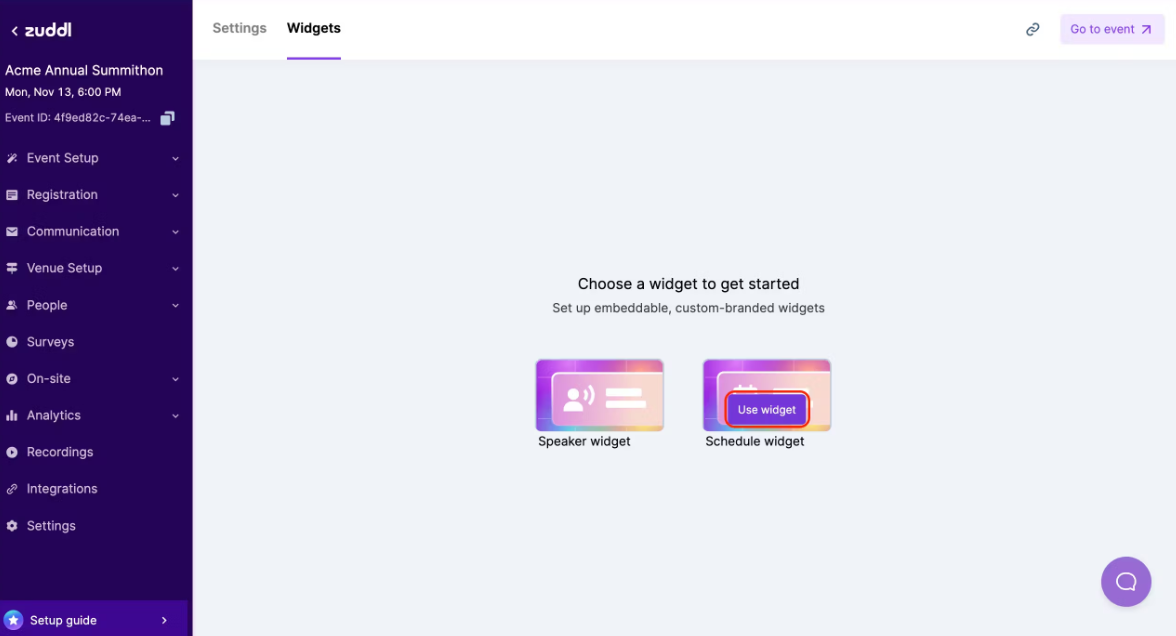
On the Schedule widget card, click the Use widget button. This creates the Schedule widget.
The session data added in the event setup is automatically synced to the widget. You can customize which sessions to display under the Sessions section in the sidebar and the session details in the widget under the Widget settings section.
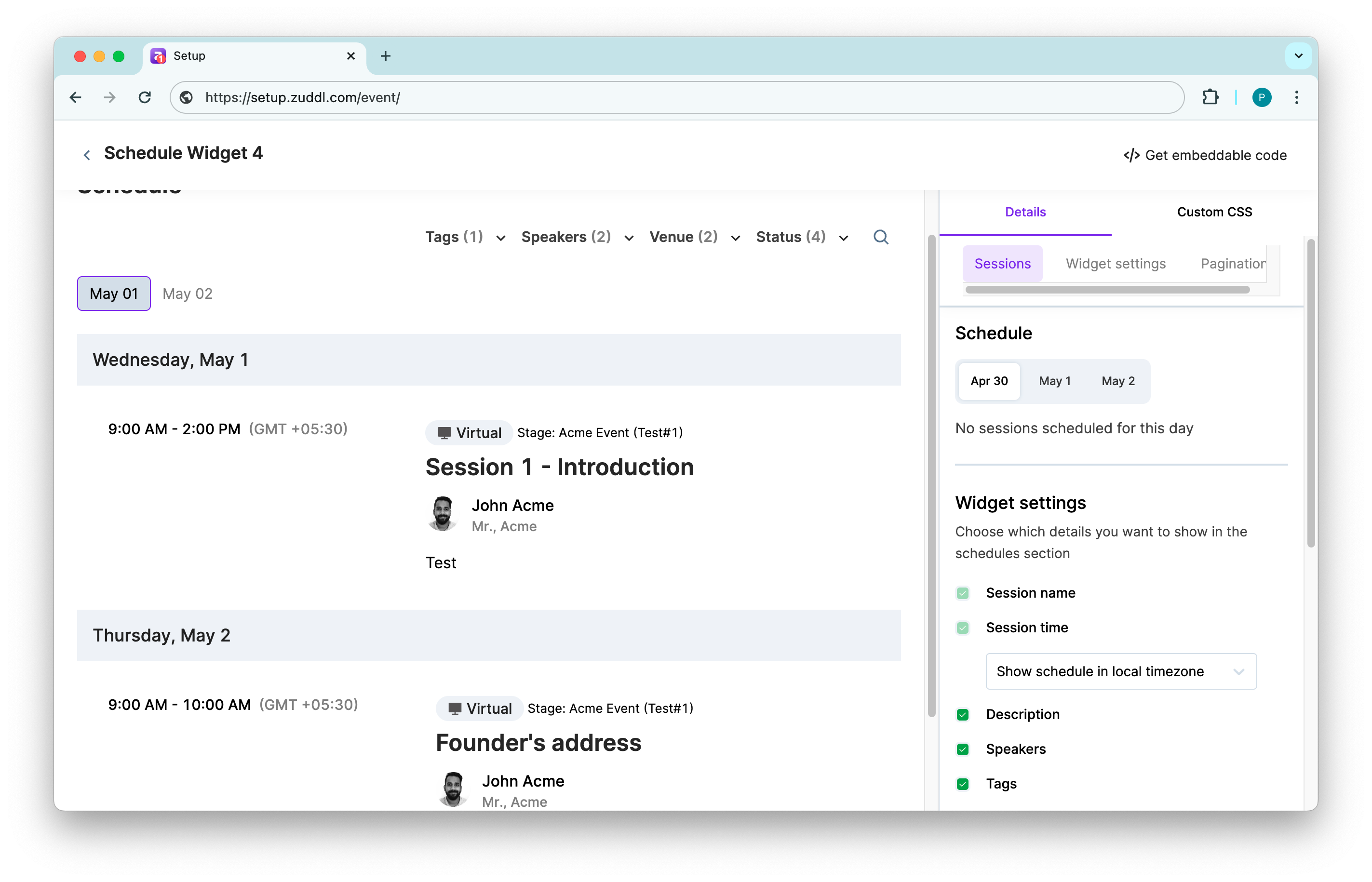
You can also select your preferred session display format:
Show sessions by date: This shows sessions date-wise under the date tab.
Show sessions of all dates: This shows all sessions (completed or ongoing) on a single list
Choose a pagination type for the widget
Show all sessions (no pagination): This shows all sessions in a continuous scroll
Use show more button: This allows attendees to click on a button to show all sessions.
Sessions shown per page (Mobile/Desktop): The number of sessions shown per view. Defaults to 6. Enter a specific number for Mobile or Desktop.

When someone clicks on the speaker inside the Schedule widget, the speaker profile is shown as popup with the list of sessions that the speaker is speaking at.
Customize widget branding
To customize your branding,
After customizing the sessions and details to display, click the Custom CSS tab in the sidebar.
You can view the event type — Virtual, In-person, or Hybrid and the stage name.
In the code text area on the right, you can enter your custom CSS code to customize the widget's appearance.
Click Save.

CSS classes for the widget
Currently, you can use the following classes to style the Schedule widget:
Class name | Description |
custom-schedule-name | Name of the session |
custom-schedule-venue | Location or venue of the sessions |
custom-schedule-time | Time of the session |
custom-schedule-speaker-name | Name of the speaker of a session |
custom-schedule-speaker-title | The title of the speaker is shown in the schedule |
custom-schedule-description | Session description in the session list |
custom-schedule-background | The background of the entire component that surrounds the session list and filters |
custom-schedule-venue-icon | Icon of the location of the session |
custom-schedule-divider | The line that separates each session |
custom-schedule-date-selector | The tab that switches the dates |
custom-schedule-date-button-text | The text inside the date selector |
custom-schedule-search | The search icon button |
custom-schedule-filter | The filter icon appears in the mobile view next to the search icon |
custom-schedule-date-title | The schedule widget shows the day and time on each session row |
custom-schedule-speaker-avatar | The speaker image on each session row is either the speaker's profile pic or the avatar with initials placeholder. |
speaker-details-modal-background | The background for speaker details modal |
speaker-details-modal-speaker-avatar | The avatar on speaker details modal |
speaker-details-modal-speaker-name | The speaker name on speaker details modal |
speaker-details-modal-speaker-title | The speaker title with company's name on speaker details modal |
speaker-details-modal-speaker-bio-with-about-title | The speaker's bio and About title on the modal |
speaker-details-modal-speaker-social-icons | The speaker's social profile icons on the modal |
speaker-details-modal-speaker-and-sessions-divider | The divider between speaker details and it's schedule details on the modal |
You can also contact our support team (support@zuddl.com) for further assistance.
Best practices
You cannot inspect the page and use any classes given as it may not give you the intended results. Use only Zuddl custom classes listed for branding customizations.
Add "!important" on properties that aren't behaving as expected, which may be because of any existing class. This tag will give precedence to the CSS.
Do not use <style> tags in the Custom CSS text area.
The feature only supports plain CSS and not CSS nesting.
You can contact our support team (support@zuddl.com) for any further assistance.
Embed the schedule widget
To embed the schedule widget,
Click on the </> Get embeddable code icon to view the embeddable link.
Click on the Copy button.
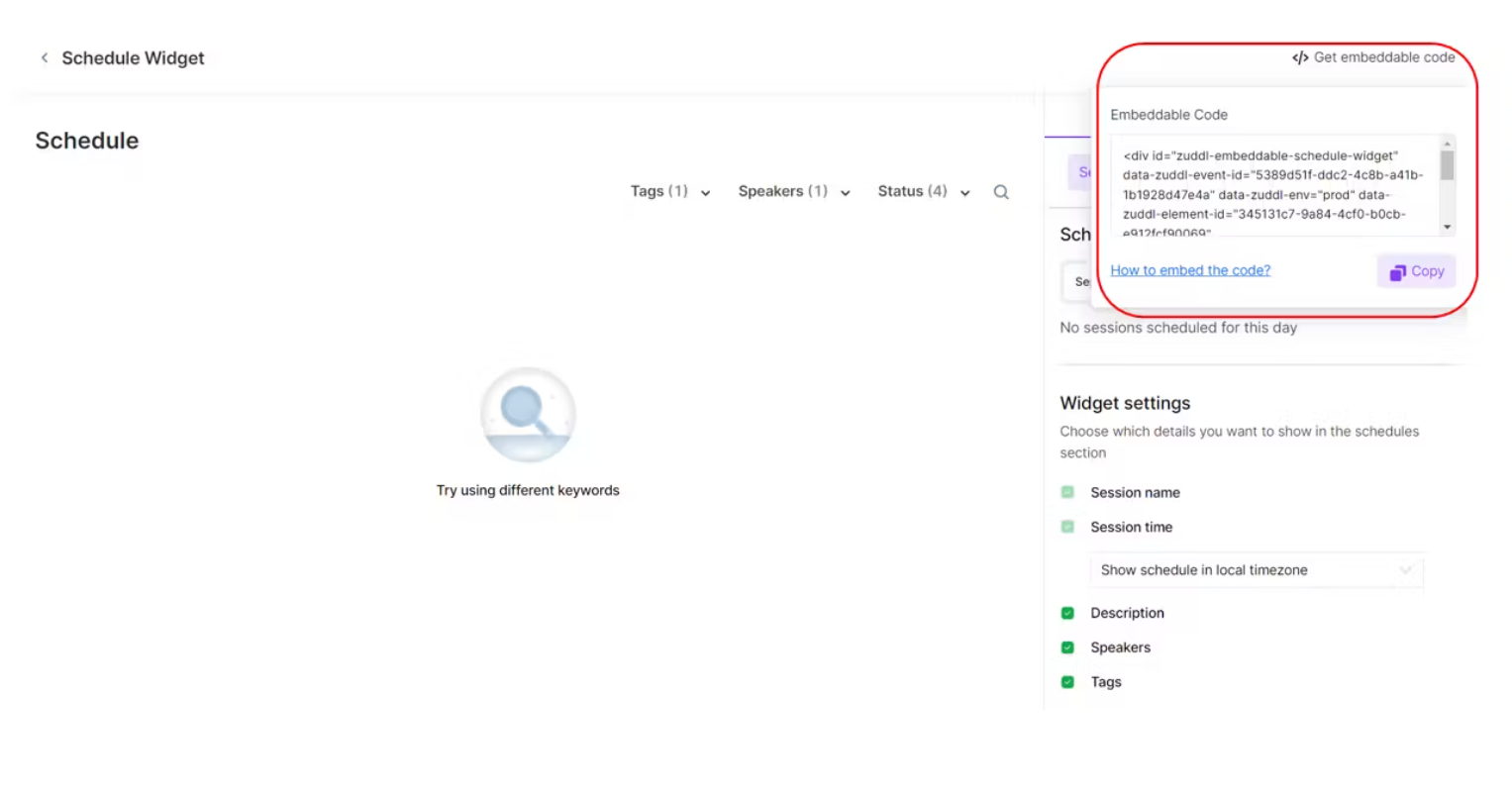
Paste the code in your HTML webpage inside the <body> tag.
The schedule widget will be visible to visitors viewing the website. Any updates to your schedule will automatically be reflected in the schedule widget.