How to Add Files to Your Session for your Virtual Event in Zuddl
Last updated: August 29, 2025
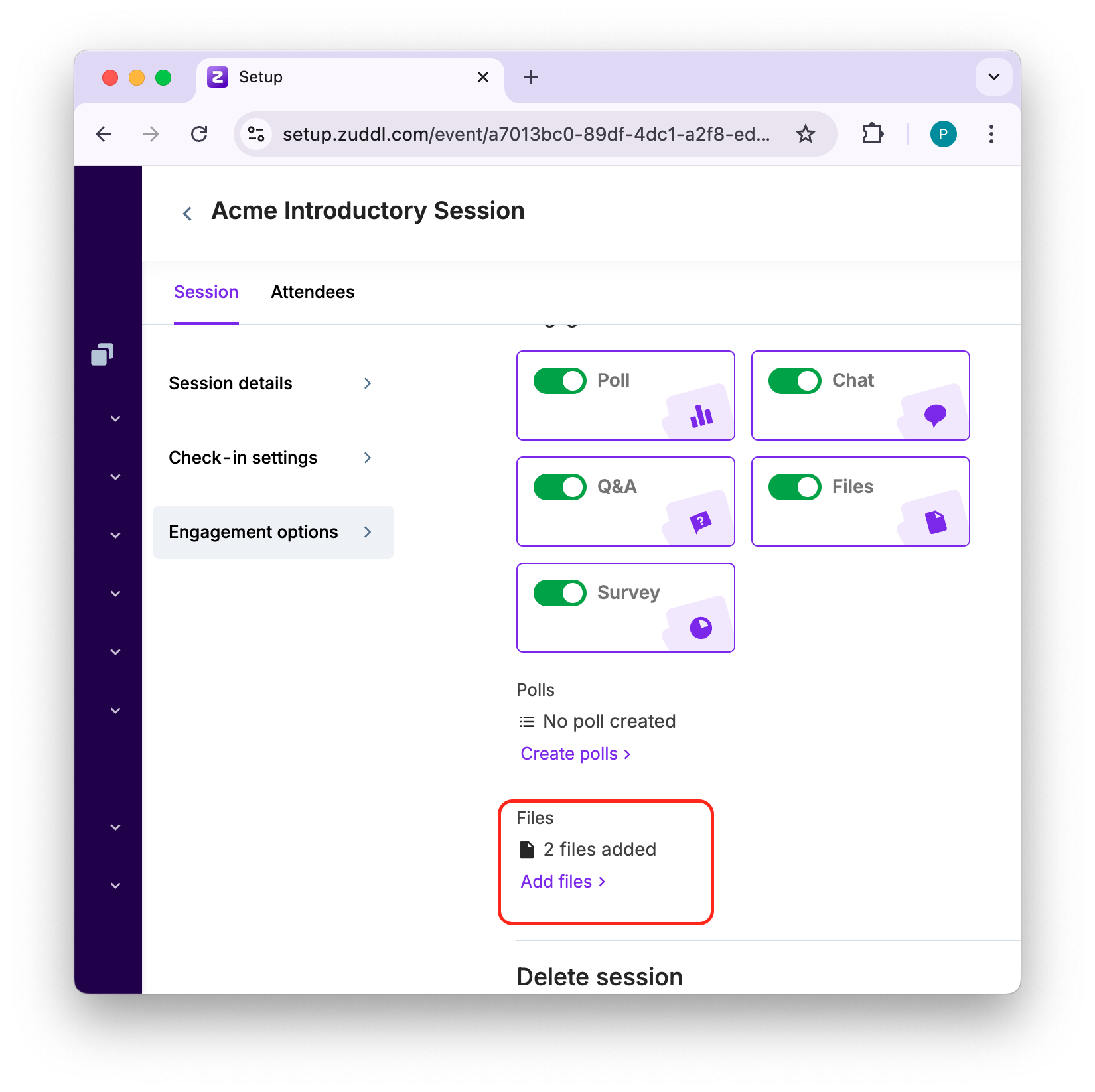
Files allow you to add pre-loaded files for your session speaker which can be used during the session. To add files:
Toggle on Files, under Engagement details.
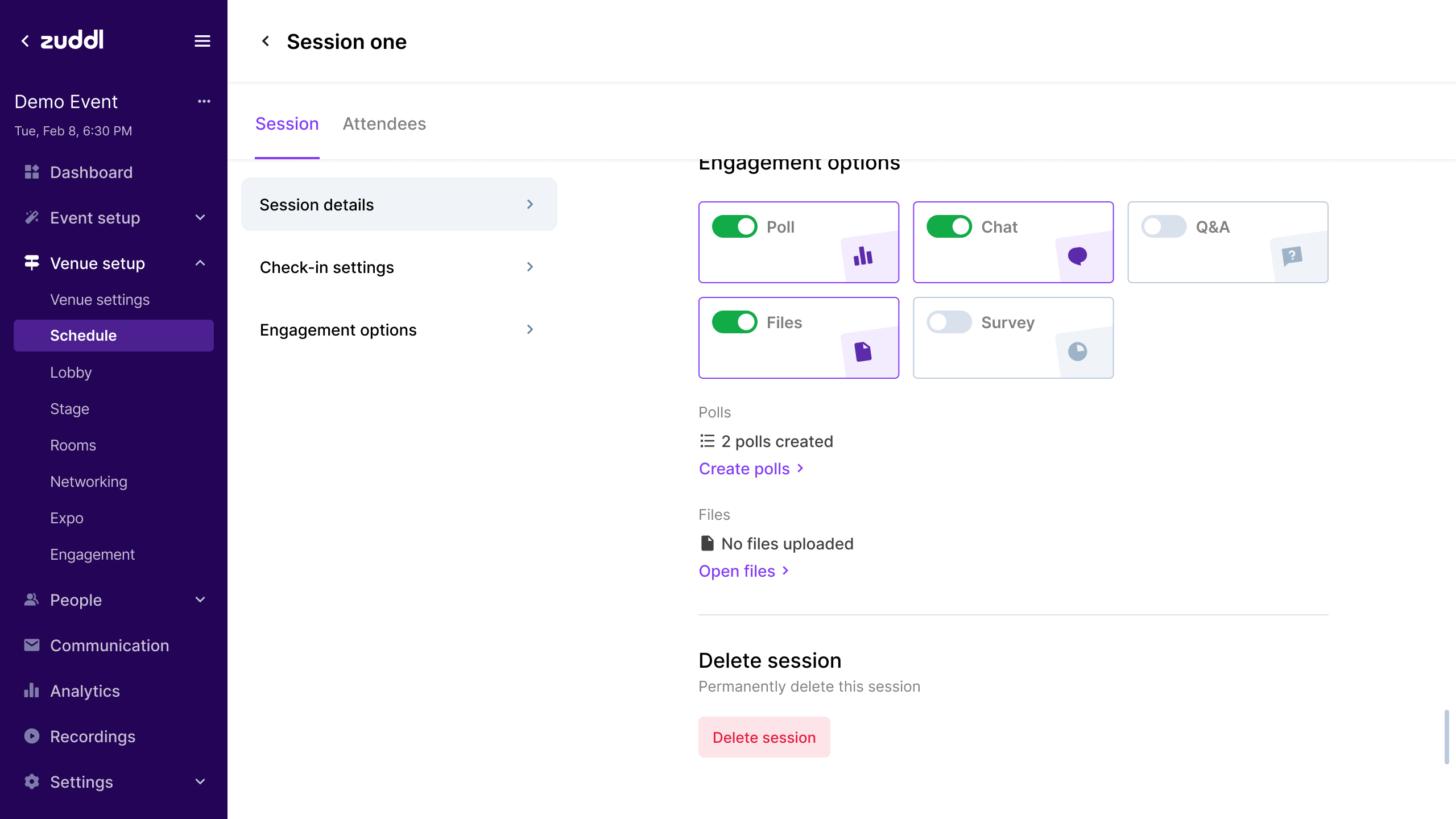
Click Add files.
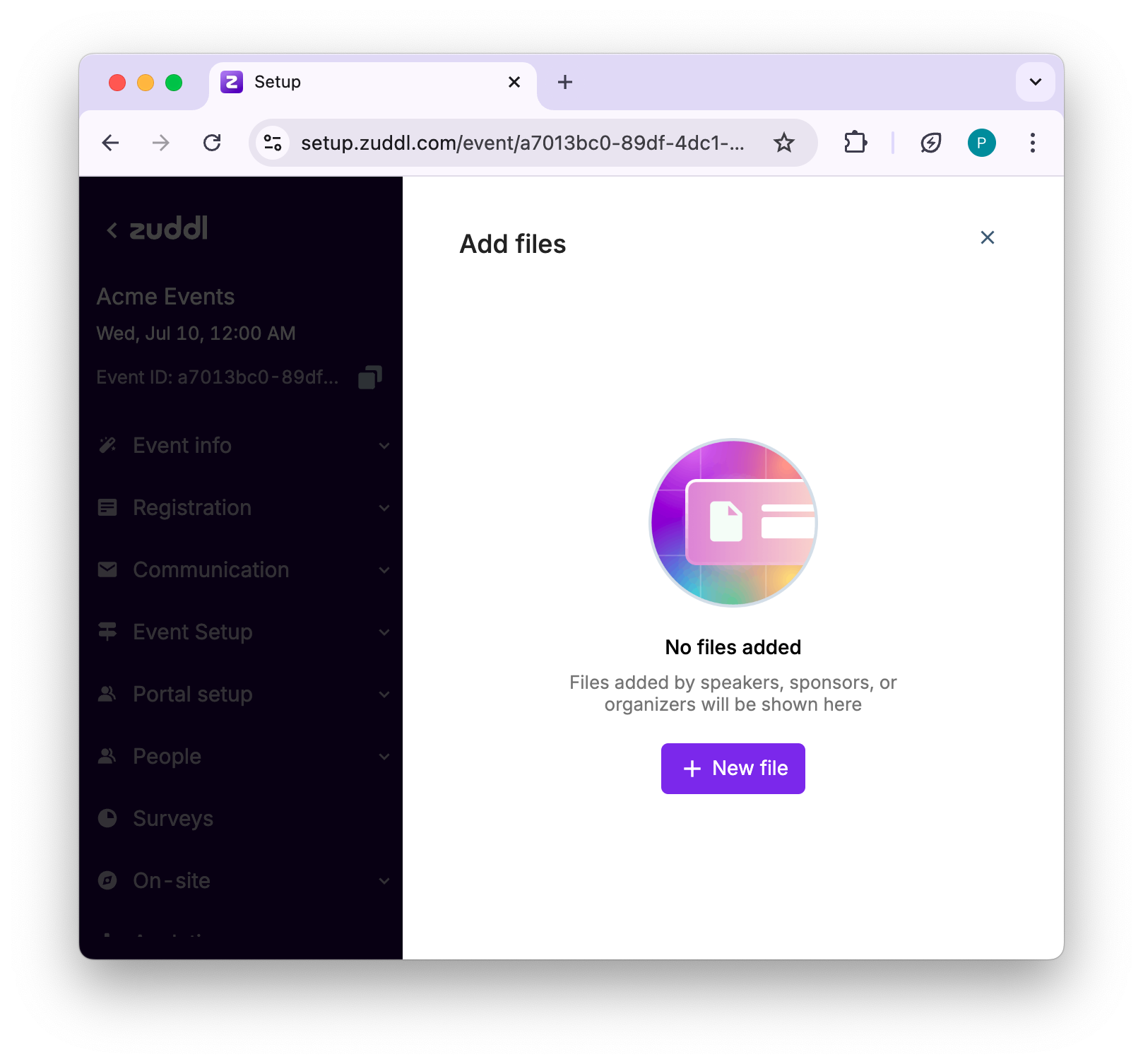
Enter your file name. This appears on the attendee side view
Choose file source
Upload file: Upload a file from your system
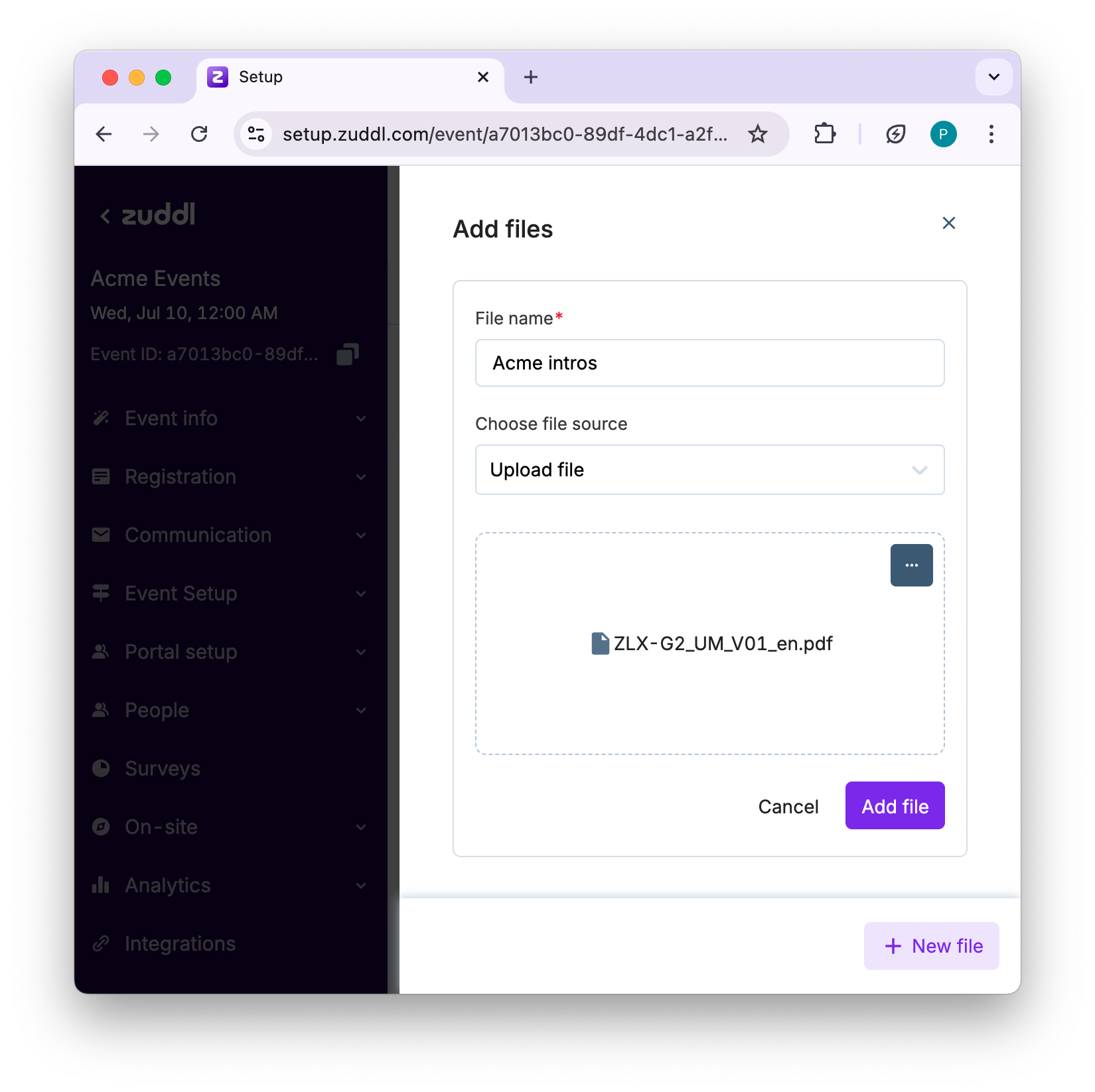
From URL: A File URL field allows you to specify a file URL.
Click Add file button.
The added files are shown as below:
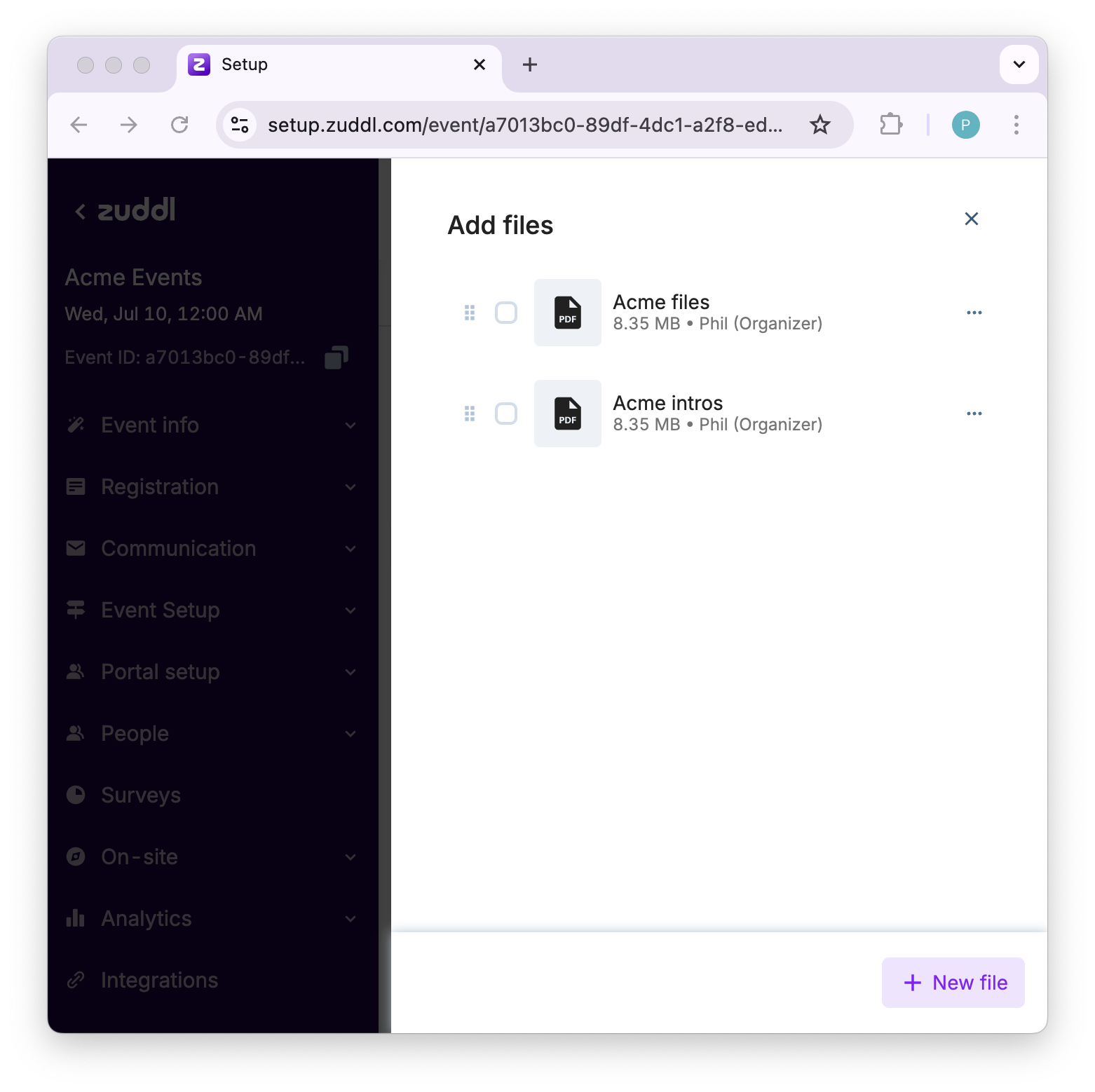
Publishing files
Once added, you can choose to publish files to attendees by selecting them. To publish files
Select checkbox of file(s) you wish to make public. If you have multiple files, you can also select all files together.
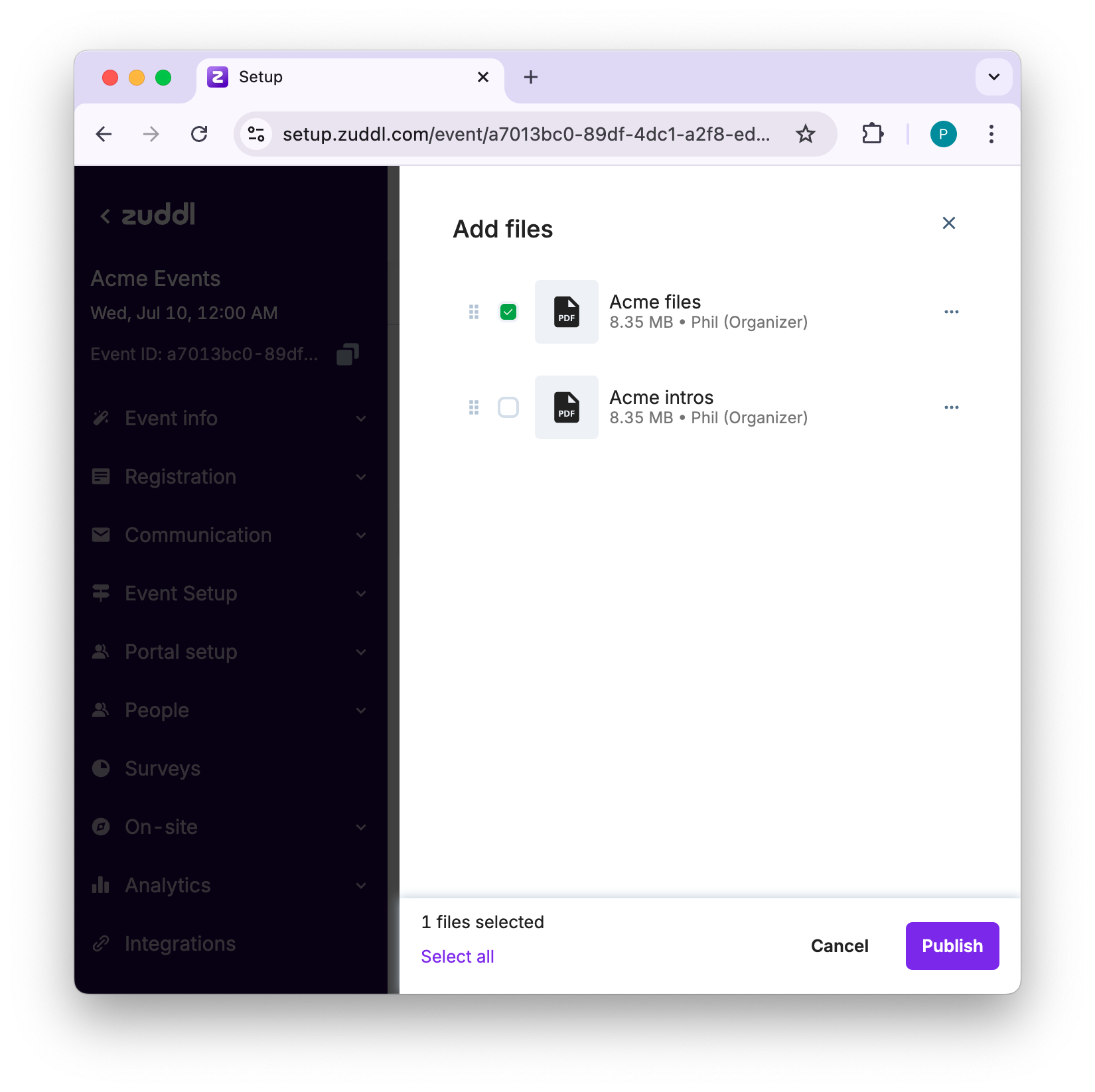
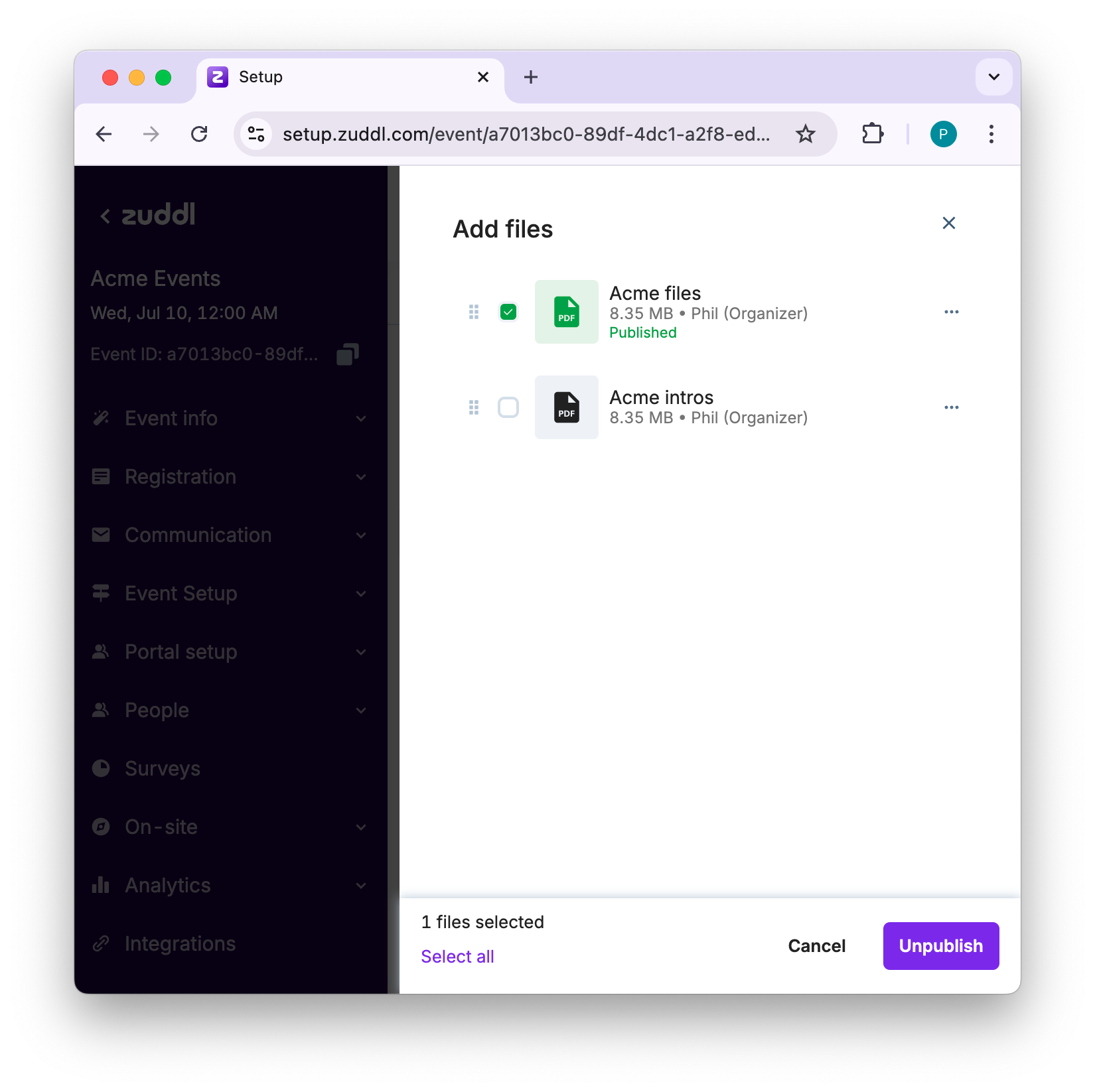
Click Publish. The published files are highlighted in green with a 'Published' label.
Unpublish files
You can also choose to unpublish files by selecting the files in the same way.
The published files appear as shown below:
Other actions
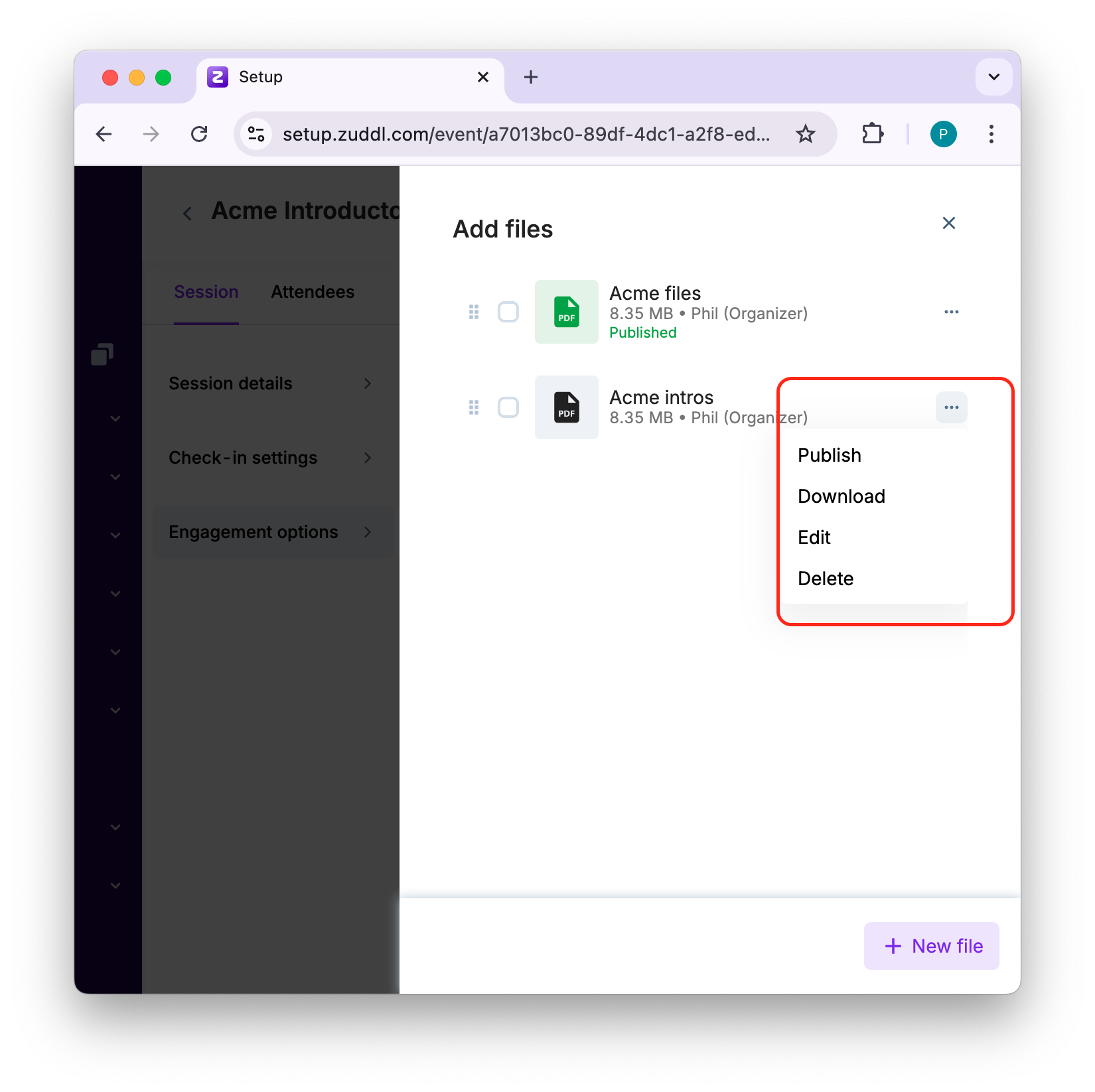
You can also take few other actions on a file by clicking the more options:
Publish/Unpublish: Publish or unpublish a file for attendees.
Download: Download a files to your system
Edit: Edit the file details such as rename or change file source
Delete: Delete a file
Attendee-side view
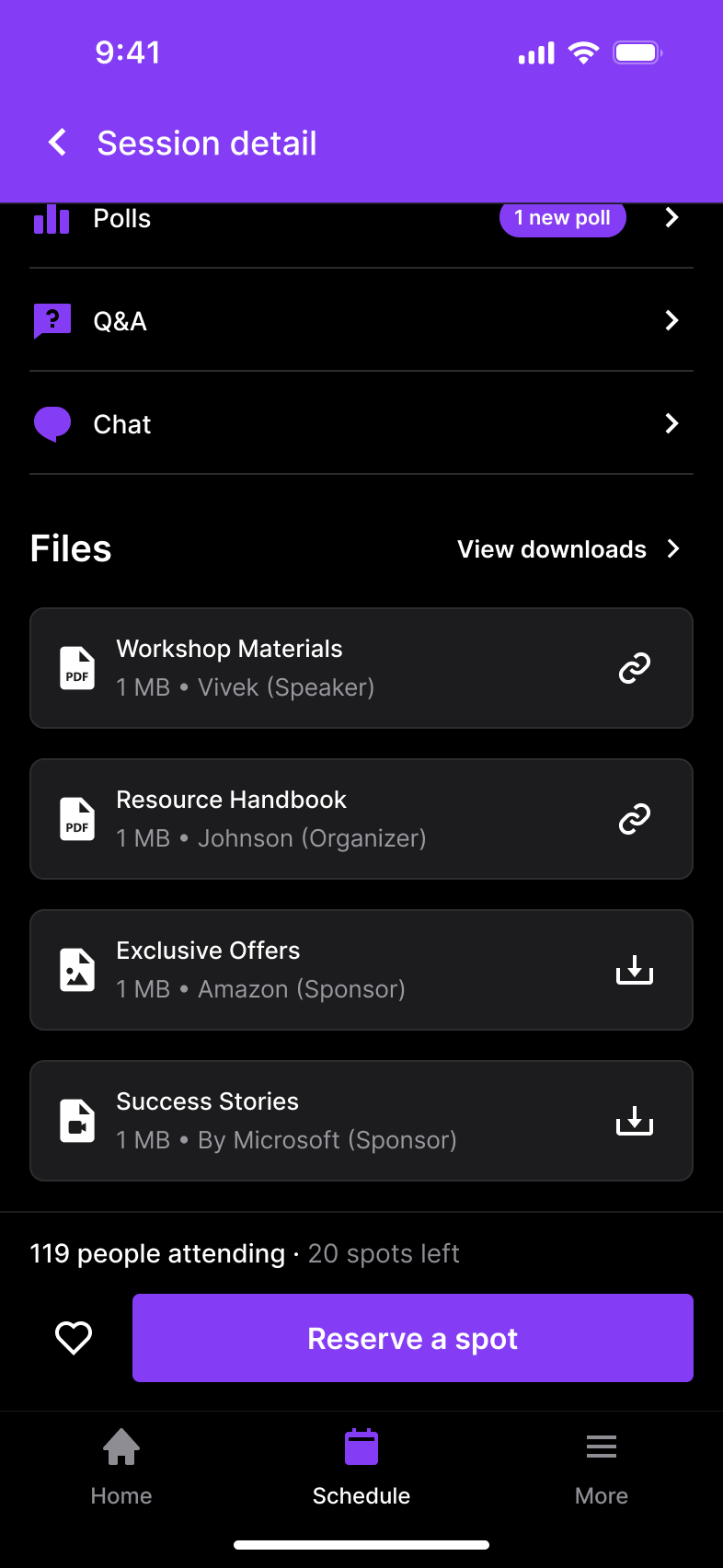
On the mobile app, the attendee can easily identify the file types (PDF upload and URL resource) and view them.
The URL opens as webview.
The screen also shows who uploaded the file (speaker or organizer) and the size of the file.