How to set up automated taxes using Avalara
Last updated: April 17, 2026
Automatically calculate taxes for ticket purchases using Avalara integration. This helps ensure accurate tax calculation and reduces manual effort.
What this feature does
Calculates taxes dynamically during checkout based on on purchaser location and applicable rules
Applies the correct tax rules for each ticket and add-on
Ensures invoices and transactions match calculated tax amounts.
Reduces manual errors and compliance risks
Prerequisites
To use this feature, make sure you have the following:
An active Avalara account
Your Avalara credentials:
Account number
License key
Company code
Tax codes created in Avalara for your items.
Step 1: Configure Avalara at the organization level
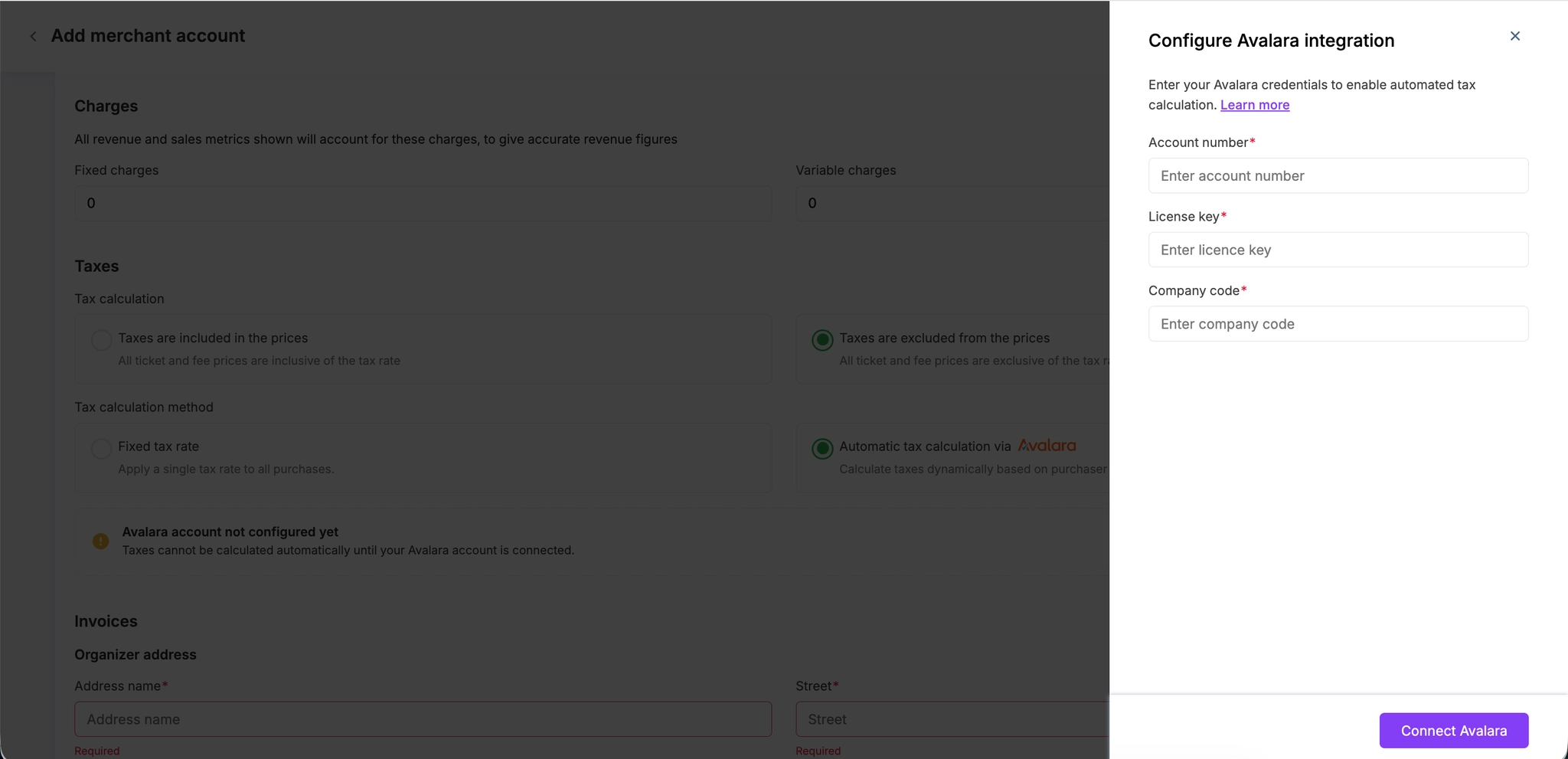
Go to General → Merchant account → Taxes
For tax mode, select Taxes are excluded from the prices
Choose tax calculation method as Automatic tax calculation via Avalara.
Now click Configure Avalara to connect your Avalara account to this merchant account.
Enter your credentials
Account number
License key
Company code
Click Connect Avalara and once validation is successful, the connection is done.
Step 2: Assign tax codes to tickets and add-ons
In any event, go to Registration → Tickets → Settings → Payment gateway.
Select a payment gateway with Avalara enabled.
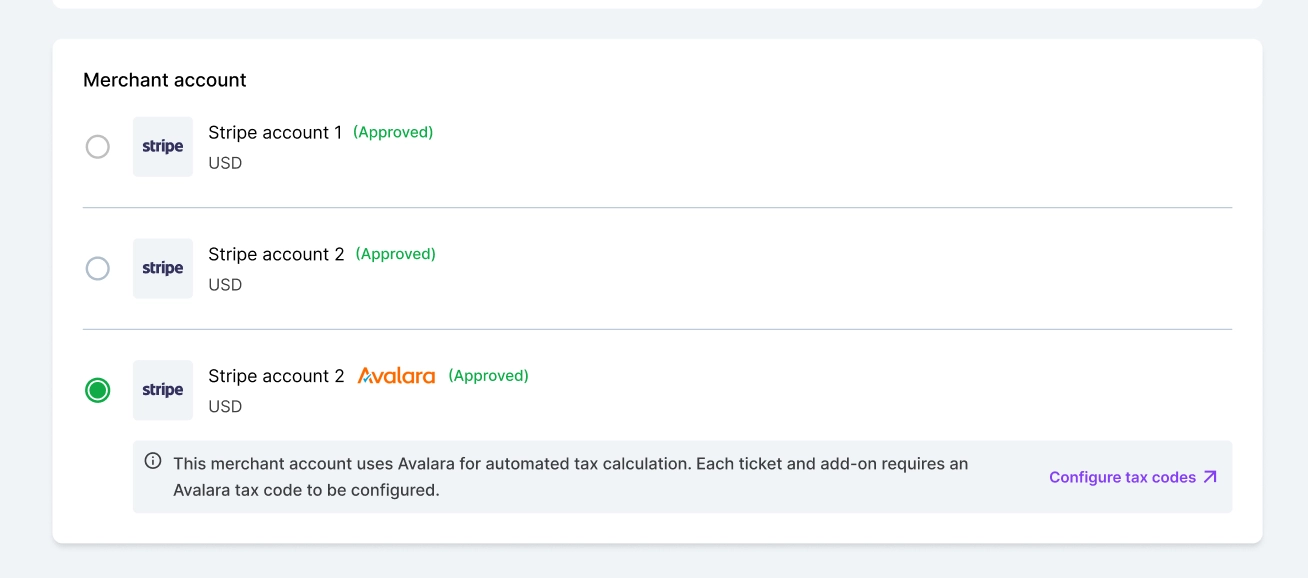
Click Configure tax codes. If you don’t have any tickets, create them first and then assign tax codes to each item.
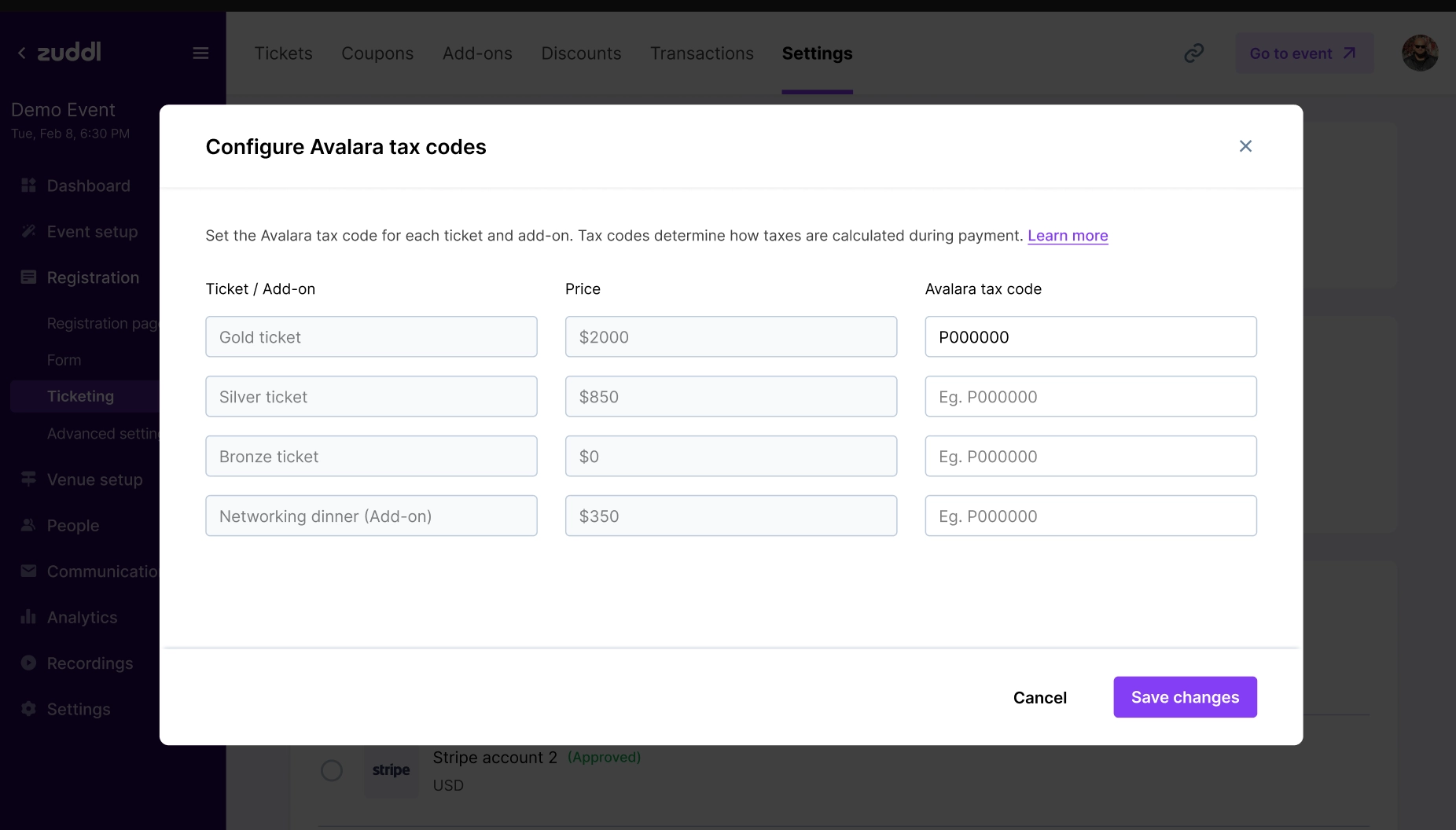
Alternatively, you can add tax code at an individual ticket or add-on while creating or editing them.
That’s it. Now when attendees purchase tickets, tax will be calculated at the payment stage when they enter the address.
Note: Tax code is an optional field. Avalara uses a default tax classification, which may not reflect the correct tax treatment. We strongly recommend adding tax codes for accurate calculations.
Purchaser experience:
Purchasers will add tickets and add-ons to their cart,
If they apply coupons or discounts, the discounted amount will be reflected in the subtotal before tax is calculated.
Since tax is calculated after address is entered, they will be shown a placeholder for the tax field that says “Enter address to calculate”.
Once they review their order summary and click on Go to payment, purchasers will be prompted to enter their their billing details.
The state or province is required to be selected if the country is the United States or Canada.
Once the billing address is entered, taxes are calculated automatically based on location and selected items.
The order summary updates to show the final tax amount and total payable.
Purchasers can thencan click Make Payment to complete the payment.
The same will be reflected in the invoices in the emails received.
Important notes
State or province is required for US and Canada addresses
Taxes are calculated only after the billing address is entered
Tax rates may vary based on location and item type
Tax is displayed as an amount and not as a percentage
Troubleshooting
Connection failed
Verify your Avalara credentials
Ensure the correct mode (Development or Production) is selected
Try connecting again
Tax not calculated at checkout
Check if billing address is entered
Ensure tickets and add-ons have tax codes assigned
Confirm Avalara is enabled for the selected payment gateway
Best practices
Assign correct tax codes for all items before publishing your event
Test transactions in development mode before going live
Use production mode only after validating configuration
Review invoices to ensure tax accuracy
Frequently asked questions
Why is tax shown as an amount and not a percentage?
Taxes may include multiple components such as state, county, and city-level taxes. Showing the final amount ensures accuracy.
Can different tickets have different tax values?
Yes. Taxes are calculated per item based on tax rules and item type.
What happens if tax codes are not assigned?
If tax code is not added, Avalara uses a default tax classification, which may not reflect the correct tax treatment. We strongly recommend adding tax codes for accurate calculations.