How to Duplicate a Field Event in Zuddl
Last updated: September 4, 2025
Field events on Zuddl can be duplicated — you can have a nearly identical replica to use as a new event.
This can be helpful for cases where you want to create a new event based on an older event or if you want to reuse a canceled event. Duplicated events have most of the event setup intact from the original event, and you can edit them like regular events.
Changes in the duplicated event
Some event settings cannot be copied and must be applied again in the duplicated event. Here are these settings:
Settings | Status | Instructions |
Branding | Copied | |
Registration page | Copied | Published registration pages, including widgets, are copied over in draft state. Unpublished registration pages are not copied. |
Registration flow | Copied | Default and published registration flow is copied and published. It gets duplicated along with all the custom field and configurations in each of the flows. |
People | Not copied | All attendees and speakers need to be invited again. |
Audience groups | Copied | |
Invite list | Copied | All lists are copied without members |
Access controls | Copied | All access control settings are copied, except Ticket-based audiences. |
Standard communication | Copied | All emails are copied. Email content is copied and toggle settings are honored. All communications will be inactive. |
Custom communication | Copied | ‘Trigger-based’ and ‘Schedule for later’ communications will be the same as the original event. Trigger-based and Schedule for later can be directly toggled on. Send now comms cannot be toggled on without editing/reviewing the email content. All communications will be inactive. |
Calendar invites | Copied | Copied as event-wide block. Can be changed into day-wise later from the settings |
Check-in app | Copied | |
Lead capture app | Copied | |
Badges | Copied | Republishing is required |
Integration | Copied | Only Salesforce, Marketo, and HubSpot |
Salesforce | Copied | Both export and import settings will be disabled in the duplicated event. They need to be enabled by providing the respective campaign ID. |
Marketo | Copied | Both export and import settings will be enabled in the duplicated event, if it is enabled in the main event. |
HubSpot | Copied | Export integration will be enabled in the duplicated event (only if it is enabled in the main event). Import Integration needs to be manually enabled provided, you have set up a required workflow in HubSpot. |
Date and time calculation for duplicate events
The time difference between the original event date/time and the communication date/time is applied to communications of the duplicated event. Based on this they are categorized into pre-event, live-event, and post-event.
For example, if an original event start date is 17 November 2024 at 06:00 PM and a pre-event custom email is scheduled on 12th November at 04:00 PM. Now for a duplicated event with a start date of 12 January 2025 at 5:00 PM, the pre-event custom email is automatically scheduled for 7 January at 3:00 PM, honoring the time difference of the original event which is 5 days and 2 hours.
Duplicating an event
To duplicate an event:
Click the more options button on the event listing.
Click Duplicate event.
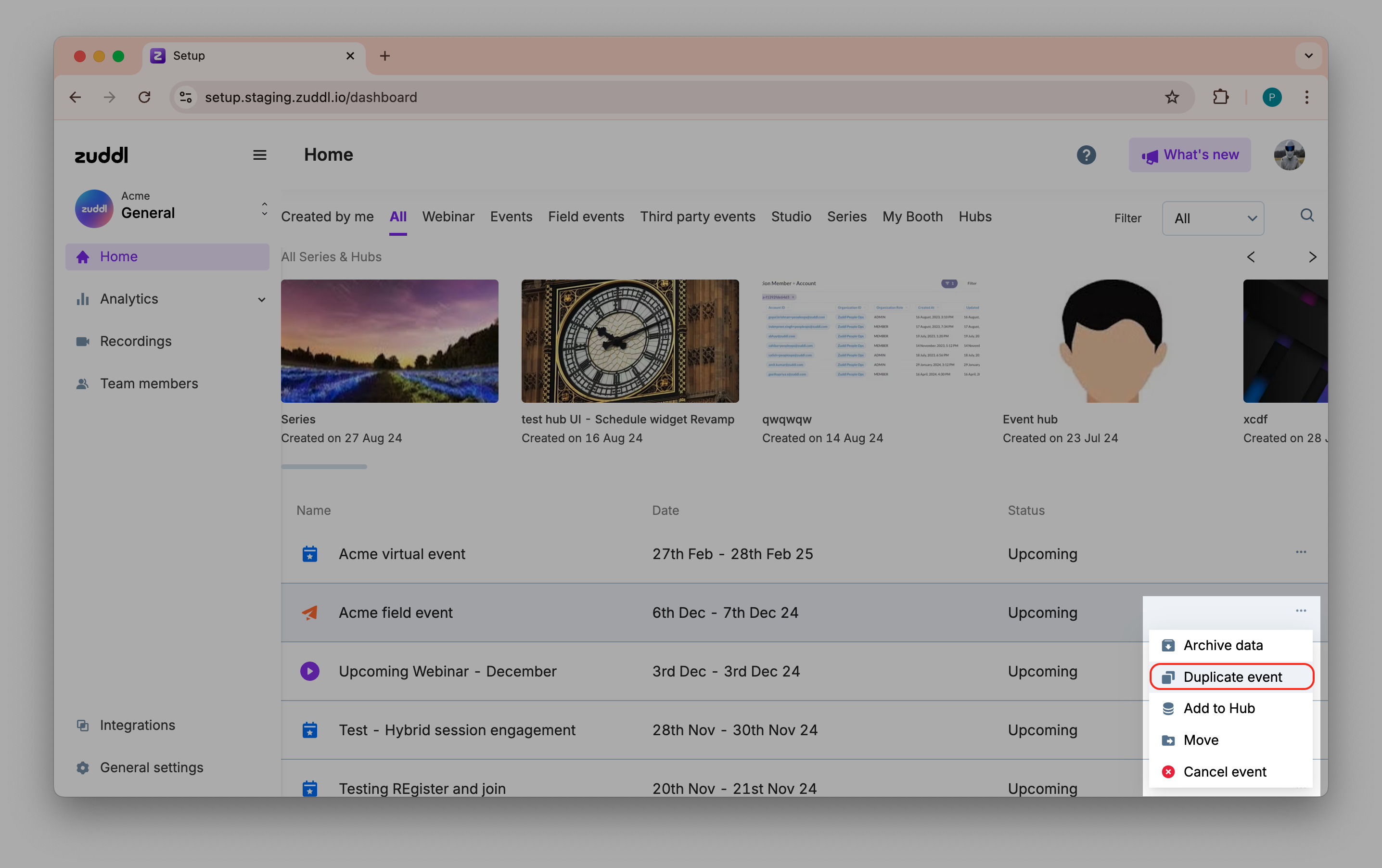
Under Basic details tab, enter configure the basic event settings. You can edit the Event name, Description, Starts on date, Ends on date (based on your plan), and Timezone.

The pre-filled event name would the original event name with a suffix '(copied)'.
Click Next.
Under Event configurations, refer the setting that must be configured after duplication
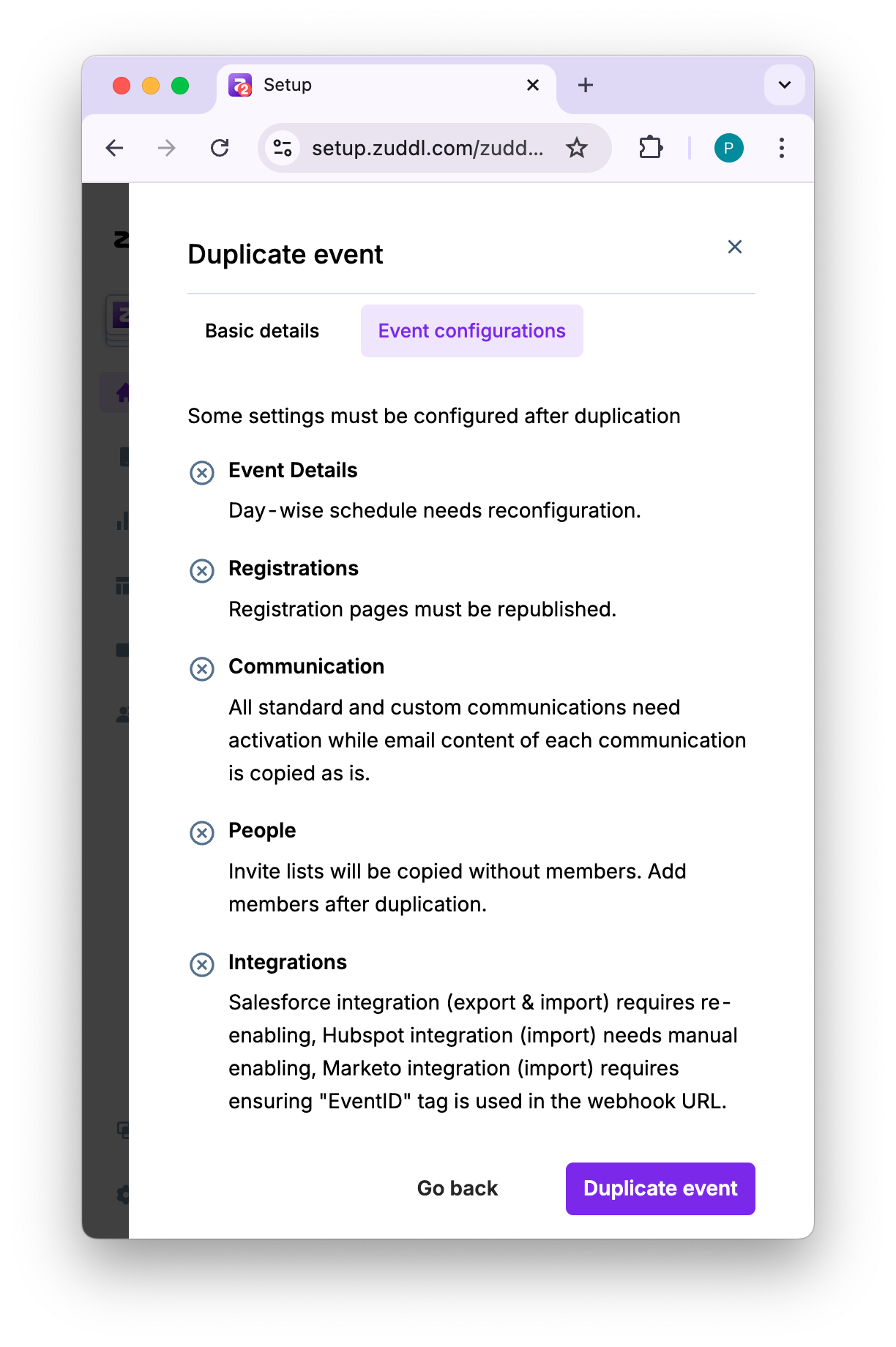
Click the Duplicate event button. The duplicated event is now added to the listing page. You can now edit and host the duplicated event like a regular one.
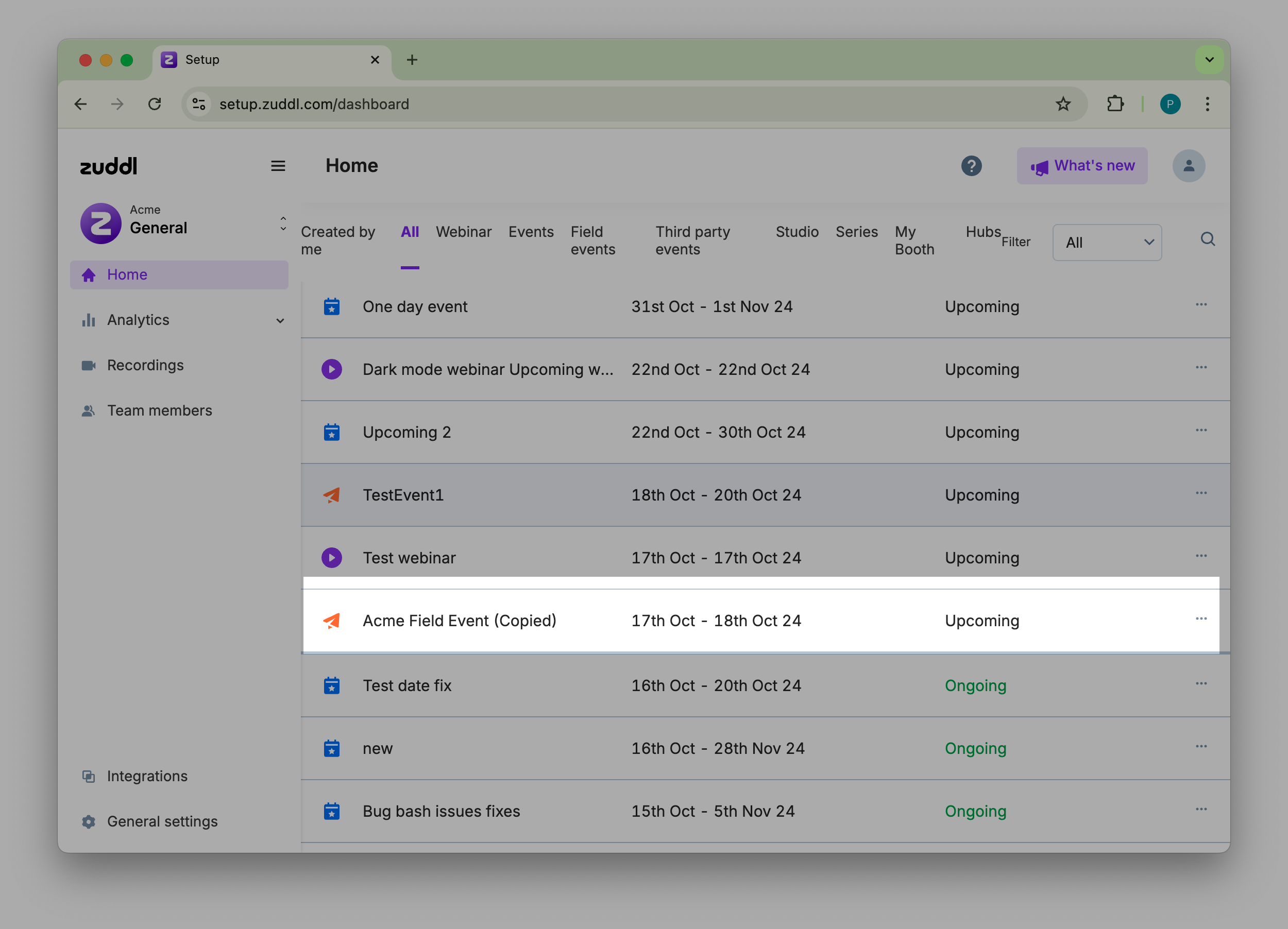
The duplicate event is scheduled one day after the day of duplication by default.
The duplicated event is added to the event and ordered based on the event start date and time.
Registration flow for Flex events
When events are duplicated, the default flow is published in the new event.
An ‘All’ tab is added in Custom communication, which shows the list of all Pre-event, Live-event, and Post-event. All communications will be inactive.