How to Create a Standard Screen for your Hybrid Events in Zuddl
Last updated: September 2, 2025
You can add a standard screen (different from the default screen) that can be shown to attendees during the registration flow when a specific condition is met. For example, when registration is full or tickets are sold out. You can customize the page to show informational or error messages based on the use case.
To create a standard screen
Log in to your Zuddl dashboard.
Navigate to Registrations > Registration flow.
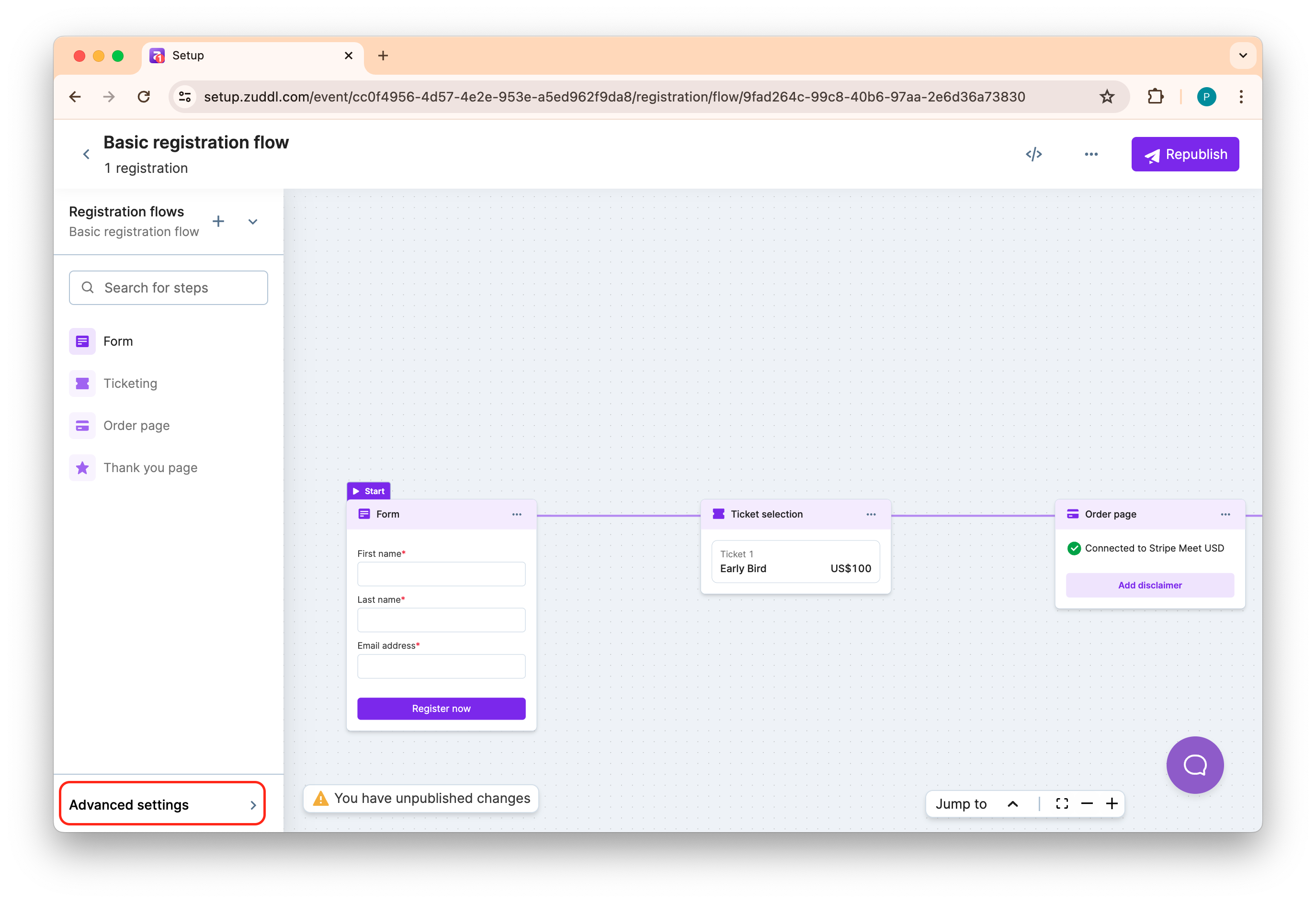
Inside the registration flow setup, click Advanced settings.
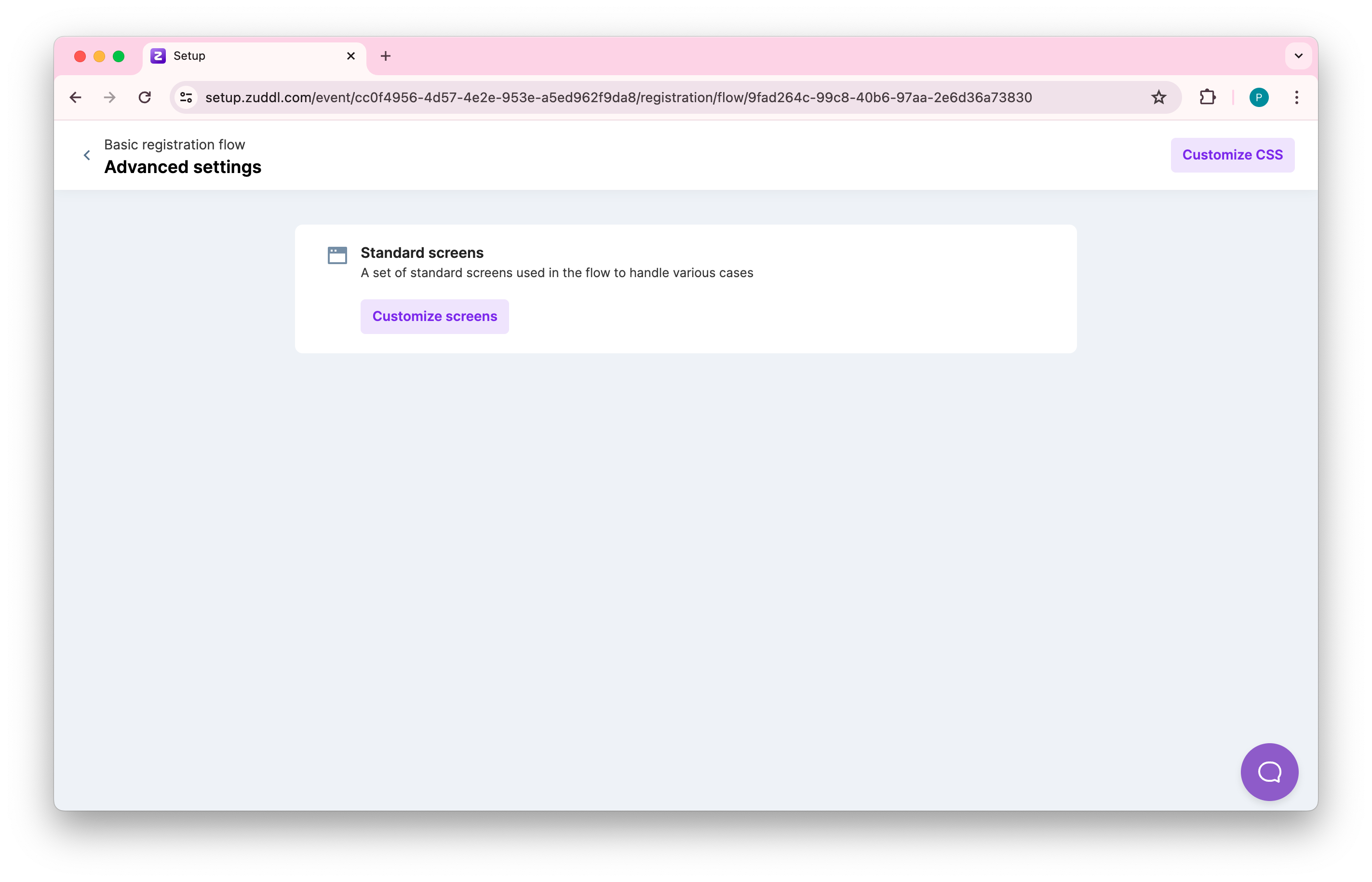
Click Customize screens on Standard screens card. This shows the screen setup page with a preview screen on the right and condition selection pane on the left.
Select a particular condition and toggle on Enable screen. Currently, there are two conditions:
Registration capacity - a maximum limit for your event registrations that you've set from the Zuddl dashboard. Learn how to configure registration capacity.
Ticket capacity - a maximum limit for your event registrations that you've set from the Zuddl dashboard. Learn how to create tickets.
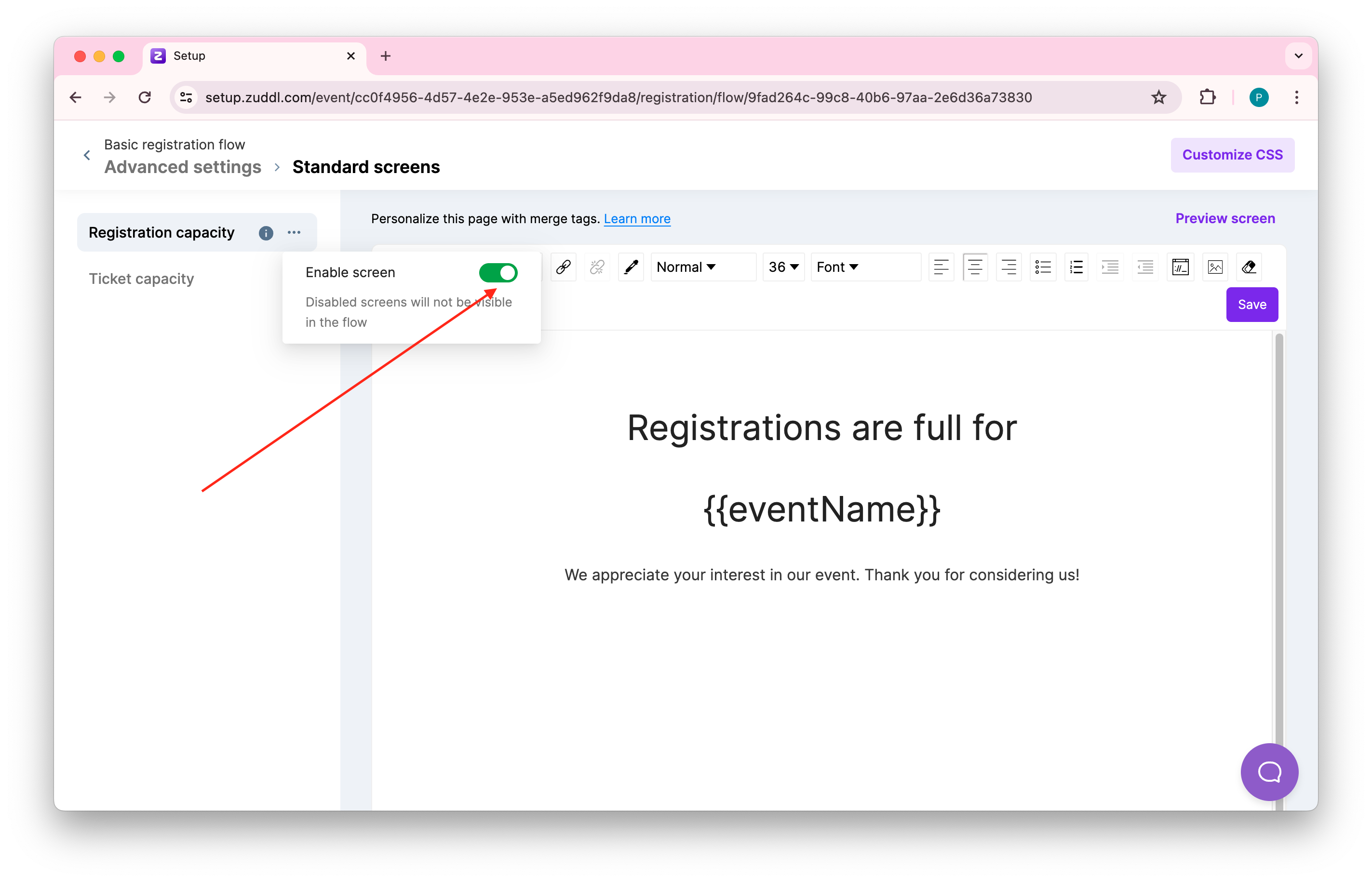
All screens are turned off by default.
On the preview screen, a default text message is shown, which you can customize using a rich-text editor. You can also use merge tags, for fetching event-specific data such as event names. Learn how to use merge tags for standard screens.
You can also edit the CSS elements of the page by clicking the Customize CSS button.
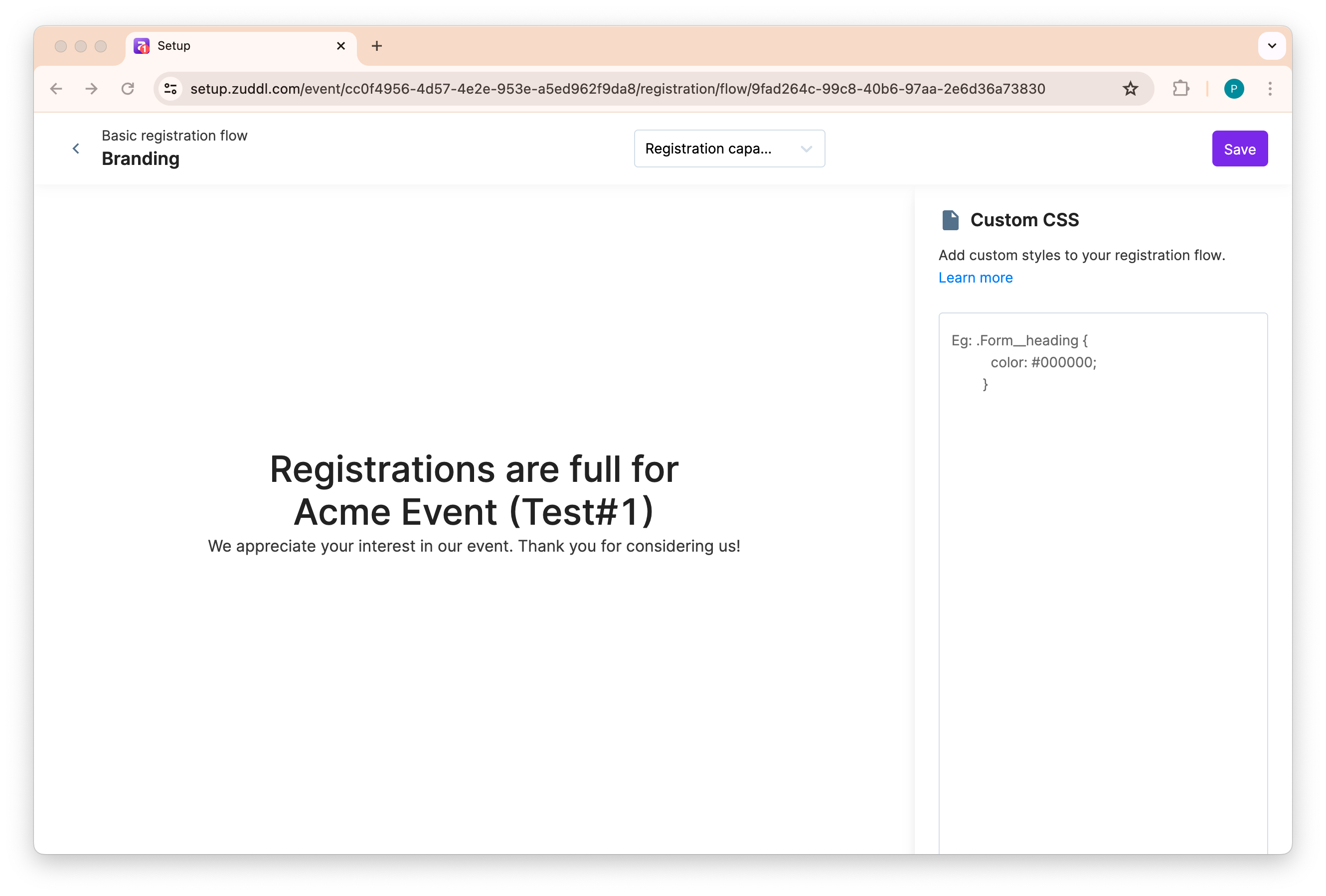
After you are done customizing your CSS code, click Save.
After creating or editing a standard screen, you must republish the flow. You can also click the preview button to view the entire screen with actual data (not merge tags).
Screen display scenarios
All display scenarios are listed in the table below:
ConditionsToggle state - Registration capacity | |||
Registration capacity reached | ON | ON/OFF | Standard screen - Registration capacity |
OFF | ON/OFF | Default page - registration is full screen | |
Registration and ticket capacity reached | ON | ON/OFF | Standard page - Registration capacity |
OFF | ON/OFF | Standard page - Registration capacity | |
Registration is available but ticket capacity reached | ON/OFF | ON | Standard page - Ticket capacity screen |
ON/OFF | OFF | Default page - no ticket available screen |