Upload Coupons in Bulk using CSV for a In-person Event
Last updated: September 3, 2025
CSV Import
If you have a big list of coupons, you can upload a CSV file that contains all the required coupon information on Zuddl instead of creating individual coupons. Zuddl uses this file to create coupons on your dashboard.
Preparing the CSV file
To prepare the CSV file:
Go to Registration > Ticketing > Coupons.
Click the Upload CSV button.
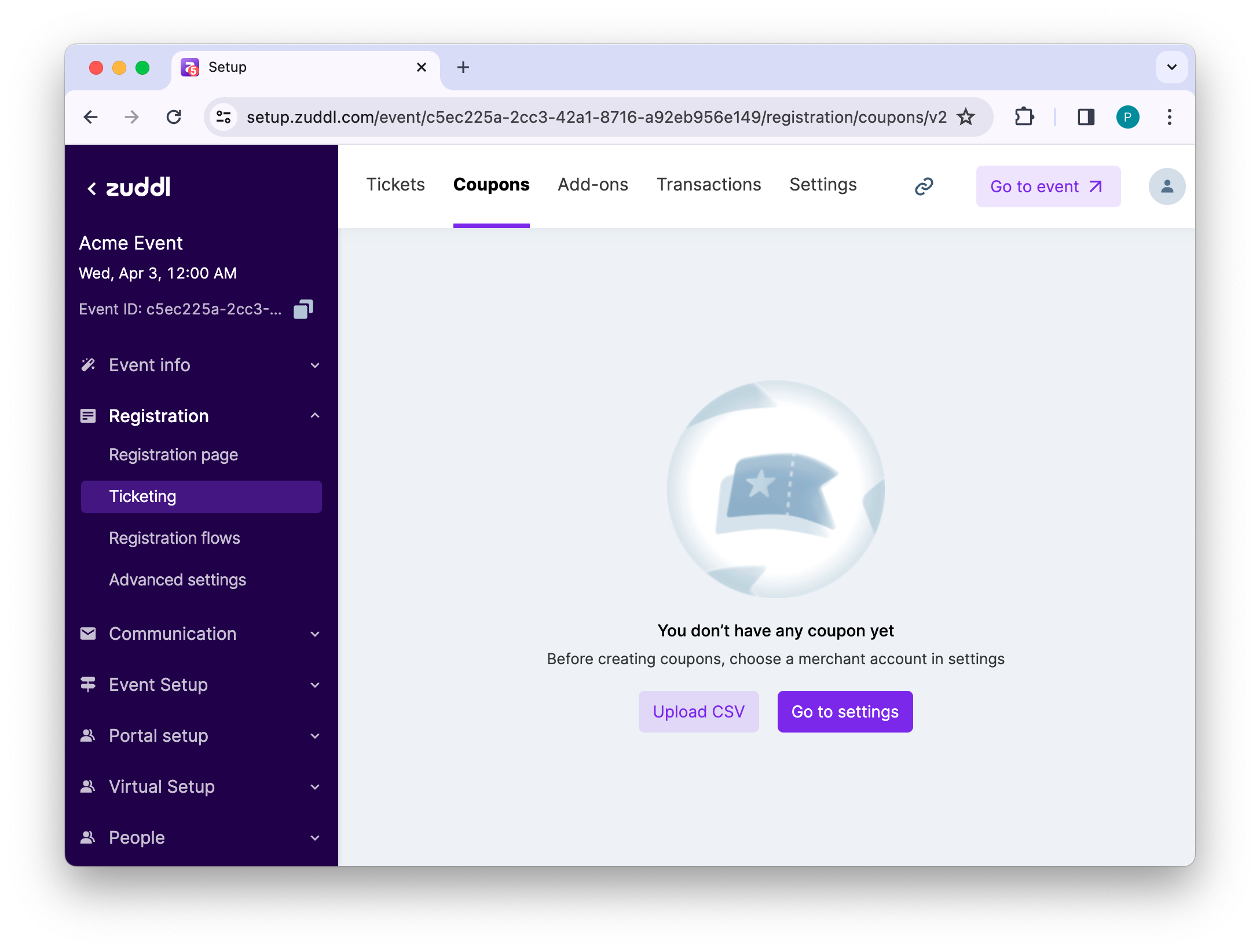
You can create a new CSV file or download a sample file and make changes. While creating the CSV file, follow the below rules:
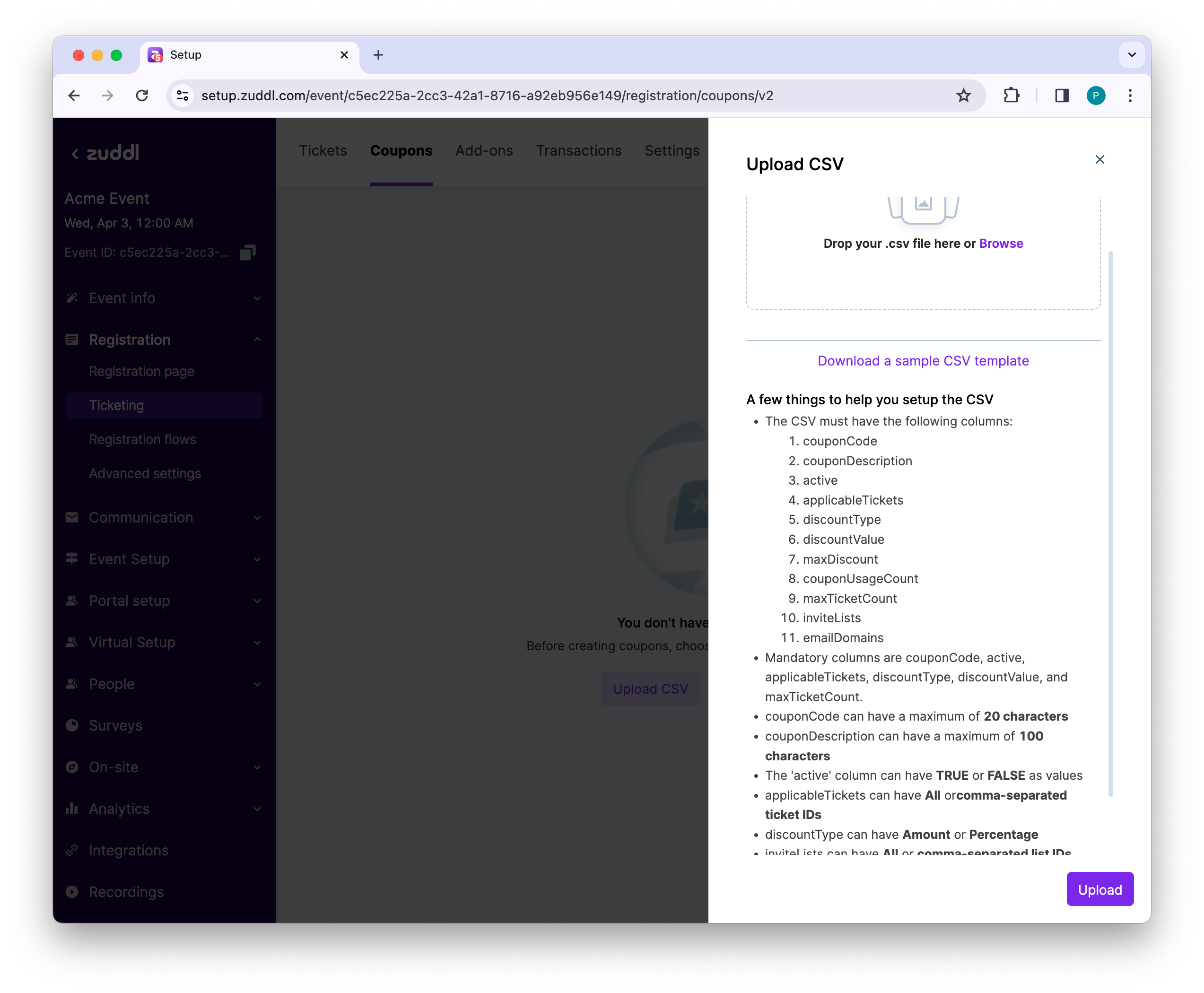
The CSV must have the following columns:
Column header | Description |
couponCode | Mandatory. The code of the coupon of upto 20 characters |
couponDescription | The coupon description of upto 100 characters. |
active | Mandatory. Specifies if the coupon is active or inactive. 'TRUE' for active, 'FALSE' for inactive |
applicableTickets | Mandatory. Specifies the tickets this coupon is applicable for. Accepts ticket Ids in comma-separated format. |
discountType | Mandatory. Specify "Amount" for discounts in amount and "Percentage" for percentage |
discountValue | Mandatory. The discount amount in percentage or whole number |
maxDiscount | The maximum applicable discount amount. |
couponUsageCount | Number of times the coupons can be used. |
maxTicketCount | Mandatory. Specifies how many tickets can be purchased with this coupon. |
inviteLists | The applicable invite lists in comma-separated format. You can also specify "All" to make it accessible for all invite lists. |
emailDomains | Specify the email domain names in comma-separated format to make this coupon accessible to a specific set of email domains |
The CSV can have a maximum of 500 rows
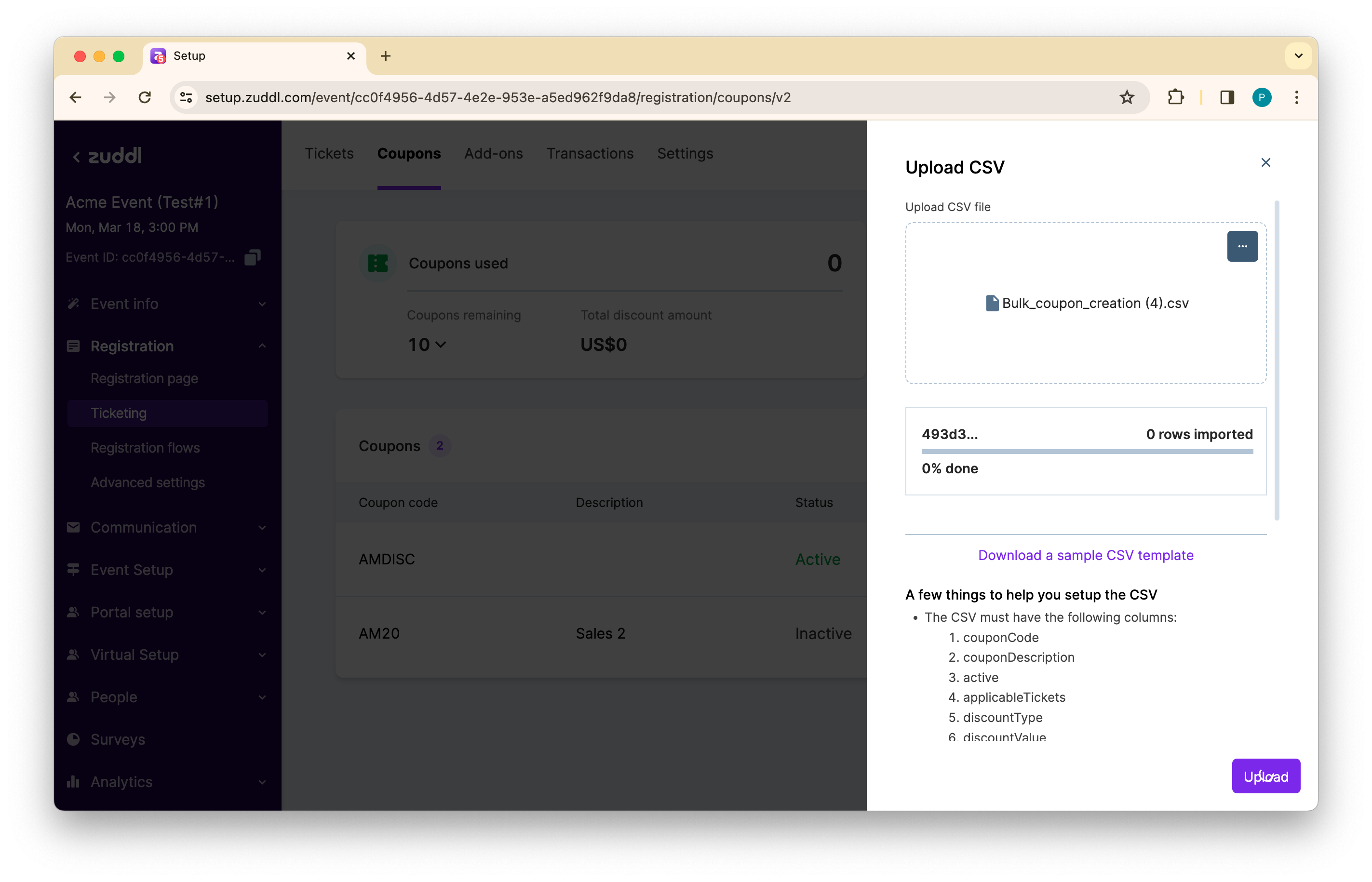
Once created, you can save the file locally and click the Browse link to upload the CSV file
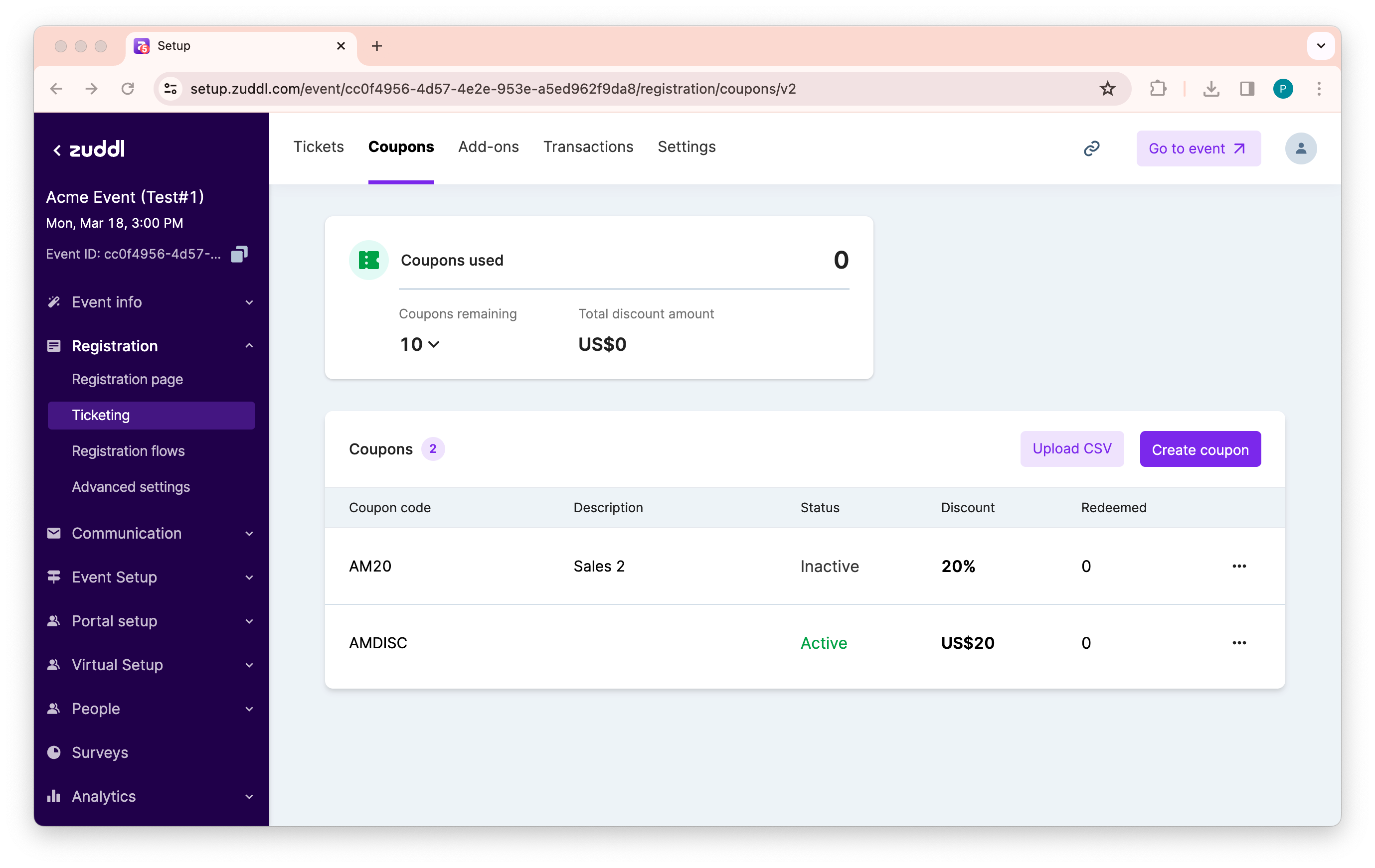
After a successful upload, the uploaded coupons appear in the list of coupons as shown below:
Partial upload
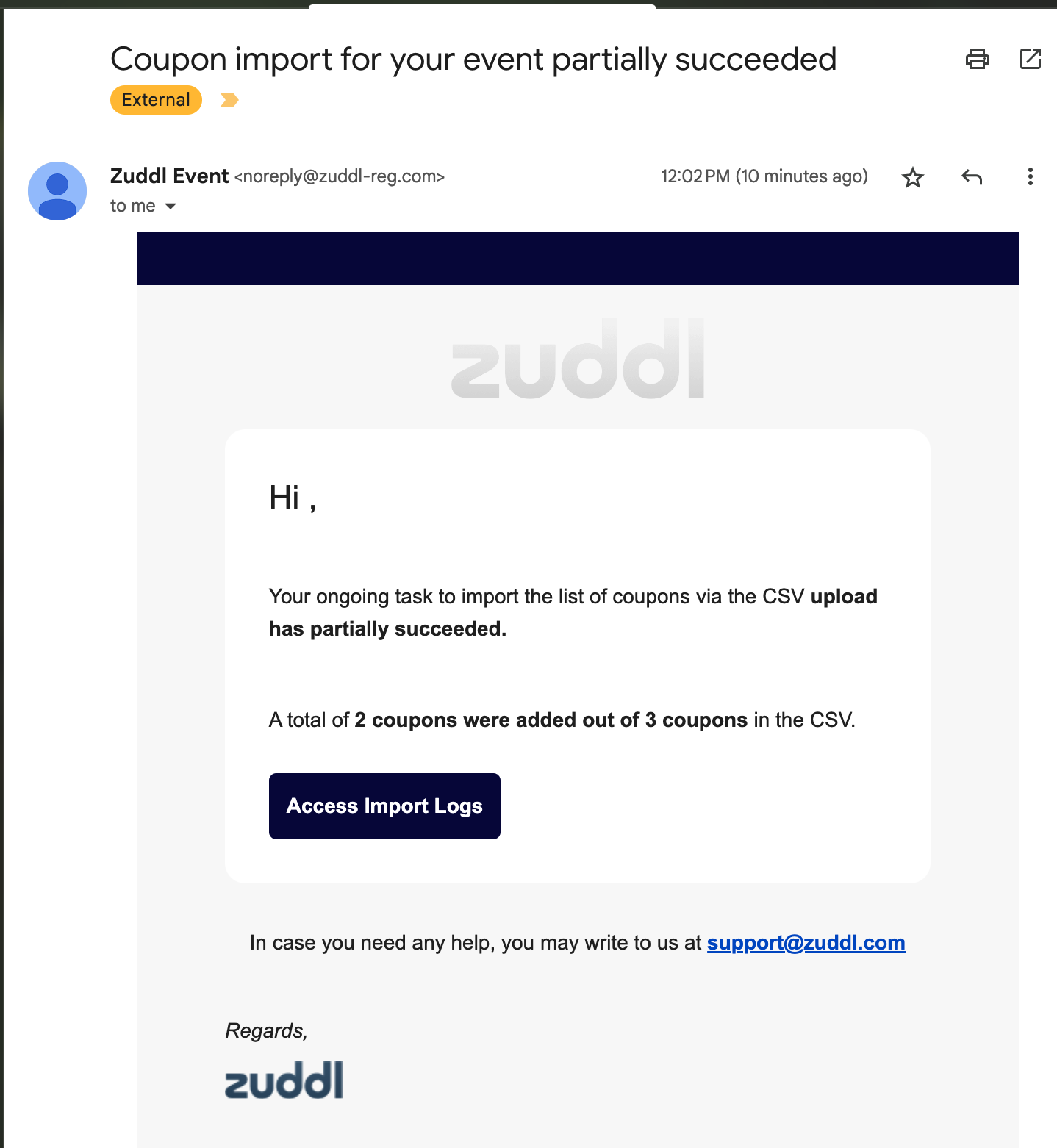
For instance, if 2 out of 3 coupon details were correctly entered in the CSV file, the correct coupons details get uploaded. Zuddl sends you an upload status email wherein you can view the import logs by clicking the Access Import Logs button.
Handling Errors
When you click the Report option on the upload progress bar
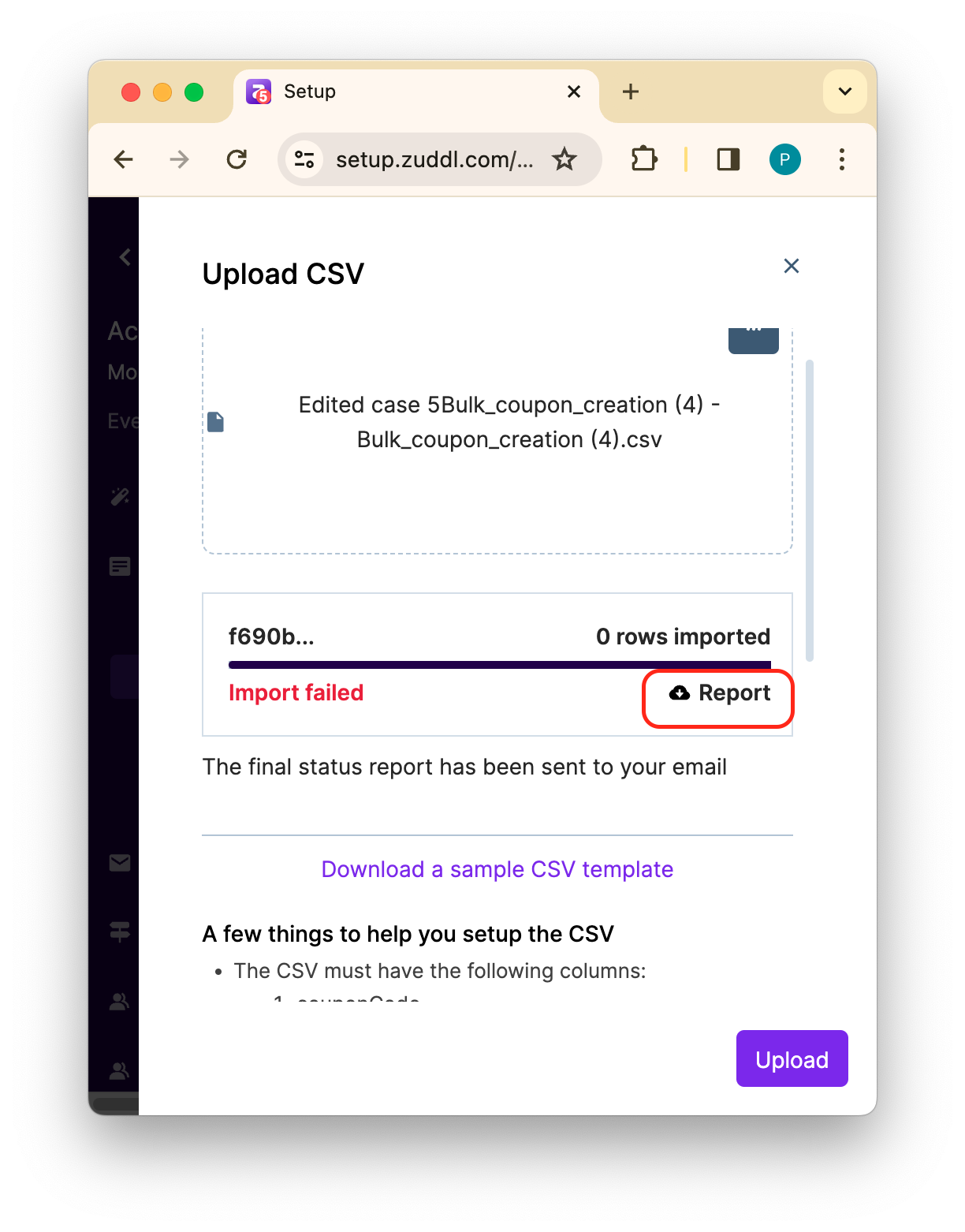
or view logs by clicking Access Import Logs button (as shown in the previous section), a page shows the error message with the row number which allows you quickly.
An example error message is shown below:

There are two main types of errors:
Unprocessable Entity: When a different data type is entered.
Null value encountered: When a mandatory field is left blank