SessionBoard Integration with Zuddl
Last updated: May 18, 2026
What This Does
Connect your SessionBoard account with Zuddl to automatically sync approved sessions and speaker data into your event. This helps your team avoid manually recreating schedules, speaker profiles, and presentation details inside Zuddl.
Note: Imported speaker and session records are marked with SessionBoard as the source inside Zuddl, so you can always tell which data was synced versus created manually.
Before You Begin
A SessionBoard account with a valid API key/token.
Organizer access to the Zuddl Dashboard.
The integration setup happens in two steps: organization-level authentication first, then event-level sync configuration.
What Data Can Be Synced
After connecting SessionBoard, organizers can sync:
Speakers
Speaker profiles
Sessions
Session descriptions and metadata
Speakers linked to sessions
Presentation materials and uploaded files
Session tags and tracks
Steps
Step 1: Connect SessionBoard at the Organization Level
On the Zuddl dashboard, go to Integrations.
Scroll down to find SessionBoard and click View details to open the integration setup.
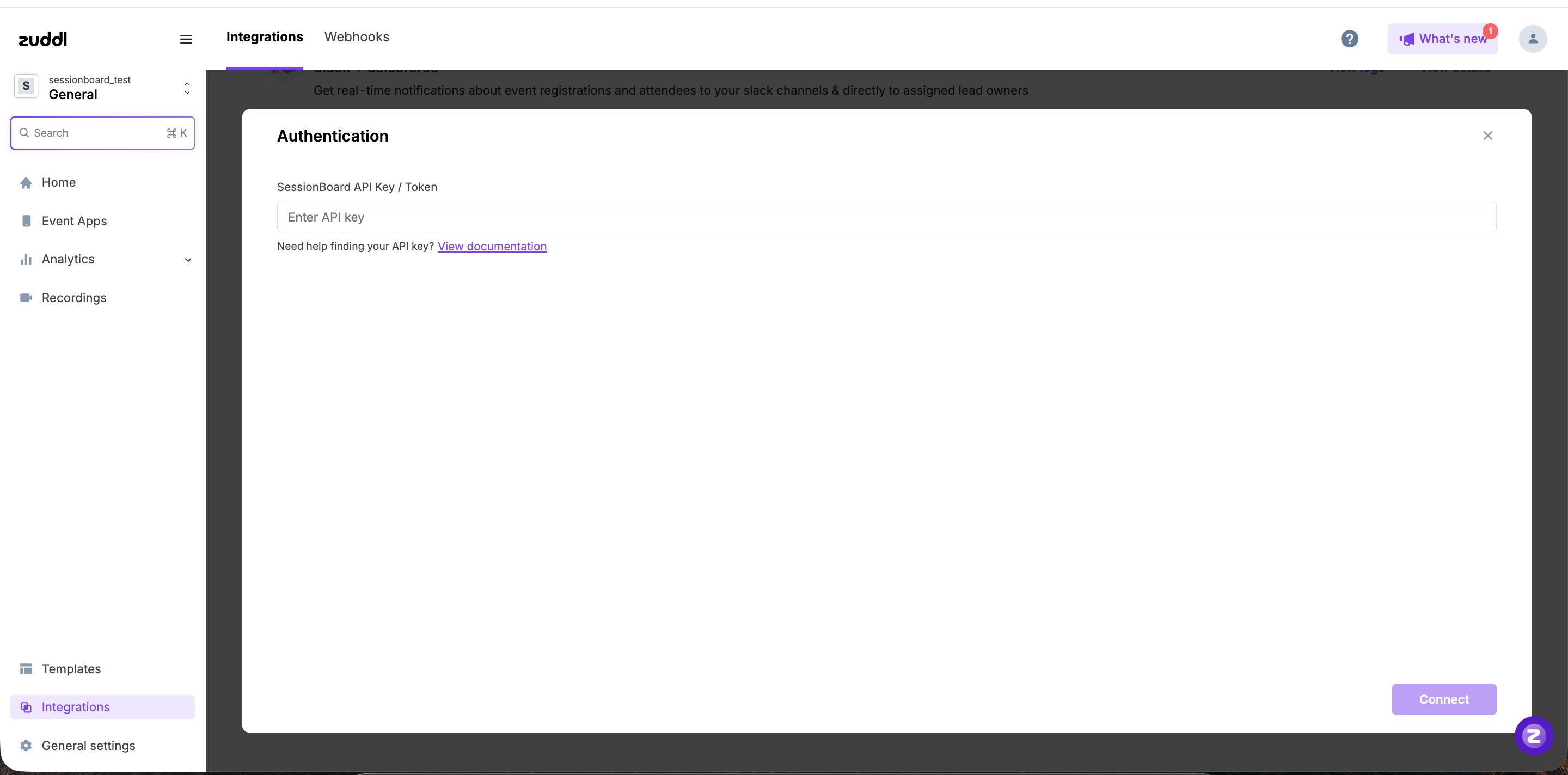
Click Edit and enter your SessionBoard API Key / Token.
Click Connect to connect your SessionBoard account to Zuddl.
Once connected successfully, the integration status changes to SessionBoard Installed.
Your organization can now enable SessionBoard sync inside individual events.
Step 2: Enable SessionBoard for an Event
Configure the event connection:
Open your event on Zuddl and go to Integrations.
Find SessionBoard and click Customize to configure the event connection and syncing.
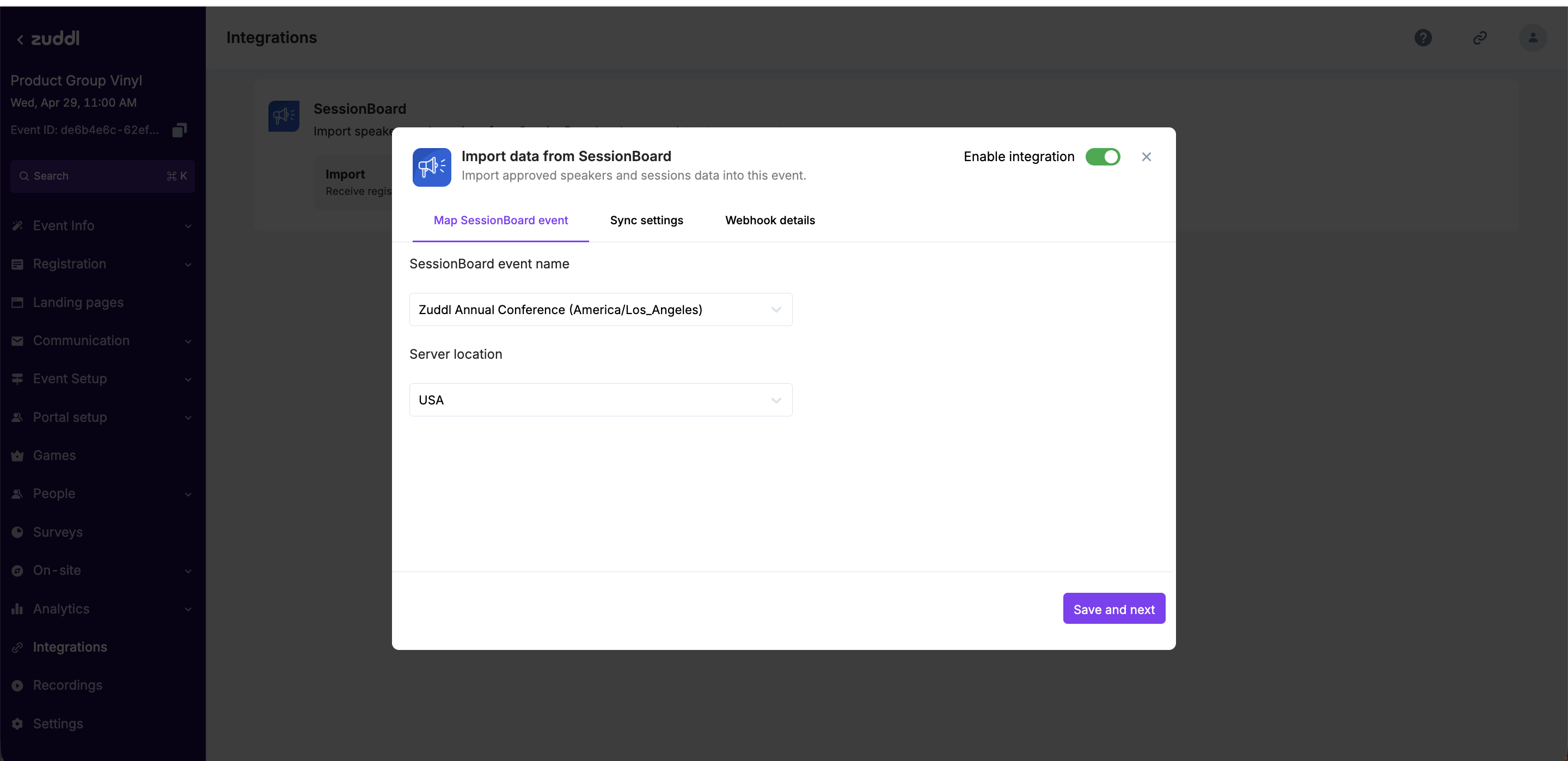
In the Map SessionBoard event tab, select the SessionBoard event you want to connect to this Zuddl event.
Select the server location if applicable (this is the location configured within SessionBoard to store your data).
Click Save and next to proceed to the next step.
Configure sync settings:
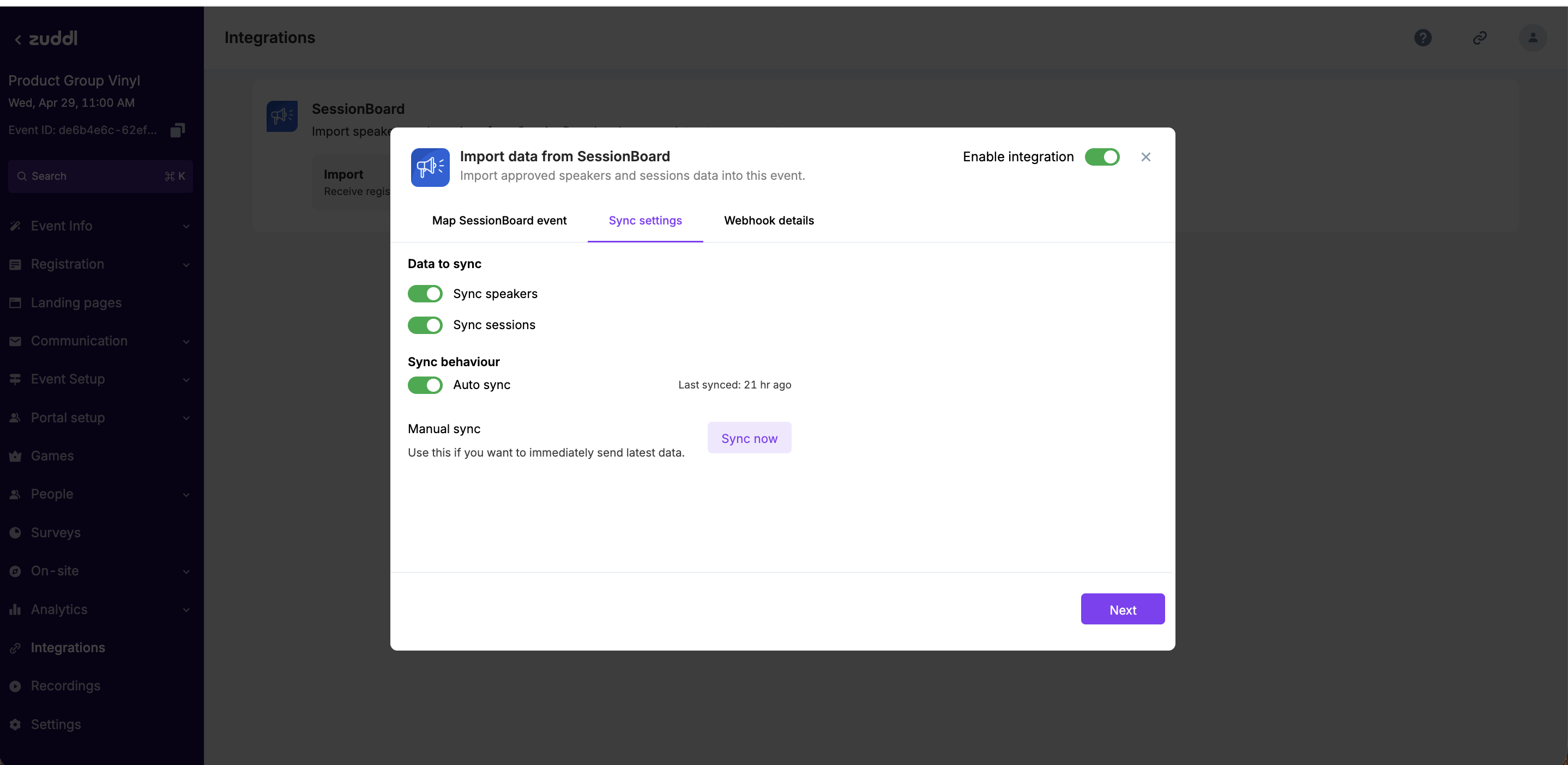
In the Sync settings tab, select the data to sync and define the sync behavior.
Enable the toggles for Speakers and/or Sessions to sync that data into Zuddl.
Zuddl supports two sync methods:
Auto sync — data syncs automatically when changes occur in SessionBoard (requires webhook setup).
Manual sync — click Sync now to fetch the latest data on demand (no webhook required).
Manual sync doesn’t need any webhook to be configured. You can just click on “Sync now” and fetch the latest data.
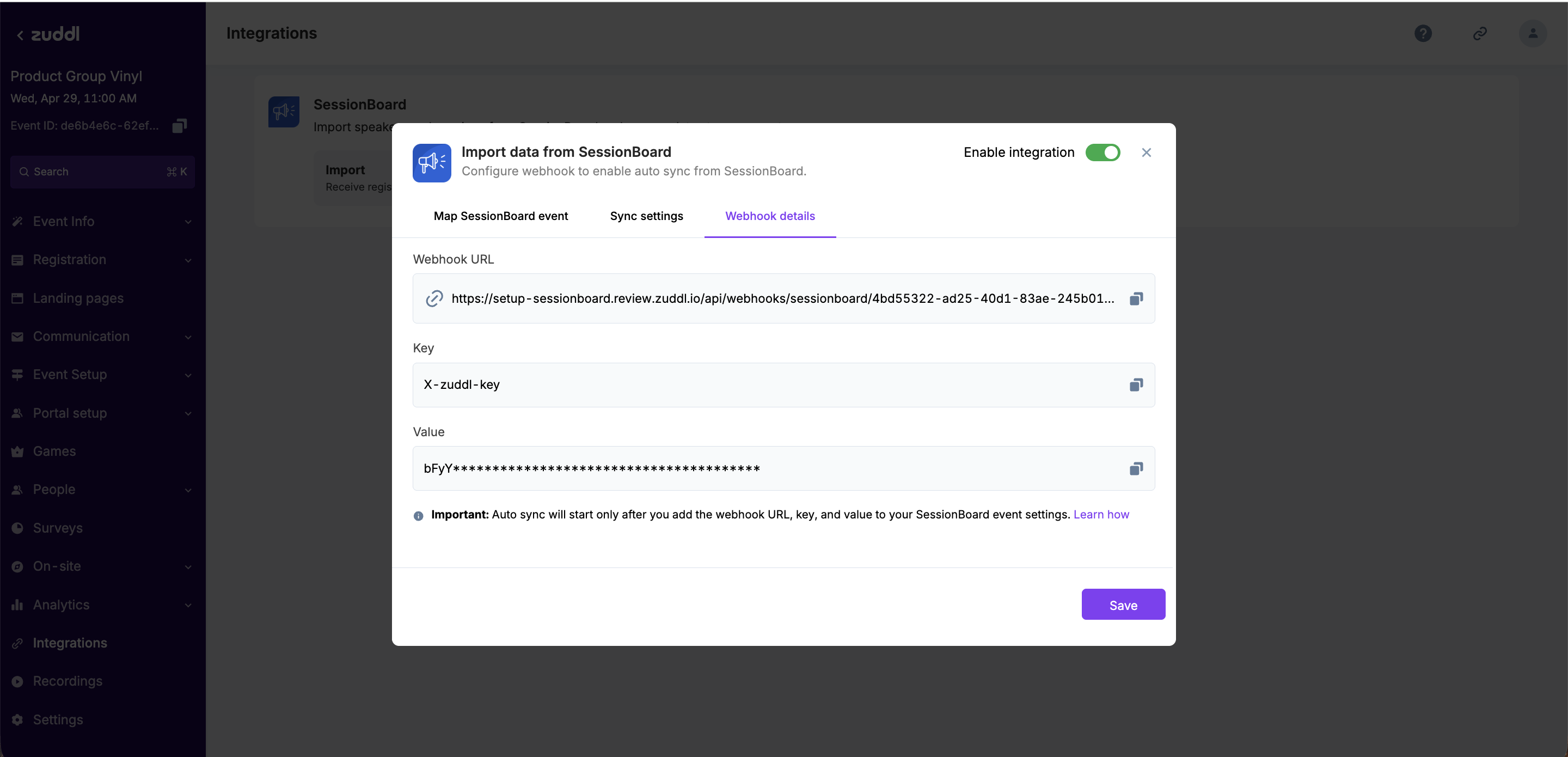
If you want data to Auto sync, you must configure a webhook on SessionBoard. The starts only after webhook setup is completed.
If this toggle is turned ON, a new tab “Webhook details” will be shown that has the below items.
Webhook URL
Key
Value
We will need these details to create a webhook in SessionBoard.
How to add a Webhook in SessionBoard for Auto-syncing data into Zuddl:
If you want data to auto-sync, you must configure a webhook on SessionBoard. When auto sync is enabled in Zuddl, a new Webhook details tab appears showing the Webhook URL, Key, and Value you will need.
Go to the SessionBoard dashboard and open the event for which you want to auto-sync data to Zuddl.
Navigate to Settings > Integrations > Webhooks and click Open.
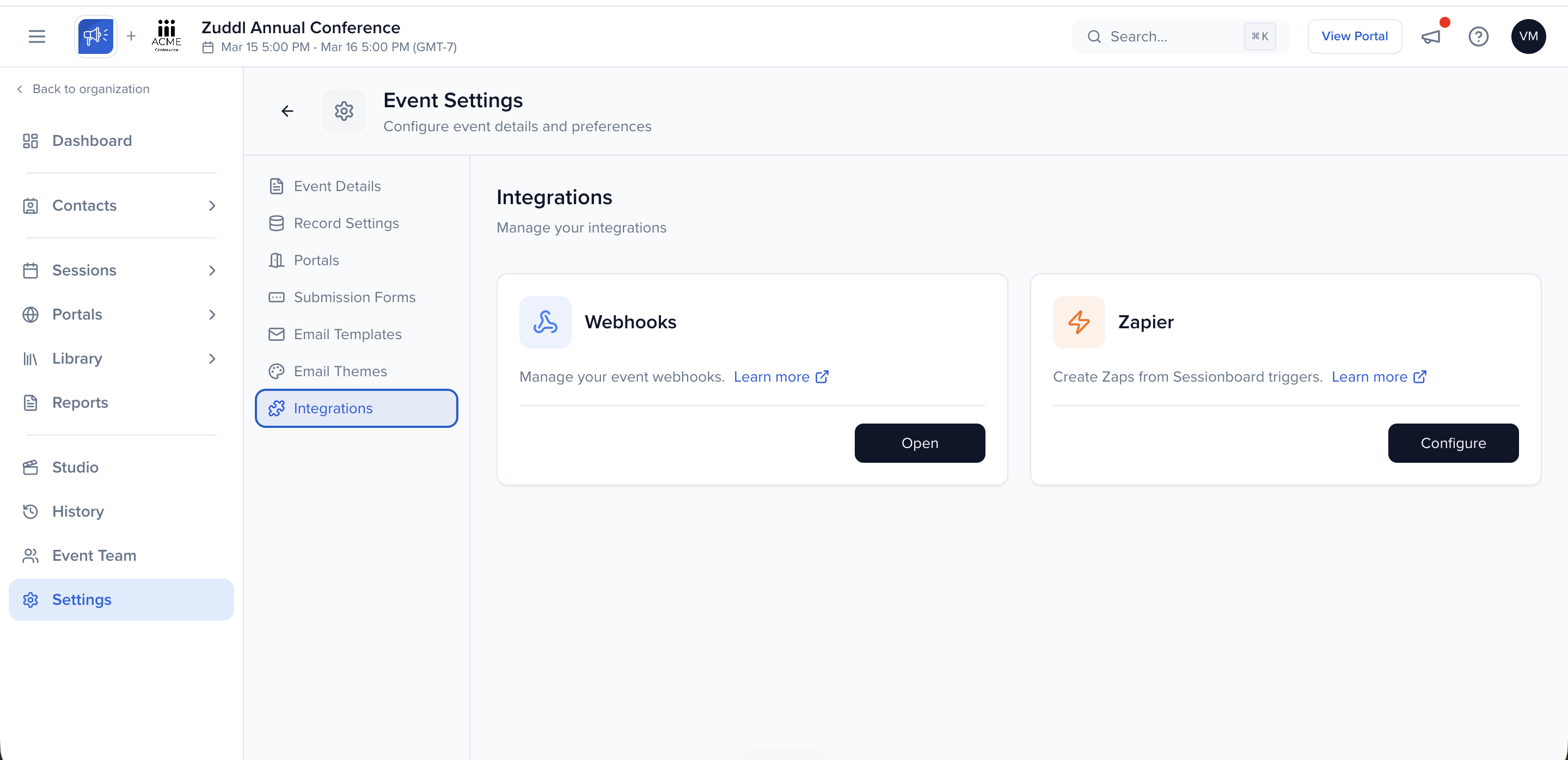
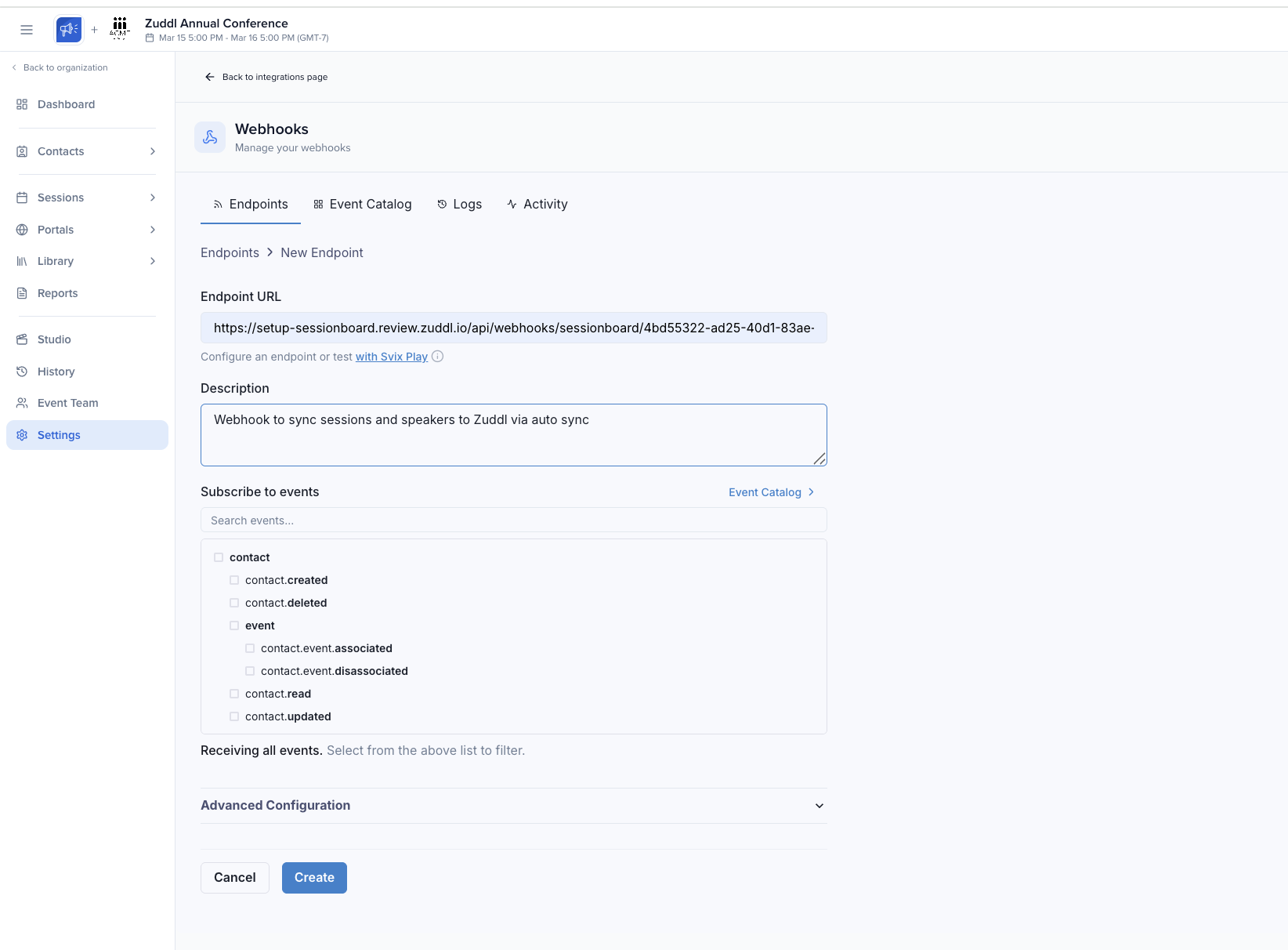
Click Add endpoint to create a new webhook.
Copy the Endpoint URL from Zuddl and paste it in the Add the Endpoint URL field.
Add a description for this webhook for internal reference.
In the Subscribe to Events section, select the following checkboxes:
contact.createdcontact.deletedcontact.updatedsession.createdsession.deletedsession.speaker.attachedsession.speaker.detachedsession.updated
Click Create to create the webhook.
Once the webhook is created, open it and click the Advanced tab.
In the Custom Headers section, fill in the Key and Value fields by copying from the Webhook details tab on Zuddl, then click the + button and Save.
The webhook is now ready. Session and speaker data will auto-sync to Zuddl whenever changes are made in SessionBoard.
What Happens Next
Where to View Synced Data
Speakers:
Synced speakers appear under People > Speaker.
The Source column indicates whether the speaker was imported from SessionBoard or created on Zuddl.
Sessions:
Synced sessions appear under Event Setup > Schedule.
The Source column indicates whether the session was imported from SessionBoard or created on Zuddl.
How duplicate handling works
If a record (session or speaker) already exists:
Zuddl matches records using the external SessionBoard ID.
Existing records are updated instead of creating duplicates.
Notes
Troubleshooting
Authentication failed when configuring SessionBoard at the organization level:
Verify that the API key/token is valid.
Confirm the token has the required permissions.
Check that the token has not expired.
Sessions or speakers are missing:
Confirm the records are approved in SessionBoard.
Ensure the Speakers/Sessions sync toggles are enabled.
Verify manual sync was triggered successfully.
Confirm the records belong to the connected SessionBoard event.
Auto sync is not working:
This could happen because webhook configuration is incomplete or incorrectly configured. Verify that:
The webhook URL is added in SessionBoard.
The Key and Value are configured correctly.
Webhook settings are saved in SessionBoard.
Best Practices
Complete the organization-level setup before configuring events.
Verify speaker and session mappings after the first sync.
Review imported files and presentations before publishing.