How to Test Communication Emails in Zuddl
Last updated: March 18, 2026
Method 1 : Using test email option
Log in to your Zuddl Dashboard and navigate to your event.
Go to Communications.
Open the email you would like to test (e.g., Attendee, Speaker, or Sponsor email).
Click on Send Test Email.
Enter your email address (and any additional email addresses if needed).
Click Send to receive a test copy of the email.
You can add multiple recipients if you’d like other team members to review the email before it goes live.
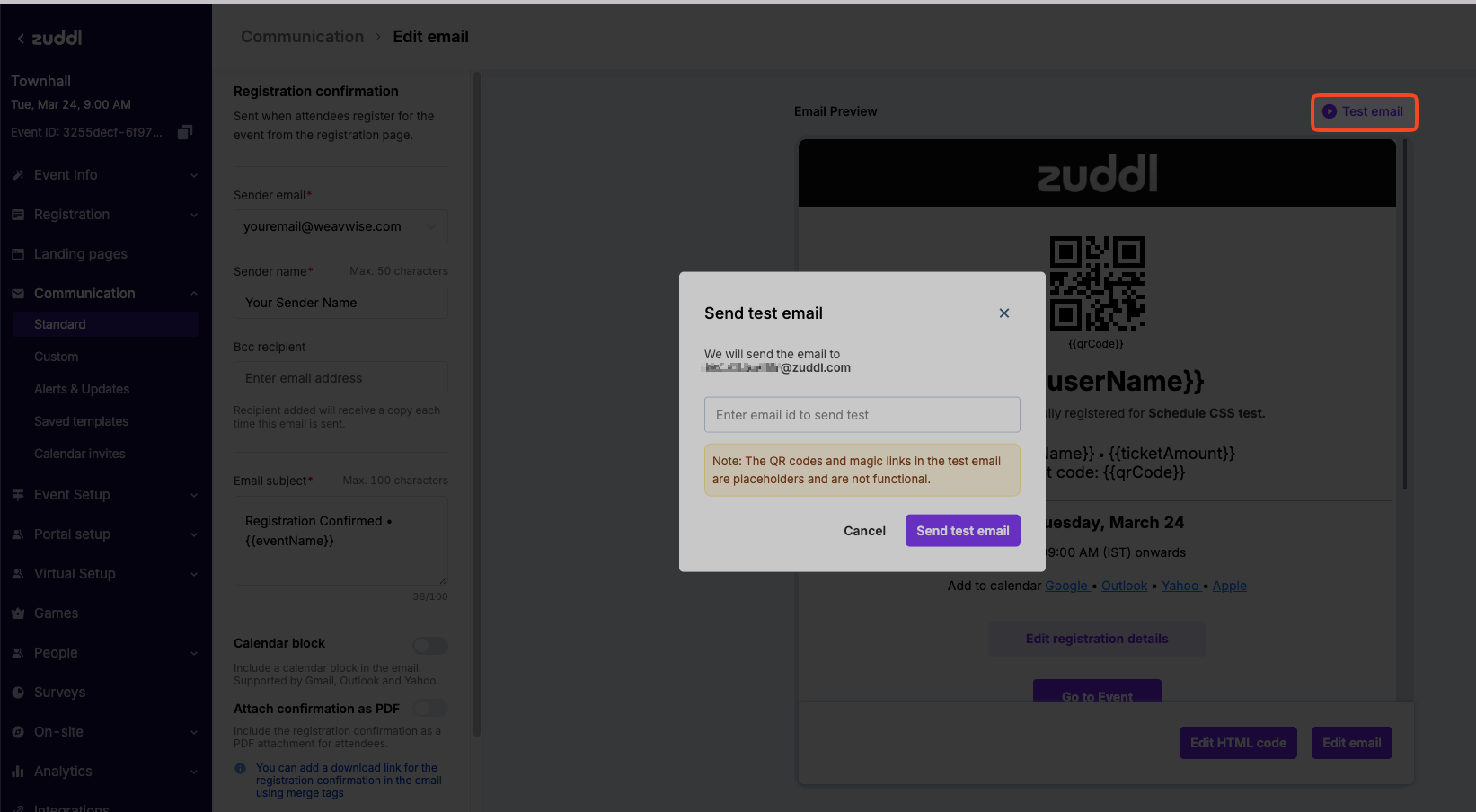
Important Note
The QR codes and Magic Links included in test emails are placeholders and will not be functional. These will only work in live emails sent to actual registered users.
Method 2 : Using test attendee
If you’d like to test how an email will appear to an attendee, including all links, QR code functionality and overall formatting, you can use the following method.
Create and design the email as per your requirement.
Save the email as an email template
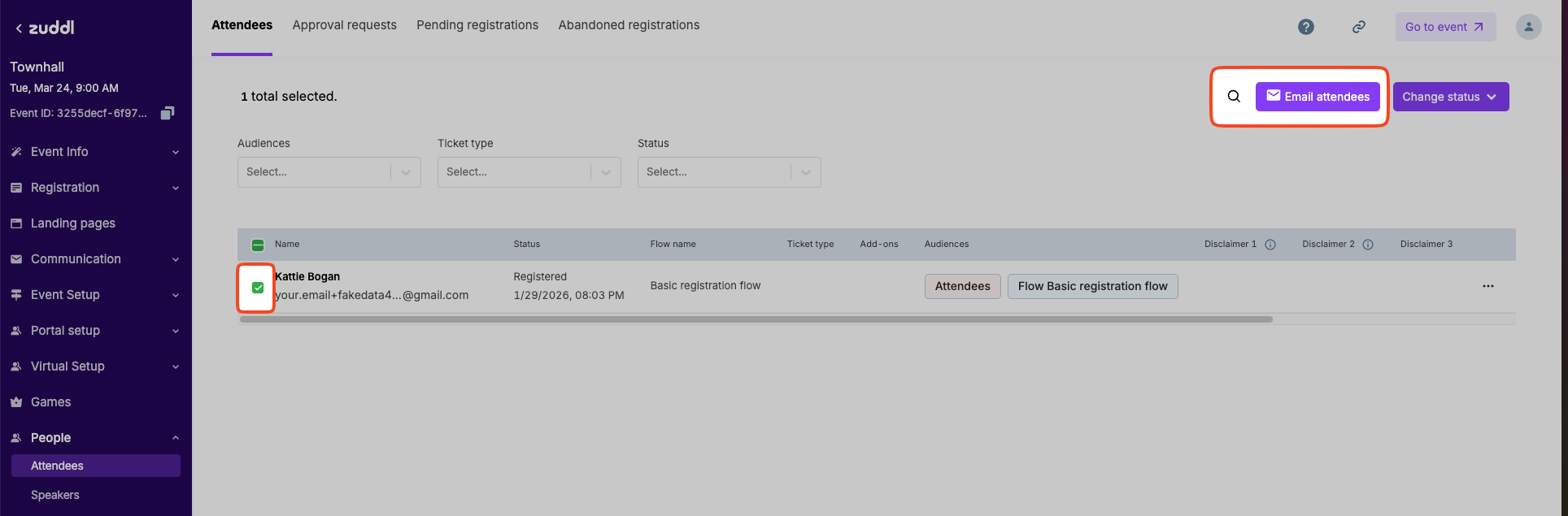
Navigate to People → Attendees.
Select the attendee you added as a test attendee.
Click on Email Attendee.
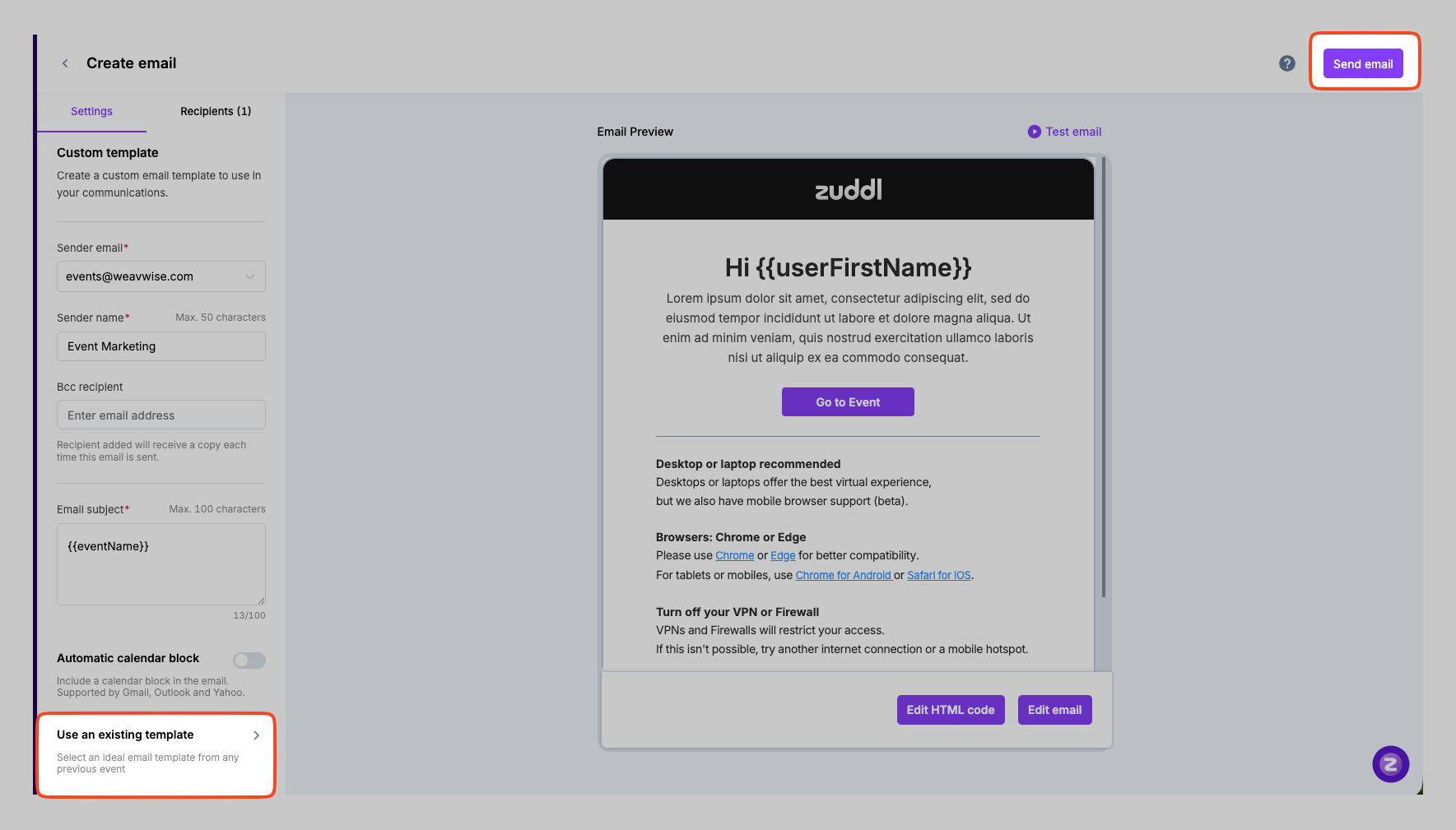
Choose the template you saved earlier.
Click Send Email to send the email to the attendee.
The email will be sent to the selected attendee’s email address, allowing you to:
Verify email formatting
Test all links
Check QR code functionality
Review the overall attendee experience