How to Create Surveys for Zuddl Virtual Events
Last updated: September 2, 2025
Zuddl enables you to create surveys and gather valuable insights from the attendees. Surveys are used to assess the effectiveness of an event, and they can help improve future events. Event surveys typically include a variety of questions designed to evaluate different aspects of an event.
Create a Survey
You can follow these steps to create a survey.
Login to your dashboard and navigate to Surveys.
Click on the + Create survey button. This redirects you to the three-step process to create a survey, which includes Add survey details, Add questions, and End screen.
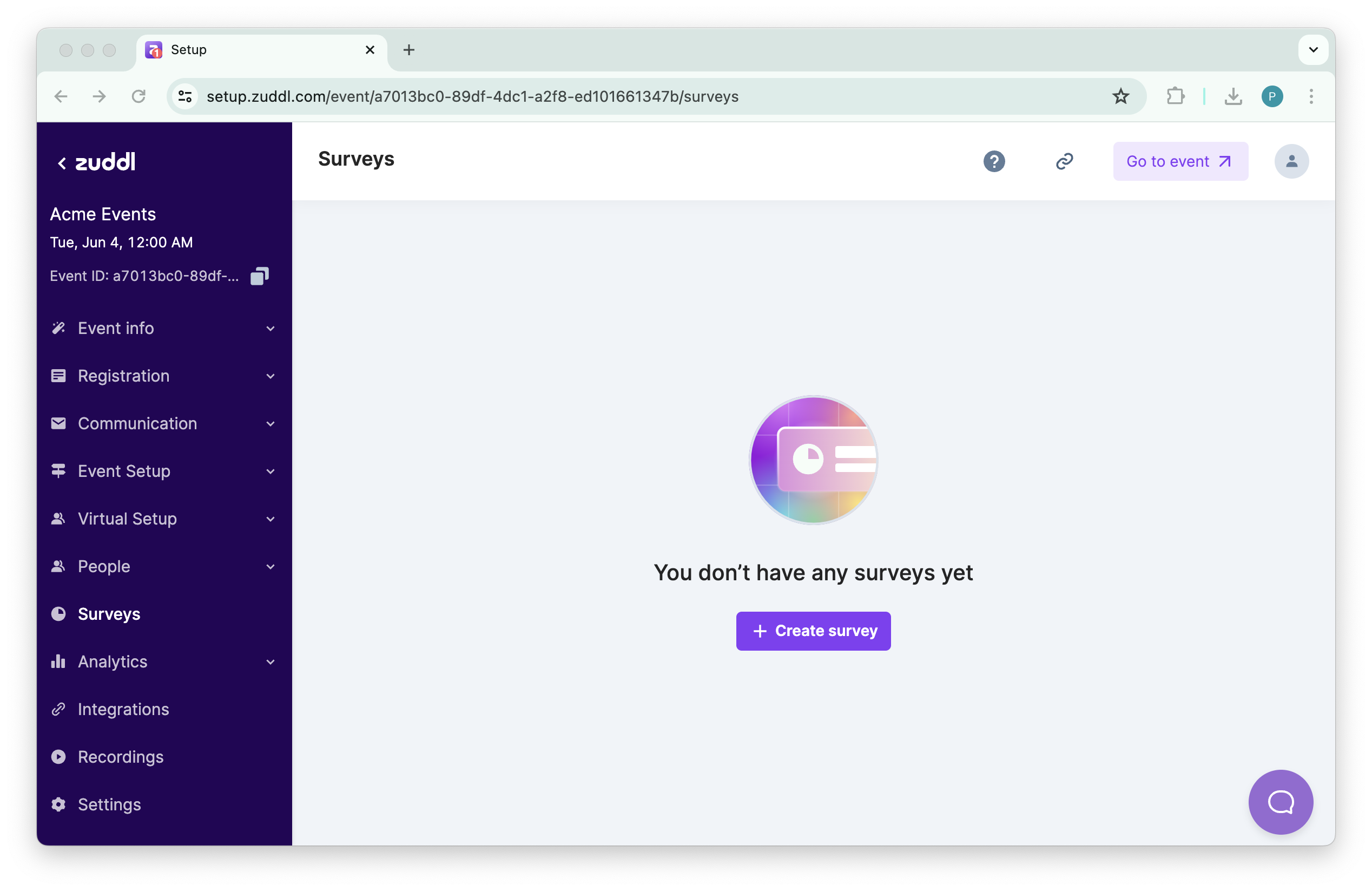
Create a survey
Add survey details
You can add the Survey Title and Description here.
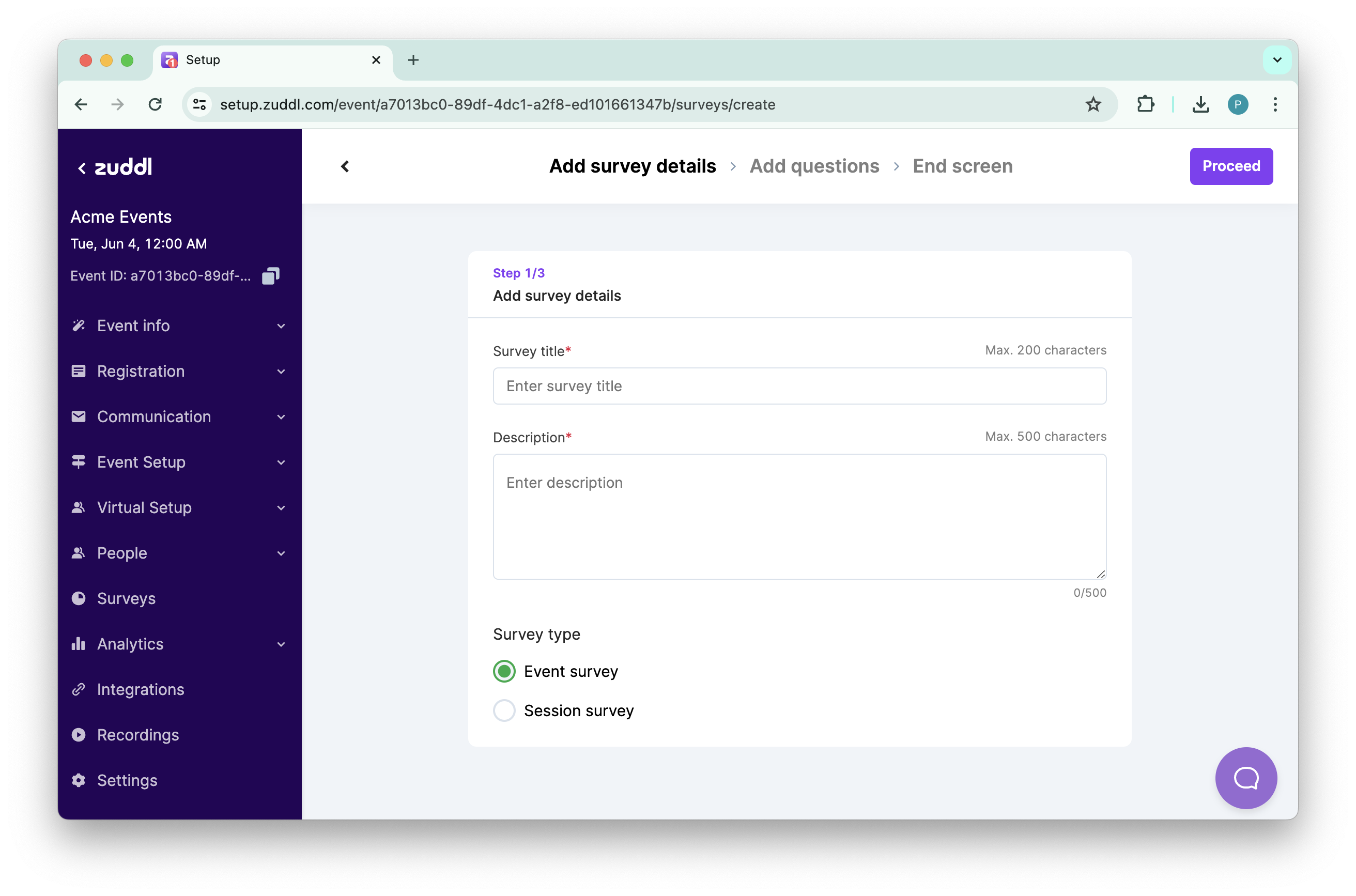
Select the Survey type. You can select:
Event survey
Session survey
Select a session from the Select sessions dropdown. Learn how to add a session.
Optional. Toggle on Schedule surveys.
Choose When do you want to publish this survey??
Before session ends
After session ends
Select the Survey timing. Choose timing from the dropdown
5 minutes
15 minutes
30 minutes
Add custom time. Enter a Custom time (in minutes)
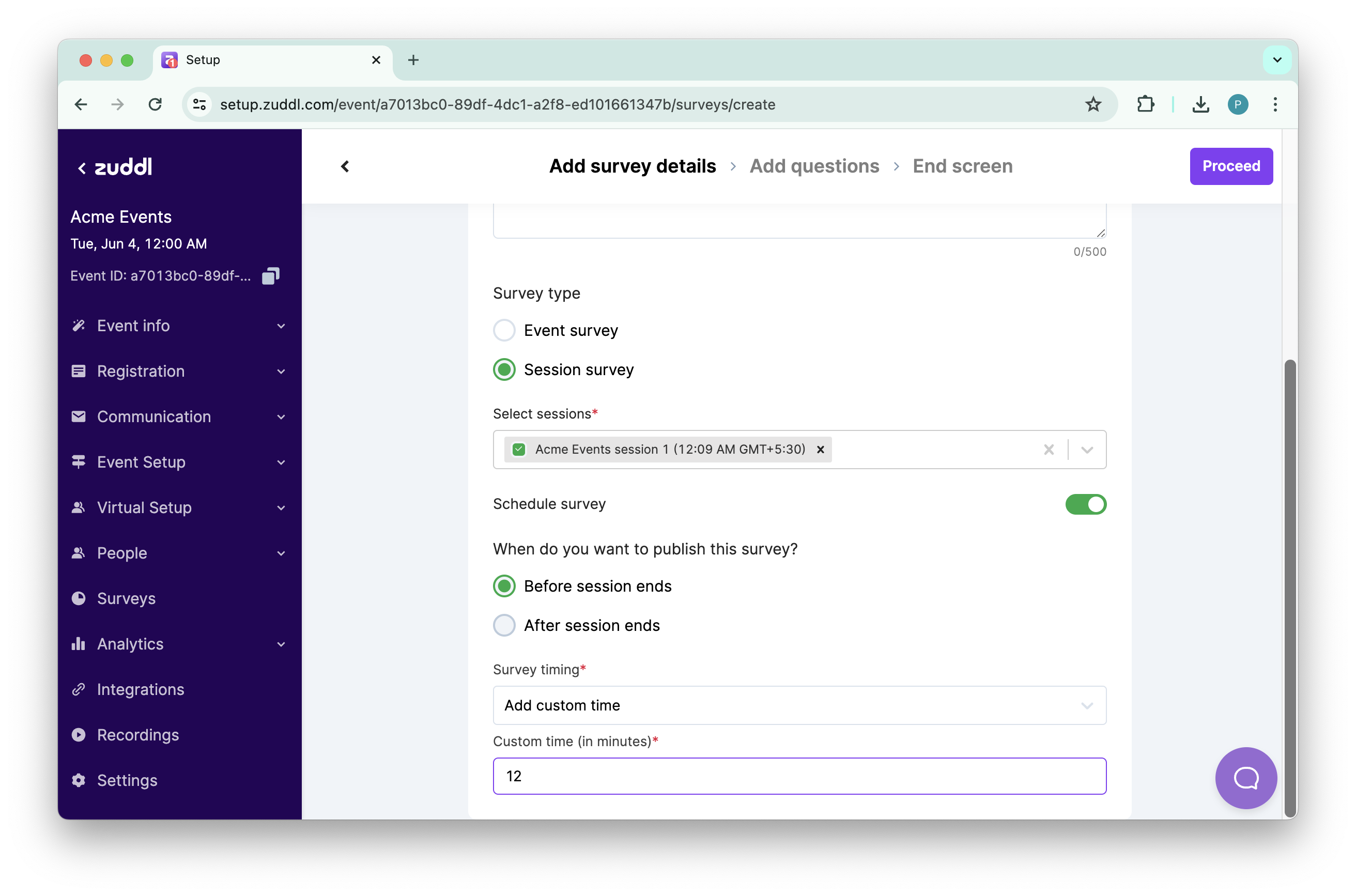
Click Proceed.
Add questions
Add questions: You can add a question and question type here.
The question type is classified into four types:
Short text: Ideally used for gathering textual answers and allowing the users to express their thoughts in a brief format.
Multiple choice: Suitable for single-select answers, this format simplifies the response collection. Options can be listed in a comma-separated format in the Options field.
Multiple choice - multi-select: Suitable for multi-select answers. Options can be listed in a comma-separated format in the Options field.
Rating: Ideally used to express opinions numerically, using stars or through Likert scales. This provides a structured way to measure satisfaction or agreement levels.
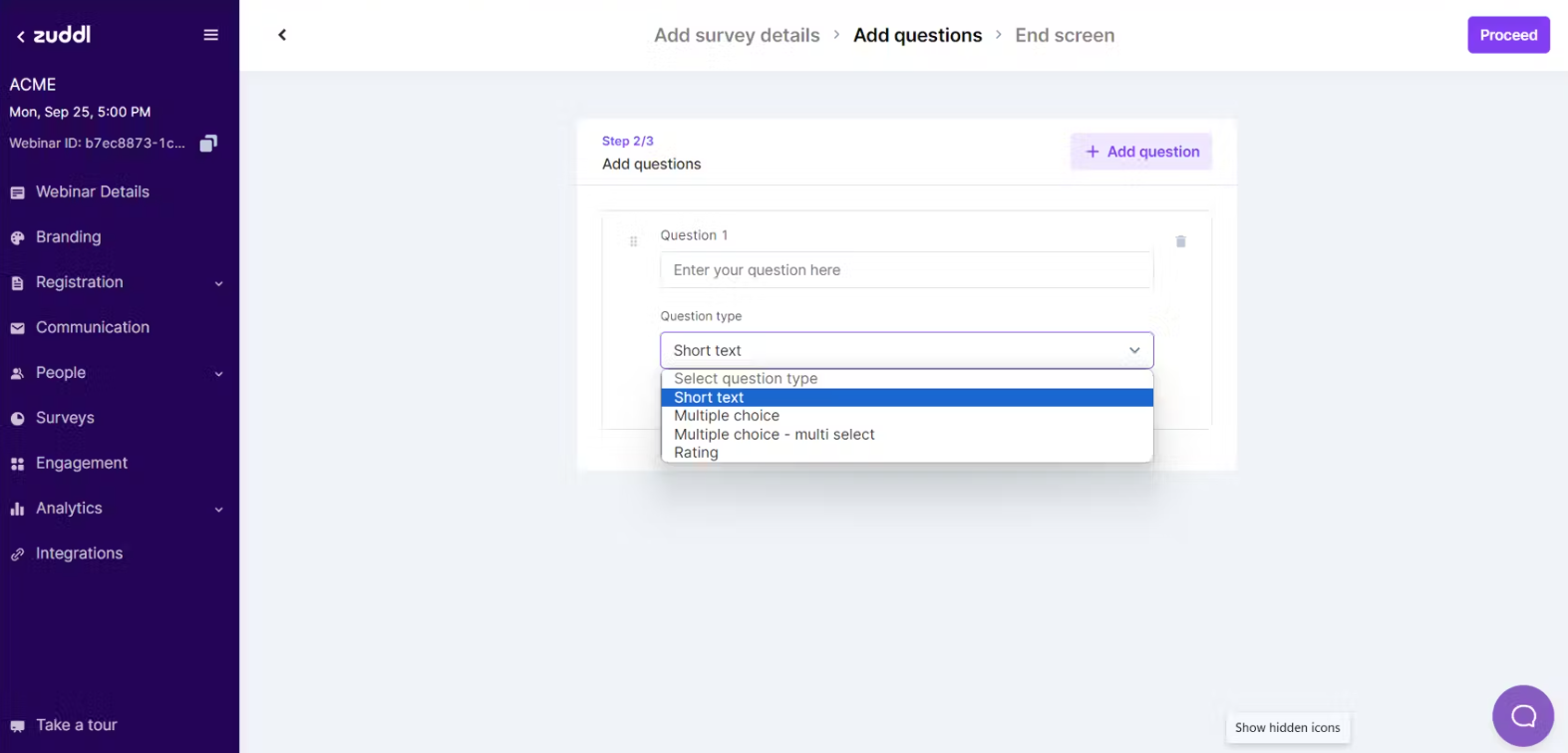
Different question types
Note: You can add more questions to the survey by clicking the Add Question button on the top-right corner. You can also delete and swap the questions by dragging them up and down.
Select the Mandatory checkbox to make the questions mandatory to answer.
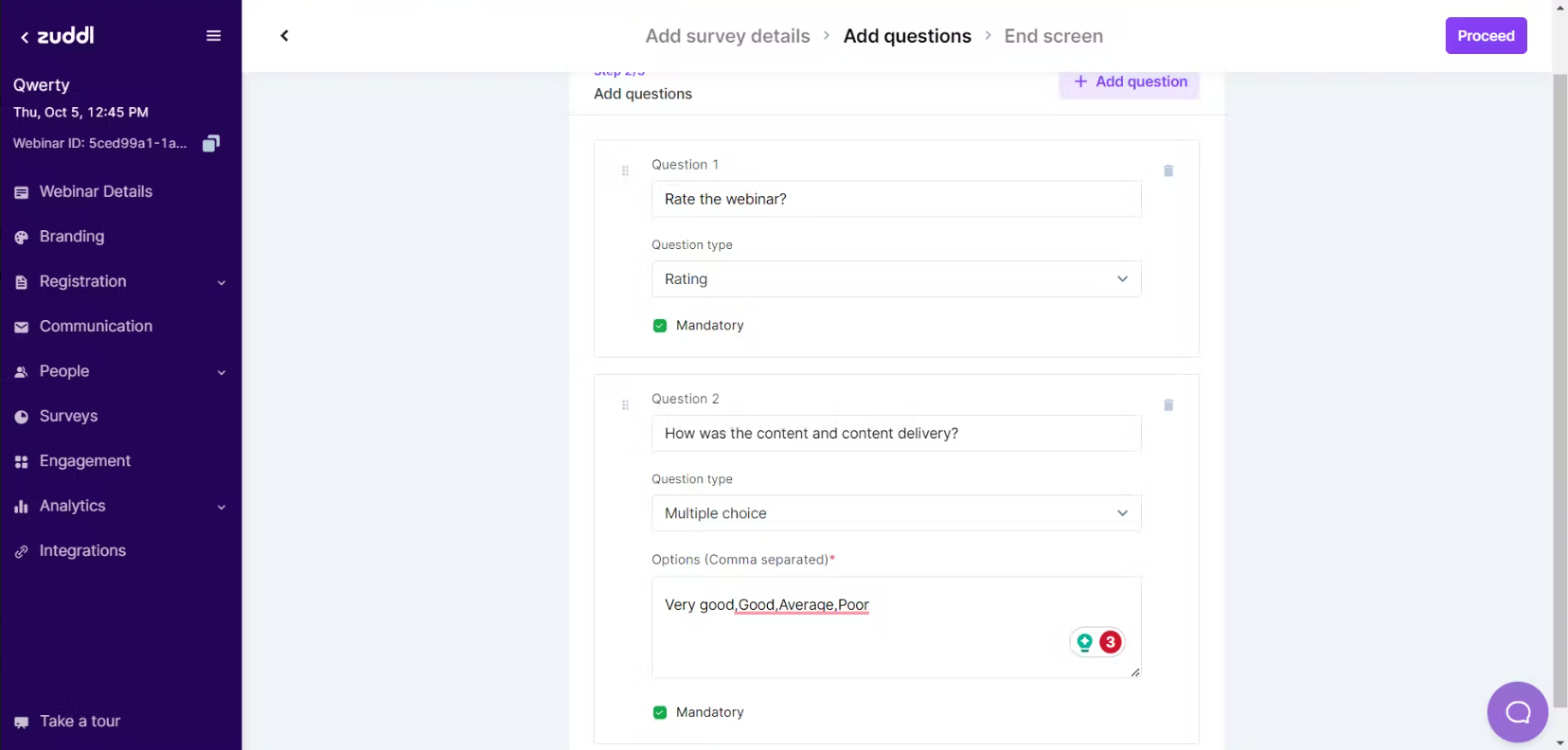
Mandatory questions
End Screen: Surveys can be ended with a message. Toggle on the Button option to customize the button text and specify a URL. The attendees are redirected to another page upon clicking the button.
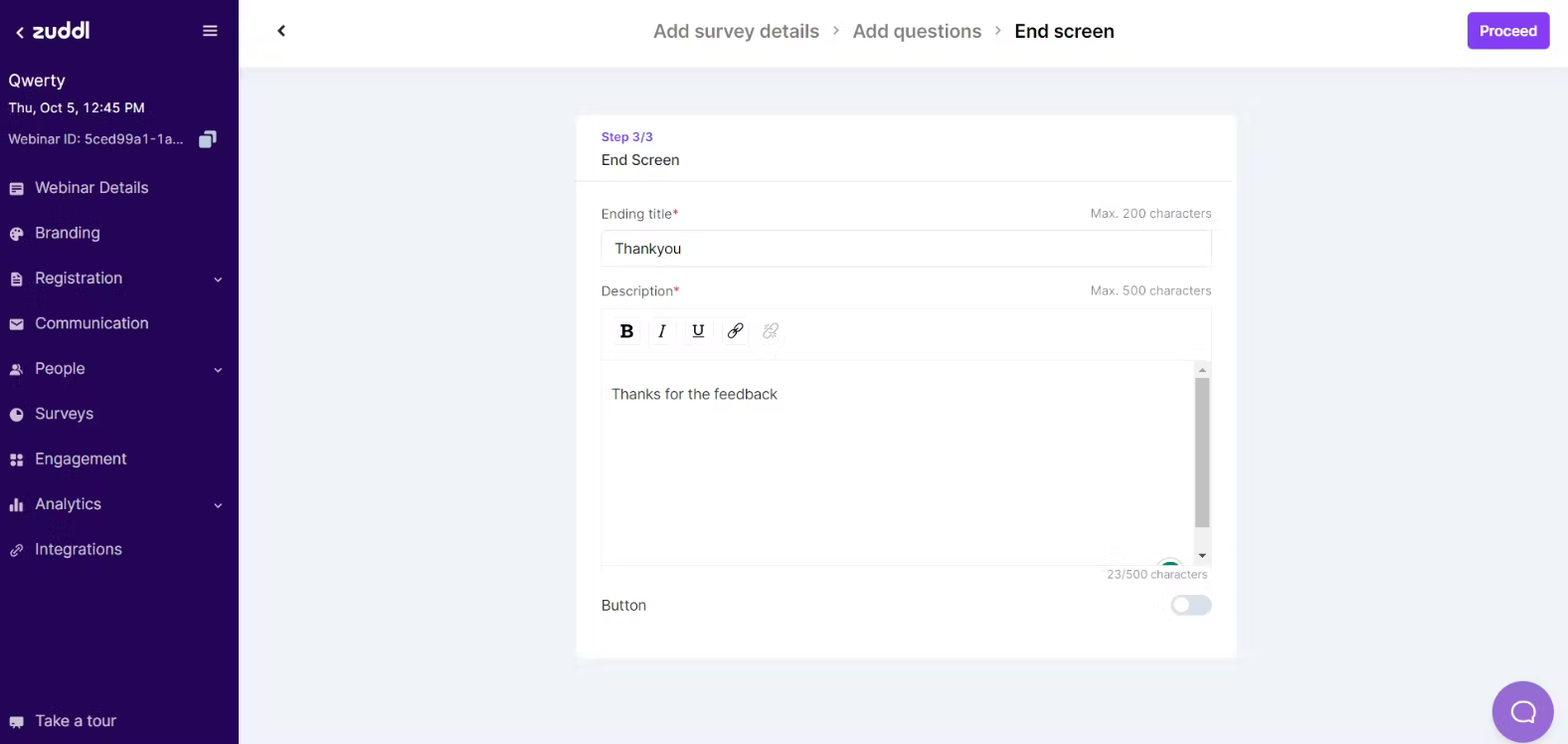
End screen
Click on the Proceed button to finish creating the event survey. You can create multiple surveys and view the survey list.
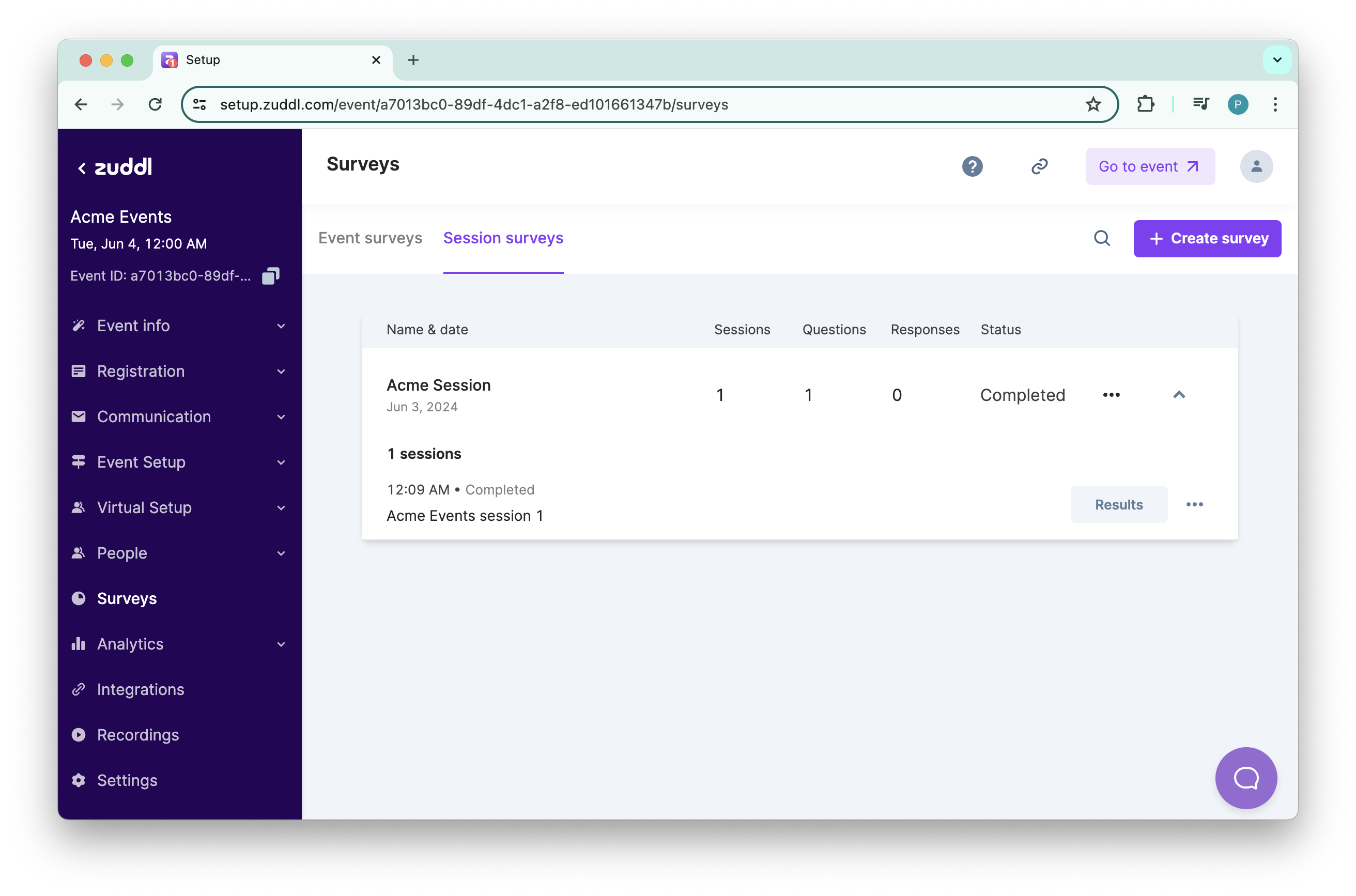
Survey list
The Survey list contains attributes like Name & date, Questions, Responses, and Status.

By the creation of a survey, two tabs appear: Event surveys and Session surveys. Surveys appear in their respective tabs based on type of session you create.
Publishing a Survey
You can publish a survey from either of the following places:
Organizer Dashboard
Event backstage/Studio backstage
Attendee side
Publishing from the Organizer Dashboard
Organizer has the liberty to publish surveys from different platforms.
Initially, the survey is in the Inactive state until you publish it. Click on the Publish button to make the survey live for your attendees. Once published, it changes to Active, and responses can be viewed.
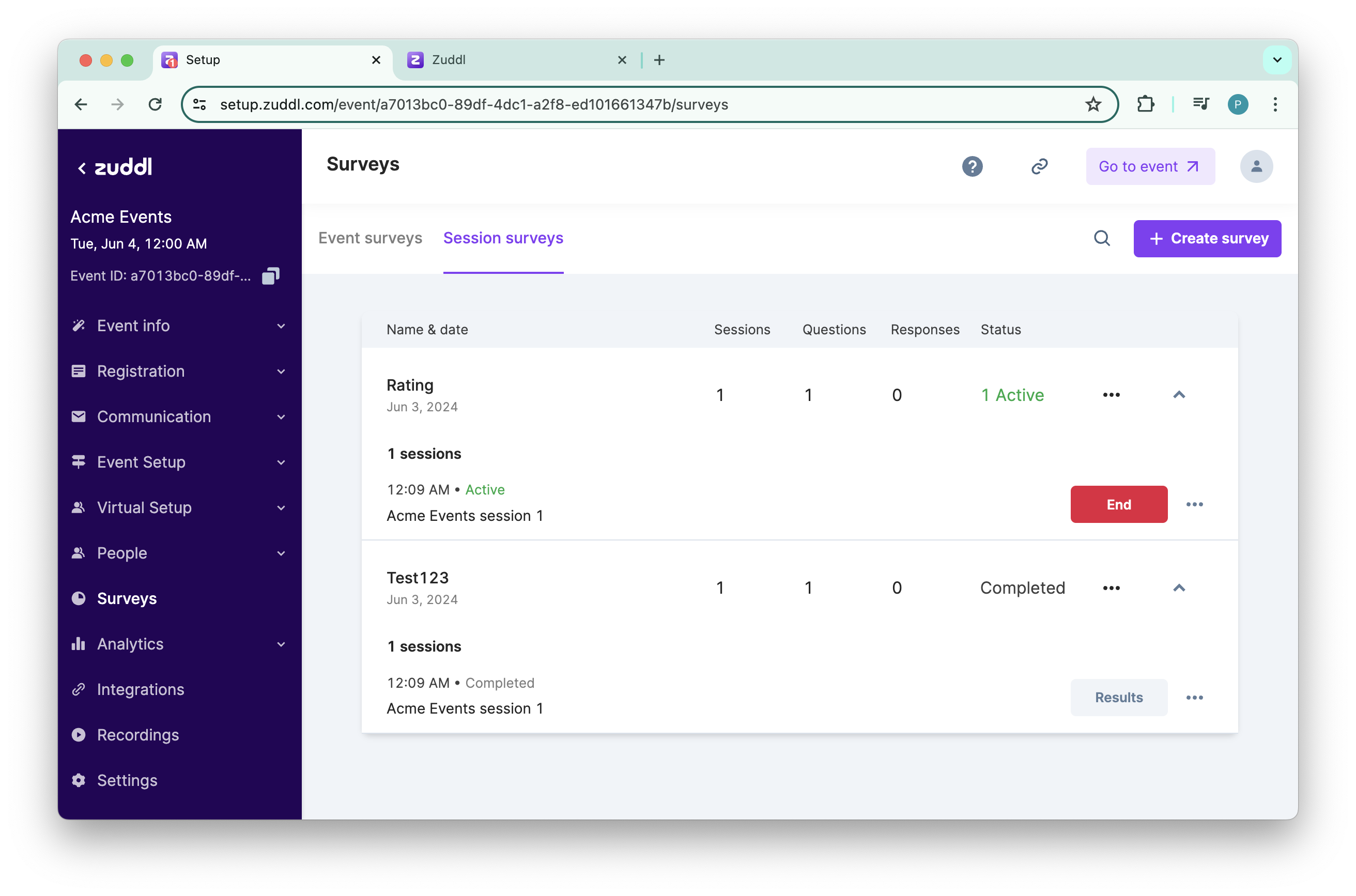
Organizer dashboard
Publishing from backstage
Organizers can also publish the surveys from the backstage.
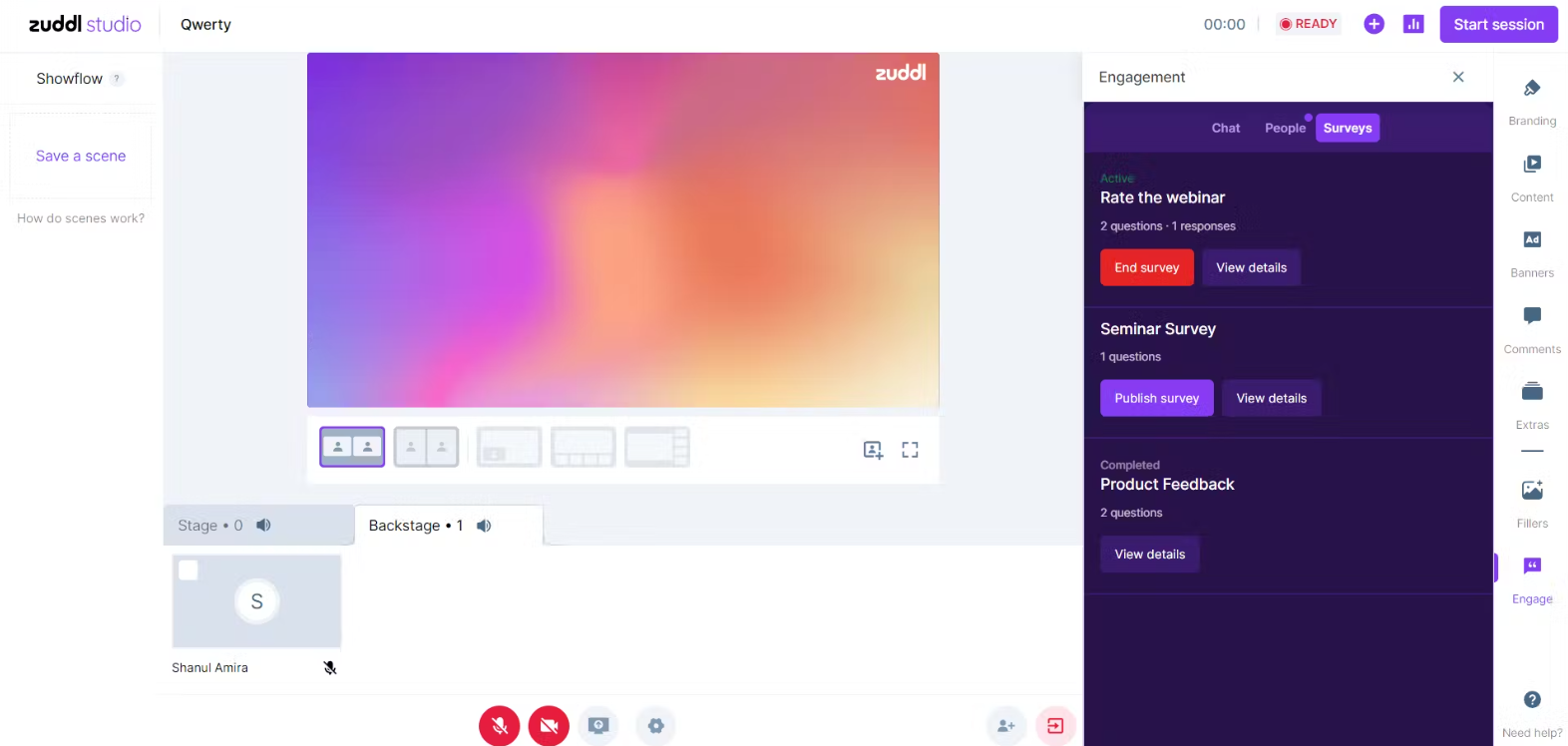
Backstage
You can also view the active survey responses backstage by clicking the View Details button.
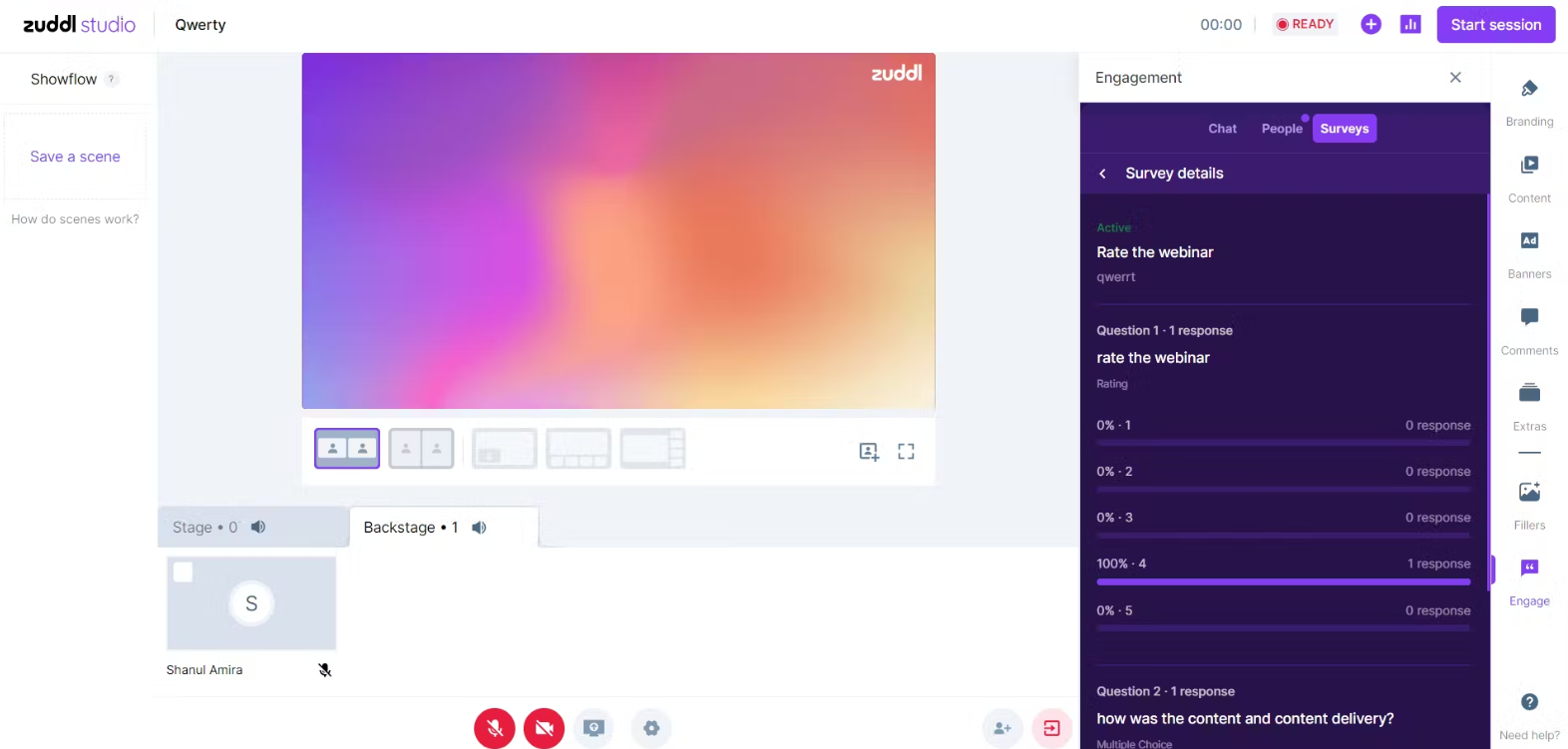
View attendee responses
Publishing from the attendee side
Click on the Surveys tab to see all the available surveys. You can click the Publish Survey button and make the survey active on the attendee side. You can click on the End survey button to end the survey and stop taking responses from the attendees.

Attendee side
Managing Surveys
On Inactive surveys, you can click the triple dot menu on the right side to Edit or Delete a survey.
Only Inactive surveys can be edited. Once responses have been recorded, surveys can't be edited.

Edit or Delete Survey
You can click on the triple dot menu on the right side for Active and Completed surveys to view the responses.
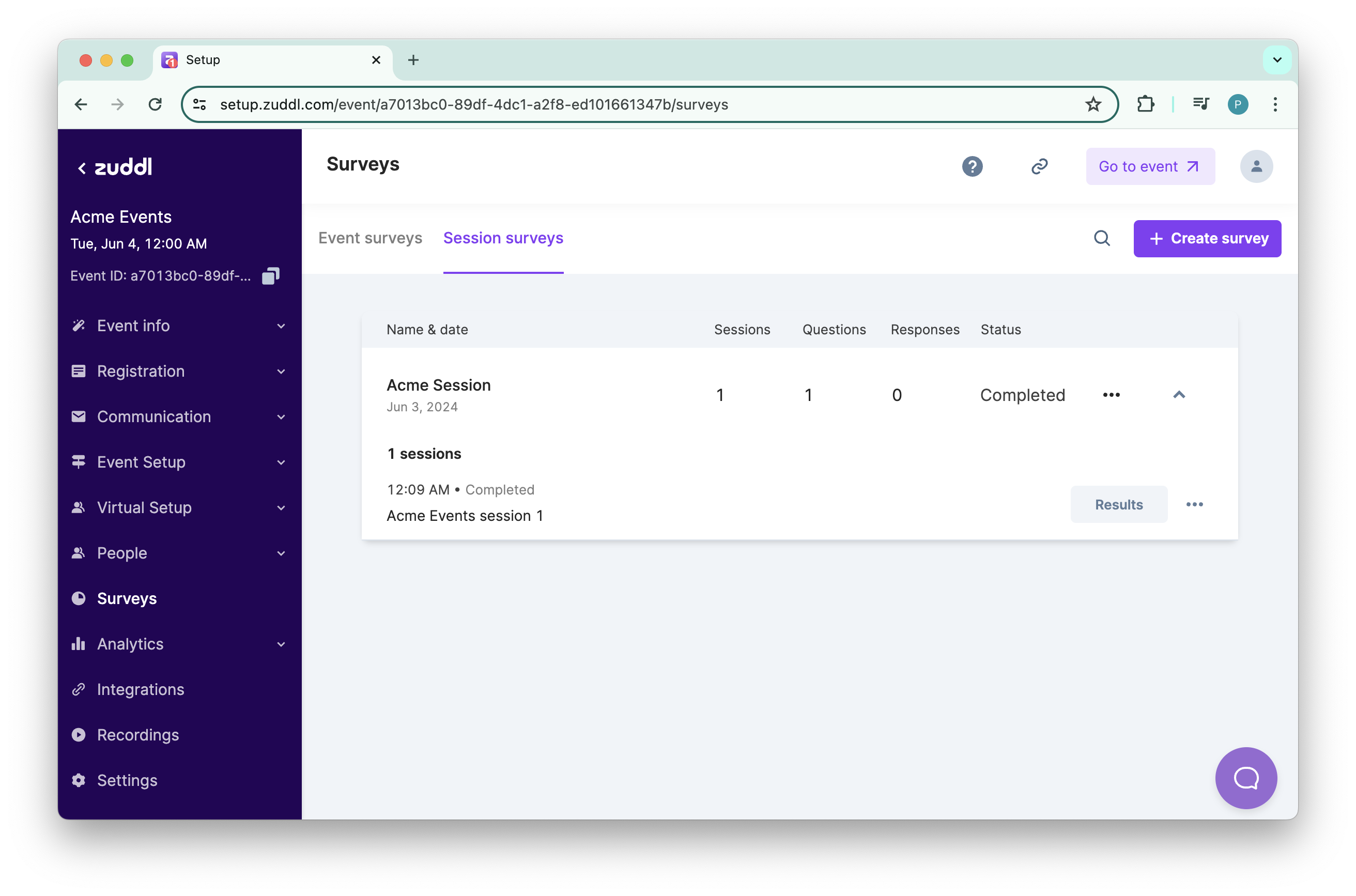
View attendee responses
Click on the View Responses button to view the results.
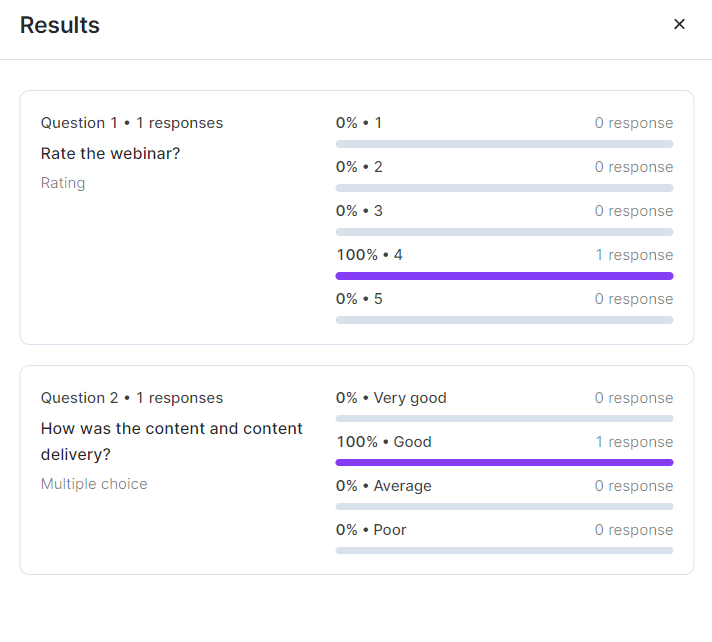
View results
Attendee side functionality of Surveys:
Attendees can click the Go to Survey button to answer the questions.
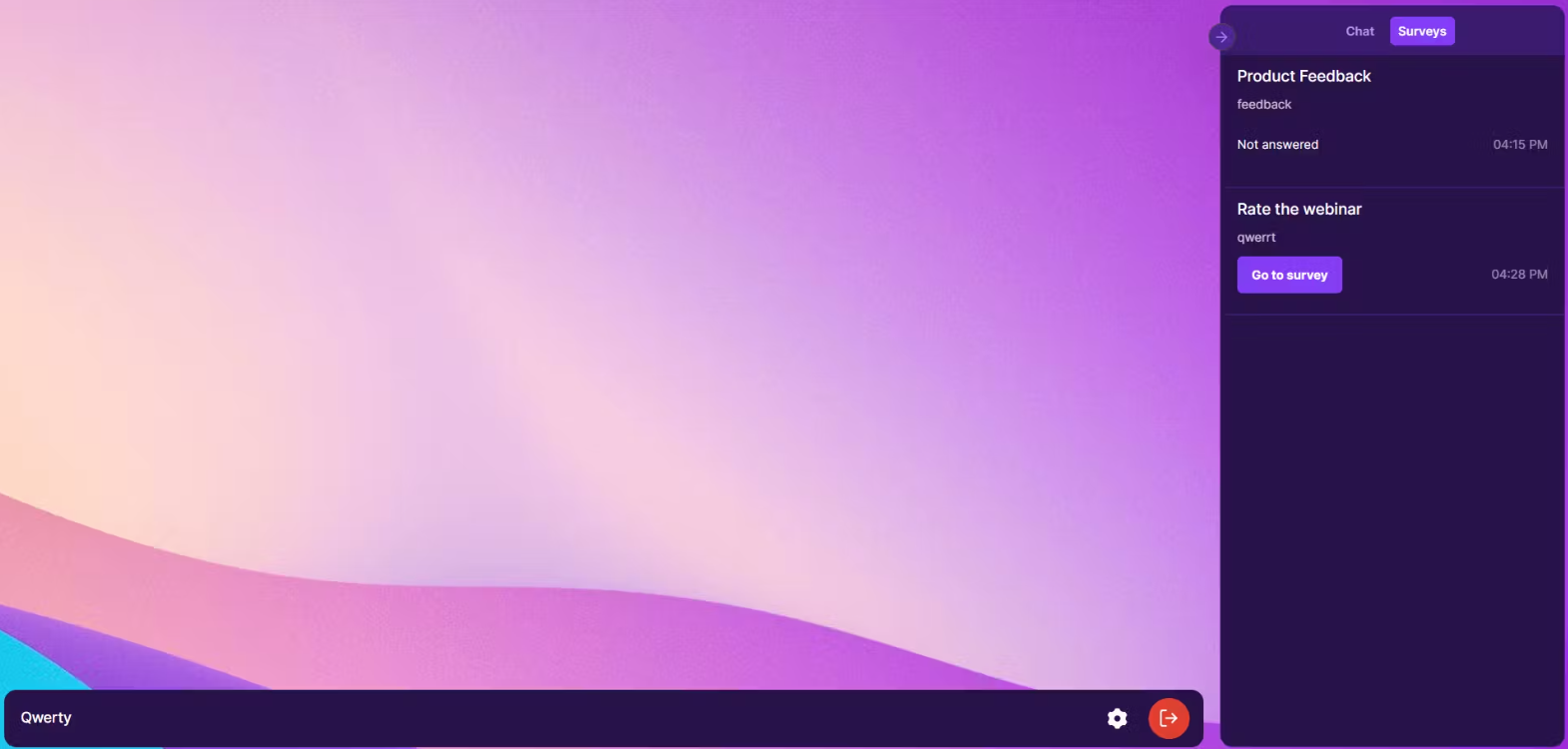
Go to survey
The Submit Survey button is enabled only when all the mandatory questions are answered.
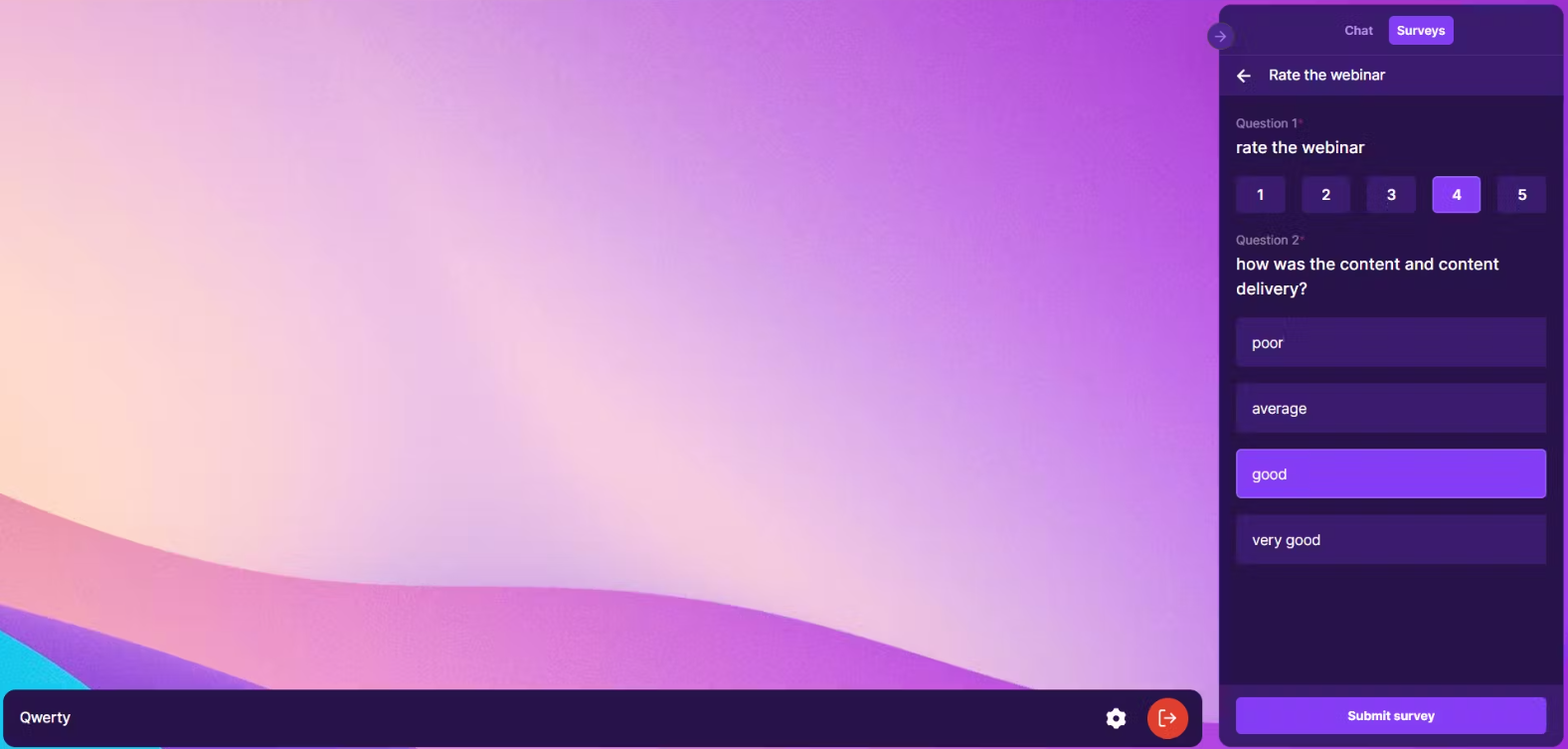
Answer questions
When the attendee clicks on the Submit Survey button, they are shown the End screen that you have configured in the organizer dashboard.
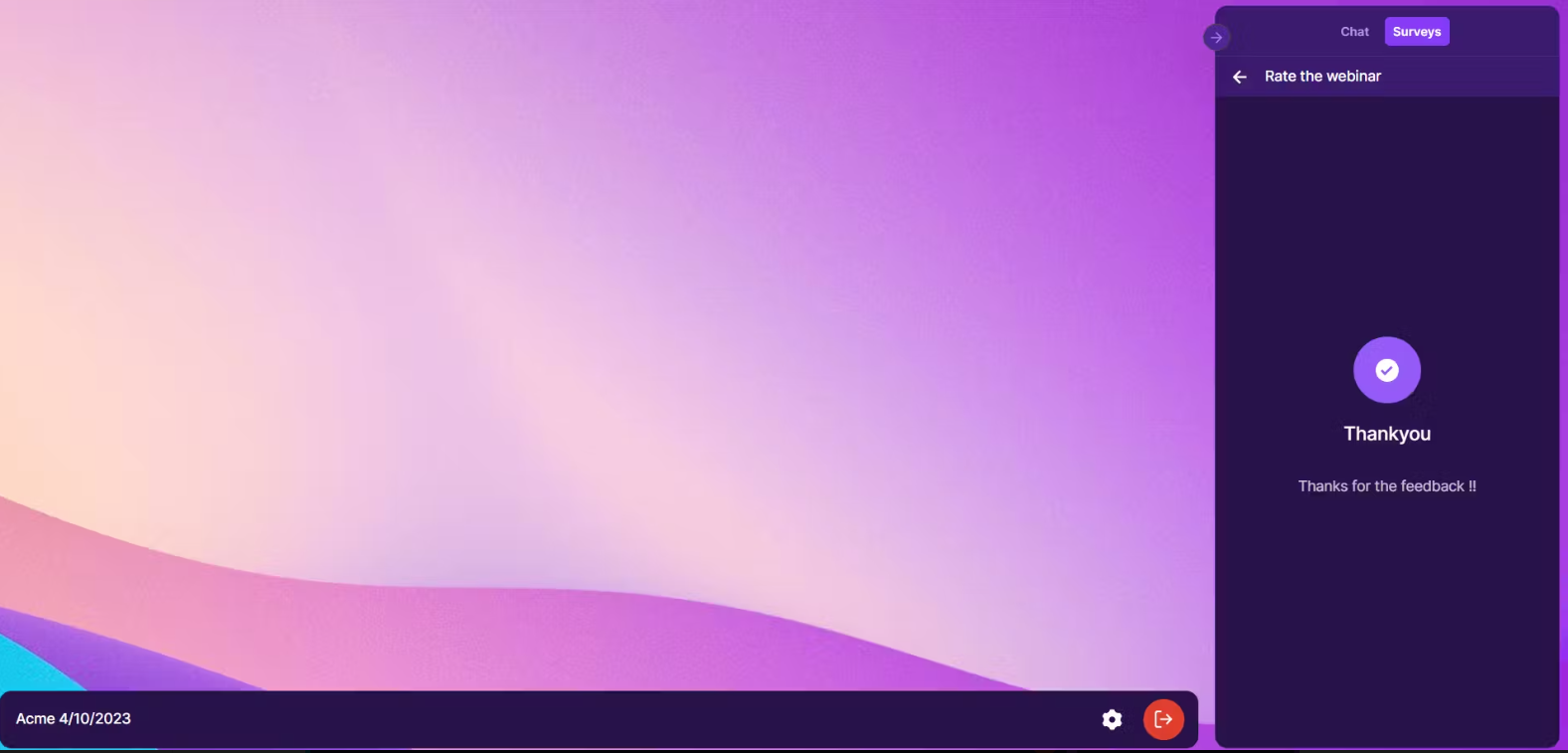
End Screen