How to Add and Use the Social Feed Page in Mobile Apps for In-person Events in Zuddl
Last updated: August 1, 2025
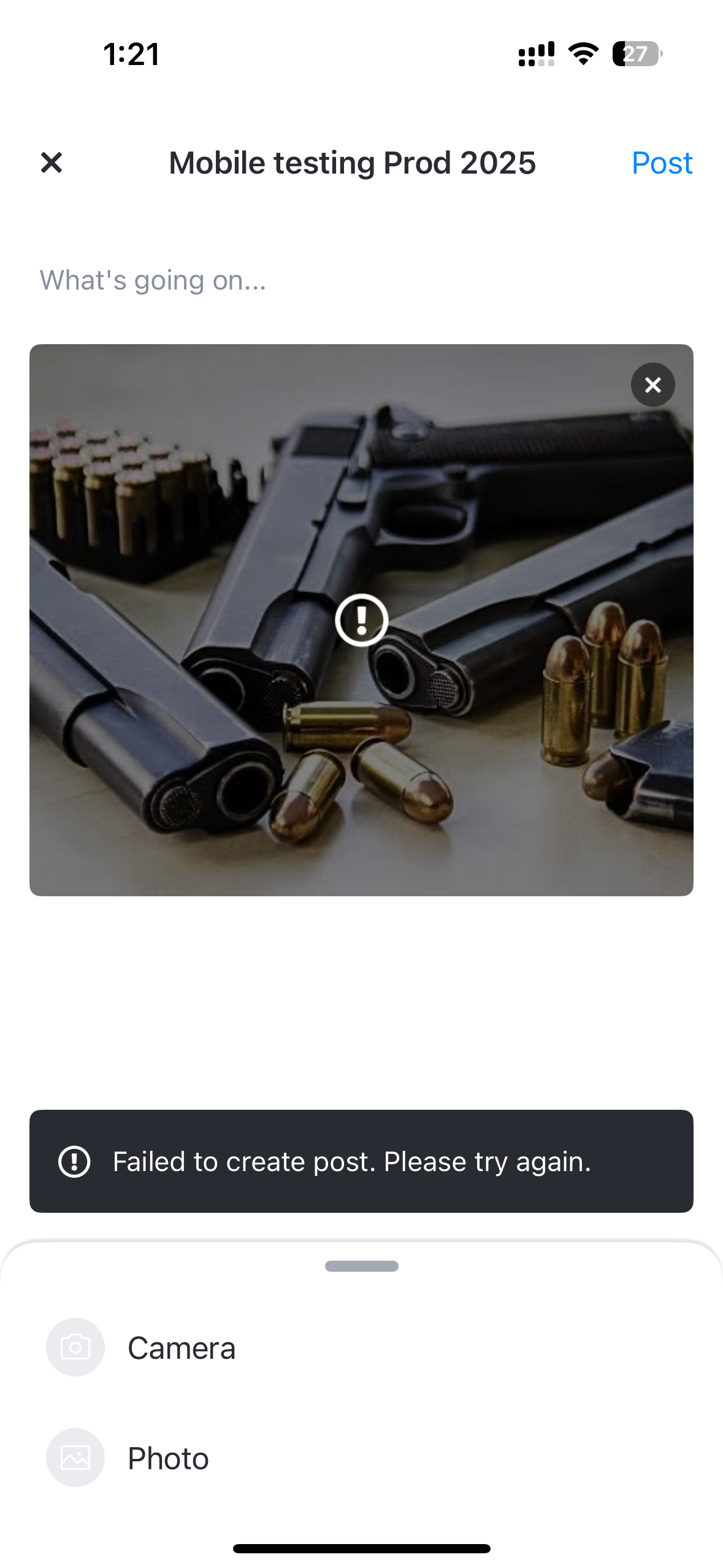
The social feed page of the mobile app is an online-only feature that helps engage your attendees. Event participants can use the page to share text, image, and video posts. They can also comment on posts and react with likes.
The social feed page also has moderation features that give you control over which posts are shown to all attendees.
Setting up the page
Follow these steps to add the social feed page to your app:
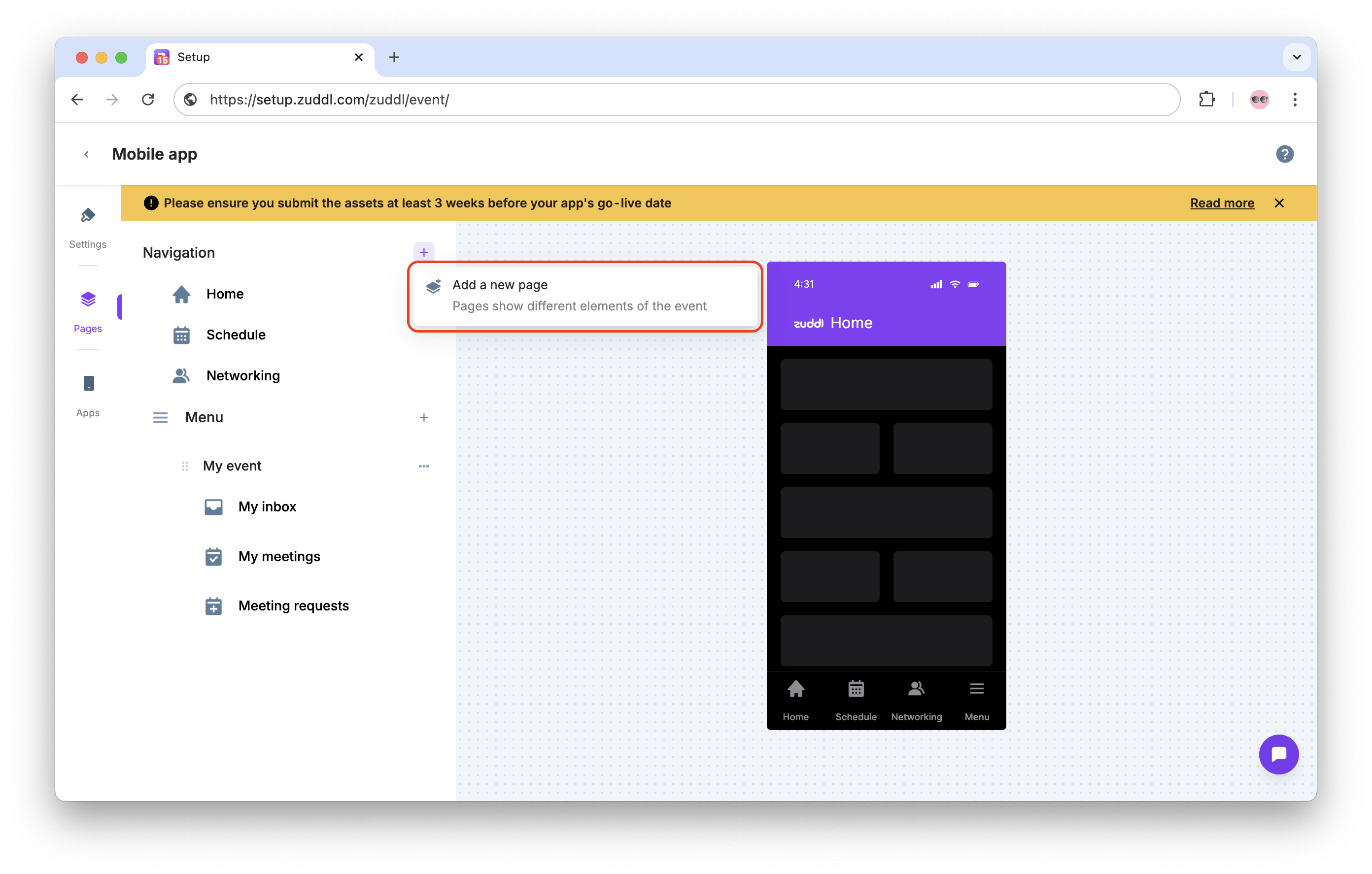
- Go to Portal setup > Mobile app. In the Pages tab, click the + icon and Add a new page.
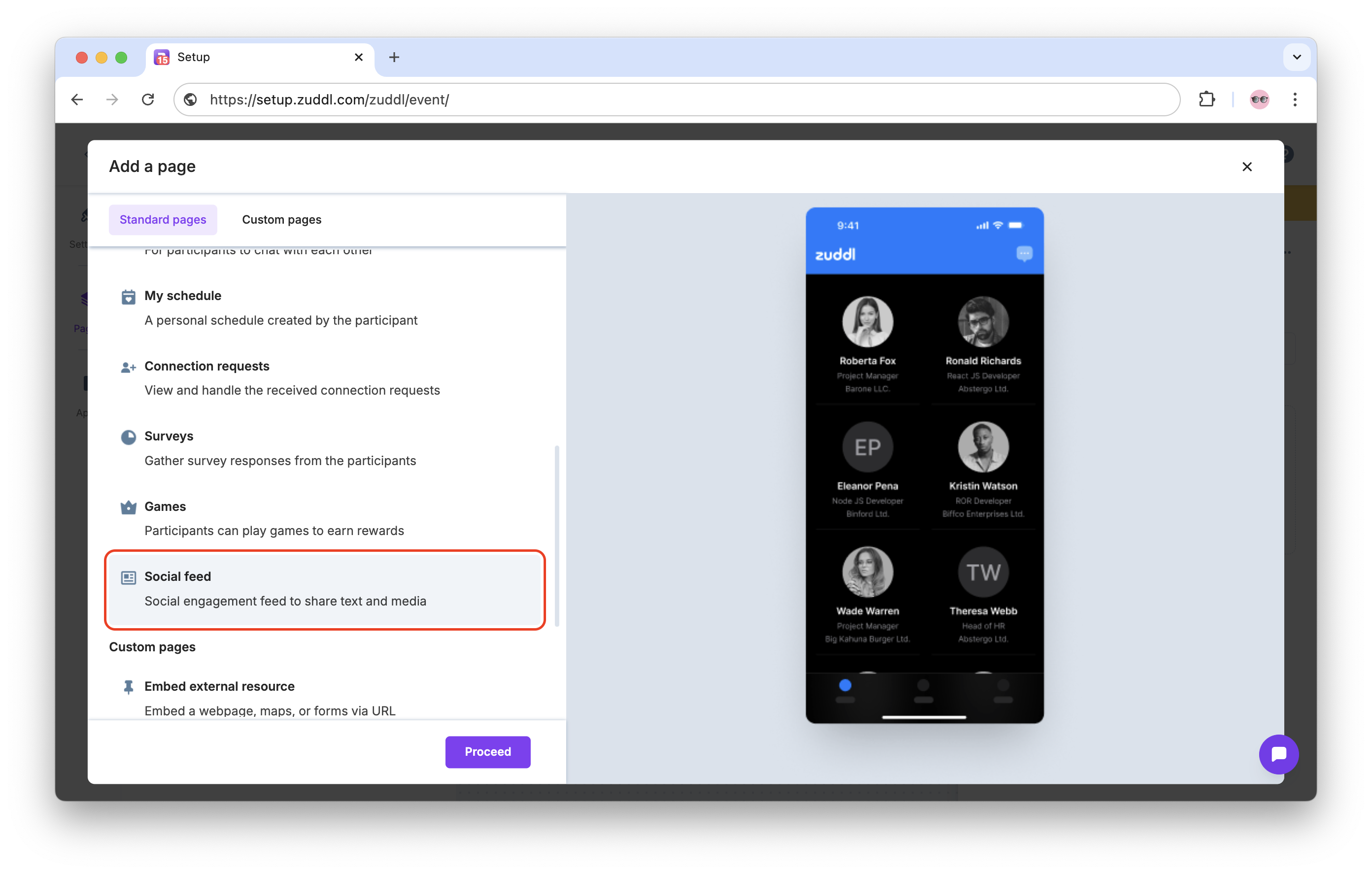
- In Standard pages, scroll down and click on Social feed. Click Proceed to add the page.
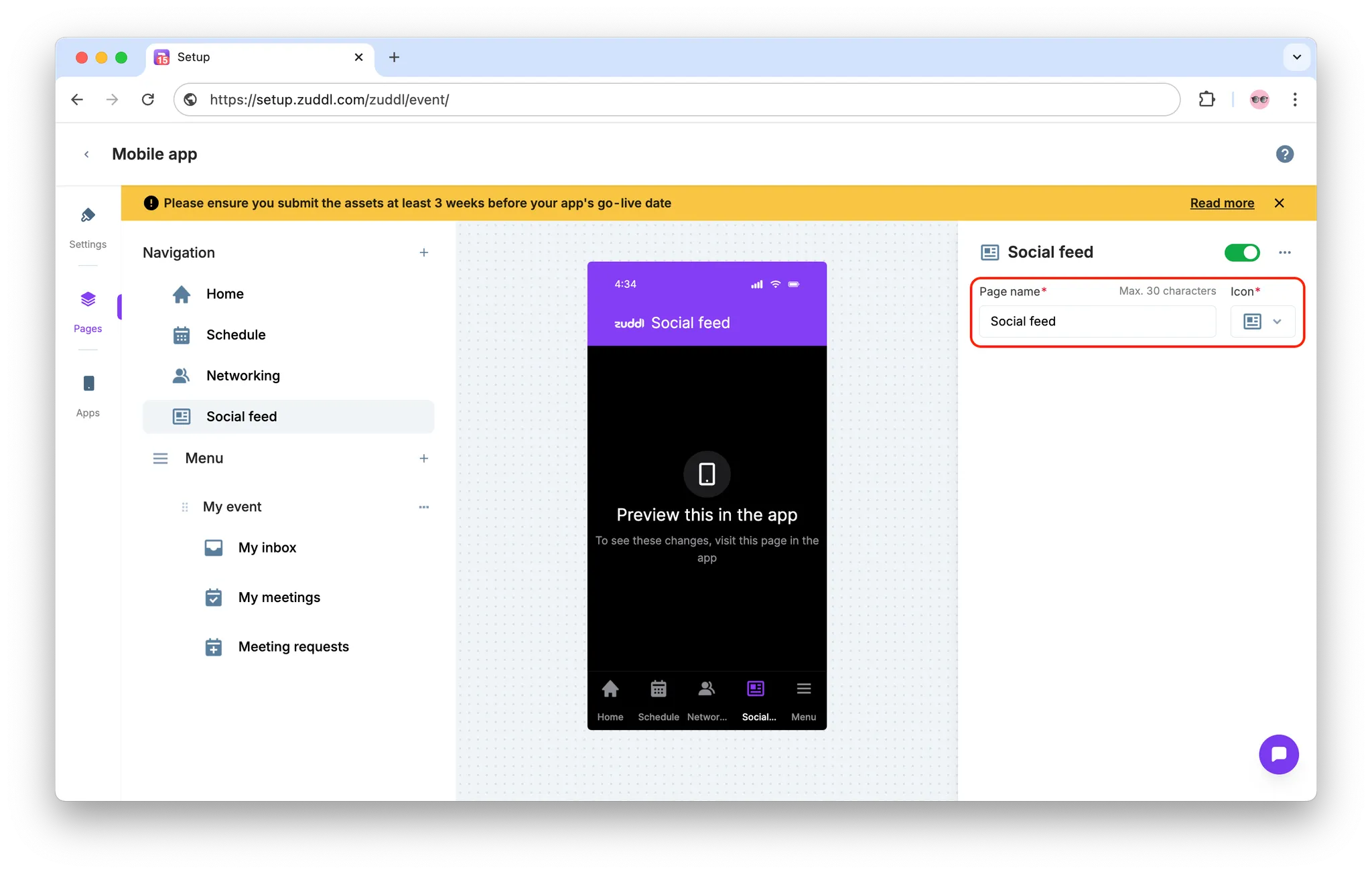
- The page is now added to the app. You can customize the Page name and Icon from the modal on the right.
Communities
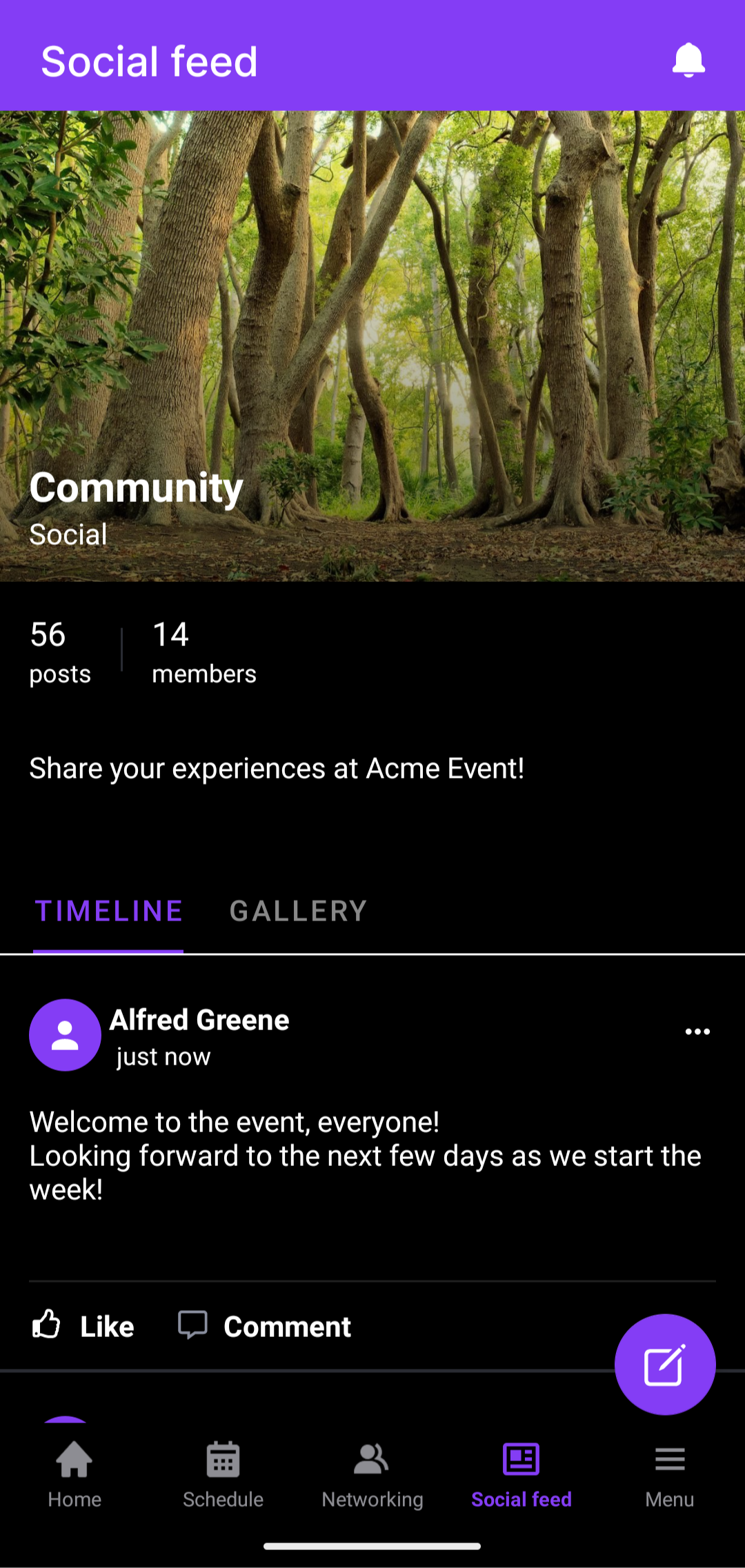
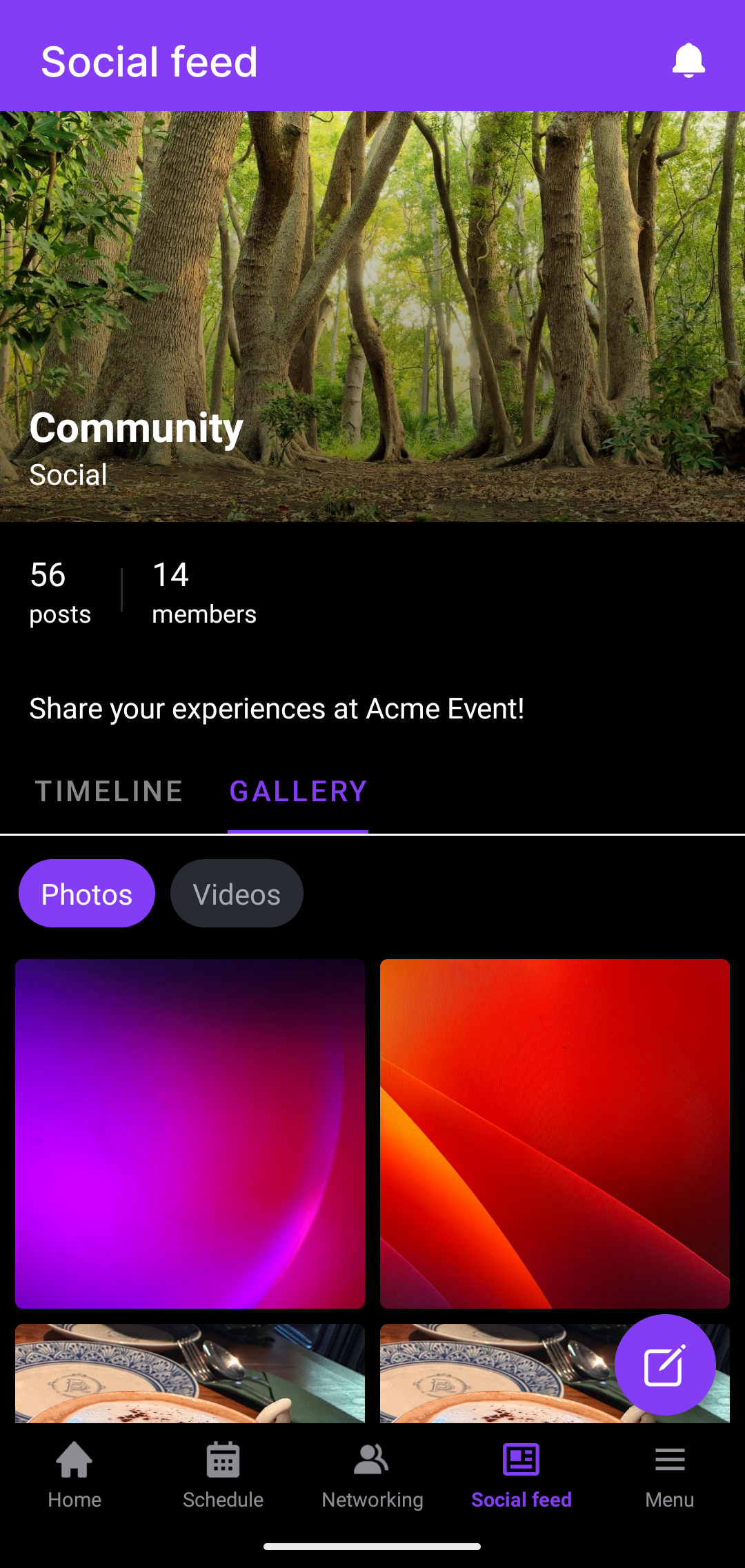
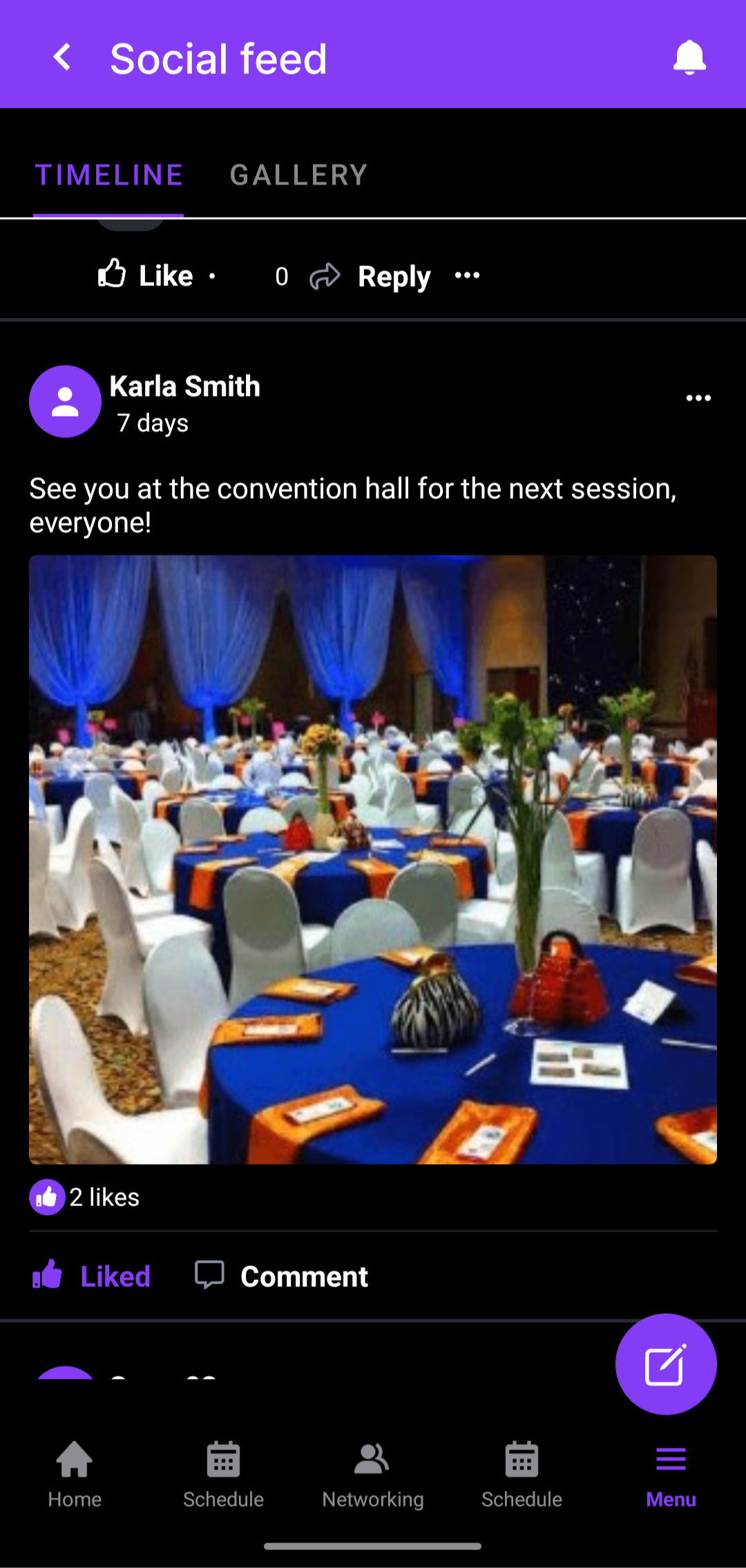
The social feed page (community) is divided into two tabs: Timeline and Gallery.
- Timeline: Displays all posts - images, videos, or text-based; once approved by a moderator.
- Gallery: Displays all images and videos from the posts in Timeline, without likes or comments.
Using the Social feed page
Attendees and other event participants can use the social feed page for:
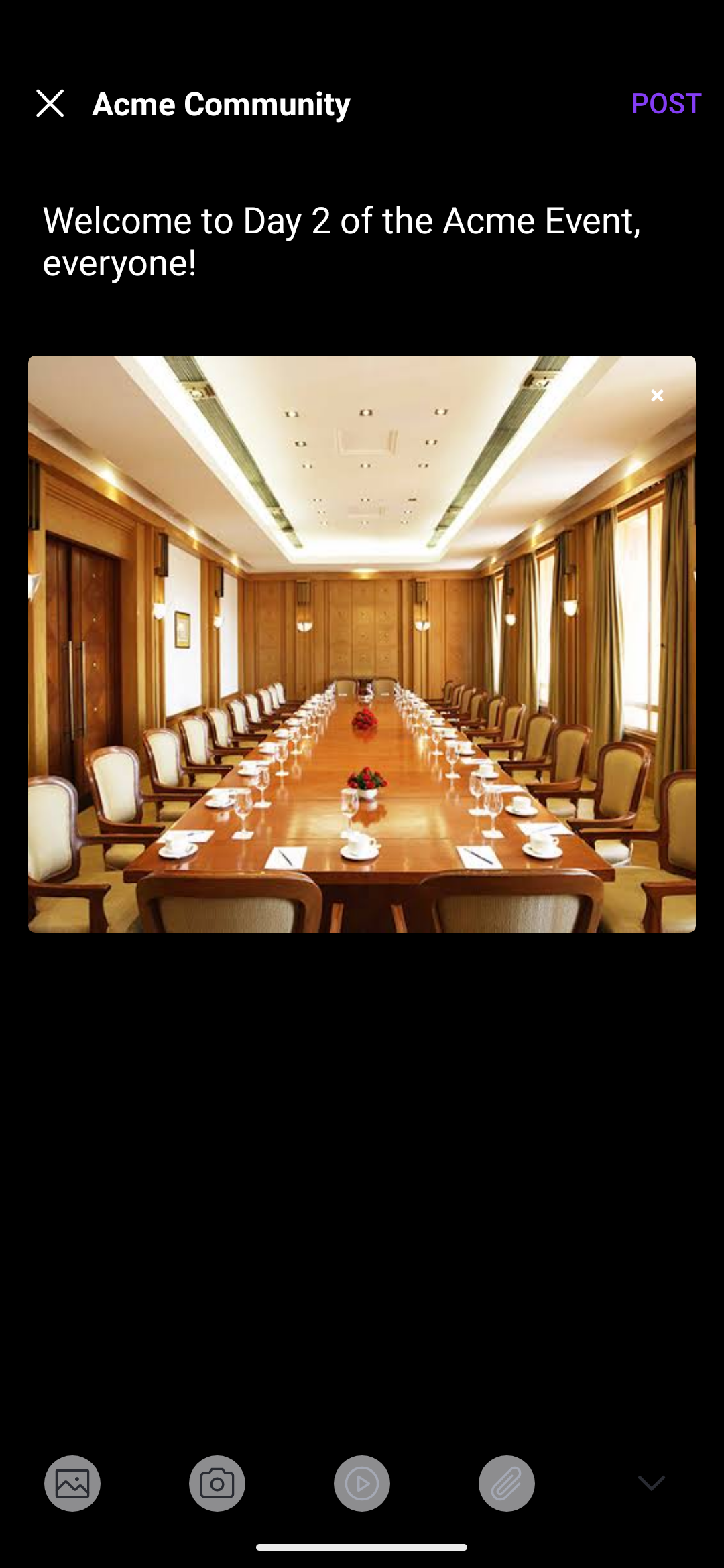
- Posts: Attendees can create and share posts with images, videos, file attachments, or just plain text.
- Comments: Attendees can comment on posts that are visible in the Timeline.
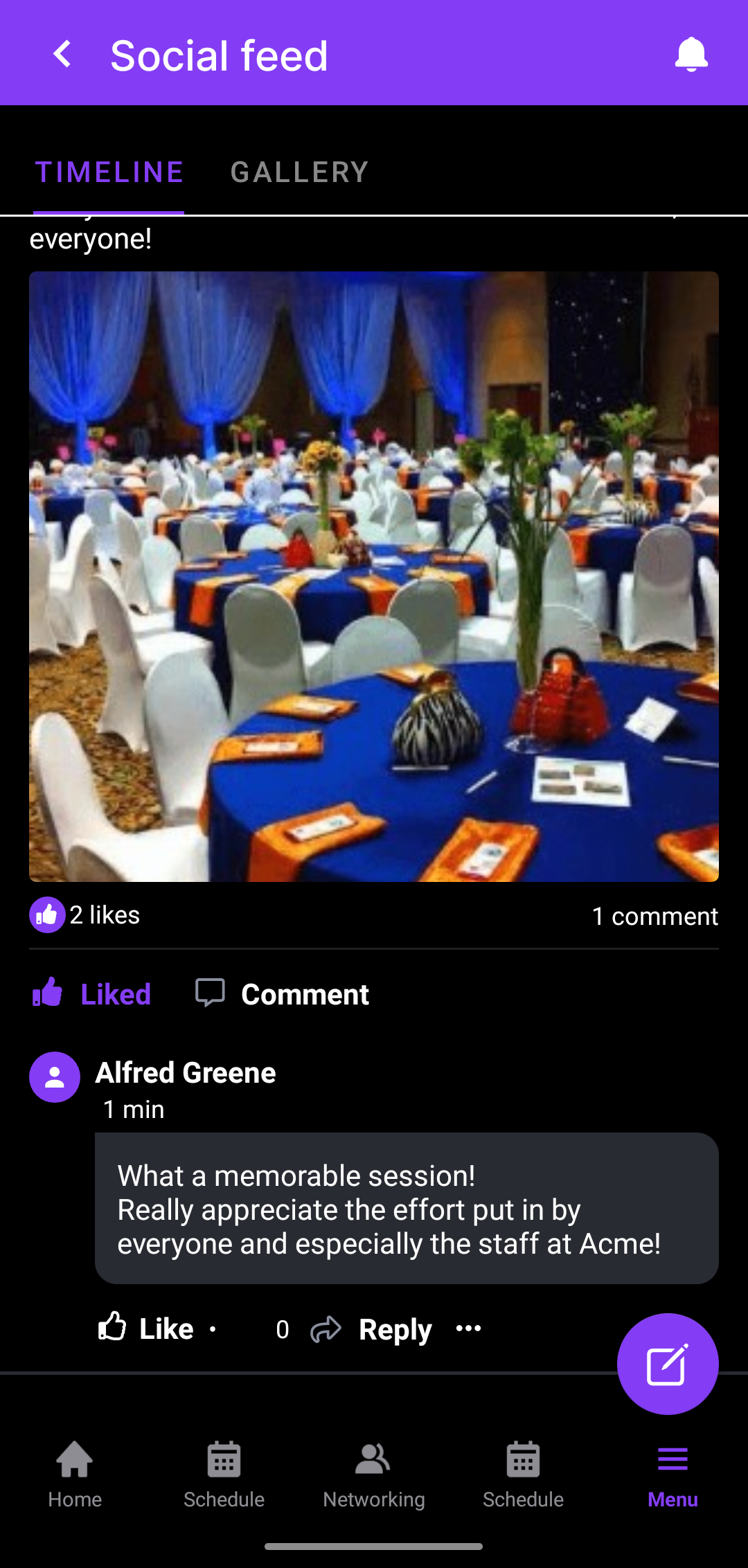
- Likes: Posts can also be liked to show appreciation.
Social feed features
The social feed page can be customized with multiple features that you can enable through your Zuddl CSM.
Community settings
| Section | Features |
| Members | - Add new members and assign roles (they must be part of the event to add them here). - Change member roles, remove members, or ban them. |
| Permissions | - Restrict posting access to admins. - Enable or disable moderation reviews for posts. |
| Settings | - Customize the community name, cover image, and description shown in the app. - Apply privacy settings to the page: allow all attendees to access the page (Public) or only those granted entry by moderators (Private). - Configure notification settings for the social feed page. |
Posts and Comments
| Section | Features |
| Posts | - Create and review posts on the TImeline. - Approve or decline moderated posts before they go live. - Delete unwanted posts from the Timeline. |
| Comments | - Review comments and reactions to posts. - Delete comments if required. |
Moderation in the Mobile App
There are multiple moderation features available for the social feed page.
Moderating posts
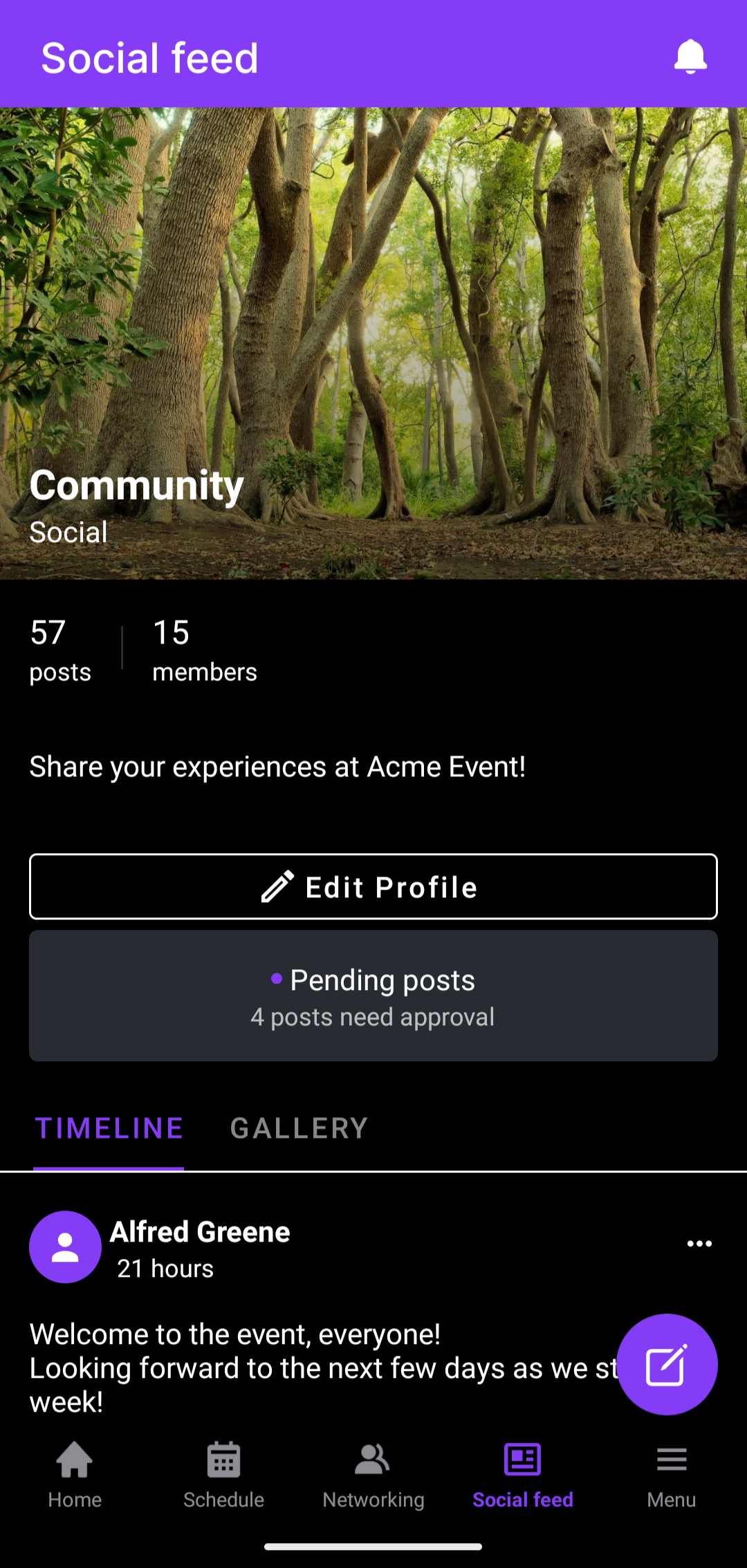
On the Social feed page, moderators can tap Pending posts to review posts that require approval.
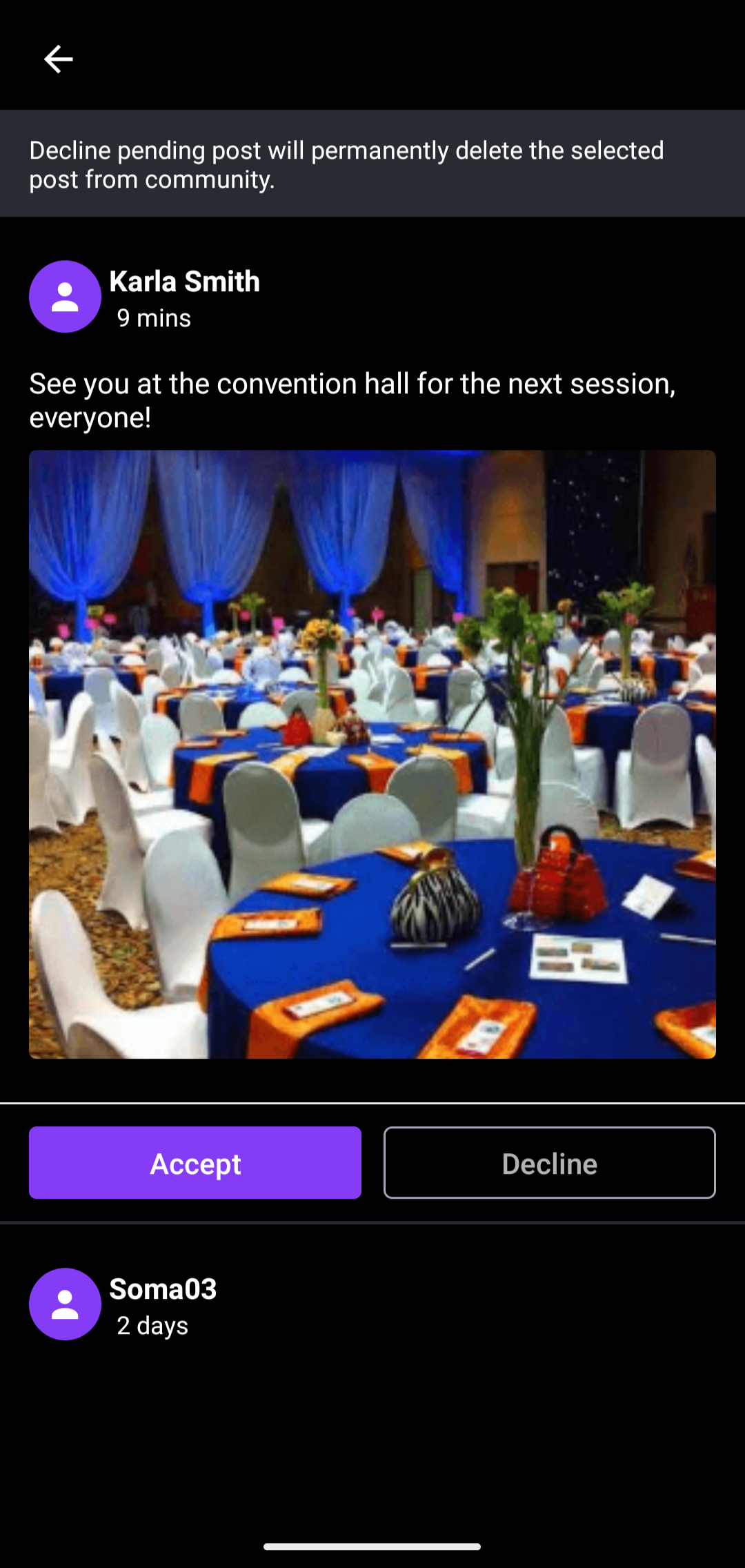
Moderators can tap Accept to allow a post on the Timeline or Decline to remove it.
Allow list
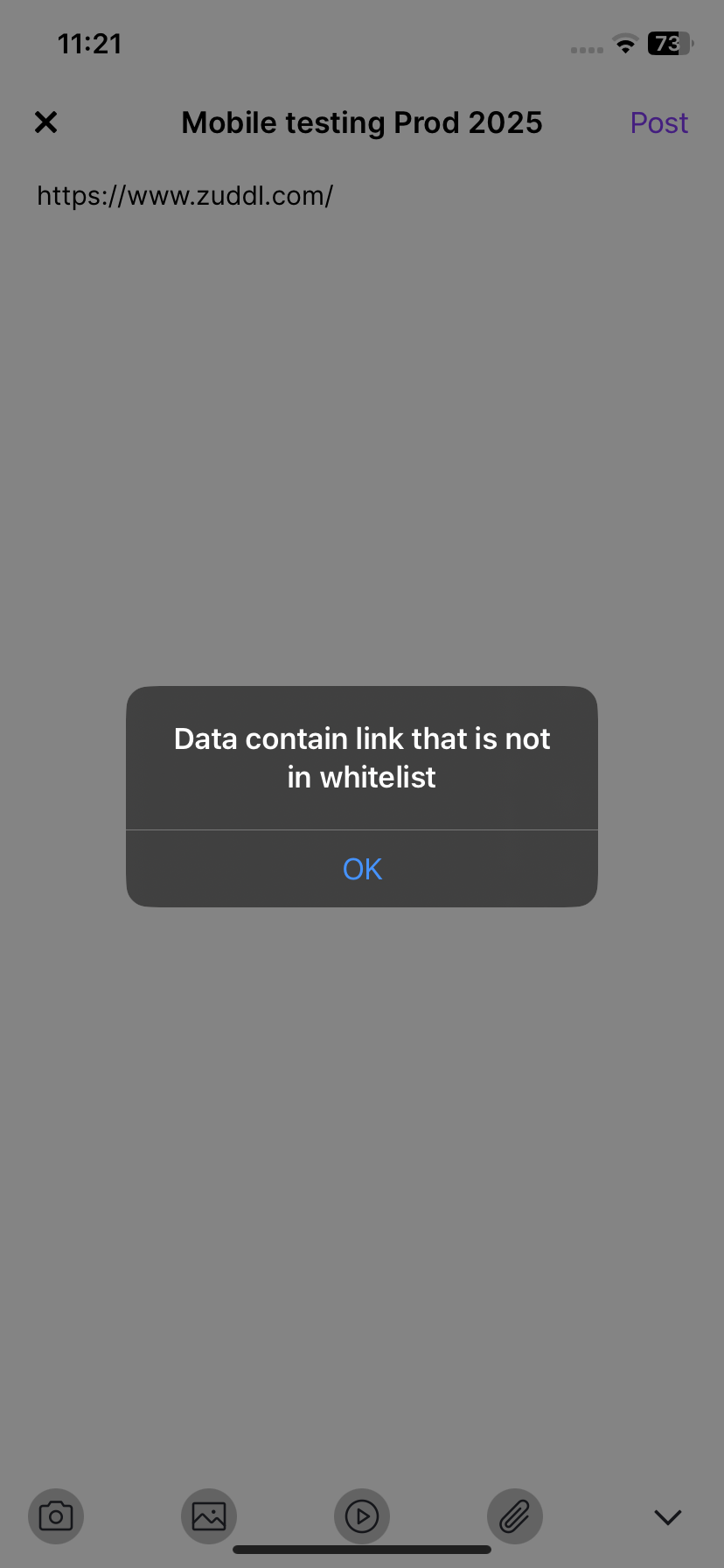
The Allow list is a list of external URLs that can be configured to filter URLs in posts. Only the URLs added to the Allow list are cleared to post, and posts containing any other external URLs not on the list are automatically blocked.
Block list
The Block list is a list of words that can be configured to filter posts containing those words. Any posts containing words from the Block list are automatically blocked.
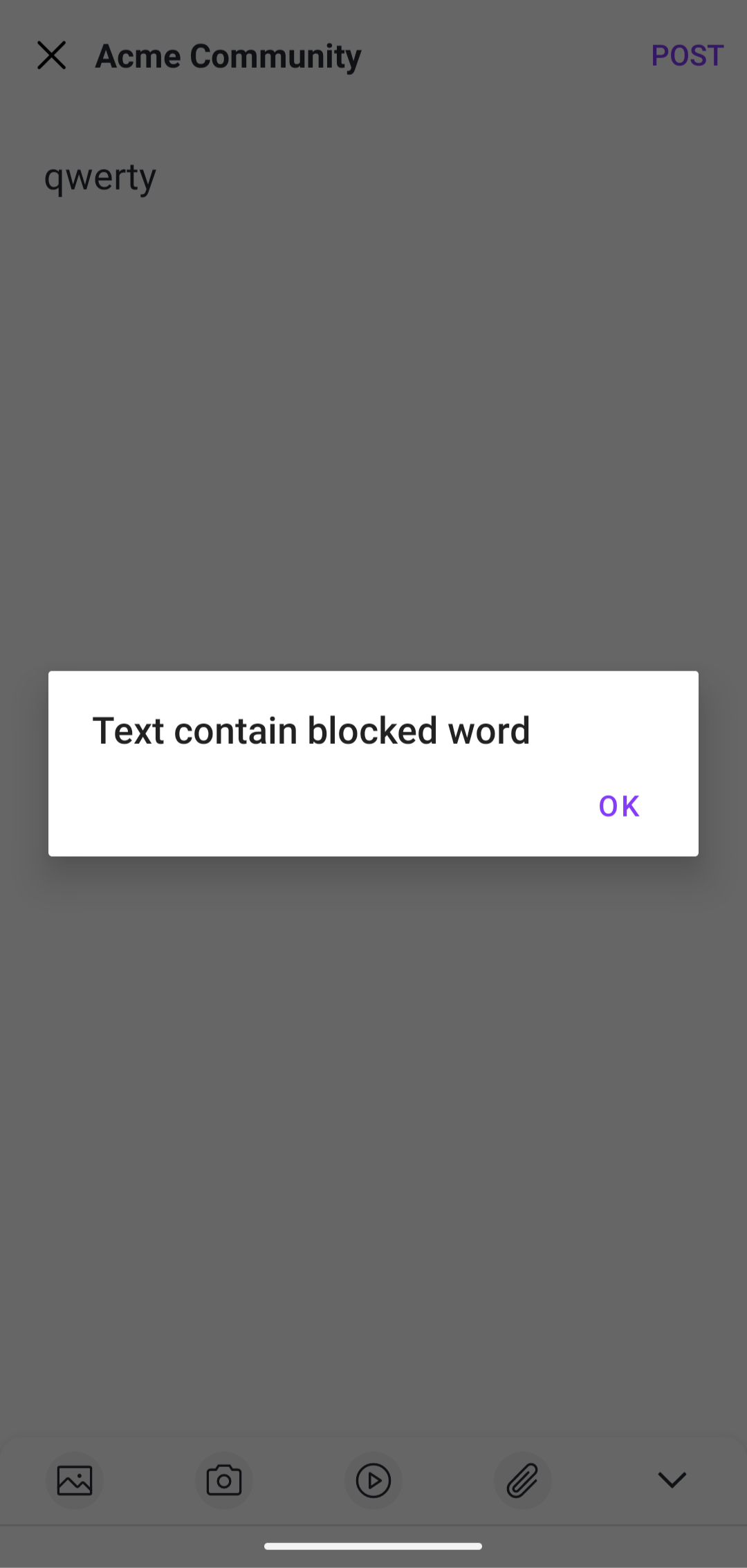
Image moderation
Image moderation automatically blocks posts containing offensive images. Image moderation can be configured to various levels of sensitivity for different categories of offensive graphic content.