Bulk Badge Printing in the Onsite App (iPad)
Last updated: July 7, 2026
What This Does
Bulk badge printing lets you print badges for many attendees in a single, continuous session in the Zuddl Onsite app on iPad — instead of printing one badge at a time. You select attendees (or the whole event), review a print queue with a live badge preview, and print continuously, with full control to pause, resume, retry, or cancel.
Before You Begin
Use the Zuddl Onsite app on iPad (iOS). Bulk printing is currently available on iOS only — the Android Onsite app supports single-badge printing.
Connect and confirm your badge printer (Brother, Zebra, or a PrintNode-connected printer) before starting.
Keep the iPad charged and the Onsite app in the foreground — if the app goes to the background, printing pauses and must be resumed manually.
Mixed badge sizes: Brother printers can print multiple badge sizes in one run. Zebra printers require every badge in the run to be the same size — you will be warned before printing if the queue contains mixed sizes.
Steps
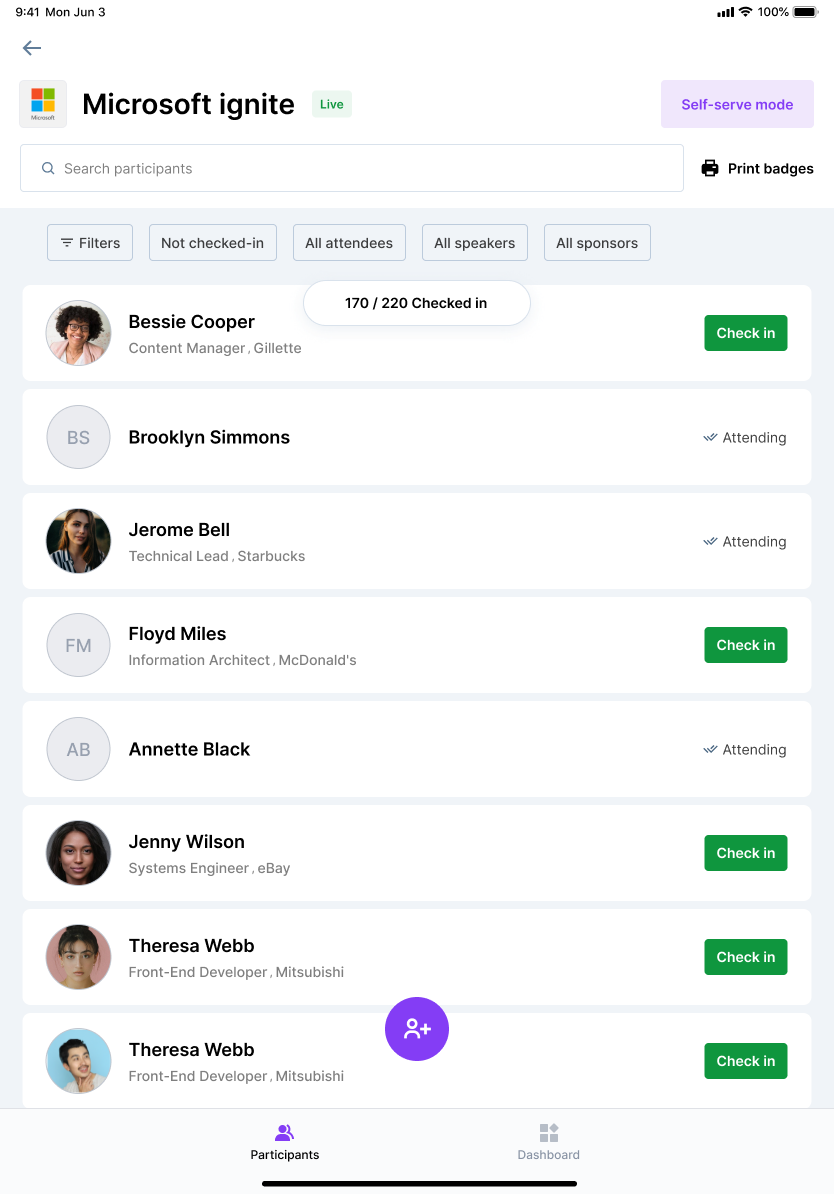
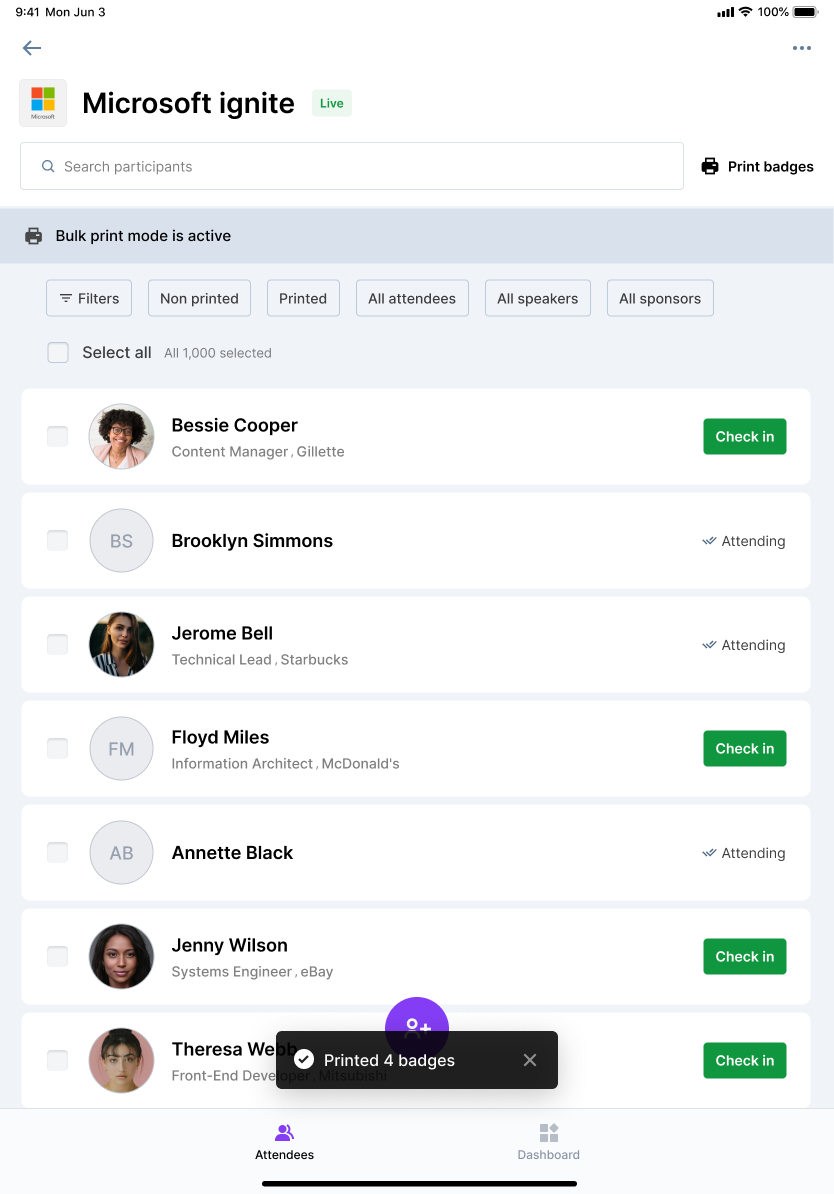
Enter bulk-print mode. Open your event and go to the Participants list, then tap Print badges. A "Bulk print mode is active" banner appears, and each attendee row gains a checkbox and a print-status label.
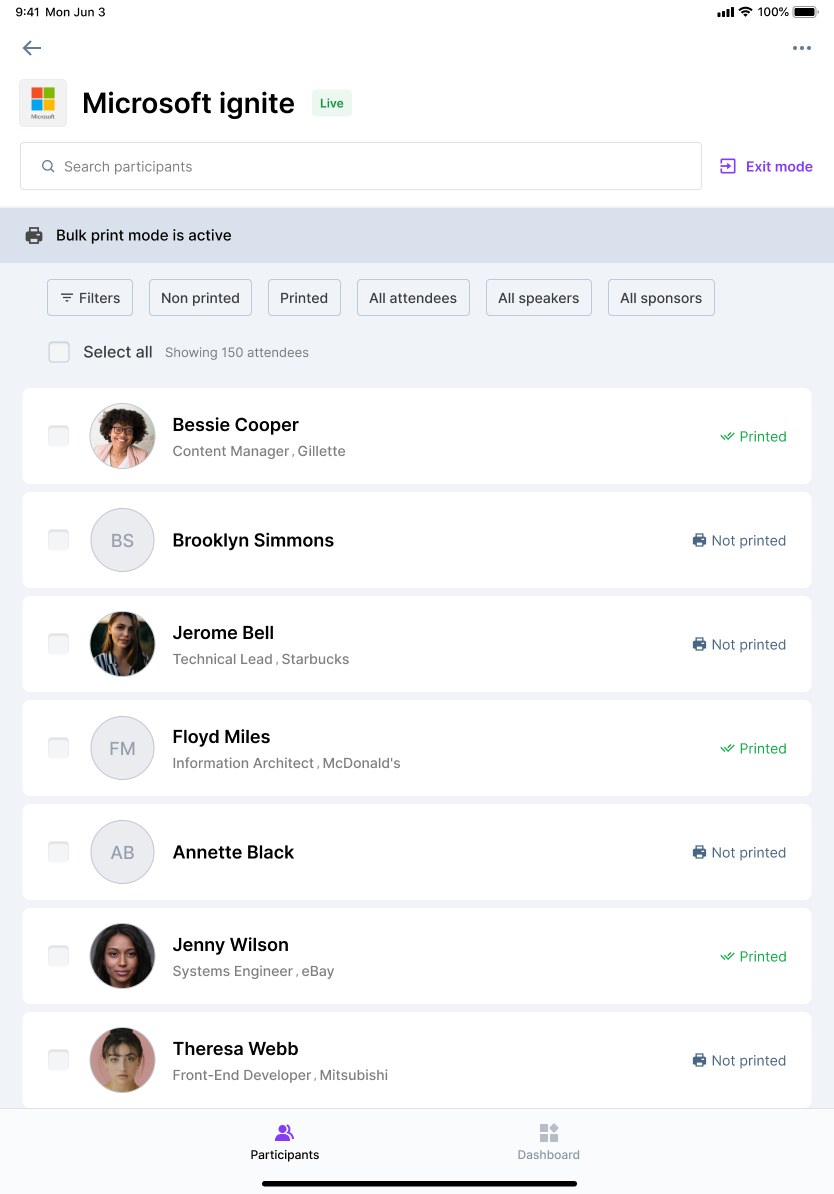
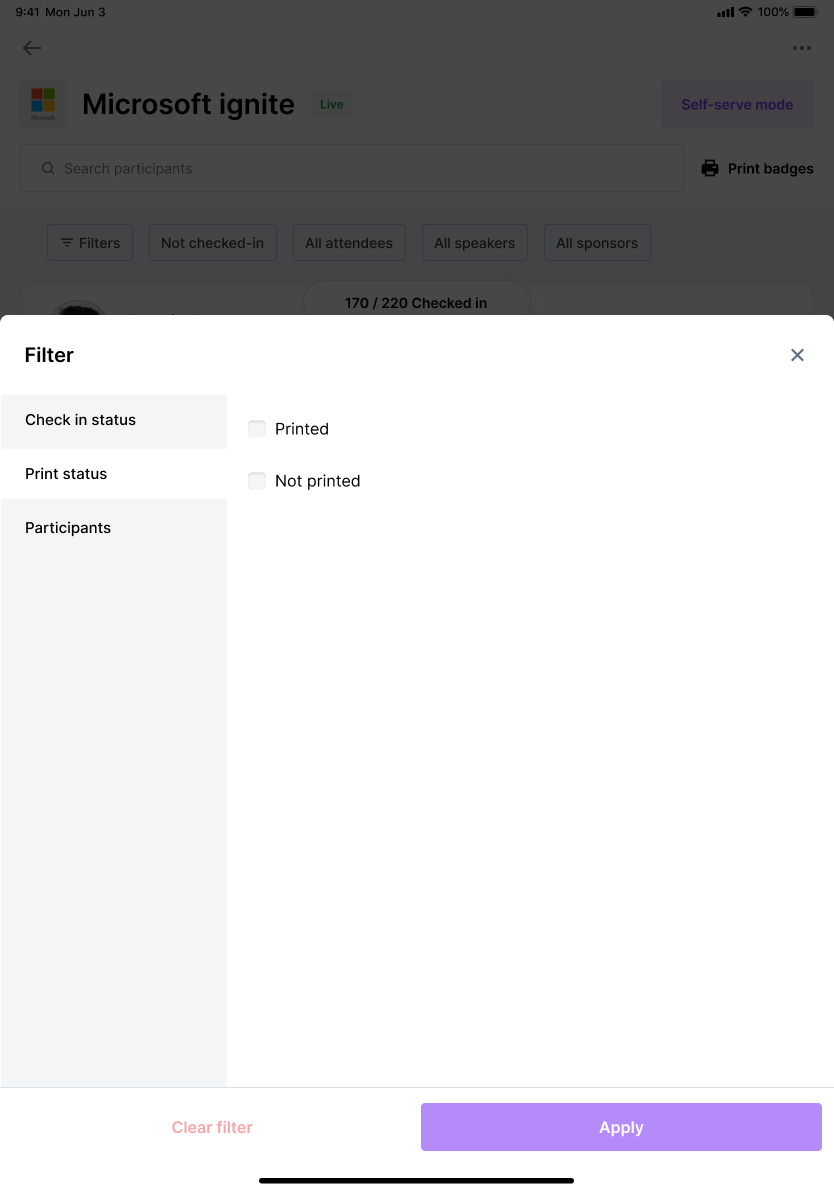
Select attendees. Tap individual rows to select specific attendees, tap Select all to select the current view, or tap Select all [N] attendees to queue the entire event. Use Filters to narrow the list by Check in status or Print status (for example, show only Not printed) before selecting.
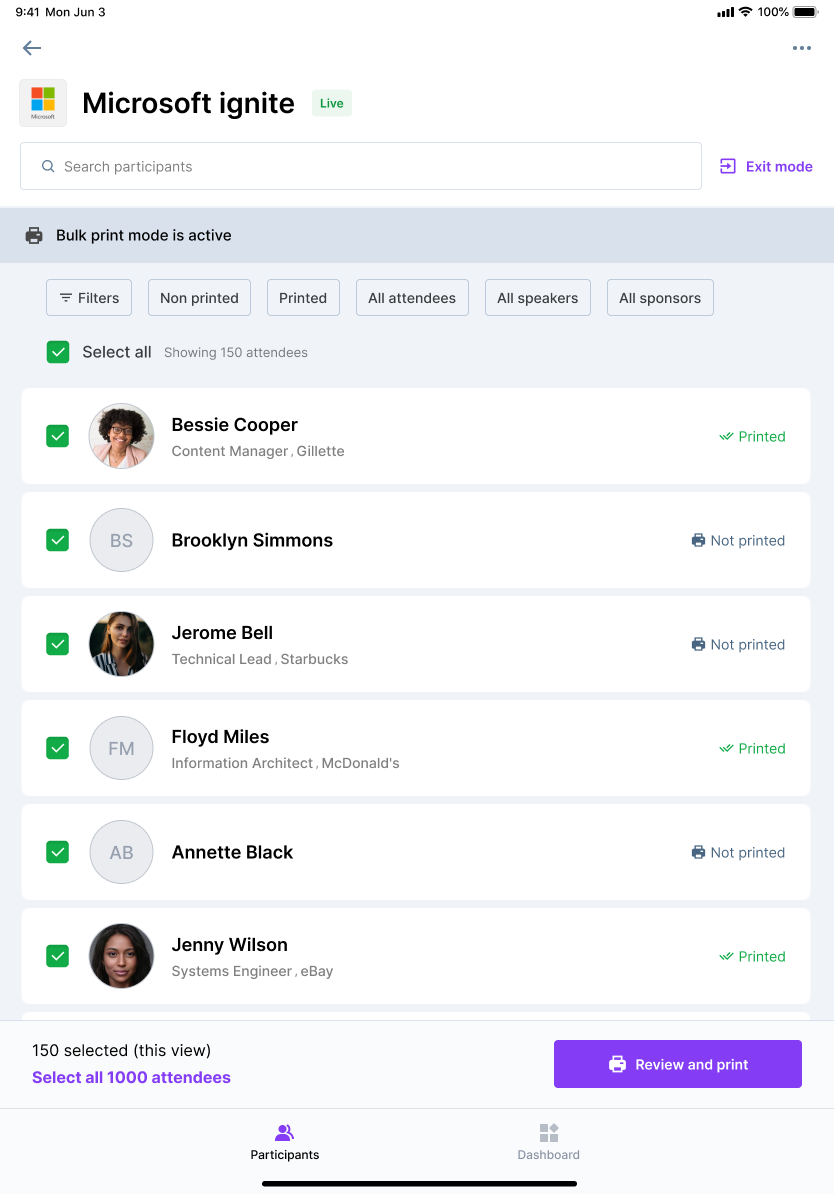
Handle reprints. Tap Review and print. If any selected attendee already has a printed badge, you are asked "Reprint badges?". Choose Reprint to print them again, or Don't reprint to skip already-printed attendees and print the rest.
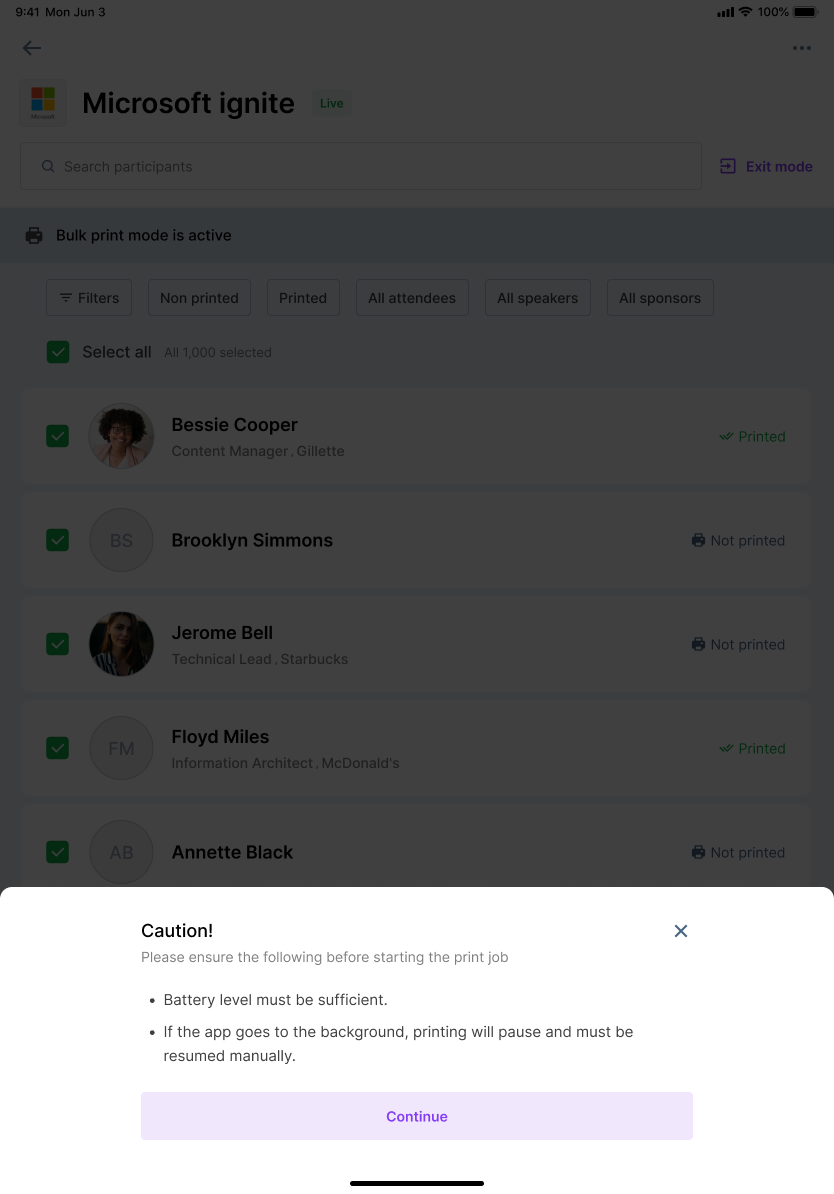
Confirm the caution prompt. A Caution sheet reminds you to keep the device charged and the app in the foreground. Tap Continue to proceed.
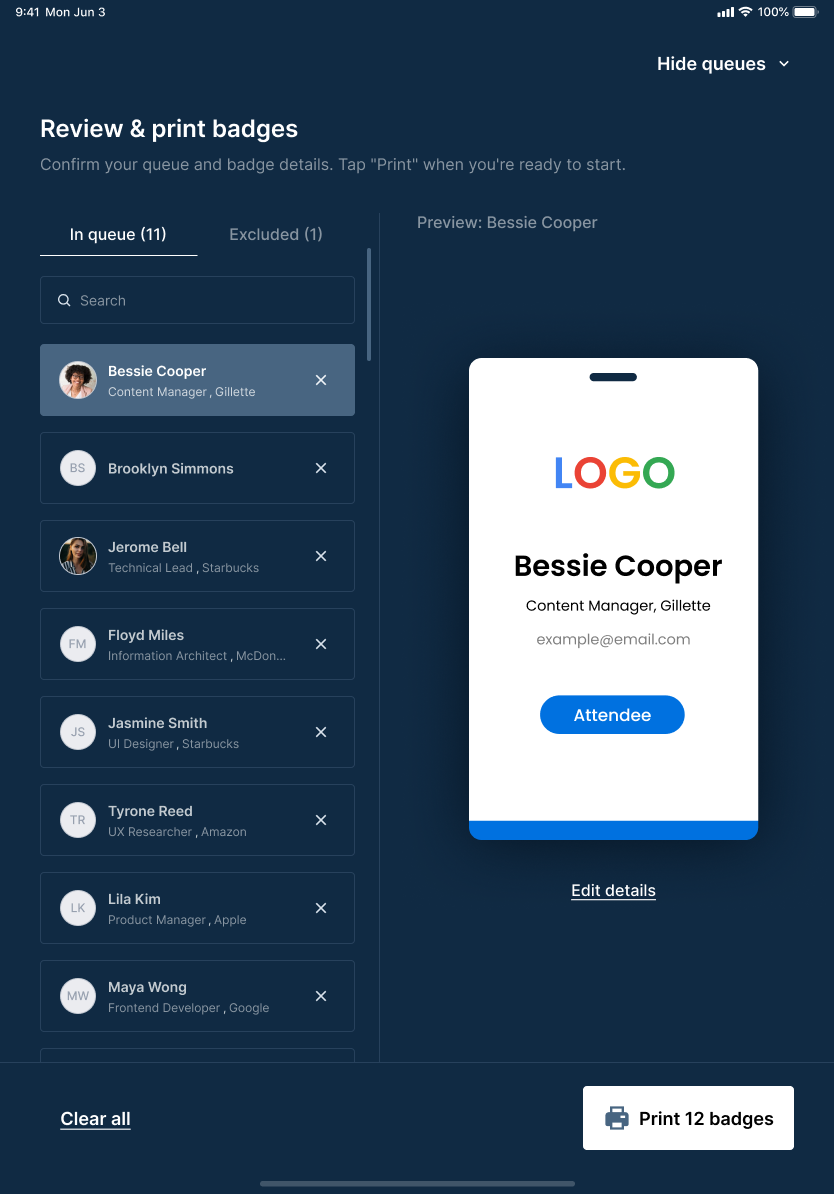
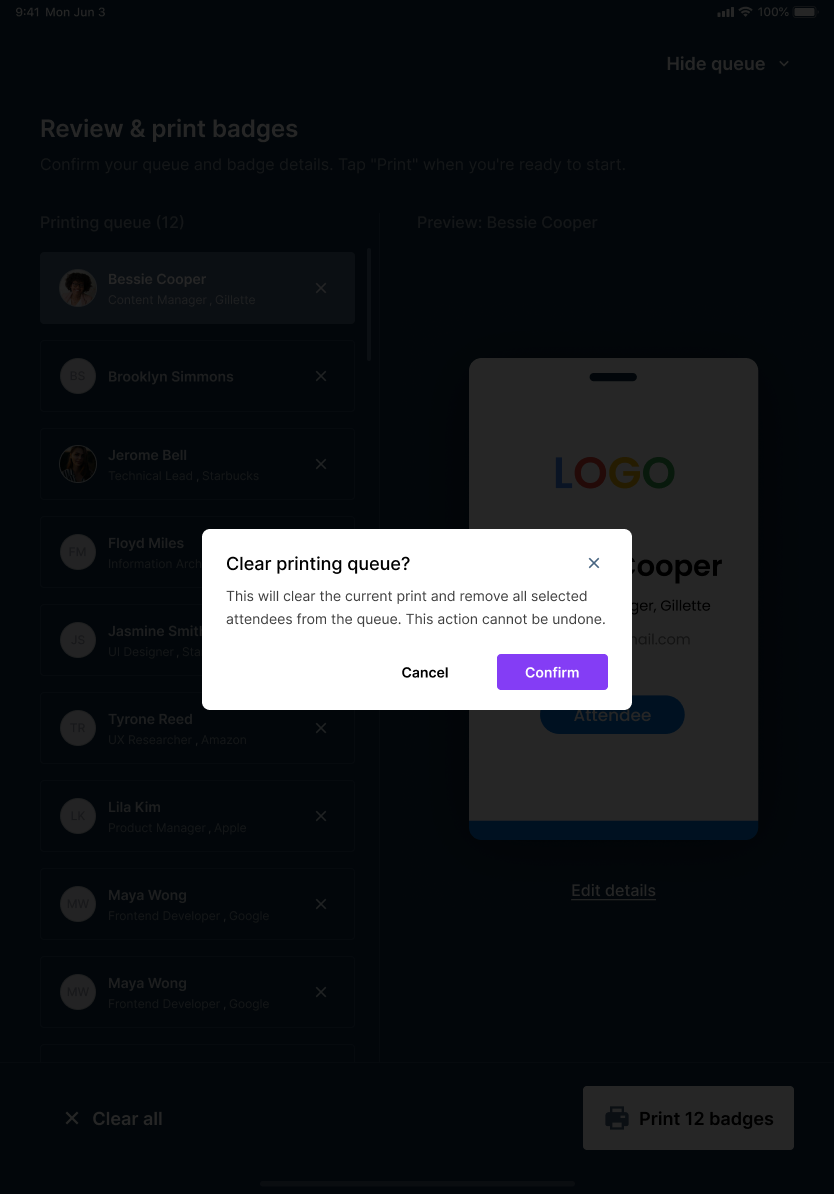
Review the queue. On the Review & print badges screen, the queue list and a live badge preview appear side by side. Switch between the In queue and Excluded tabs, tap × to remove anyone, or tap Edit details to correct badge fields. Tap Clear all to empty the queue (a confirmation is required).
Print the badges. Tap Print [N] badges. Badges print one by one with a live badge view and a progress bar (for example, Printing (2/12)). Tap Hide queue to return to the attendee list — a progress strip keeps printing in the background — and tap Show queue to return any time.
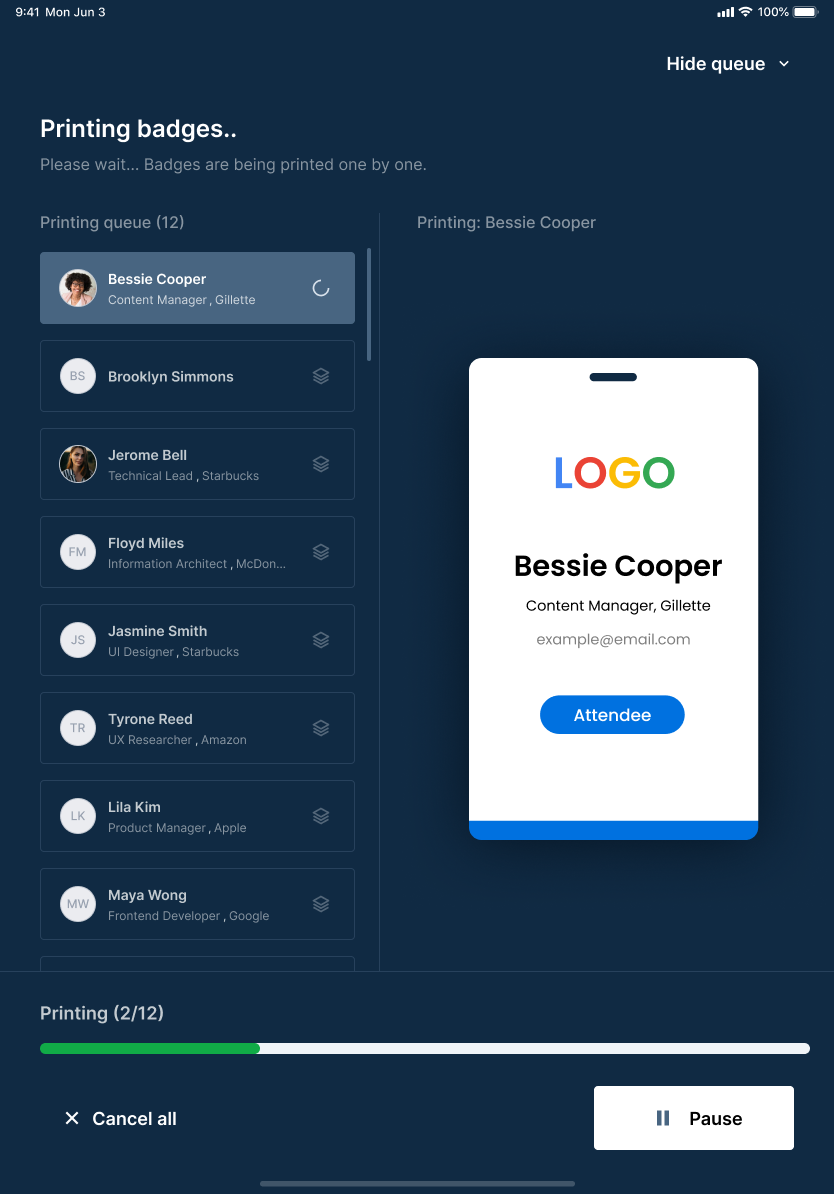
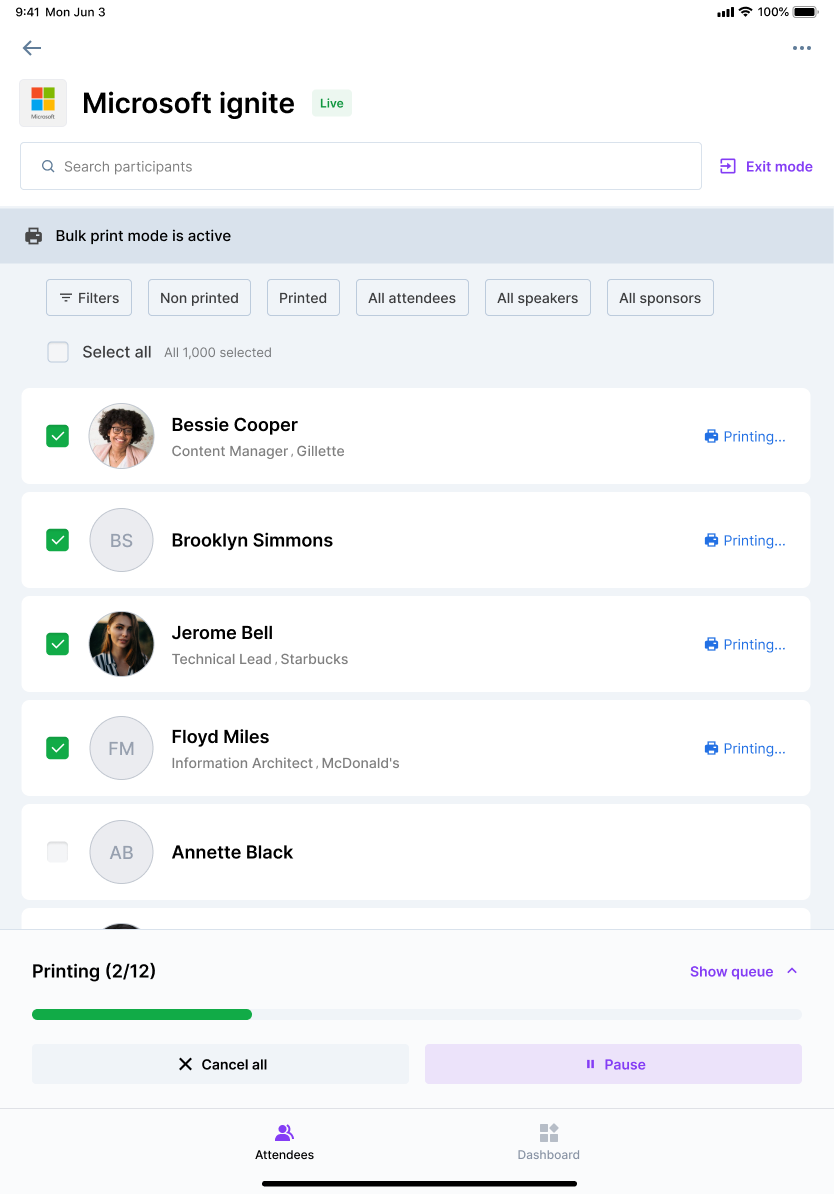
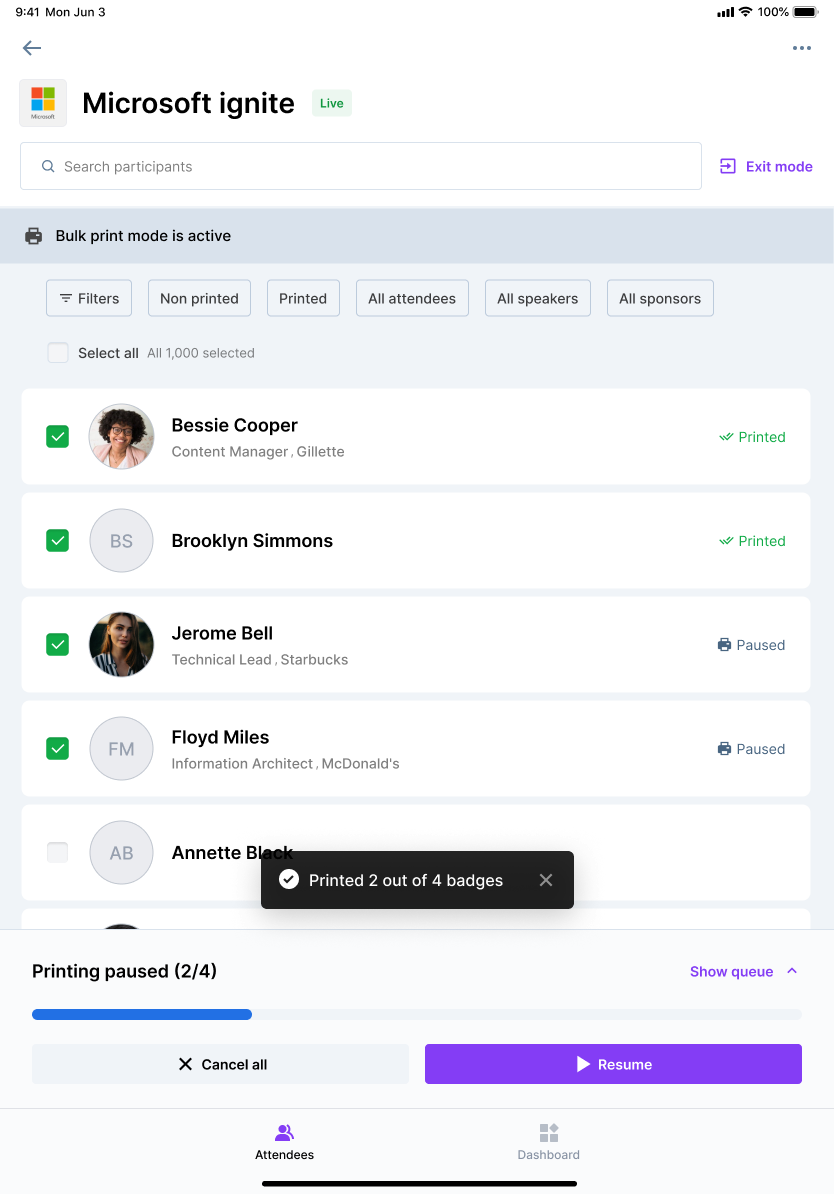
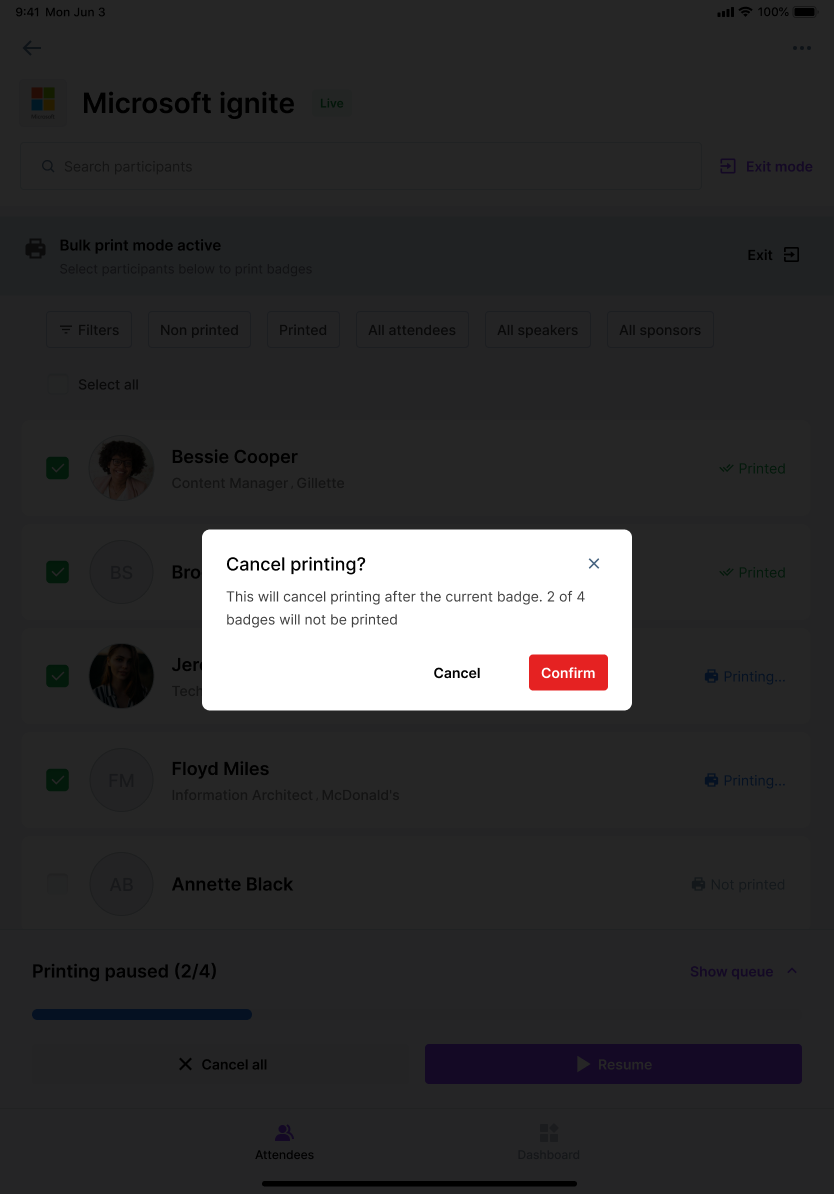
Pause, resume, or cancel. Tap Pause to hold the run ("Printing paused 2 of 4") and Resume to continue. To stop entirely, tap Cancel all and confirm — printing stops after the current badge.
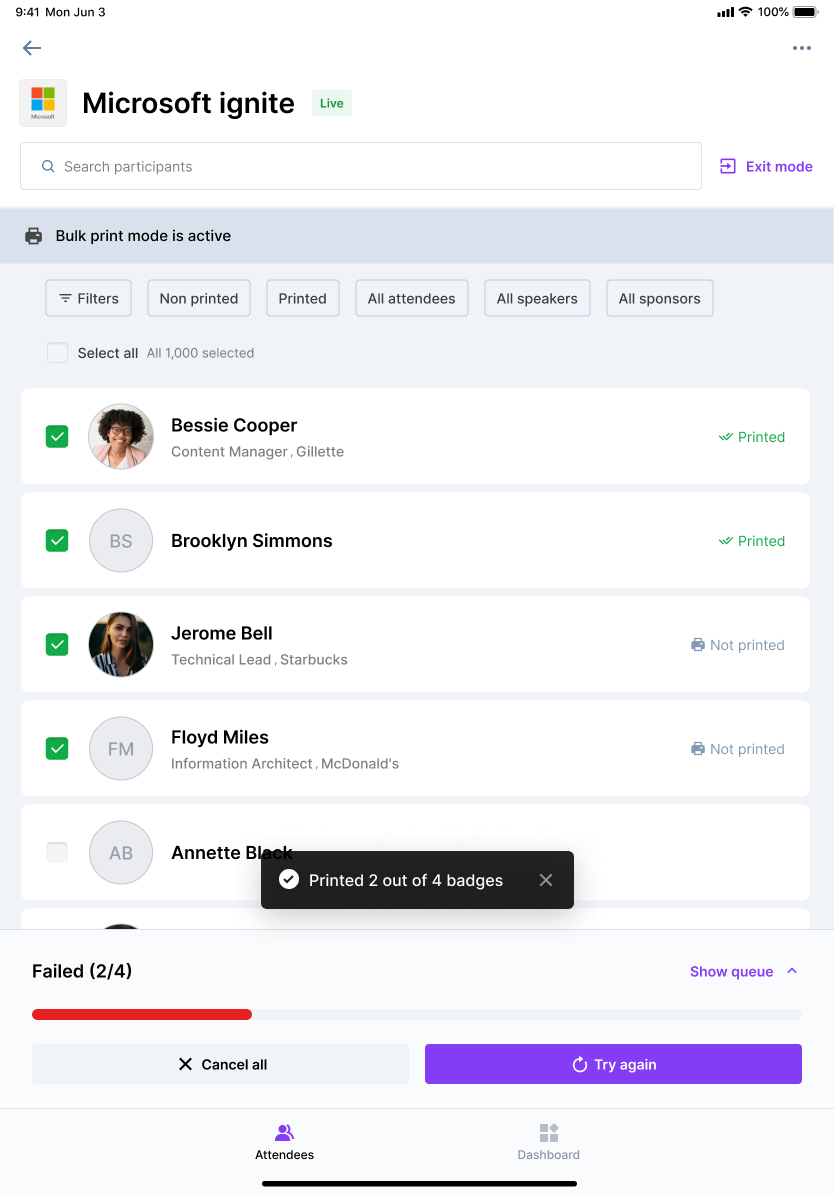
Retry on failure. If printing fails, the run stops and shows Failed ([n]/[N]) with a Try again button. Check your printer connection or paper tray and tap Try again to retry.
What Happens Next
When the run finishes you are returned to the attendee list with a "Printed [N] badges" confirmation, and each attendee row shows a Printed status. If you stopped early, you instead see "Printing stopped. Printed [N] badges."
Notes
Bulk badge printing is currently available on the iOS Onsite app only.
Keep the device awake, charged, and the app in the foreground for the whole run — backgrounding the app pauses printing.
Use the Print status filter (Not printed) to quickly queue only attendees who still need a badge.