How to Add and Use Locations for a Virtual Event
Last updated: August 1, 2025
You can now add locations to the event setup and use them for sessions or meetings.
Apart from the location name, you can also include a map link to help your attendees find the location.
Adding a location
In the event setup, go to Event Setup > Locations and click Add location.
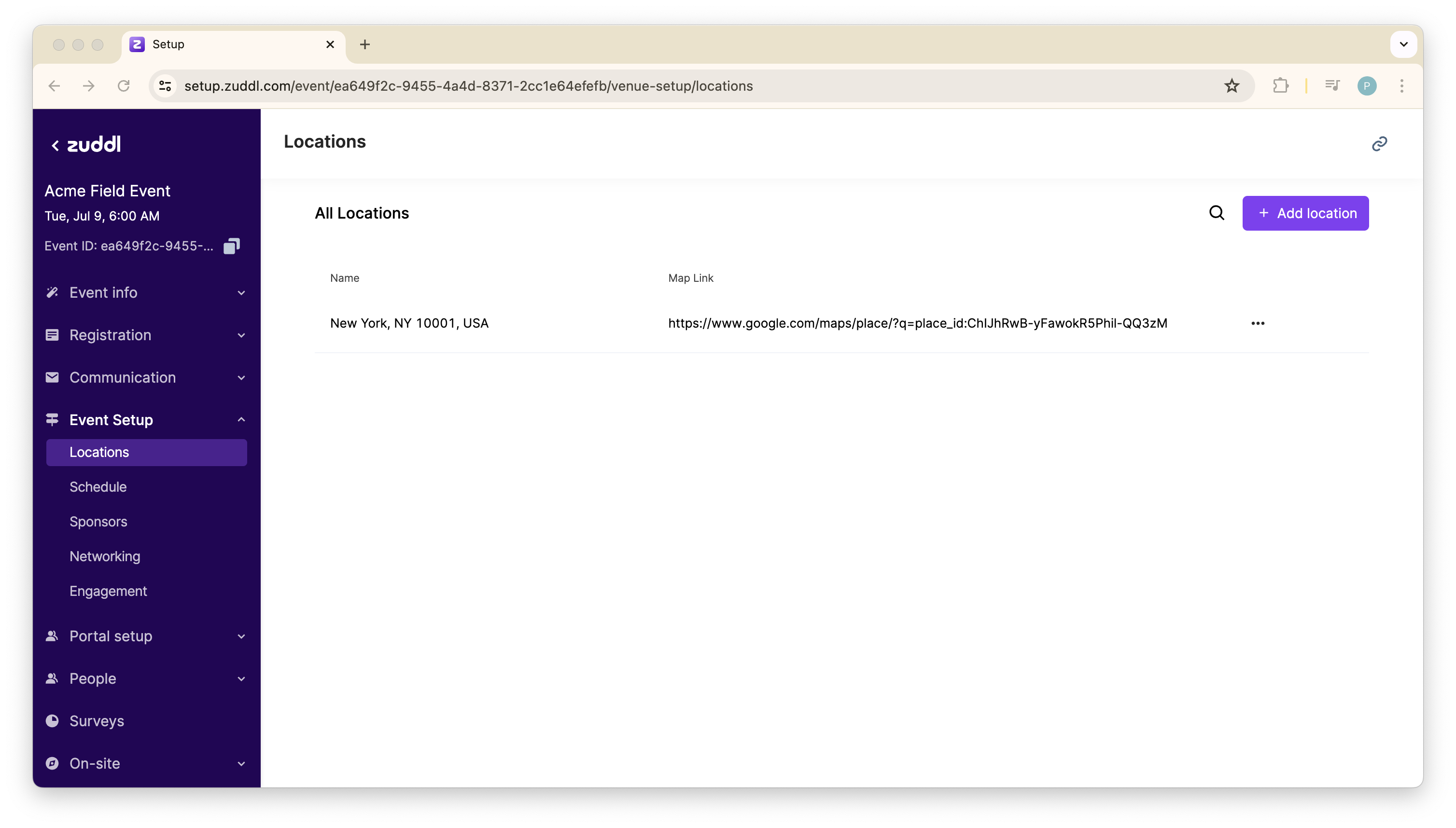
In the Add location modal, enter a Name for the location and a Map link to help attendees navigate.

- Click the Add Location button to save this as a location.
You can now view the added locations and use them in the event setup.
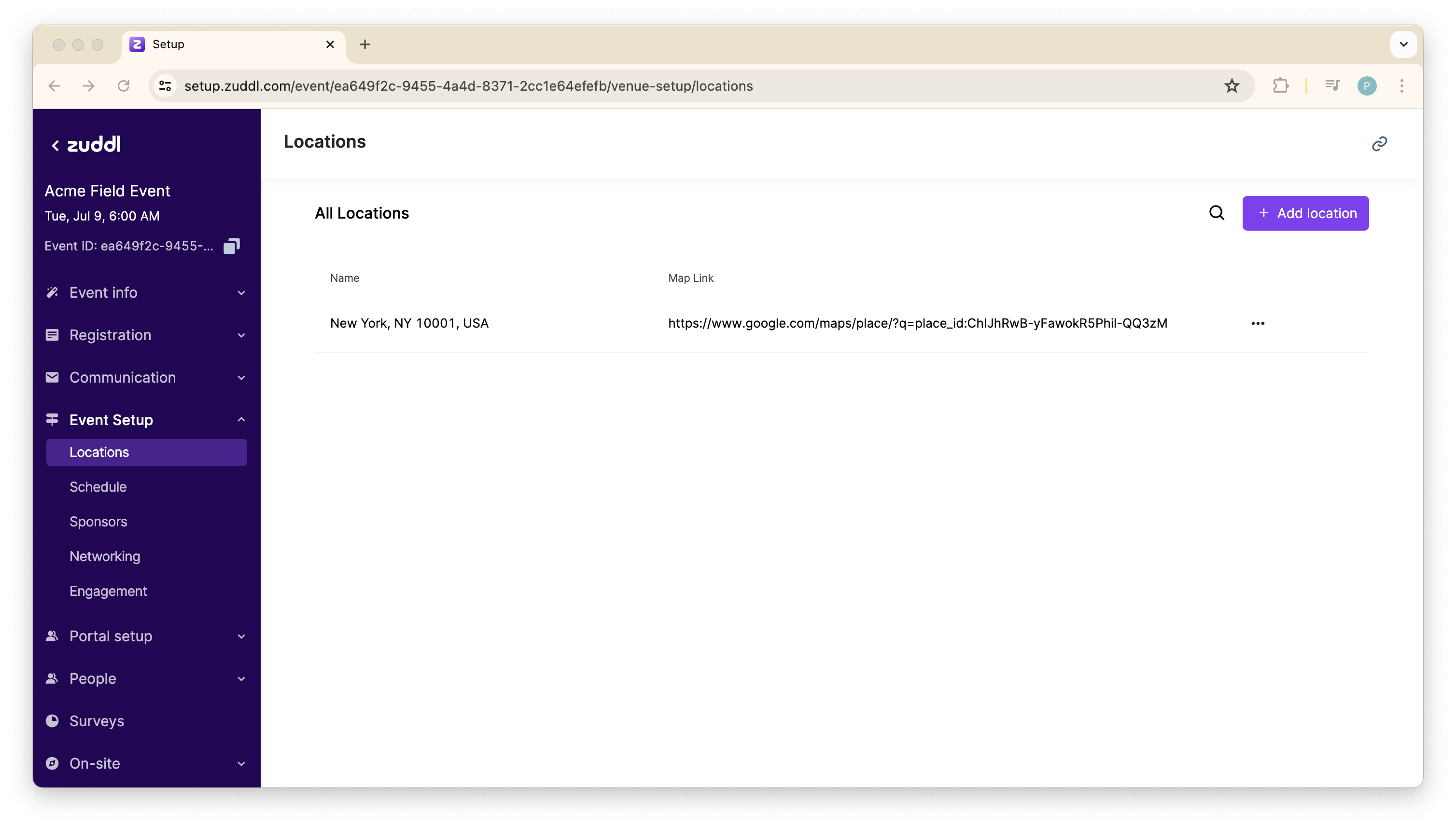
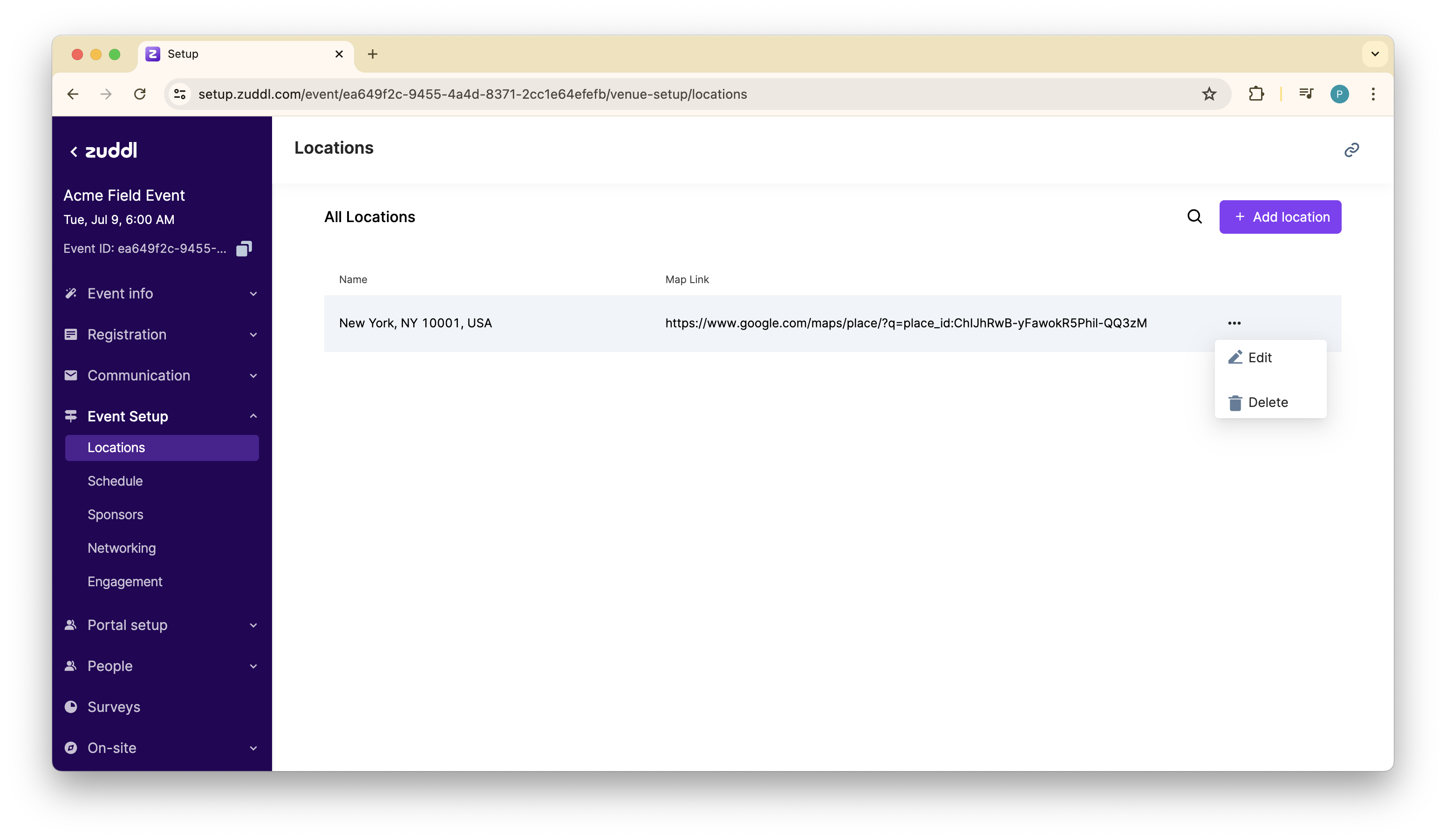
To make changes to the added location, click the more options button to view the Edit and Delete buttons.
Using the location
After adding field locations, you can now use them in different sections of the event setup. You can assign a location for a session when creating a schedule under Session location. All the added locations appear in the dropdown. Learn how to create a session.
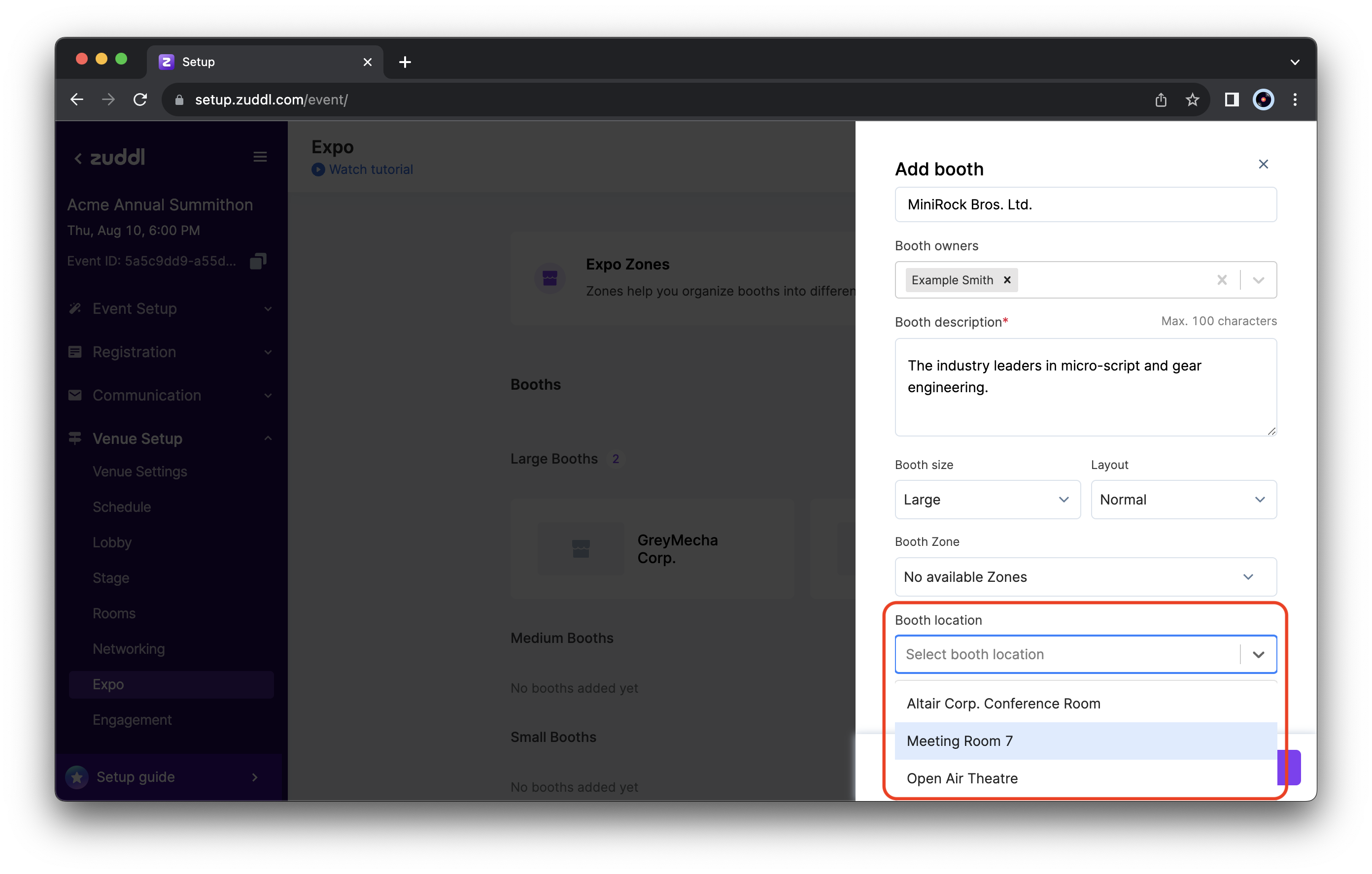
You can also assign a location for expo booths under Booth location to view the added locations and choose the location to assign from the list. Learn how to add a booth.