Send Event Activities from Zuddl to Salesforce
Last updated: August 19, 2026
You can send the activities captured in your Zuddl event to your Salesforce account. The table below shows the list of captured activities:
Captured activities
Activity name | Events | Webinar | Sync time |
New user registration | ✔ | ✔ | Immediate |
Attended | ✔ | ✔ | 5 minutes (after attending) |
Event Polls Answered | ✔ | ✔ | 1 hour (after event ends) |
Event Question Asked | ✔ | ✔ | 1 hour (after event ends) |
Event Question Upvoted | ✔ | ✔ | 1 hour (after event ends) |
Event CTAs Clicked | ✔ | ✔ | 1 hour (after event ends) |
VOD View | ✔ | ✔ | Every day at 12:10 AM and 12:10 PM (UTC) + 1 hour (after event ends) |
Event Survey Answered | ✔ | 1 hour (after event ends) | |
Attended Session Live | ✔ | ✔ | 1 hour (after event ends) |
Attended Discussion Room | ✔ | ❌ | 1 hour (after event ends) |
Attended Booth | ✔ | ❌ | 1 hour (after event ends) |
Event Engagement Time | ✔ | ✔ | 1 hour (after event ends) |
Event Discussion Room Engagement Time | ✔ | ❌ | 1 hour (after event ends) |
Event Session Engagement Time | ✔ | ✔ | 1 hour (after event ends) |
Event Booth Engagement Time | ✔ | ❌ | 1 hour (after event ends) |
Entered | ✔ | ✔ | Immediate |
No Show | ✔ | ✔ | 1 hour (after event ends) |
Attended session live
For the 'Attended session live' activity, Zuddl sends session metadata (session description, start & end time, session type (in-person or virtual)) and session attendance type as ‘Virtual’, In-person, or ‘Hybrid’.
- Virtual: when attendees check in to sessions from the event page.
- In-person: when attendees physically check in to sessions through the check-in app.
- Hybrid: When an attendee first joins as a virtual attendee then joins as an in-person attendee or vice-versa.
Session time
We only track the session time for virtual sessions and not for in-person sessions.
Prerequisites
Before you pass activities you must configure your campaign member object so that you can receive the activities in a readable format. You can leverage the Salesforce package installer to create the neccessary fields for activities.
Learn how to configure your campaign member object using Salesforce package installer.
Learn how to configure your campaign member object manually.
Select activities to pass to Salesforce
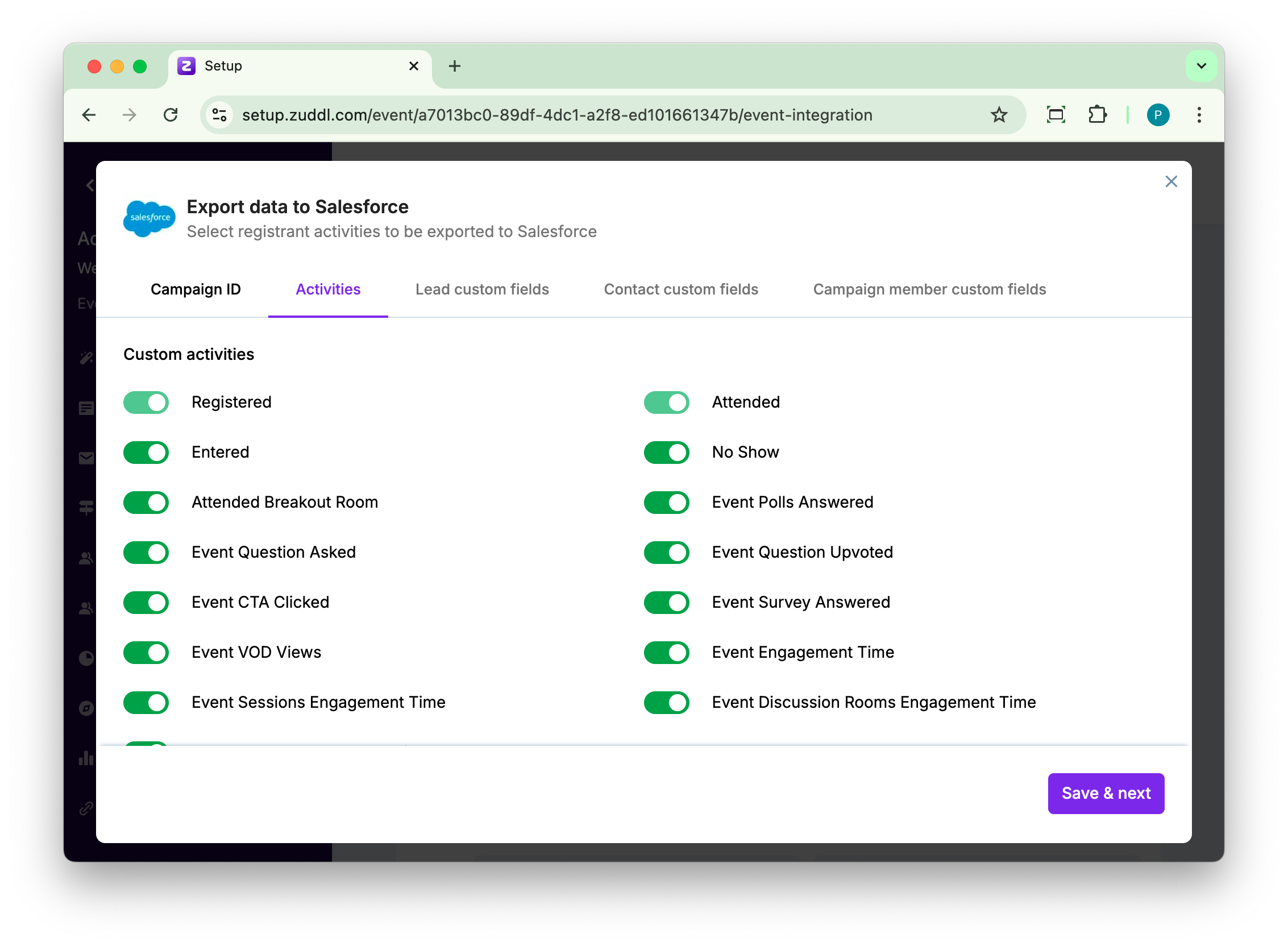
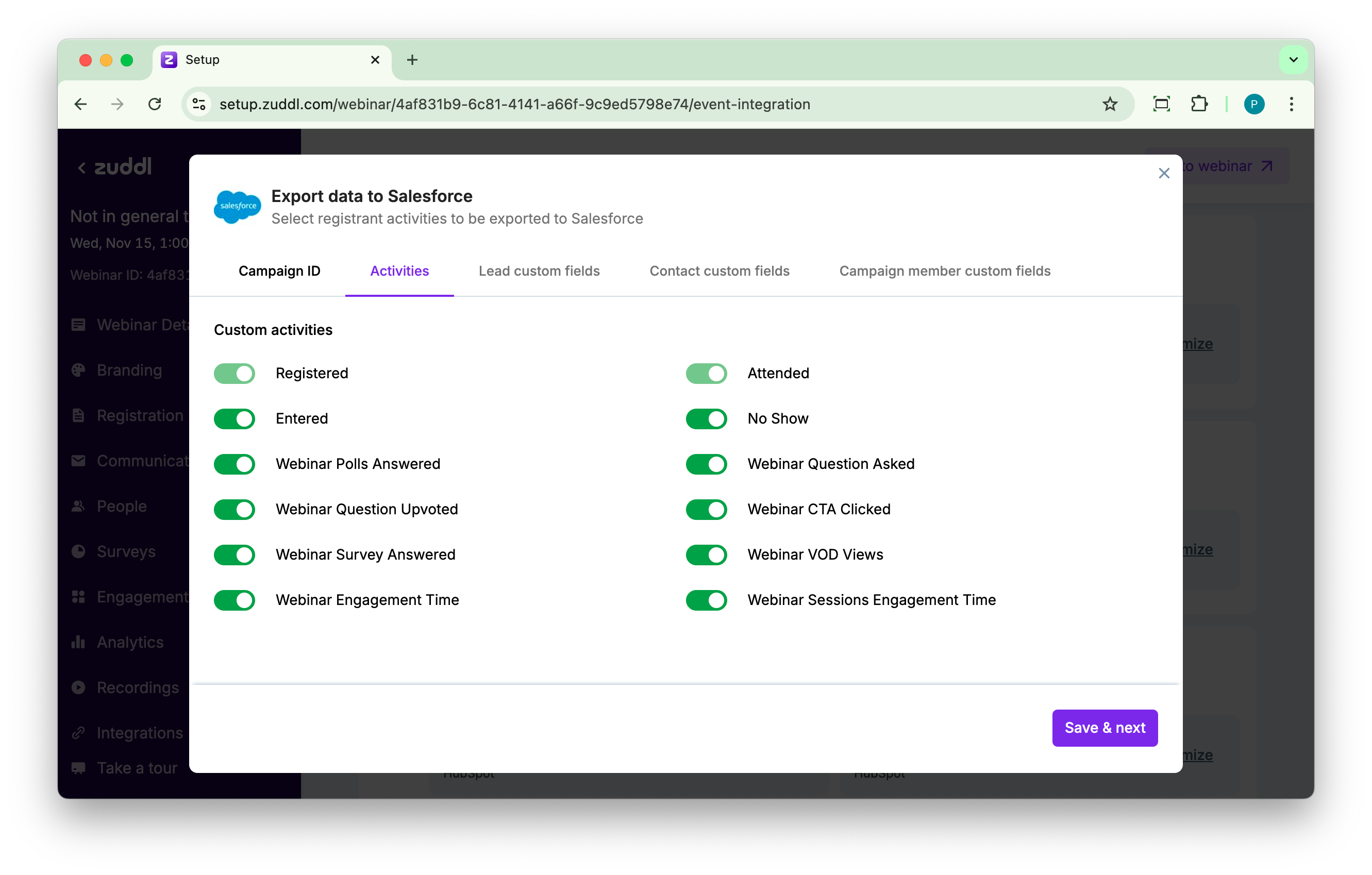
Toggle on the custom activities you want the integration to capture and send to your Salesforce account. The custom activities vary for virtual events and webinars. You can view the available custom activities for virtual events and webinars.
Virtual Events | Webinar |
 |  |
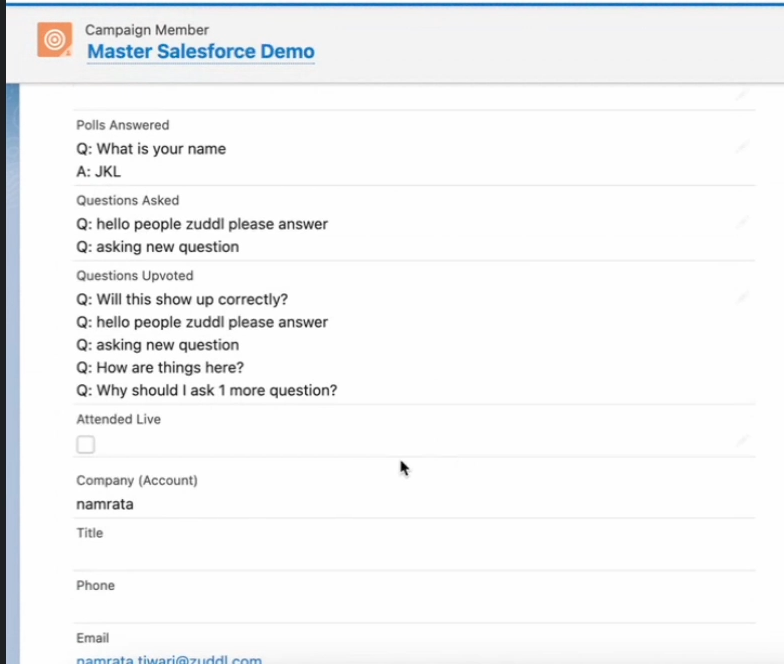
The captured activities are shown in the campaign member details page as shown below:
Passing any duration-specific data to Salesforce requires a minimum of 1 minute of attendee activity in a Zuddl event/webinar.
Session activities
If you have added event sessions to your campaign, you can access the session-level activity data in the relevant fields of the campaign member. The activity selection step is slightly different. Under the Activities tab, two tabs will be displayed: Parent campaign and Child campaign.
The activities may vary based on the event type.
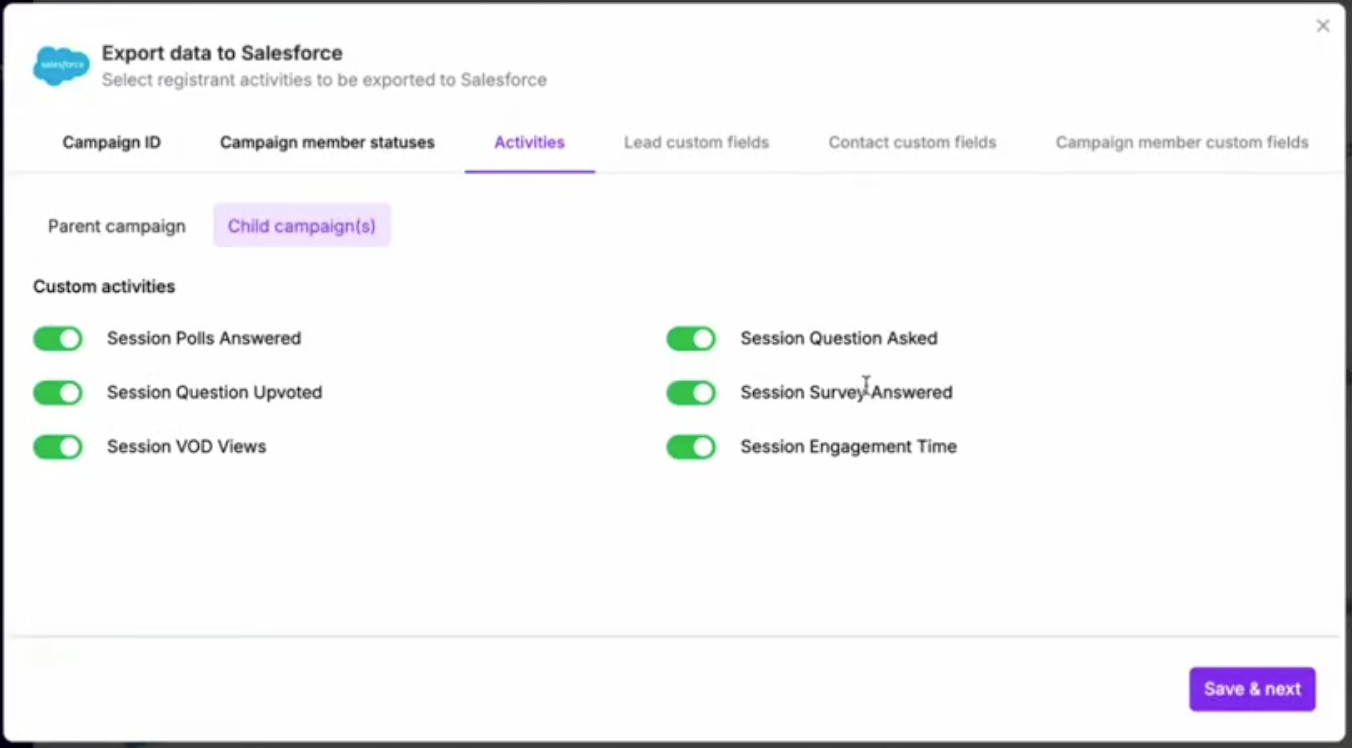
Select the activities for the Parent and Child campaigns. Under Parent campaigns, all event-level activities are listed for selection, and under Child campaigns, all session-level activities are listed. Similarly, in your Salesforce account, campaign members under the parent campaign will continue to show the aggregated engagement activity data (attendee activities performed in the event and attendee activities performed in the session), whereas campaign members under the child campaign will only have the engagement activity data of the particular session
The format of the activity displayed is the same.
If you do the session mapping after the event ends, you must re-sync data with all-time data sync settings.