How to create events on Zuddl
Last updated: September 28, 2026
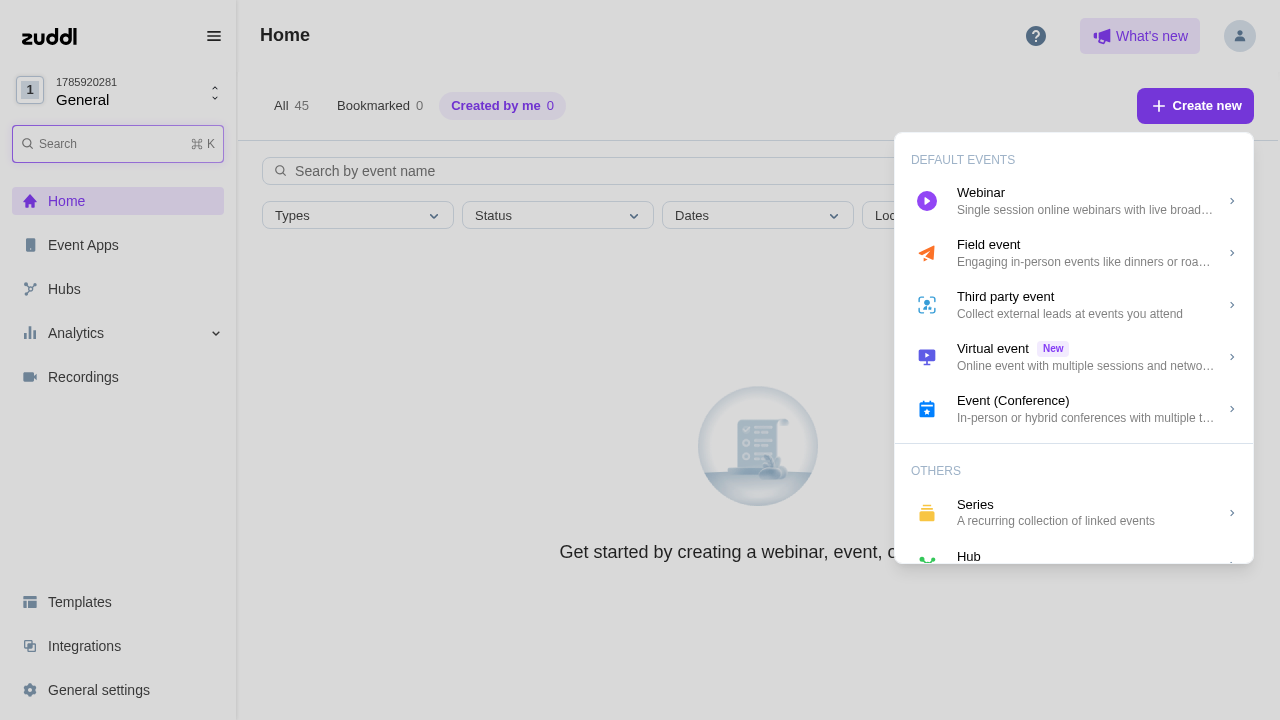
Every event on Zuddl starts from the Create new menu on your organization’s Home page. The menu groups every event type in one place, so you can pick what you are hosting (a webinar, a virtual event, an in-person or hybrid conference, and more) from the start. Any custom event types set up for your organization appear at the top of the same menu.
What changed: Virtual event is now its own event type, separate from the standard event. The standard event is now called Event (Conference) and is for in-person conferences. You can make a conference hybrid later by turning on virtual setup.
Before You Begin
You need permission to create events in the organization. Collaborator licences cannot create events, so they do not see the Create new button.
The event type must be included in your plan. Types outside your plan show a lock icon. Hover over it to see why, or contact your Customer Success Manager to enable it.
Have the basics ready: name, description, time zone, and start and end dates.
Event types in the "Create new menu
The menu has up to three sections, in this order:
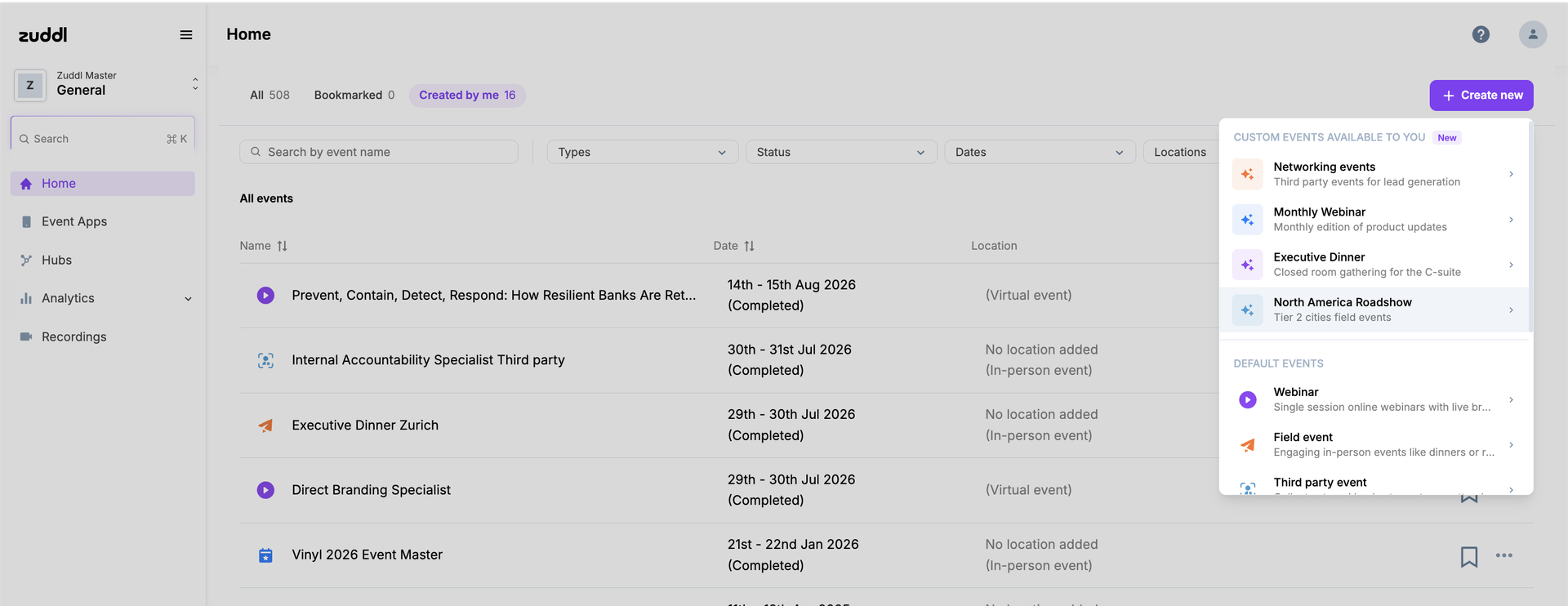
1. Custom events available to you
This section appears only if your organization has custom event types created for you (like an Executive dinner, or a Roadshow event). Each custom type shows the name and description it was set up with. A custom event type is a blueprint built from one of your existing events. Events created from it start with that event’s registration, branding, communications and integrations already set up, and will have a setup guide that has a checklist of items to review before going live.
2. Default events
Webinar: single-session online webinars with live broadcast.
Field event: engaging in-person events like dinners or roadshows.
Third party event: collect external leads at events you attend.
Virtual event (New): an online event with multiple sessions and networking.
Event (Conference): in-person or hybrid conferences with multiple tracks and an attendee mobile app.
3. Others
Series: a recurring collection of linked events.
Hub: showcase your events in a branded home.
Studio: record studio-quality videos or go live.
Why Virtual event is now a separate type?
Previously, one standard “Event” covered virtual, hybrid and in-person formats, and you picked the format inside the event. Now the choice happens up front in the menu:
Virtual event is for events where attendees join entirely online. It comes with Virtual Setup for your lobby, stages, rooms and virtual booths. It has no venue, and all its sessions are virtual.
Event (Conference) is for events with a physical venue: in-person conferences, and can be converted to a hybrid conferences by turning on the virtual setup.
What happens to existing events?
Your existing events are not affected. Nothing is removed. The types are simply named to match what you are hosting.
Existing virtual events are shown as Virtual events.
They appear under the Virtual type filter and keep the "(Virtual event)" label in the events list. Nothing changes in their setup.
Existing hybrid events are shown as Event (Conference) with virtual setup turned on.
They appear under the Event (Conference) filter. In the event's settings, Enable virtual setup is on, and Virtual Setup stays in the sidebar.
Existing in-person events are shown as Event (Conference).
They appear under the Event (Conference) filter. Enable virtual setup is off, and you can turn it on at any time to make the event hybrid.
Create any type of event
Open your organization dashboard and Click Create new in the top-right corner.
Select the event type you want, using the sections described above.
Fill in the event details form.
Click the Create button to proceed with creating the event.
Set up a virtual event
After creating a virtual event, a short prompt confirms: “This is a standalone virtual event.” Click Okay, understood.
Go to Virtual Setup > Venue Settings in the event’s left-hand navigation.
Turn on/off the areas attendees should see, such as Lobby, Stage, Rooms, Expo and Networking, and configure each one.
Make an Event (Conference) hybrid
Create the event using Event (Conference). It is created as an in-person event by default.
Open the event and go to Event info > Basic.
Turn on Enable virtual setup and save.
The “Virtual setup” is now added to your sidebar. Click Go to setup to create your lobby and studio so attendees can join.
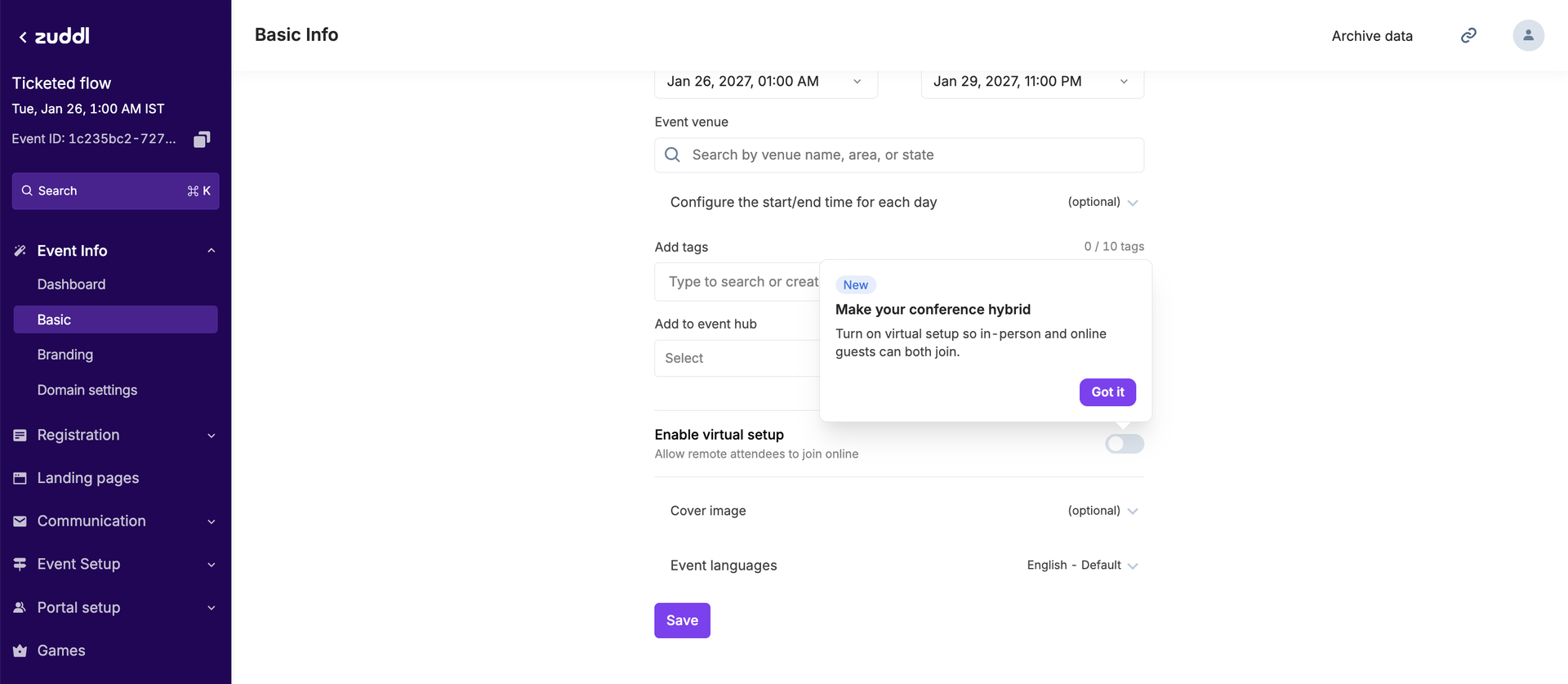
Tip: The first time you open a conference, a tip titled Make your conference hybrid points you to this toggle.
Create an event from a custom event type
Click Create new and pick a type under Custom events available to you.
Enter the name, description, time zone and dates, then click the Create button.
What Happens Next
You land inside the new event, where you can continue setting up registration, landing pages, communications and people.
Virtual events, and conferences with virtual setup turned on, get a Virtual Setup section in the left-hand navigation.
The event appears in your Home list. Use the Types filter to find events by Virtual, Event (Conference), Webinar and other types.
Notes
Pick the type carefully. A Virtual event cannot be switched to inperson or hybrid, and a conference cannot become fully virtual. The event format is locked to the type.
Hybrid is conference-only. The Enable virtual setup toggle appears only on an Event (Conference), and only after the event is created.
Virtual-only plans: if your plan covers only virtual events, Event (Conference) does not appear in the menu.
Custom event types are set up for your organization by Zuddl. Ask your Customer Success Manager to create one from an event you run regularly.
Inside a Series, the menu shows only the event types you can add to that series. Custom types and the Others section are hidden.
When you first open the updated Home page, a short tour (“We cleaned up your dashboard”) walks you through Create new, Virtual event and the new location of Hubs in the sidebar.