Public Pages
Last updated: November 18, 2025
With Zuddl’s mobile app builder, you can choose to make your event apps public or private depending on your event needs.
Public apps: Selected pages of the app are accessible without login. This helps organizers market their events by allowing attendees to preview event information before registering. Attendees are nudged to register to unlock full access.
Private apps: All pages require login/registration to access.
How it works
Attendees can download the event app and view specific pages, namely, speaker directory, sponsor directory, custom pages, and schedule without logging in. The pages include:
Schedule: A list of all sessions. My schedule tab is not accessible.
Speaker directory: Shows information about event speakers
Sponsor directory: Shows information about event sponsors
Custom pages: Any rich text page, embed external page, scrollable long page, or maps page.
Any interaction that requires personalization or engagement will appear as locked—such as adding sessions to the schedule, My meetings, or clicking interactive buttons, accessing polls, QA, chat, etc.


Clicking on a locked feature triggers the login/registration flow as shown below.

Once registered or logged in, attendees gain full access to all event pages and features.
How to make an app public
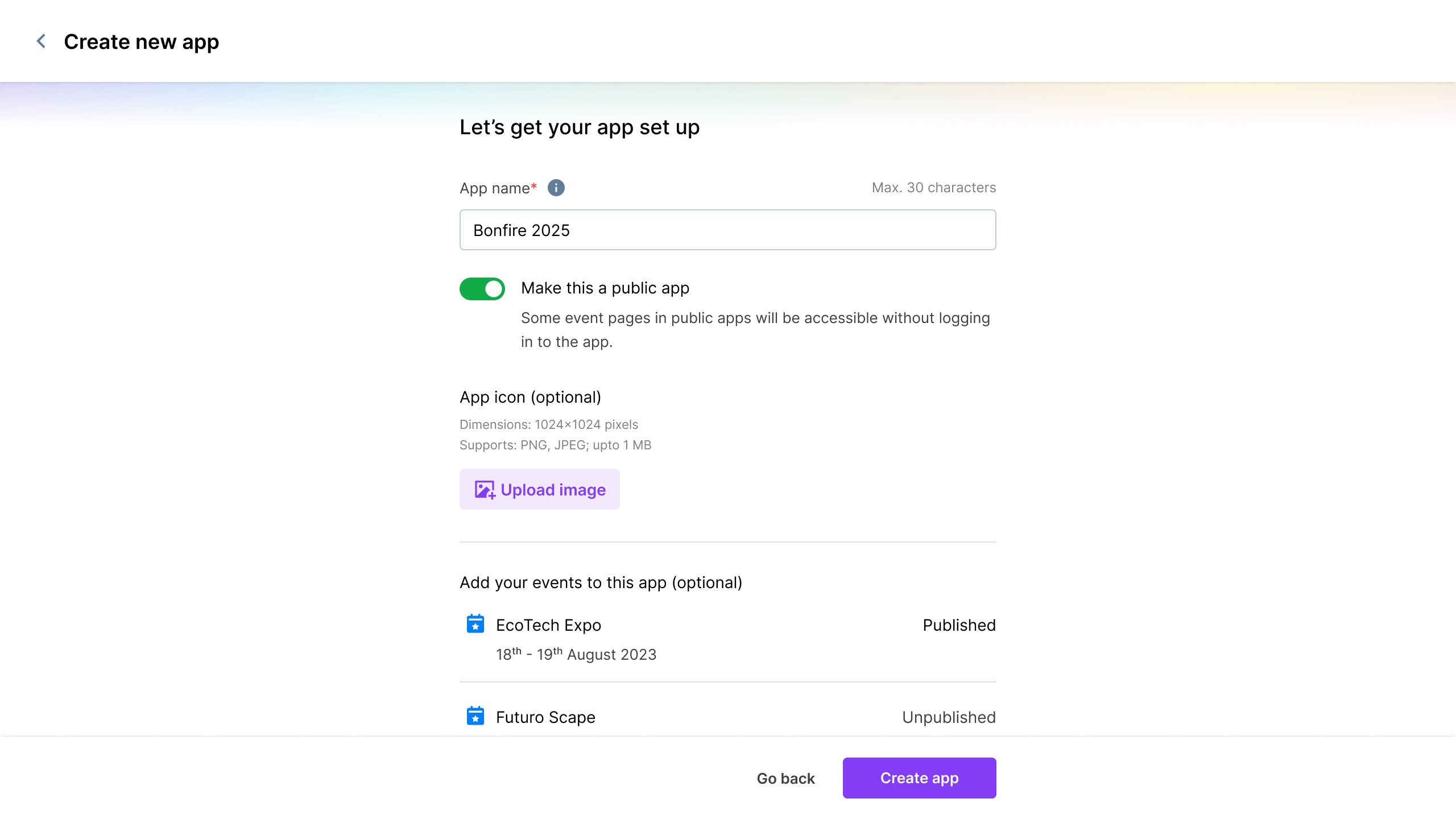
When you create an app on the Zuddl app builder, you can select whether you want the app to be Public or Private. In the app creation step, toggle on the Make this a public app. This makes the app public.
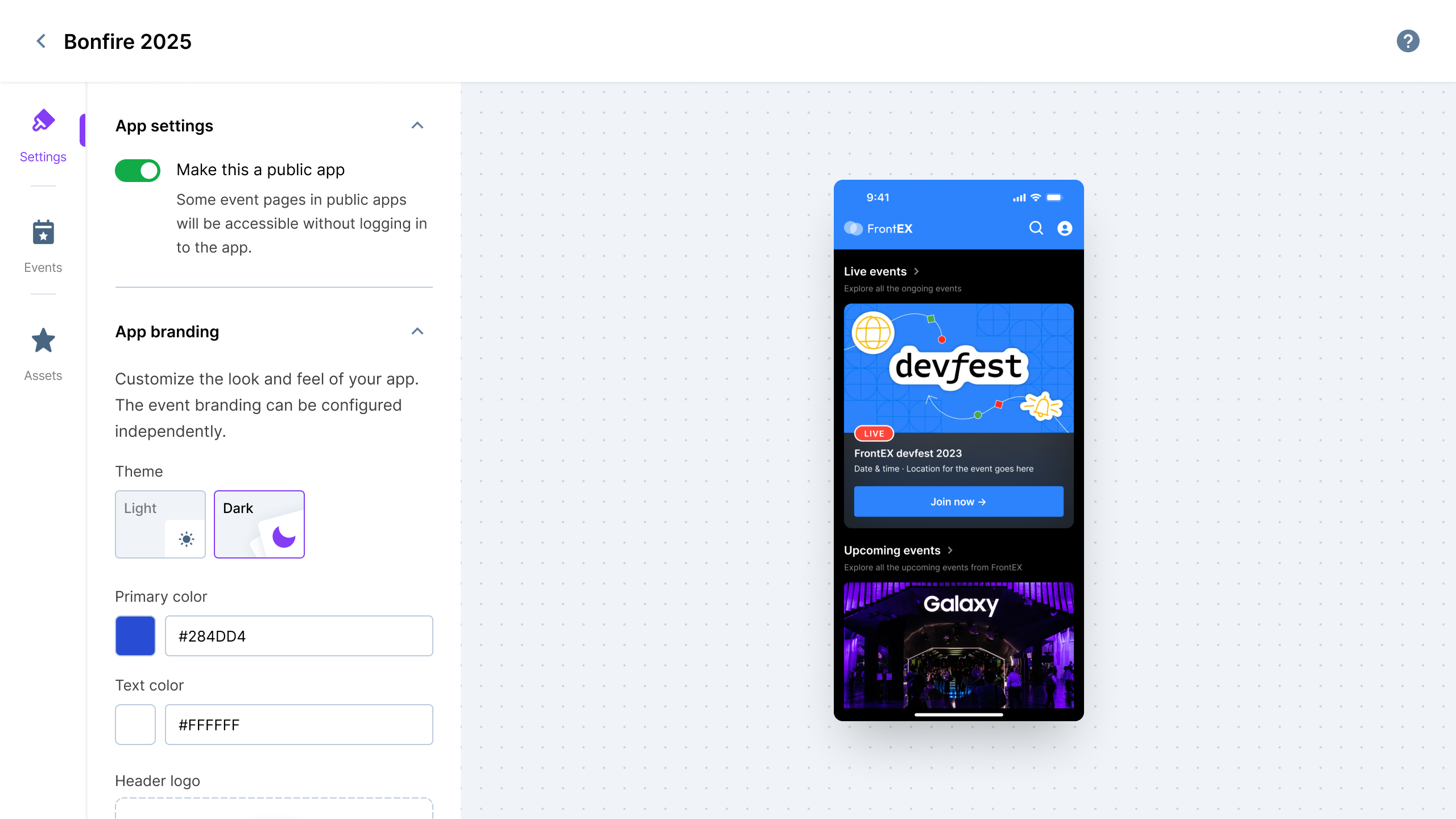
You change the settings from the App settings inside Mobile portal on the Zuddl dashboard as shown below:
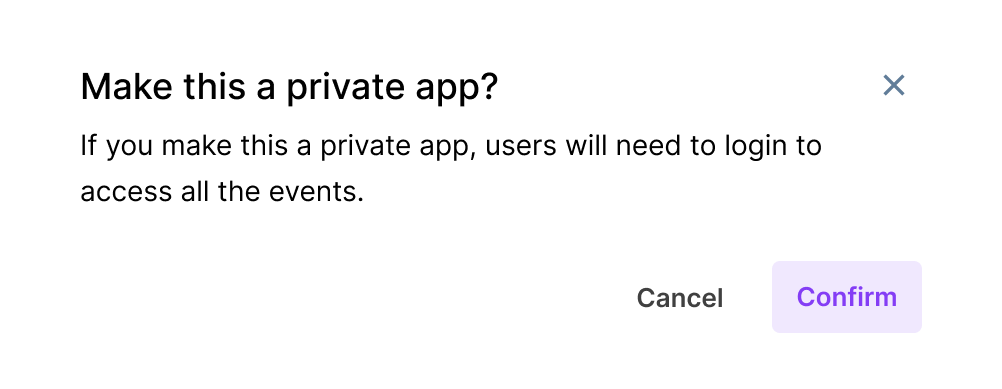
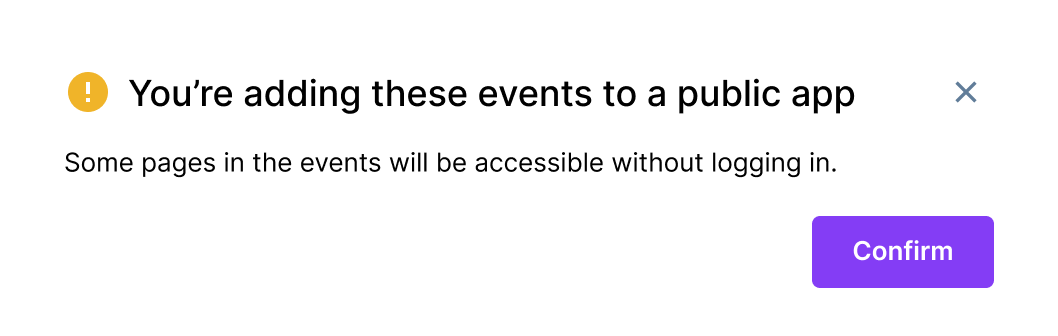
Click Confirm on the confirmation pop-up to finalize the action.
This setting shouldn’t be changed/edited when the app is under review, once the review phase is over, you can change it.
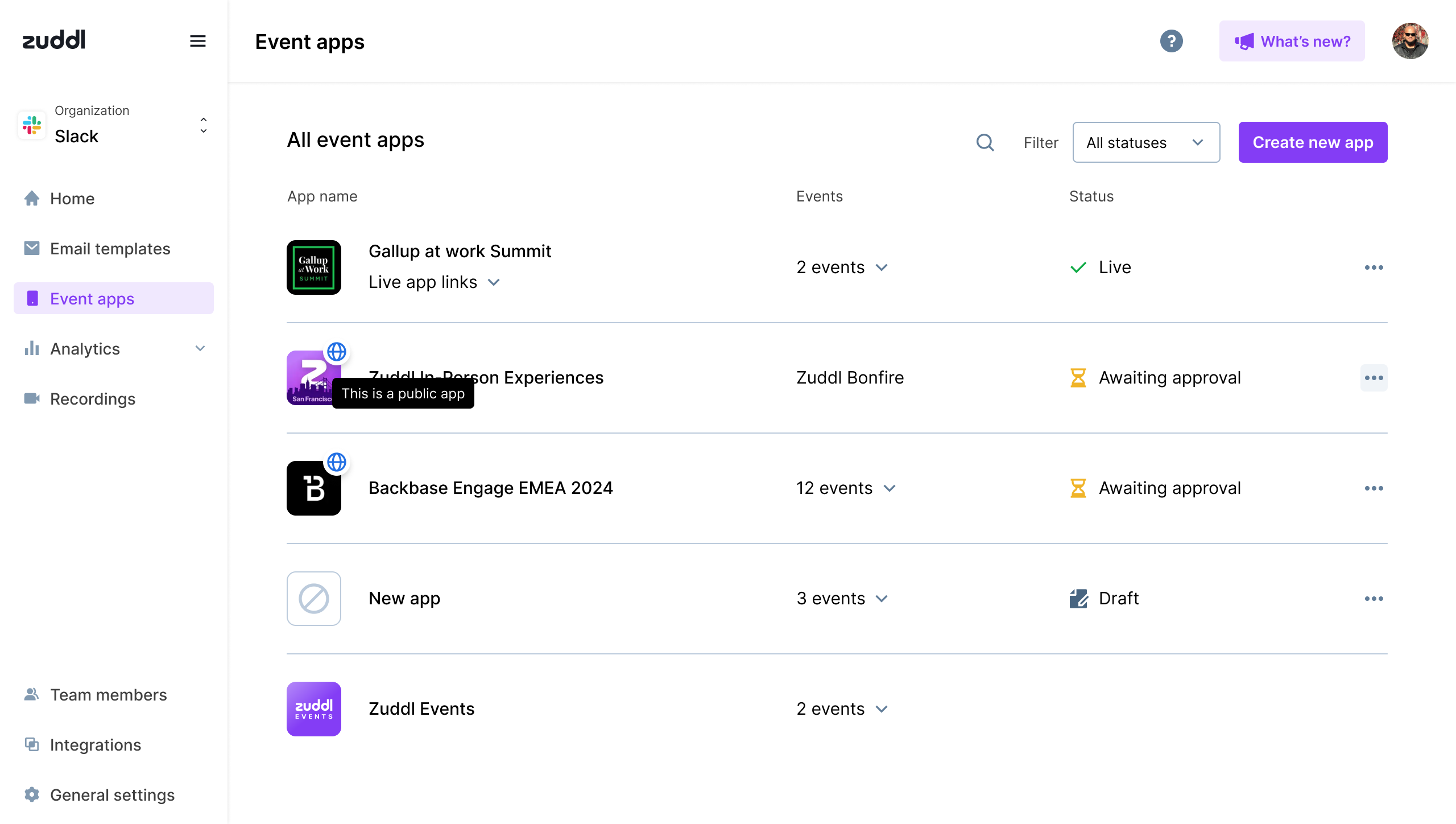
On the Event app listing page, you can identify a public app from an icon on top of the app thumbnail, as shown below:
Now, when you add events to the app, the events inherit the public visibility rules after you confirm the action, as shown below:
Attendee side
The attendee side behaviour is shown below
Not logged in
When a logged-out attendee tries to access a restricted page, the login pop-up is shown:
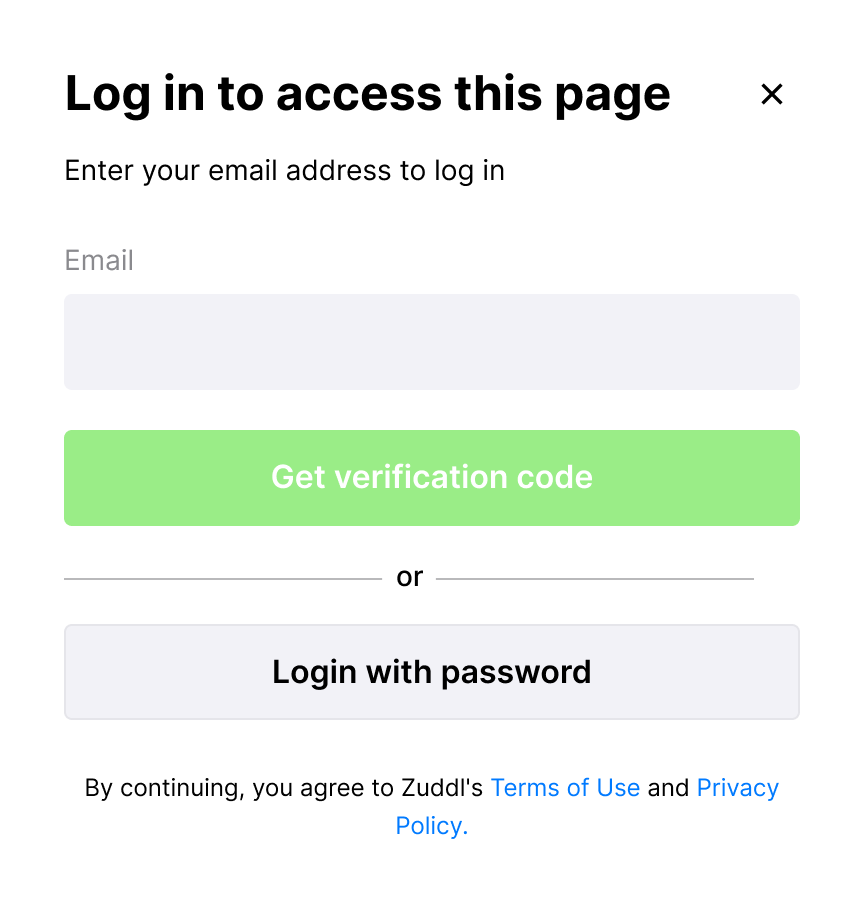
This also applies to those who are registered but not logged in until they log in. Once the registered user logs in, all actions can be accessed.
Logged-in but not registered
When a logged-in attendee (email id is part of the Zuddl) who is not registered for the event, tries to access a restricted page of the event, a ‘Registration not found’ prompt is shown below:
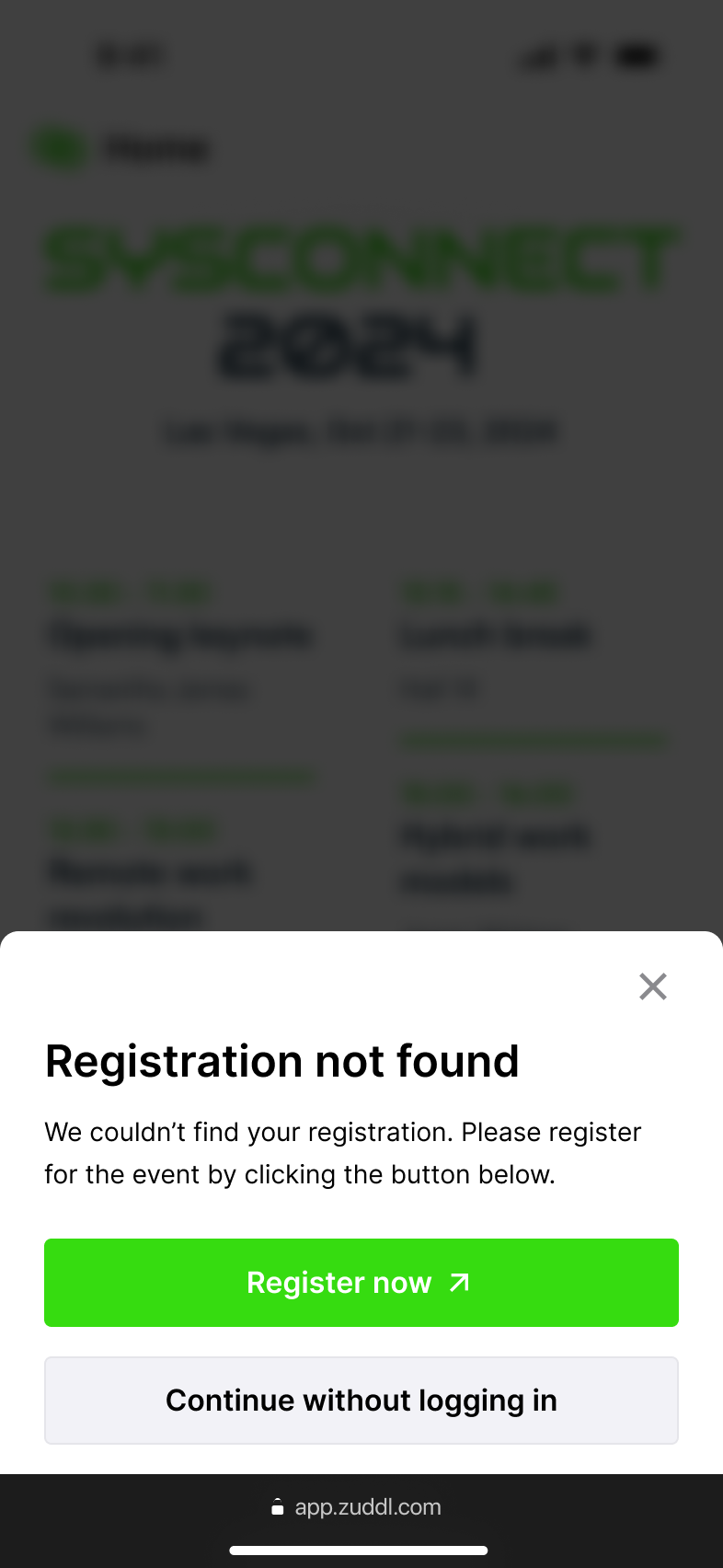
Clicking on Register now, redirects to the registration page. Once the registration is complete, they are redirected to the event listing page.
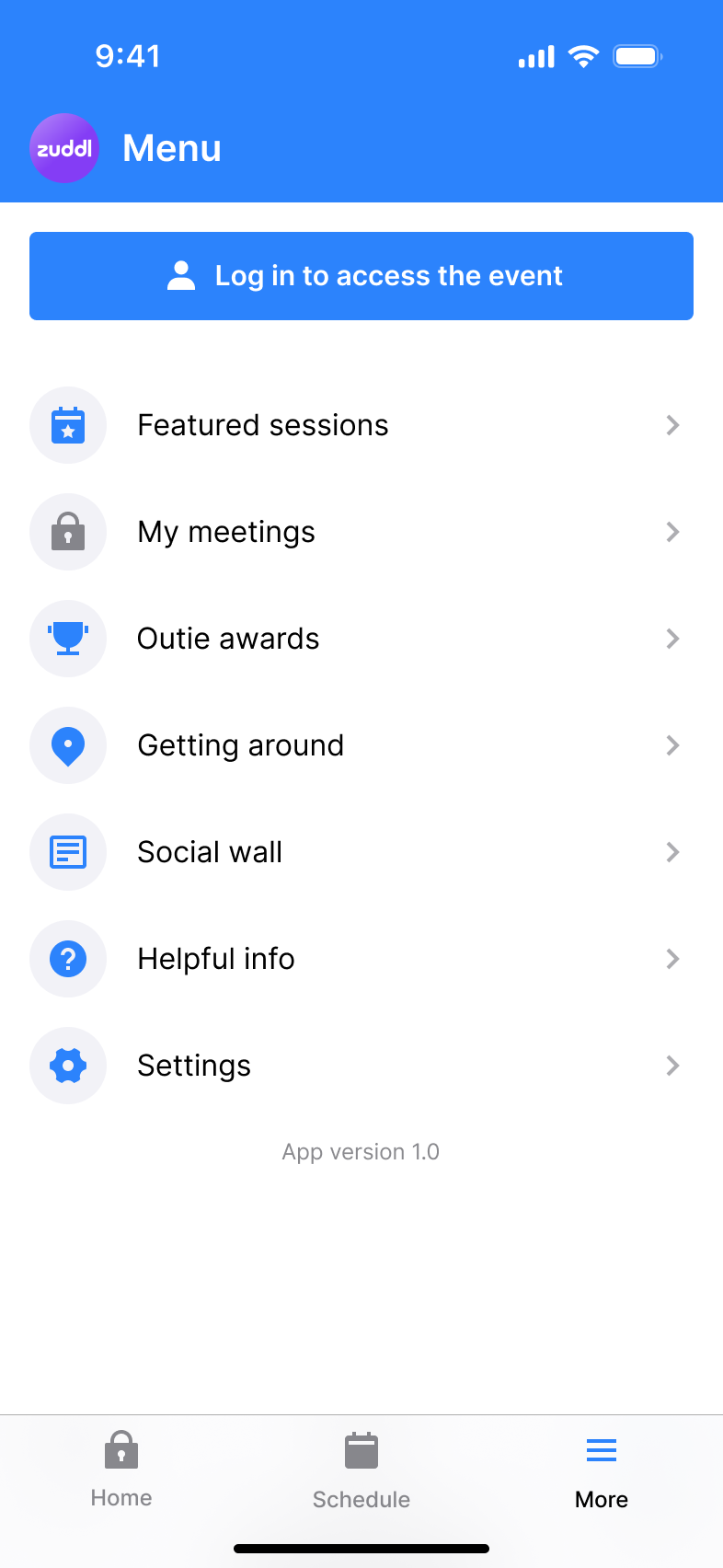
On the Menu, a padlock icon is displayed for the items that require login or registration.
On the Mobile web
The behaviour of the pages is the same on mobile app and mobile web as well.
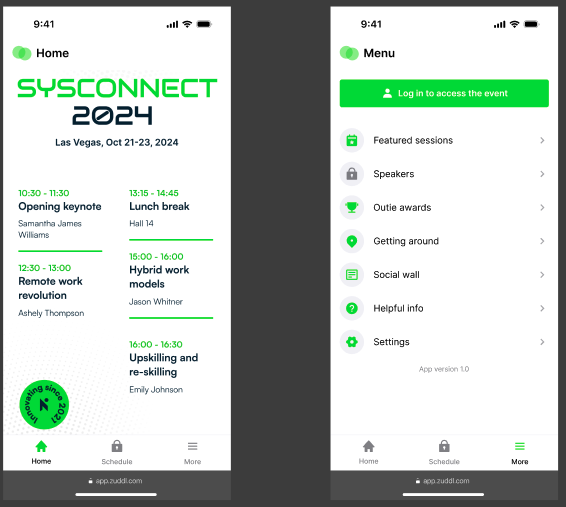
The locked components appear with a padlock icon until you login/register.
Login flow
1. When a user tries to log in
a. If the email ID is not part of the Zuddl system:
The user has never registered for any event on Zuddl.
Because their email address isn’t in our database, we cannot send an OTP for login.
The user must first register for an event (any Zuddl-hosted event) to be added to the database.
Once registered, they can log in using the same email ID.
b. If the email ID exists in the Zuddl system
The user has registered for at least one Zuddl event (not necessarily the one they’re currently trying to open).
An OTP will be sent to their email.
They can log in successfully to the app.
After logging in successfully, they will see all events linked to the public app, including those they have registered for and those they haven’t.
To gain full access to a specific event, the user must complete the registration for that event.
2. After login – event access
Once logged in, what the user can see depends on whether they’re registered for the specific event they’re trying to view.
Registration status | What they can see |
Registered for the event | Full access to all event pages and features |
Not registered for the event | Limited access – can only see public pages. |
Not registered to any event in Zuddl (no login allowed) | Will not receive OTP and cannot log in |
Registered for some events | Login is allowed. On the Event List screen, a banner is shown at the top: “You are not registered for some events yet.” Users can still access events they’re registered for fully, and public pages of unregistered events in preview mode. |
If they try to open private or locked pages for an event they haven’t registered for, they’ll see a message asking them to register to access the full event.