How to Create a Poll for a Hybrid Session in Zuddl
Last updated: August 1, 2025
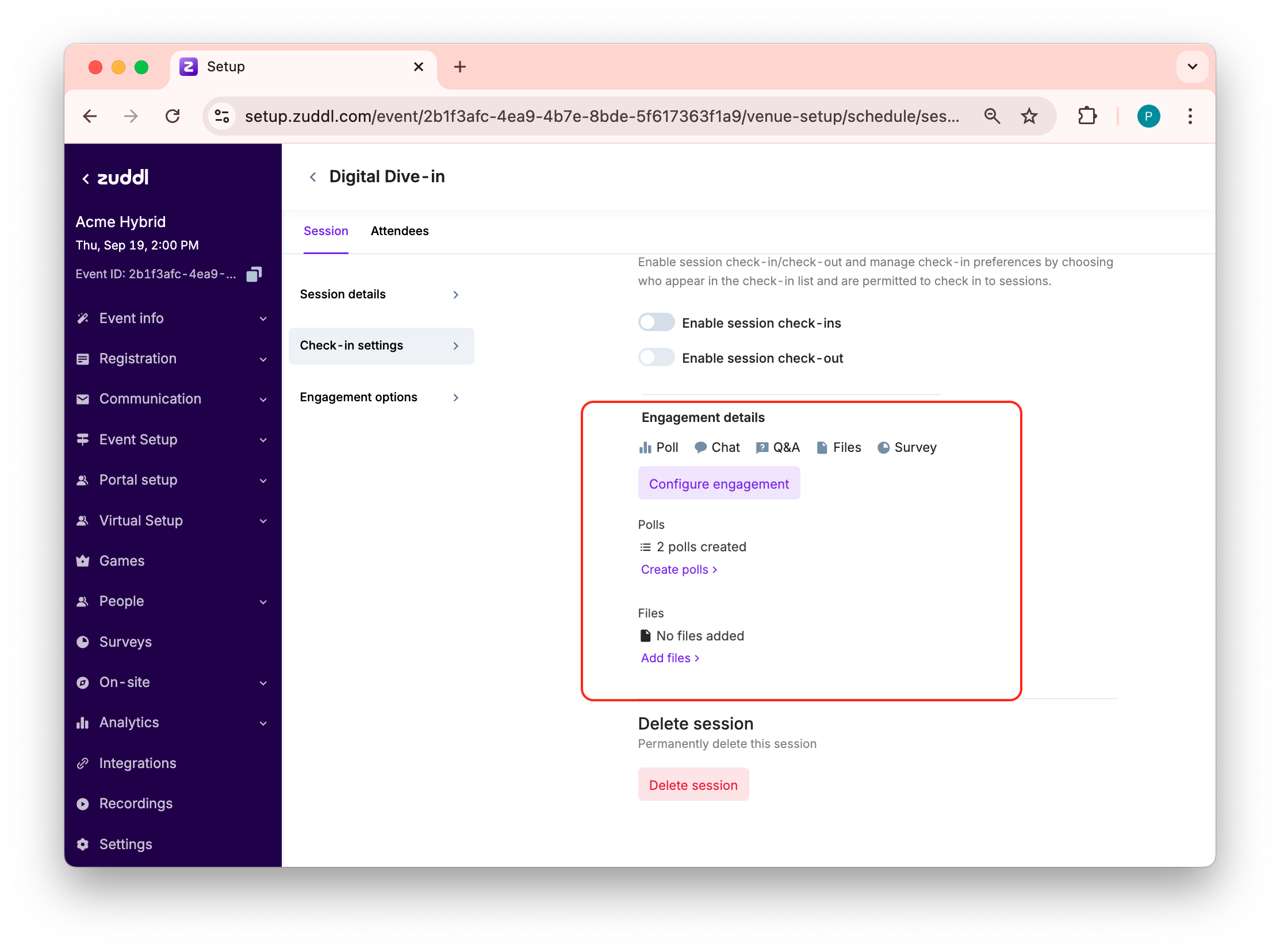
After you've created a session, go to engagement settings and click the Configure engagement button.
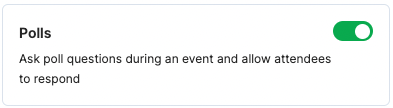
Toggle on Polls from inside the card. Defaults to on.
- Click Save.
Creating a Poll
To create a poll:
- Click create poll link under Polls.
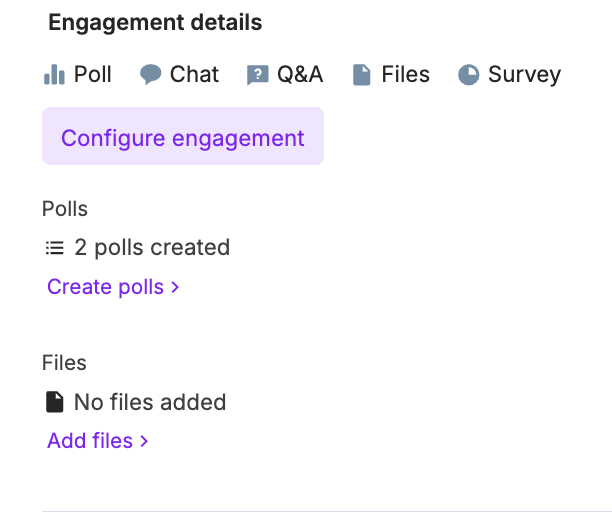
- Click +Create poll button.
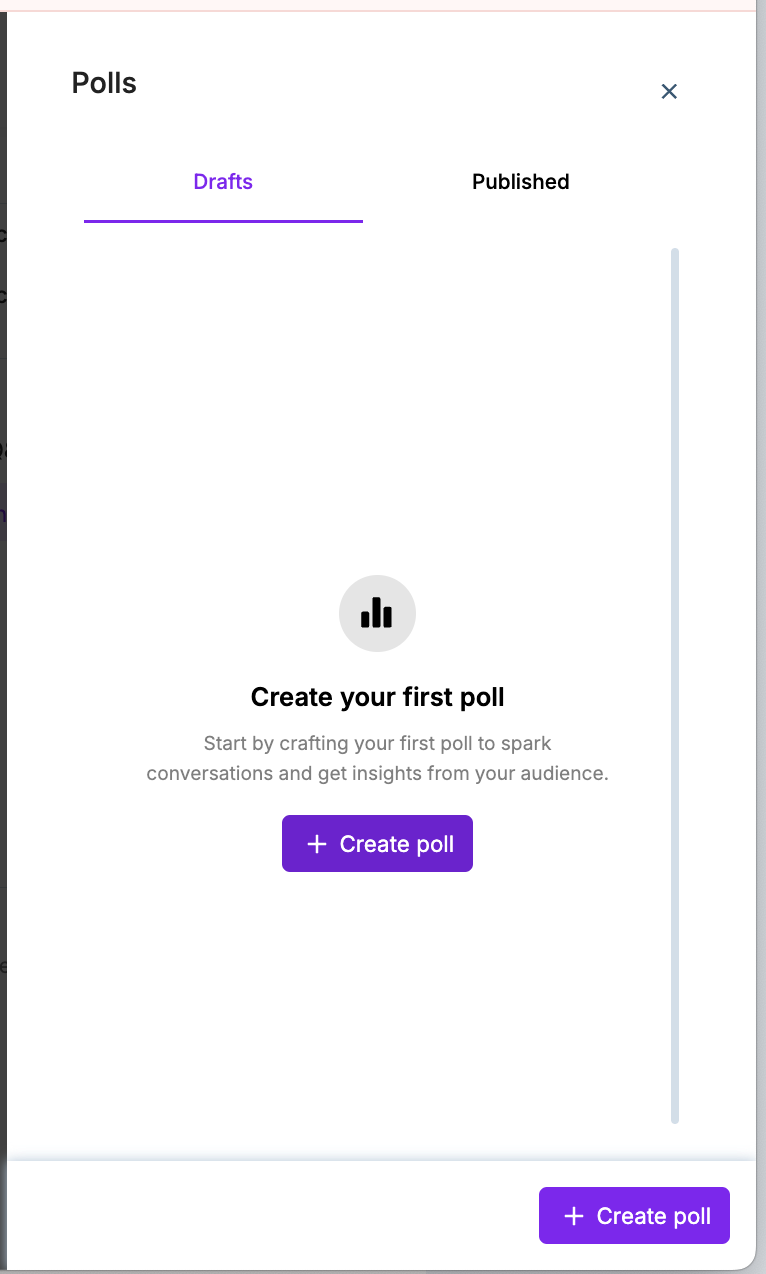
- On the new poll creation form,
- Toggle on Quiz poll if you wish to display the correct answer after poll ends. Toggle it off if you wish to just get the attendee response.
- Enter a poll question
- Enter options and click + Add option button to add more options.
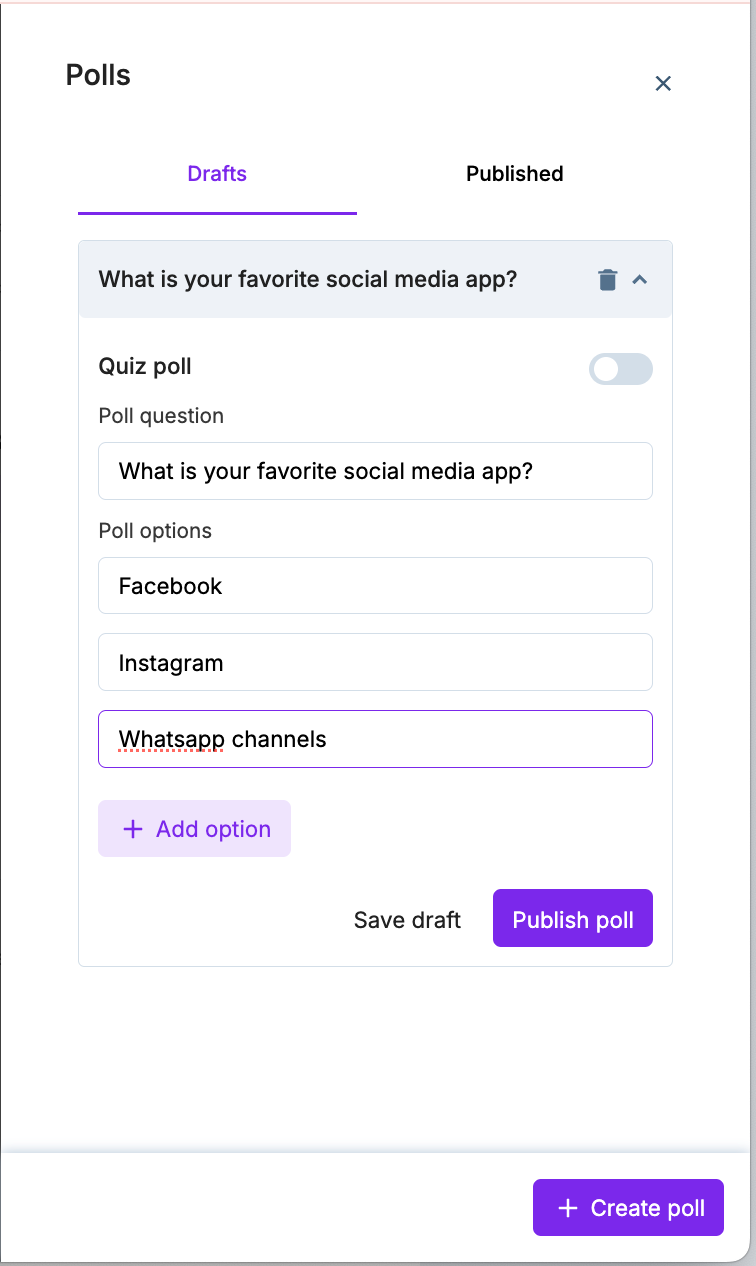
- Click Save draft to publish later or Publish poll to publish the poll to the session immediately.
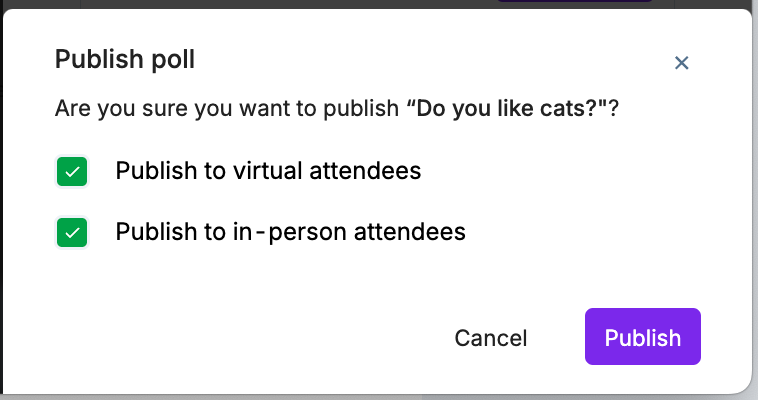
If merge engagement settings for hybrid session is toggled on for polls, the published poll appears to both virtual and hybrid attendees. If toggled off, a prompt message shows the following options. Select the required options and click Publish.
In-event settings
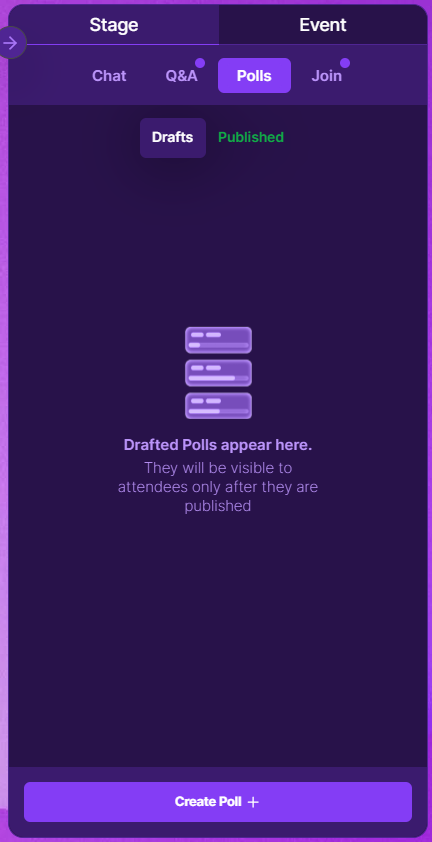
Once the Poll feature is enabled, you can start creating polls. To create a poll during a session,
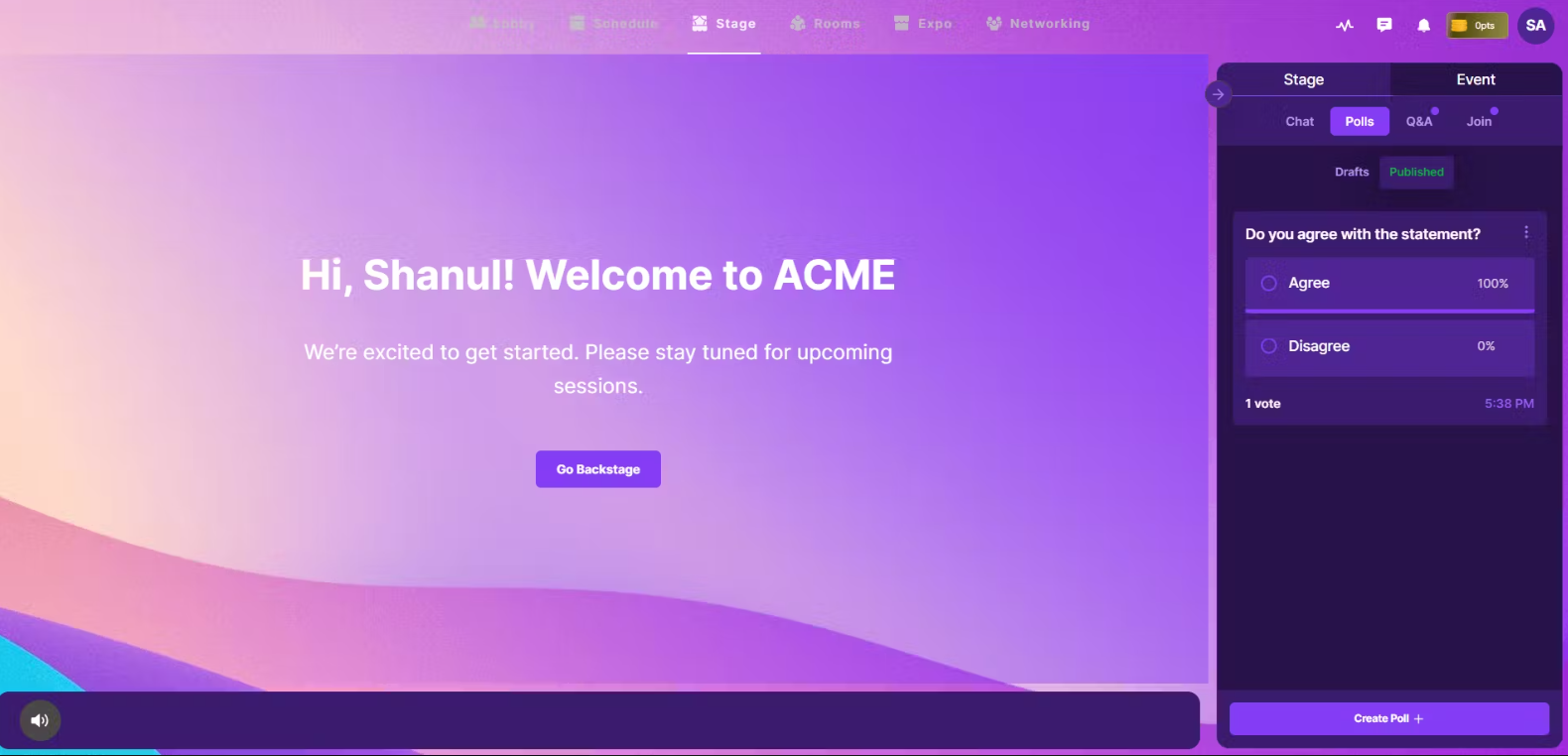
On the backstage, click the Poll widget on the right.
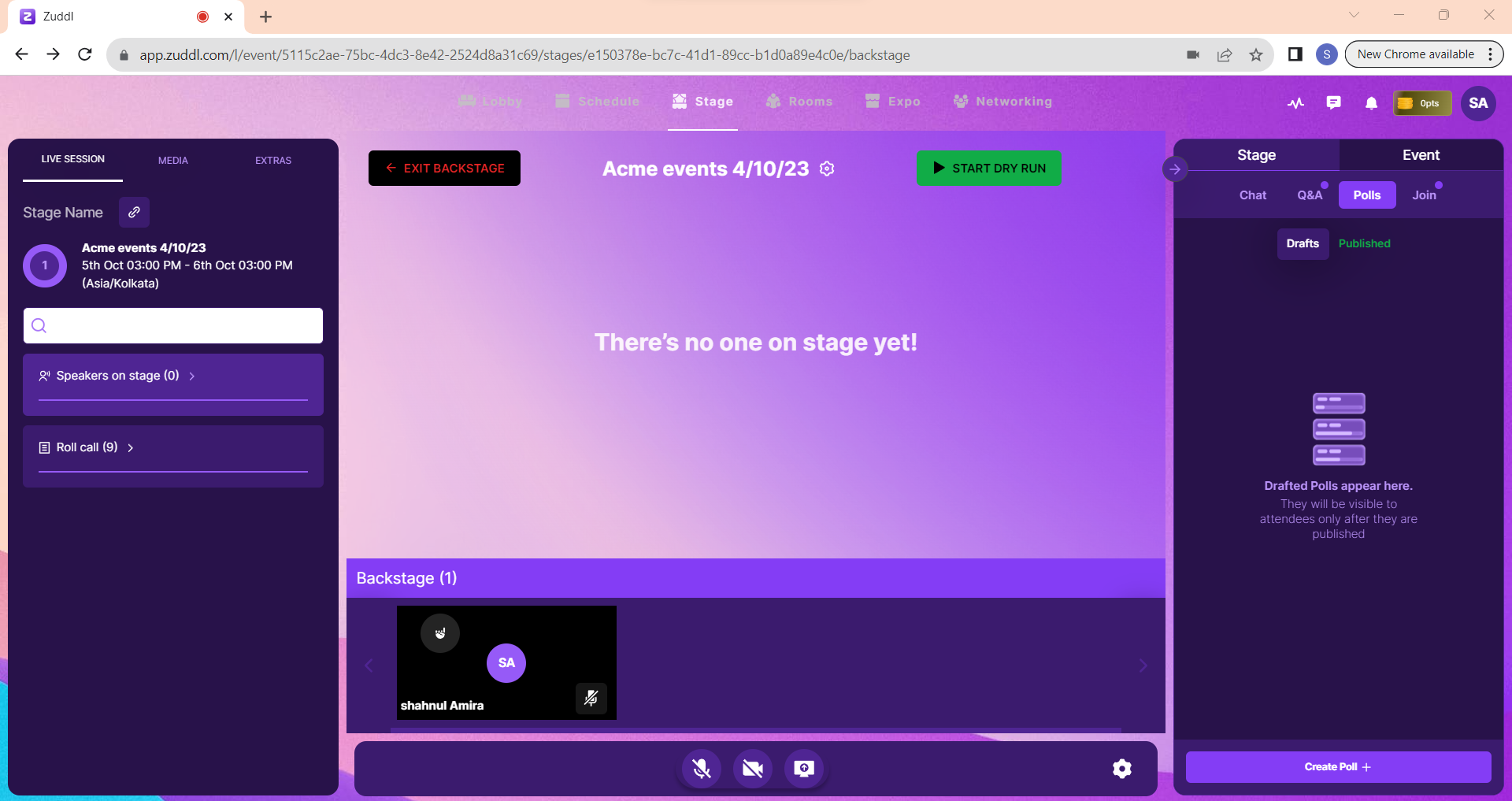
Poll option in live event On the Poll pane, click Create Poll +.
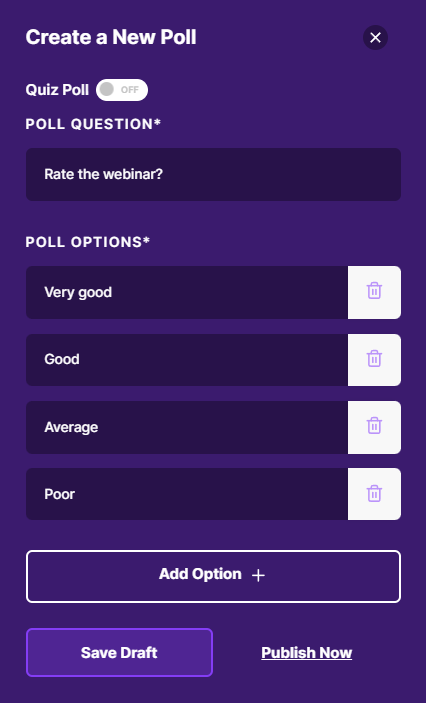
- On the Create a New Poll form
- Turn on/off Quiz Poll toggle. For a quiz poll, select a correct poll option as the Correct Answer from the list of options. Quiz polls are used to launch quizzes. The default is off.
- Enter the Poll Question. Supports a maximum of 100 characters.
- Enter Poll Options. You can add a maximum of 5 options.
- Select the Publish option. There are two options for publishing the polls:
- Publish Now: you could publish the poll at the same time you create it
Save Draft: save the poll settings and publish at a later time.
Based on the answers to the Quiz poll, you can see the option percentage and number of votes.
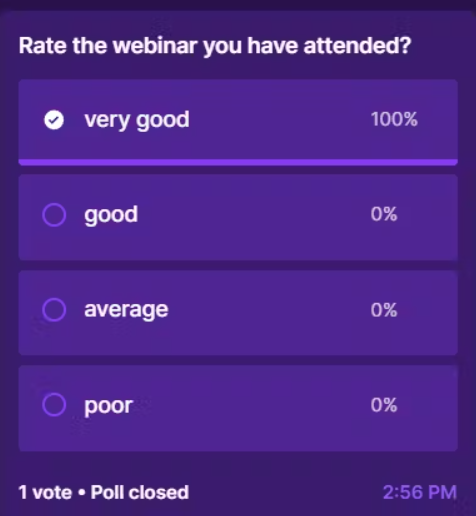
The attendee can also see the percentage per option on their respective UI’s.