How to Duplicate an Event with Marketo Integration Settings
Last updated: November 12, 2026
Supported event types
Duplication with Marketo integration settings is currently only available for field events and webinars.
To duplicate event with Marketo settings:
Click the more options button on the event listing.
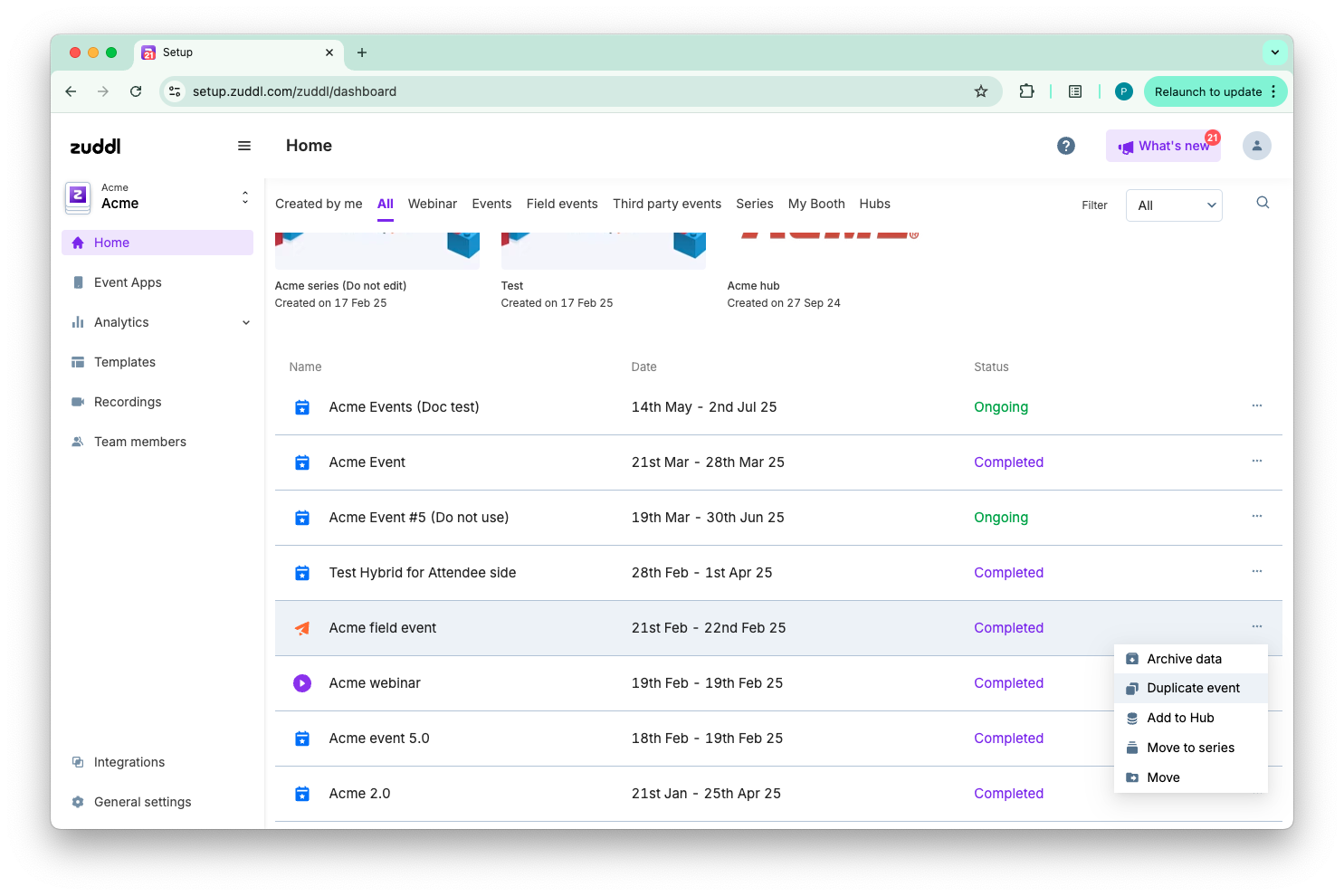
Click Duplicate event.
This opens a new event settings page with original event values. You can edit the Event name, Starts on date, and Timezone.
If the Marketo integration is enabled for your org, then under Event configuration, under Marketo program setup for duplicated events, choose how a Marketo program should be created for the duplicated event. You must select one of the three options below before you can duplicate the event:
Select Use an org-level base program: Allows you to select one of the base programs that you have setup at org-level integration to create a new program for the duplicated event. By default the base program of the parent event will be selected.
If no base program is used for the original event, then this option will be selected but you need to select a base program from the dropdown.
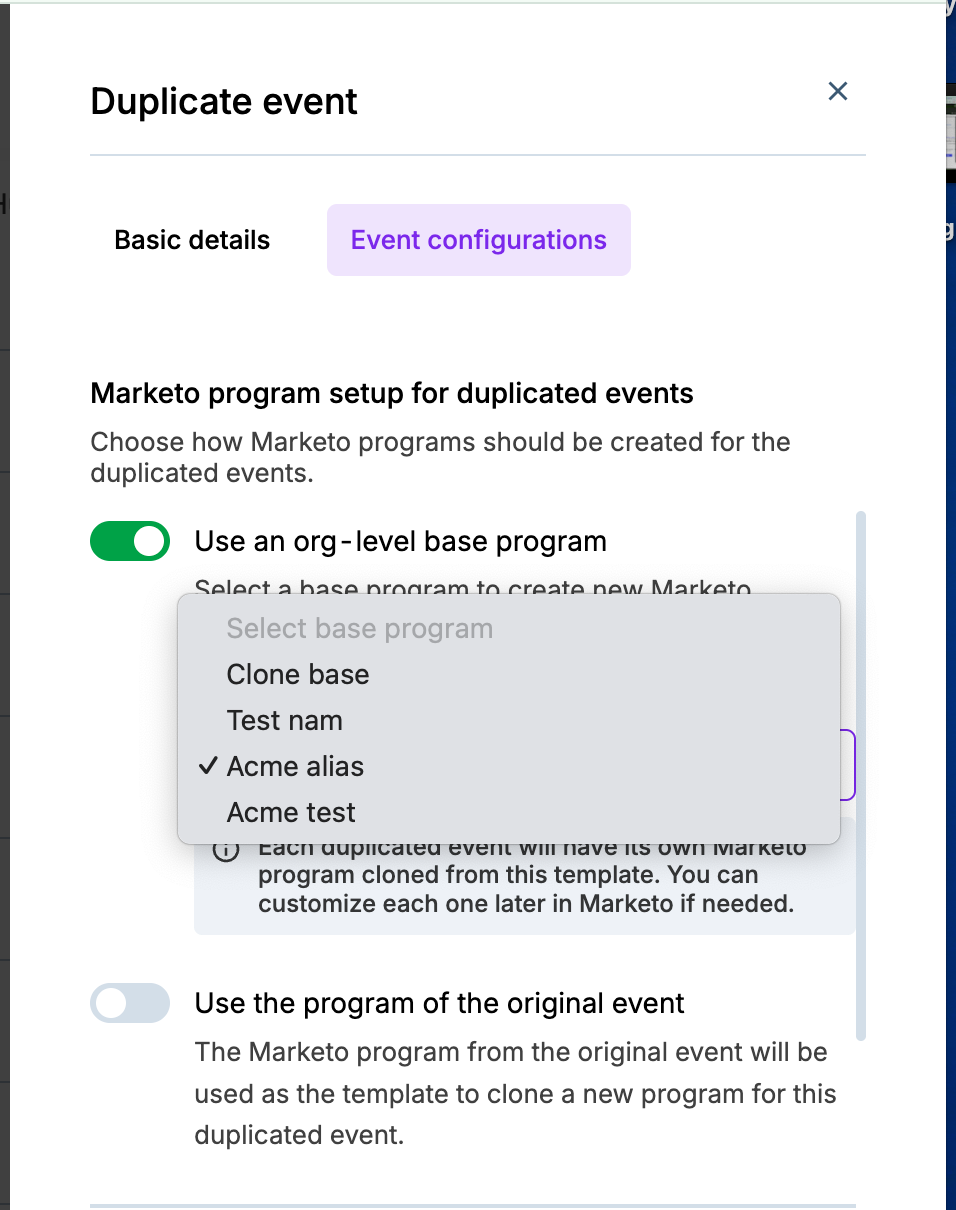
This will be unselected if there is no base program at the org-level integration
Select Use the program of the original event: The Marketo program from the original (parent) event is used as the base program to create a new program for the duplicated event. This will be selected by default if no base program setup at the org-level integration.
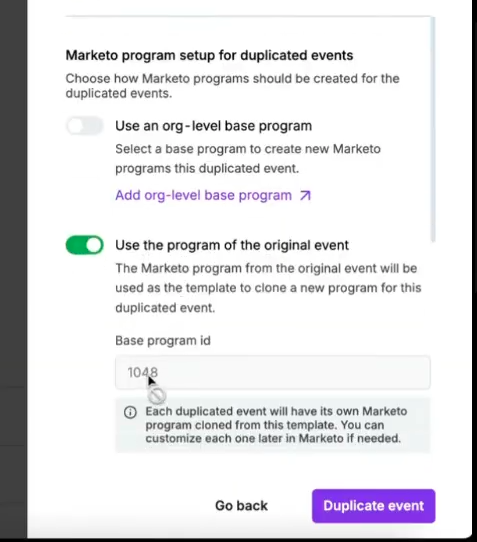
Select Skip Marketo program creation: No Marketo program is created for the duplicated event, and the Marketo integration is disabled on the duplicated event. Use this when you don't want the copy to create a program in Marketo, for example for test events, templates, or internal dry runs.
Other integrations on the event, such as Salesforce and HubSpot, are still duplicated as usual.