How to Duplicate a Webinar in Zuddl
Last updated: November 19, 2025
Webinars on Zuddl can be duplicated — you can have a nearly identical replica to edit and use as a new webinar.
Duplicated webinars have most of the setup intact from the original, and you can edit them like regular webinars.
Duplicated webinars are automatically scheduled 48 hours after the time of duplication.
Duplication can be helpful for cases where you want to create a new webinar by editing an older one or if you want to re-use a canceled webinar.
Changes in the duplicated webinar
Some settings cannot be copied and need to be applied again in the duplicated webinar. Here are these settings:
List of changes
Settings | Status | Instructions |
Integrations | Copied | Salesforce integration (export & import) requires re-enabling, Hubspot integration (import) needs manual enabling, Marketo integration (import) requires ensuring "EventID" tag is used in the webhook URL. |
Registration page | Copied | Webinar registration pages are copied |
Custom fields in the Registration Form | Copied | Custom fields in the form are copied. |
Attendees and Speakers | Not copied | All attendees and speakers need to be invited again. |
Communication | Copied | All emails are copied but are toggled off by default. |
Duplicating a webinar
To duplicate a webinar:
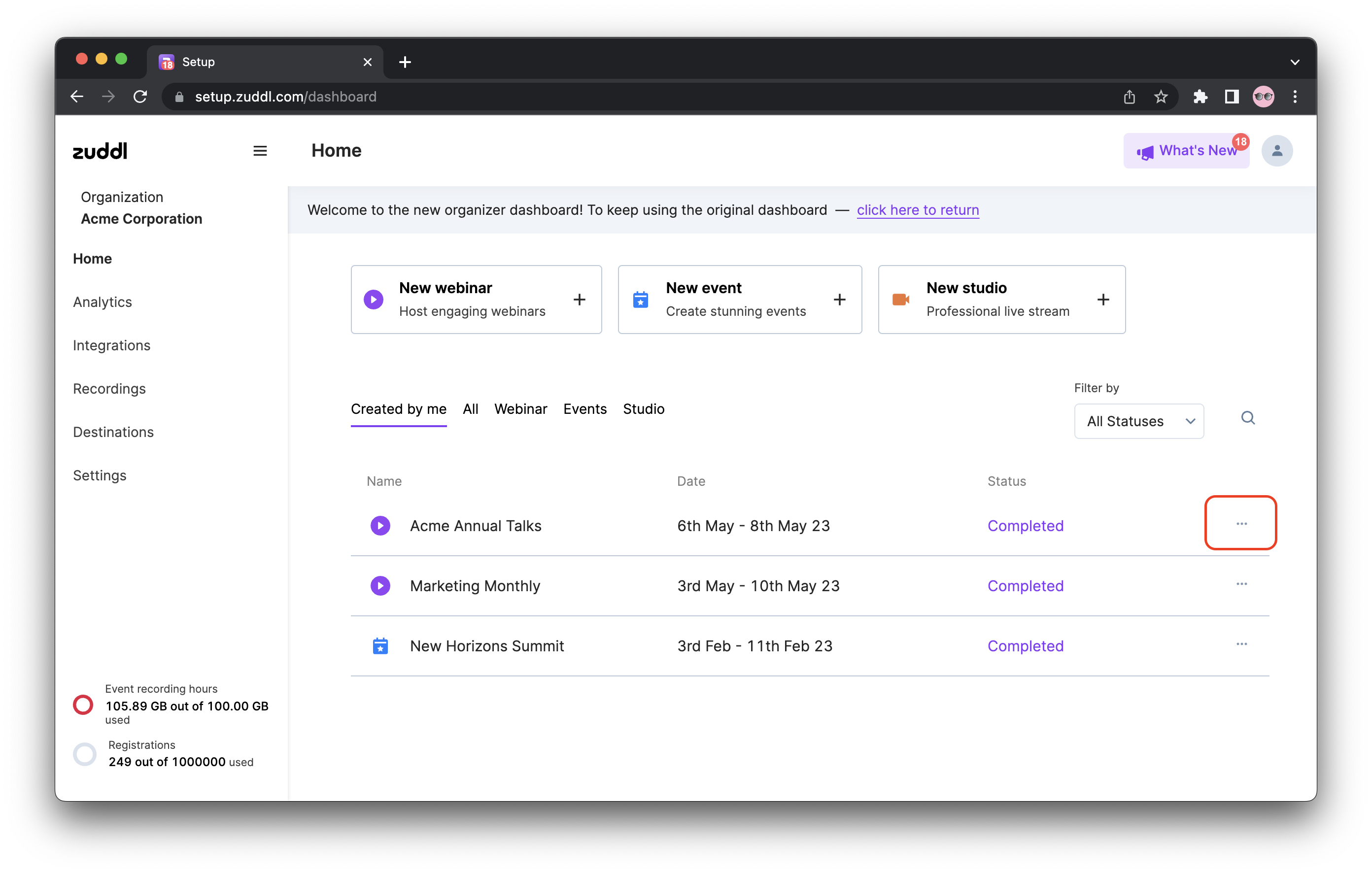
Click the options button on the webinar listing.
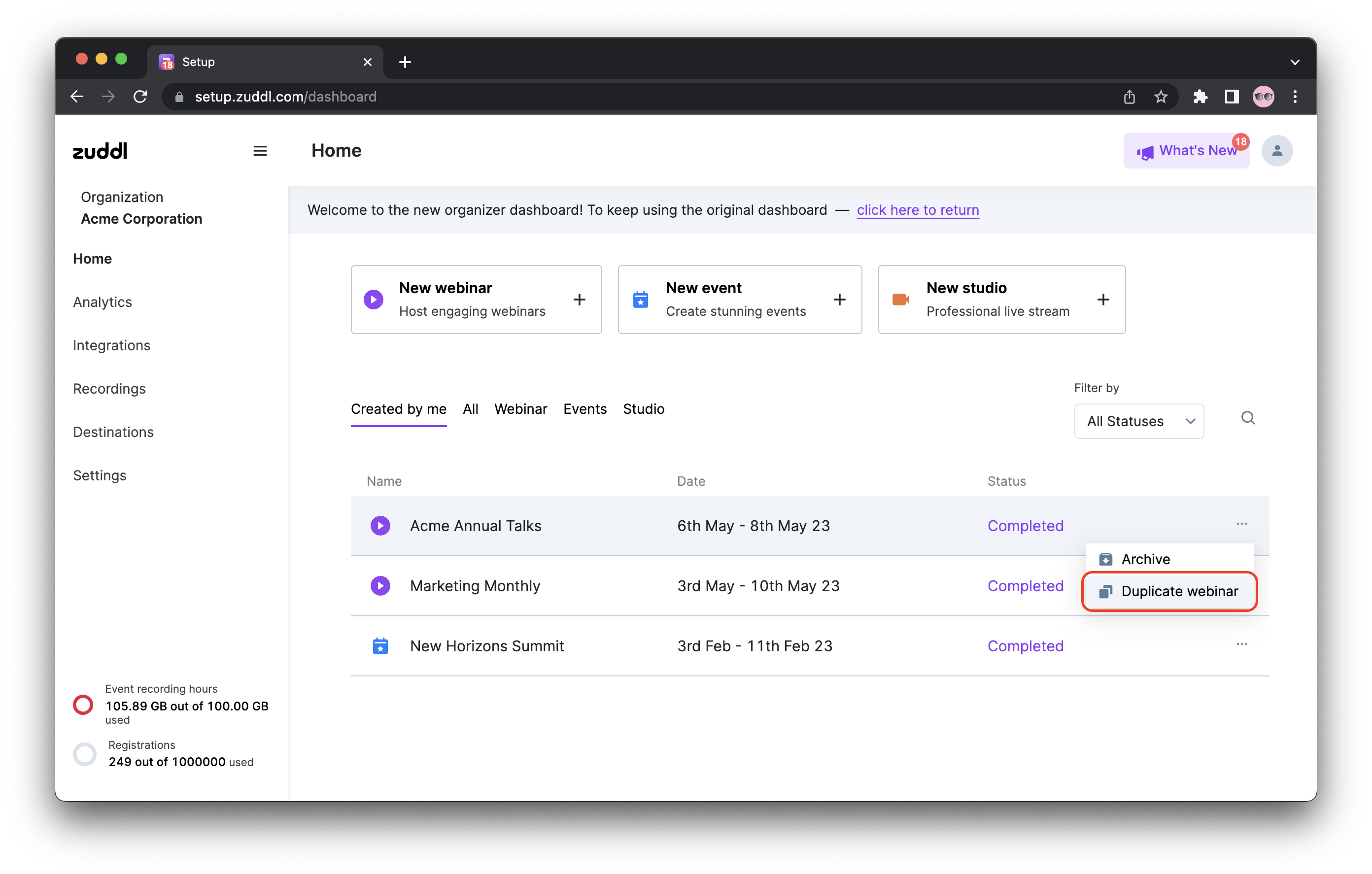
Click Duplicate webinar.
On the Duplicate webinar screen, enter the basic details:
Webinar name: The name of the webinar. By default the original webinar name is pre-filled with a suffix '(Copied)'.
Webinar description: enter a new description for the webinar
Starts on: Specify a start time.
Ends on: Specify an end time.
Timezone: Enter a timezone for the webinar. The attendees will see this timezone during registration.
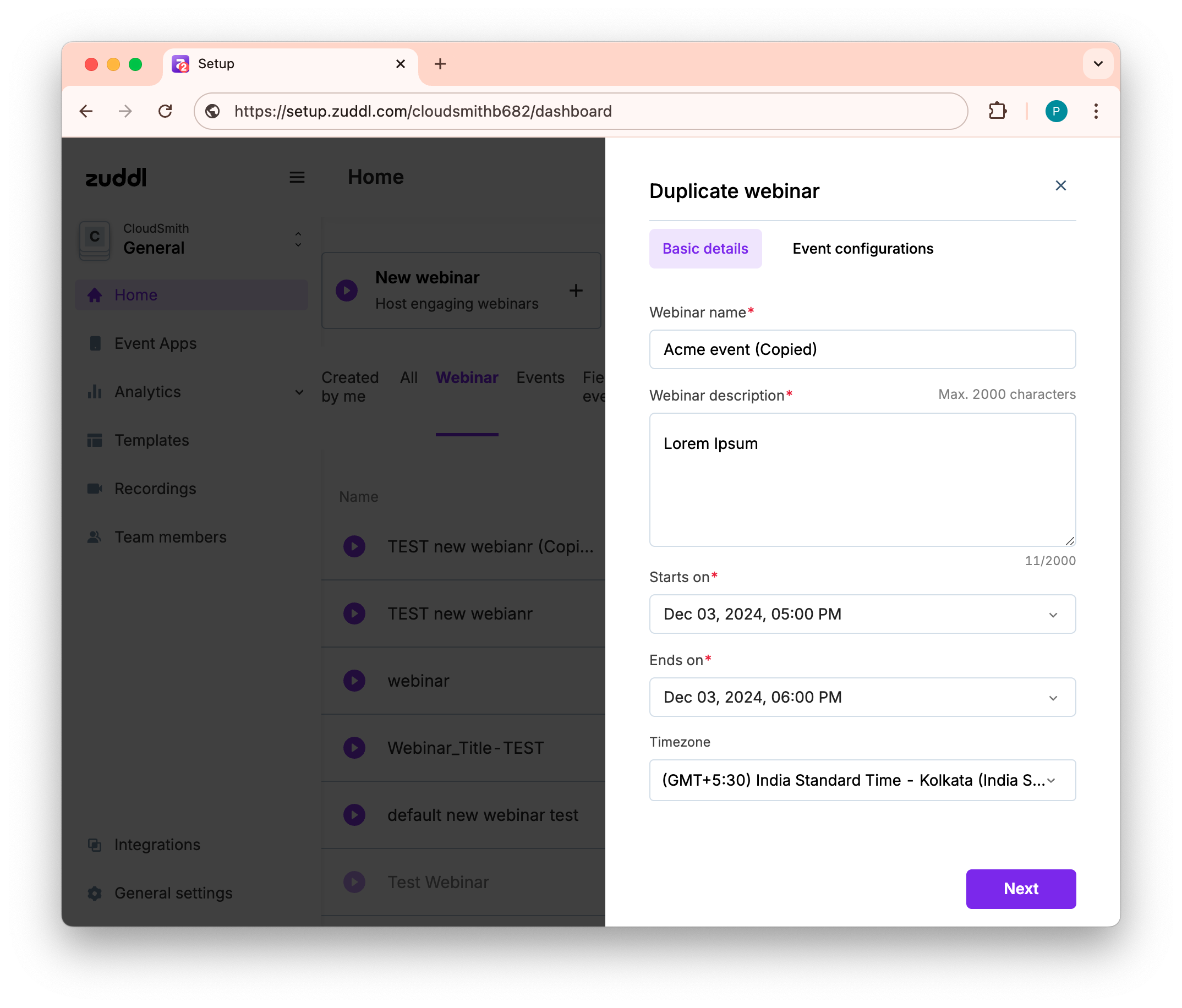
Click Next.
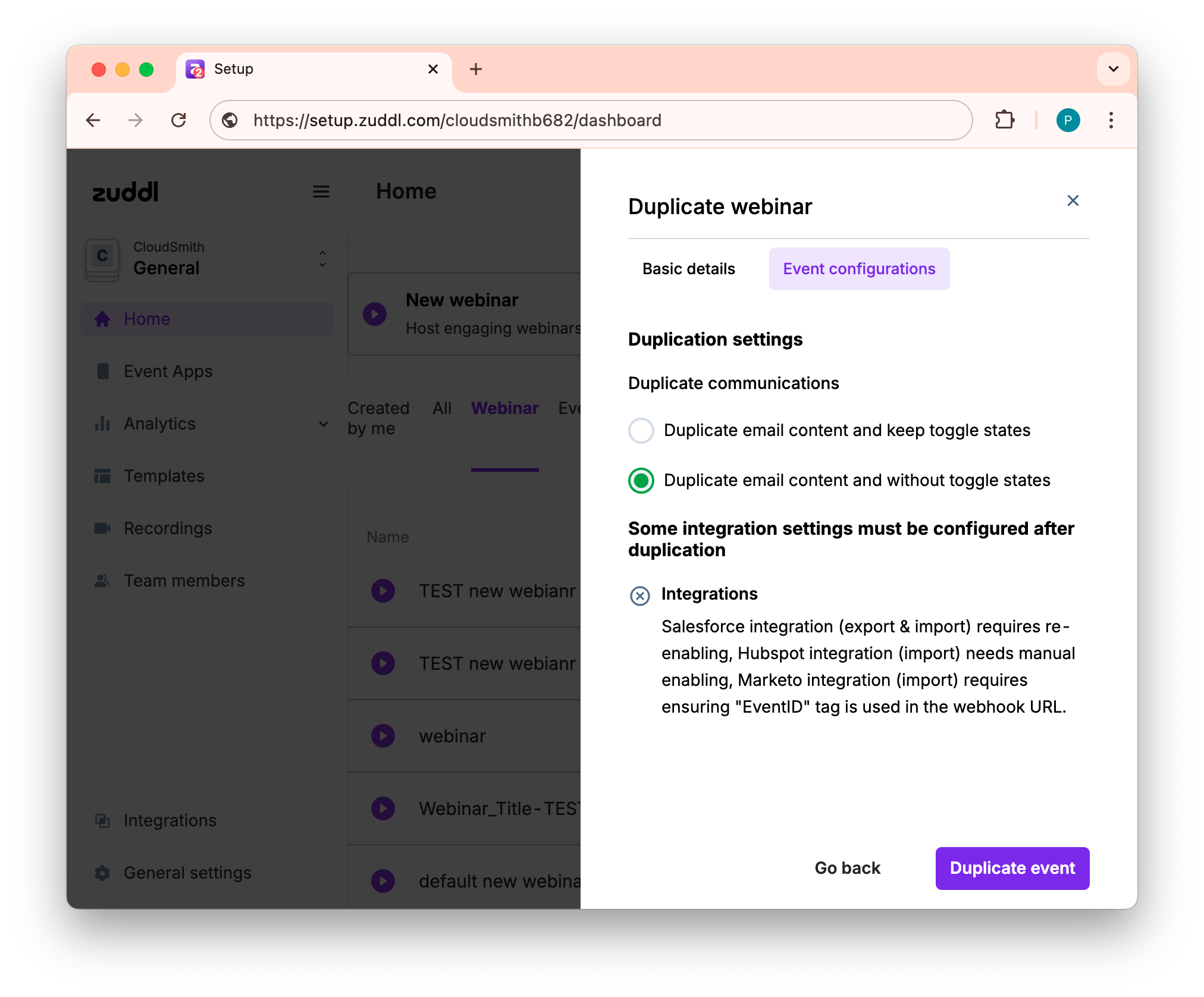
On the Event configuration tab, choose the duplication settings
Duplicate email content and keep toggle states: The email content will be duplicated and the toggle states are also turned on as it was on the original webinar.
Duplicate email content without toggle states: The email content will be duplicated but all toggles are turned off and are not kept as it was on the original webinar.
Refer the integration settings that must be configured after duplication
The duplicated webinar is now added to the listing page.
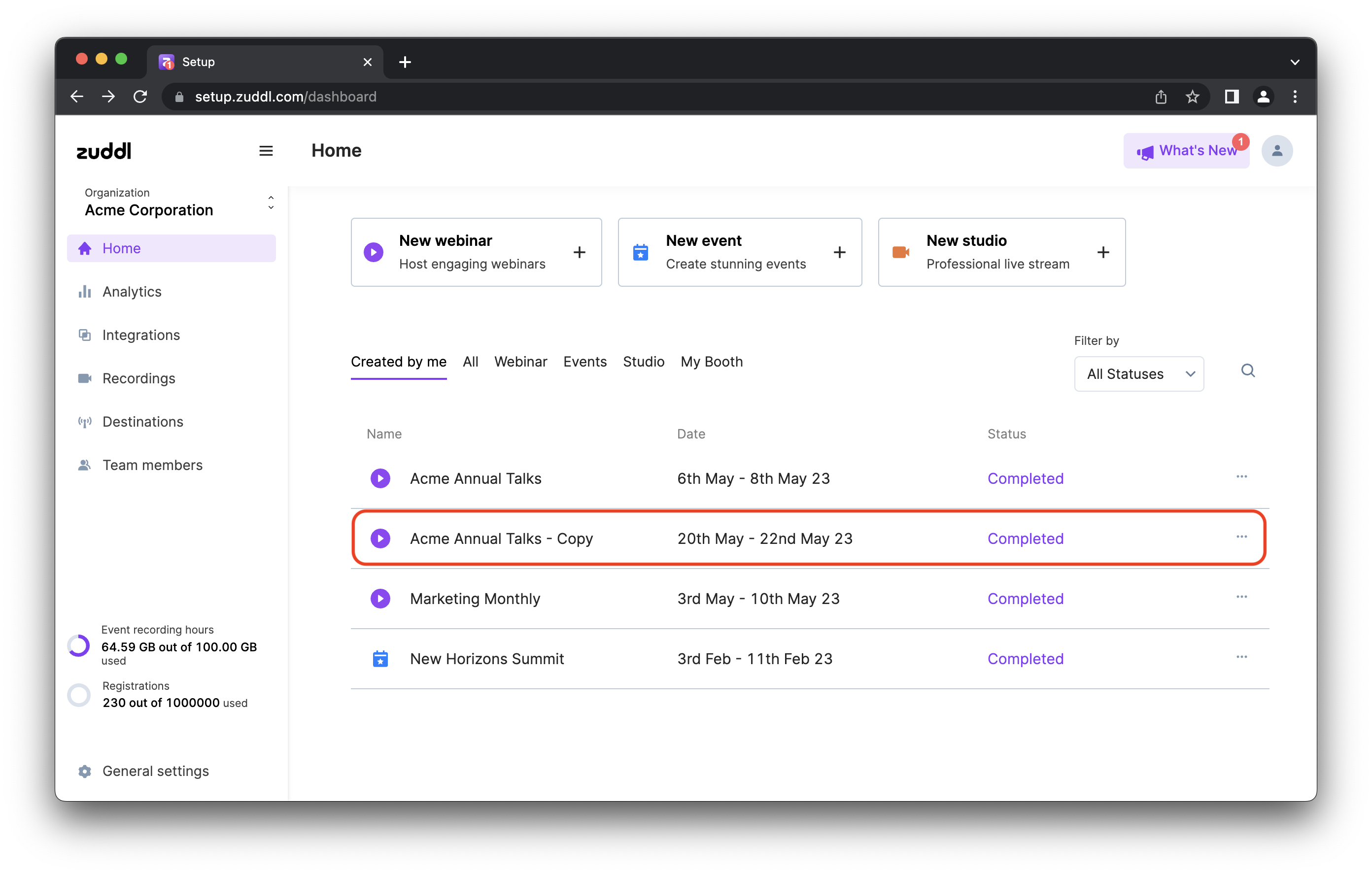
Duplicated webinar are shown on the list. You can now edit the duplicated webinar and host it like a regular webinar.