How to Build a Registration Page for a Zuddl Event
Last updated: August 1, 2025
It is essential to have a well-designed landing page for your event to promote it to your audience and eventually increase website conversion. With the landing page builder, you can quickly create your landing page for registration without coding or manually designing it.
This guide walks you through the steps to create a landing page for your event. While the landing page builder can be used by anyone, folks with web designing experience can use this feature.
Steps:
To create a custom landing page,
- On your Zuddl organizer dashboard, go to Registration.
- Click on Create New Page. This displays a list of predefined templates. There are seven new templates and two legacy templates (Basic and Sponsor). You can also choose to start from scratch using a blank template. Each template has a specific style or theme. However, you can fully customize any template.
To get started, hover over any template you think would suit your website and click Use template. This takes you to the editor page.
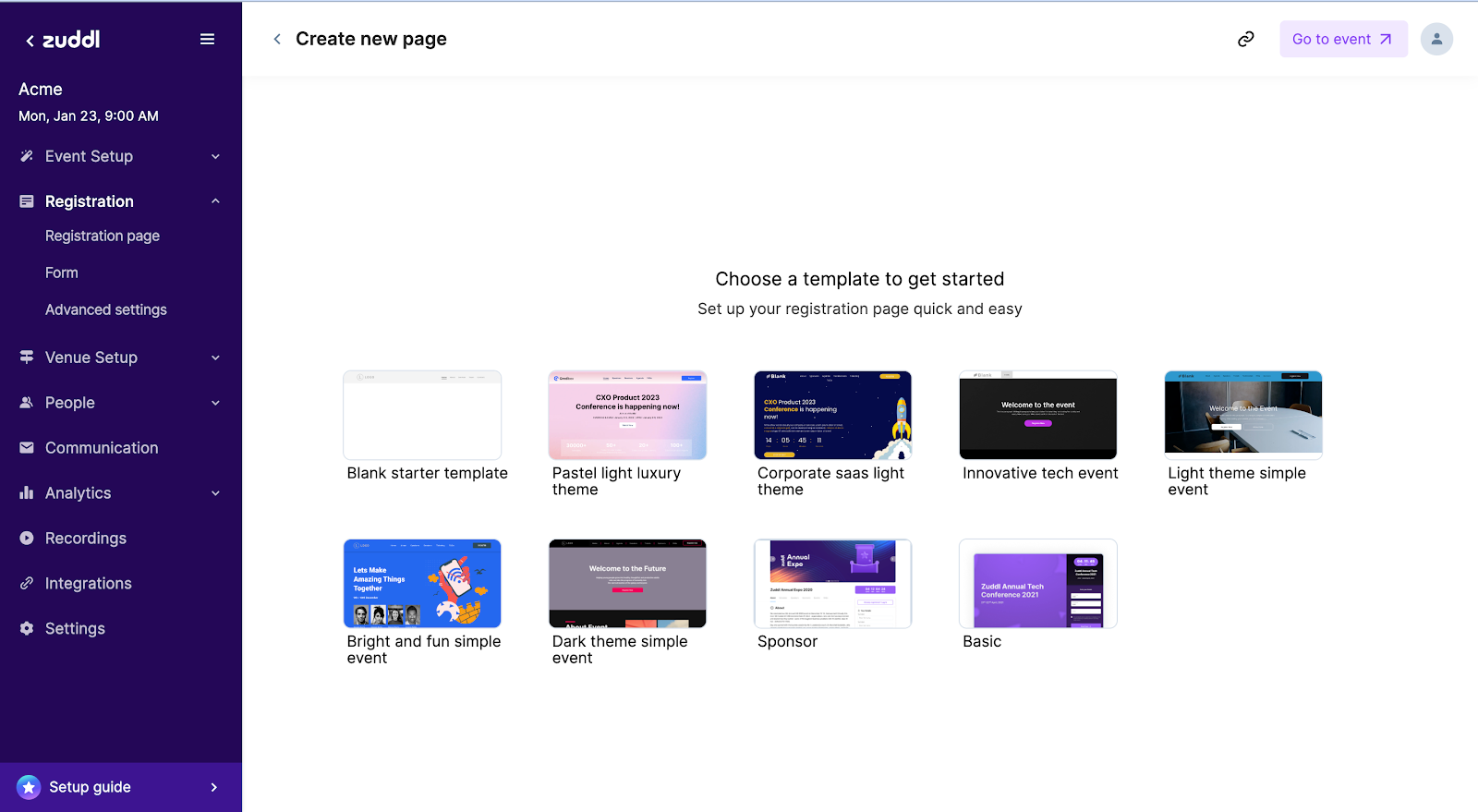
All templates except Basic and Sponsor take you to the new editor page. The Basic and Sponsor templates redirect the user to the old editor.
Editor overview
Getting acquainted with the editor layout is essential so you can quickly design your landing page. The table below enlists all the functions in the editor which you can quickly see.
| Location | Function | Description |
| Topbar | Page switcher | Jump to the different pages of your site |
| Topbar | Device Layout options | Desktop, Tablet, or Mobile |
| Topbar | Undo and Redo | |
| Topbar | Preview | Open a preview of your landing page |
| Topbar | Publish/Republish | Publish or republish your site after you've made the changes. |
| Topbar | Home button | This redirects you back to the Zuddl Registration page |
| Topbar | Info section | Show the landing page URL and the status |
| Sidebar | Global design | Customize the design of your landing page |
| Sidebar | Pages | Add, move, or reorder pages |
| Sidebar | Widgets | Drag and drop widgets into your landing page |
| Sidebar | SEO & Settings | SEO and general site settings |
In the middle, you have the content editor. You can edit everything that you see here. You drag and drop the widgets or click on them to view the editing options.
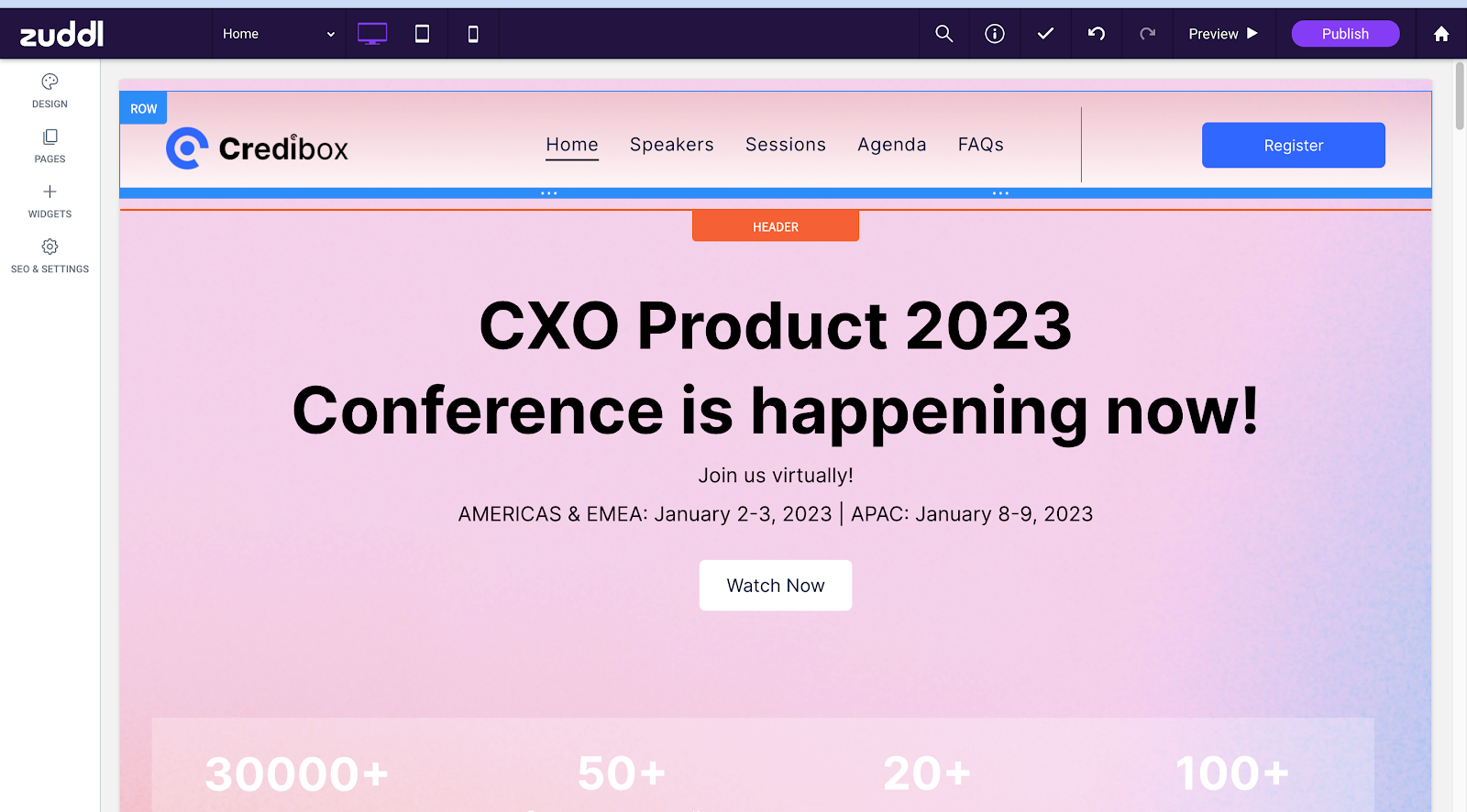
Edit page contents
It is essential to build your page that is responsive to all devices. Regardless of the template, your page is arranged into grids of rows and columns, which you can move around. The changes you make on any element on the page are applied only to the specific part.
To edit any element, click on the content that shows you the context menu to take action and make changes.
- On the top-left corner of any row, you can find the row options; you can
- Move rows/columns
- Add/delete rows and columns. You can add up to 4 columns per row.
- Resize a row/column. To resize a row, click on the row/column separator between two rows/columns and drag to resize.
- Edit the design of the row/column, such as background, layout, and spacing.
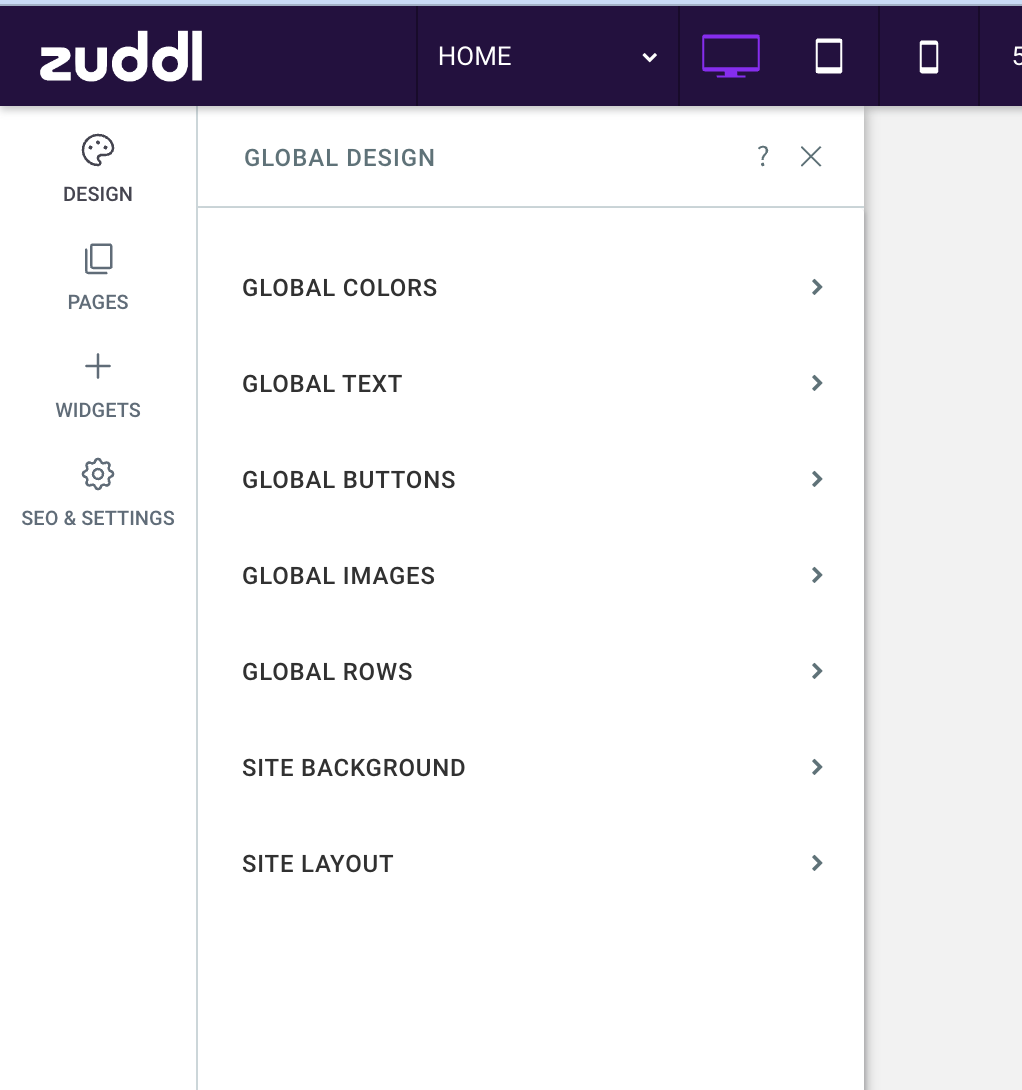
Edit global design settings.
Using the global settings, you can make design changes that apply to all page elements and override the global settings made here by making edits to individual locations. You can edit the following:
- Global Text: This option allows you to change font style, color, size, format, and other settings for text, paragraphs, and up to 6 heading levels.
- Global Buttons: This option allows you to change button style, text, color, image, and other settings.
- Global Images: set the image layout and a few other settings. You can override the global settings made here by editing individual images.
- Global Rows: This option allows you to edit the default rows, columns, and background.
- Site Background: This option allows you to set the background for all pages per page. You can also set the color and image.
- Site Layout: This option allows you to set the site layout, such as Sidebar, Topbar, Mobile view, and more.
Add a page
The Pages option has two sub-options, Pages and Popups. Irrespective of the selected template, a few pages are shown by default. For a blank template, the following pages are shown:
- Home
- About
- Service
- Team
- Contact
You can edit the existing page or create a new page, as shown below:
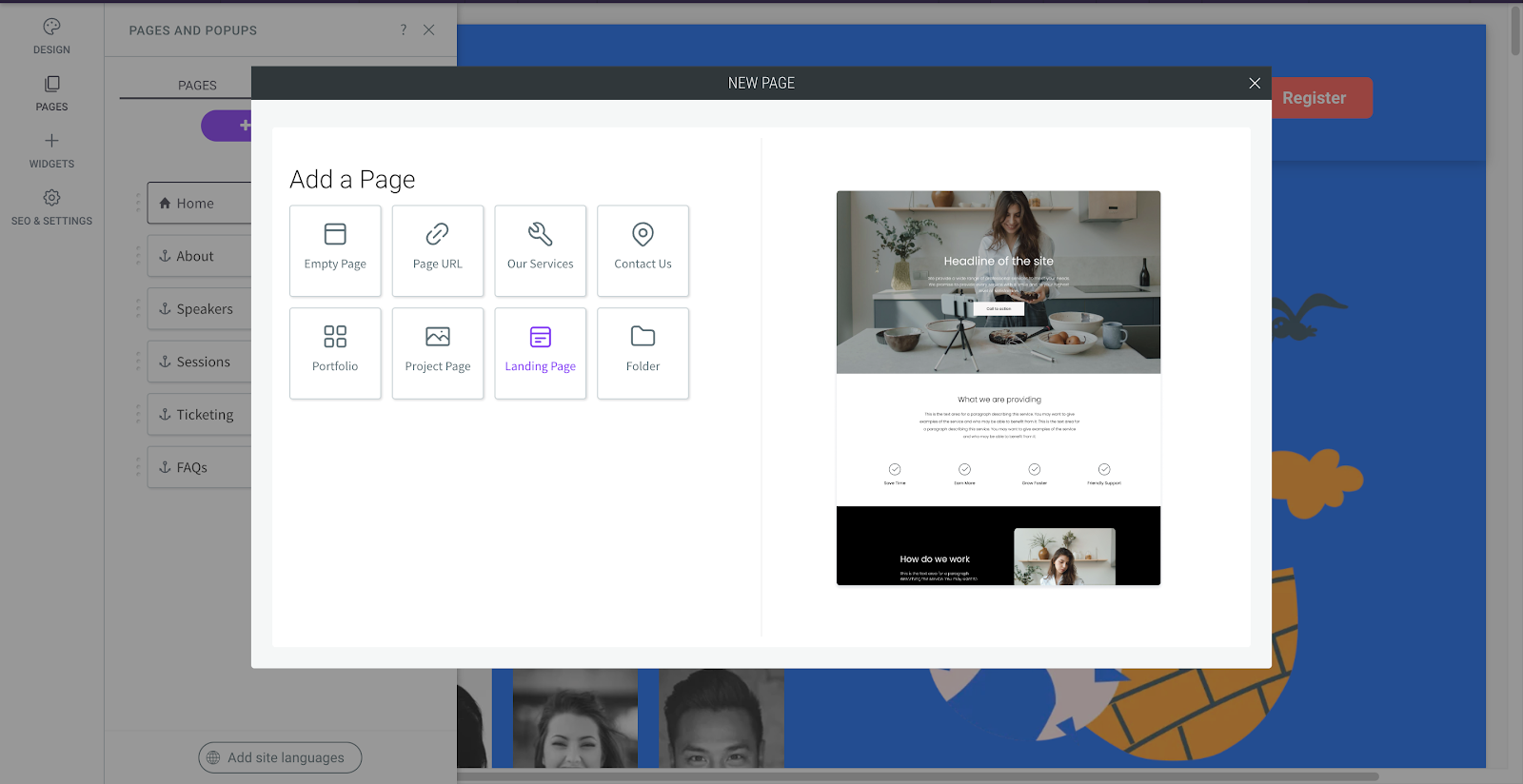
You can click on the gear icon to view the page-specific options.
Then there are Popups, which, as the name suggests, are interactive elements that pop over a page, which usually require the user to take action.
Edit widgets
Widgets are your best friend when asking users to take action, especially on an event landing page. You can drag and drop a widget into the grids. To edit a widget, click a widget to open the edit option. You can:
- Edit the widget's content, such as button text, URL, etc.
- Customize the design using background color, row spacing, and more.
- Right-click to view more options, such as copy-paste alignment, and hide the widget by device.
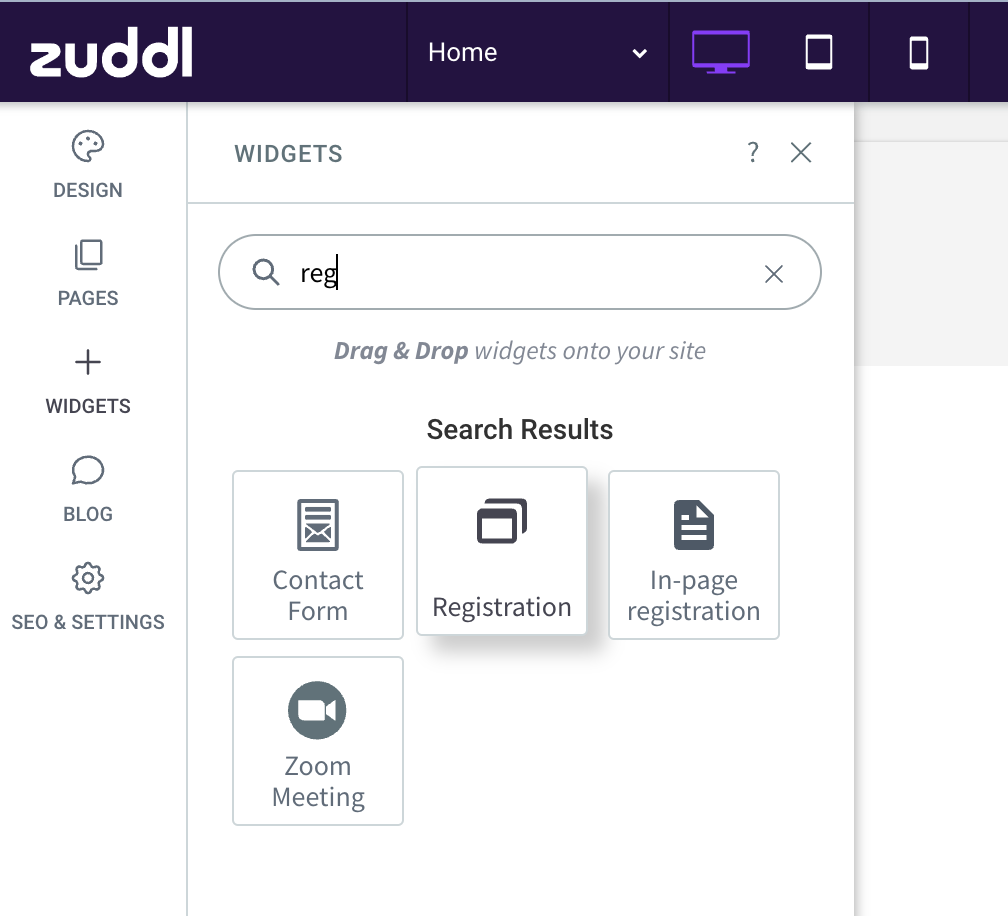
Add a registration widget.
For the landing page, the most crucial widget is the Registration widget, which you can easily find in the list of widgets as shown below:
Add a ticketing widget.
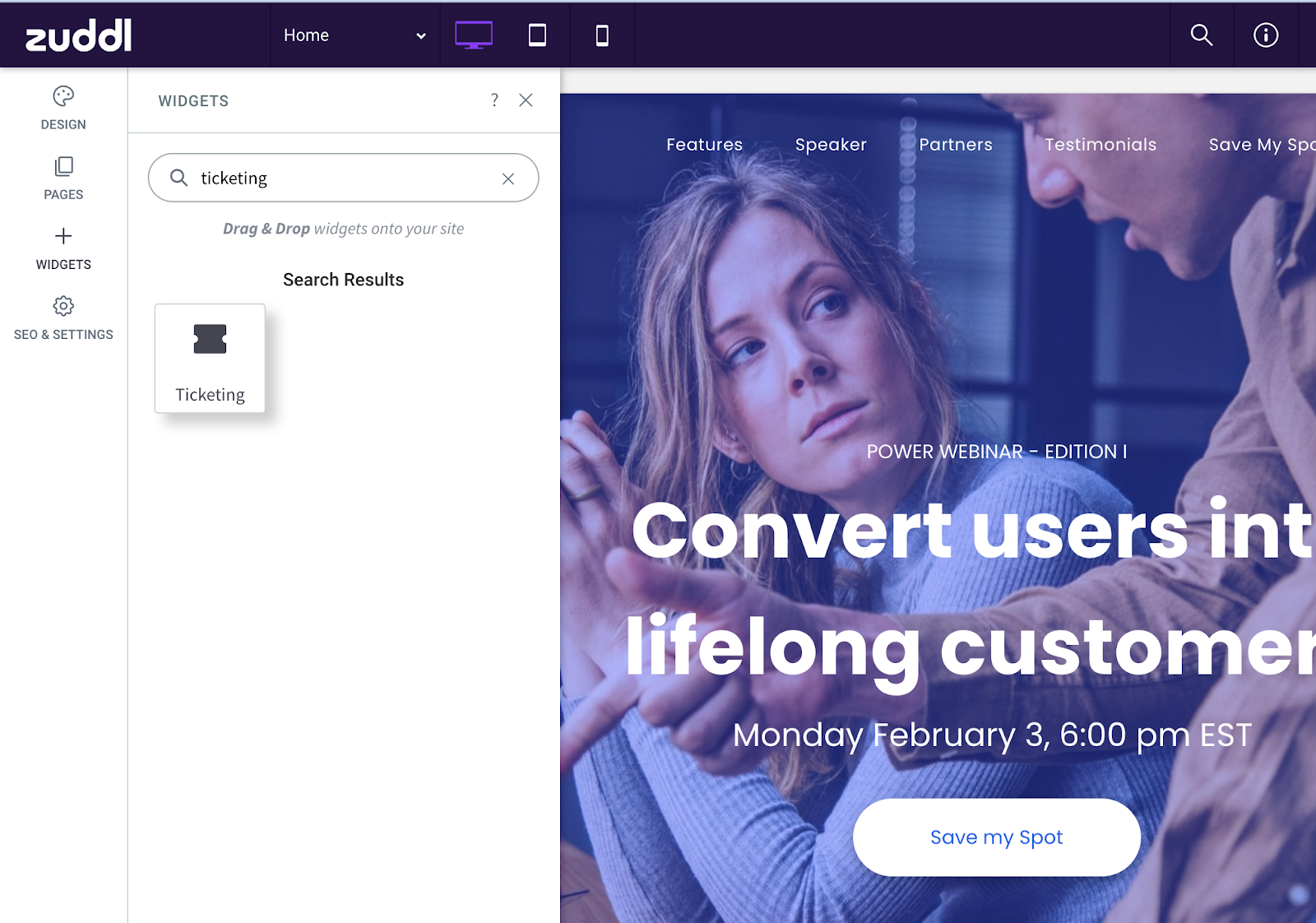
Using the editor, you can easily add a ticketing widget on your landing page through which users can initiate the ticket purchase flow. However, there are some prerequisites for adding a ticketing widget:
- The event should be a ticketed event. Learn about creating a ticketed event.
- Tickets should be created and active for your event. Learn about creating a ticket.
- The ticketing widget doesn't work on an event that has ended.
The ticketing can be easily found in the list of widgets as shown below:
On the landing page, the ticketing and registration button appears as shown below.
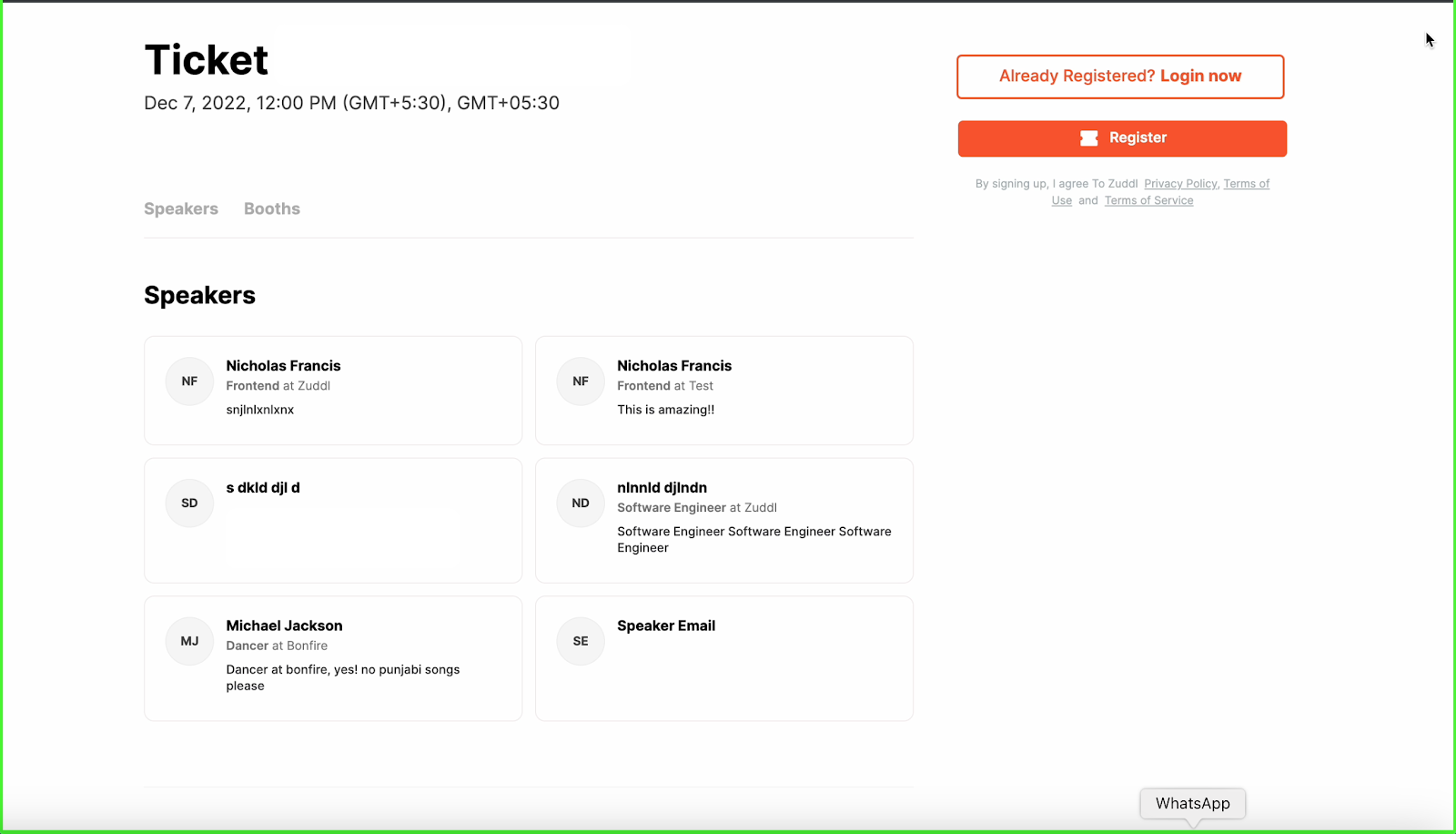
For ongoing ticketed events, when a user clicks on the ticketing widget, a landing page with interactions is shown with the following options:
- Already Registered? Login now - redirects users to the login flow if they have already purchased tickets
- Register - opens a full-page ticket purchase flow
When users click on the ticketing widget for upcoming events, they are redirected to the ticket purchase flow.
SEO & Settings
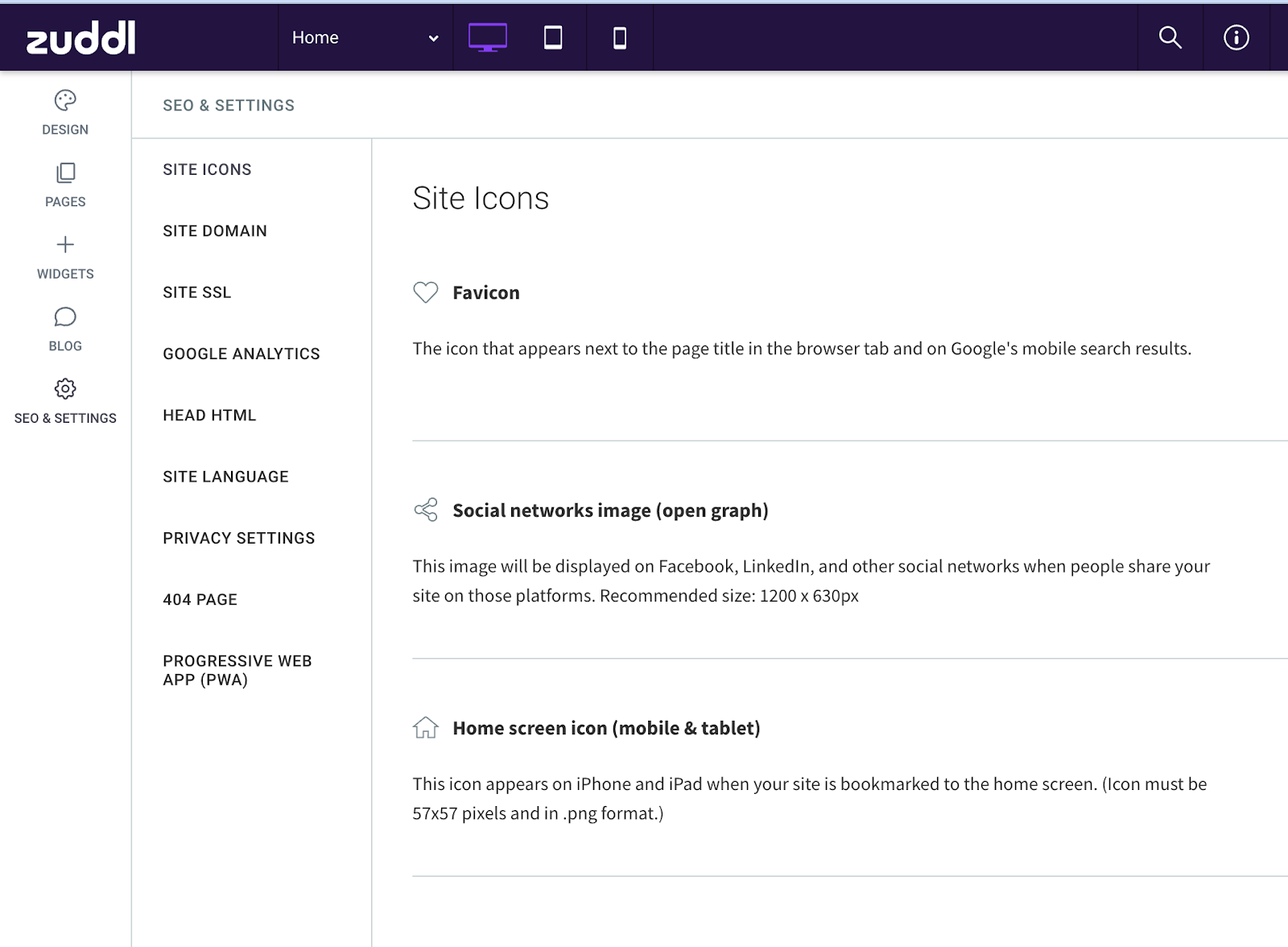
Settings relevant to your site include icons, domains, SSL, etc.
- Site Icons: This option lets you add Favicon, home screen icon, and others
- Site Domain: This setting allows you to change the default domain and add a custom domain of your choice.
- Site SSL: You can also generate an SSL certificate for the custom domain
- Google Analytics: Copy and paste your Google Analytics tracking code.
- Head HTML: You can add custom HTML or JavaScript code in the body or head section of the HTML code.
- Site Language: This option lets you select the site's default language.
- Privacy Settings: It provides opportunities such as Privacy page, cookie notifications, cookie tracking
- 404 Page: This option allows you to customize the 404 page when a user accidentally lands on an incorrect URL.
- Progressive Web App (PWA): This setting is specifically for mobile devices for instant loading of web pages even when offline. You can find relevant options under this menu.
Publishing a Site
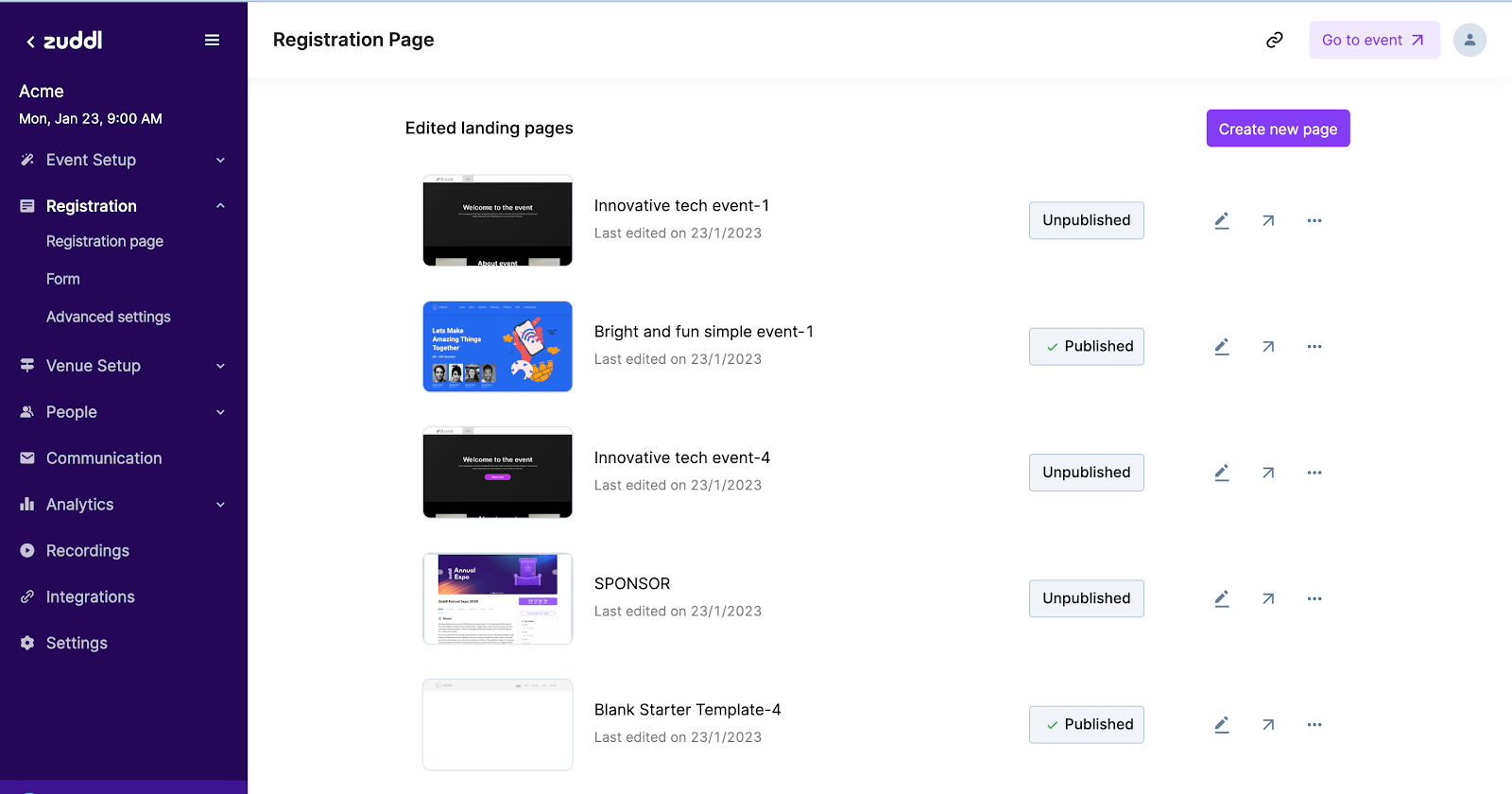
At a time, we can have only one landing page that can be published. If you have created a few landing page designs and wish to switch to a different site,
Go to the site listing page and click the edit icon on the desired template.
- Inside the editor, click the Publish button.
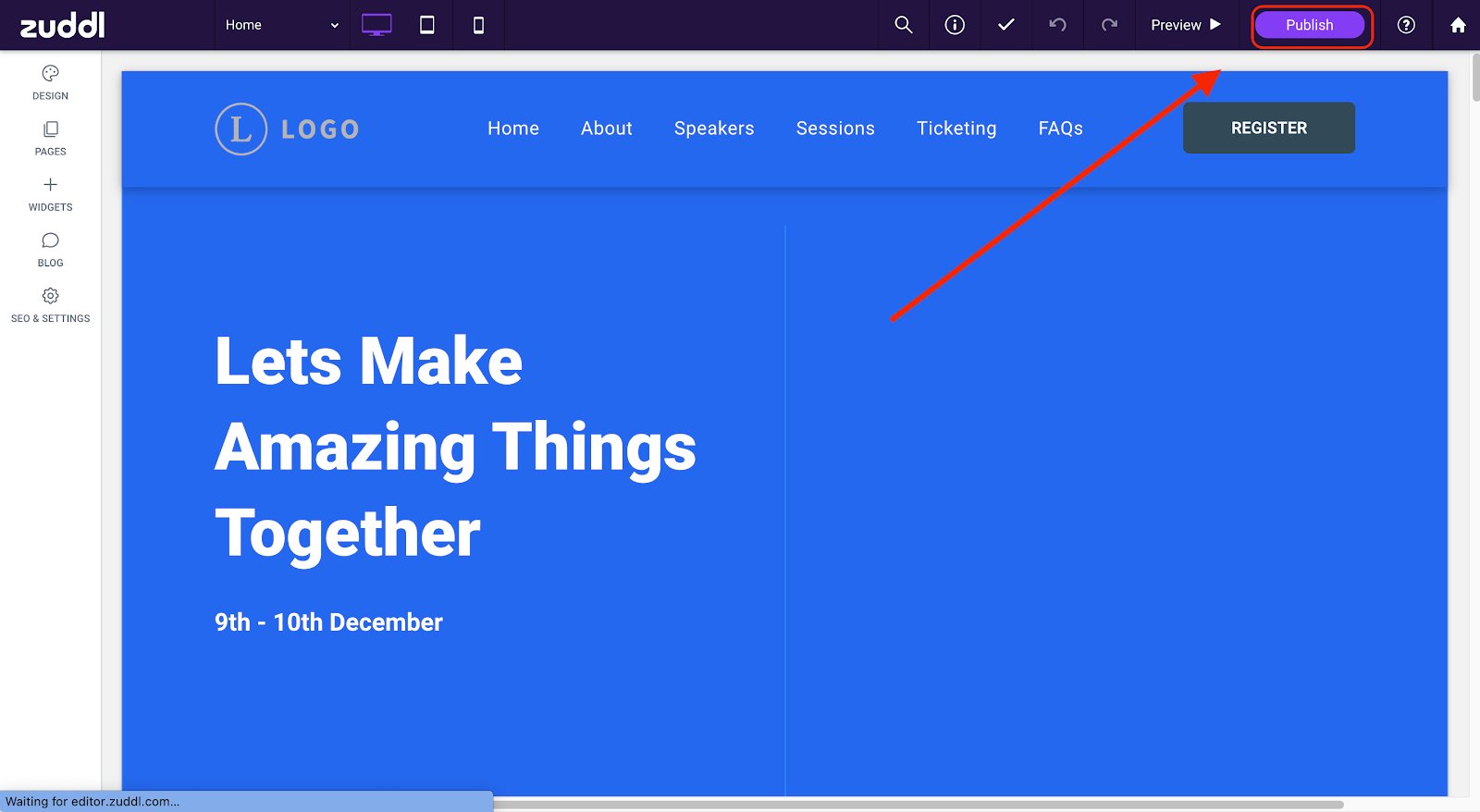
You can publish the templates only from the editor. However, for Sponsor and Basic templates, you can directly print from the templates listing page.
When you publish a new site, Zuddl unpublishes the current site and then prints the new location on the same URL. This means you do not have to worry about any 404 pages.
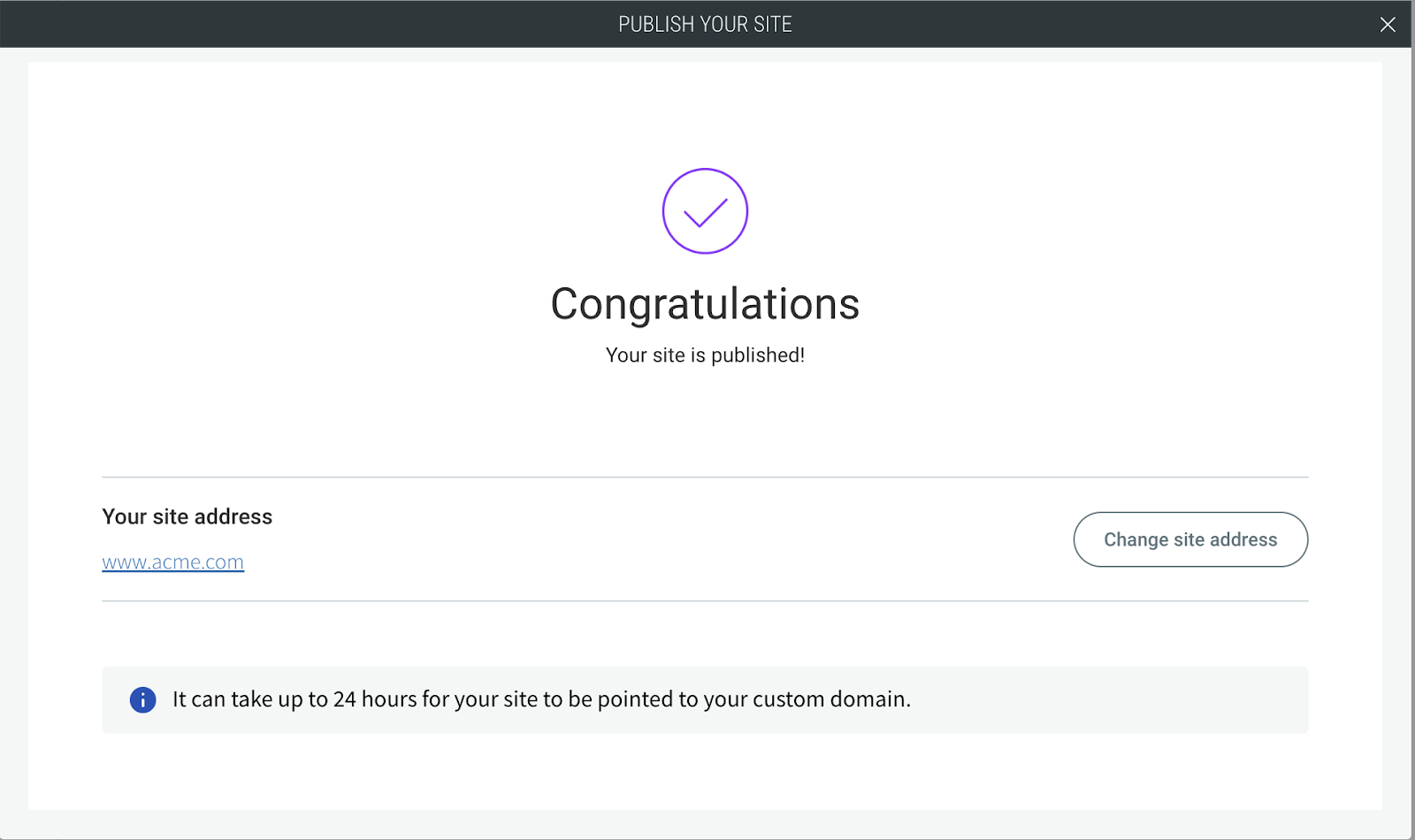
You can also unpublish a site from within the editor. Go to Settings & SEO > Site Domain > Unpublish site.
Warning:
This applies to all templates except Basic and Sponsor. If you switch to a Basic and Sponsor template from any other template, the old site becomes inaccessible and shows a 404 not found error. Ensure that this change is done before the landing page is shared to the public.
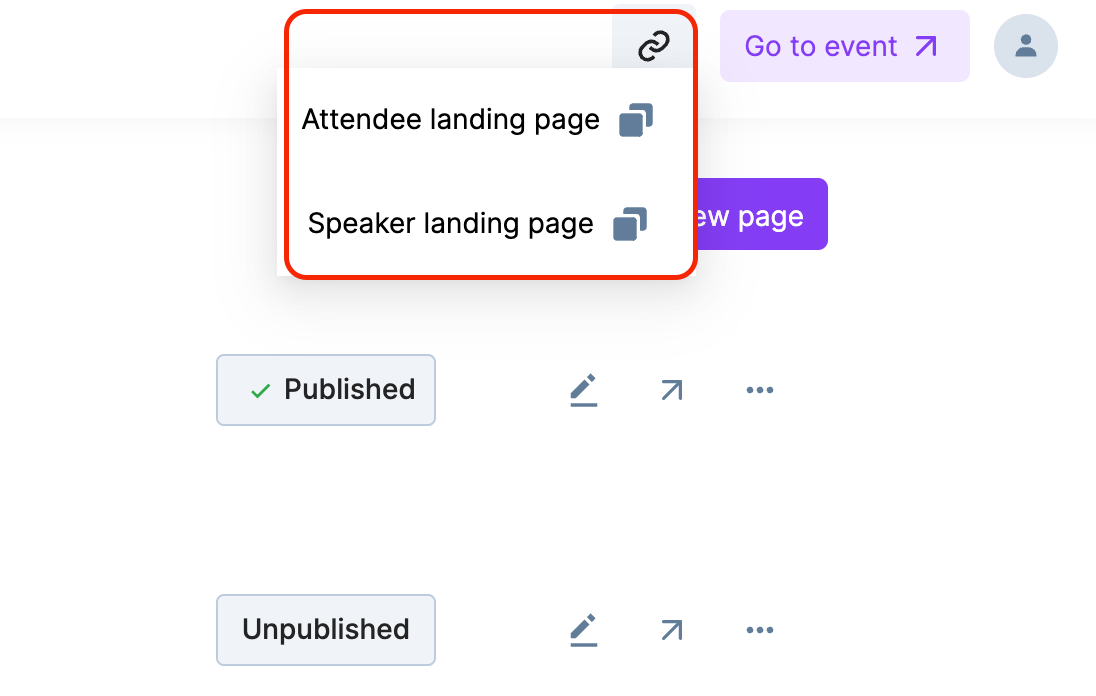
To go to the published site click on the link icon on the top and select either the Attendee landing page or the Speaker landing page.
More options
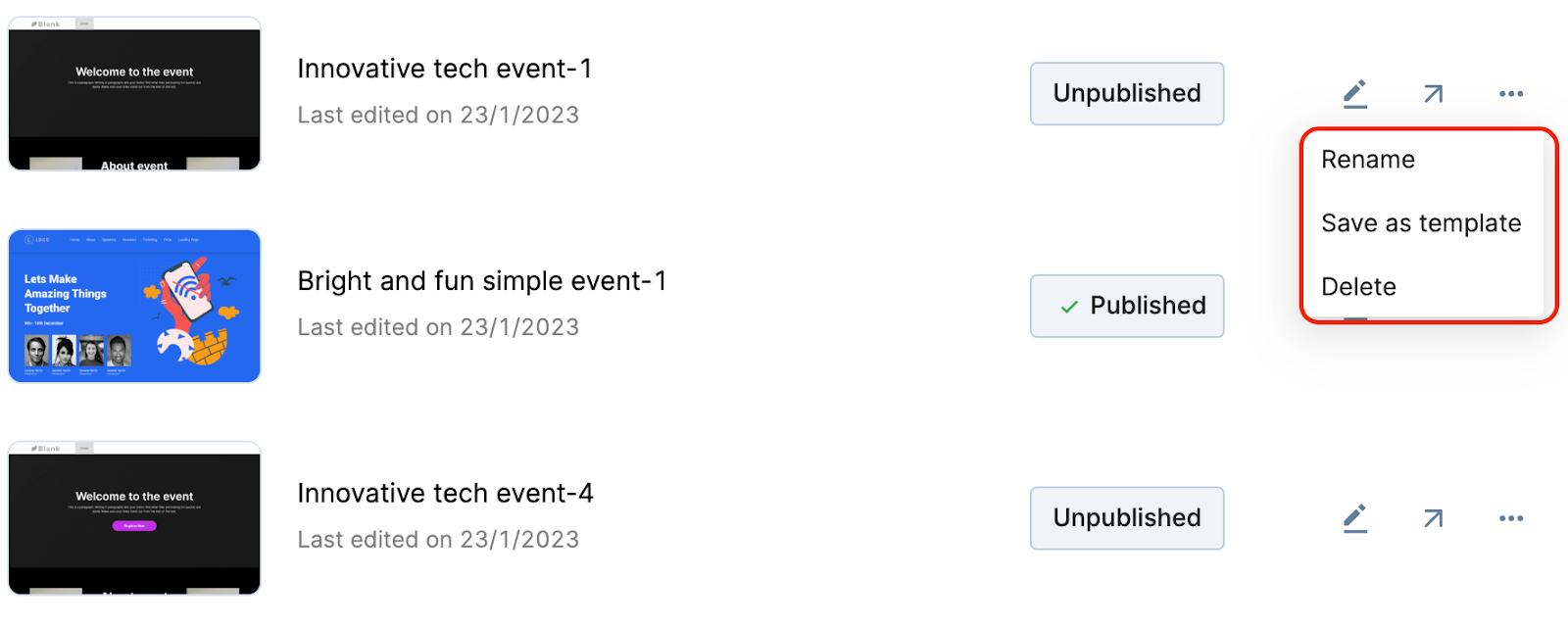
On the template listing page, you can click on the three dot option for any template to select the required options:
Unpublish: to unpublish a template.
Unpublishing a template would not auto-publish any other template.
Rename: to rename a template.
Not applicable for Sponsor and Basic templates
- Save as template: you can edit a default template and save it as a new template. It would take around 4-5 seconds to save the template.
- Delete: to permanently delete a template.
- Publish: to publish a template. Available only for Basic and Sponsor templates. For other sites, you would have to publish from inside the editor.
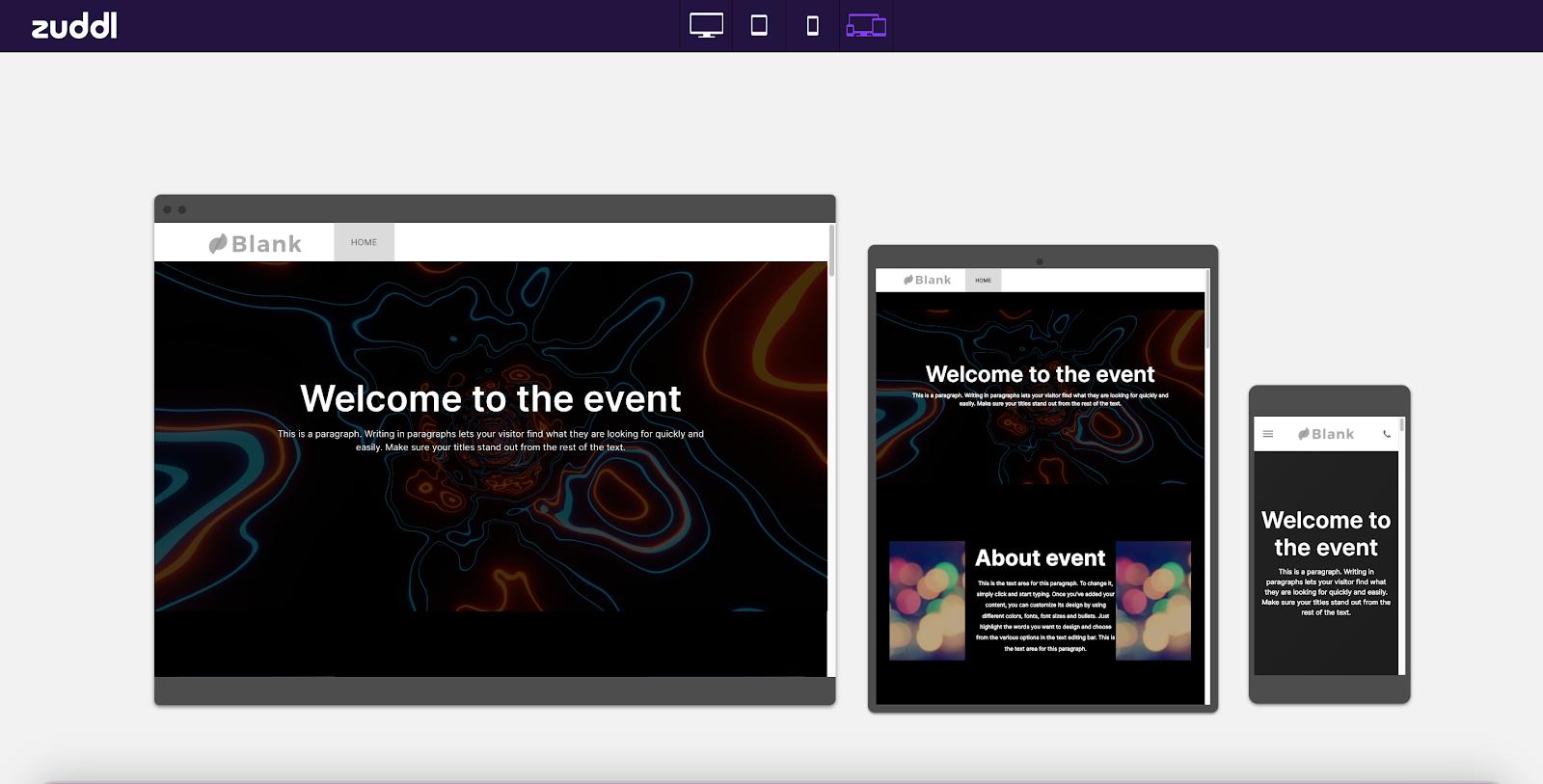
You can also click the arrow icon next to each template to preview the site on different devices.
Log-in via SSO is not supported on custom landing pages created using the editor.
Editing Legacy Site
If you wish to customize a legacy Zuddl template, select either the Sponsor or Basic template. Click on the edit icon takes you through the old flow of editing a landing page.