How to Setup Q&A for a Zuddl Webinar
Last updated: August 1, 2025
Enable Q&A for Webinar
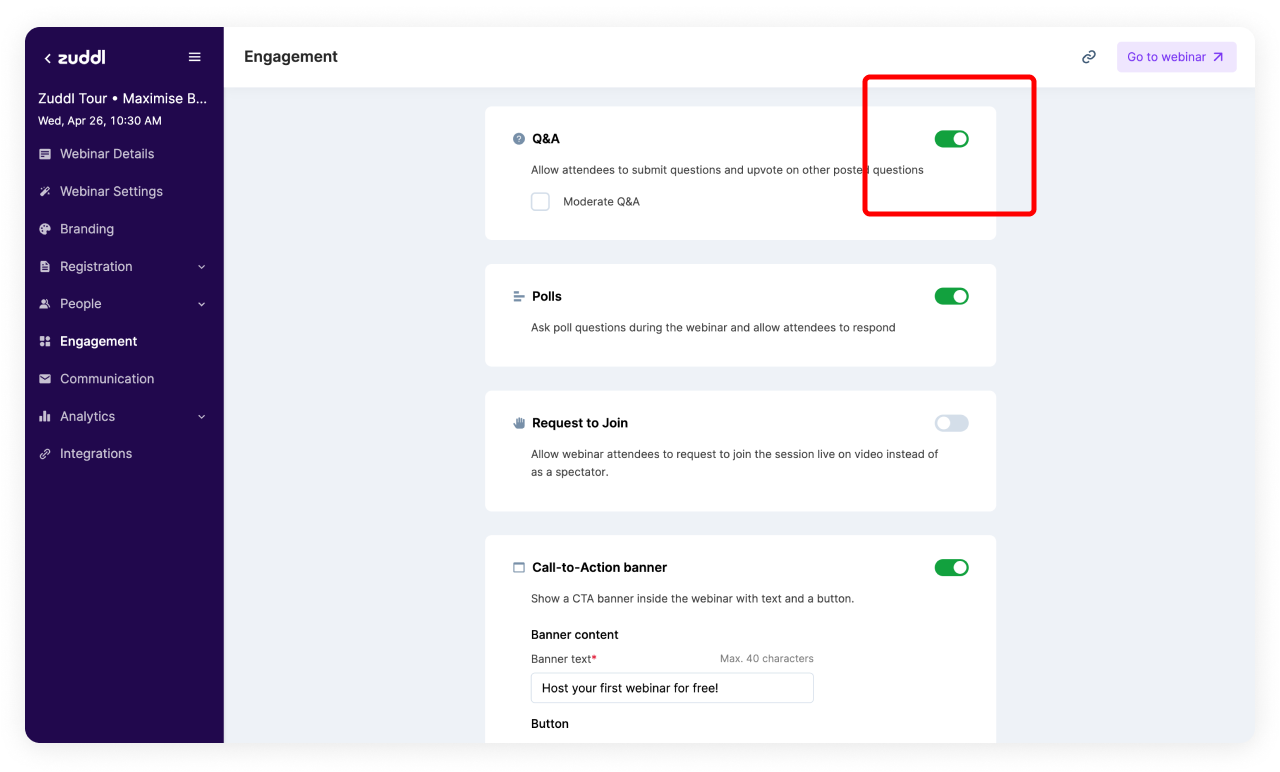
Go to Engagement > Enable Q&A. Click on the toggle.
Once enabled, your audience can ask your speakers questions during the webinar.
Enable Moderation
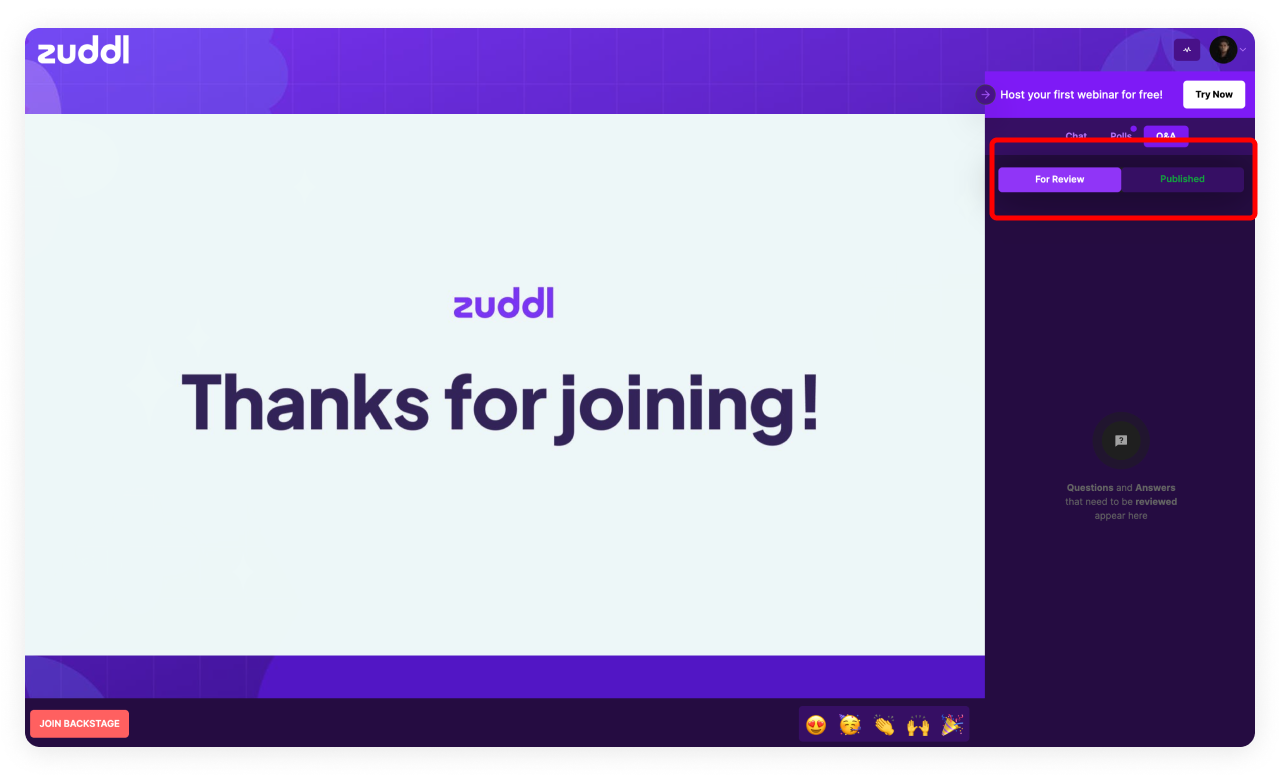
If you check 'Moderate Q&A,' all questions will need your review before going live. As an Organiser, when you enter the event, you will see all asked questions under 'For Review.'
To check if it's working
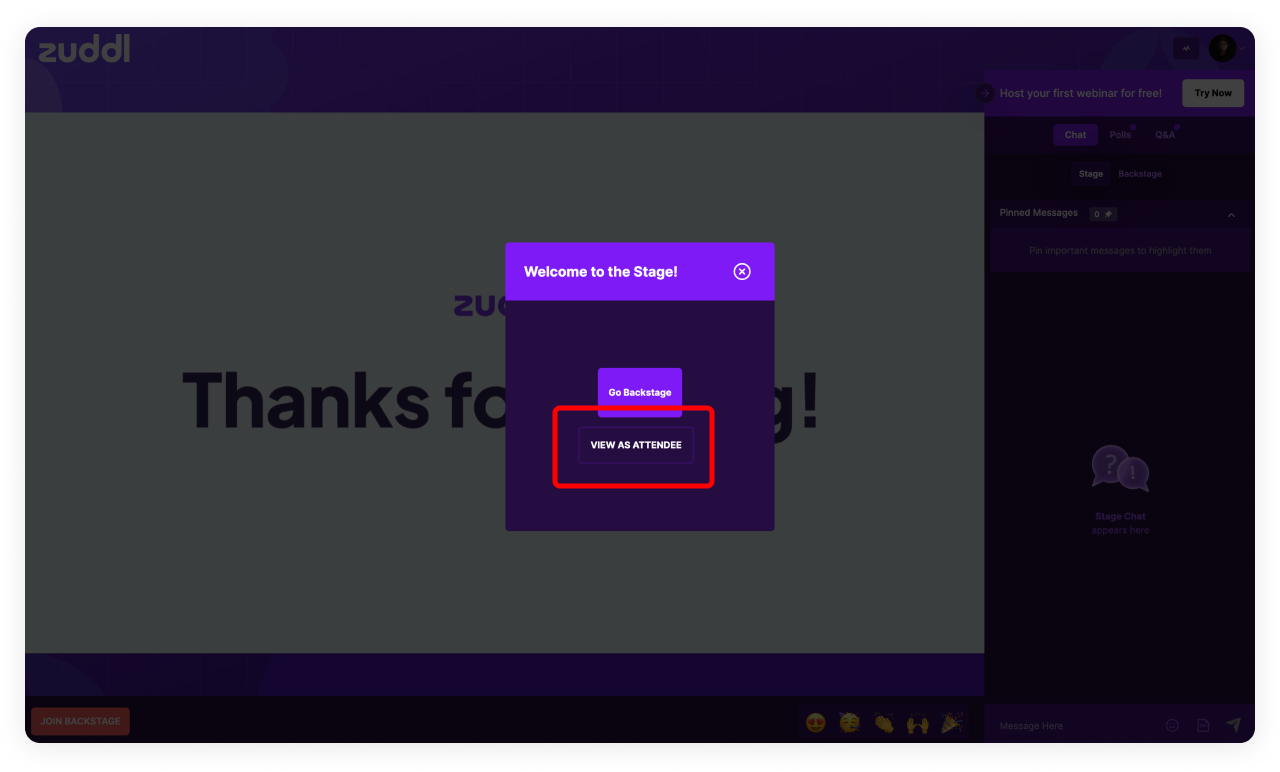
Click on 'Go to Webinar' in the top right corner. You'll enter your webinar and see a pop-up. Click on 'View as Attendee'.
As an Organiser, if you visit the live webinar
You will be able to see questions asked by attendees on the right side panel under Q&A:
But during the webinar,
You will be managing all questions backstage. Once you refresh, you'll again get the pop-up that asks you to enter Backstage. Once you do that, after your video and audio check, you'll re-enter your Studio. On the right, click on Engage:
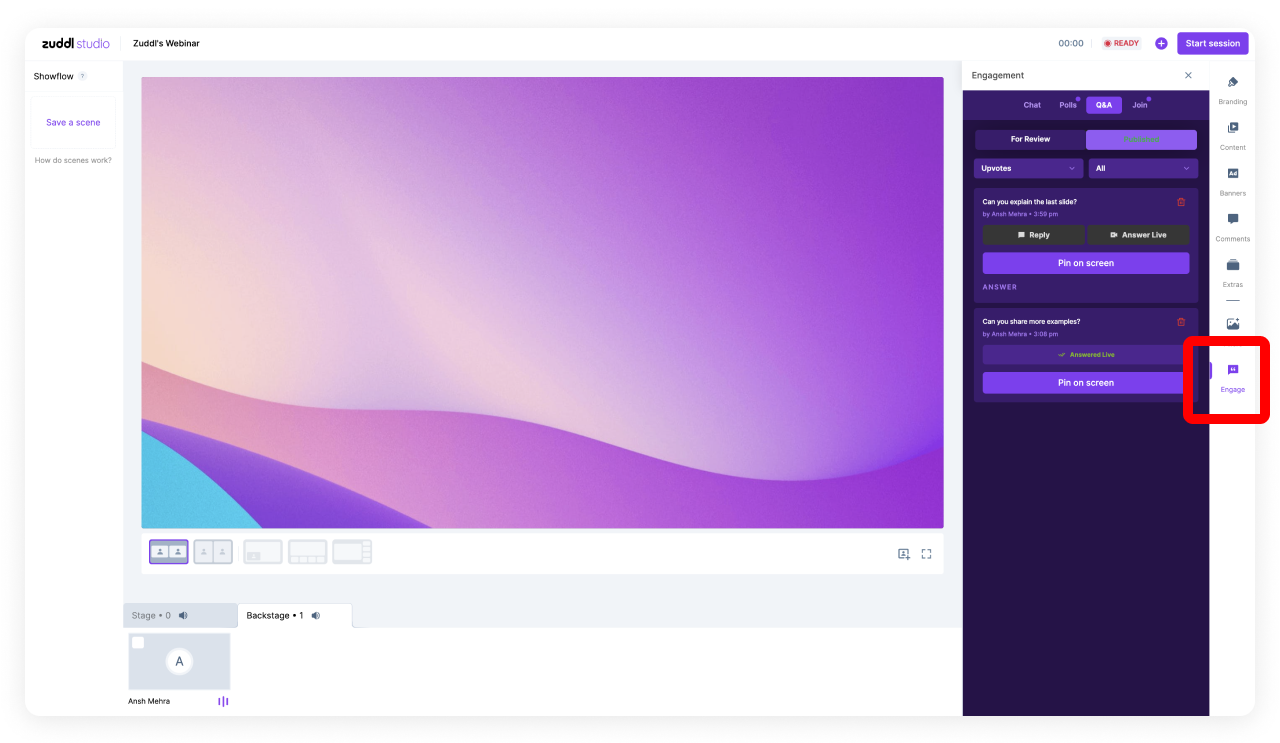
You'll be able to access all attendee questions
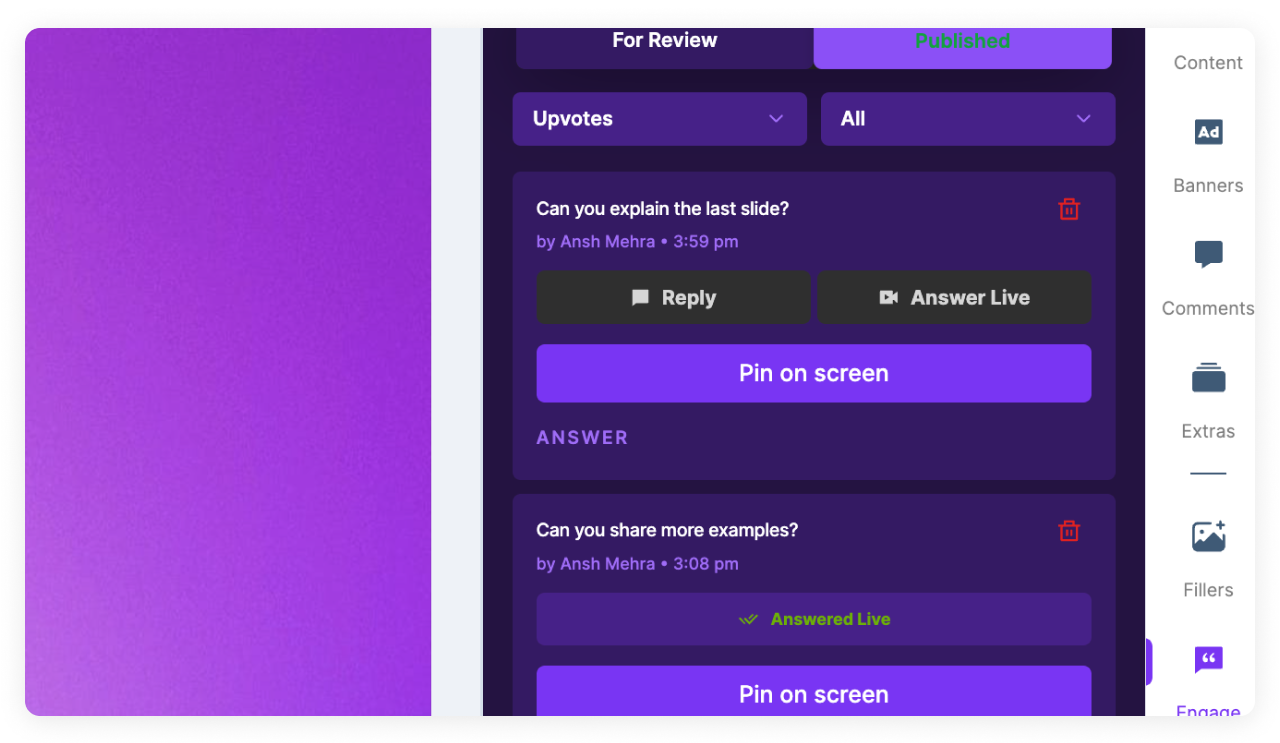
with an option to either reply with text or answer live.
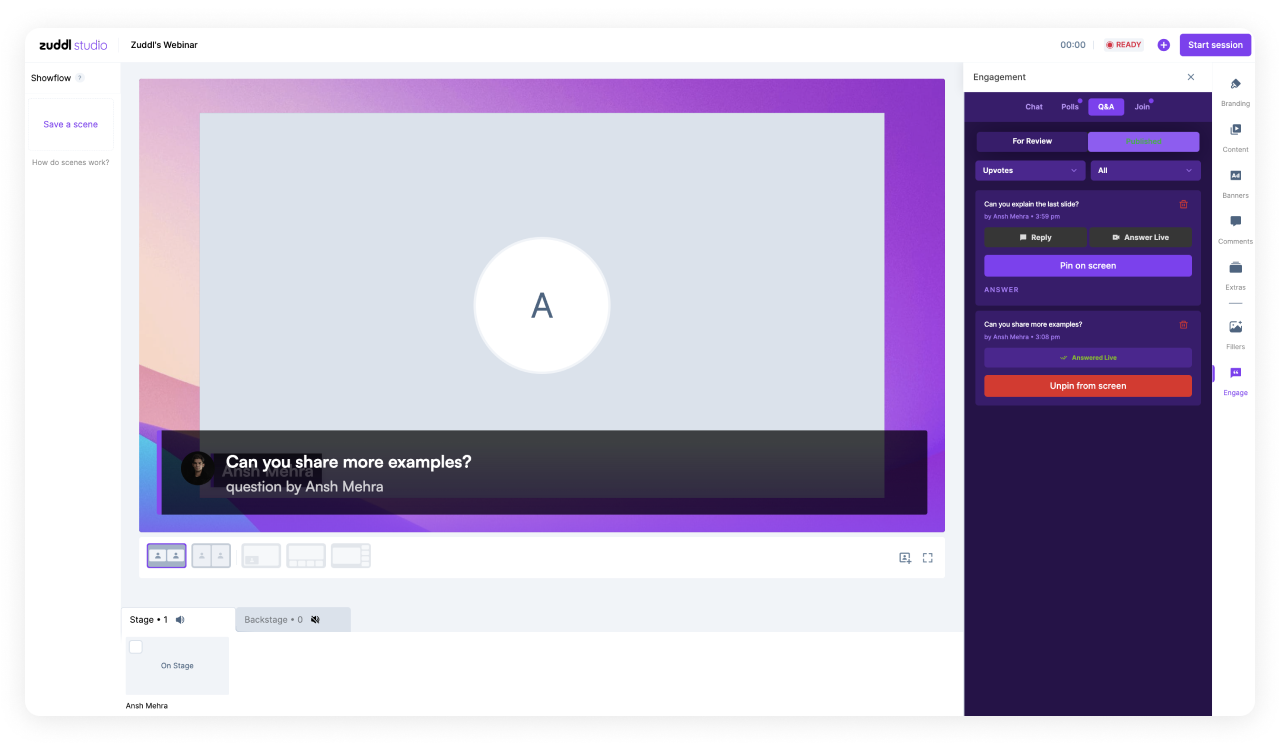
Pinning questions on the screen
If you click on 'Pin on-screen,' you'll be able to pin it on your video. You can customize the look and feel of this banner by changing your color and theme in the Branding Tab.
Attendee view for Q&A
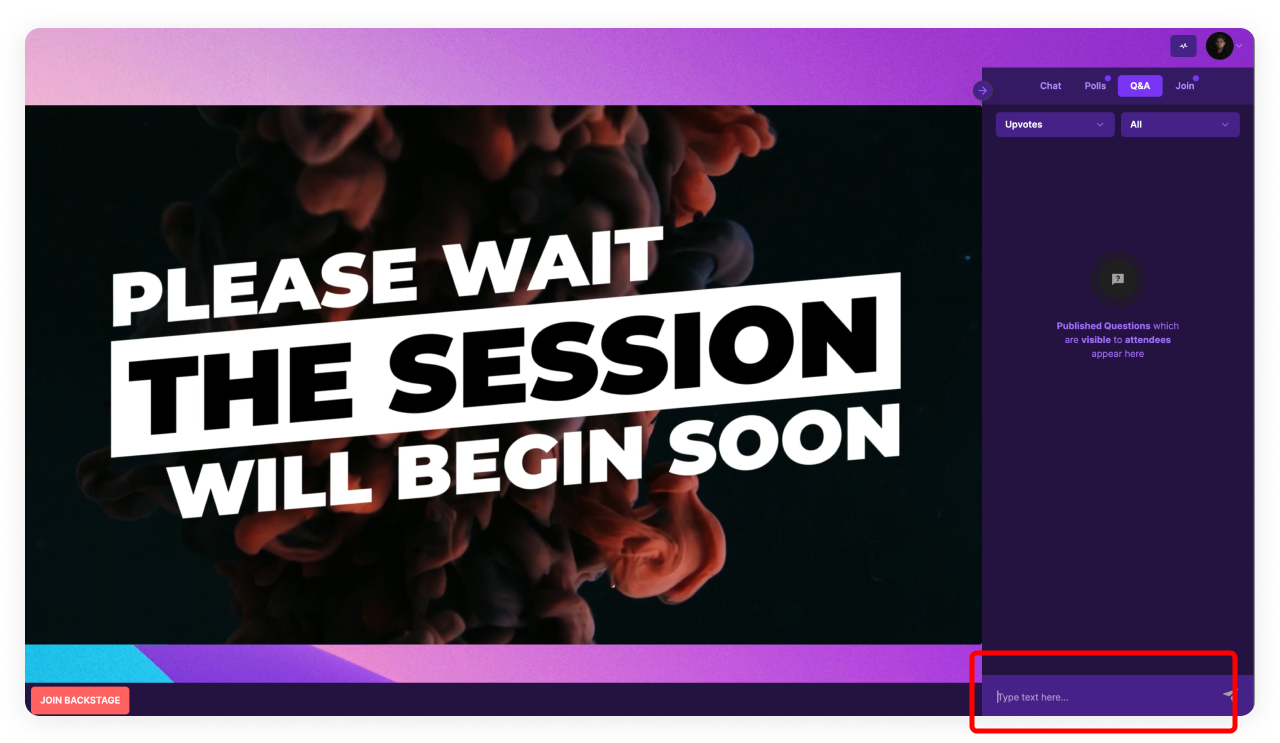
If you need to see the experience for an attendee, you can log in with an alternate email ID. Once you do that, you'll see an input field to ask the questions: