How to Set Up Custom RTMP from Zuddl Studio
Last updated: August 1, 2025
In addition to streaming your webinar on Zuddl, you can also add an external destination to broadcast it to your audience. You can add a destination while setting up your account and also from the studio backstage.
Add a New Destination
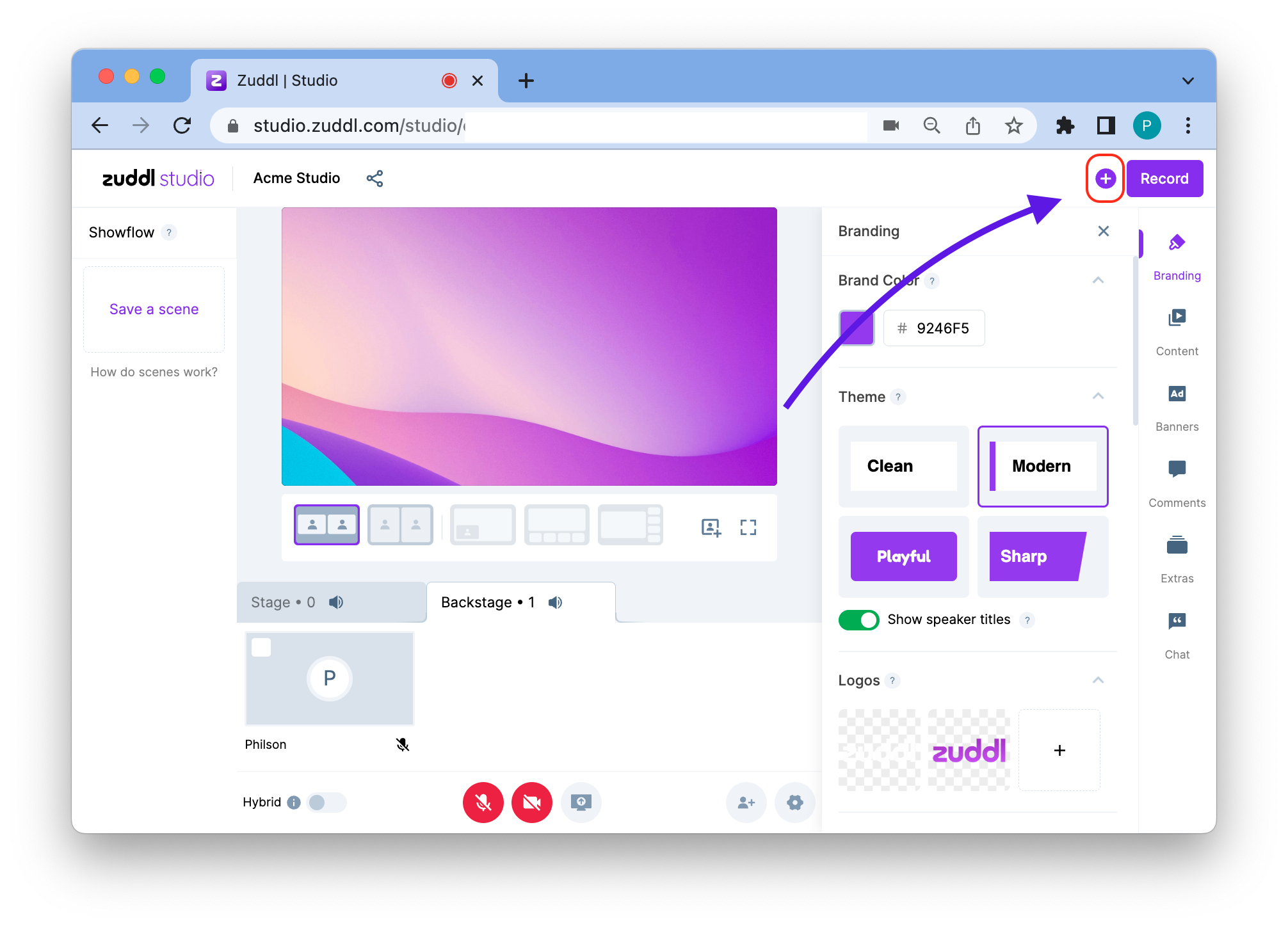
Click the + button in the upper right corner on Studio backstage.
In the Add new destination window, click on the Add new destination button. You can also select Record only, if you wish to only record your live event.
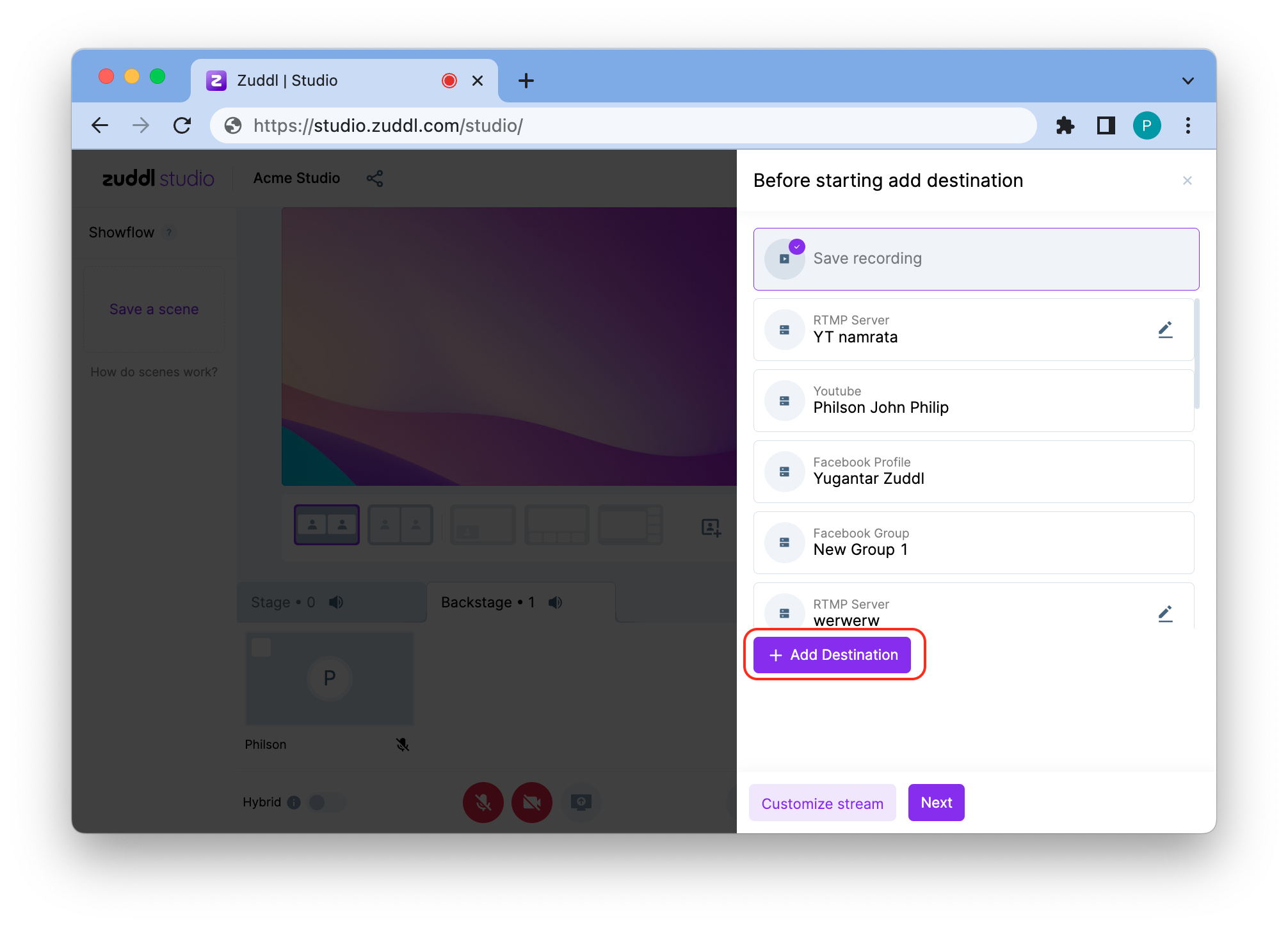
The event also gets recorded automatically when you start streaming to a destination. Learn how to access event/session recordings.
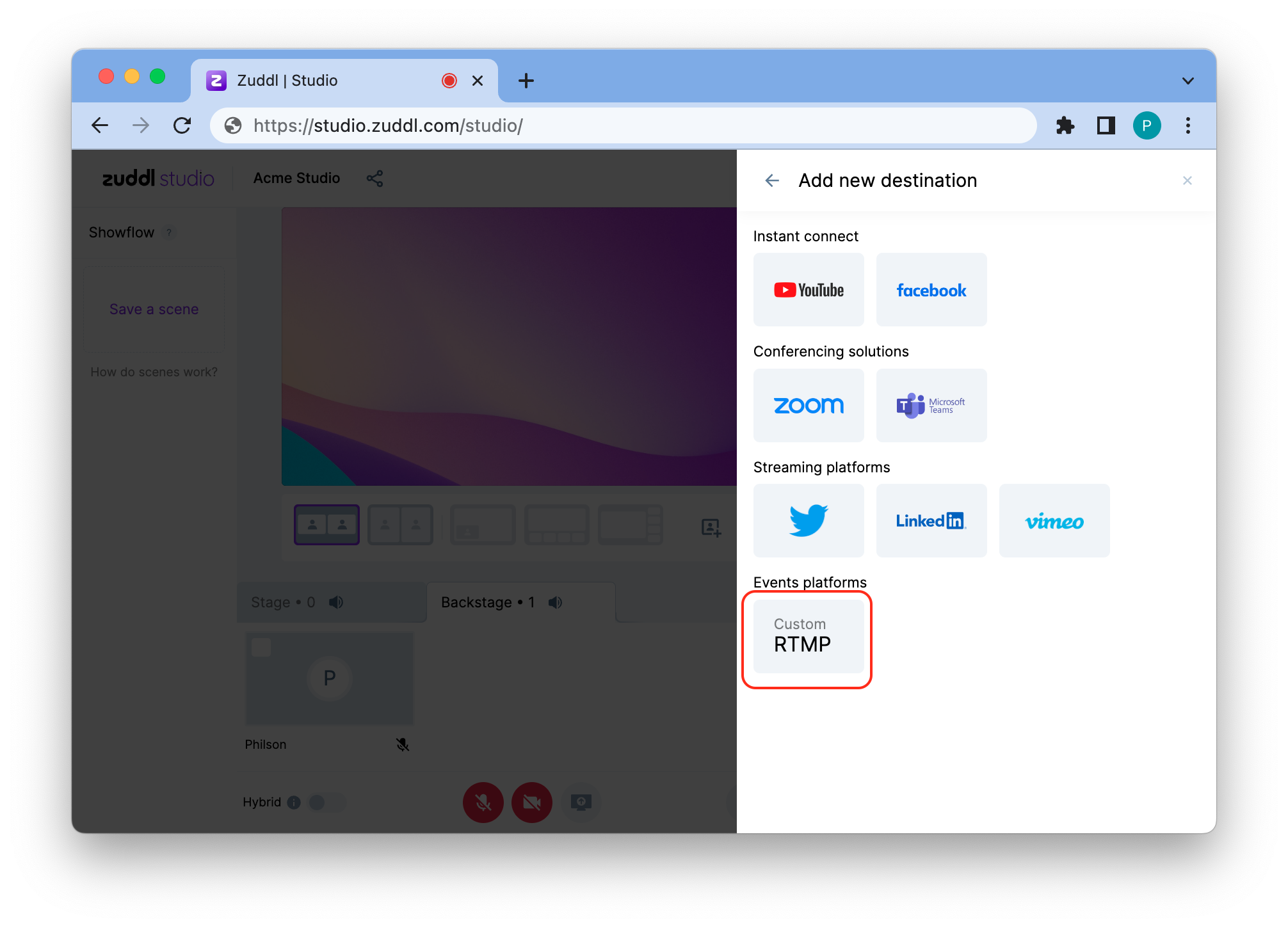
From the list of streaming platforms, click Custom RTMP under events platform to add a new stream.
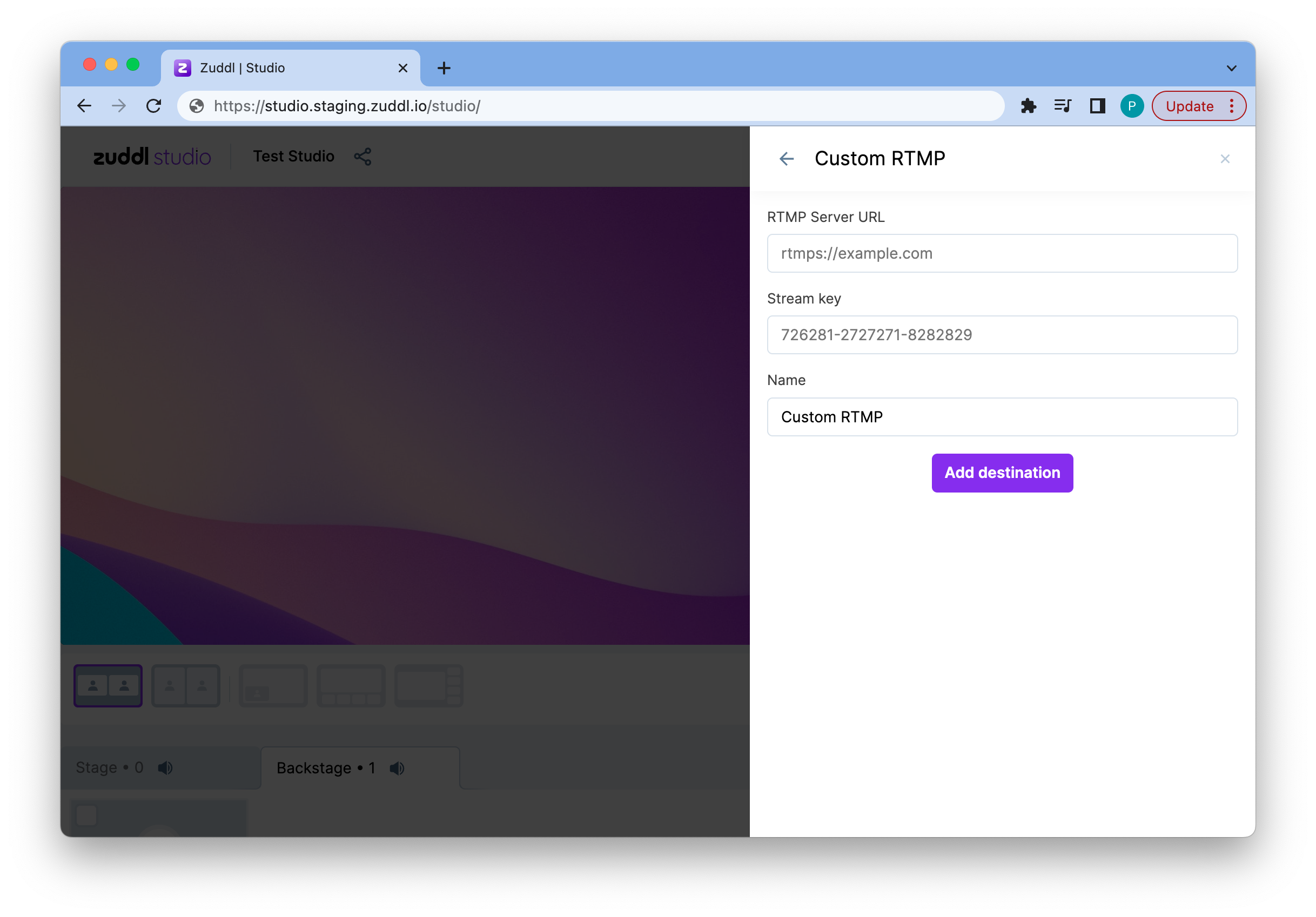
- On the custom RTMP window,
- Enter the Name for the stream.
- Enter the RTMPS server URL. An RTMPS server URL links your streaming destination with Zuddl.
Enter a Stream Key. A stream key is used along with the destination RTMPS Link required by the streaming source (Zuddl) to identify the destination of the stream (encoder). Copy and paste this key from the encoder settings.
It is highly recommended to store this key safely as anyone with this key can transmit content to your event.
- Enter the Backup Stream Key: This functions the same as Stream Key, this is the backup of the authentication key in case the Main Stream Key does not work.
After you have entered the correct field values, click Add destination. This adds a new streaming destination and is added to the recently added streams.
Stream Keys
You can add up to 5 different destinations.
Important
This action can only be done by an organizer in a Zuddl organization. Ensure that you have the correct privileges before setting up the live stream.