How to Use the Dry Run Mode in Zuddl Studio
Last updated: September 4, 2025
Running a seamless live event requires preparation and testing, and that’s where Dry run mode is useful. This feature allows organizers and speakers to rehearse their sessions, test streaming setups, and fine-tune branding and media before going live.
By enabling Dry Run mode, you can simulate a live environment without actually streaming the event to attendees, ensuring that everything is set up correctly before your Zuddl event begins.
Enabling Dry run Mode
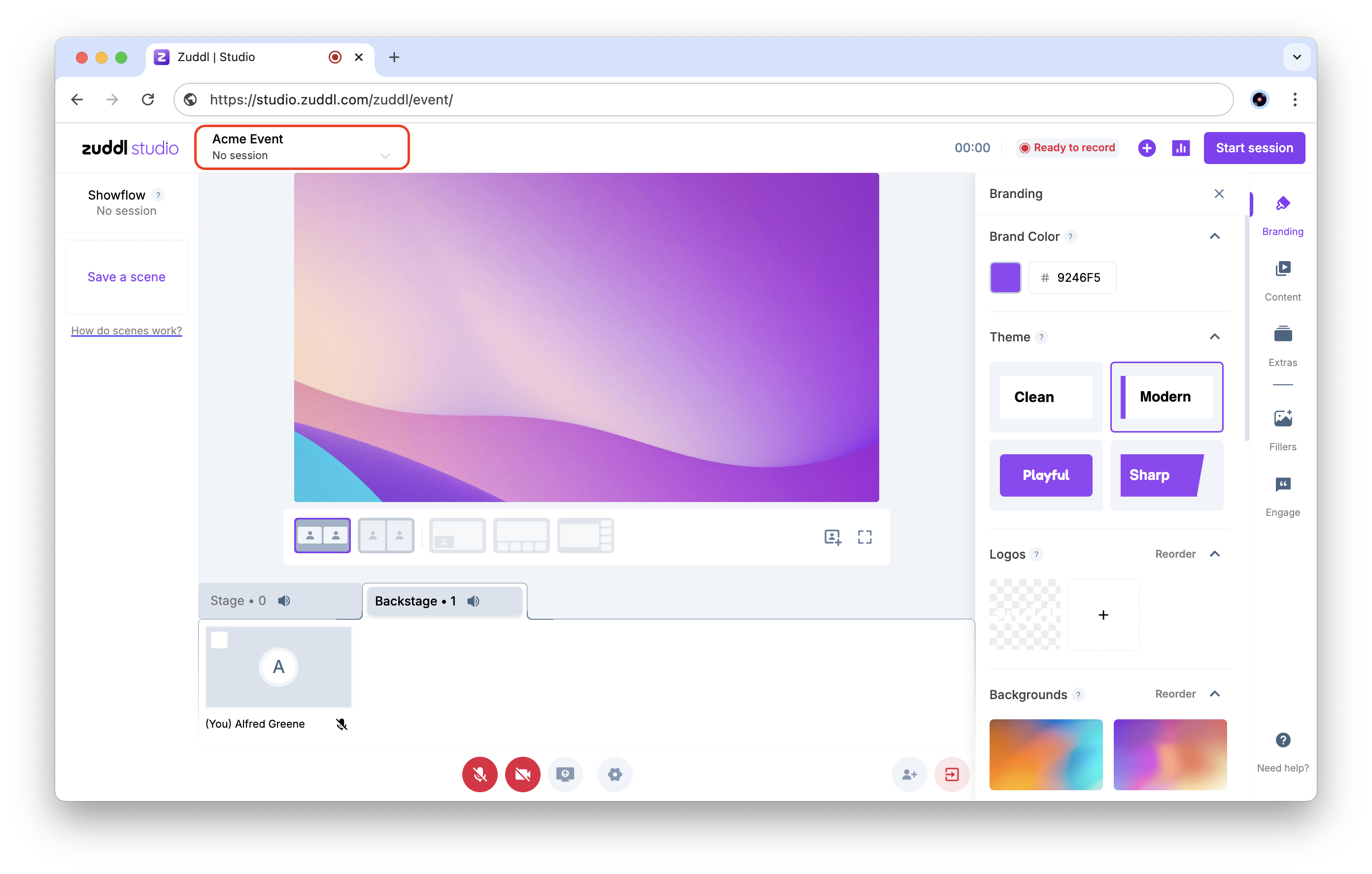
In the studio backstage, click on the session name in the upper navigation bar.
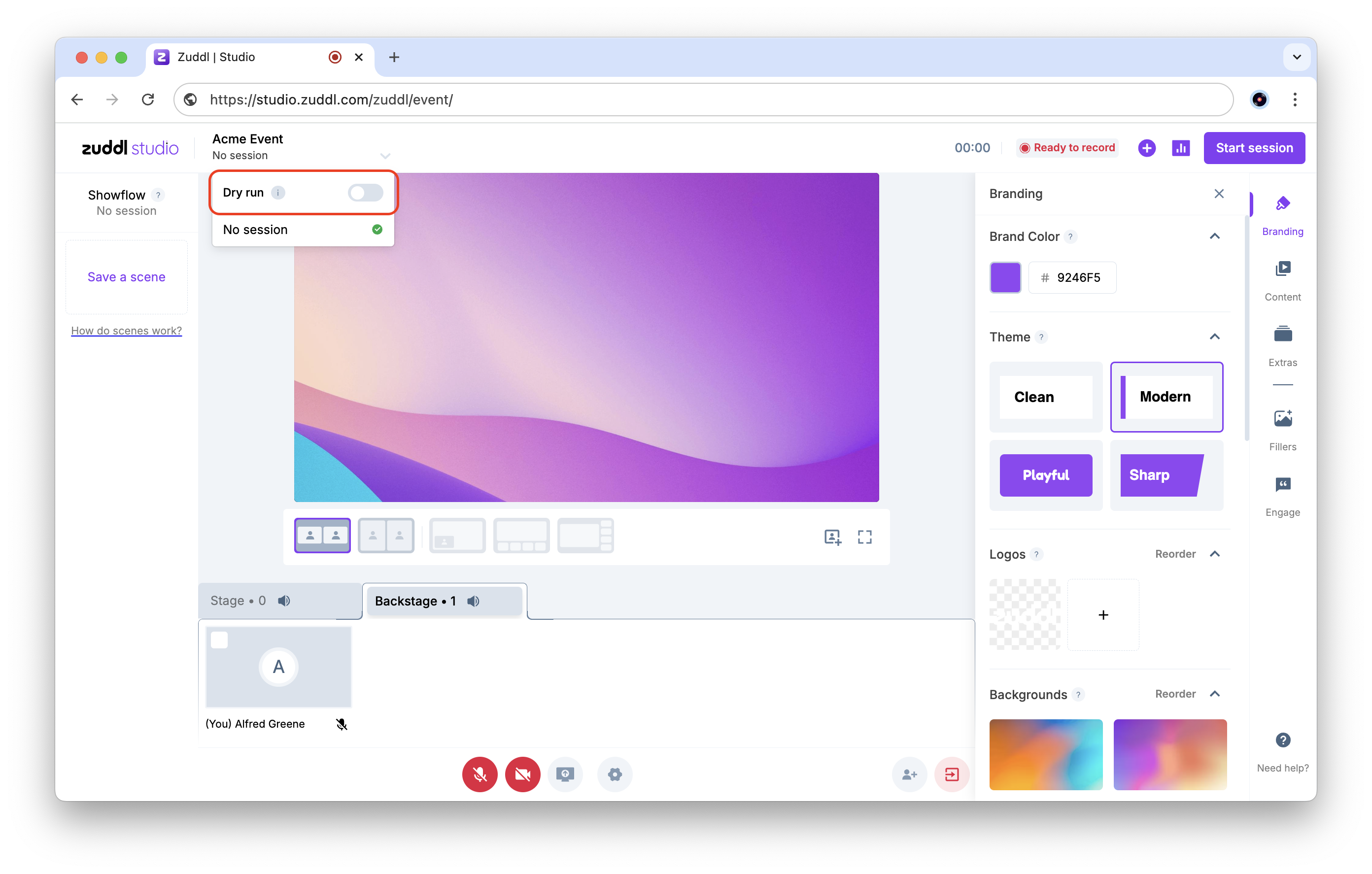
Here you can find the Dry run toggle (off by default). Turn on this toggle.
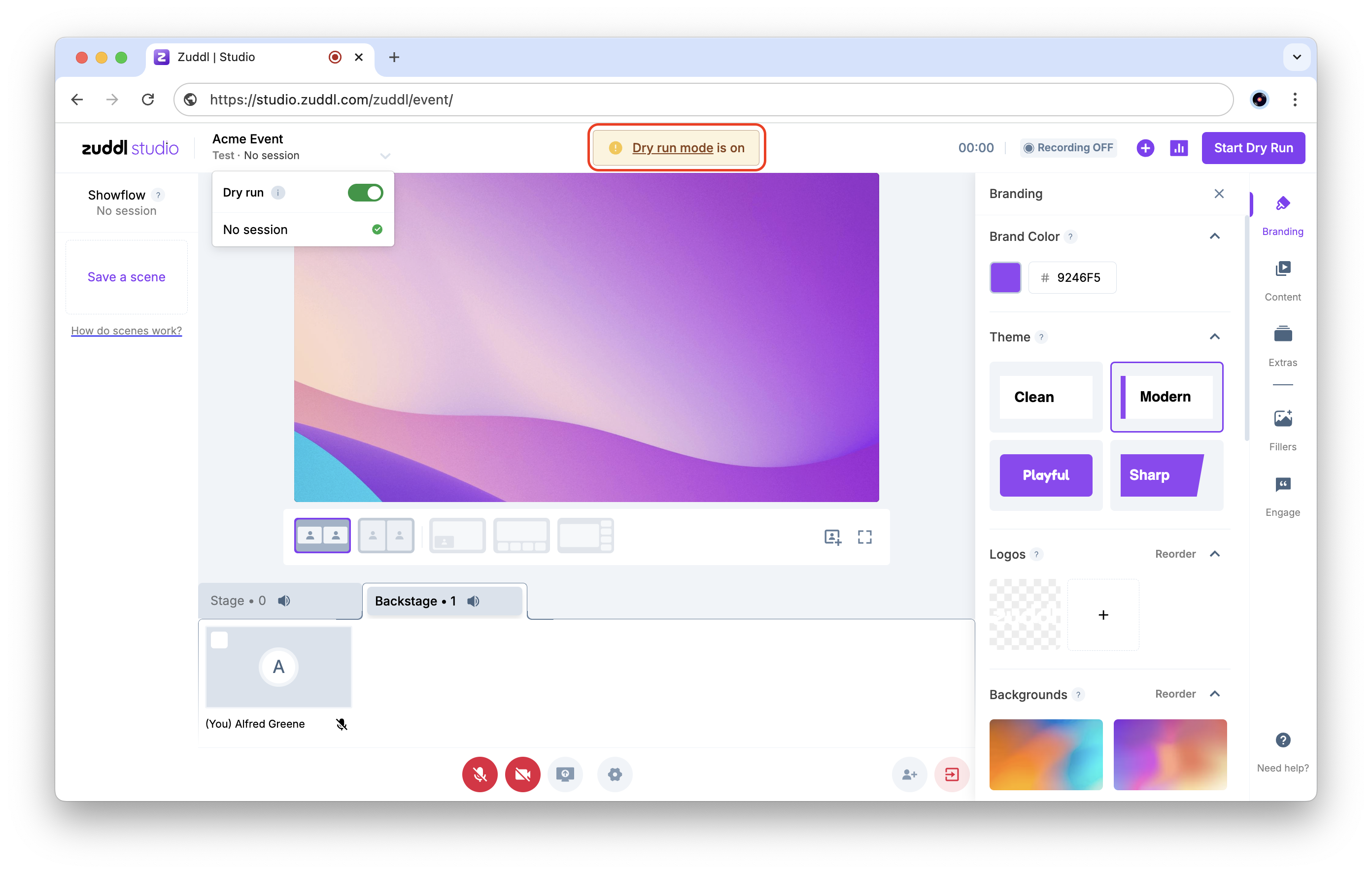
A banner confirms that you are in Dry run mode. The banner stays visible as long as Dry run is enabled.
You can now click Start Dry Run to start testing the session.
Dry runs are not recorded. Any setting changes you make are still saved but no streaming happens.
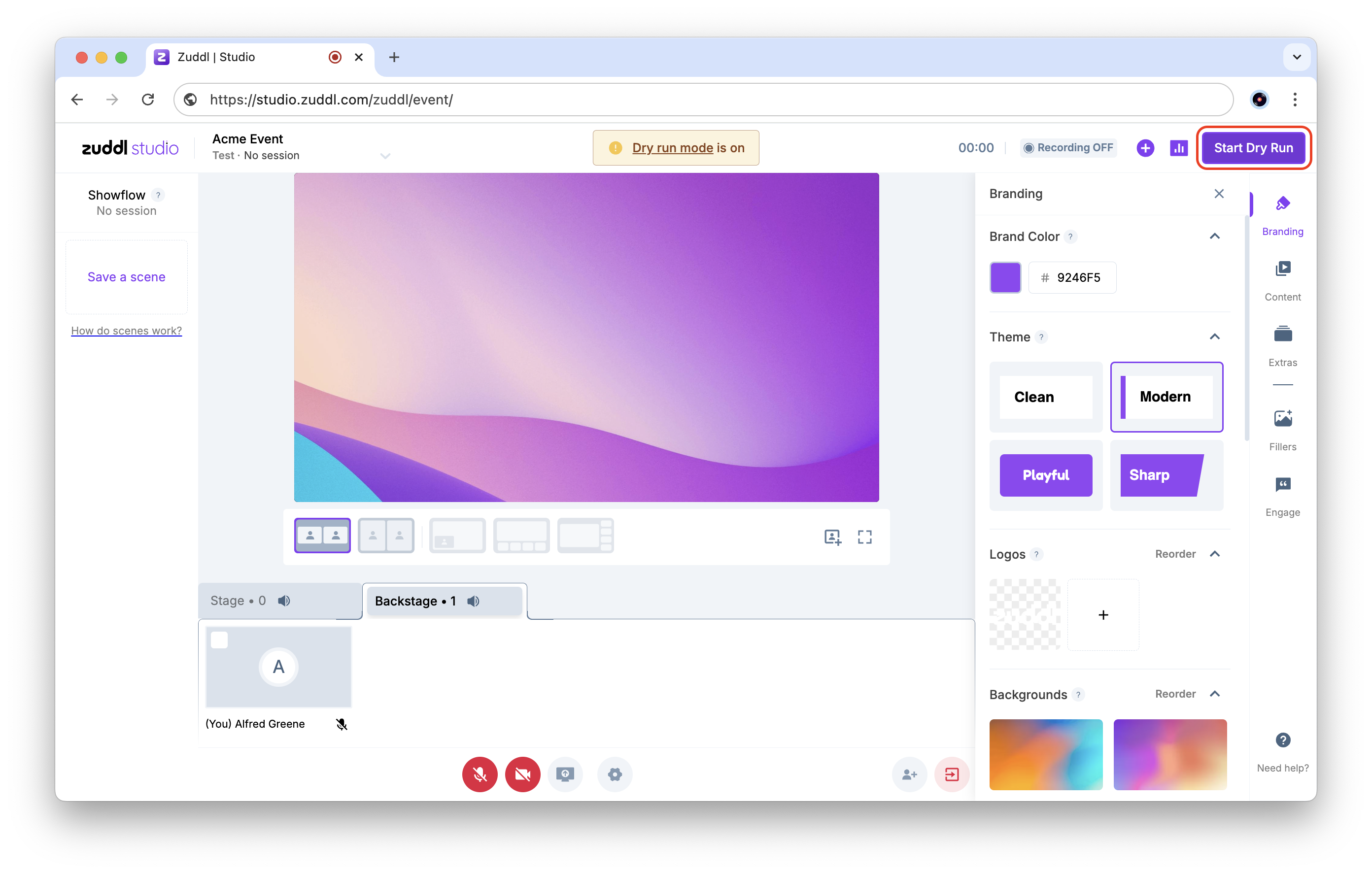
To turn off the Dry run, click End Dry Run.
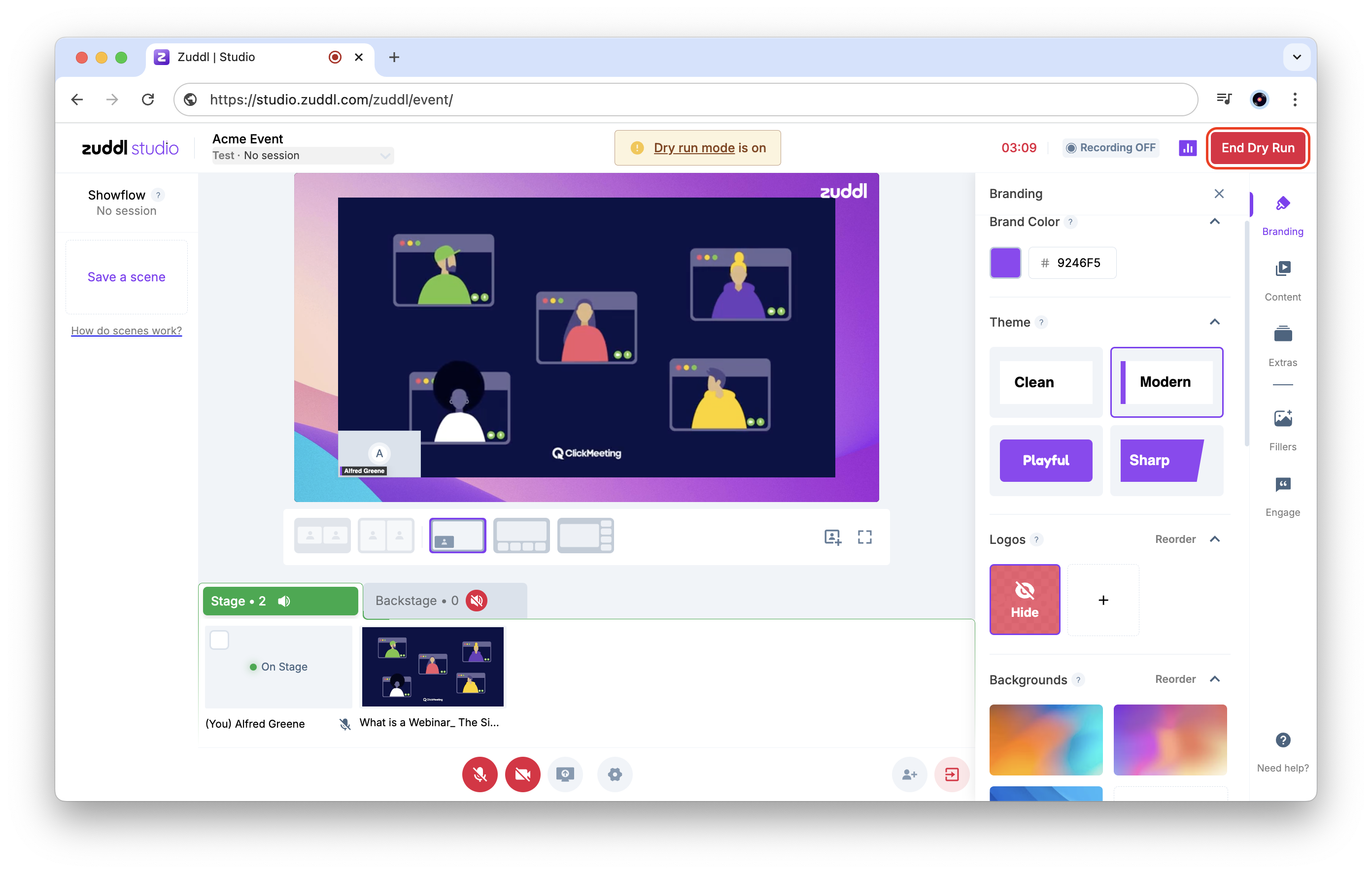
To turn off Dry run mode, toggle off Dry run from the same session selection dropdown.
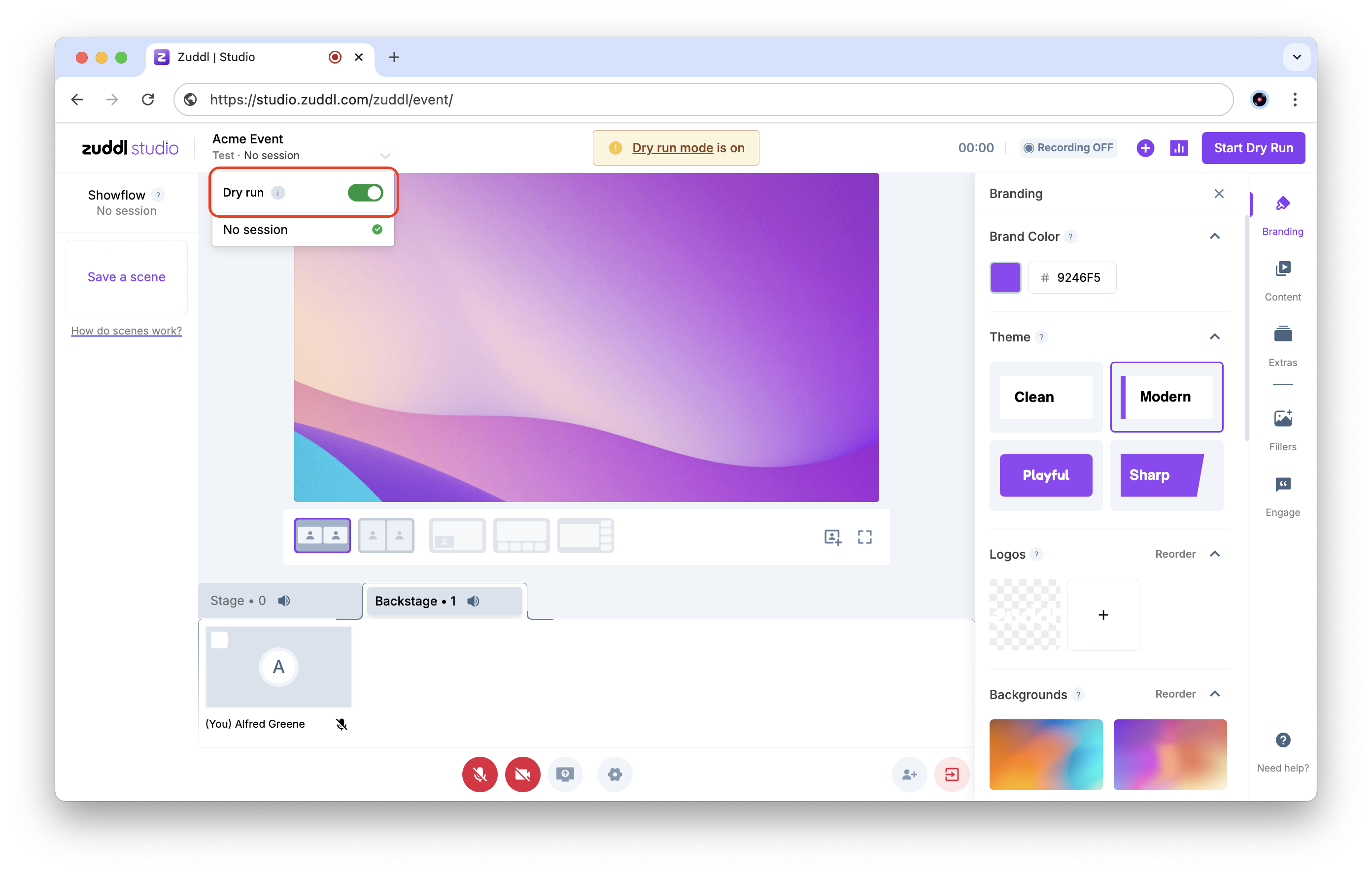
When Dry run is off, the event returns to its live-ready state, and all settings remain intact for when you go live.
Using Dry run mode
When Dry run is enabled, you can:
Add and manage speakers: Test and ensure all participants are comfortable using the platform.
Test media and content: Upload videos, images, and other visuals to preview how they will appear during the event.
Adjust branding elements: Set up and test overlays, logos, and backgrounds.
Use Showflow scenes: Play the showflow scenes you have set up to test and improve the session flow.
Simulate start and stop actions: Practice starting and stopping the stream to ensure smooth transitions.