Event Mobile App - Functionality Overview
Last updated: August 1, 2025
Multi-events app
Container App Options: to have all event of your organization to be clubbed into a container app. This can be achieved in two ways:
Custom branded app: The Zuddl Events app can be customized as per your organization's branding. This way, one app can contain all events of your organization within the same app.
Standard Zuddl events app: If you do not want branding, you can use the Zuddl Events app as is. Attendees can log in to the Zuddl Events app and view the events of the organization they have access to.
When you link only one event to the container app, it behaves as a single event app.
Multiple container app: You can also have more than one container app if you wish to have multiple container apps to reflect different themes of events. For example, an app for all their GTM events and another for all their townhall events.
Schedule
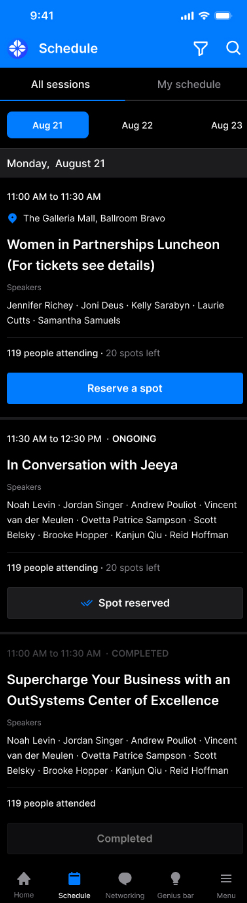
My schedule and Reminders
- Attendees can register for the sessions based on their interests.
Attendees can "Bookmark," "Add to schedule," or “Create a reminder” of the sessions they want to attend.
Reserve spots
Attendees can click a "Reserve" or "Book" button in the session details to reserve a spot for that session.
Networking
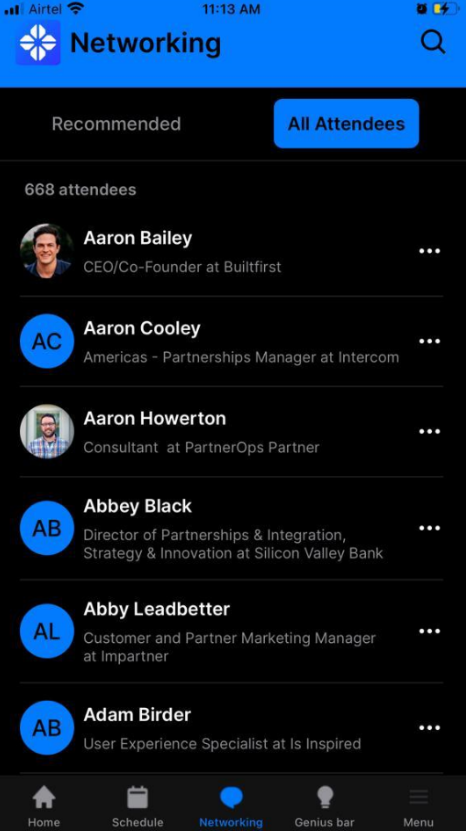
The networking feature recommends profiles based on the interests of attendees.
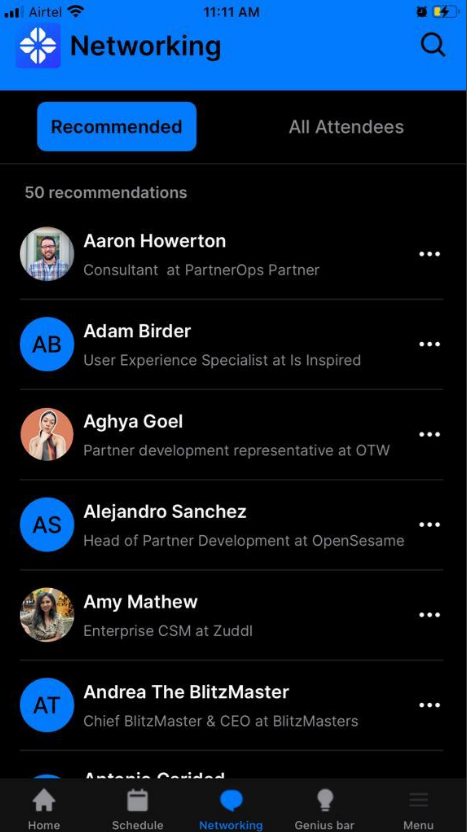
Recommended attendees list and All Attendees list
- Recommended Attendees List helps attendees discover new connections based on their profile.
- From the All-Attendees list, attendees can browse and connect with individuals.
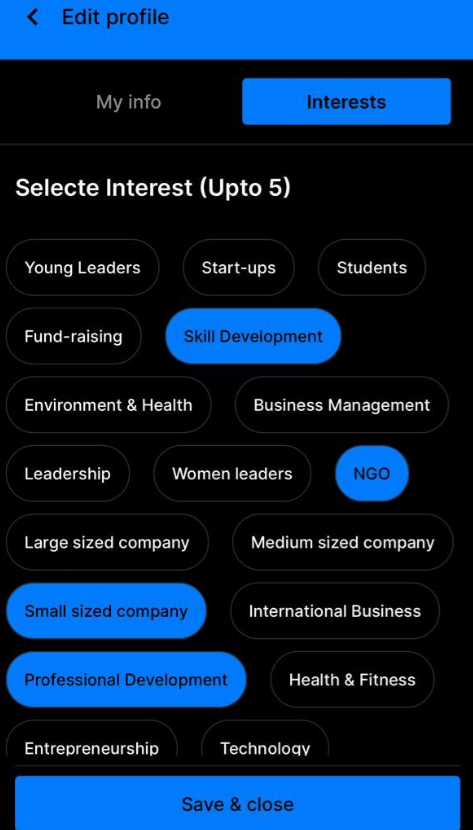
My Profile and Interests
1:1 meetings, meeting requests, My Meetings, and Reminders
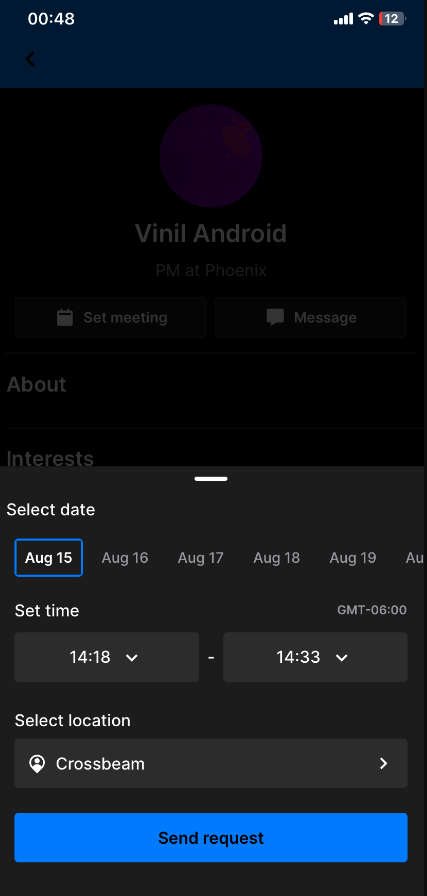
- The meeting requests feature allows attendees to propose and request one-on-one or group meetings with other event participants.
- The "My Meetings" feature lets attendees manage all the scheduled and confirmed meetings.
- Attendees can also use the “Reminders” option to receive reminder notifications.

Games
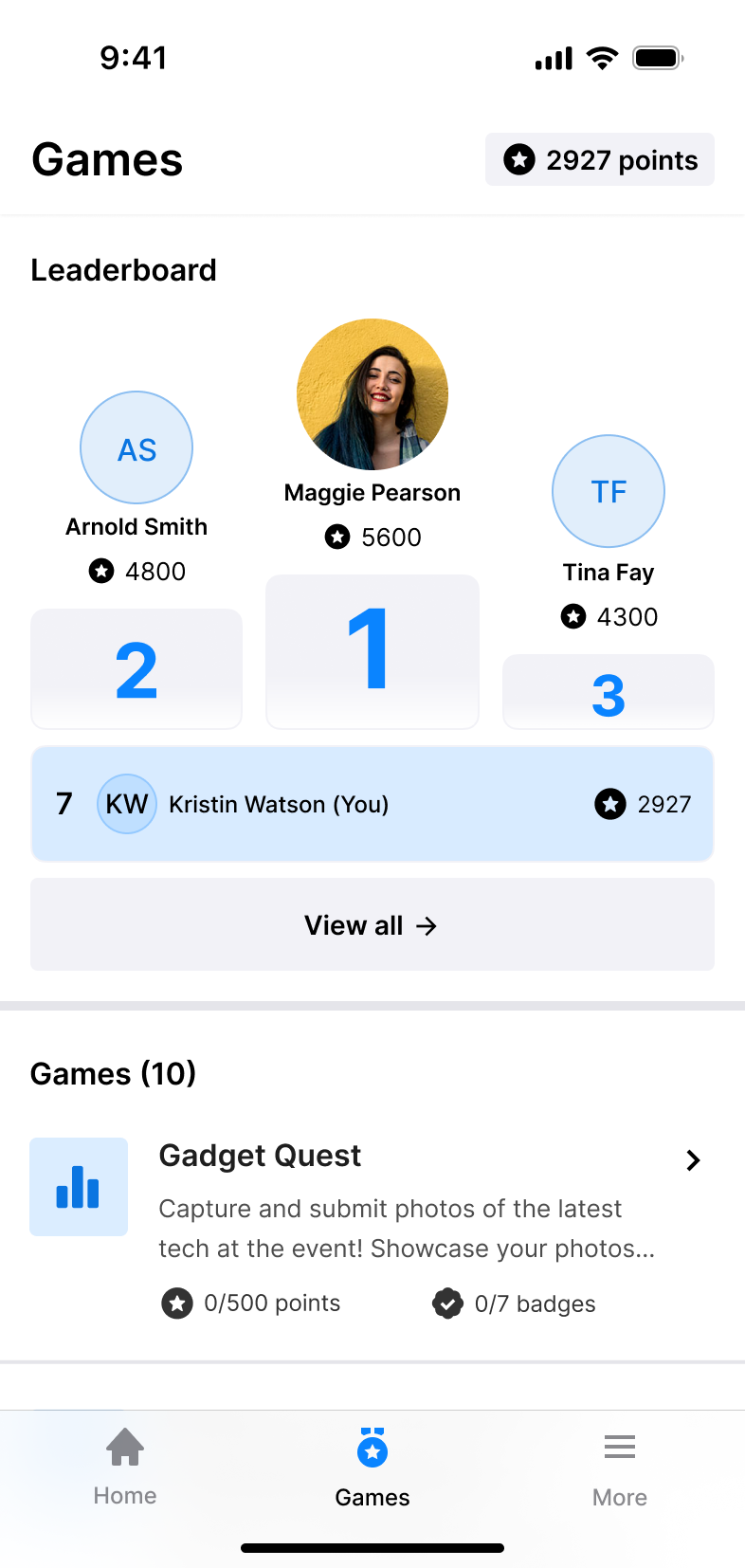
Games can be customized with various tasks and rewards for attendees, and the Games page of the app shows the leaderboard for the event, along with a list of different games available to play.
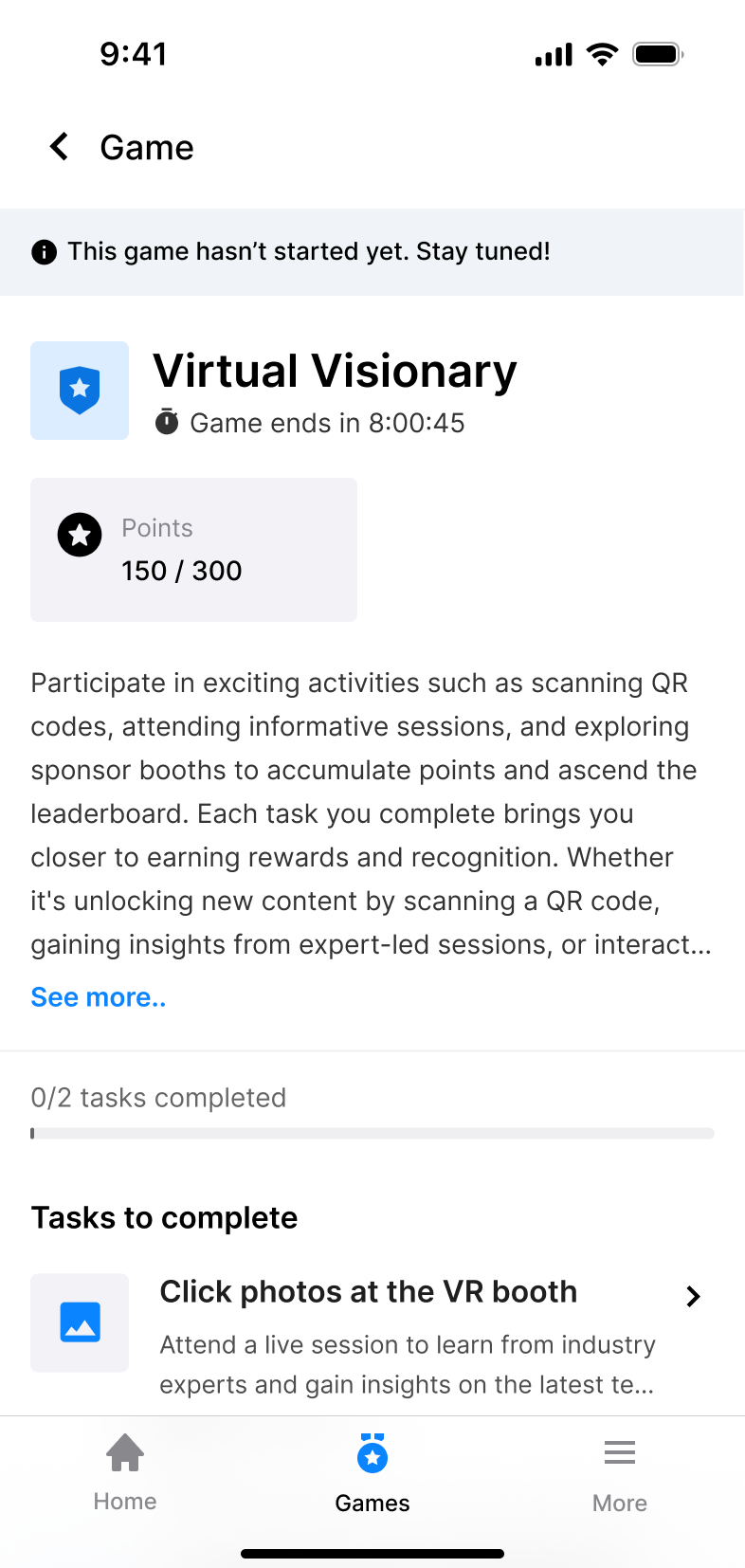
The games themselves can have multiple tasks within, each with specific actions to complete and rewards to earn:
Notifications
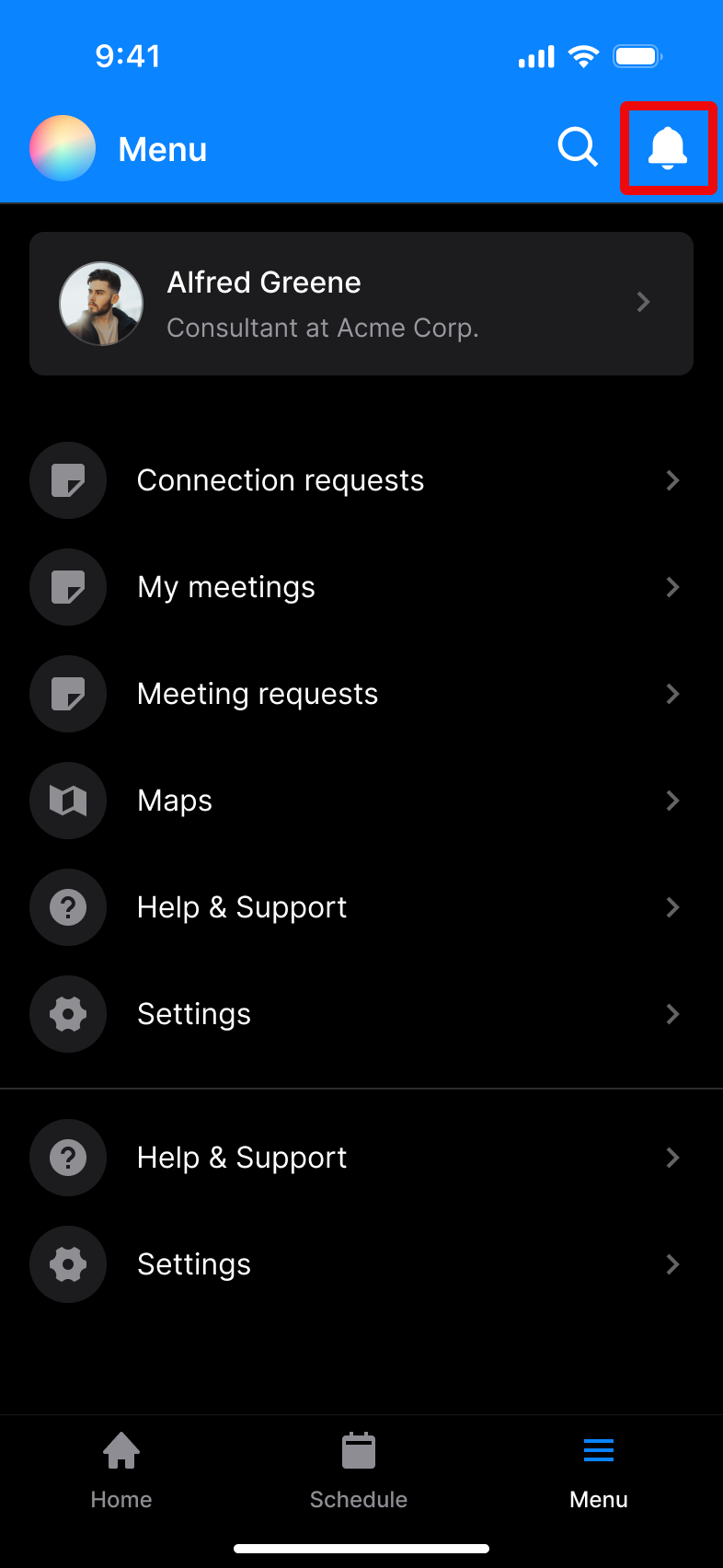
The notifications section of the app can be accessed by tapping the notification (bell) icon in the upper right of the screen.
Attendees can view all event-related notifications here: session reminders, meeting invitations, meeting reminders, connection requests, 1:1 messages, and custom push notifications for speakers, sessions, and sponsors.
 | 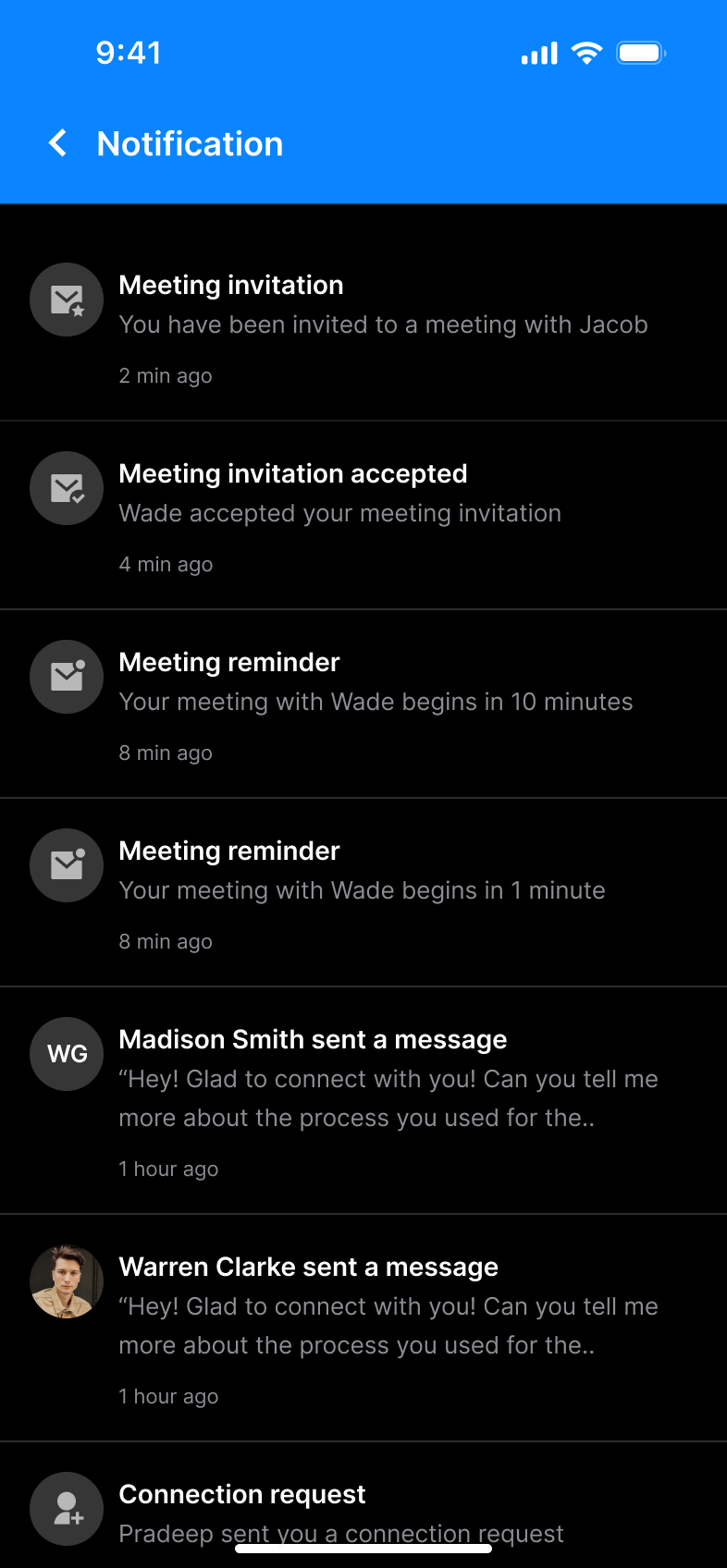 |
Notifications are arranged according to the time when they are received, with the most recent shown at the top. Only notifications received in the last 7 days are shown here.
Standard notifications
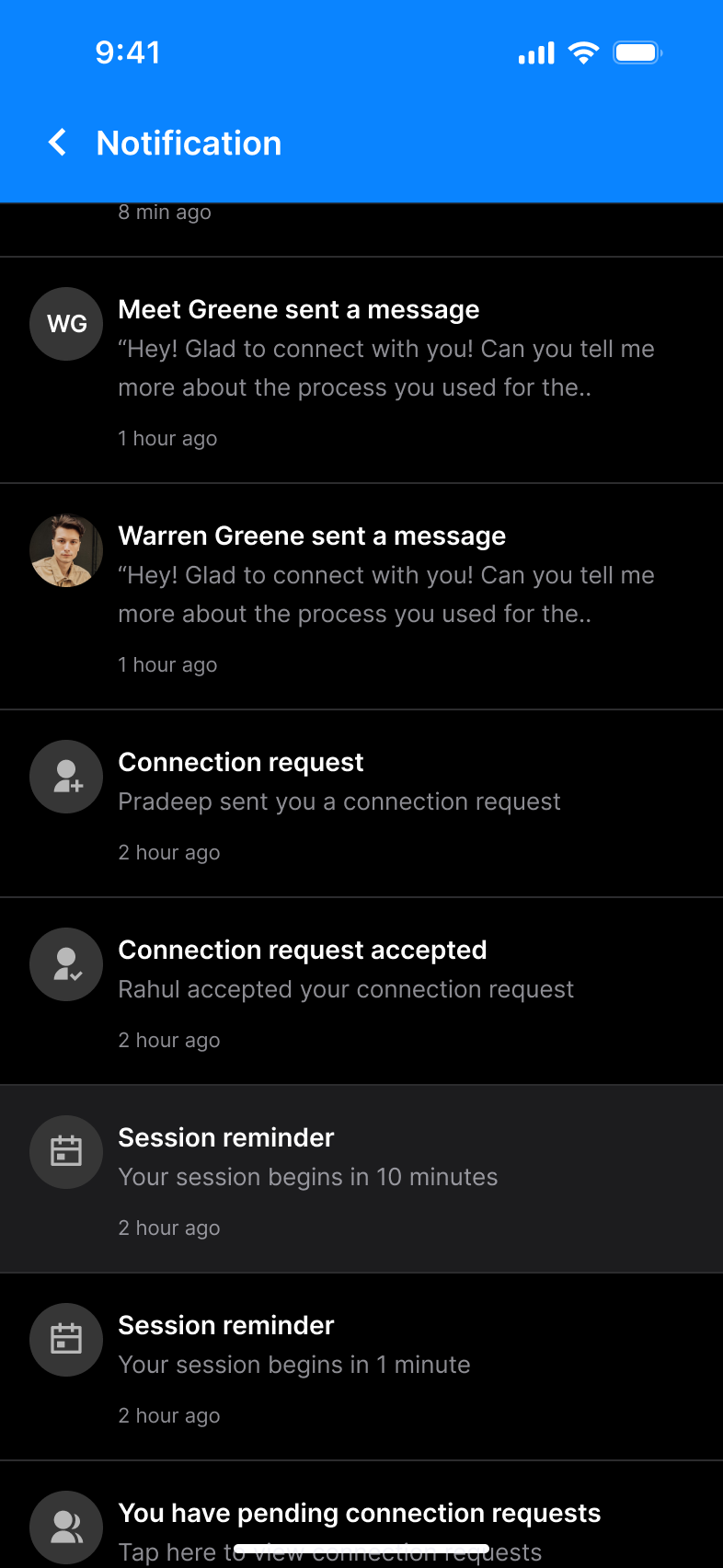
Session reminders
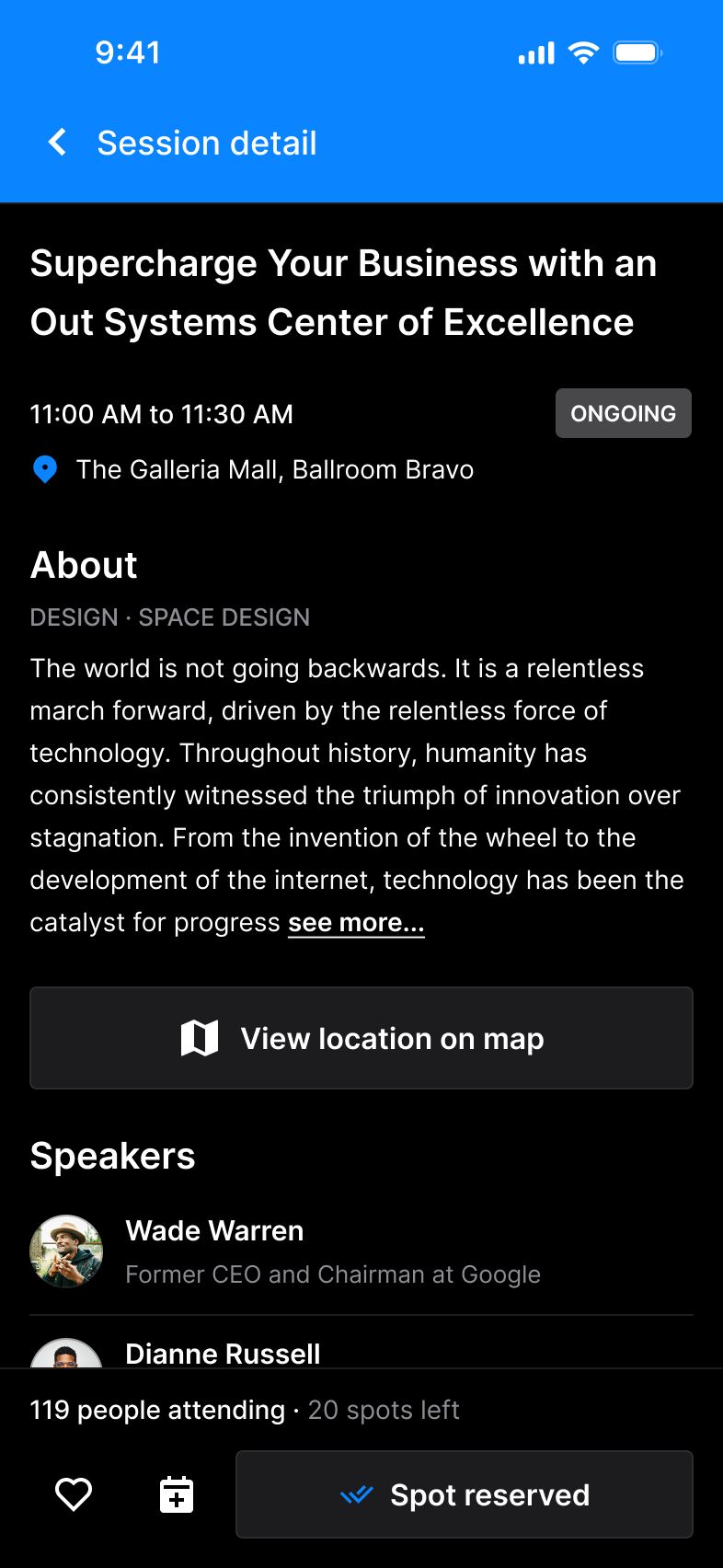
Session reminder notifications are sent 10 minutes and 1 minute before a session begins. When attendees tap on the reminder notification, they are redirected to the Session detail page:
 |  |
Meeting requests
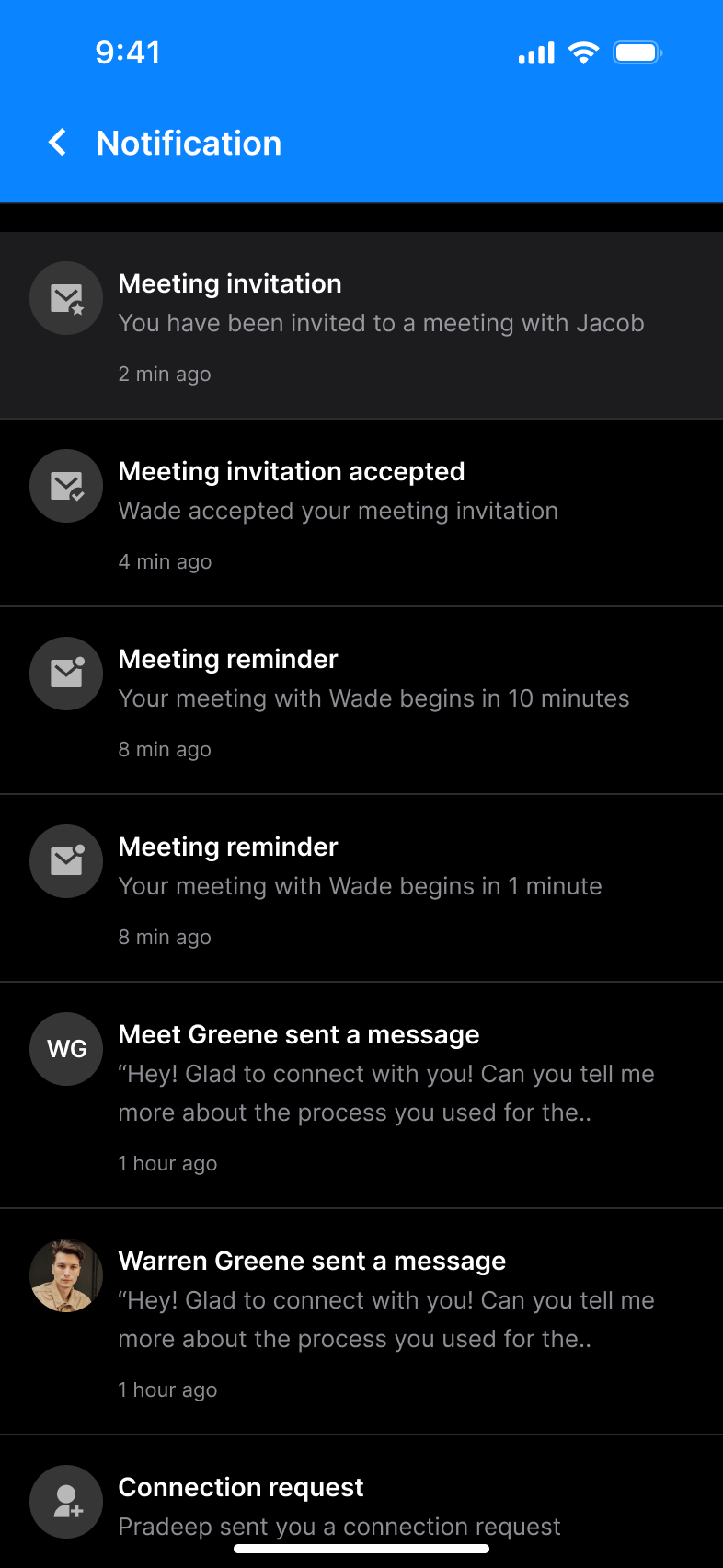
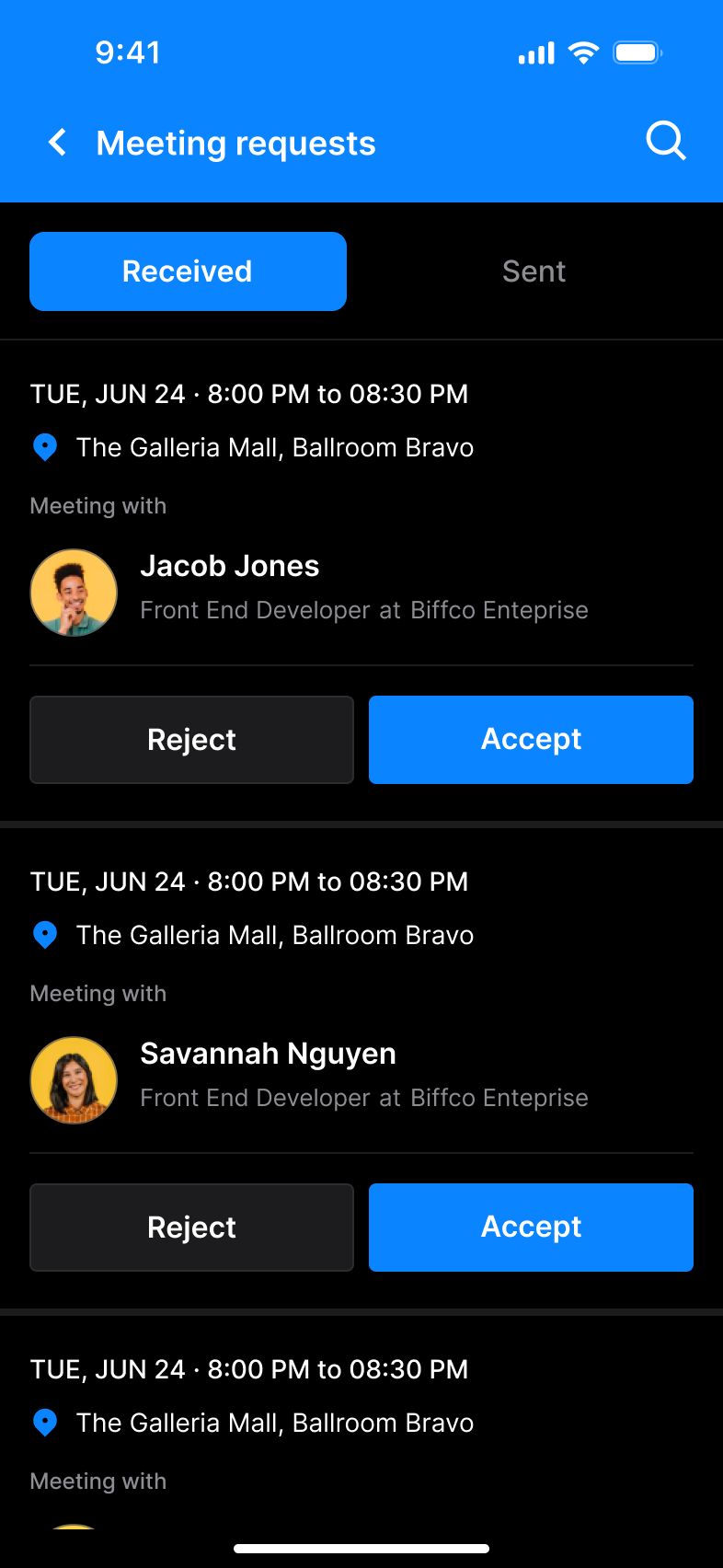
Attendees receive notifications when they get a meeting request. These notifications redirect attendees to the Meeting request page.
 |  |
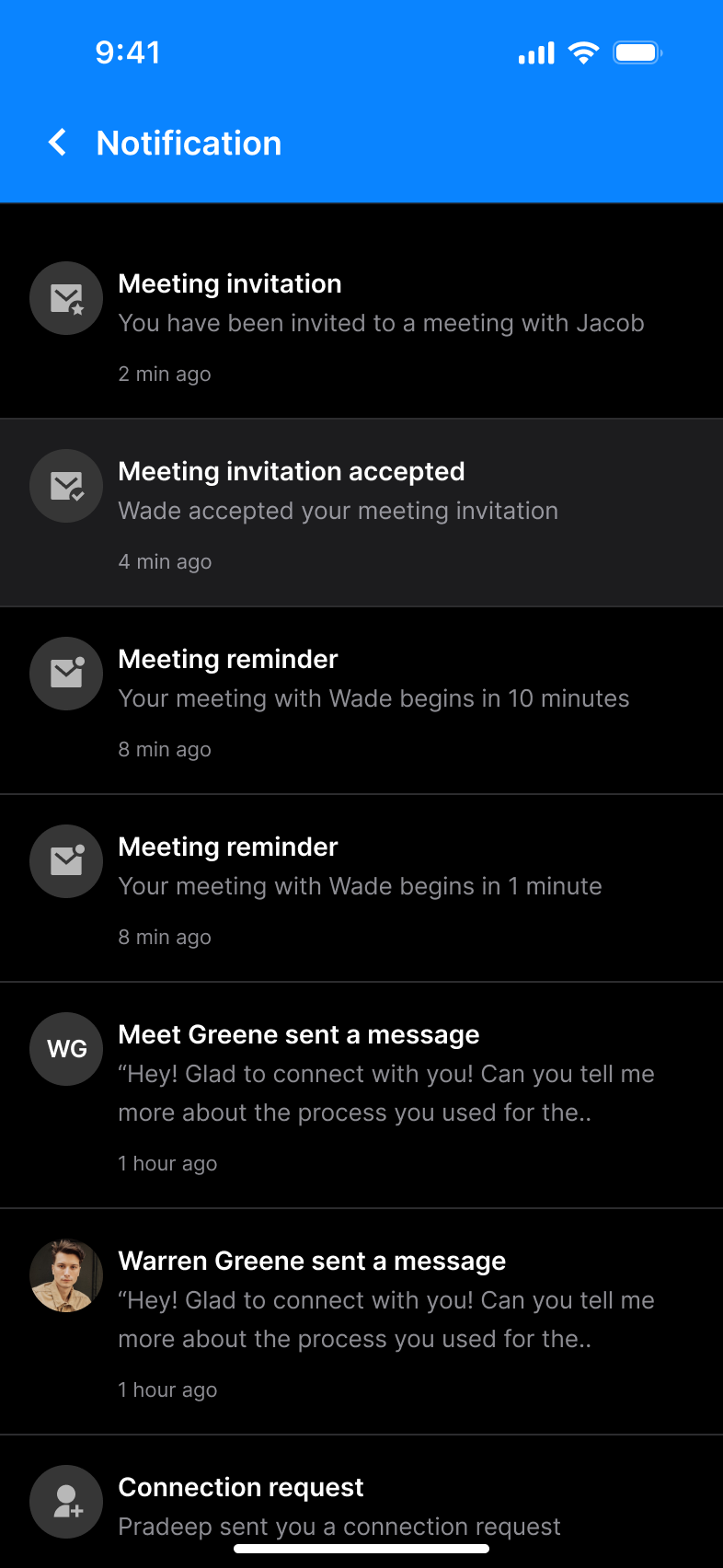
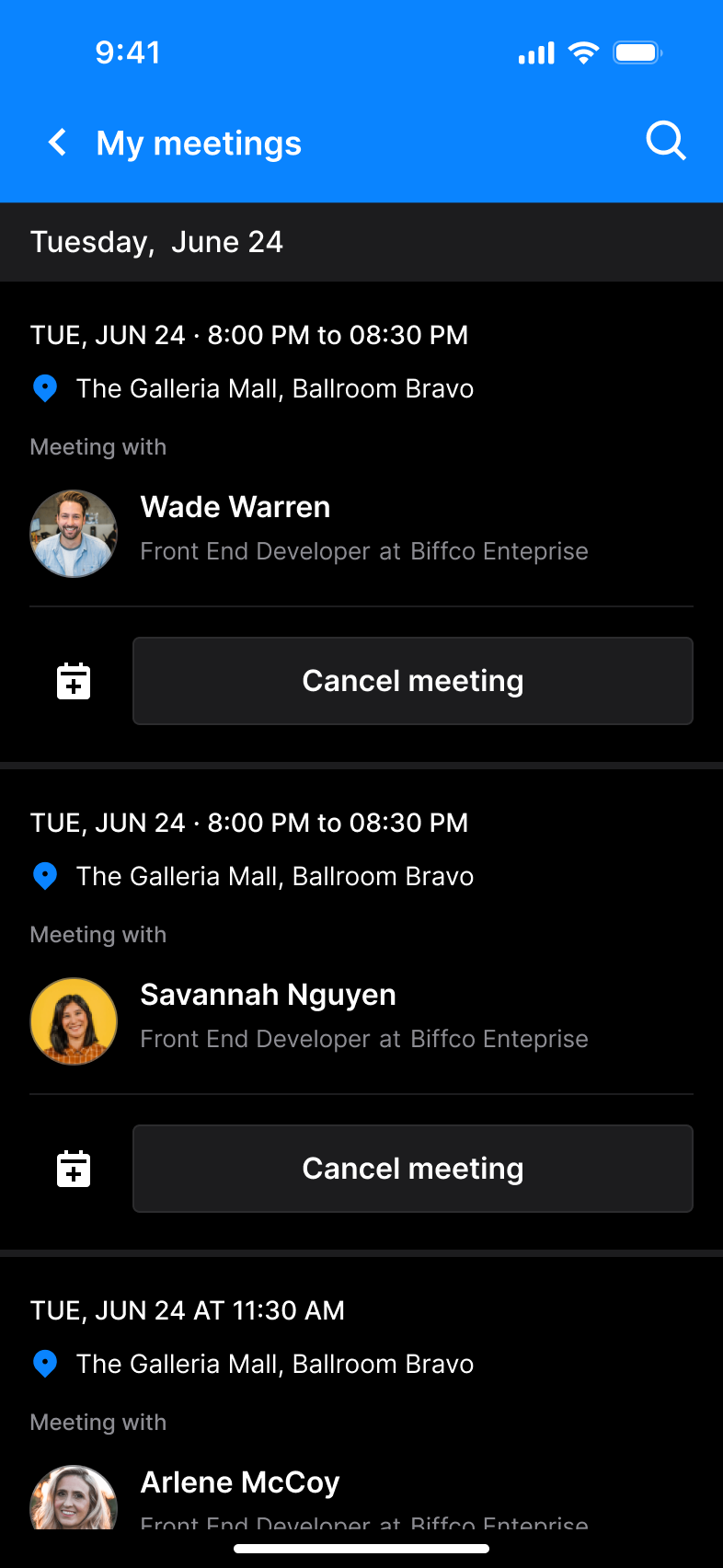
Attendees also receive notifications when their meeting request is accepted. These notifications redirect them to the accepted meeting on the My meetings page.
 |  |
Meeting reminders
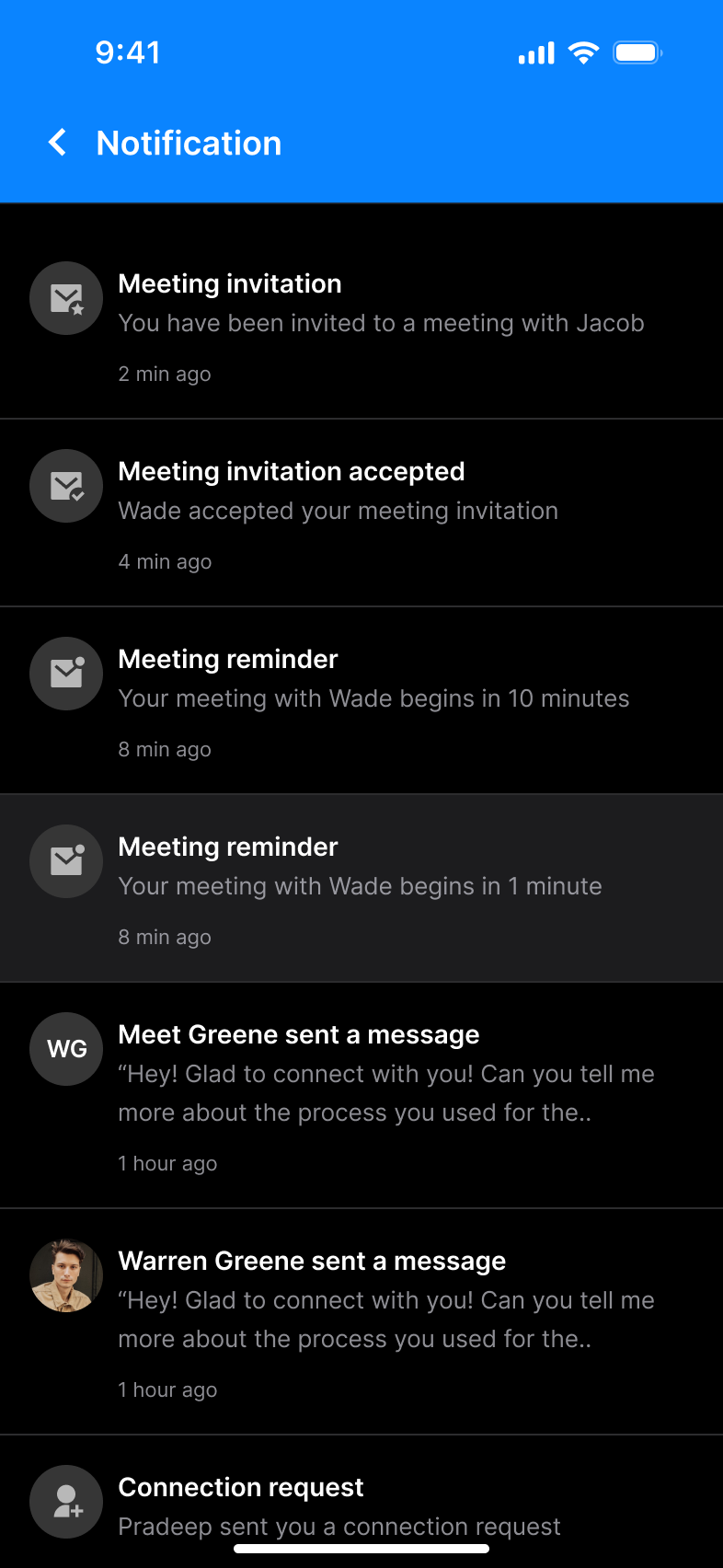
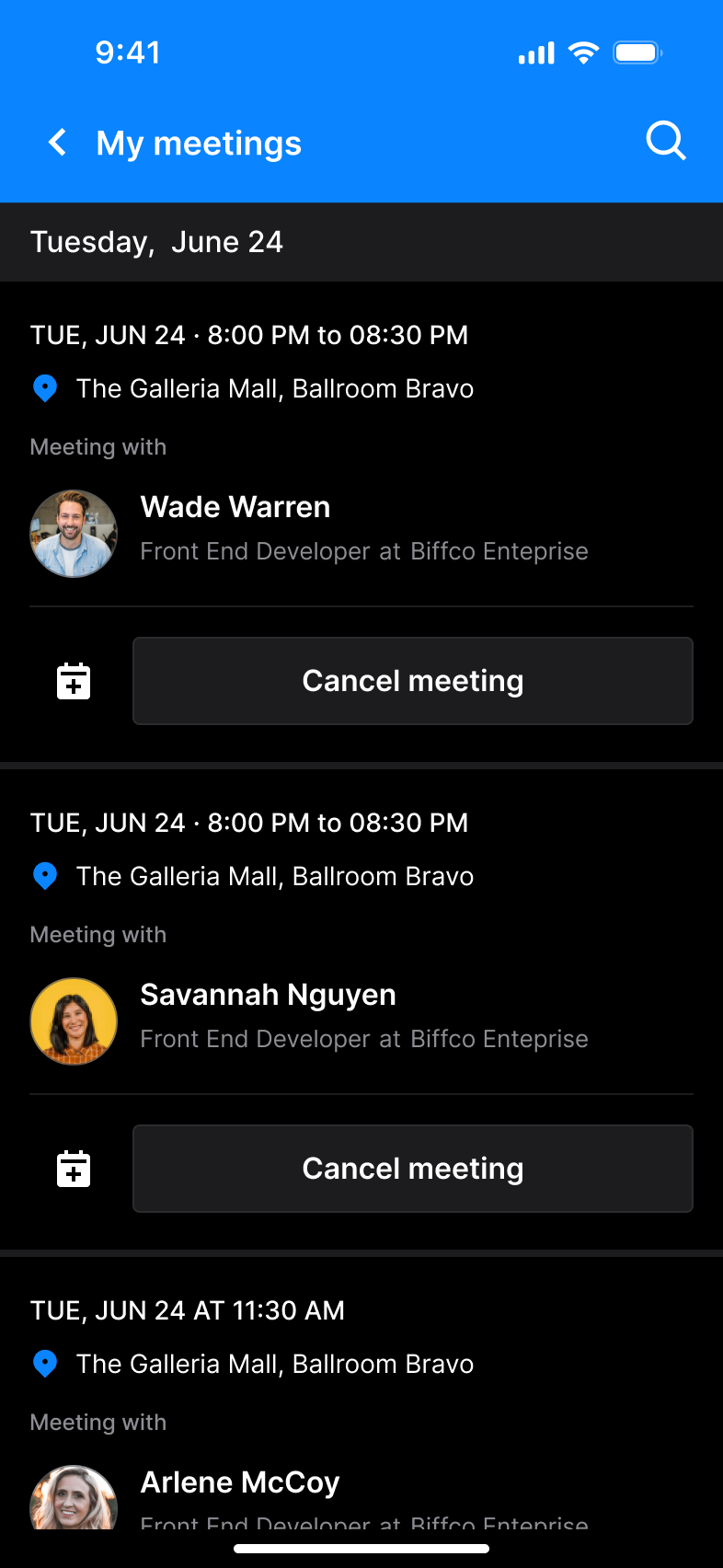
Meeting reminder notifications are sent 10 minutes and 1 minute before a meeting begins. When attendees tap on the reminder notification, they are redirected to the relevant meeting on the My meetings page.
 |  |
Messages
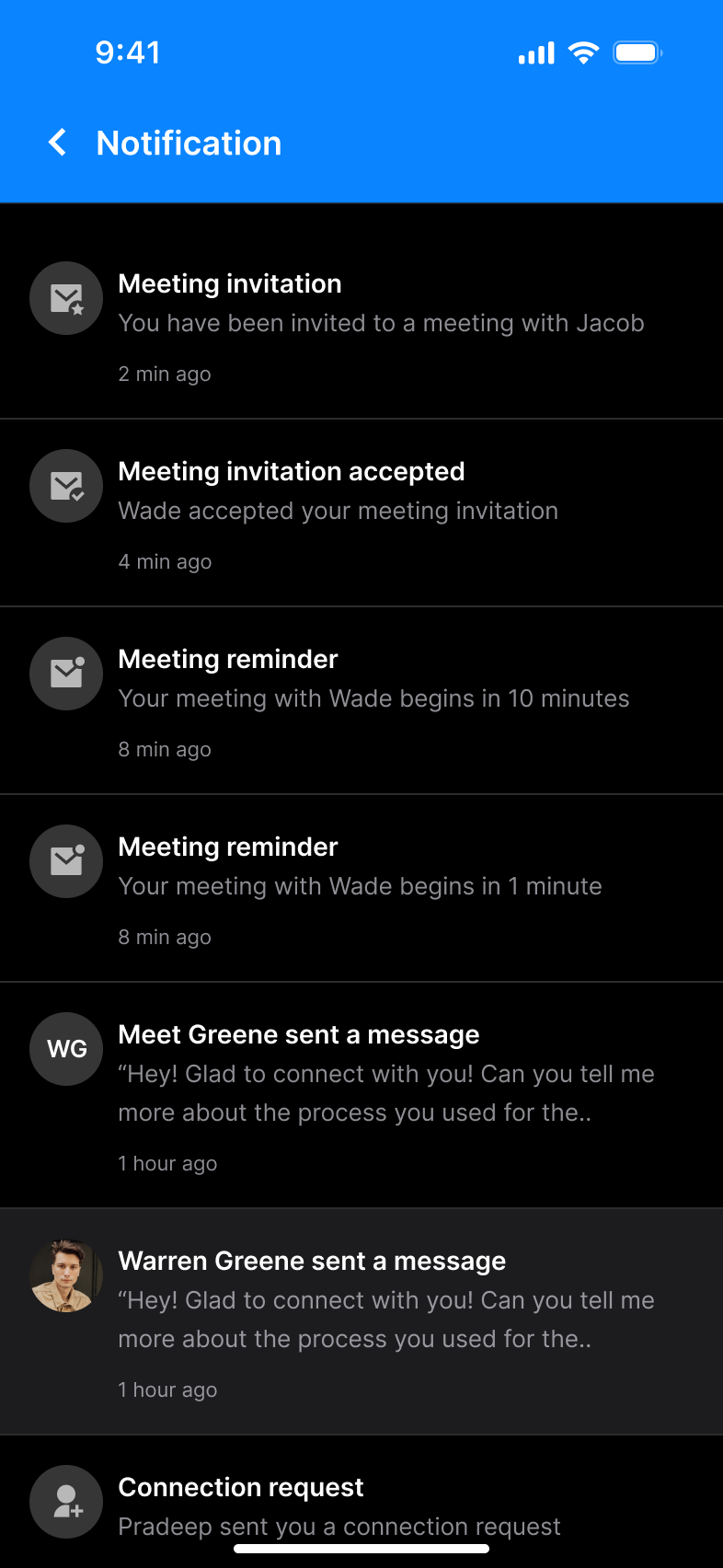
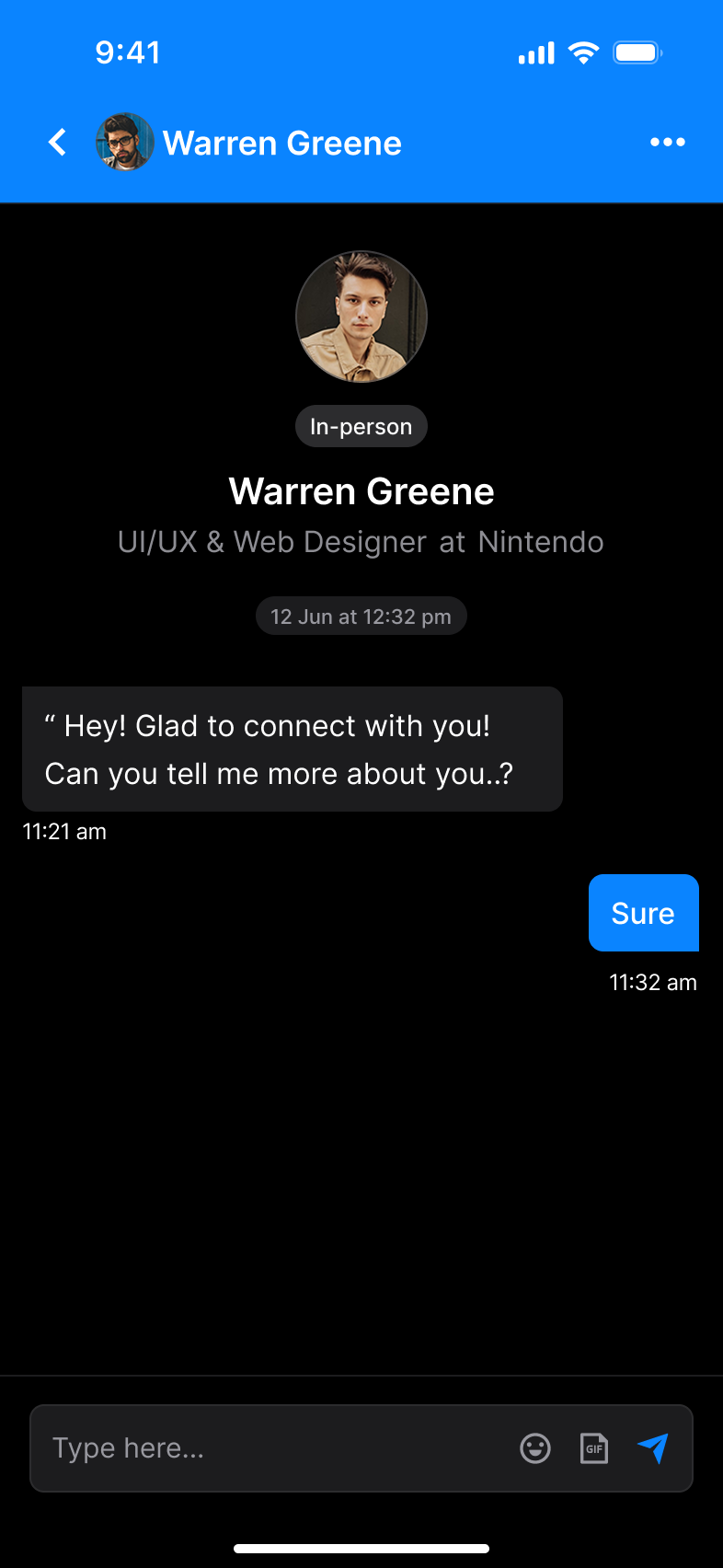
1:1 messages sent by other event participants are shown as notifications. Tapping on this notification opens the message.
 |  |
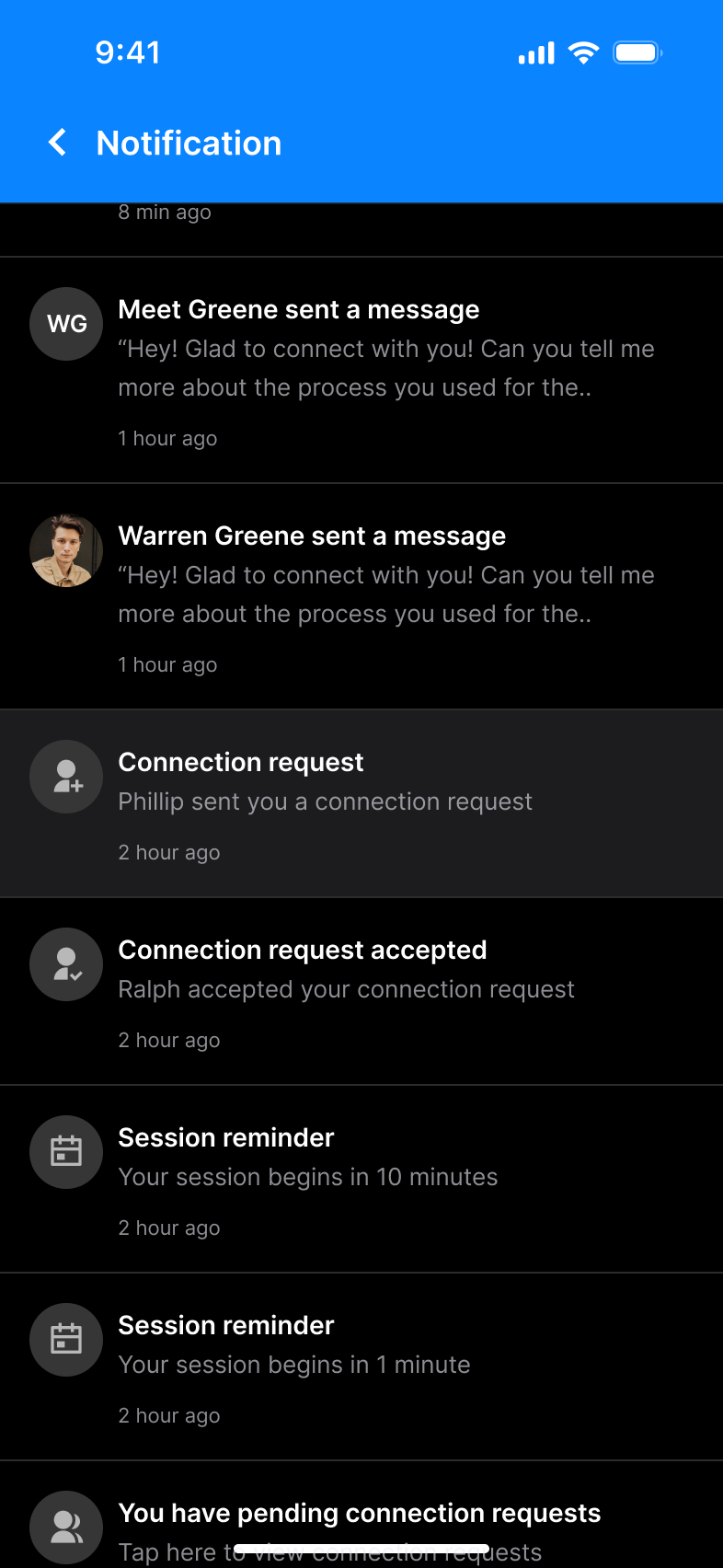
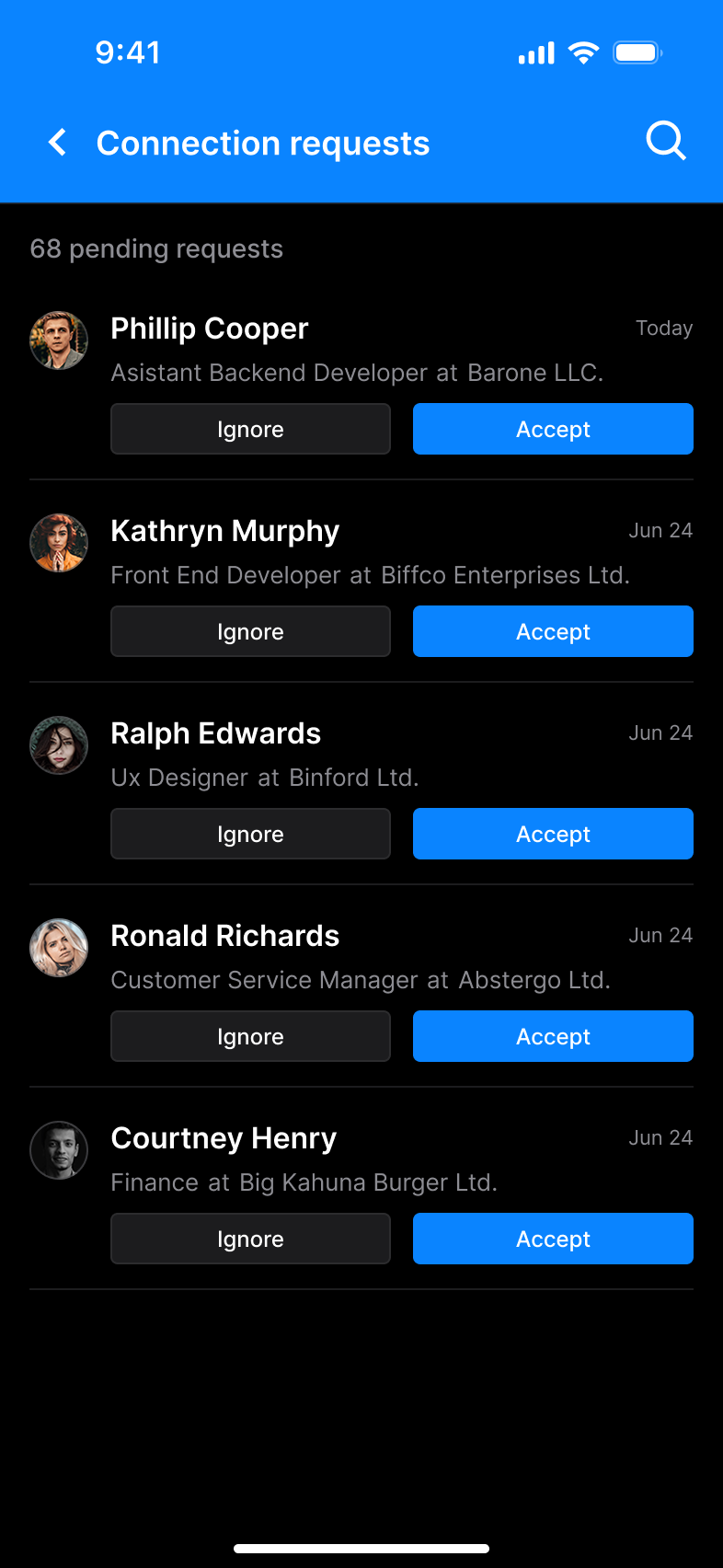
Connection requests
Attendees receive notifications when they get a connection request. These notifications redirect attendees to the Connection requests page.
 |  |
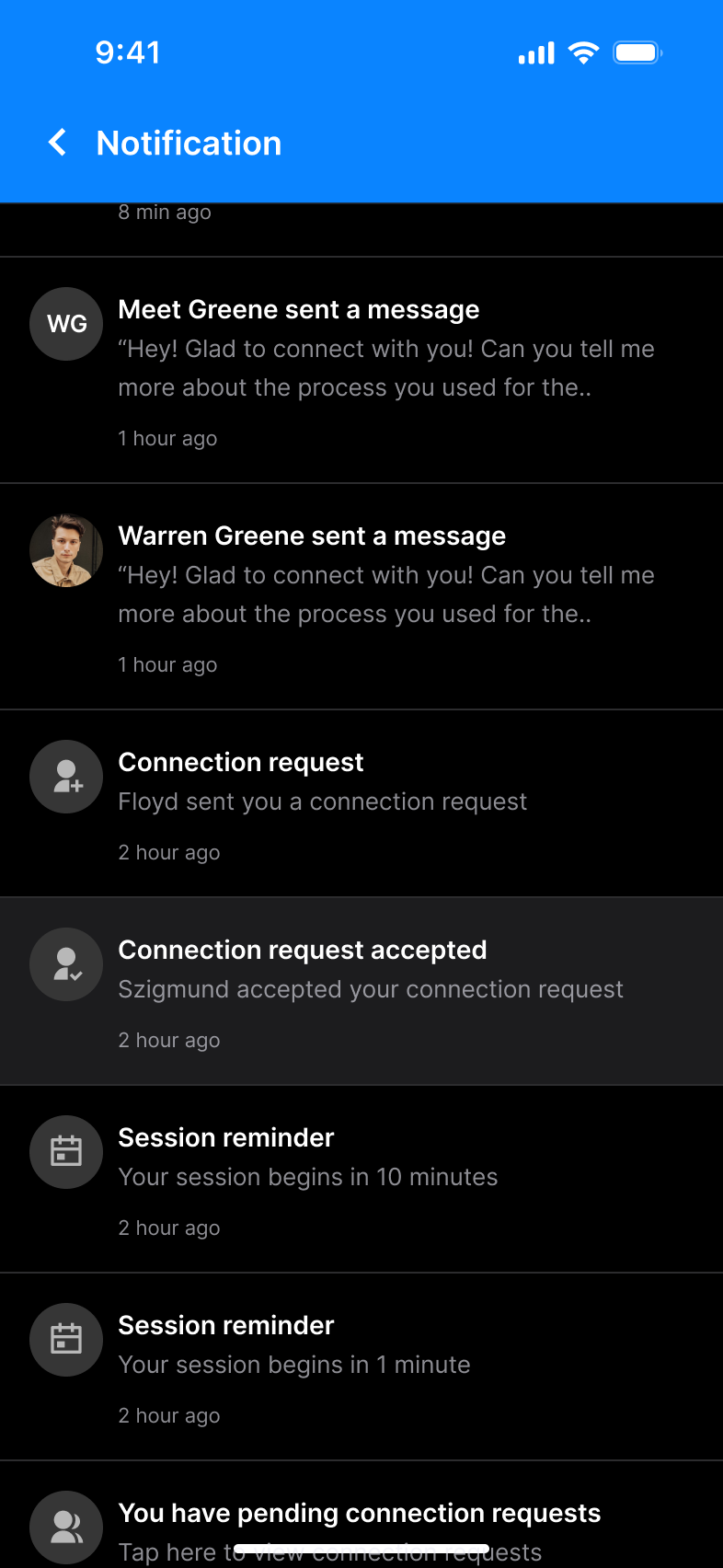
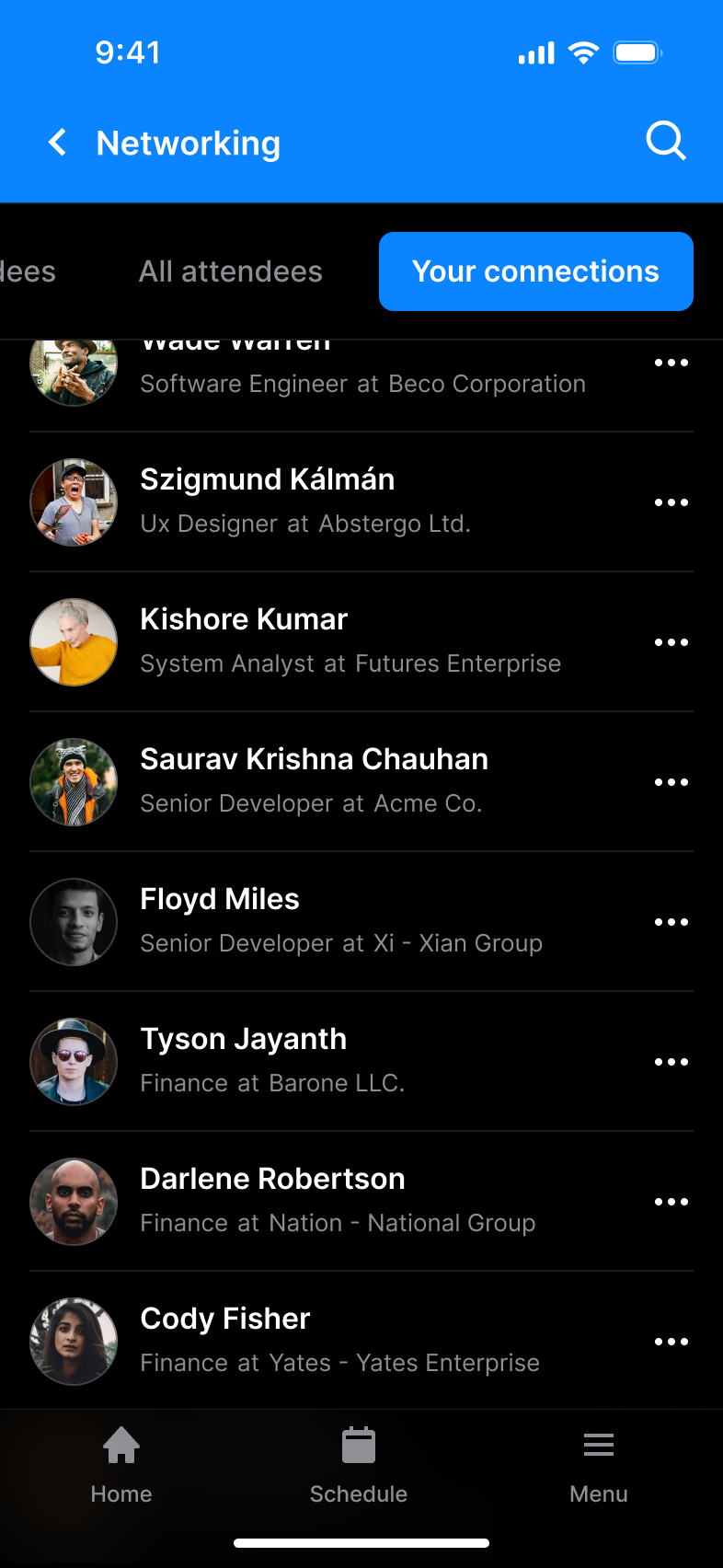
Attendees also receive notifications when their connection request is accepted. These notifications redirect them to the accepted connection on the Networking page.
 |  |
Custom notifications
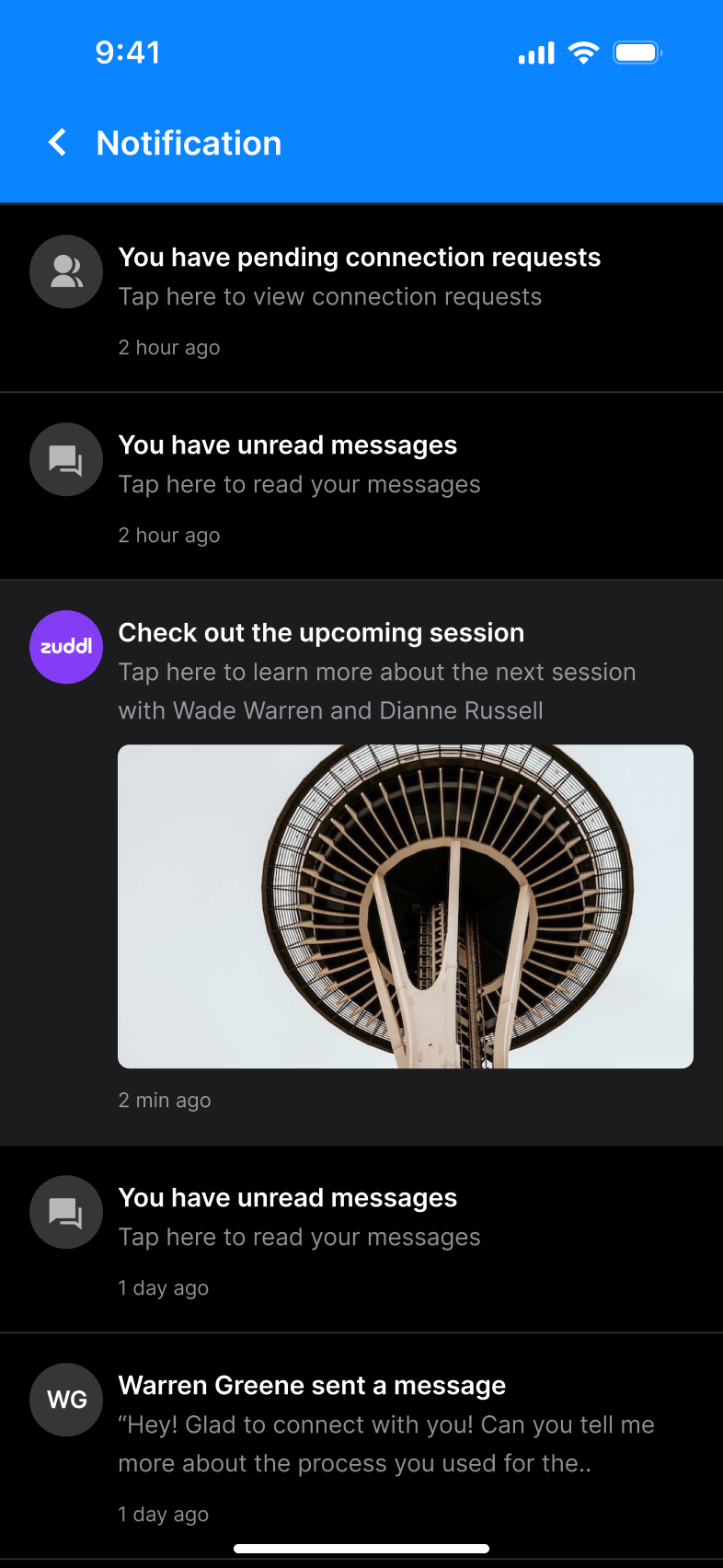
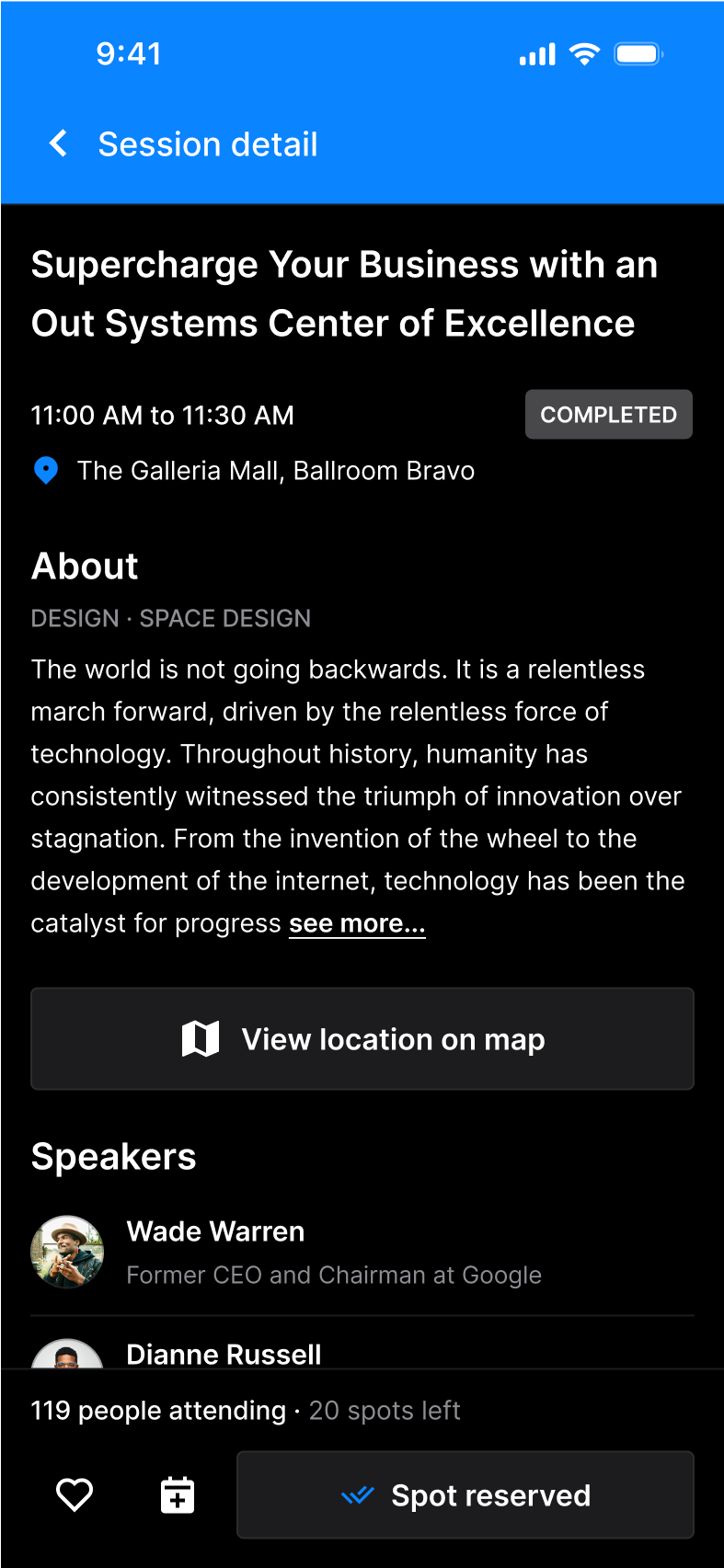
Session notifications
Custom notifications for sessions can be configured to redirect attendees directly to a specific Session detail page within the app; or if no specific session is selected, then to the Schedule page.
 |  |
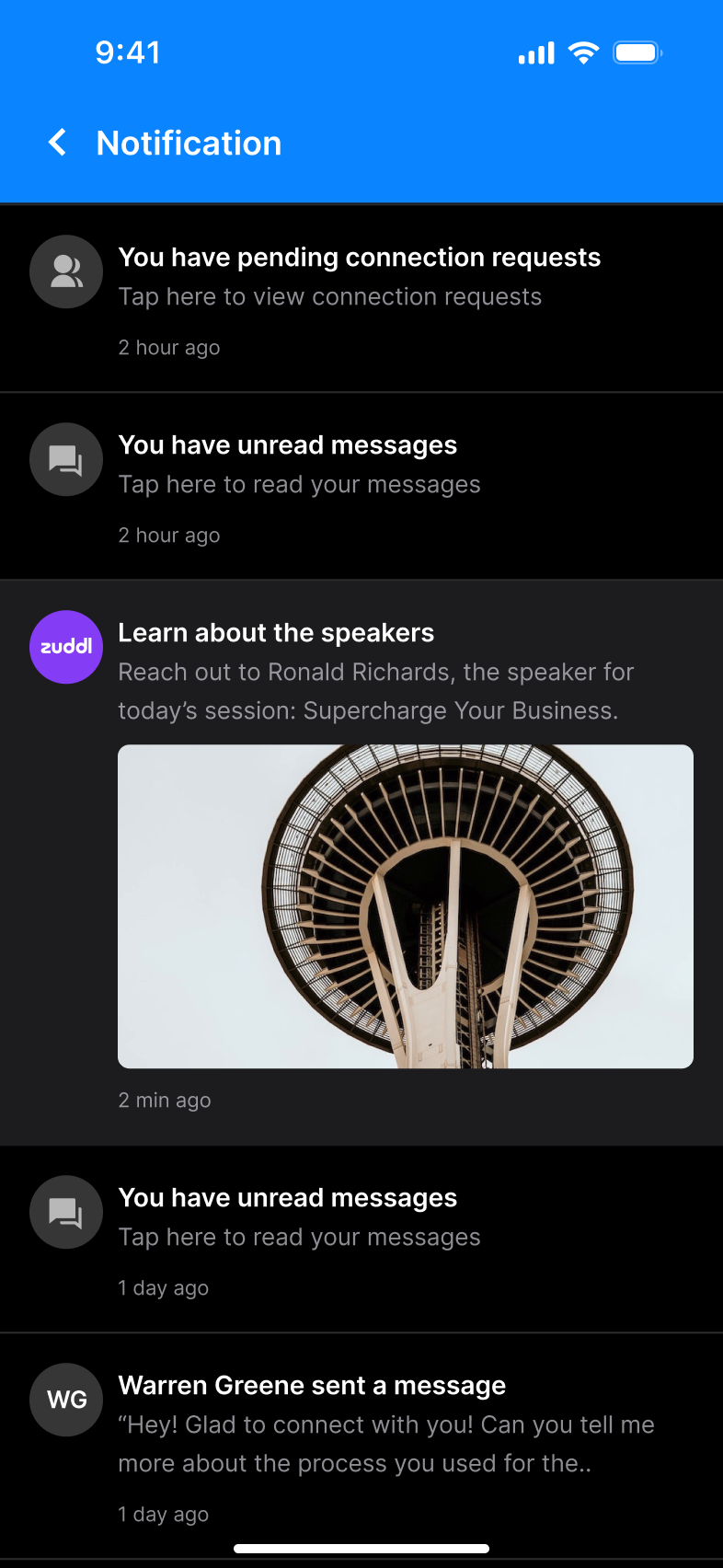
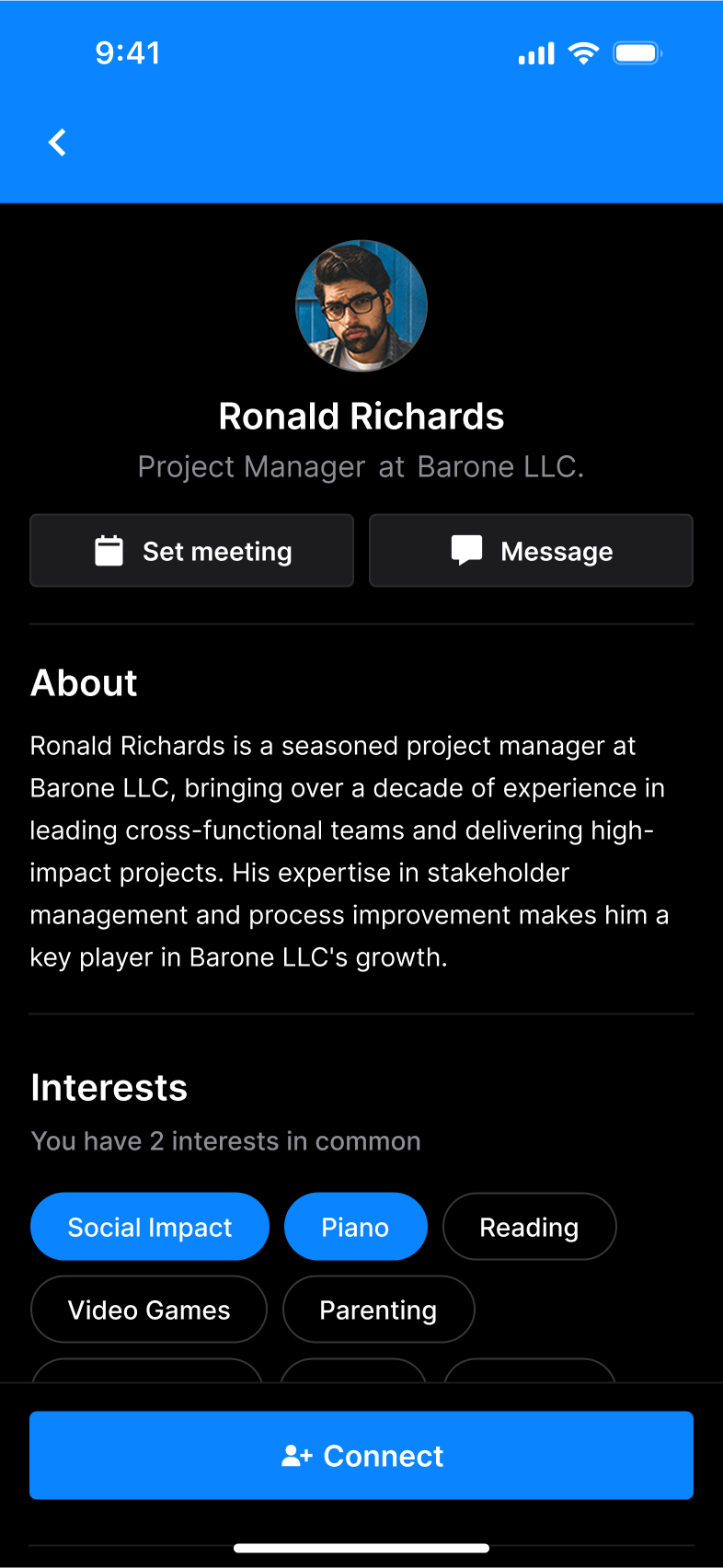
Speaker notifications
Custom notifications for speakers can be configured to redirect attendees directly to a specific Speaker profile in the Speaker directory within the app.
 |  |
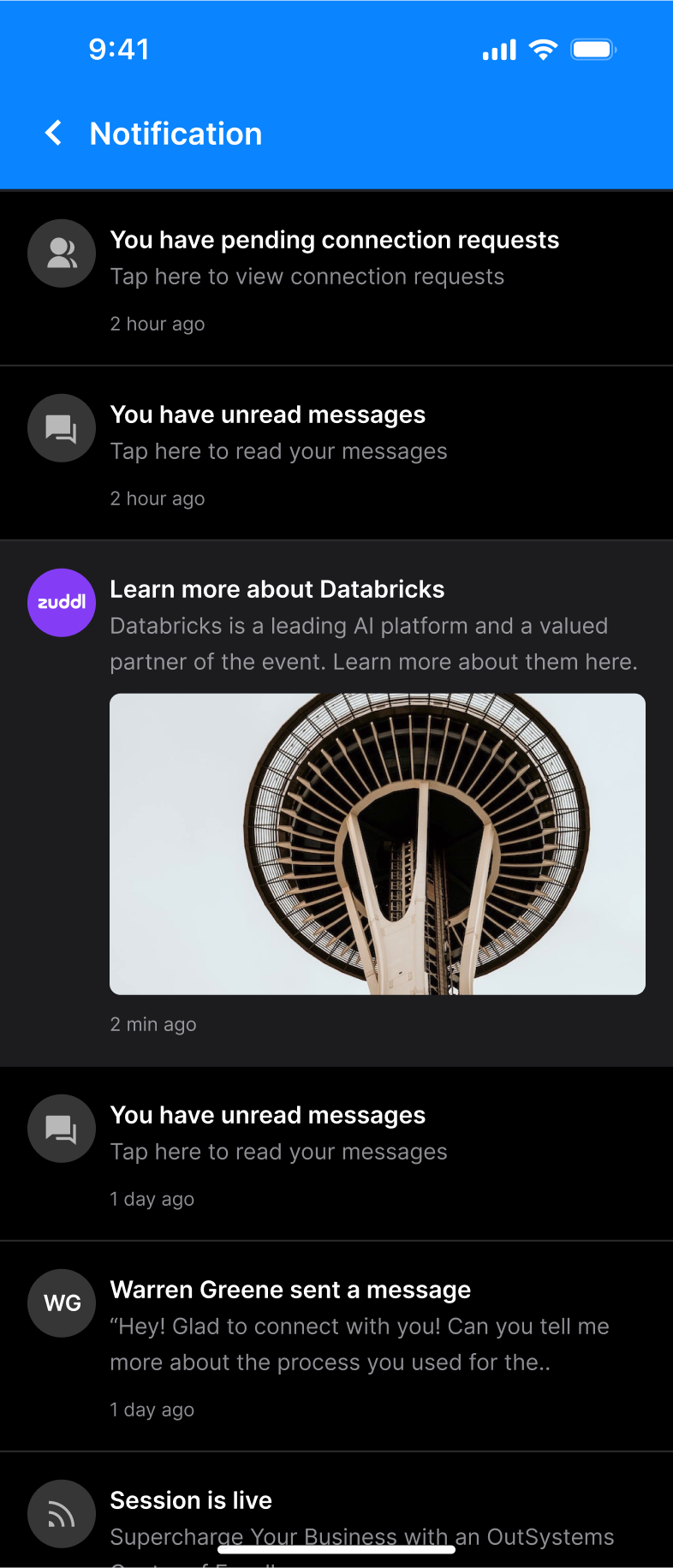
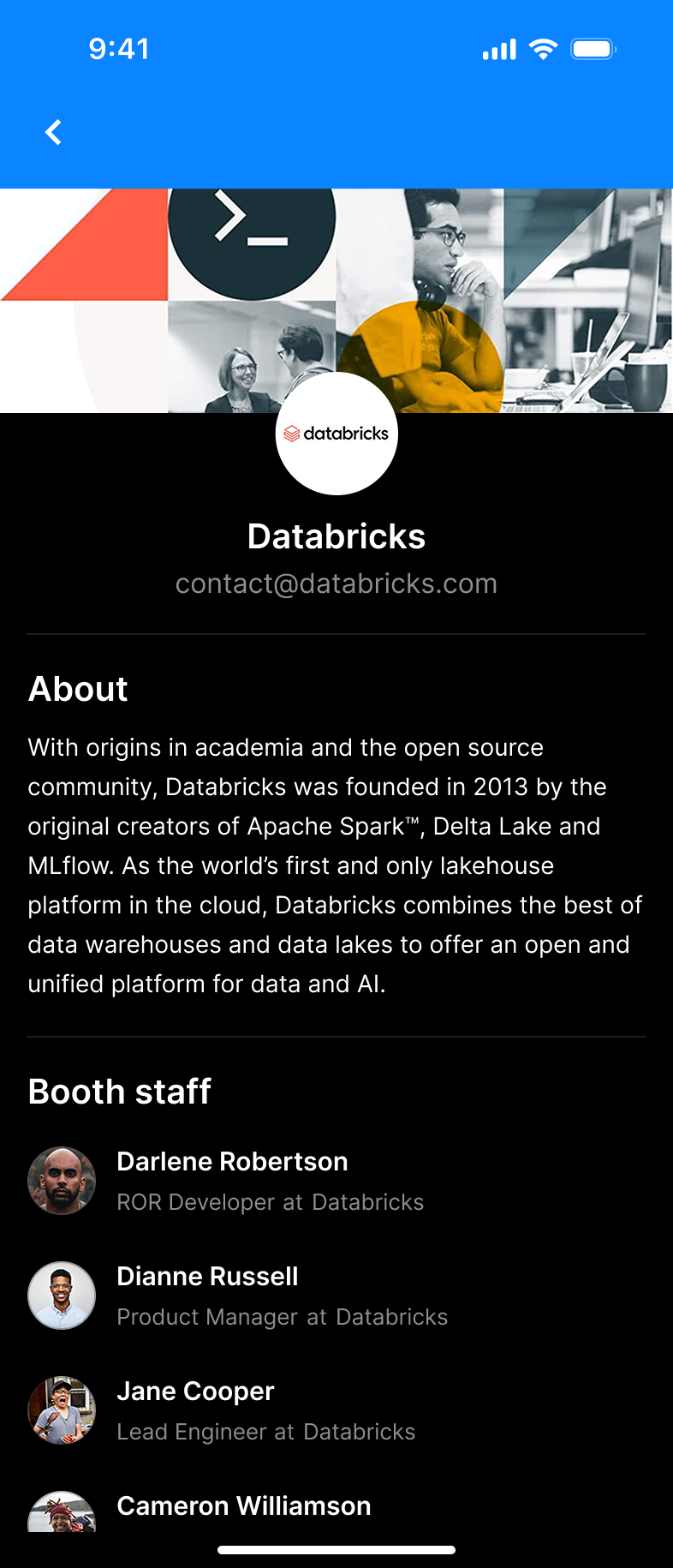
Sponsor notifications
Custom notifications for sponsors can be configured to redirect attendees directly to a specific Sponsor profile in the Sponsor directory within the app.
 |  |
Custom pages
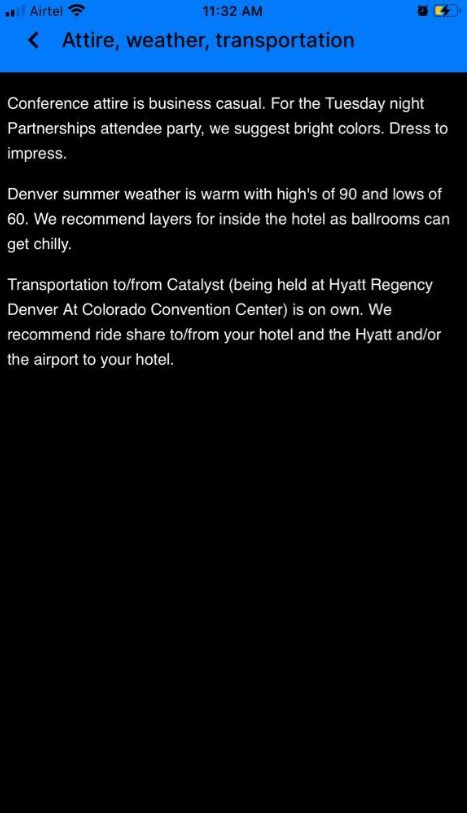
Custom pages offer flexibility for improving the overall conference experience. Organizers can customize the app pages for their event's unique requirements, providing a more informative experience for attendees.
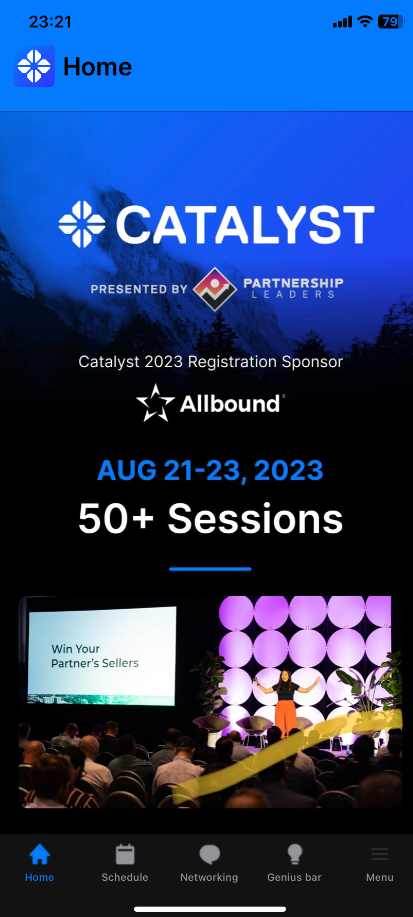
Launchpad pages
- Launchpad pages are the entrance to the conference app and help direct attendees through the various offerings of the event.
- These pages are designed to provide a central point for accessing important information, navigating the app's features, and setting the tone for the event.
WYSIWYG pages
iFrame pages
- iFrame pages allow you to utilize external web content and services.
- This enables a smooth user experience, delivers extra functionalities, and expands the app's capabilities to cater to the event's unique requirements.
Custom Bottom bar & Menu
The custom bottom bar typically replaces the standard navigation bar found at the bottom of the app interface. It's designed to provide easy access to key app sections and features.
Navigation Menu
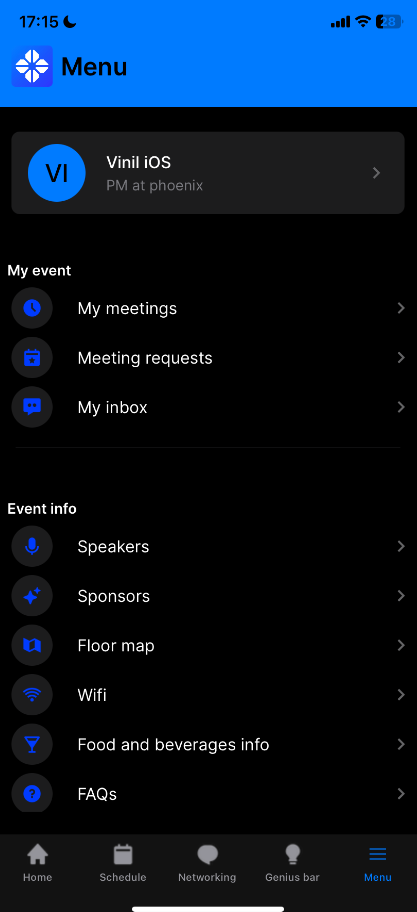
- A navigation menu allows attendees to access different sections of the app.
- Common menu items include the home, schedule, exhibitors, networking, maps, and other relevant sections.