How to Duplicate a Virtual Event in Zuddl
Last updated: August 28, 2025
Events on Zuddl can be duplicated — you can have a nearly identical replica to use as a new event.
This can be helpful for cases where you want to create a new event based on an older event or if you want to reuse a canceled event. Duplicated events have most of the event setup intact from the original event, and you can edit them like regular events.
Changes in the duplicated event
Some event settings cannot be copied and must be applied again in the duplicated event. Here are these settings:
Settings | Status | Instructions |
Integrations | Not copied | Integrations need to be configured for the duplicated event. |
Tickets | Not copied | Ticket tiers and customizations need to be set up again. |
Registration page | Copied | Only pages using the Basic or Sponsor template are copied. |
Custom fields in the Registration Form | Copied | Custom fields in the form are copied. |
People | Not copied | All attendees and speakers need to be invited again. |
Access groups | Copied | Ticket-based access groups are not copied; any other access groups are copied. |
Schedule | Copied | Any scheduled sessions are copied and rescheduled according to the start time of the duplicated event. |
Stage | Not copied | RTMPS live stream settings, and Breakout rooms need to be set up. |
Rooms | Copied | Moderators need to be invited and assigned to all copied moderated rooms. |
Expo | Copied | Booth owners need to be invited and assigned to all copied expo booths. |
Communication | Copied | All emails are copied but are toggled off by default. |
Duplicating an event
To duplicate an event:
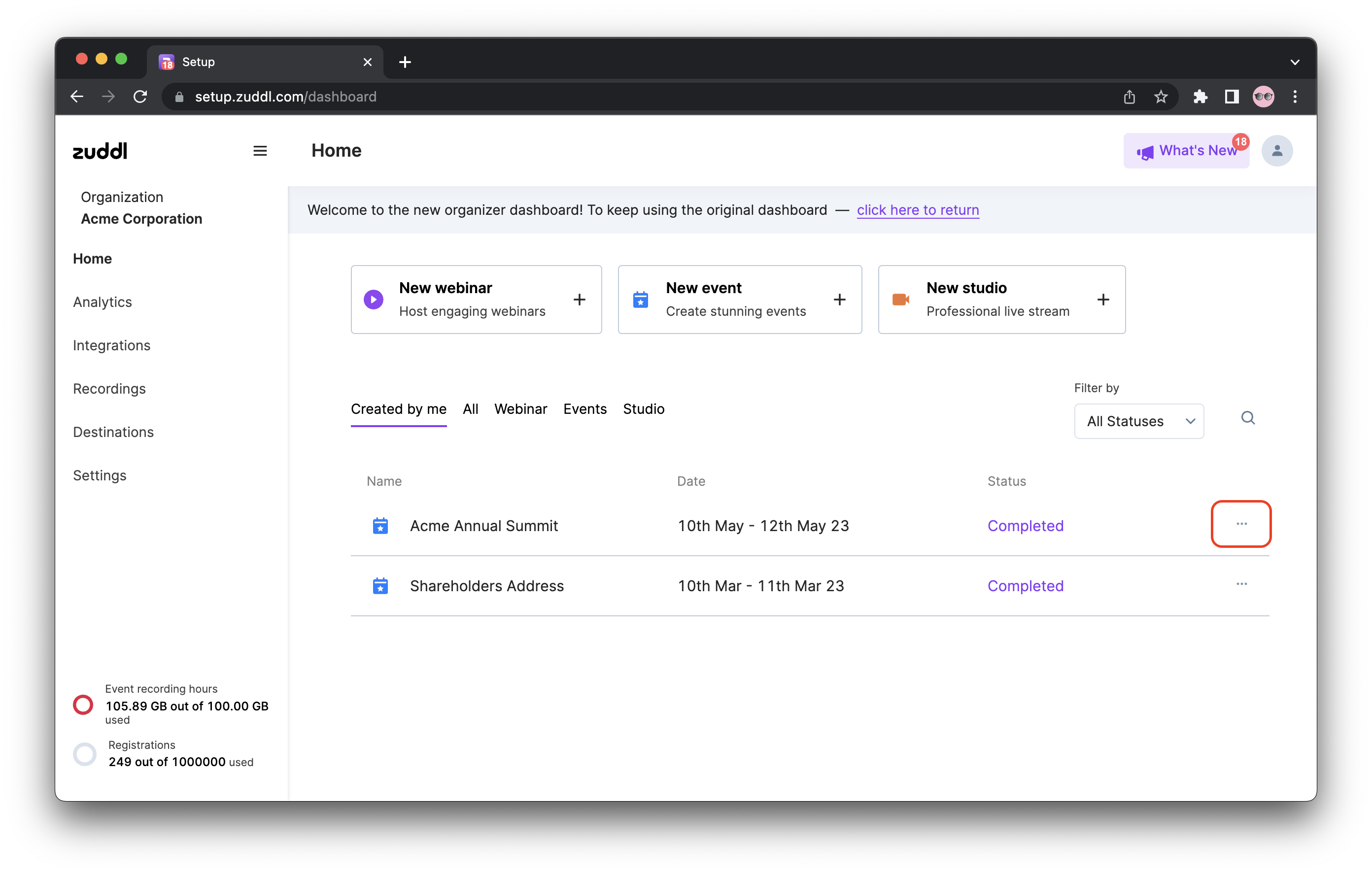
Click the more options button on the event listing.
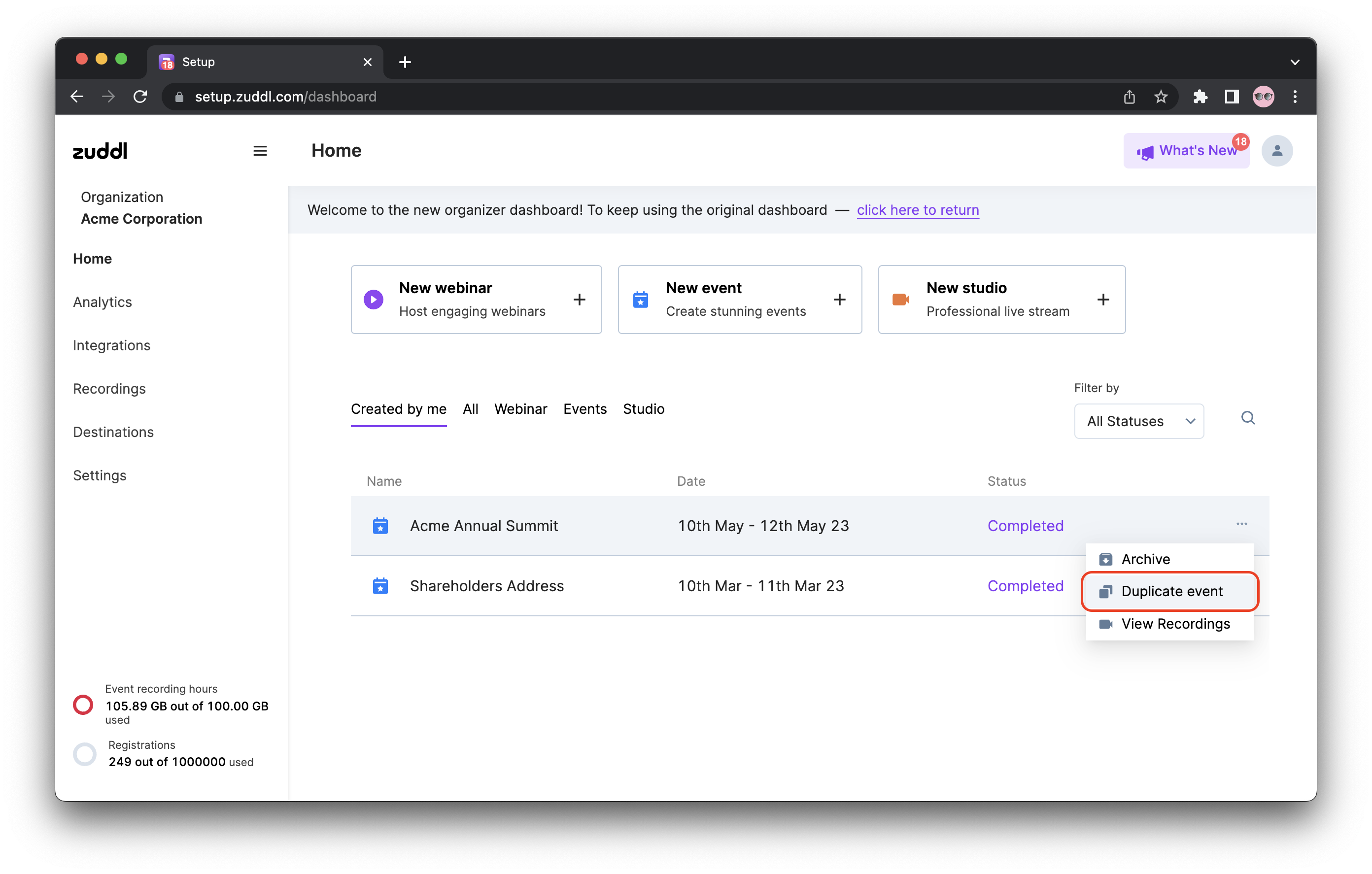
Click Duplicate event.
This opens a new event settings page with original event values. You can edit the Event name, Starts on date, and Timezone.
Under These settings will be duplicated section toggle off the settings you don't want to be duplicated.
Event setup
Access groups
Registration
Communication
Venue setup
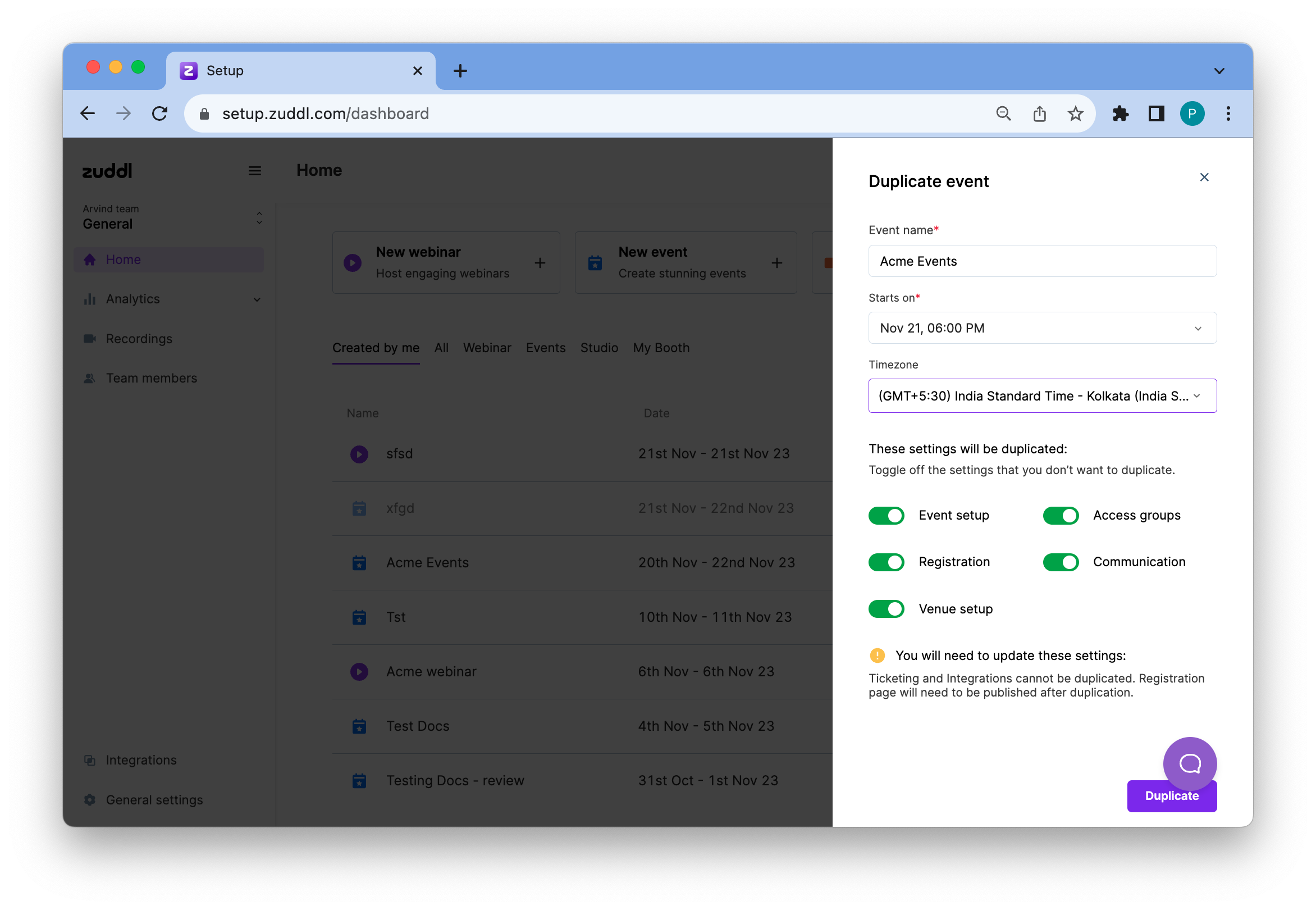
The registration page needs to be published after duplication.
Click Duplicate. The duplicated event is now added to the listing page. You can now edit and host the duplicated event like a regular one.
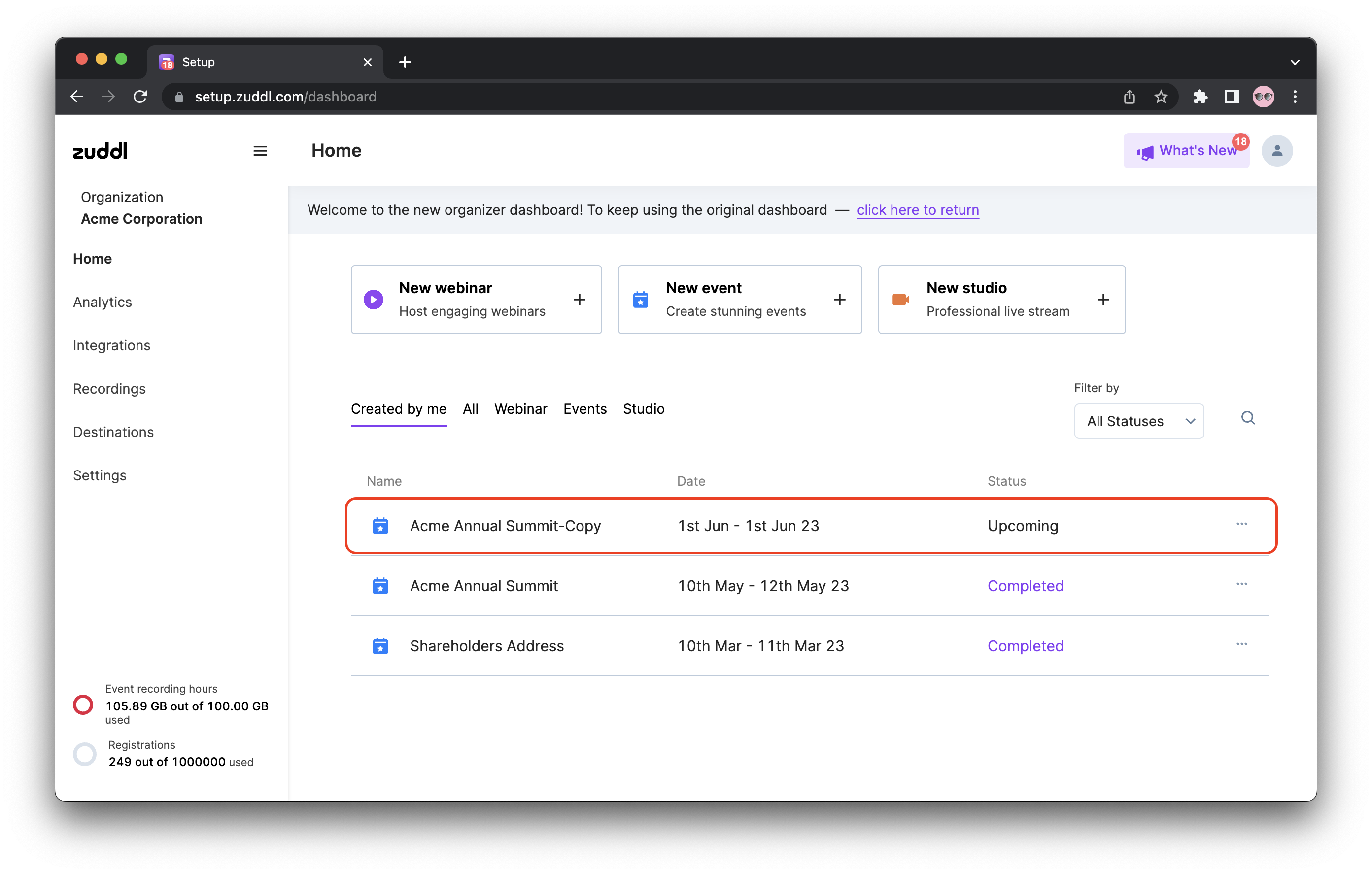
The duplicate event is scheduled one day after the day of duplication by default.
Registration flow for Flex events
When events are duplicated, the default flow is published in the new event.