How to Invite Speakers to a Zuddl Webinar
Last updated: September 4, 2025
Speakers can be invited to the webinar directly from the webinar setup.
Adding a new speaker
To add a speaker:
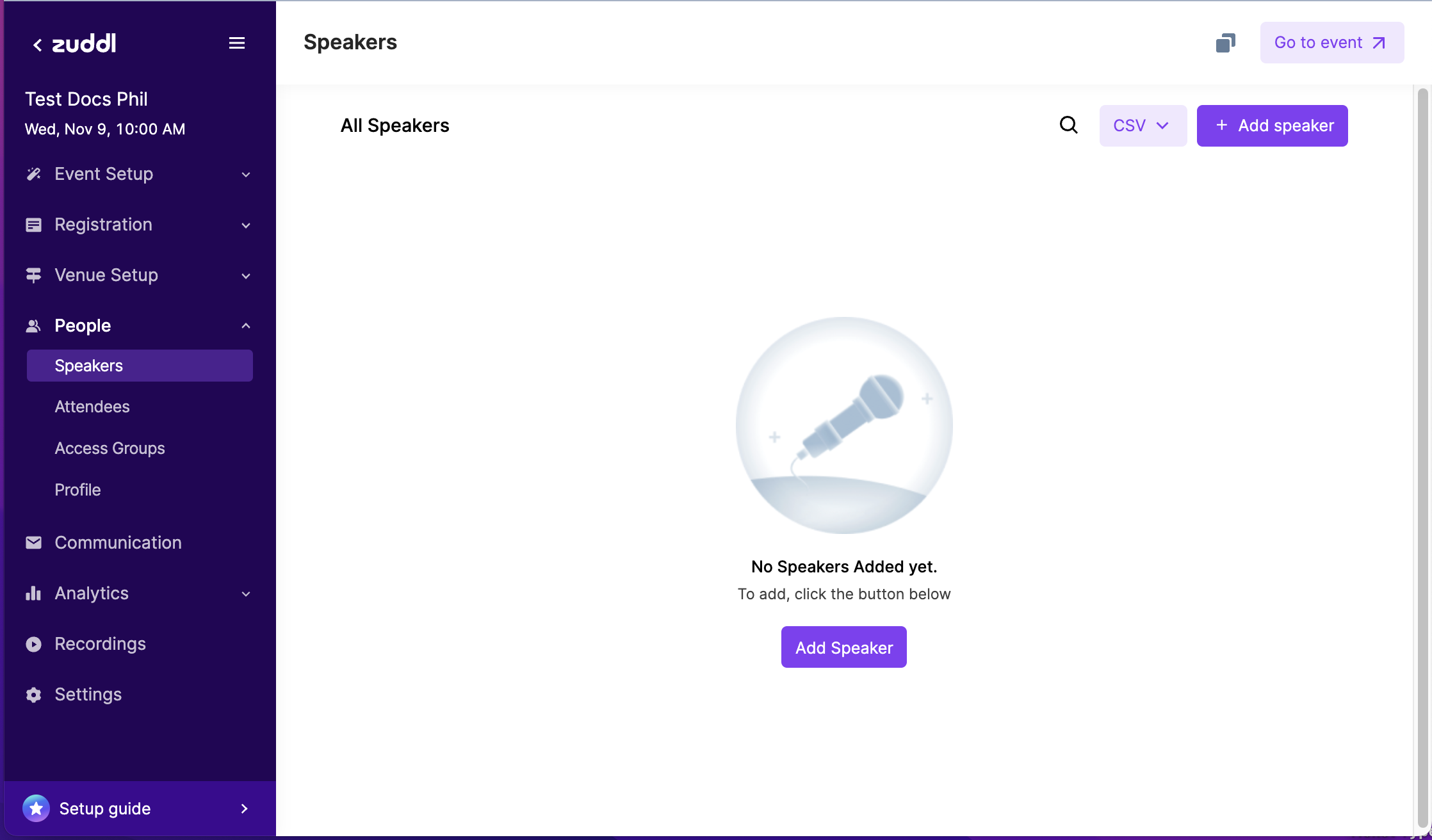
On the Zuddl dashboard, go to People > Speakers. This shows the speaker listing page.
Click on the Add Speaker button.
On the Add Speaker form, enter the following details:
Enter the Speaker's First Name (of up to 20 characters).
Enter the Last Name of the Speaker of up to 20 characters.
Enter the Email address of the Speaker.
Attendance type: Show the event type as input.
Optional. Enter the Title of the Speaker.
Optional. Enter the Organization name.
Optional. Add a Description (of up to 200 words) for the Speaker.
Enter LinkedIn profile link, Twitter profile link, Facebook profile link, and Website link.
Optional. Click the Upload Image button to add the profile picture of the Speaker. The recommended format is a jpg, jpeg, png, or gif file with 300x300 resolution.
Click the Add Speaker button.
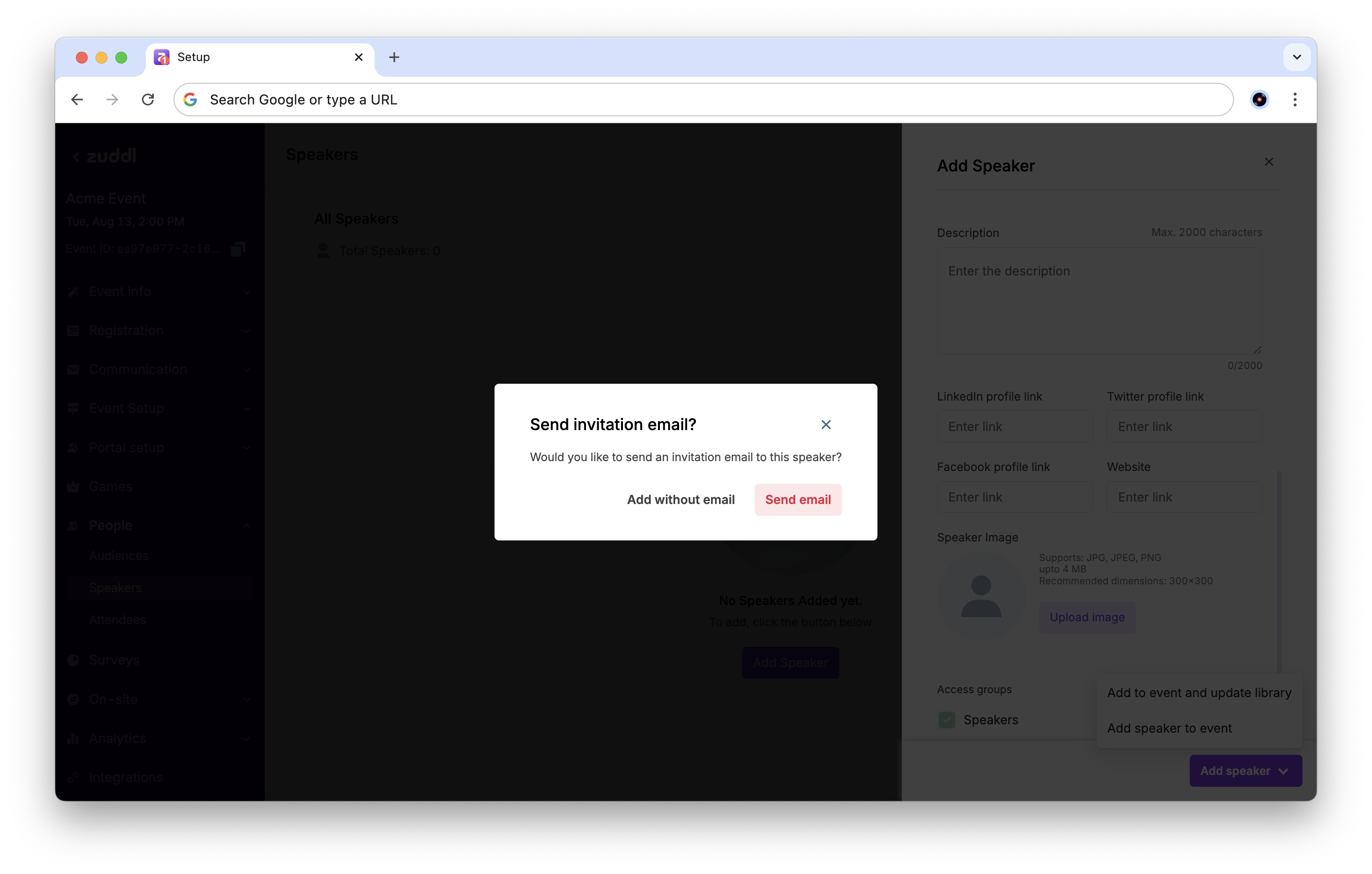
Choose a confirmation for the prompt message for invitation emails. Select Send email to send an email invite to the speaker. Click the Add without email button to skip sending an email invite to the Speaker.
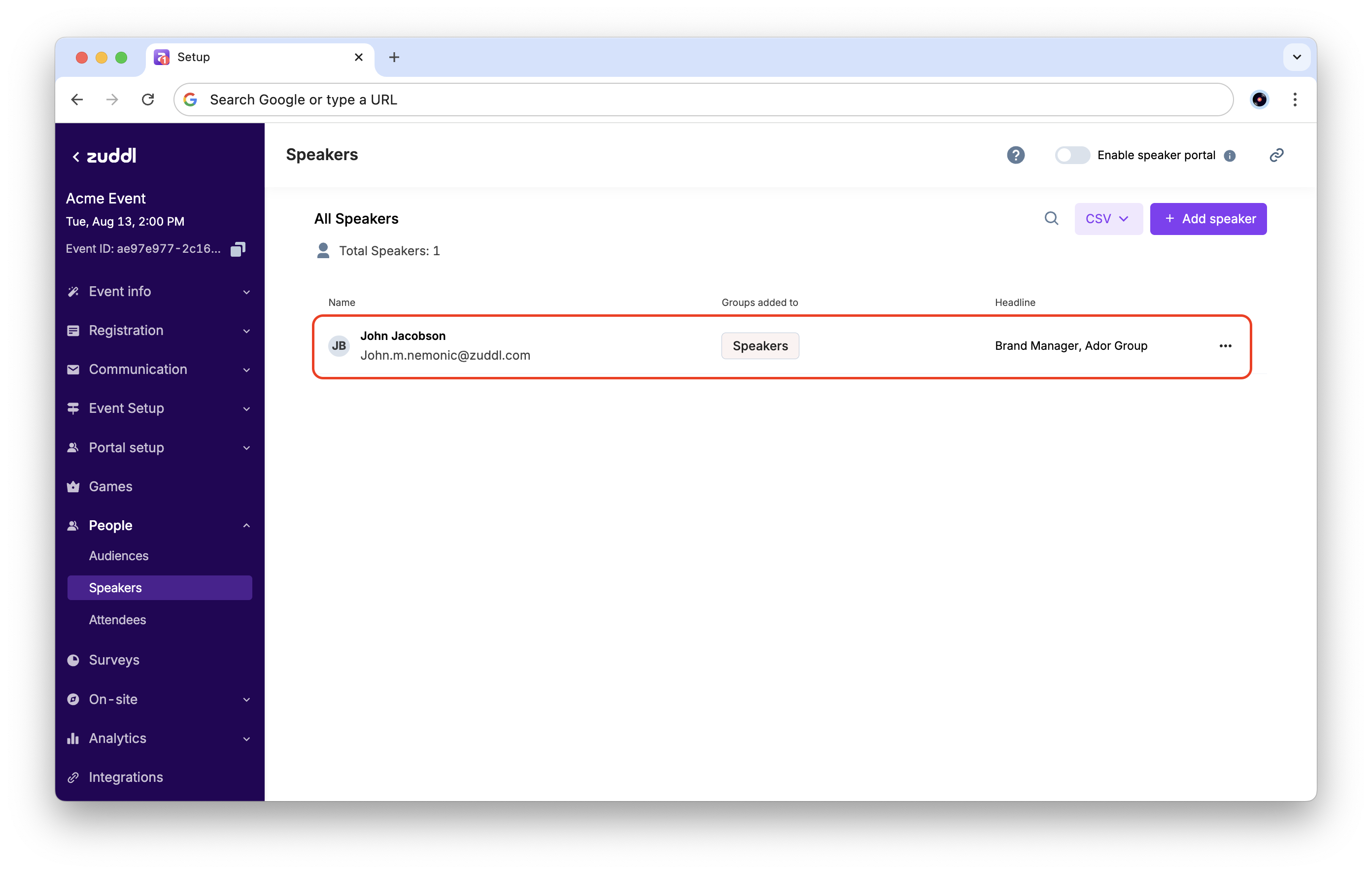
This adds the Speaker to the list. This also sends an invite to the speaker's email address, with a link to join backstage.
Adding a speaker from another event/webinar
When adding a speaker who was already added to another event or webinar, you can get their details auto-filled to make the process easier.
To add a speaker from another event/webinar:
On the Zuddl dashboard, go to People > Speakers. This shows the speaker listing page.
Click Add Speaker.
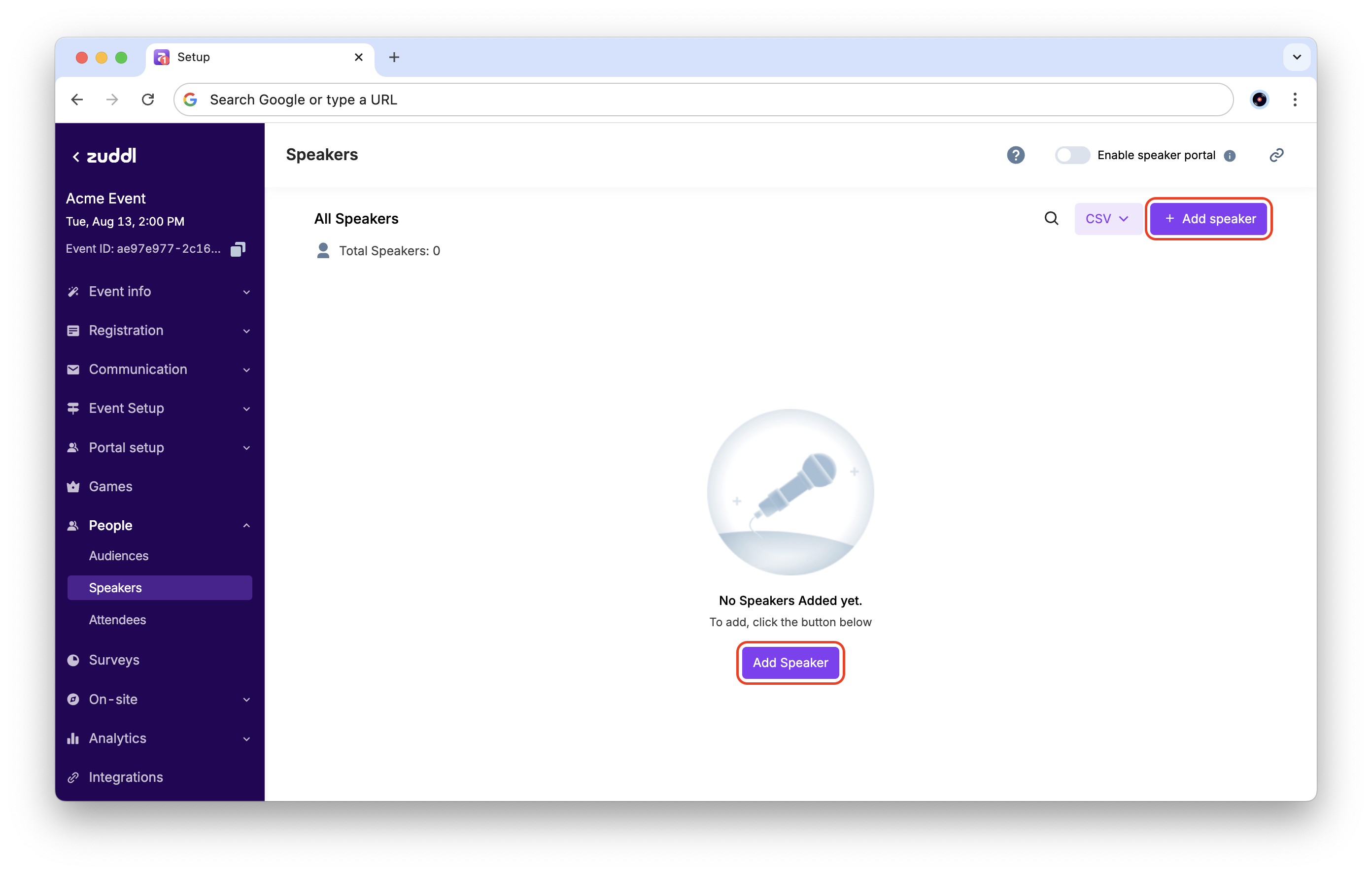
In the Add Speaker form, enter the following details:
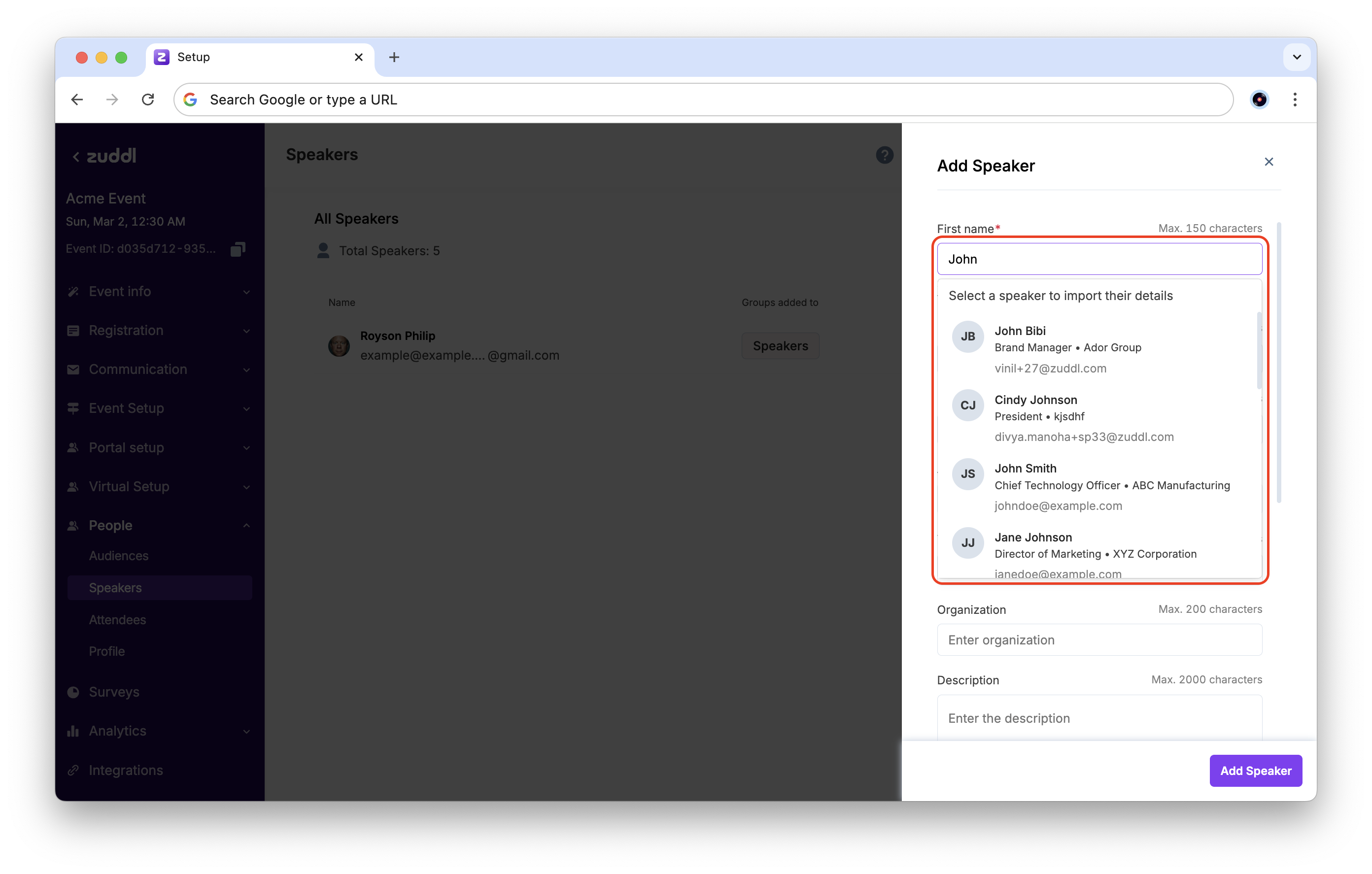
Enter the Speaker's First Name (of up to 20 characters). You can now see a list of speakers with matching names here. To import the details for a speaker from the list, click that speaker.
You can also hover over a speaker’s name in the list to see their details.
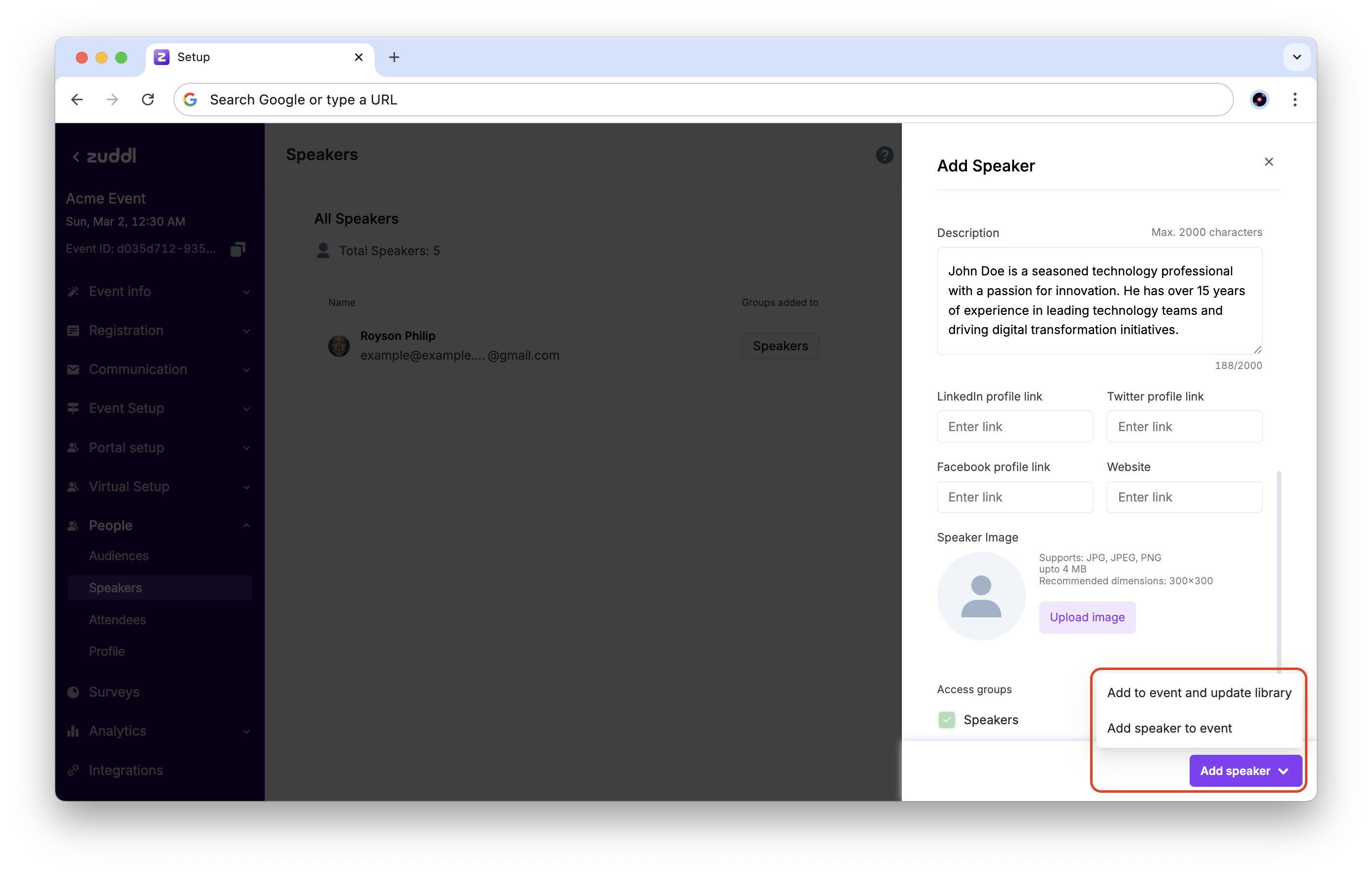
All speaker details fields are now auto-filled with the previously saved information. You can now add the speaker with the same autofilled details, or make changes as required.
When adding the speaker, you now have two options:
Add to event and update library: The information in the form will be used to update the speaker details saved in the database, and the speaker will be added to the webinar with these new details.
Add speaker to event: The speaker will be added to the webinar with these details, but their information saved in the database will not be changed.
Other actions
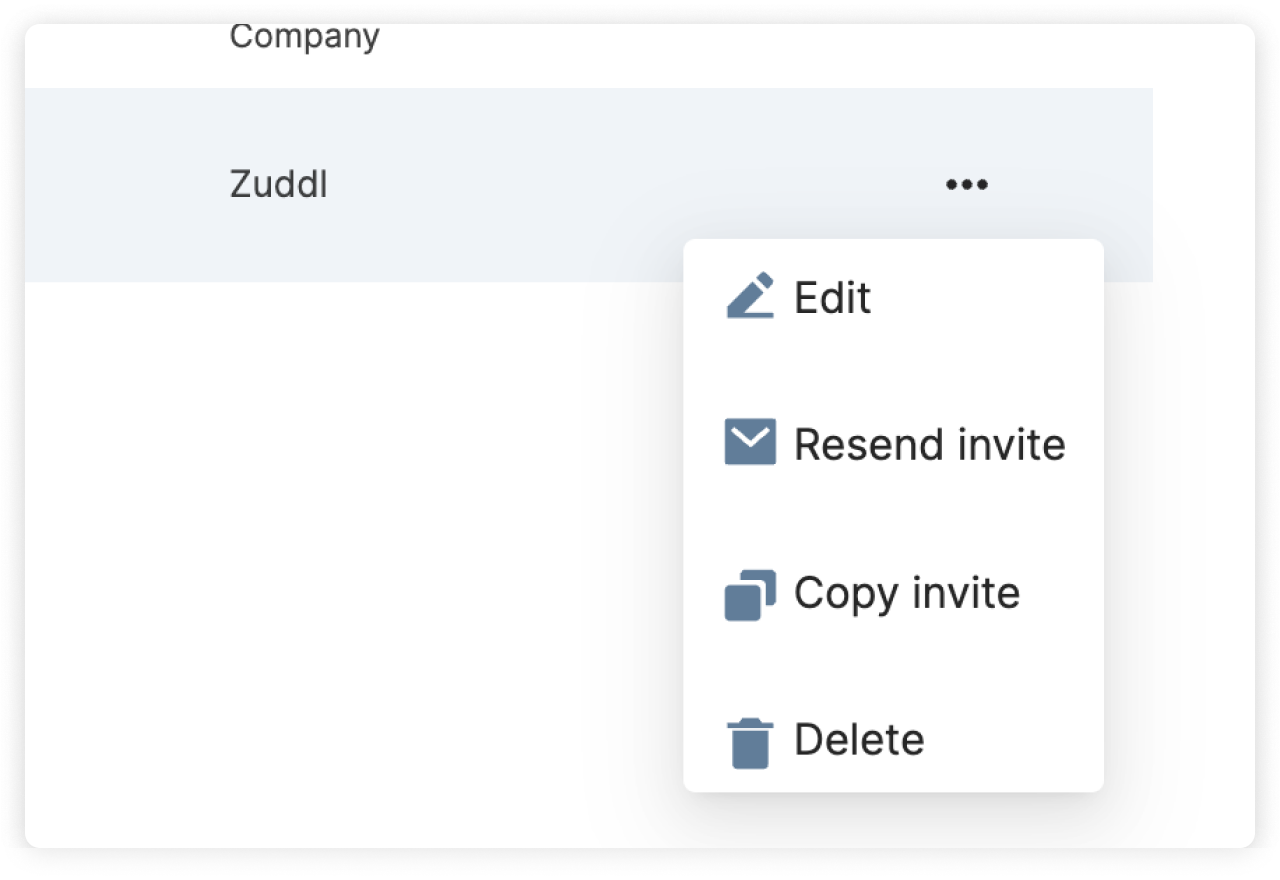
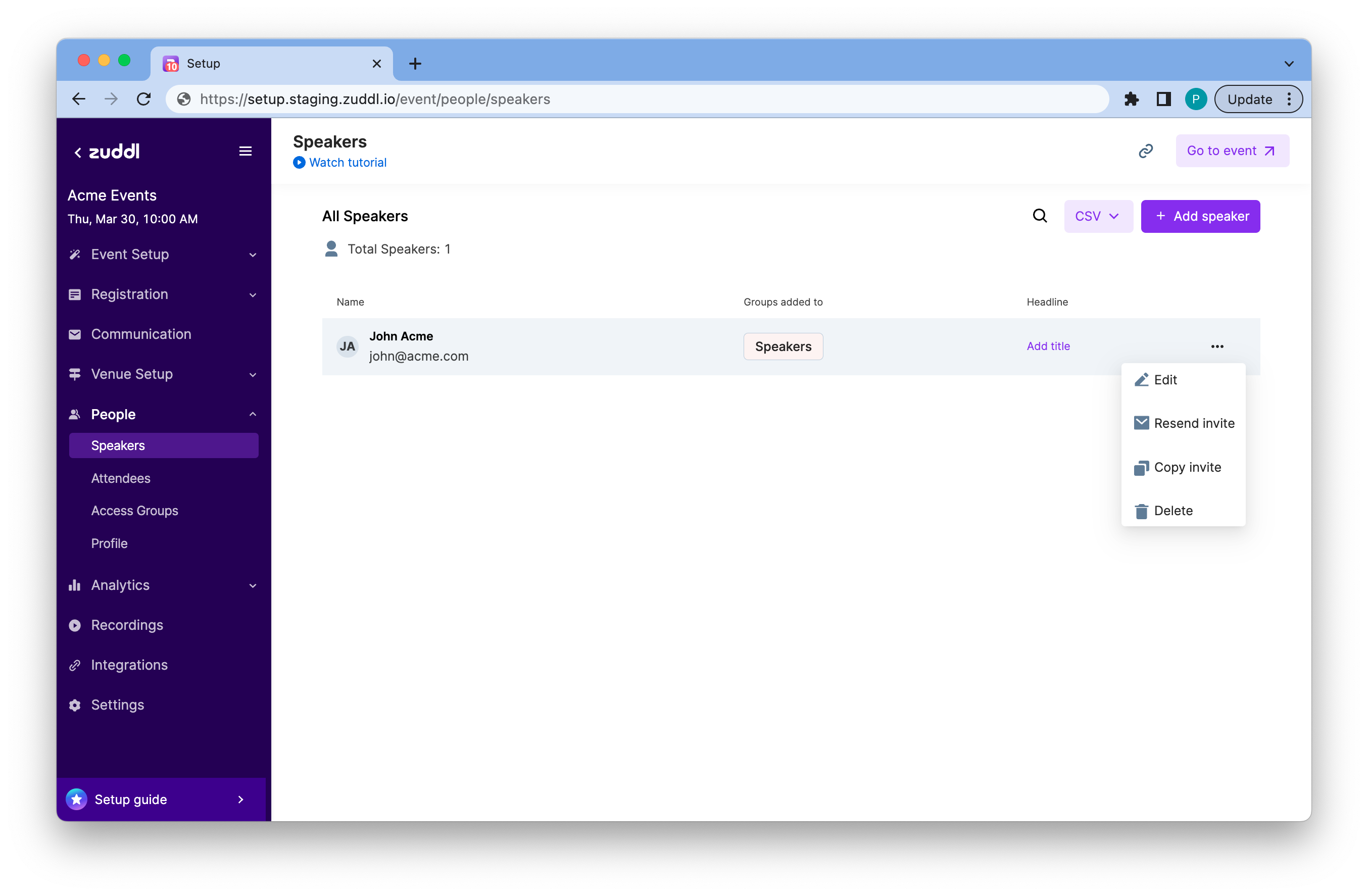
You can also click on the more options button to:
Edit the speaker details
Resend invite sent to the Speaker at the time of adding the Speaker
Copy invite content. You can copy the invite content to use it elsewhere. A sample invite text is shown below: Hey John. You're registered as a speaker for the "Acme Test Events for Docs" event. Use the following link to go to the event
Delete a speaker.
Importing CSVs for Speaker Details
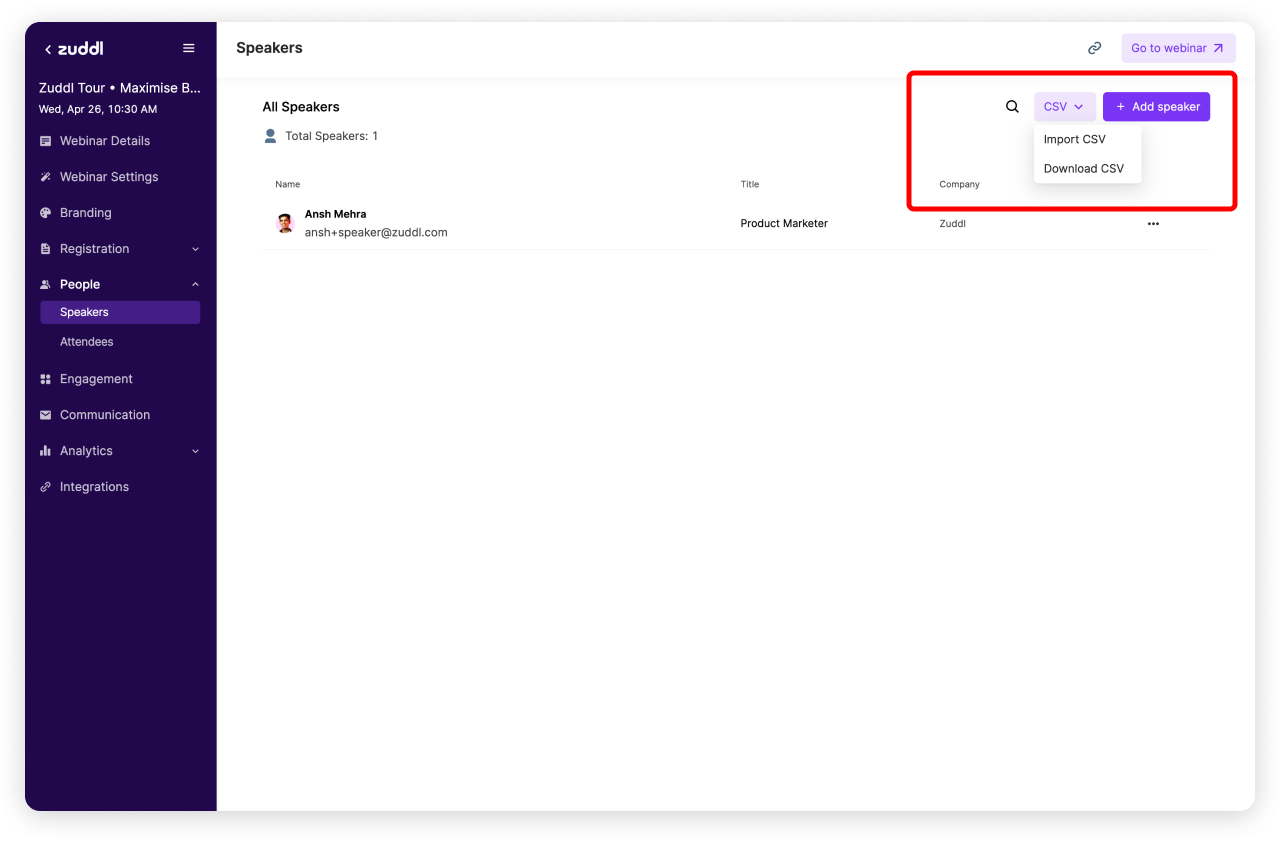
You can import speaker details in bulk by uploading a CSV on Zuddl. Click on the CSV Dropdown on the top right corner:
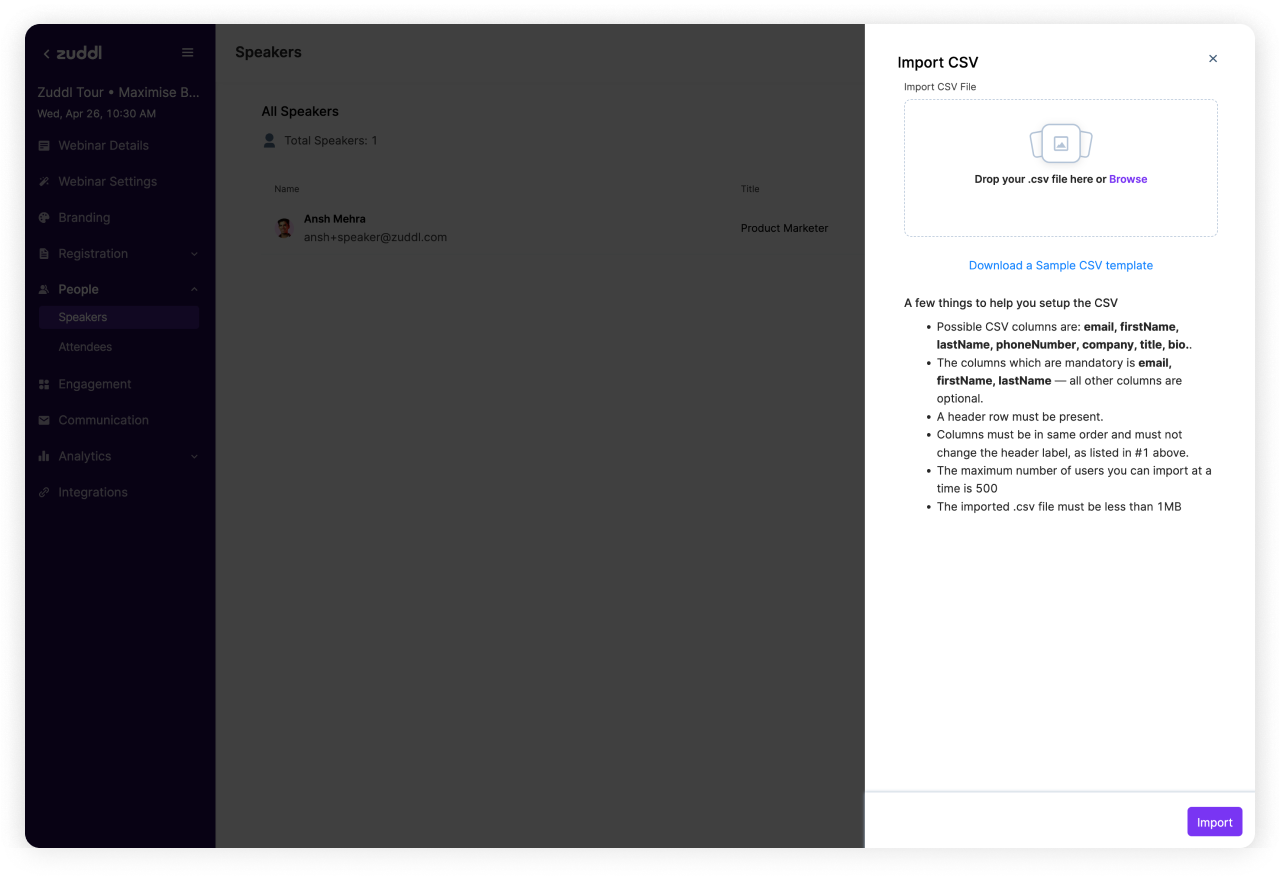
You'll see a side drawer open with an option to upload your CSV.
Make sure your CSV follows the exact format mentioned in the Uploader.
Download CSV of added speakers
Once you've added all speakers, you can also download the entire list from the same CSV Dropdown on the top right corner.
Resend or edit the Speaker invite.
By clicking on the three dots next to your Speaker listing, you can edit or resend your invite.