Integrate Microsoft Teams with Zuddl
Last updated: October 30, 2026
The Zuddl app in Microsoft Teams brings Ask Zuddl into your Teams channels. Your team can check an attendee's registration status and approve or reject pending registrations directly from Microsoft Teams.
This article covers how to install the app for your organization and how to set up Ask Zuddl for an event.
Note: Ask Zuddl for Microsoft Teams is in Beta, and Zuddl turns it on for your account. If you don't see Microsoft Teams under Integrations in your Zuddl dashboard, contact your Zuddl point of contact or Zuddl Support.
Before you begin
A Zuddl admin with permission to manage integrations installs the app from Zuddl.
A Microsoft Teams admin approves the app for your organization in the Microsoft Teams admin center. This is a one-time action.
After that, anyone with access to the event in Zuddl can link a channel and set up Ask Zuddl for that event.
Part 1 — Installing the Zuddl app in Microsoft Teams
Installation happens once, at the org level.
Go to Integrations at the org level, open the Zuddl x Microsoft Teams integration, and click Install app.
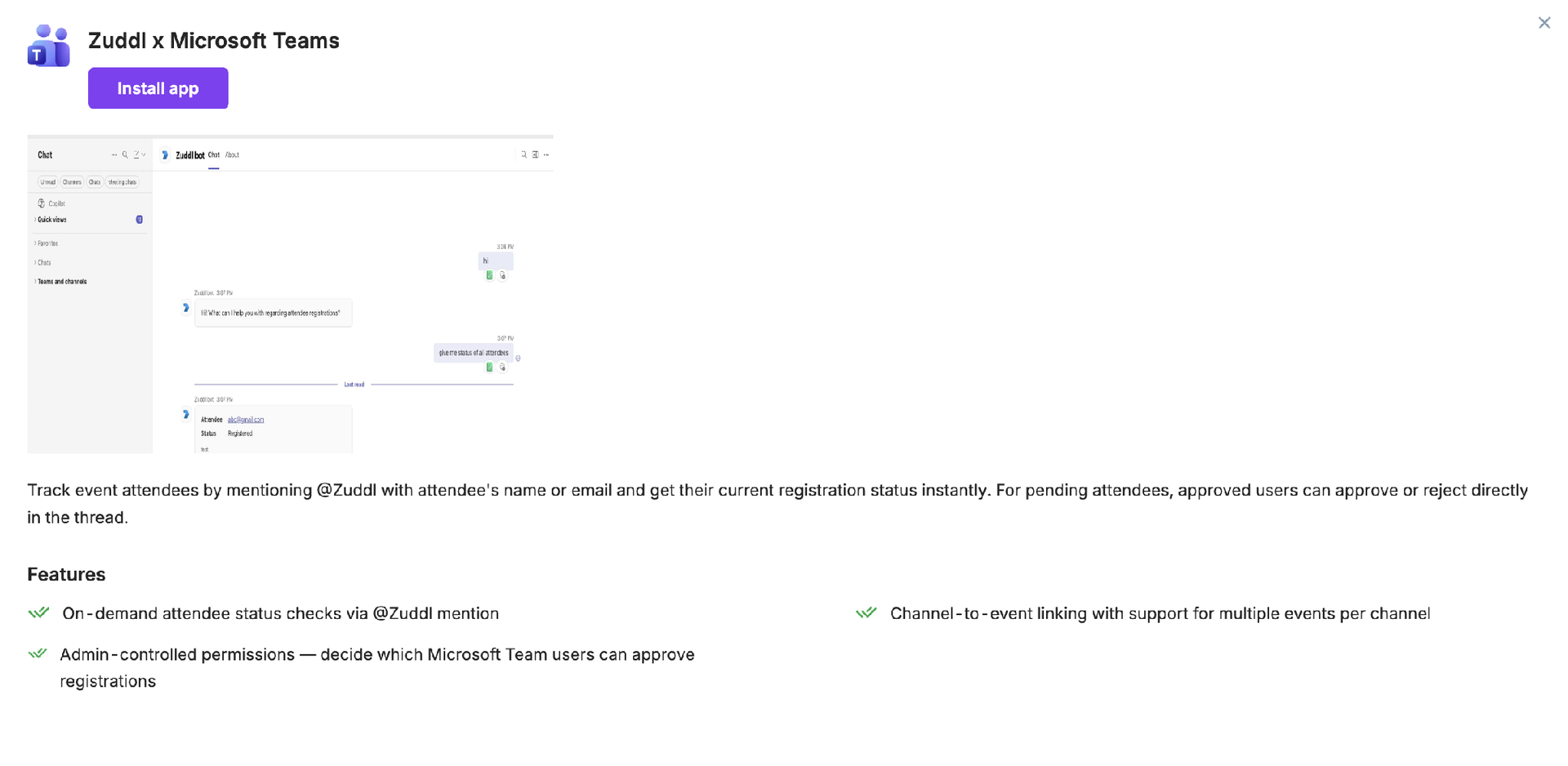
The Zuddl x Microsoft Teams integration. Start here by clicking Install app. A Microsoft Teams admin approves the app for the organization. In the Microsoft Teams admin center (admin.teams.microsoft.com), go to Teams apps > Manage apps. Search for the Zuddl app and open it.
Under Users and groups, click Install app, choose Everyone (or a specific group, to limit who can use the app), and click Apply. The Zuddl app is now installed for your organization.
Add the app to the channel your event team uses. In Microsoft Teams (teams.cloud.microsoft), open Apps, select the Zuddl app, search for the channel, and add the app to it. Anyone in your organization can do this once the app is approved.
Menu names in the Microsoft Teams admin center and in Microsoft Teams may differ slightly depending on your Teams version.
Part 2 — Event-level configuration
Once the app is installed, set up Ask Zuddl for each event you want your team to look up from Microsoft Teams.
Go to an event, then Integrations. Find Microsoft Teams and click Customize to open the Ask Zuddl tab.
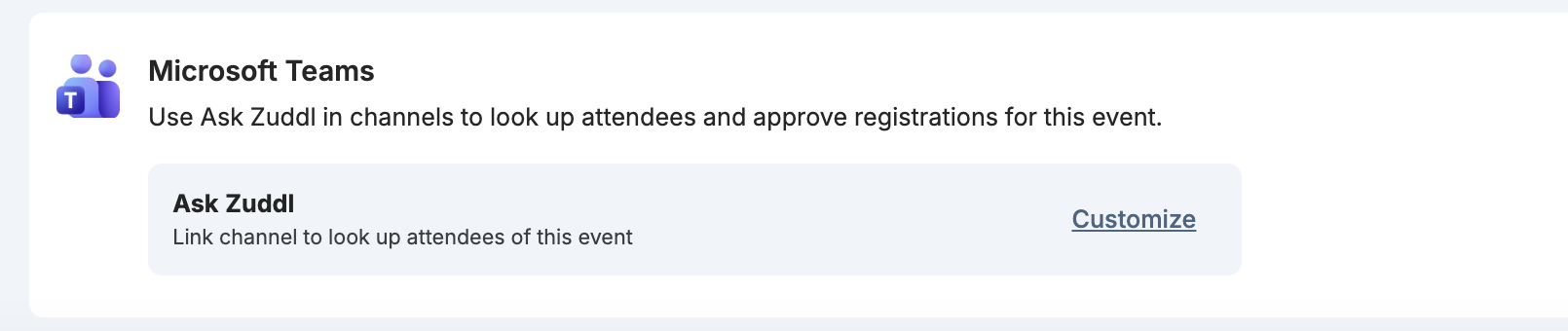
In the event's Integrations, find Microsoft Teams and open Ask Zuddl via Customize. Under Connect Ask Zuddl to a channel, select the Microsoft Teams channel your event team uses for this event. Without a linked channel, the app can't tell which event a question refers to.
Under Permissions, decide whether to turn on Allow non-licensed users to approve or reject registrants. It is off by default, so only Zuddl users with attendee access can approve or reject from Microsoft Teams.
Click Save.
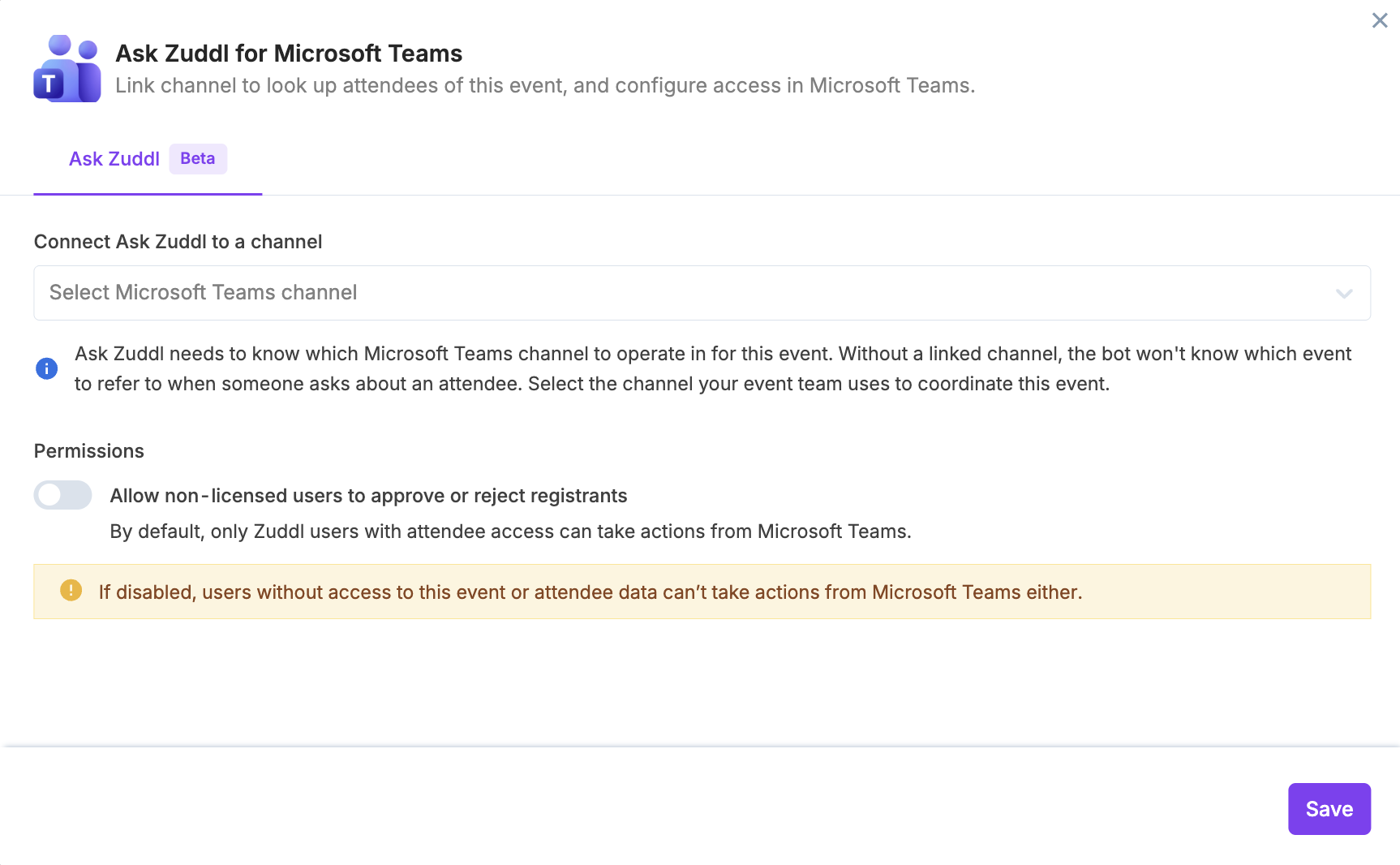
The event-level Ask Zuddl tab: link a channel and set the approval permission.
You can link more than one event to the same channel.
What happens next
Anyone in the linked channel can mention @Zuddl to:
Check registration status by an attendee's name or email, for example "Is jane@example.com registered?"
Approve or reject pending registrations right from the Microsoft Teams thread, if they have permission (see step 3 of Part 2).
Get thread updates when an attendee's status changes after they've asked about them.
Notes
If Allow non-licensed users to approve or reject registrants is off, people without access to the event or its attendee data can't take approval actions from Microsoft Teams.
For more on what Ask Zuddl can do, see Ask Zuddl. For the Slack version of this integration, see Integrate Slack with Zuddl.