Connect Zuddl to your AI agent with MCP
Last updated: October 29, 2026
MCP (Model Context Protocol) is an open standard that lets AI agents connect to external systems. Zuddl publishes an MCP server, so you can connect Zuddl to the AI agent your team already uses and work with your event data from there.
Once connected, you ask questions in plain language — about registrants, event performance, or how something in Zuddl works — and take some actions, like approving a pending registration, without leaving the agent.
This article covers what the connector can do, and how to install it. For the full list of available tools, see the Zuddl MCP reference.
Before you start
You need:
- A Zuddl account in the organization you want to connect.
- An AI agent or client that supports MCP and allows custom connectors. Support varies by product and by plan — check your agent's documentation if you can't find the option.
- Permission in that agent to add a connector. Some products restrict this to workspace admins.
The connector acts as you. It can only see and do what your Zuddl role already permits — connecting it does not grant you extra access.
Note: Zuddl MCP is not yet published in any agent marketplace. See Availability below.
Install the Zuddl connector
Zuddl MCP installs as a custom connector using a URL. The exact wording differs between agent products, but the shape of the flow is the same everywhere.
Copy the Zuddl MCP server URL.
https://setup.zuddl.com/api/mcpOpen your agent's connector settings.
Look for a section named Connectors, Integrations, MCP Servers, or Tools. It usually sits under settings or workspace settings.
Choose the option to add a custom connector.
This is typically labelled Add custom connector, Add MCP server, Connect a custom app, or similar — anything that asks you for a server URL rather than offering a list to pick from.
Paste the URL and give the connector a name.
Name it something your team will recognise, like
Zuddl. If the form asks for a transport or server type, choose the remote or HTTP option — Zuddl MCP is a hosted remote server, not a local one.Save and connect.
The agent redirects you to Zuddl to authorise access. Pick the organization you want to connect, check the signed-in account, review the permissions, and click Approve.
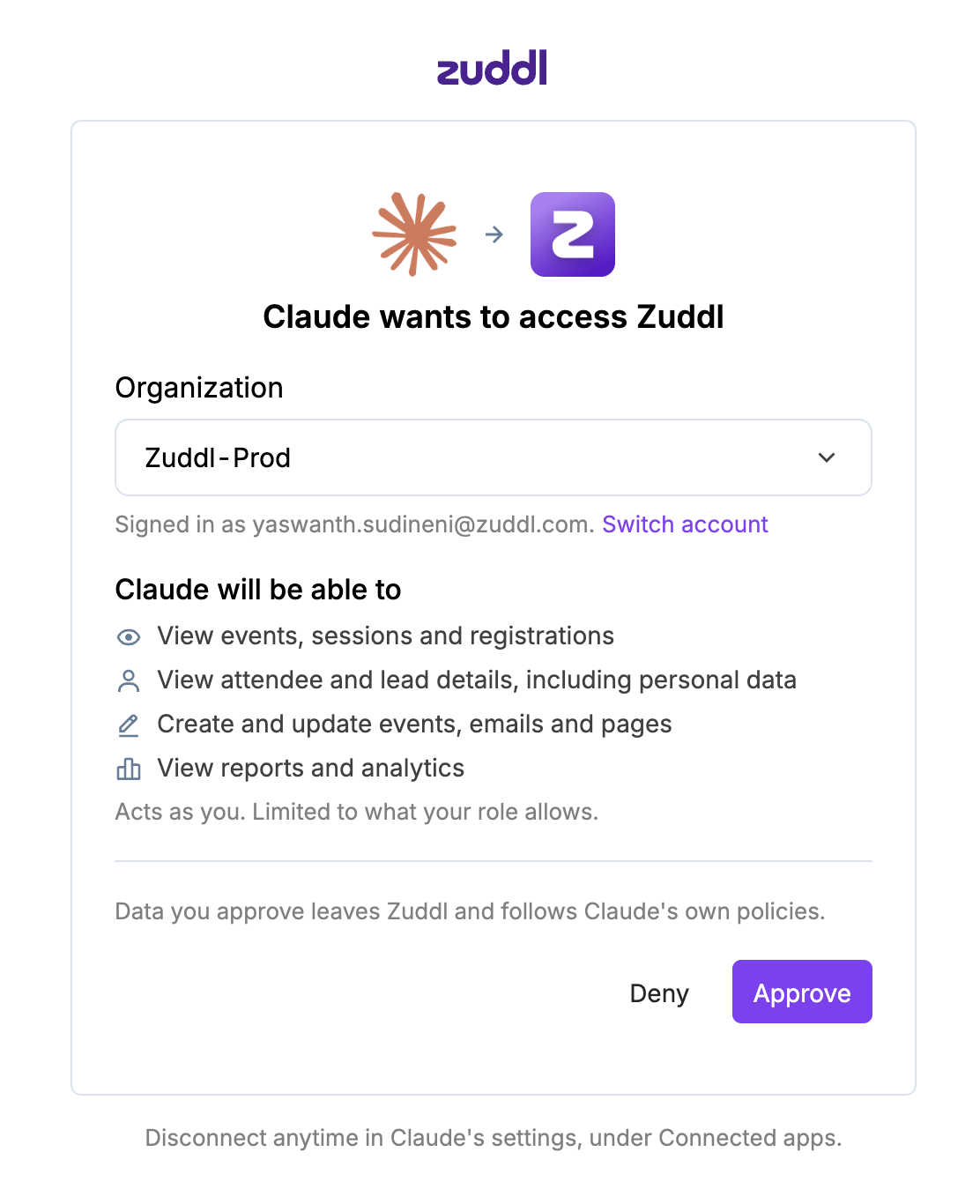
Two lines on this screen are worth reading before you approve:
- Acts as you. Limited to what your role allows. The connector inherits your Zuddl permissions. It cannot access anything you couldn't access yourself.
- Data you approve leaves Zuddl and follows the agent's own policies. Once data reaches the agent, the agent's data handling applies, not Zuddl's. The permissions include attendee personal data, so check that your agent's policies meet your organization's requirements.
You can disconnect at any time from your agent's connected apps settings.
Confirm the tools loaded.
Back in your agent, the Zuddl connector should now show as connected, with its available tools listed. You can compare them against the Zuddl MCP reference. If the list is empty, disconnect and reconnect.
What you can ask
The current release covers four broad areas.
- Attendee queries and approvals. Look up registrants by email, name, company, or registration status. Where a registration is pending, approve or reject it from the agent.
- Analytics. Ask open-ended questions about registrations and event performance, and get an answer rather than a raw export.
- Knowledge base support. Ask how a Zuddl feature works. The agent answers from Zuddl's documentation.
- Open API access. Everything in Zuddl's public APIs is available — events, sessions, speakers, sponsors, locations, attendees, and check-in/check-out. If it's in the open APIs, you can ask for it here.
This is a high-level summary. For the complete list of tools and what each one does, see the Zuddl MCP reference. Your agent also lists the available tools once the connector is installed.
A few examples of what that looks like in practice:
- "Is anyone from Acme registered for the September summit?"
- "How many people registered last week, and how does that compare to the week before?"
- "Approve the pending registration for priya@example.com."
- "What are the sessions on day two?"
- "How do I set up a registration approval flow in Zuddl?"
Combining Zuddl with your CRM or MAP
If your CRM or marketing automation platform also has an MCP connector installed in the same agent, you can qualify pending registrations against that data and bulk approve the ones that clear your bar. The agent reads from both systems and matches them itself.
- "Approve everyone who registered from my ICP accounts whose account has an open opportunity stage." The agent pulls account and opportunity data from your CRM, matches it against the registrant's company in Zuddl, and approves the ones that qualify.
- "Approve anyone from Acme Corp with a director-level title." A simpler version — no CRM lookup needed, just the registration data already in Zuddl.
Availability
Zuddl MCP is not published in any agent marketplace yet. It is not in Claude's connector directory, the ChatGPT app directory, or any other listing. Searching for Zuddl inside your agent will not find it.
The custom connector URL is the only way to install it today. Marketplace listings are planned but not dated.
Because it installs as a custom connector, some agent products may show a warning about third-party or unverified connectors. That is expected and reflects the install method, not a problem with the connector.
Limits and what's not supported
- Your role still applies. The connector cannot see or change anything your Zuddl role doesn't already allow. If a request fails on permissions, that's why.
- Answer quality depends on the agent. Zuddl supplies the data and the tools; how the agent interprets your question and phrases its answer is the agent's behaviour. Different agents will word things differently.
- Verify before you act on anything consequential. For reporting, compliance, or anything you'll share externally, check the numbers against the Zuddl dashboard.
Troubleshooting
- I can't find where to add a custom connector. Not every agent product supports custom MCP connectors, and some restrict it by plan or to admins. Check your agent's documentation, or ask your workspace admin.
- The connector added but no tools appear. Disconnect and reconnect. If tools still don't load, confirm the URL is exactly
https://setup.zuddl.com/api/mcpwith no trailing characters. - I'm connected to the wrong organization. Disconnect the connector in your agent, then reconnect and pick the right organization on the authorisation screen.
- Requests fail on permissions. The connector uses your Zuddl role. Ask your Zuddl admin to adjust your access if you need more.
- I approved by mistake, or want to revoke access. Disconnect the connector from your agent's connected apps settings. Access ends immediately.
Still stuck? Contact Zuddl support or your CSM.