How to Manage Access Controls in an In-person Event in Zuddl
Last updated: August 1, 2025
Access controls are event-specific and need to be configured separately for each event.
Access controls are event-specific and need to be configured separately for each event.
Editing Permission
If a feature, for example, “Private Meetings,” is disabled for an event, that setting is also disabled in access control.
- Create an Event on the Zuddl dashboard. Learn more about creating an event.
Go to People > Audiences. Click on the Access Control tab at the top.
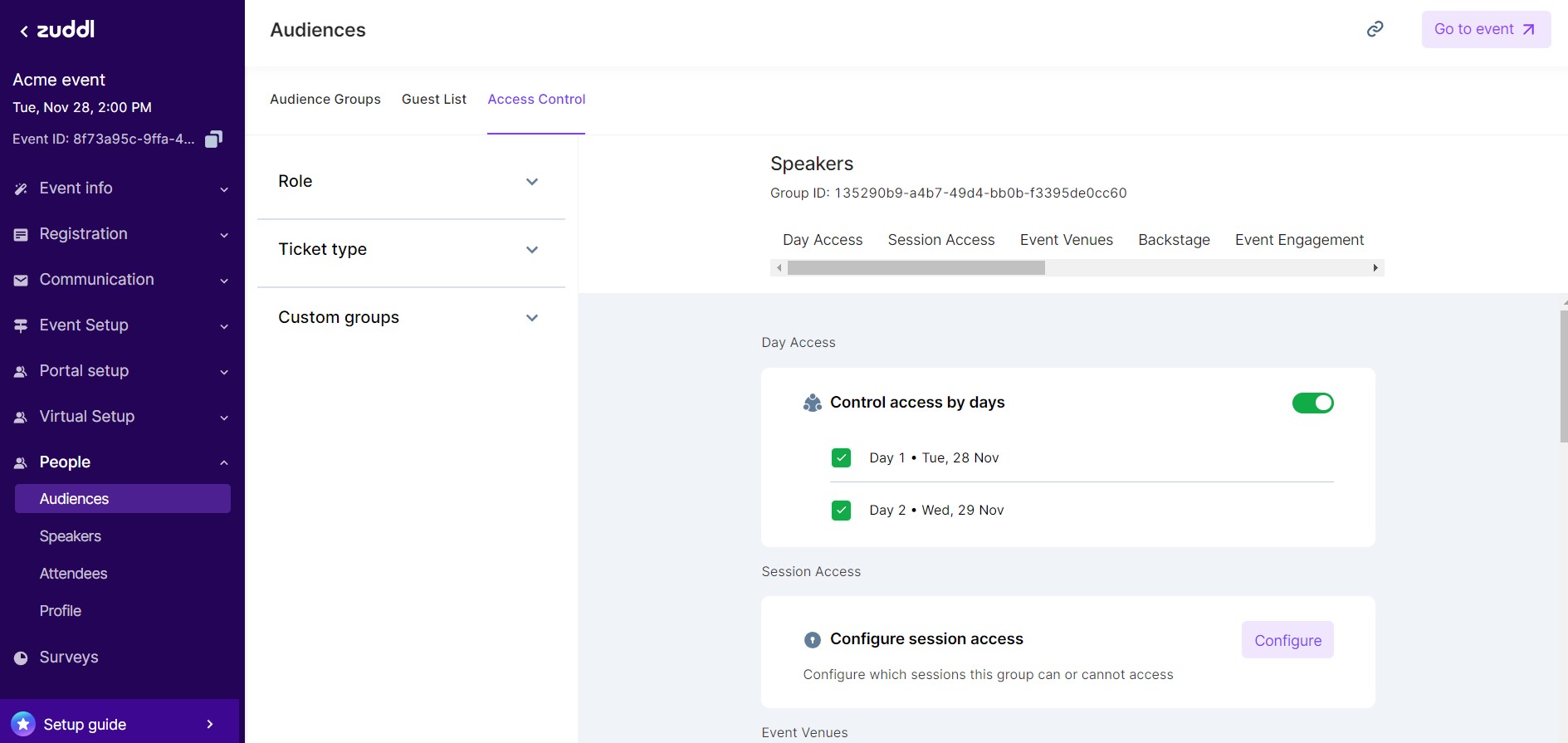
- Click on any audience group name. Navigate the access permission categories using tabs and toggle on/off for a particular setting/rule. If there are sub-settings, select relevant checkboxes.
Modify access permissions and update the permissions for a particular audience group.
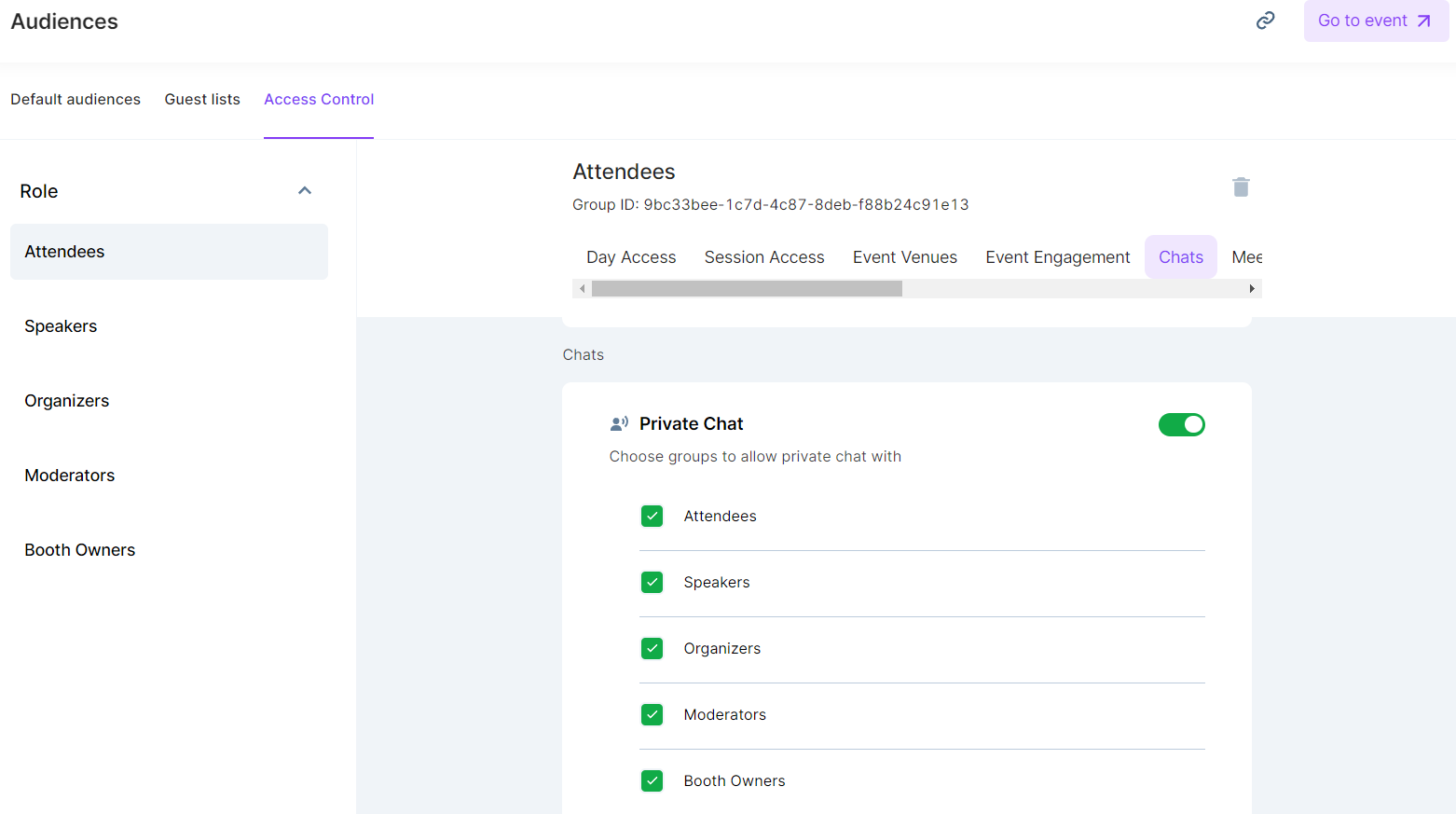
If a feature, for example, “Private Meetings,” is disabled for an event, that setting is also disabled in access control.
Day Access
If event dates have changed, this would be reflected in the Day Access option.
Session Access
Select individual audience groups to deny access to sessions. Click the configure button to configure the session access to individual audience groups.
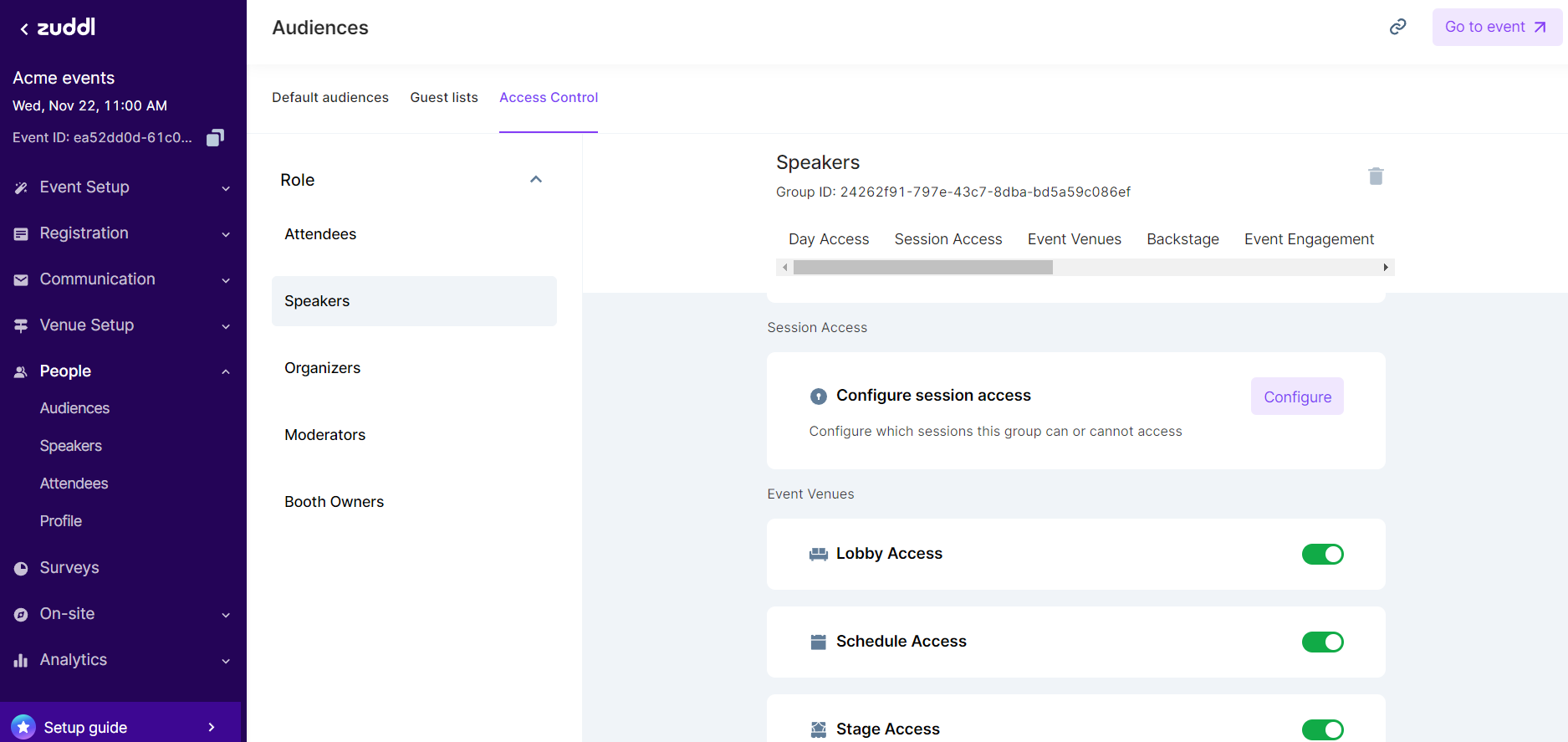
You can uncheck the check box for the session and deny access.
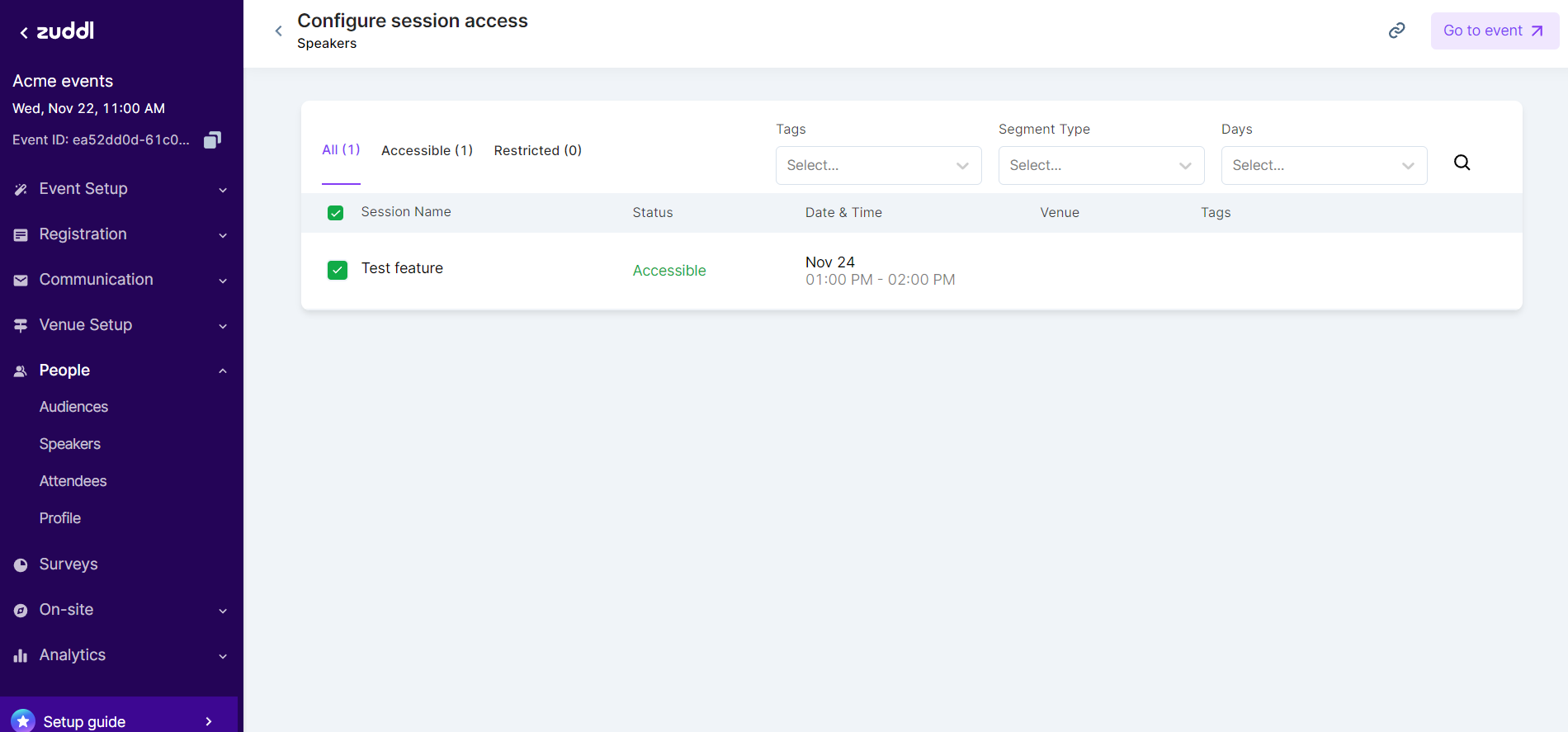
Click the Update Access button to deny the session access, and the session status is updated to Restricted.
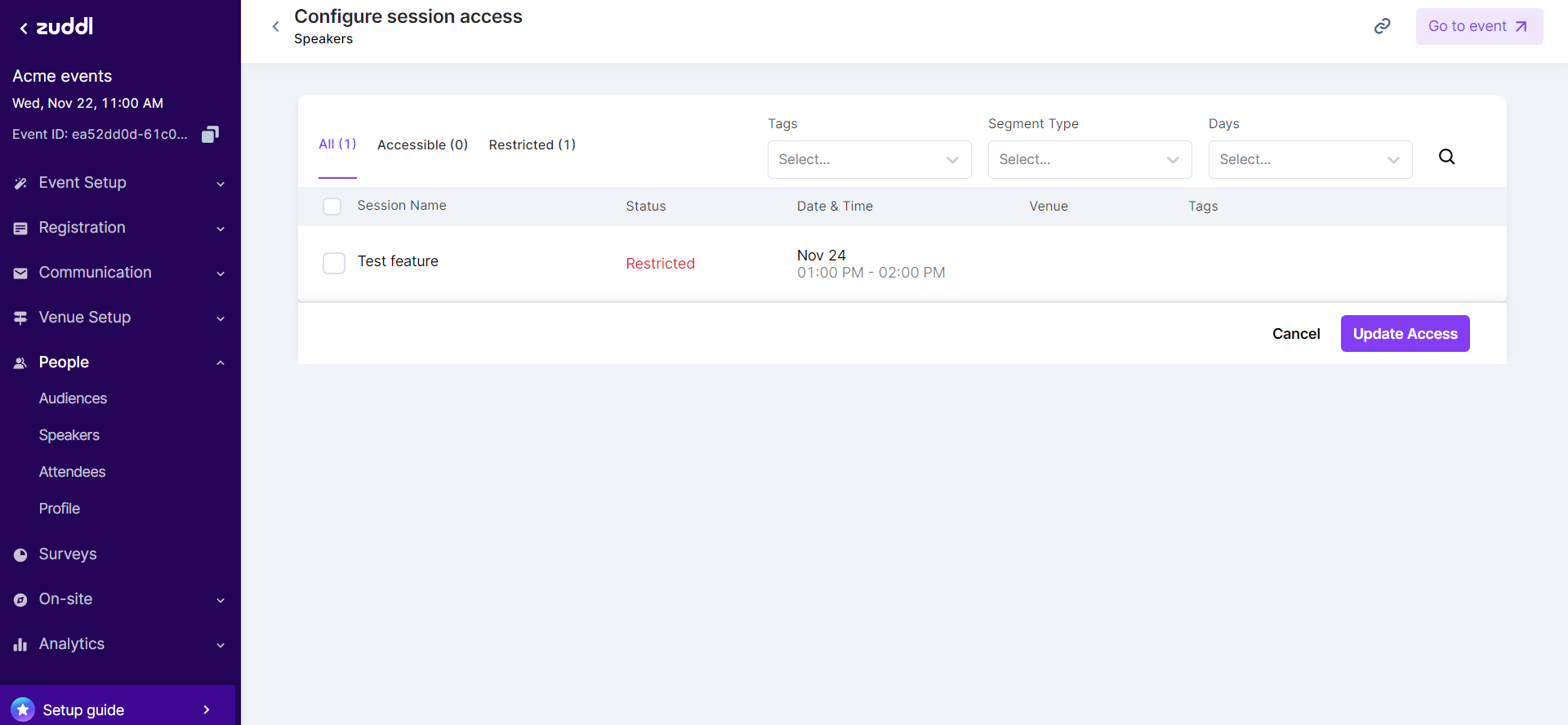
- You can use Tags, Segment Type, and Days dropdown menus to select a particular session from a group of sessions.
Event Venues
If a venue is toggled off from the Venue Setup, that venue does not appear on the venue navigation bar in an event. The access control settings would show the option as disabled.
| Access Area | Description | Default State |
|---|---|---|
| Lobby Access | Access to the Lobby venue | On |
| Schedule Access | Access to the Schedule venue | |
| Stage Access | Allow/deny access to stages in an event. Select/clear individual stages to grant and revoke access, respectively. Toggle off Stage Access to disable access for all stages. This also removes the Stage venue from the attendee side. Similarly, clearing all the stage checkboxes individually eliminates the Stage zone from the attendee side. If stage access is disabled, stage notifications are not sent to the user. | |
| Room Access | Allow/deny access to the Room venue.
| On. |
| Networking Access | Allow/deny access to Networking venue
| On |
| Expo Access | Access to Expo venue | On |
Backstage
| Options | Description | Default State |
|---|---|---|
| Allow for all stages (default) | Backstage access is allowed for all stages | On |
| Allow for tagged stages only | Allow users to access the backstage only for the stages where they are added as speakers. | Off |
Event Engagement
| Options | Description | Default State |
|---|---|---|
| People | Show/hide People tab, which shows all event attendees | On |
| Chat | Enable/disable chatting with attendees. On if event-wide chat is enabled. | On |
Chat
Meetings
Leaderboard
| Access Area | Description | Default State |
|---|---|---|
| Allow profile in ranking | Show/hide profile picture in the leaderboard ranking list | On |
| Show point distribution | Show/hide points received for the participant | On |
| Show ranks | Show/hide the rank of the participant on the Leaderboard | On |