How to Create a Zapier Workflow to Capture Attendee Information in Zuddl
Last updated: June 26, 2026
The attendee information trigger is activated whenever a new attendee joins an event or webinar after registration. Attendee details passed as a response can be utilized for other triggers you choose.
For almost all events, there is a turnout of how many registrants attended the event. You can use this trigger to qualify prospects to become customers and take suitable action on them such as send out emails. This visibility is essential when it comes to hitting the revenue target.
To capture attendee information on Zapier, you need to do the following:
1. Choose app & event
On your Zuddl dashboard, create a new event.
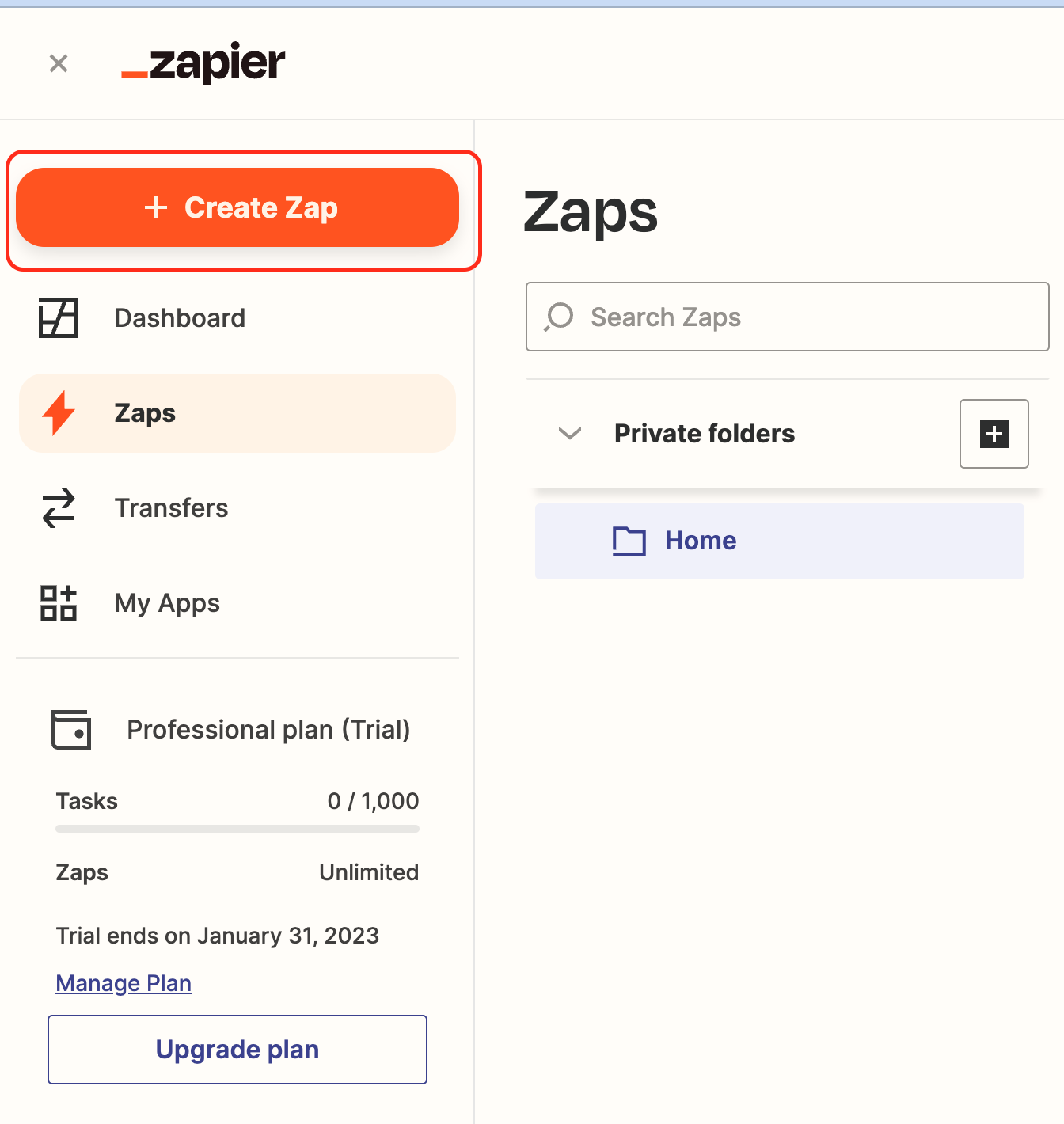
Now go to your Zapier dashboard, click + Create Zap , and select New Zap
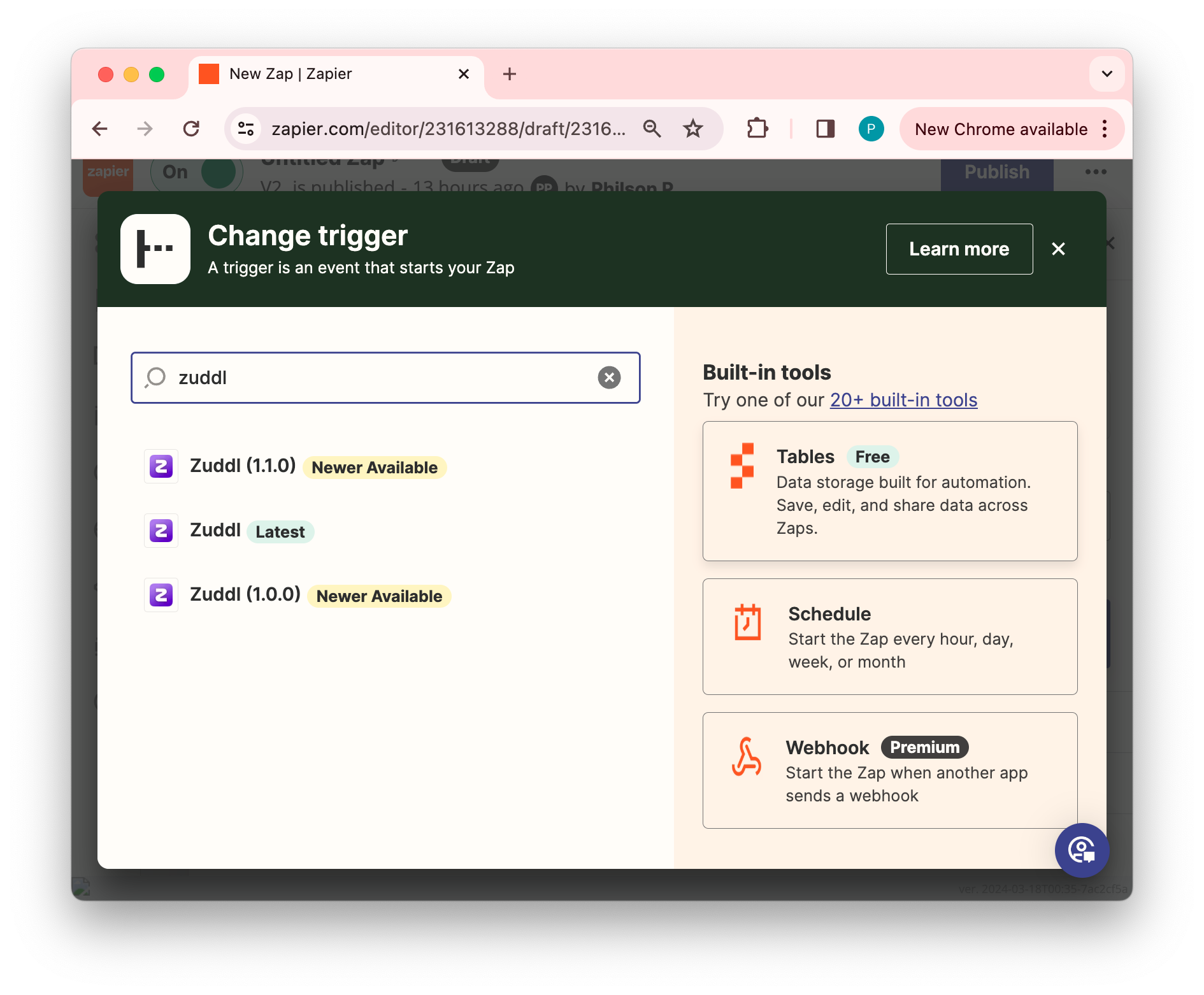
On the Change trigger screen, search for the Zuddl app, and click on the required version of the Zuddl app. Refer to the table for the app versions and their supported features.
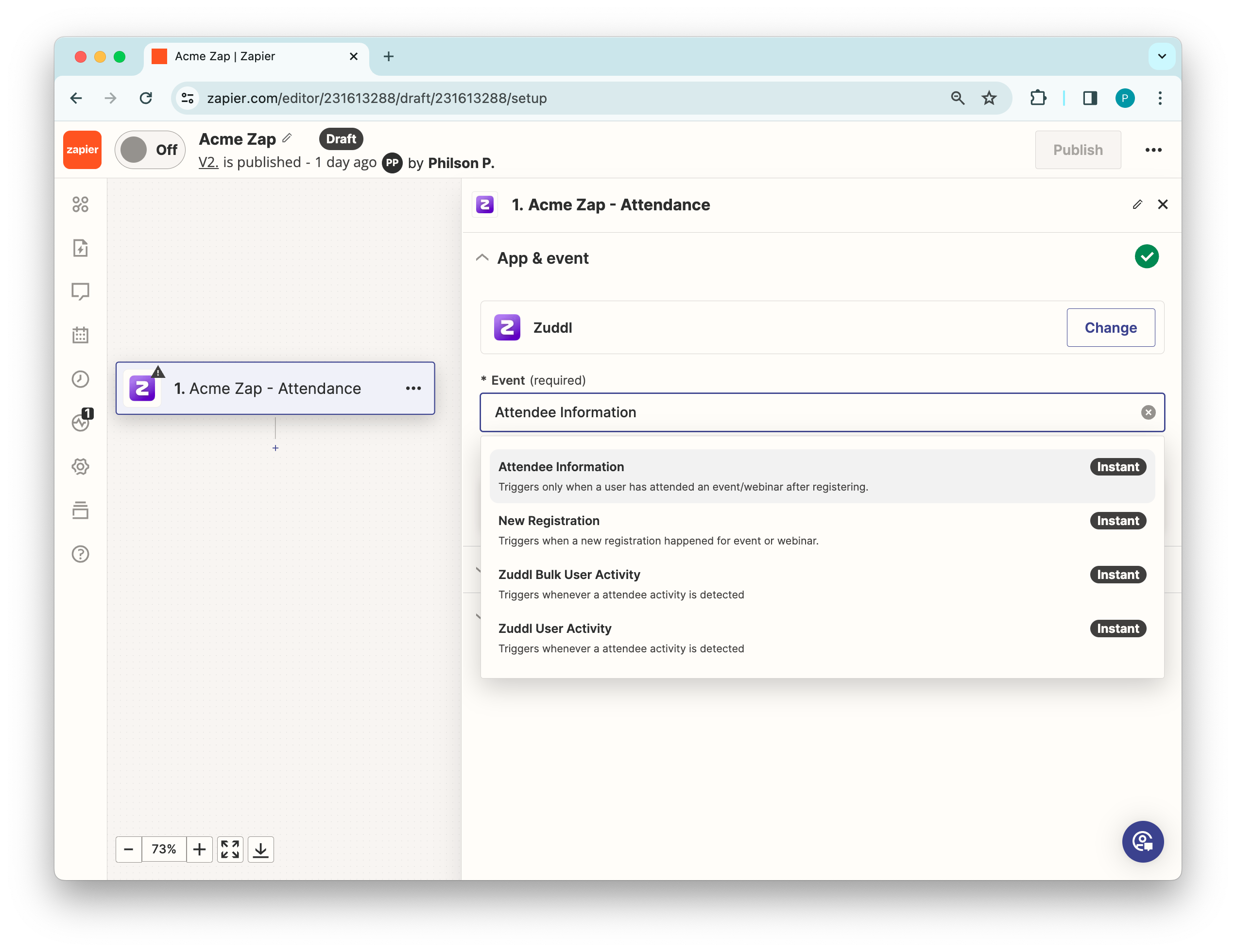
Under Choose app & event in the Event dropdown, select Attendee Information and click Continue.
2. Choose an account
Under the Account section, you need to authenticate the organization. Steps 1 to 4 of the Choose an account step are the same as for the New Registration activity.
3. Add a trigger
Steps 1 to 4 of the ‘Add a trigger’ step are the same as for New Registration activity.
4. Testing the trigger
This is an optional step. This is an optional step. You can click on Test Trigger which will show a dummy response as shown below:
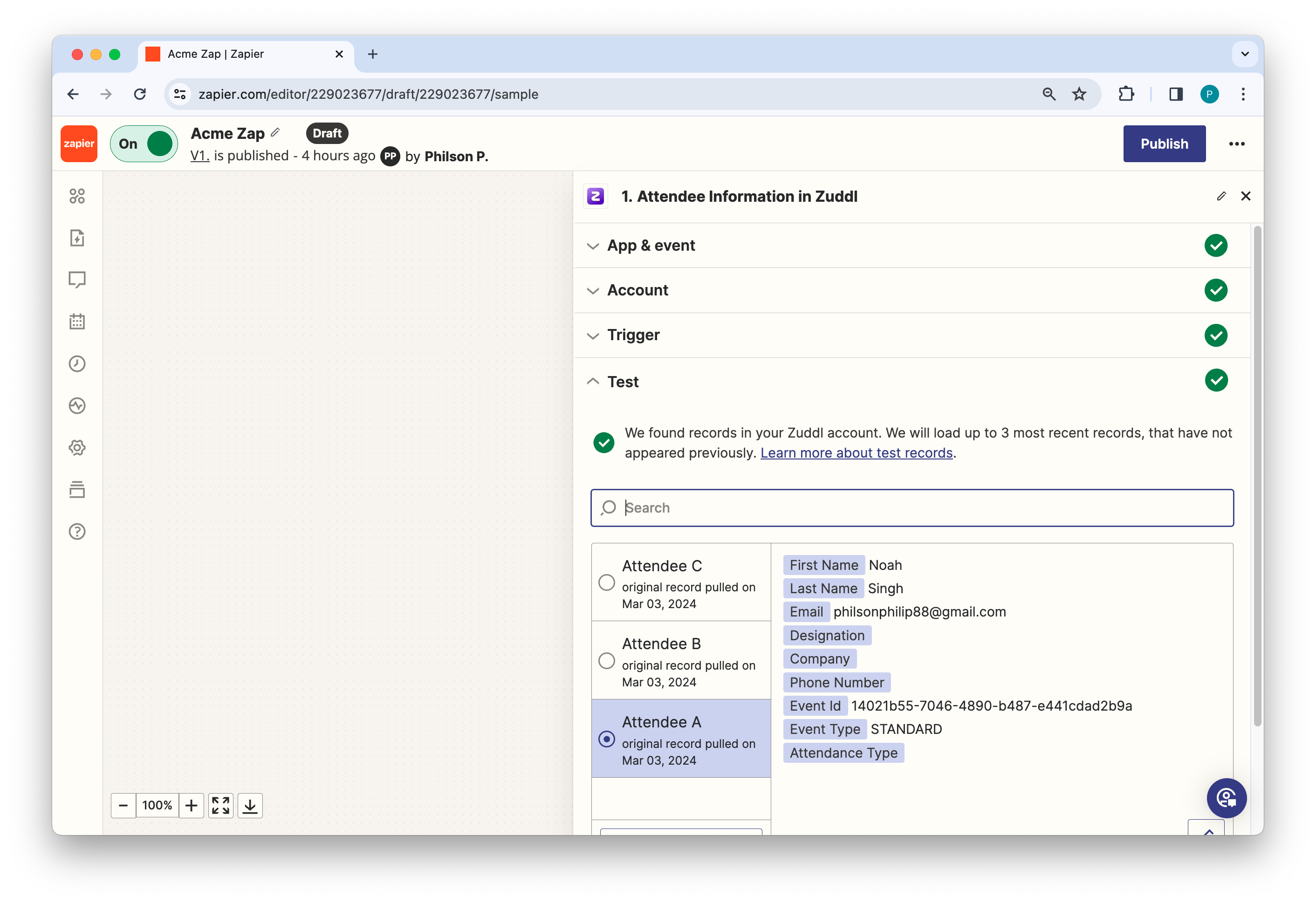
Response Objects
The test response shows registration field names as objects and the user’s input as value. Refer to the response object for the new registration workflow.
Field names | Description |
First Name | The attendee's first name |
Last name | The attendee's last name |
The attendee's email | |
Designation | The attendee's official designation |
Company | The attendee's company name |
Phone Number | The attendee's phone number |
Event Id | The event Id of the event |
Event Type | STANDARD for virtual events, WEBINAR for webinars |
Attendance Type | VIRTUAL or IN_PERSON |
Custom Field | Custom fields in JSON. For example, |
5. Add Action
On the new Change action page, search for the required app for the action step. For testing purposes, let’s select “Email by Zapier”.
Once the action is set up, you can test the action and Publish the zap.
Passing attendee status
To pass attendee status to your app through Zapier, you must configure the 'New Registrant Status' trigger event. To add the trigger,
On the Zapier workflow, select Zuddl app
Under the Trigger event field, select the New registrant Status trigger.
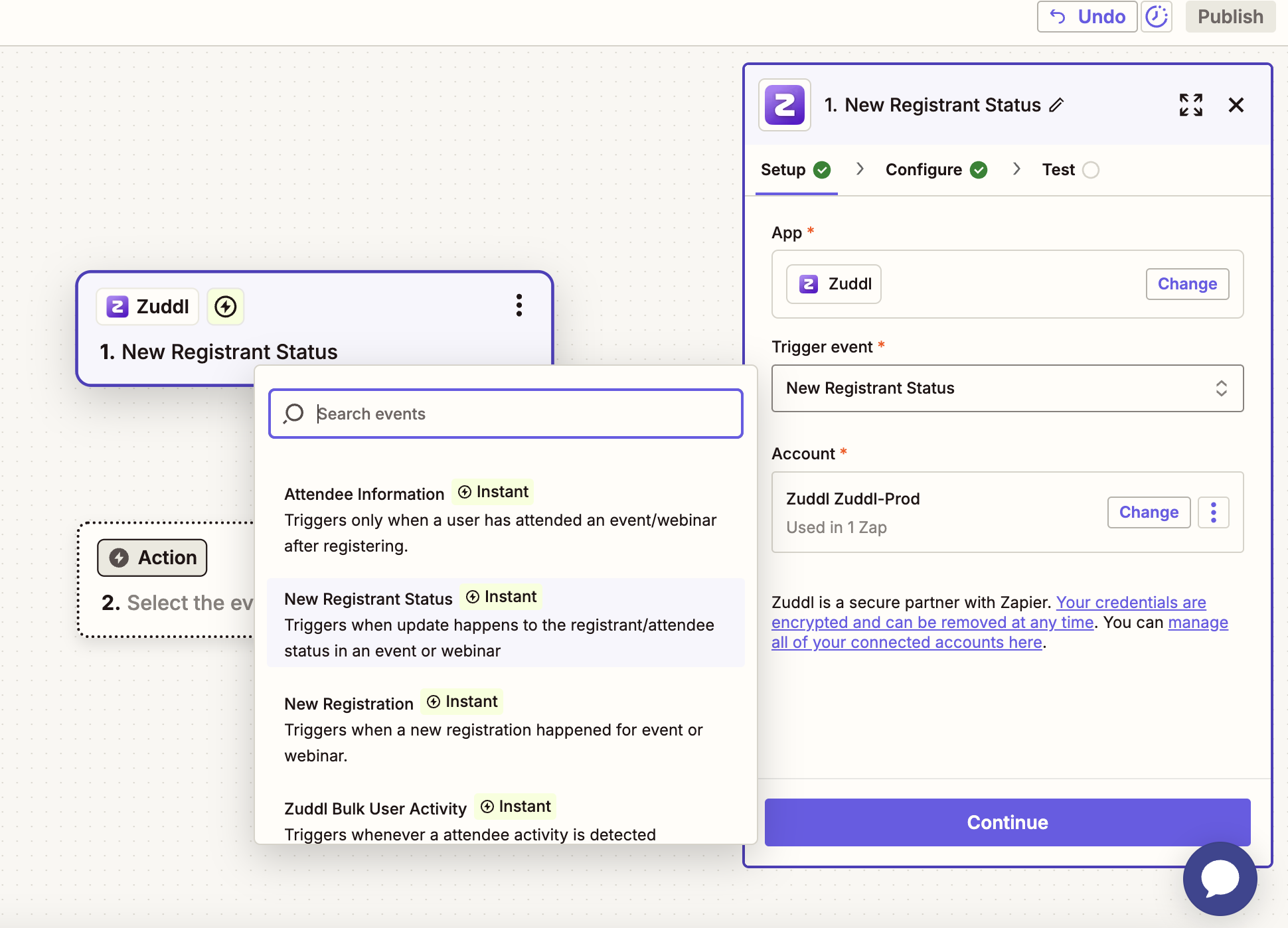
Click Continue.
Enter the event id for your event under the Event Id field.
Under Registrant Status, choose the required statuses.
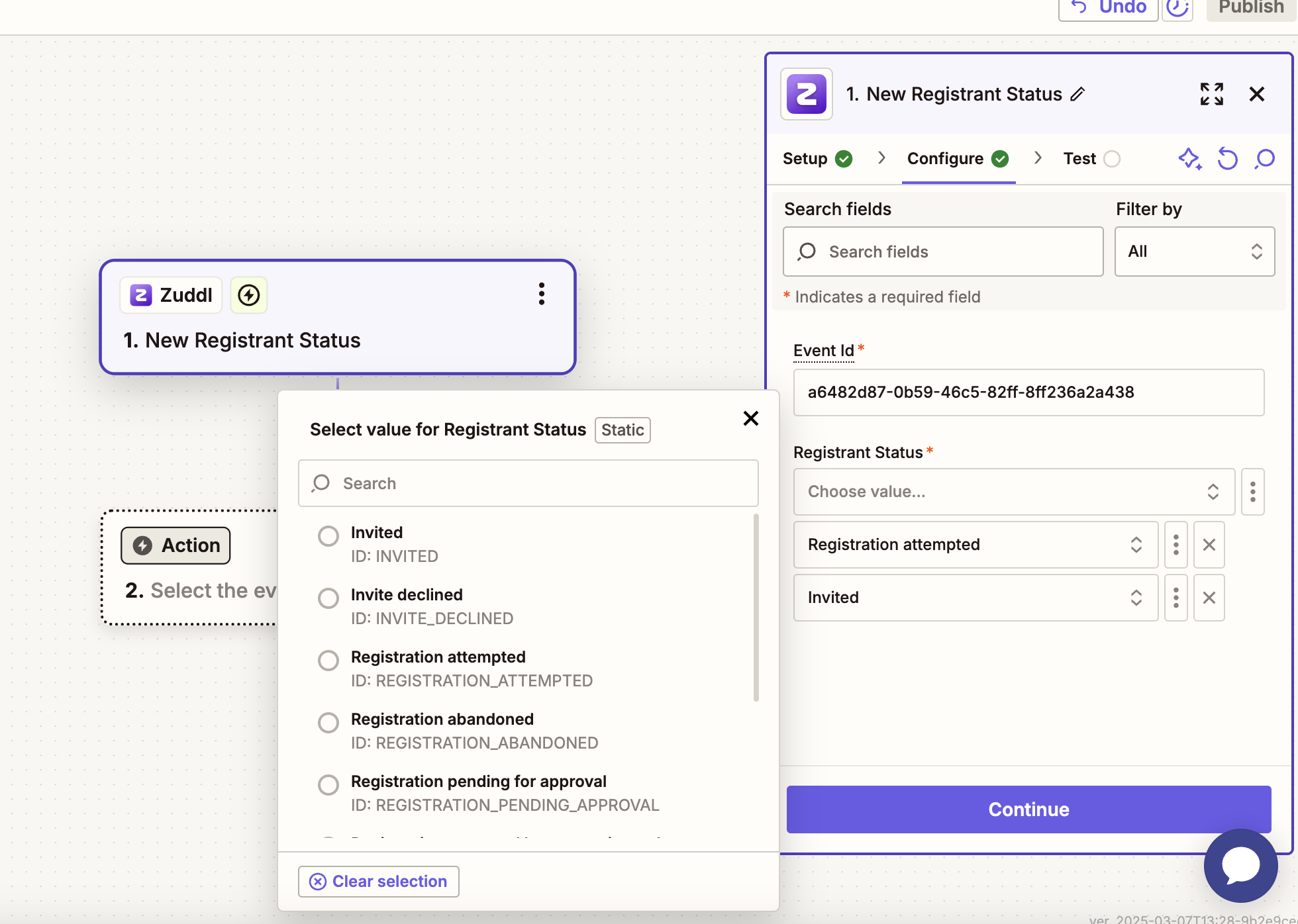
You can select multiple statuses.
Publish the workflow.
The attendee statuses are described in the table below:
Status | When it occurs |
Registered | When the registrant is successfully registered. Defaults to on.
|
Attended | When the registrant enters on the event start time and engages in the event. Defaults to on. |
Attended (Both) | When a registrant joins your event at the event start time. Use this to mark attendance for both virtual and in-person. |
Attended (Virtual) | When a registrant joins your event at the event start time. Use this for marking attendance for virtual events only. |
Attended (In-person) | When a registrant joins your event at the event start time. Use this for marking attendance for in-person events only |
Invited | When a user is invited from the invite list. When the invite email is sent |
Invite declined | When an invitee declines the event invitation. When the invitee declines the event invite |
Registration attempted | When user attempts to register, but the attempt fails which can be because the event capacity has reached and new registrations are blocked or due to the email domain is restricted |
Registration abandoned | When a registration was attempted but not completed in the given time (with or without the approval process) |
Registration pending approval | When a registration approval request is submitted by the registrant |
Registration approved but not registered | When the organizer has approved the registration request but the registrant did not complete the steps after approval. |
Registration rejected | When the registration submitted for approval is rejected by the organizer |
Entered | When an attendee joins the event after the check-in start time. Once the event has started, this status changes to 'Attended' |
No show | When the registrant has not joined your Zuddl event even after the event start time. |