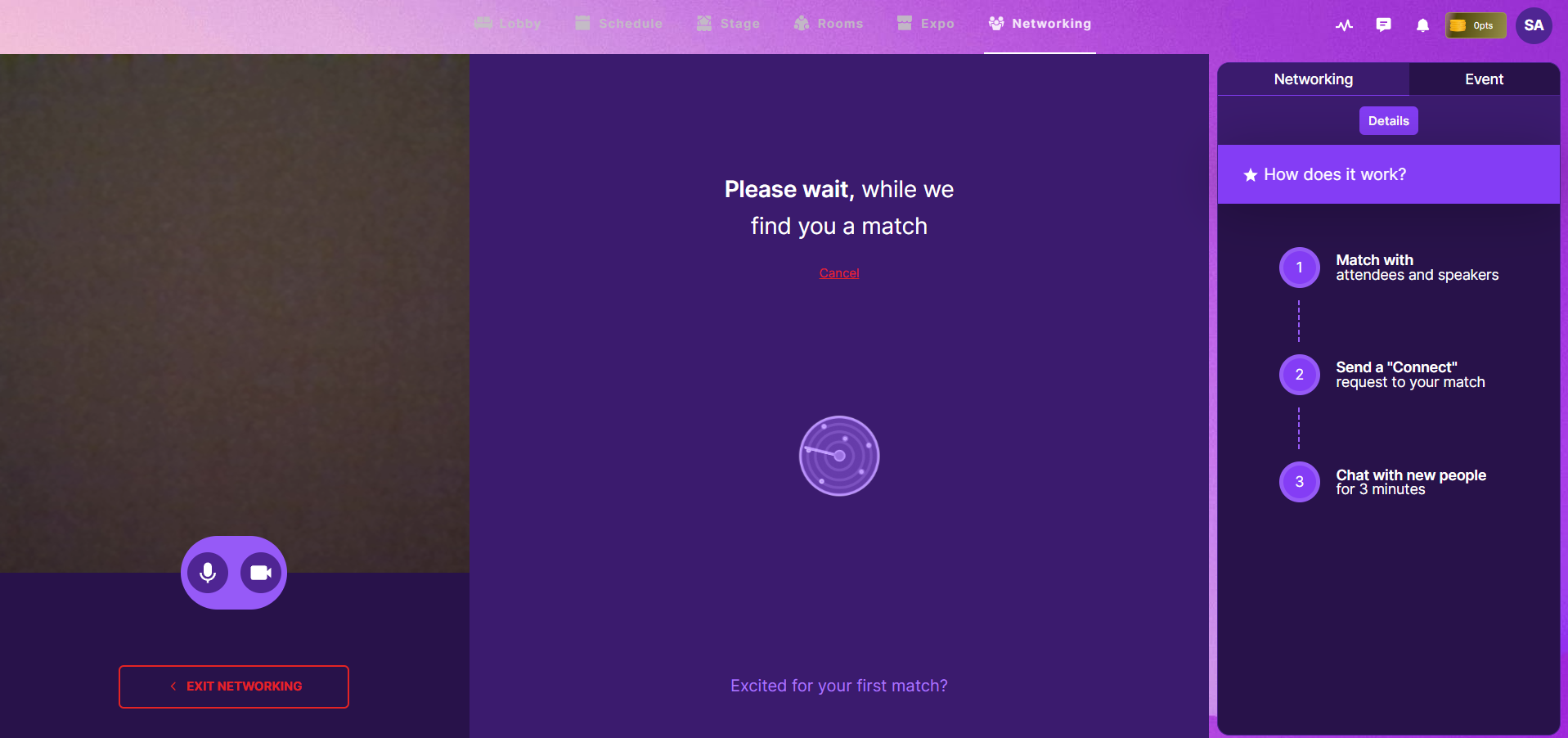
How to Set up Quick Networking for a Virtual Event in Zuddl
Last updated: August 1, 2025
Configure Quick Networking
- Login to the Zuddl dashboard and create an event. Learn more about creating an event.
- Go to Venue setup > Networking.
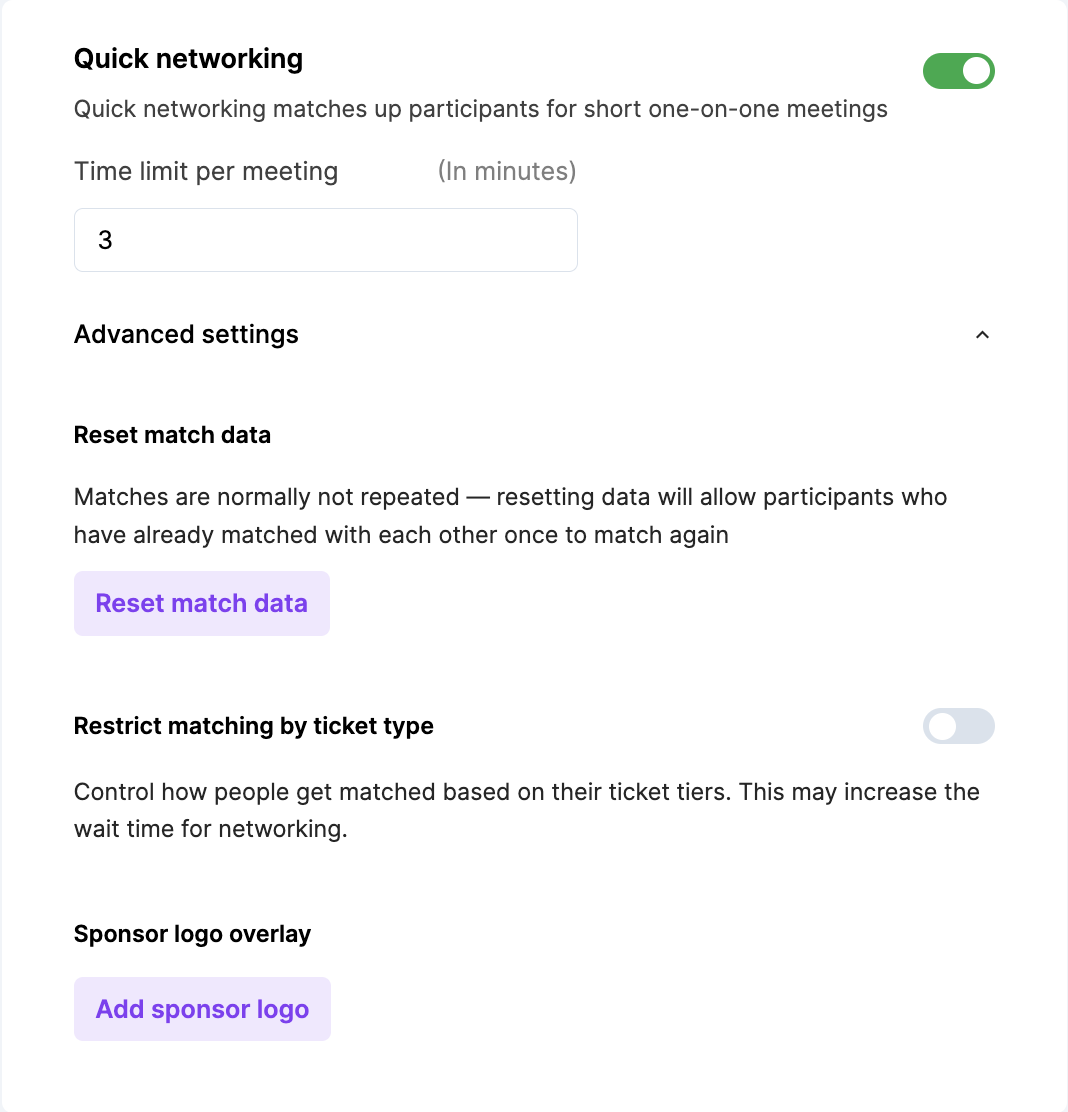
- Toggle on Quick Networking.
- Enter the Time Limit per meeting (from a range of 3 - 10 minutes) for which a participant can network with another participant.
- Click Advanced settings to expand the section.
Click Reset match data to allow attendees to match with previously matched attendees. Attendees who have matched once are normally not matched again.
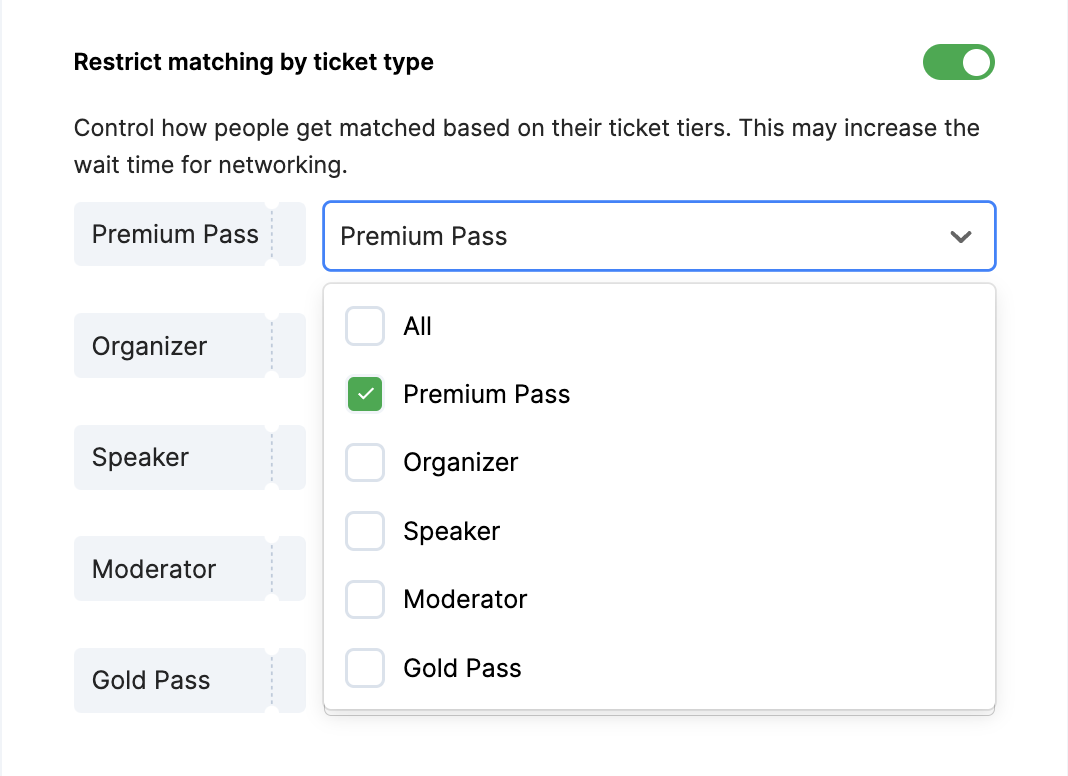
Toggle on Restrict matching by ticket type to control how attendees are matched based on their ticket types. You can now select the ticket types that each type can match with.
Click on the Add Sponsor logo button and a right-side pane opens to upload a JPG, JPEG, or PNG image which is 200x80 in dimensions up to 4 MB. This is visible to the attendees during the networking session.
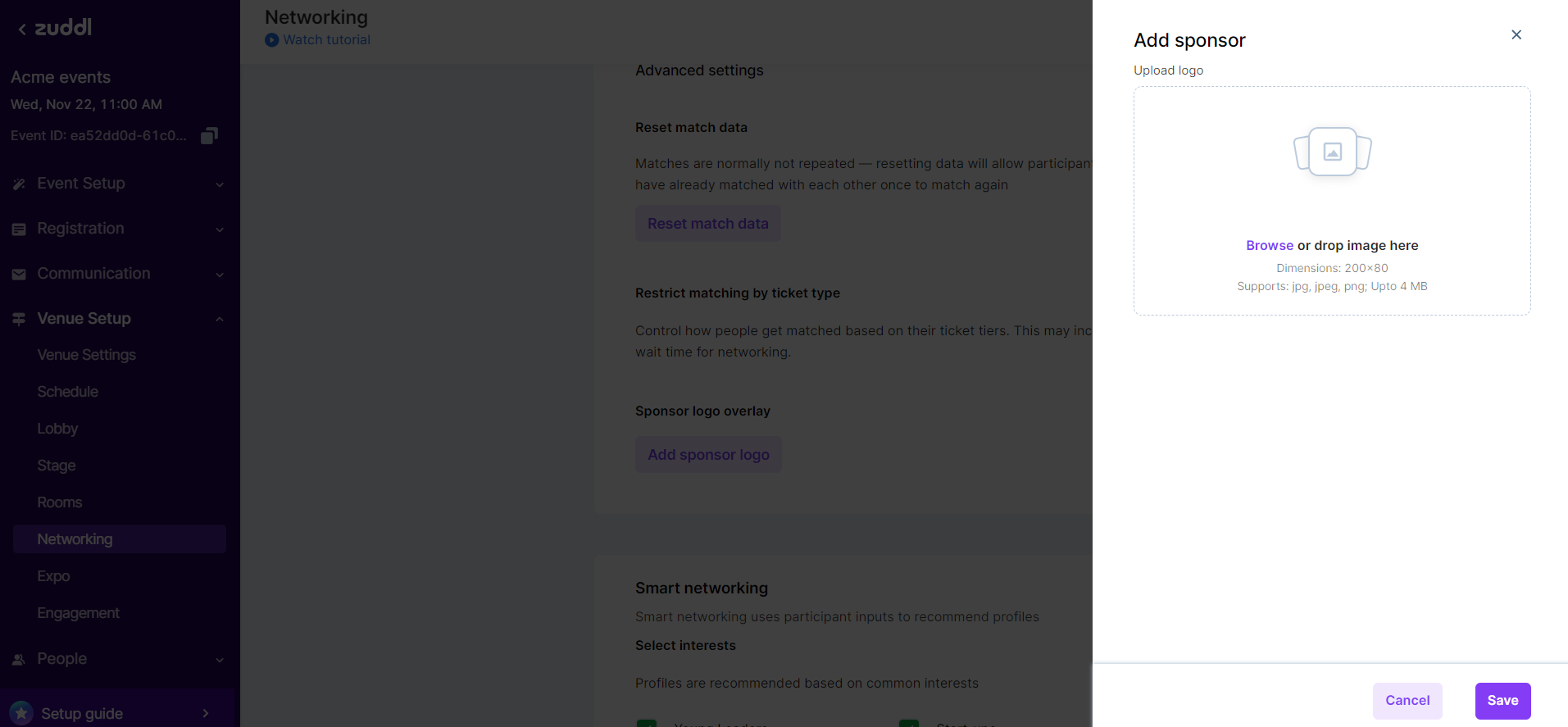
- Click on the Save button to add the sponsor logo.
Attending the event
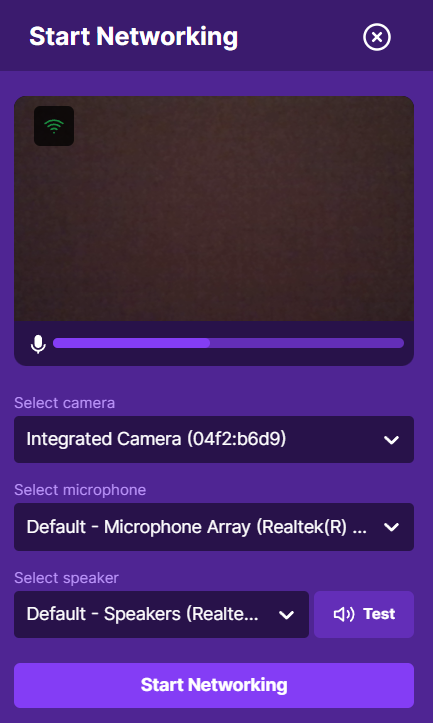
The attendee reaches the Networking venue and sees the Quick Networking card. On clicking Start Networking, they are shown a pop-up for audio and video settings.
The camera, microphone, and speaker can be changed here if necessary. On clicking Start Networking, the attendee is taken to the Quick Networking page.
Inside Quick Networking, attendees are matched with others randomly and can talk to them for a fixed amount of time. To share contact information with the other person, they can click Connect.