Allowing attendees to cancel their registration
Last updated: March 25, 2026
Attendees can now cancel their own registrations for non-ticketed events. This helps you keep attendee data accurate, reduce no-shows, and free up capacity automatically.
This feature is available only for non-ticketed flows and is supported in Conferences (Virtual, In-person, Hybrid) as well as Webinars.
How to enable attendee self cancellations:
To allow attendees to cancel their registration:
For any event/webinar, go to Registration > Registration flow > Advanced settings
Turn on the Allow attendee cancellations toggle and save your changes.
To customize the post-cancellation message, go to Standard screens and update the Registration cancelled screen.
Best practices to follow
Add the cancellation link to:
Confirmation emails
Reminder emails
Enable the Registration cancellation (by attendee) email to send a confirmation to the cancelled attendee.
How can attendees cancel their registration
Attendees open their Modify registration page
Click Cancel registration
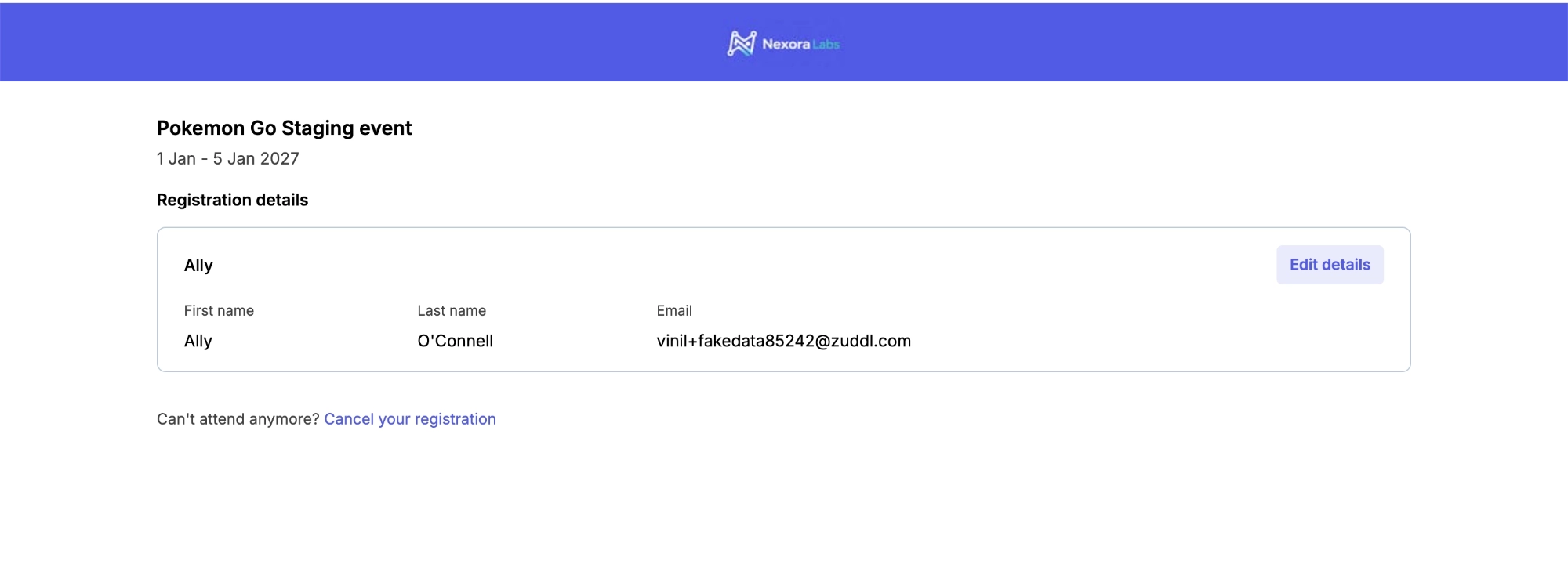
Select a reason for cancellation and confirm.
Note: The default entry point for Attendees to cancel their registrations is from the ‘Edit registration details’ link (that is sent in the emails). You can also give cancellation link in emails and Calendar blocks.
Adding cancellation link in emails
To allow cancellation from emails, add the Cancel registration special link to any email.
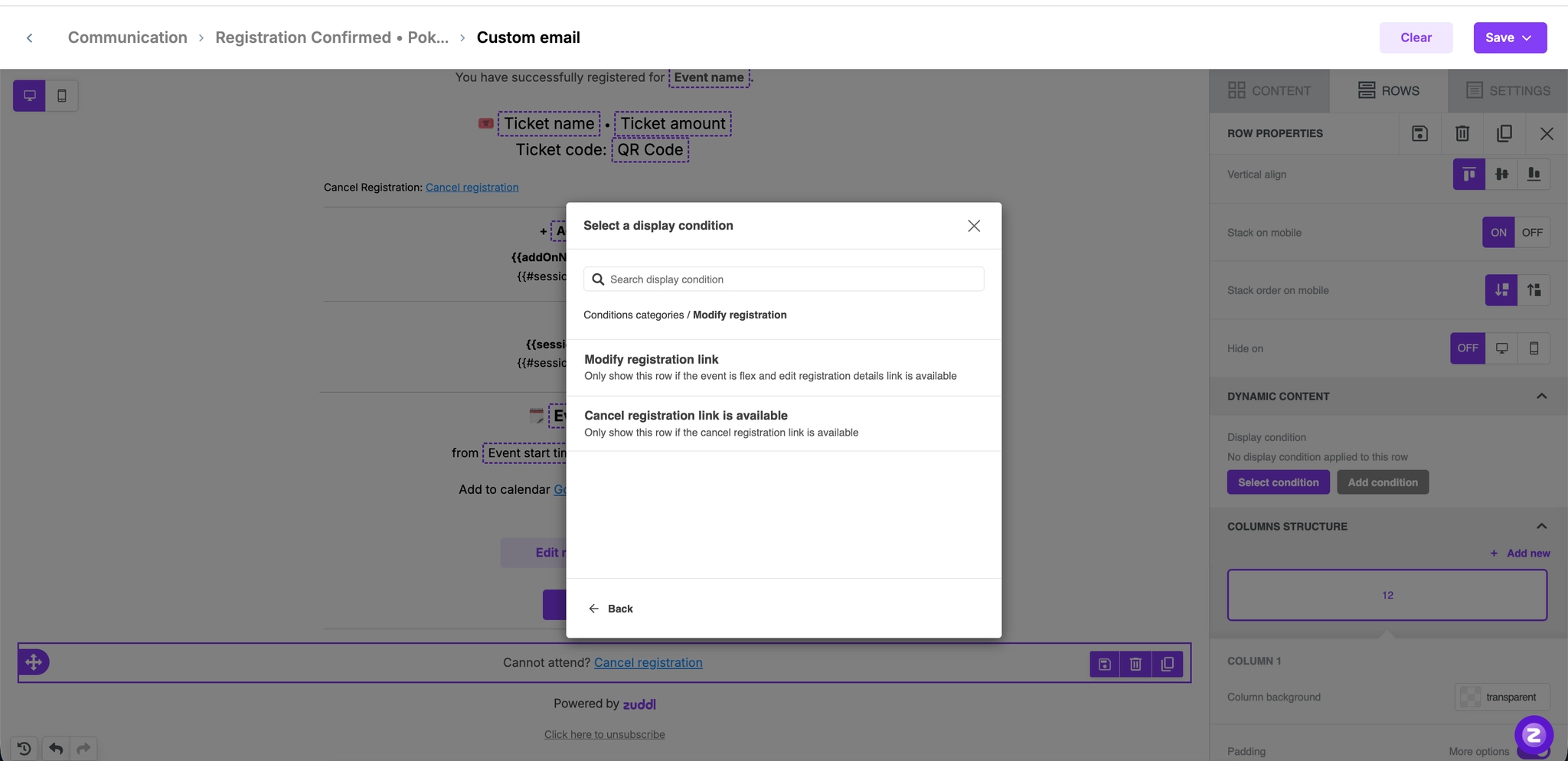
For events with multiple flows (where some allow cancellation and some don’t):
To do this, click on the row, and on the right side panel, find the Dynamic content section and click on select a condition.
In the popup that opens, click on the Modify registration > then select Cancel registration link is available.
Adding this condition will show this row only for registrants who register via a registration flow where attendee cancellation is allowed.
Adding cancellation link in calendar blocks:
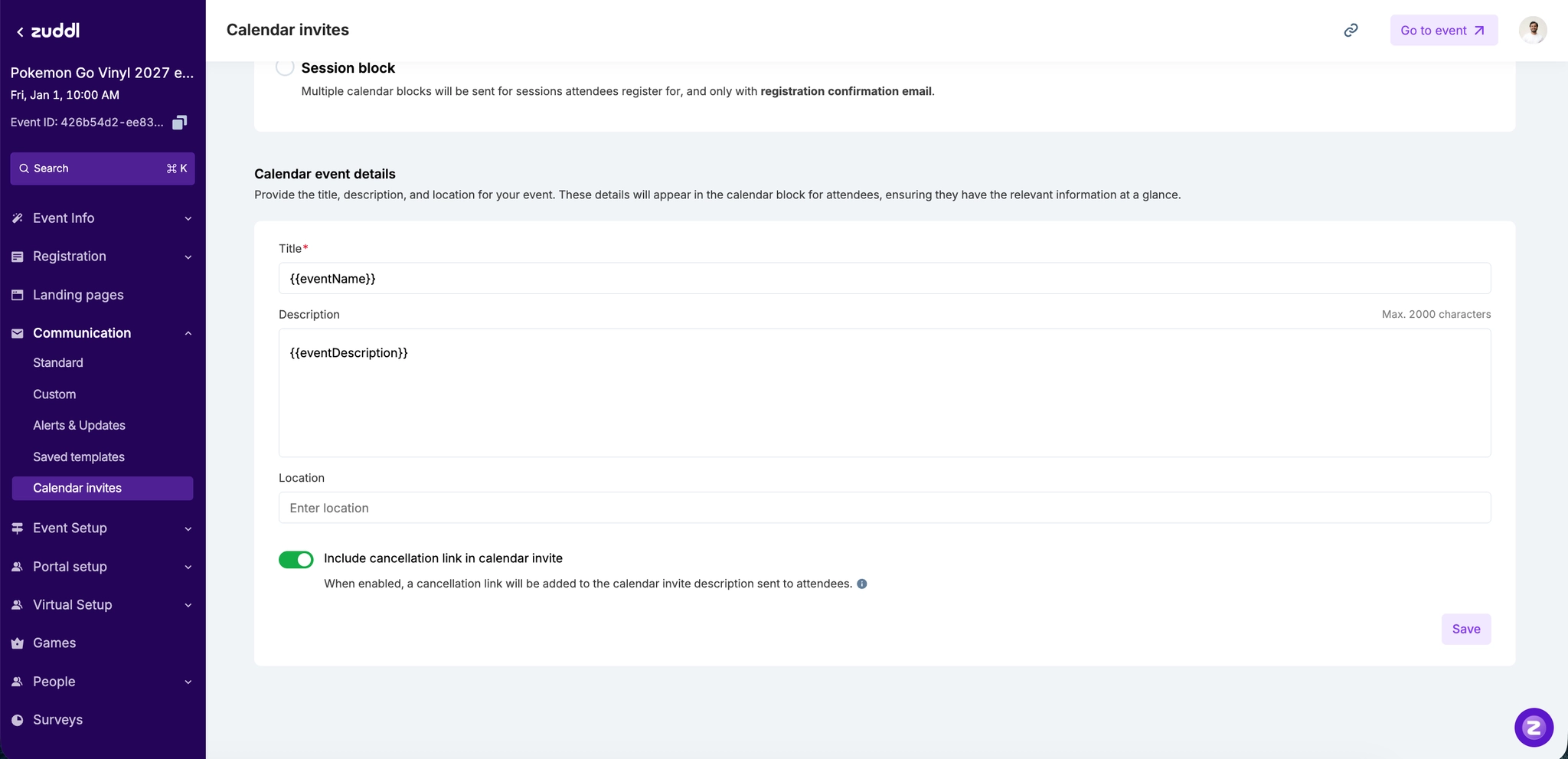
Under Communication > Calendar block, enable the Include cancellation link option and Save changes.
This appends the cancellation link inside the calendar description sent to attendees.
View cancelled attendees
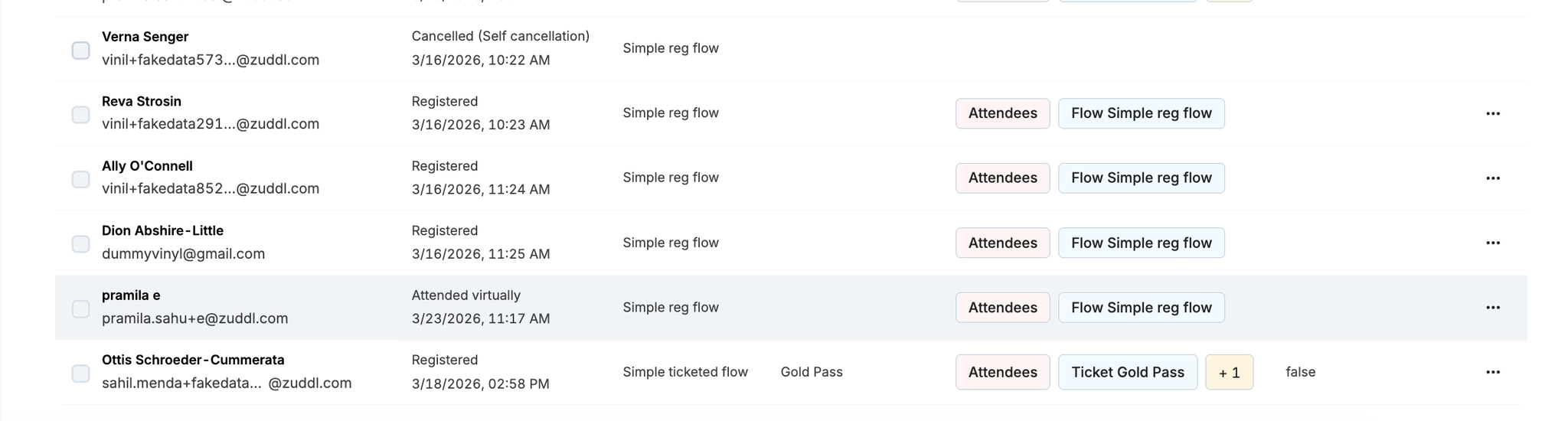
You can track cancellations from the attendee list:
Go to People > Attendees
Use the Status filter
Select Cancelled
What happens after attendees cancel their registration.
Their registration is marked as Cancelled
They receive a cancellation confirmation email (if toggled ON by organizers)
They lose access to the event
If they try to access the event, they see a “you can no longer attend” screen
They can register again using the same email.
Limitations
Not supported for ticketed events
Cancellation links must be added manually to emails
Modify registration is unavailable for cancelled attendees
FAQs
Can attendees register again after cancelling
Yes. They can register again using the same email without any restrictions.
Will cancelled attendees receive emails?
No. They will only receive cancellation-related communication.
Can I customize cancellation reasons?
Not in the current version. This will be available in a future update.
Will there be a case when attendees cannot cancel?
Yes, if they already checked-in, or if cancellation is disabled in the registration flow.