How to Share the Attendee Report Using a Public Link
Last updated: January 30, 2026
Zuddl allows admins to securely share attendee reports using a public link and passcode, making it possible for users outside your Zuddl organization to view attendee data.
Follow the steps below to generate and share a public attendee report.
Steps to Share an Attendee Report
1. Log in to Zuddl
Log in to your Zuddl Dashboard as an Admin
2. Navigate to the Event
Open the event whose attendee report you want to share
3. Open the Attendee Report
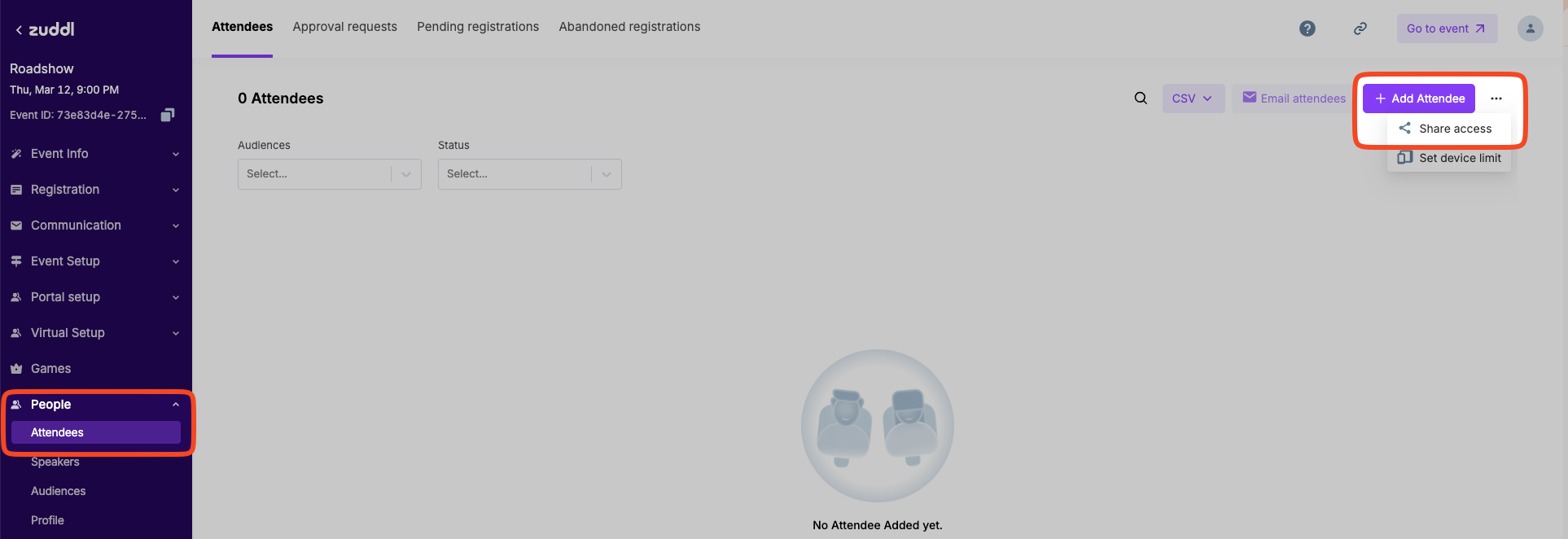
Go to People → Attendees
Click the three-dot menu (⋯) on the attendee list
Select Share access
4. Review and Accept the Consent Screen
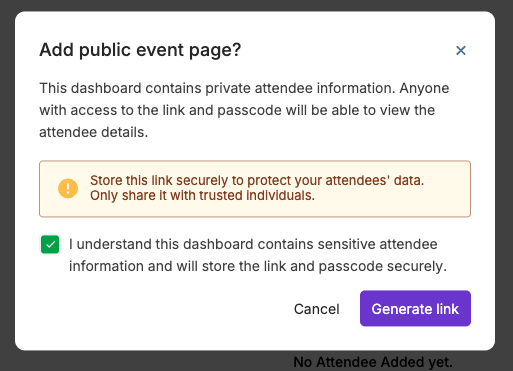
You’ll see a consent message explaining the sensitivity of the data:
Review the information
Confirm the consent by checking the acknowledgment
Click Generate link
5. Configure and Copy the Shareable Link
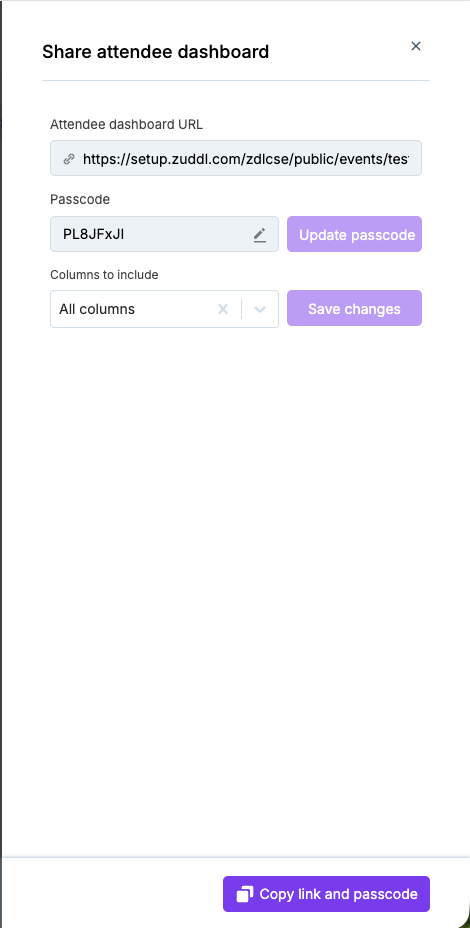
Once the link is generated:
You’ll see a public URL and passcode
Select which columns should be visible in the shared report
Click Copy link and passcode to share with others
Accessing the Shared Report
Anyone with the link and passcode can view the attendee report
No Zuddl login is required
Access is read-only
Important Notes
The shared report contains sensitive attendee information
Always store and share the link and passcode securely
Share access only with trusted individuals
Column visibility can be controlled before sharing
Use Cases
Sharing attendee data with internal stakeholders
Providing access to partners or clients
Avoiding the need to add external users to your Zuddl organization