How to Customize your Email Calendar Invites for a Hybrid Event
Last updated: October 9, 2026
Using calendar blocks registrants can set aside a designated time slots for your event/webinar and help them know when they need to join the event.
This setting will work if the calendar block is enabled for the required emails. Learn how to configure emails.
To customize calendar blocks:
Log in to your Zuddl dashboard.
Go to Communication > Calendar invites.
There are three types of calendar blocks:
Event-wide block: A single calendar block for the entire duration of the event
Day-wise block: Blocks appear as per the event days for which the attendee has access
Session block: Multiple calendar blocks will be sent for the sessions attendees register for
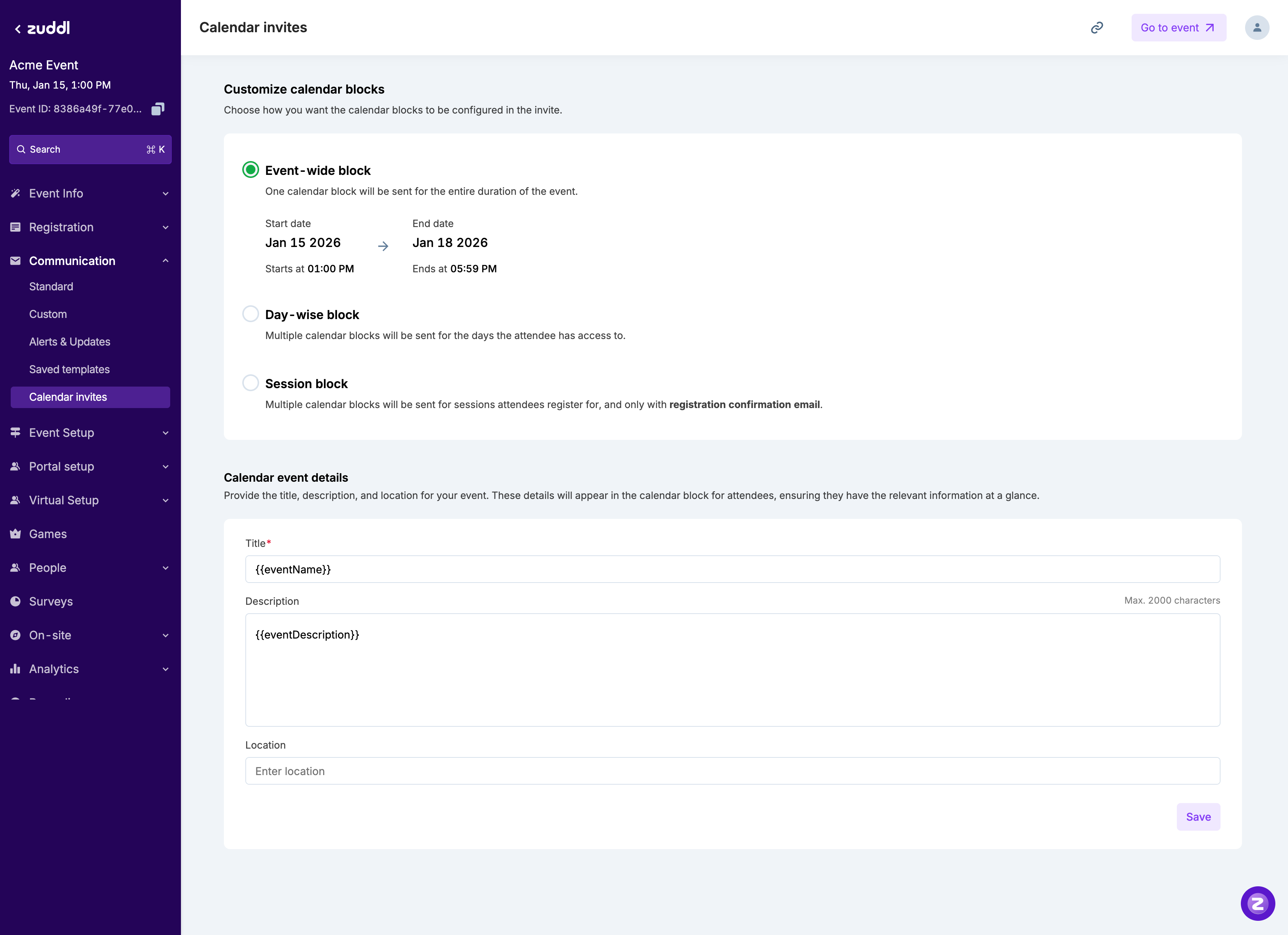
For every calendar type, the content in the fields of the calendar block can be customized as required. Merge tags can also be used here, using which the event/session-related data can become part of this content.
Title: The title defined here will be used as the calendar block's title. Merge tags like event name or session name can be used for ease of convenience.
Description: The title defined here will be used as the calendar block's description. Merge tags like event/session description, event/session dates, etc, can be used to define it.
Location: The location defined here will be used as the calendar block's location. Merge tags like event location (Google map link), event URL (joining link), event venue can be used to define it, based on the event format.
Event-wide block
An event-wide calendar block is the default and single calendar block for the entire event duration.
An event-wide calendar block will be sent through any communication that is enabled with a calendar block.
An example event-wide calendar block is shown below:
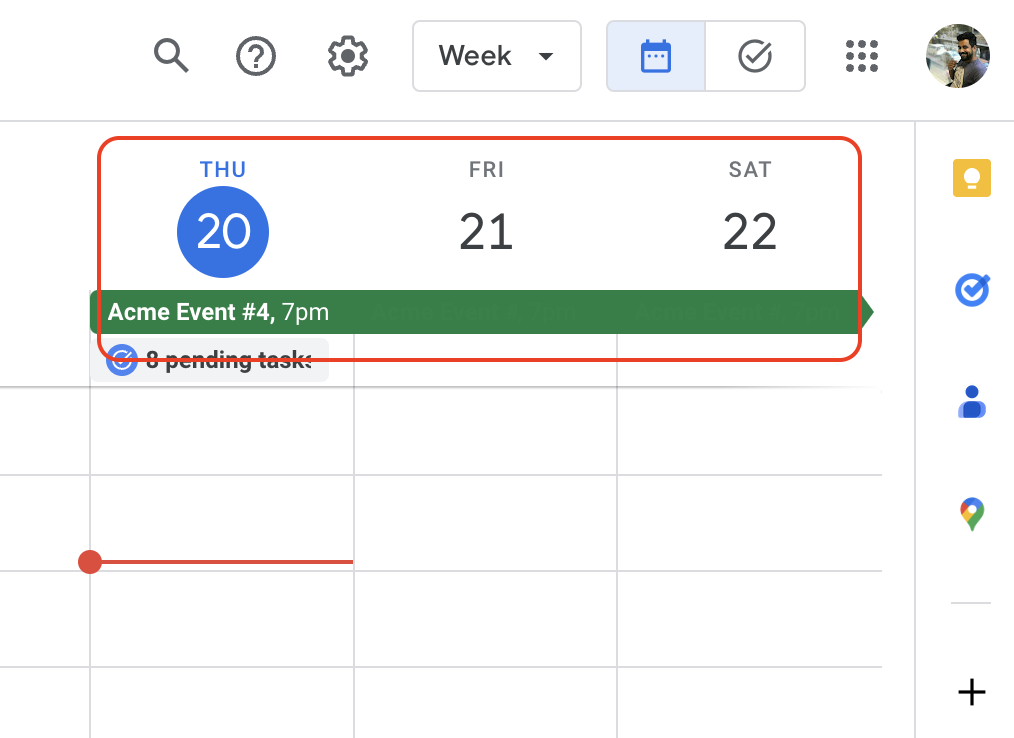
All series-level communication will go event-wide.
⚠ When the end-user clicks on the link Add to Calendar - Yahoo, Google, Yahoo, Apple from the email, it always adds an event-wide block.
💡 If the event's timings, timezone, or the location (in-person) is getting updated, already sent calendar blocks can get updated accordingly upon the confirmation of the organizer.
Day-wise calendar block
Day-wise blocks appear as per the event days for which the attendee has access. This requires at least one day to be changed from the default time.
An event-wide calendar block will be sent through any communication that is enabled with a calendar block.
An example of a day-wise calendar block is shown below:
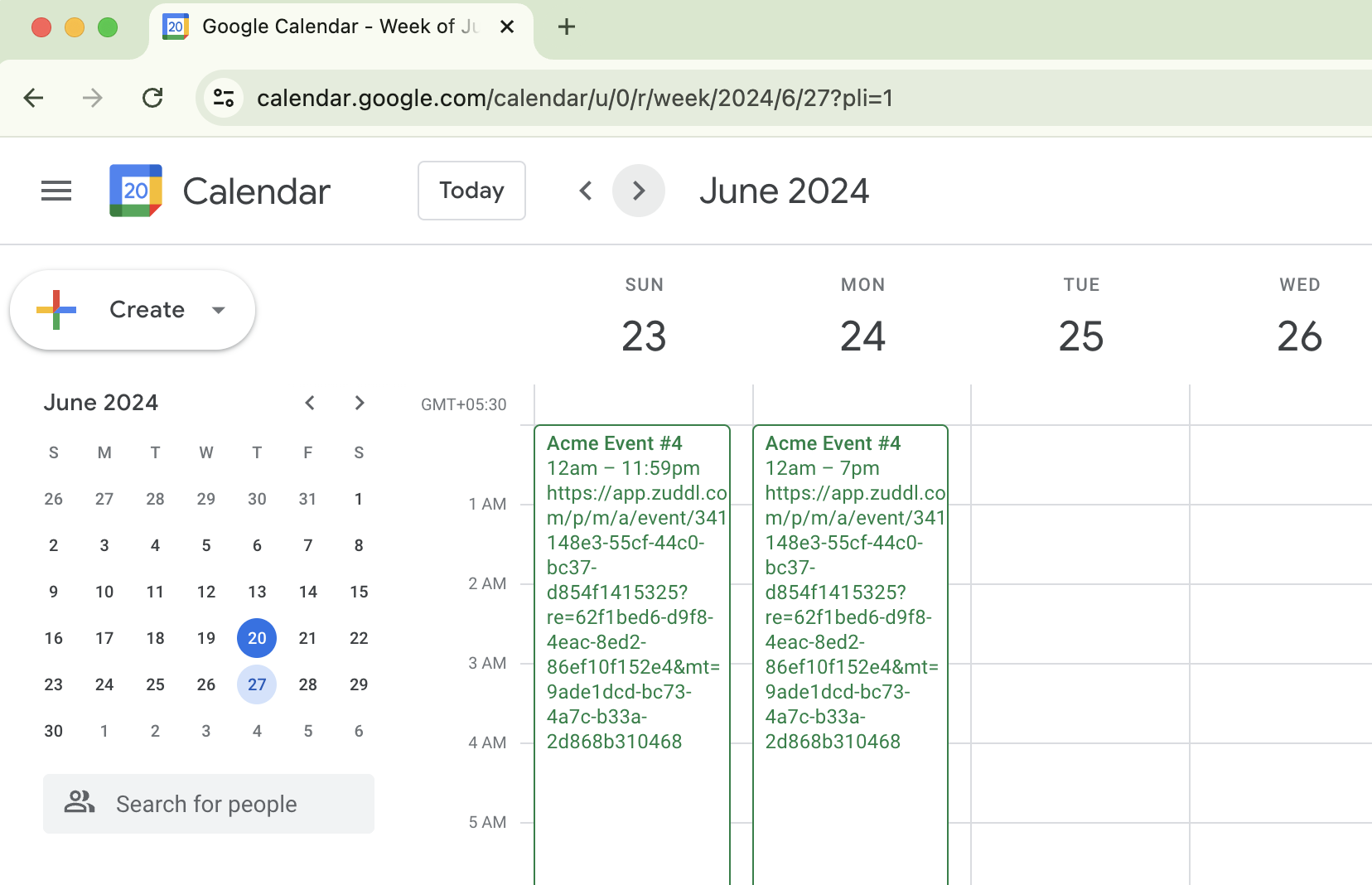
A day-wise calendar would not work for more than 6-days. If the number of days has been increased, day-wise settings will change to event-wide.
💡 If the event's day-wise timings, timezone, or the location (in-person) is getting updated, already sent calendar blocks can get updated accordingly upon the confirmation of the organizer.
Session blocks
A calendar block for every session the attendee registers for is sent as soon as the attendee's status is 'Registered.'
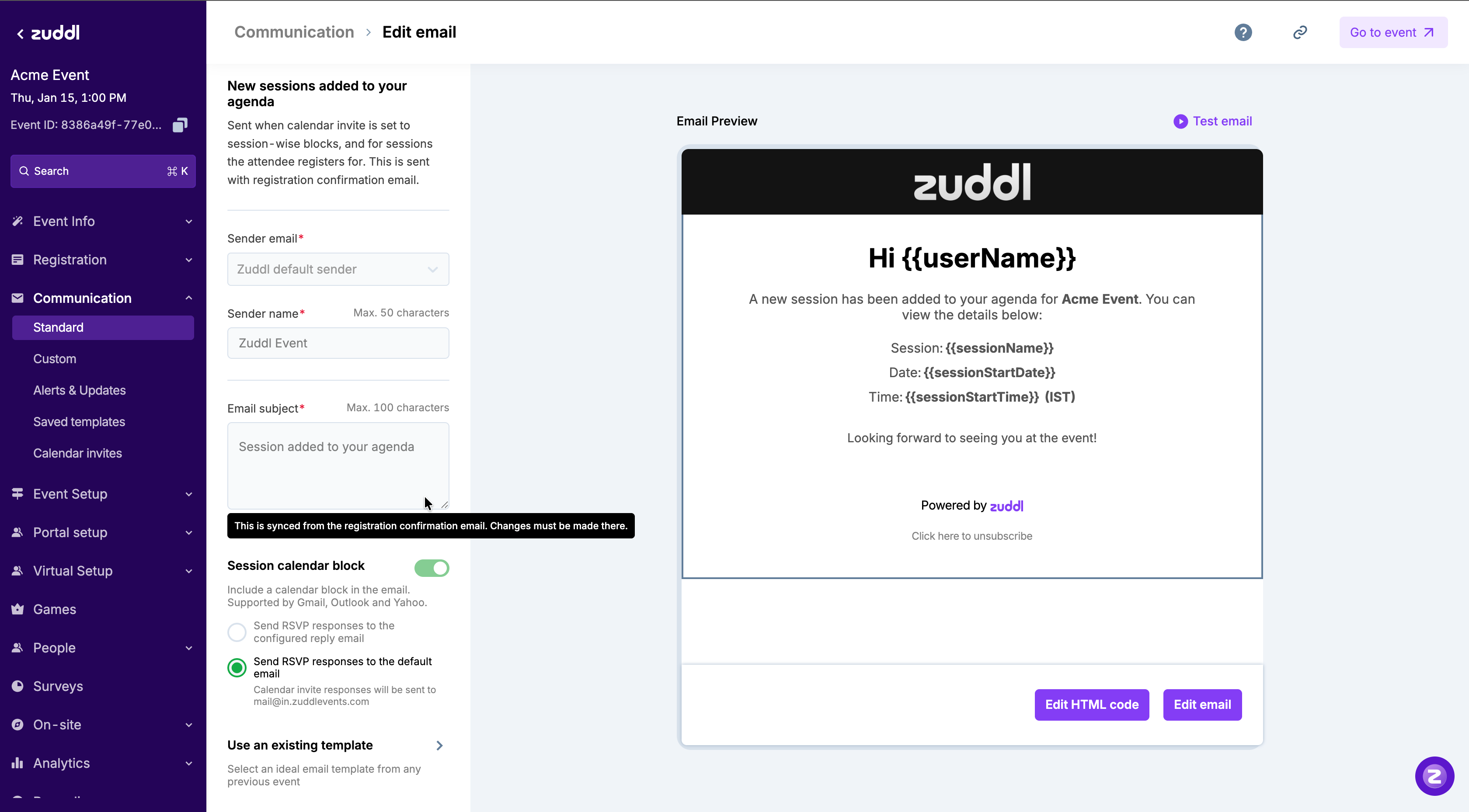
Session calendar blocks are sent through four standard communications. Each one covers a single kind of change, so attendees can tell exactly what happened to their agenda:
Communication | When it is sent | What happens on the calendar |
|---|---|---|
Session confirmed at registration | The attendee picks a session when they first register | Adds the session to their calendar |
Session added by attendee | The attendee adds a session by modifying their registration | Adds the new session to their calendar |
Session removed by attendee | The attendee drops a session by modifying their registration | Removes the session from their calendar |
Session changed by organizer | The organizer changes a session's time, location or virtual venue | Updates the session on attendees' calendars |
These communications are sent independently of the 'Registration confirmation' communication — you can keep Registration confirmation switched off and session calendar blocks will still go out.
⚠ When calendar invite is set to session blocks, calendar blocks are not allowed to be sent in any other standard or custom communication.
An example of a session calendar block is shown below:
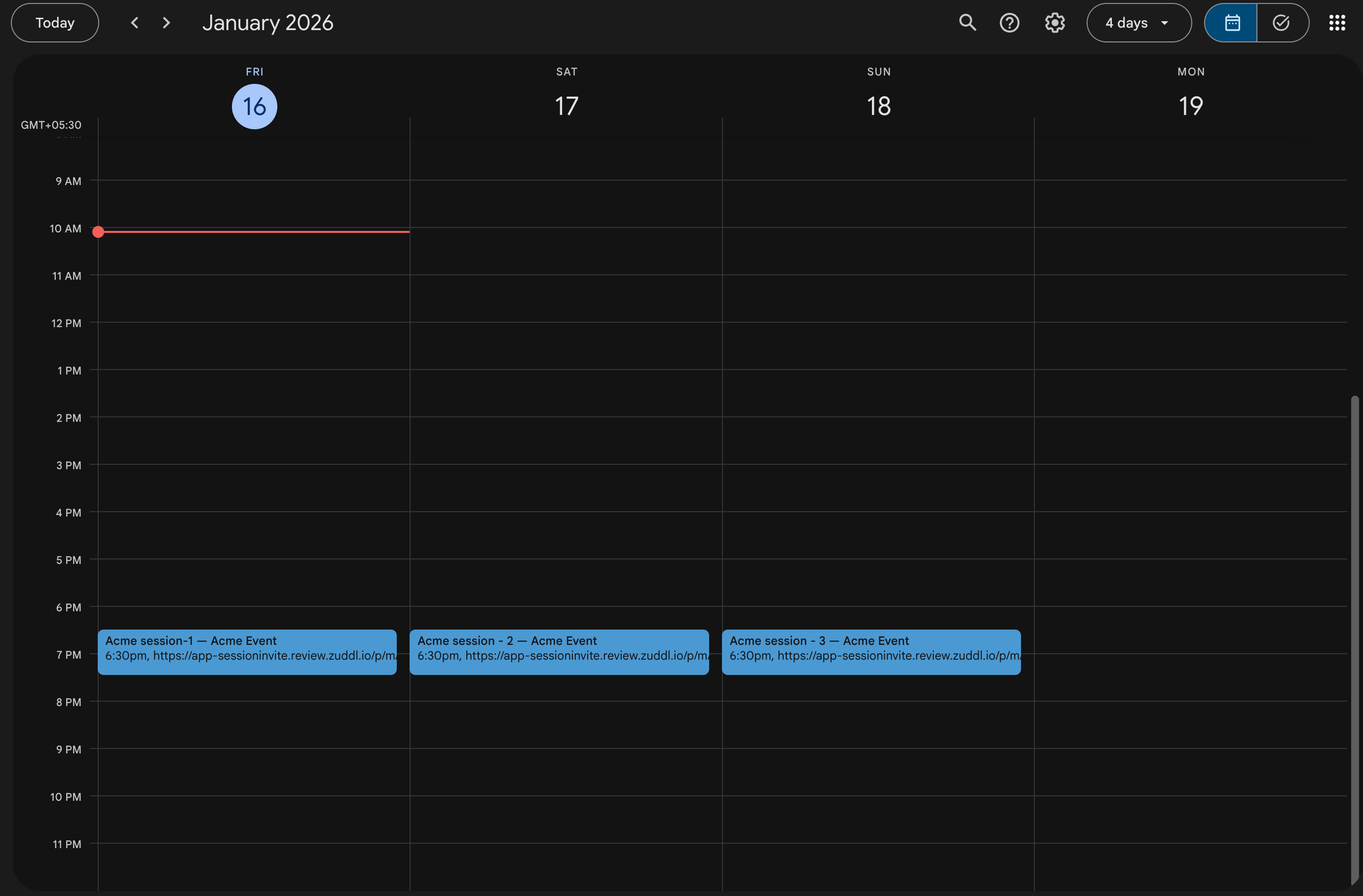
One email per session
Each email covers one session. When an attendee registers for multiple sessions, they receive a series of emails (in the order of session start date, start time, and session name) with the calendar block of each session.
When an attendee swaps a session by modifying their registration, they receive two emails: Session removed by attendee for the old session and Session added by attendee for the new one.
⚠ A maximum of 7 session calendar emails are sent to an attendee. When an attendee modifies their registration, removal emails count toward this limit.
Configuring the session calendar emails
Each session email has its own Active toggle, which is shown only while the calendar invite is set to session blocks. Turning an email off is remembered even if you switch the calendar block type away and back.
If Session added by attendee is turned off, attendees who add a session by modifying their registration do not receive a calendar block for it. If Session removed by attendee is turned off, dropped sessions stay on the attendee's calendar.
💡 For existing events, Session added by attendee and Session removed by attendee start in the same on/off state as Session confirmed at registration, so modification emails continue to go out as before.
Session changed by organizer
When a session's time, location or virtual venue is modified, registrants can automatically receive an updated calendar invite. With the Session changed by organizer communication, organizers can send the revised calendar block to affected registrants with a single confirmation. Only registrants who previously received a calendar invite for that session are notified.
Resending from the Attendees page
When the calendar invite is set to session blocks, the resend option on the Attendees page behaves as follows:
Registration confirmation | Session confirmed at registration | What is resent |
|---|---|---|
Enabled | Enabled | Both emails are sent |
Enabled | Disabled | Only the Registration confirmation email is sent |
Disabled | Enabled | The resend option is disabled |
Disabled | Disabled | The resend option is disabled |
Switching calendar blocks
Changing from event-wide to day-wise will also update the attendee calendar blocks only if you resend any communication with a calendar block enabled.
Changing from session blocks to event-wide or day-wise will automatically remove the session blocks by sending canceled status for all the session calendar blocks.
Changing from event-wide or day-wise to session blocks will still keep the existing event/day blocks on the attendee calendar, and session blocks will be sent when resending the 'Registration confirmation' communication.
Event Series:
For event series and for day-wise calendar blocks, the Google calendar settings must always be From everyone, otherwise the calendar block will not work.
Event-level communication in a series event can be set to go day-wise.
Add to Calendar - Google and Yahoo:
When a registrant clicks the Add to calendar link on an email, all fields, including the description is prefilled in the calendar block for Google and Yahoo. The description you've added in the Calendar block option on the event dashboard is shown in the calendar block.