Complete On-Demand Webinar Experience
Last updated: February 16, 2026
Overview
Zuddl now provides the ability for organisers to create a fully automated, on-demand experience for webinars with LP builder enabled. With a streamlined process, webinars can easily transition from live sessions to on-demand access for attendees.
Organiser Workflow
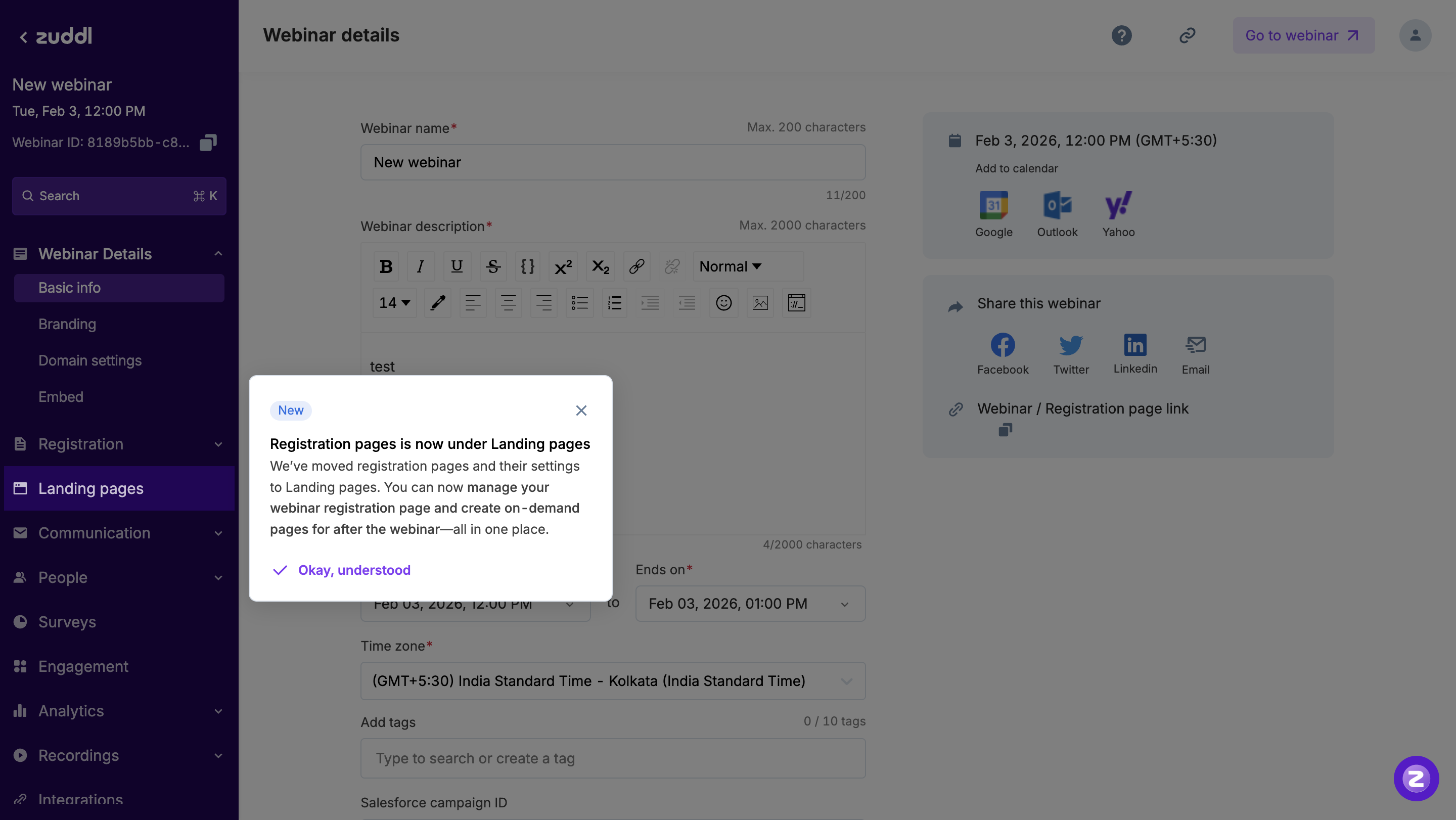
1. First-Time User Experience (FTUE) : Introduction to Landing Page Construct
When an organizer creates a webinar for the first time post-release or opens an existing webinar created pre-release, they will see the following FTUE screen upon entering the webinar:
Unified “Landing Pages” Section: This is where organizers will now manage both their Registration and On-Demand Pages in one place. This includes creating, modifying, or assigning pages as Registration or On-Demand.
The landing page construct will make it easier for organizers to handle both pre- and post-webinar pages with a streamlined approach.
2. Unified “Landing Page” Section:
As part of this change, we’ve pulled the “Registration page” construct out of the Registration module and consolidated everything into a unified Landing Pages section.
Important callout:
This new construct is product-agnostic and will apply across all products, if on-demand is enabled for that org. When the on-demand concept is introduced for events in the future, it will also live within this same Landing Pages section to maintain consistency.
If on-demand is not enabled for the organization, only Registration templates will be visible in the Landing Pages template screen, with all On-Demand templates hidden.
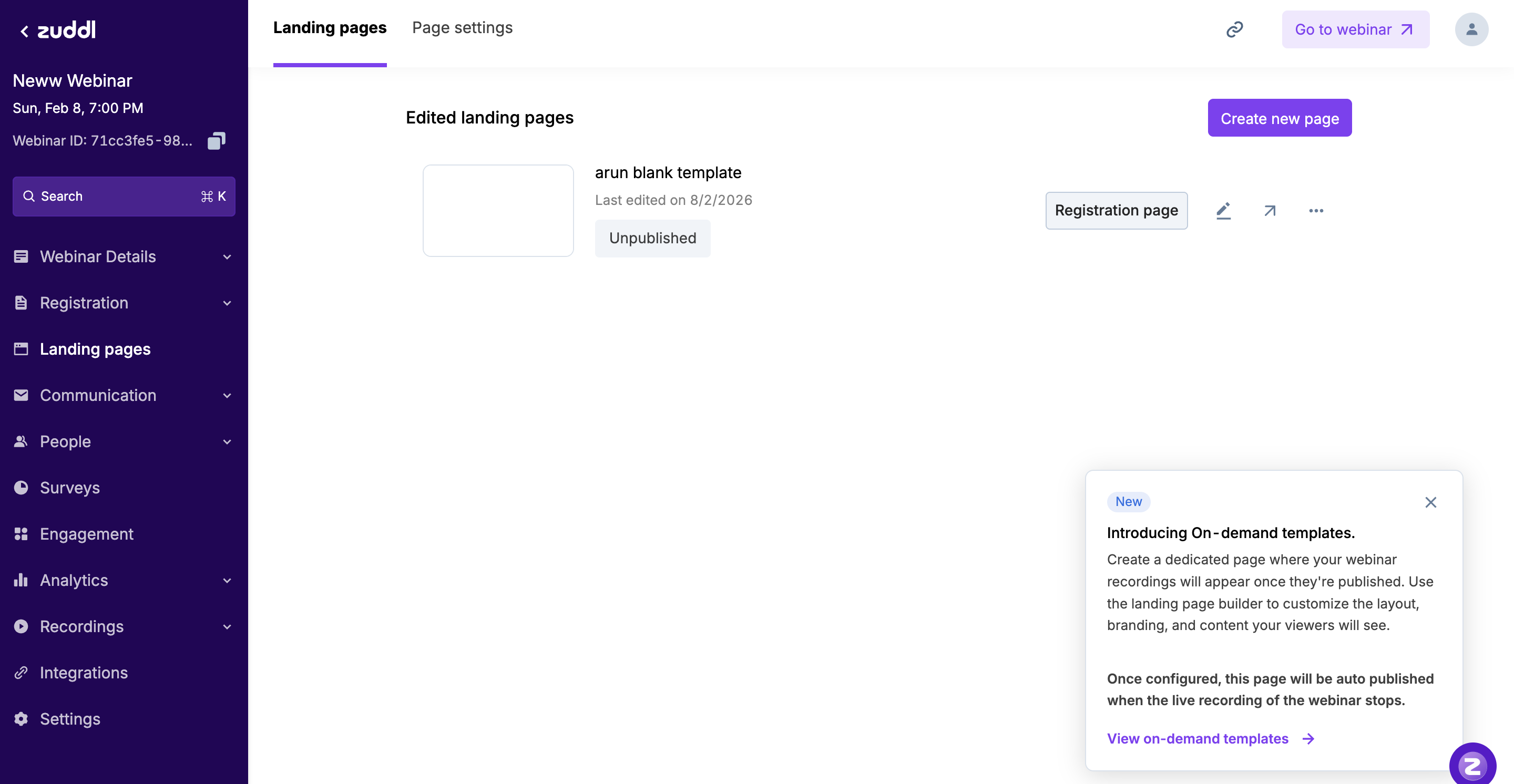
3. First-Time User Experience (FTUE) : Introduction to On-Demand Pages
An FTUE modal appears on the Landing Pages screen to introduce the On-Demand Page concept. It gives organisers the option to create an on-demand page or dismiss the prompt.
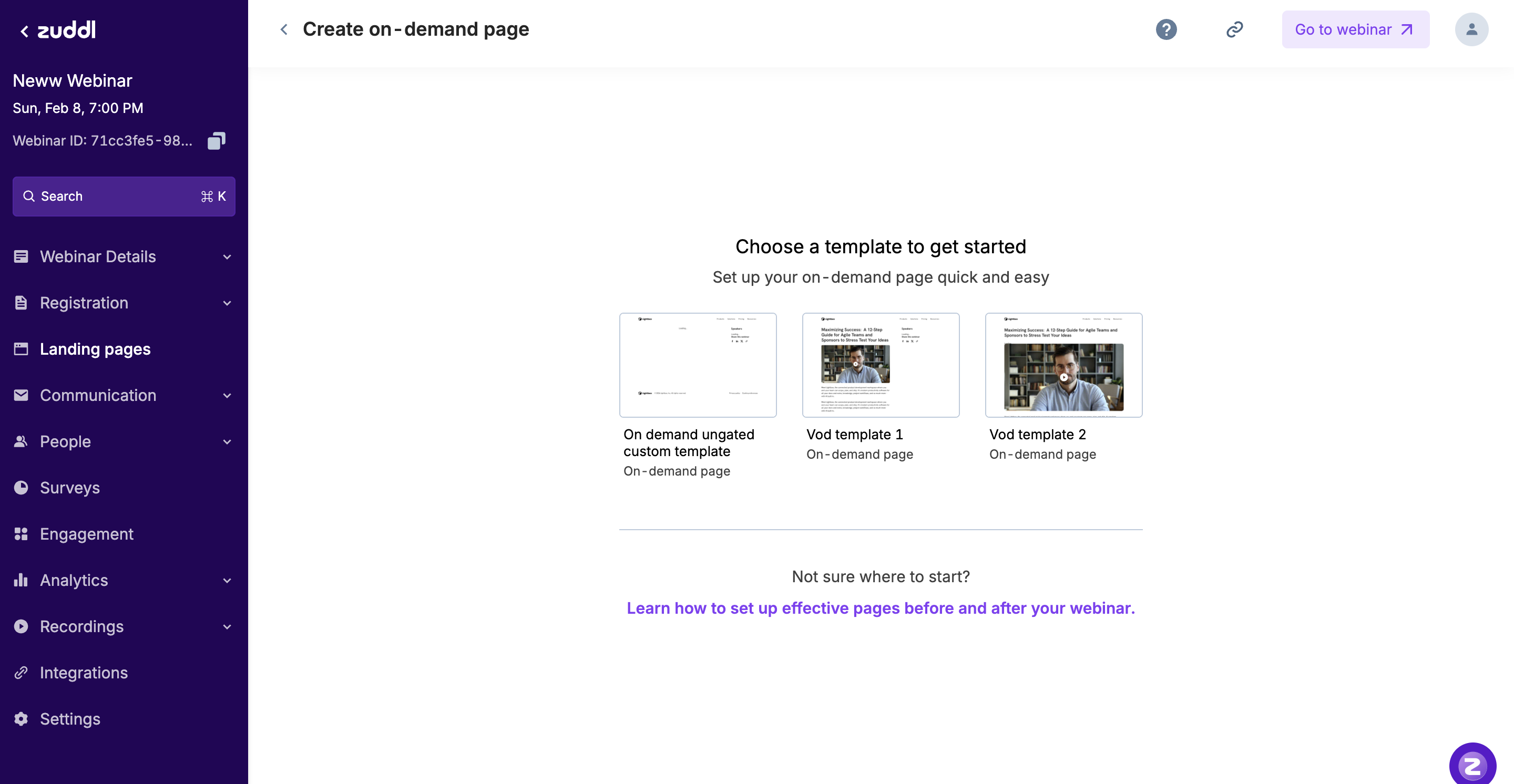
On proceeding, users are taken to a setup view with 2–3 pre-created on-demand templates, an option to start from scratch, and a link to documentation for additional guidance.
This FTUE is shown once per user, for both new and existing webinars, when they encounter on-demand pages for the first time.
4. Creating a Fresh Webinar (No Landing Pages Created Yet)
This is the scenario where the webinar is fresh and no landing pages have been created yet. In this case, the user will have the option to create either:
A Registration Page, or
An On-Demand Page.
To assist with this process, we’ve added a help link providing optional guidance on setting up landing pages both before and after the webinar. There’s also a “Browse all” option, consistent with the current product experience.
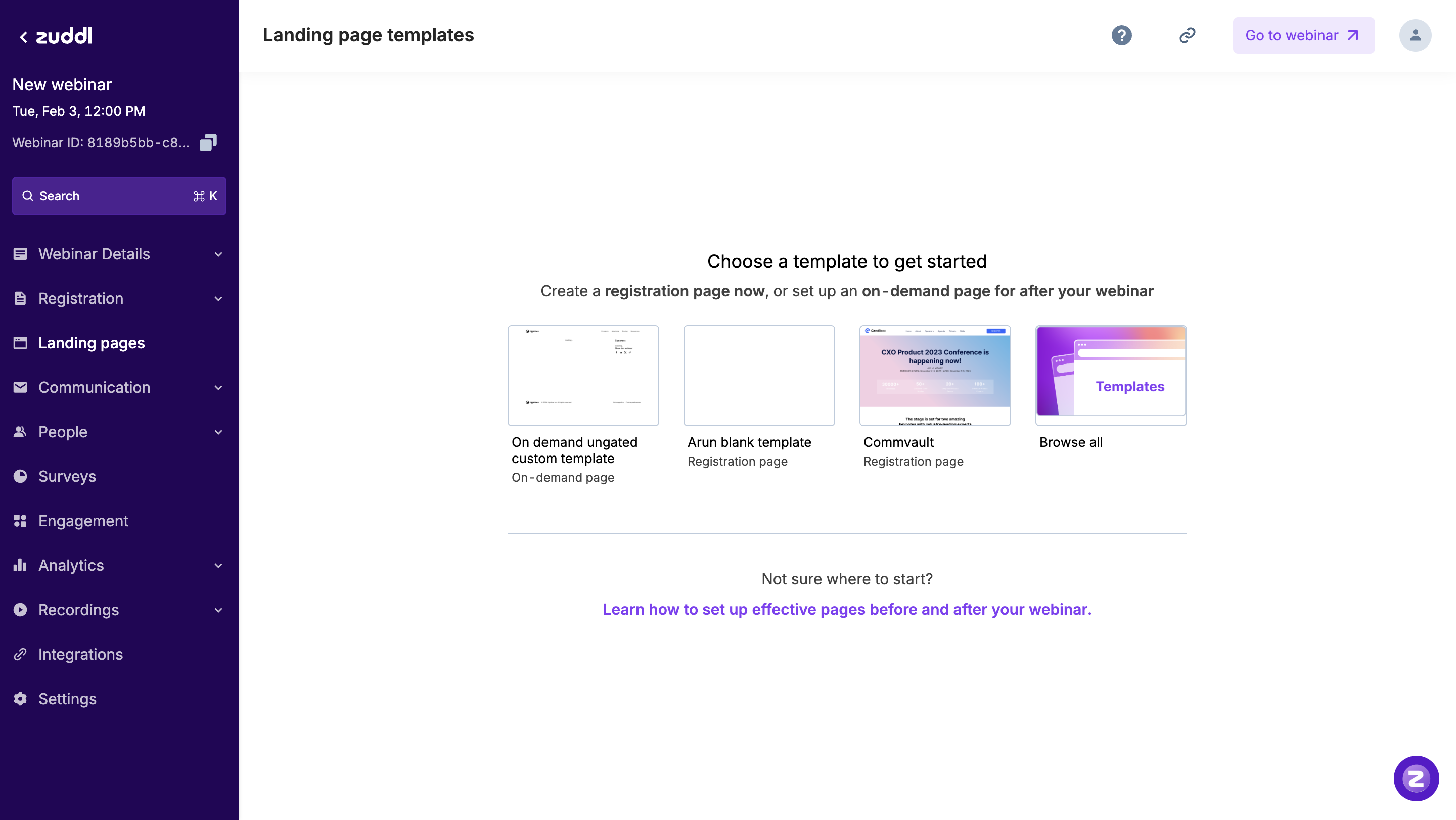
We’ve introduced a few key improvements for better template navigation:
Sticky Tabs: Templates are now split into two sections: Default and Custom. Clicking on either tab will automatically scroll the user to the relevant section.
Search & Filters: These options have been added to help users find the right template more quickly.
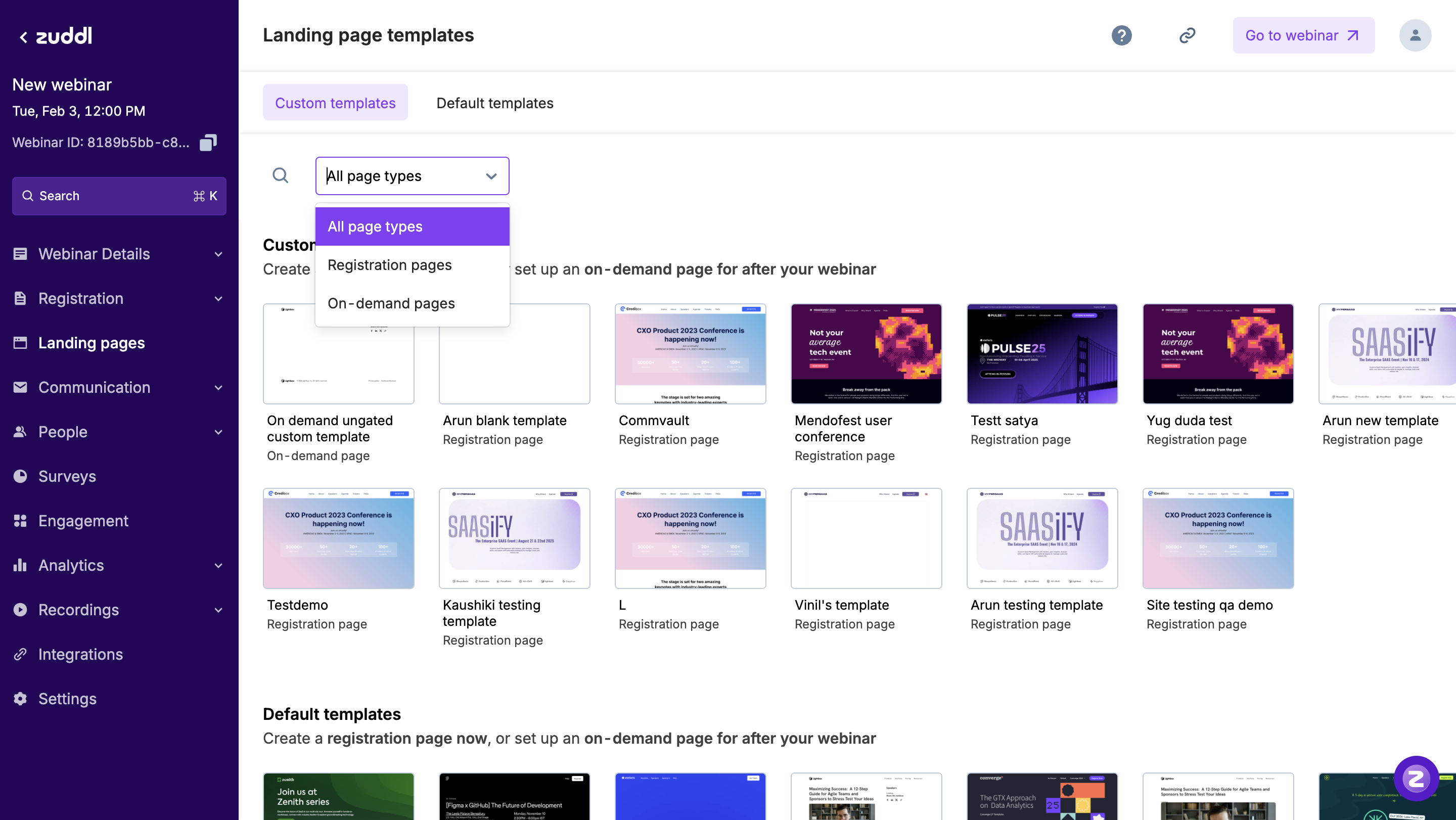
When the user clicks “Use template”, they’ll be taken through the following steps:
Rename the Page: Organizers can give the page a custom name.
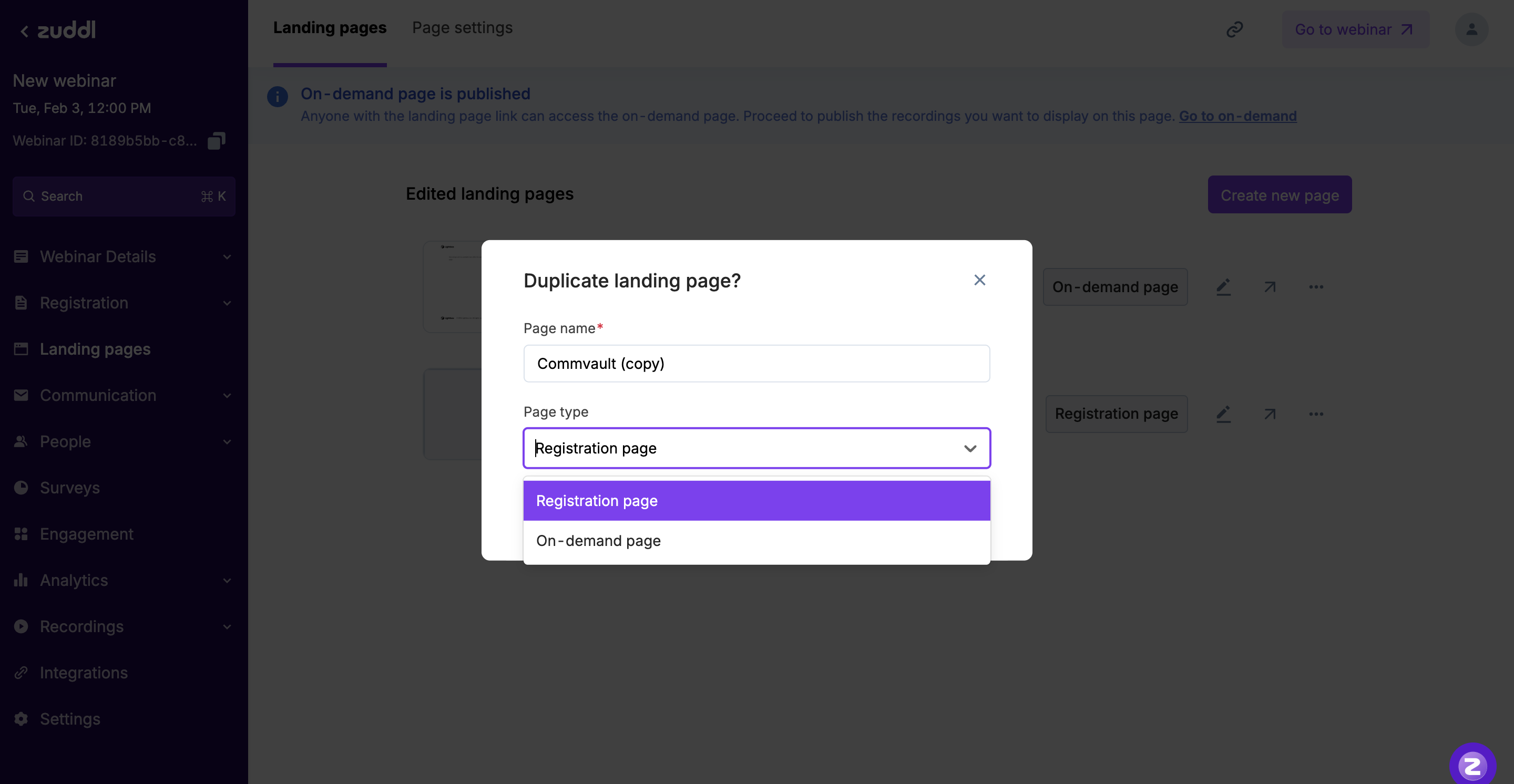
Page Type Locking: The page type (registration or on-demand) is auto-populated based on the selected template and cannot be changed at this stage. However, if the organizer is creating a page from a blank template or duplicating an existing page, they can freely choose the page type.However, if the organiser creates a page from a blank template or duplicates an existing page, they can freely choose the page type.
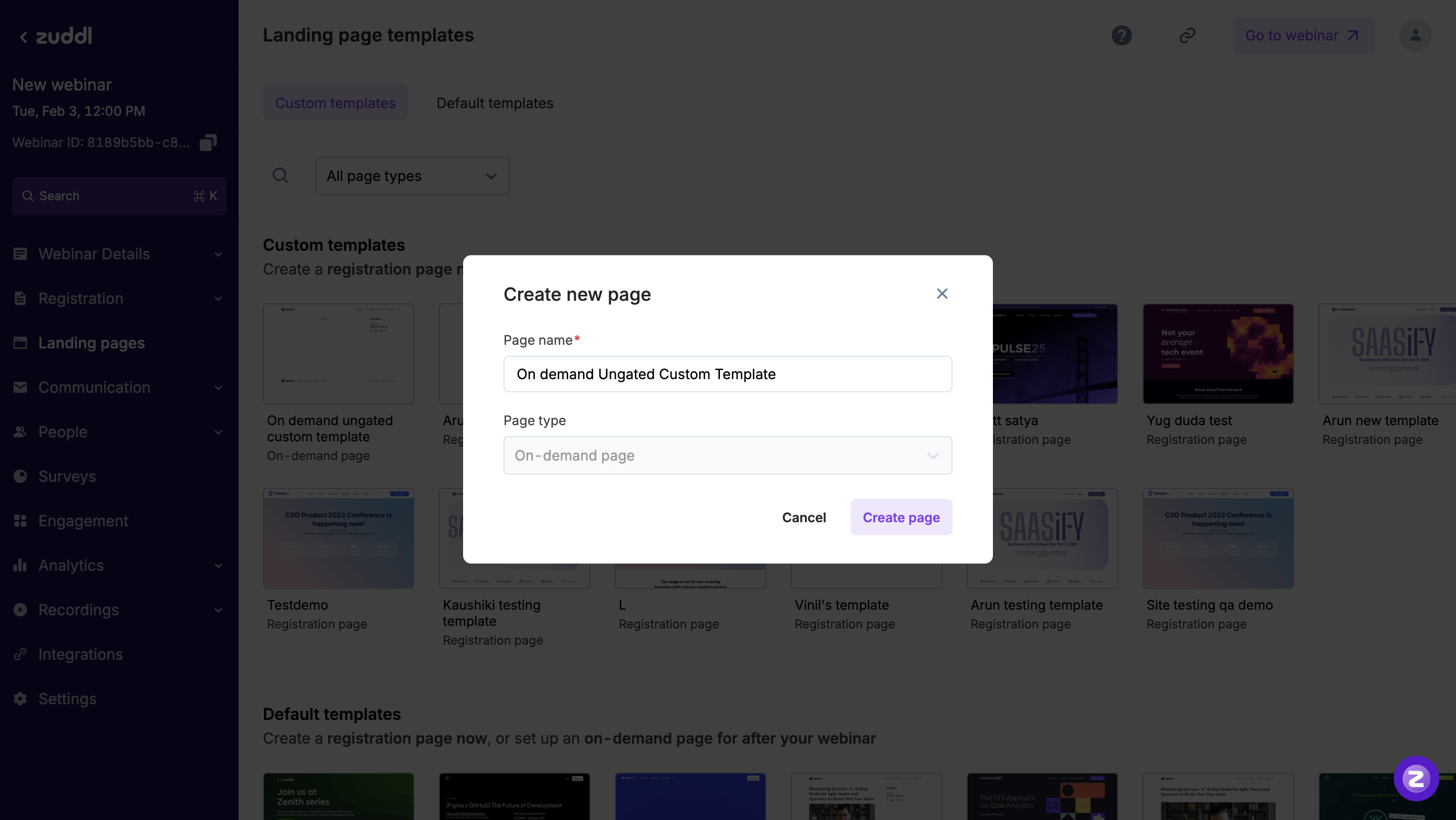
However, if the organiser creates a page from a blank template or duplicates an existing page, they can freely choose the page type.
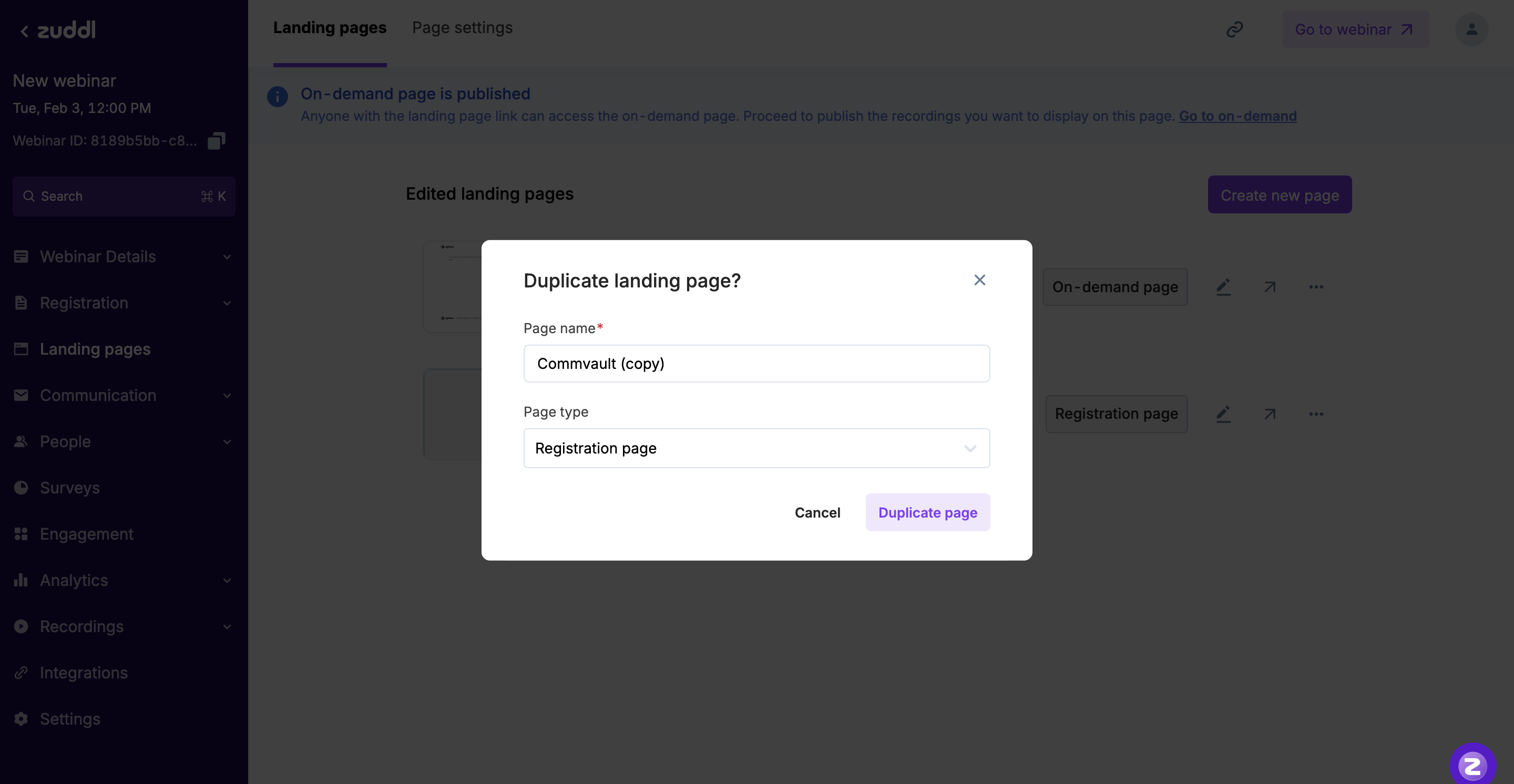
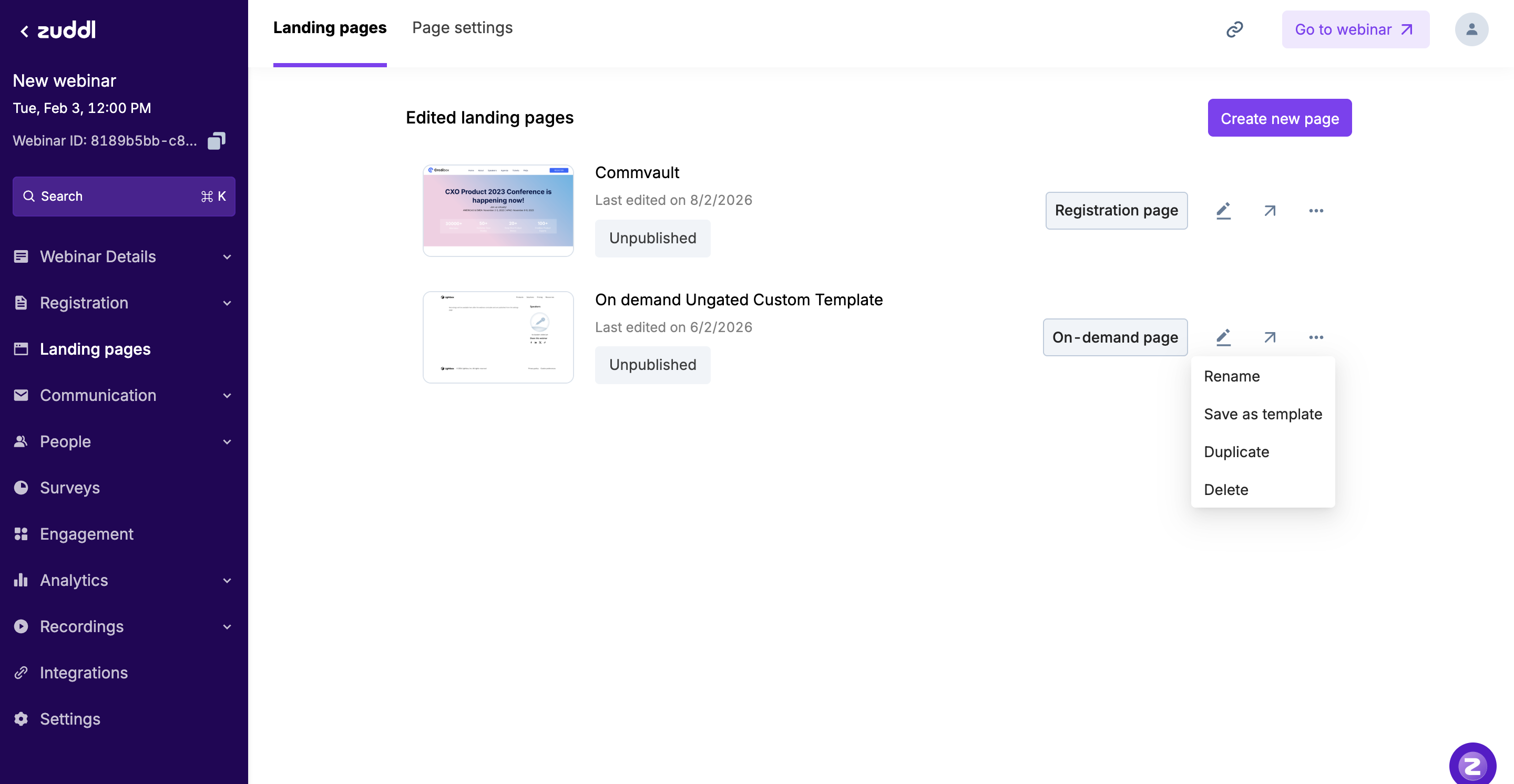
Once the user clicks on “Create page”, they’re routed to the DUDA builder. In the background, the page is created with:
All the existing tertiary actions
An additional “Duplicate” action
We’ve also repositioned the “Published” / “Unpublished” tag to the bottom, since we now surface Registration and On-demand tags prominently.
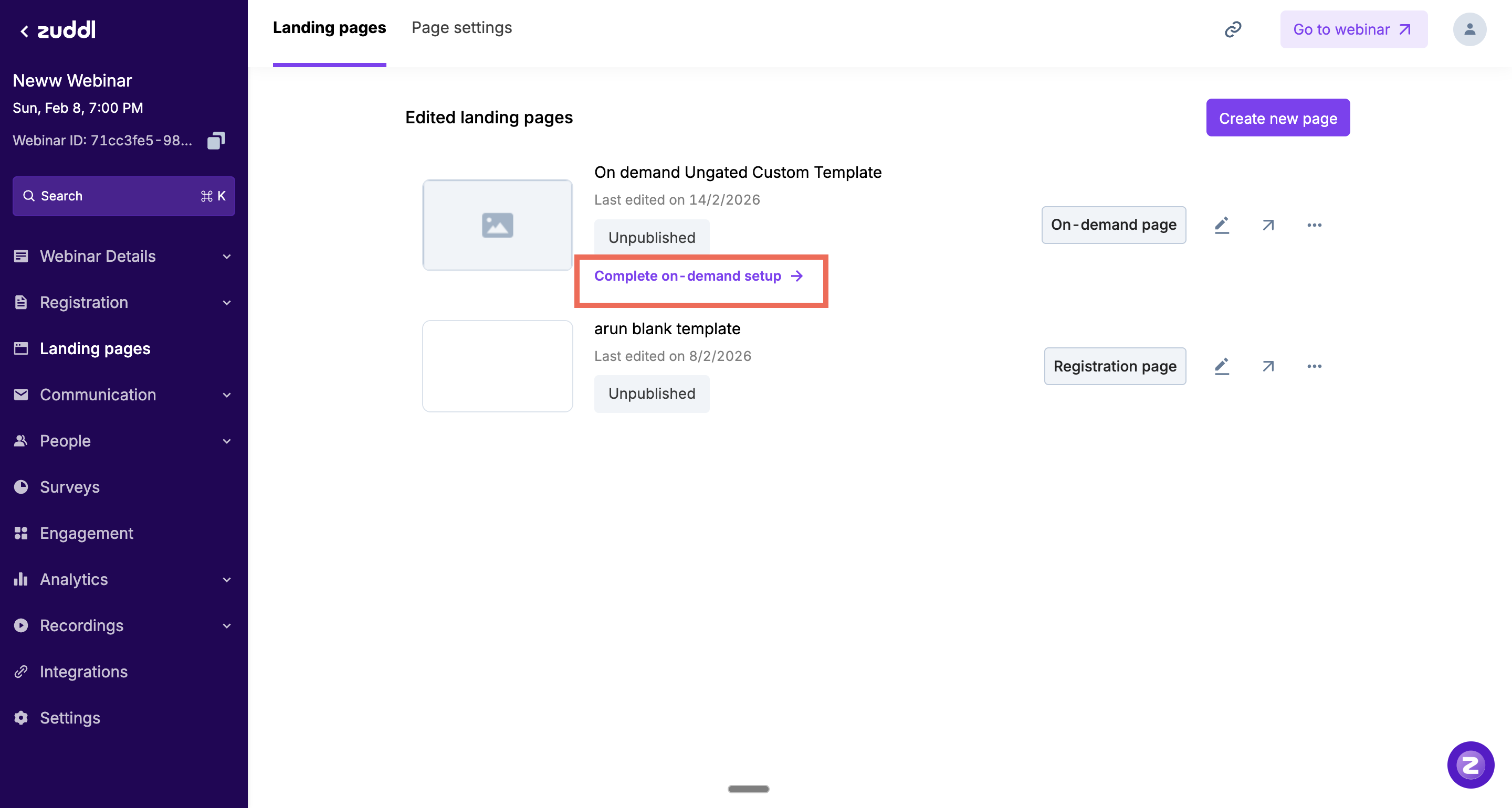
5. Entry from the On-demand setup screen:
This scenario covers cases where the organiser bypasses FTUE entirely and lands directly on the On-demand setup screen for an existing webinar.
When they turn the On-demand toggle ON, the form expands and clearly calls out that:
No on-demand page exists yet
This becomes another entry point to create one.
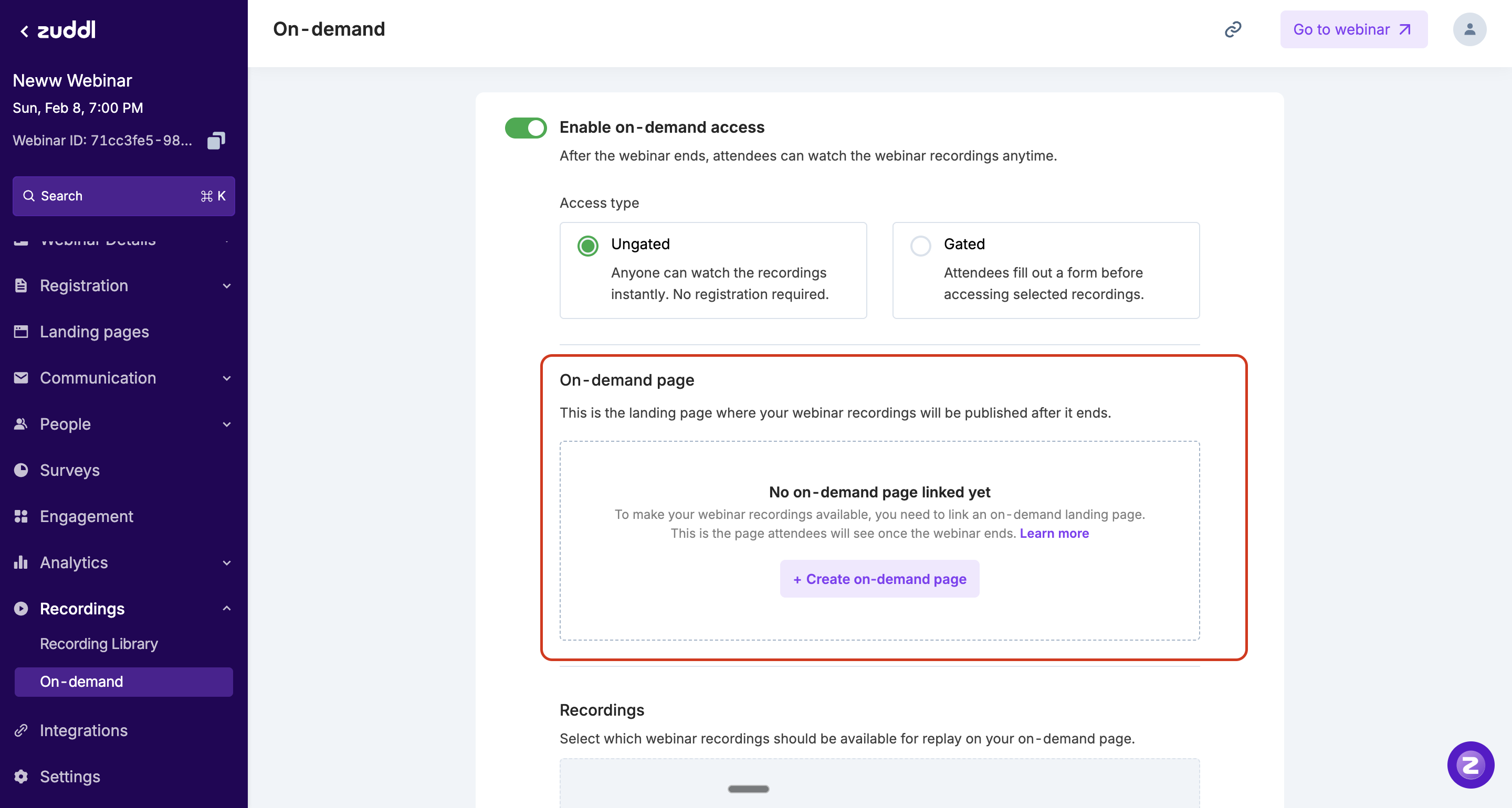
Clicking this CTA routes them back to the landing pages screen filtered to on-demand templates, along with a “Learn more” link to documentation. The on-demand toggle is also turned off, which needs to be manually turned on.
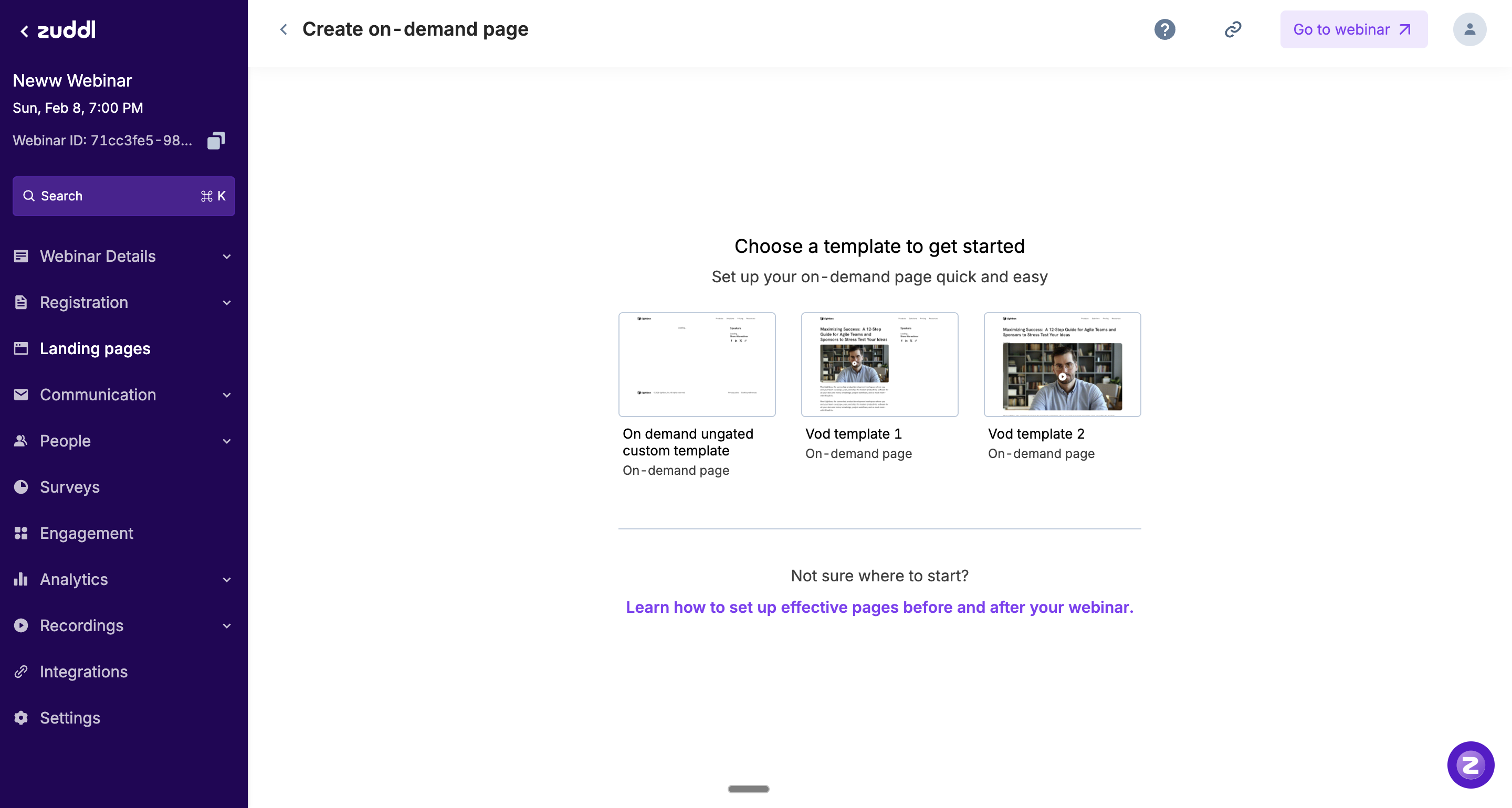
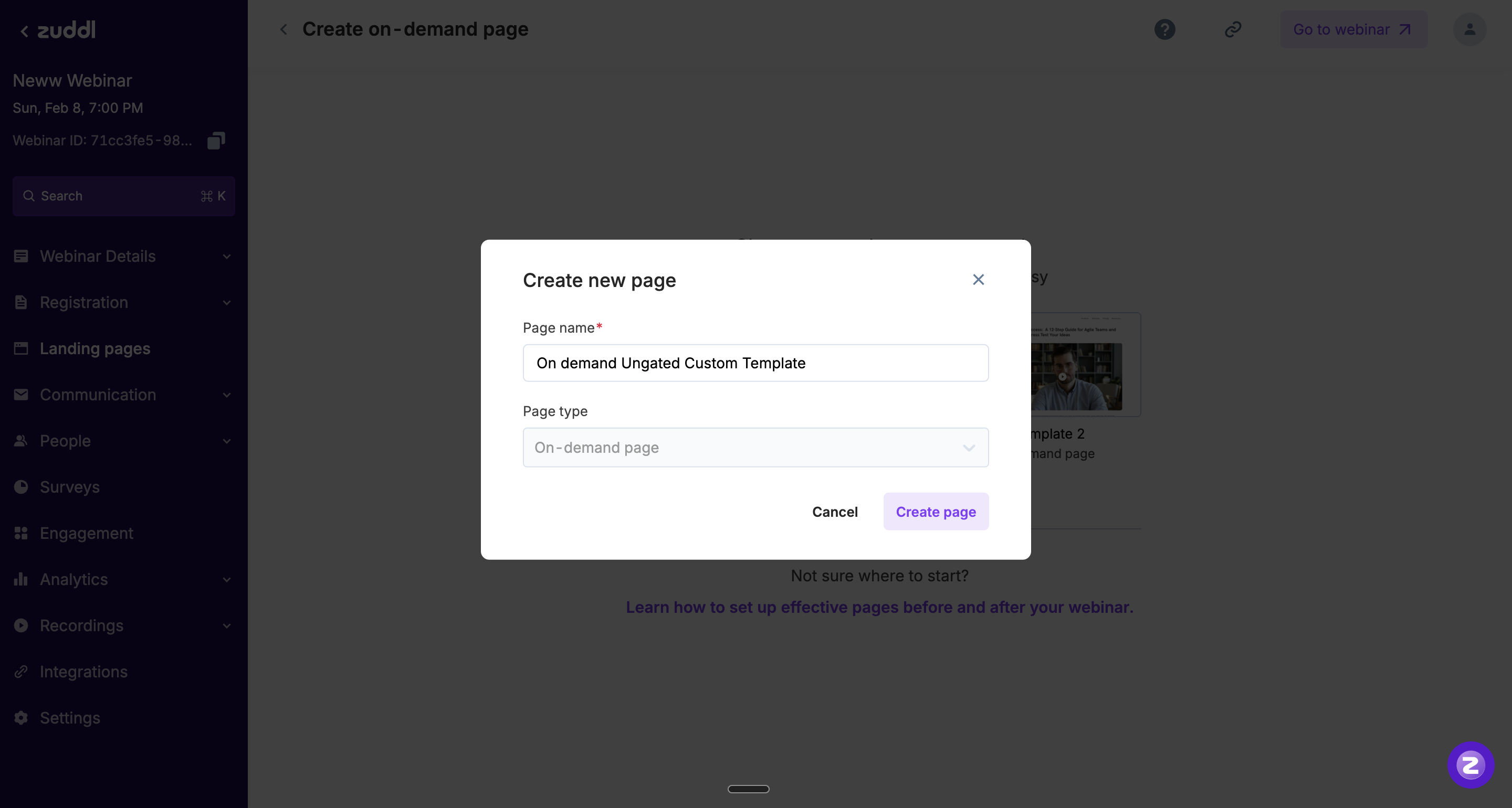
On selecting a template:
Page type is set to On-demand by default and locked
The organiser can rename the page
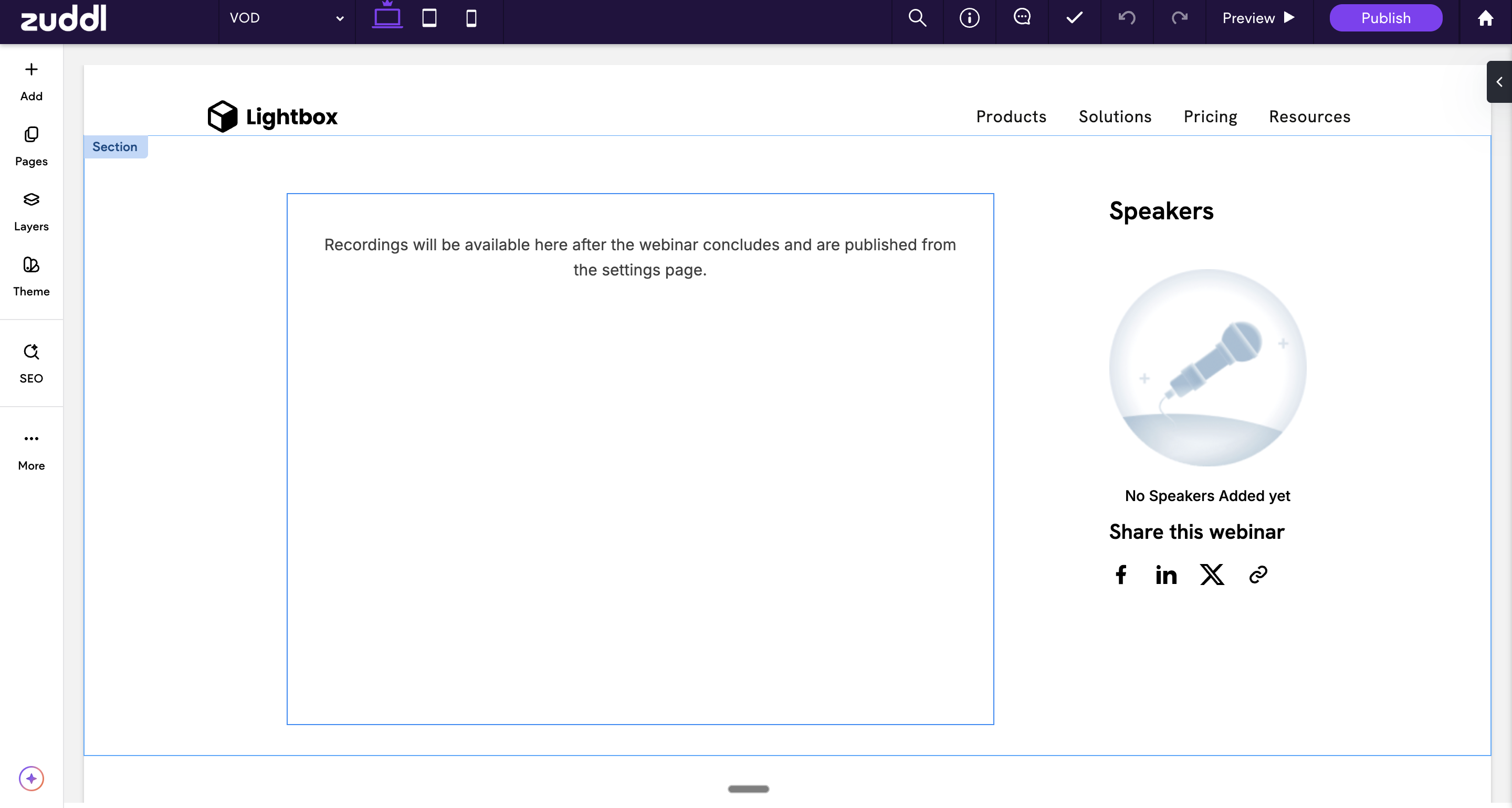
Clicking “Create page” redirects them to DUDA with the VoD widget pre-inserted
Initially:
The widget shows an empty state.
Initially, the publish action remains disabled, until the webinar has started. You can see a hover message here that the publish button is disabled until the webinar starts.
6. On-demand configuration & selection logic:
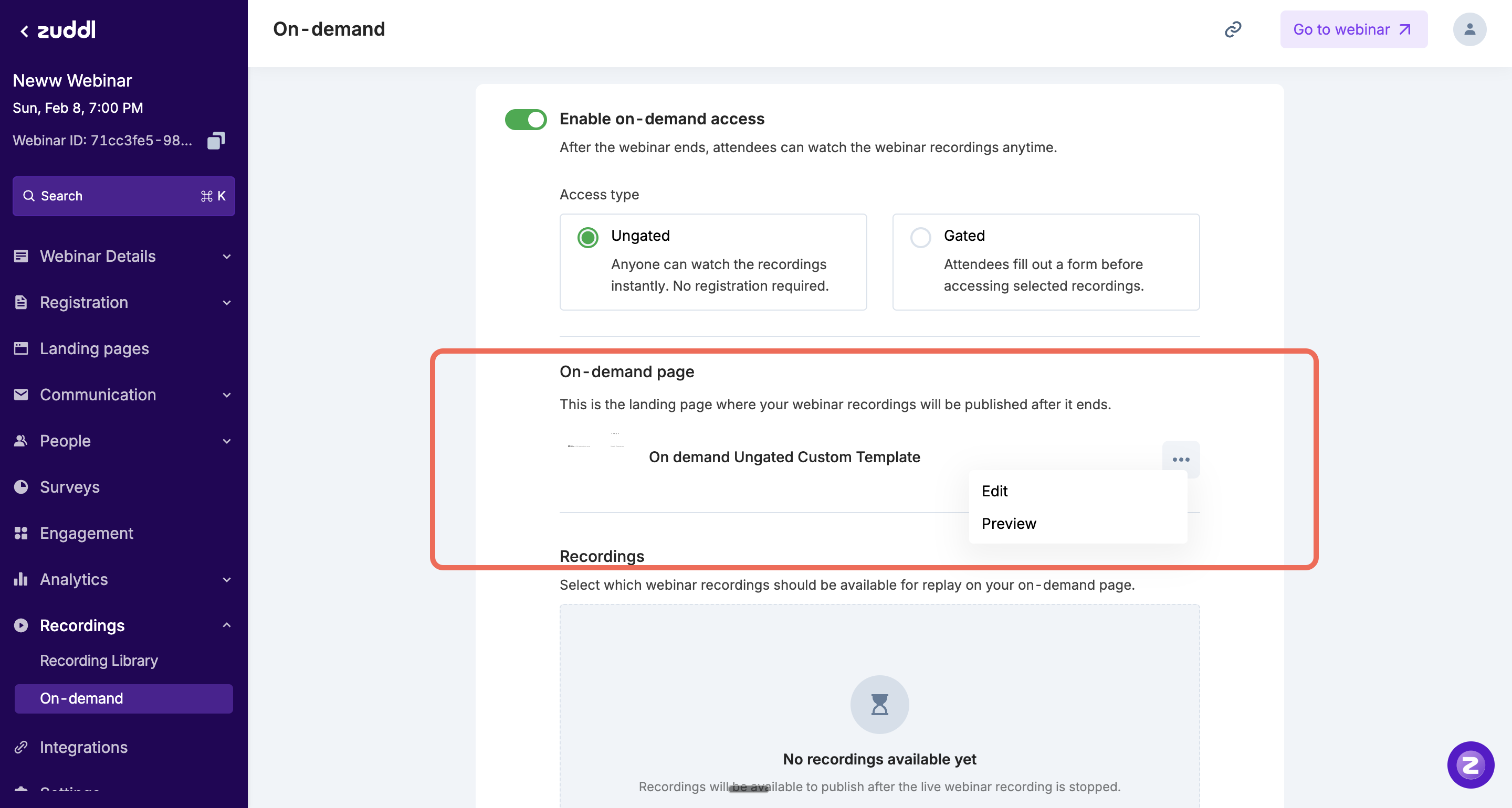
Once the page exists, we prompt the organiser to configure on-demand settings.
When the toggle is turned ON, the system checks for existing on-demand pages:
If none exist → show a CTA to create one
If exactly one exists → auto-select it (this scenario)
If multiple exist → show a “Change” CTA to switch pages
From here:
Edit routes to the LP editor on DUDA
Preview opens a page review on DUDA
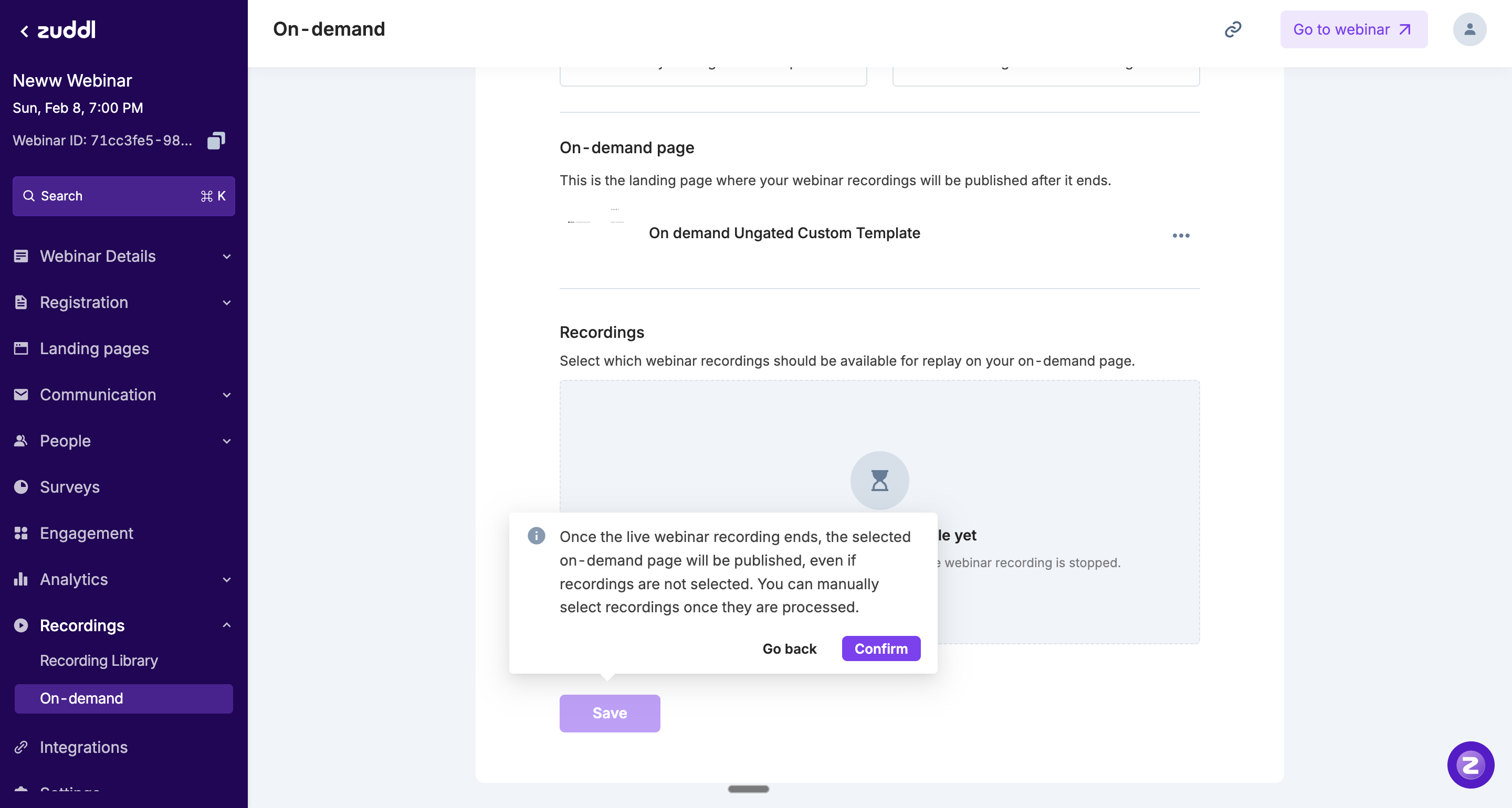
On clicking Save for the first time, we show a confirmation modal explaining that:
The on-demand page will be auto-published when the webinar ends.
This will happen even if recordings aren’t selected.
Recordings can be added later once processing completes.
7. Publishing & Post-Webinar Switchover Behaviour:
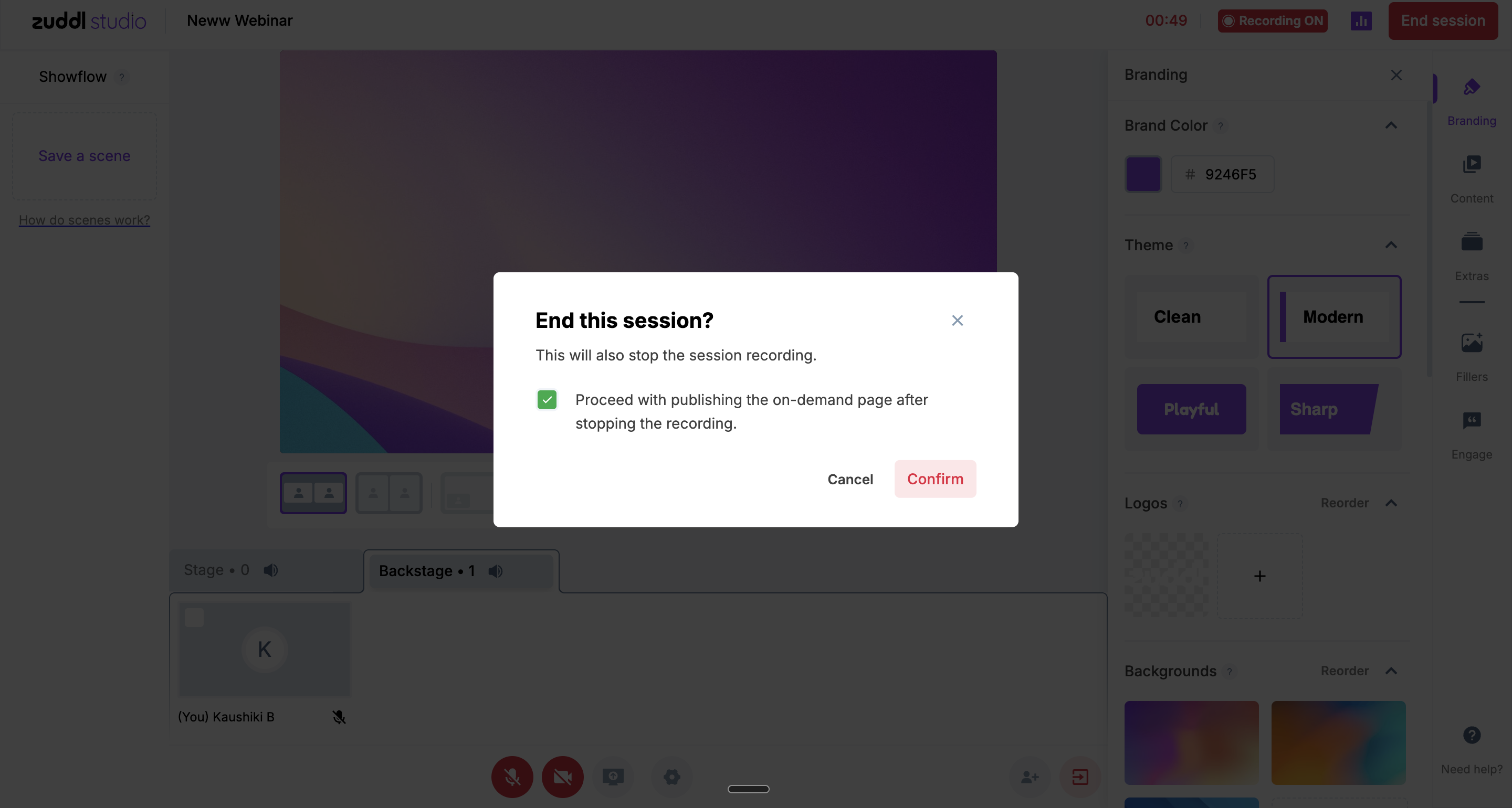
The post-event journey is triggered directly from Studio when the organiser clicks “Stop session.”
If the On-Demand toggle has already been enabled and saved:
The confirmation modal clearly informs the organiser that stopping the session will make the On-Demand page live.
Once confirmed:
The registration page is unpublished
The On-Demand page is published
The same webinar URL now points to the On-Demand experience
Publishing Scenarios:
Organiser clicks “Stop session” at the end of the Webinar:
The system automatically publishes the configured On-Demand page.
Recordings that have been manually published appear in the VoD widget.
Organiser stops session mid-way:
If On-Demand is configured, the modal confirms that the On-Demand page will go live.
Switchover happens immediately upon confirmation.
If the organiser prefers to delay the switchover after stopping the session, they can:
Manually unpublish the On-Demand page
Re-publish the registration page temporarily
Manual publishing during a live webinar:
Organisers can publish the On-Demand page while the webinar is still live.
Since recordings may not yet be available:
The VoD widget displays a placeholder message (e.g., “Recordings will be available soon.”)
8. Recording Availability Logic:
After the webinar session is ended, recordings are available to be published
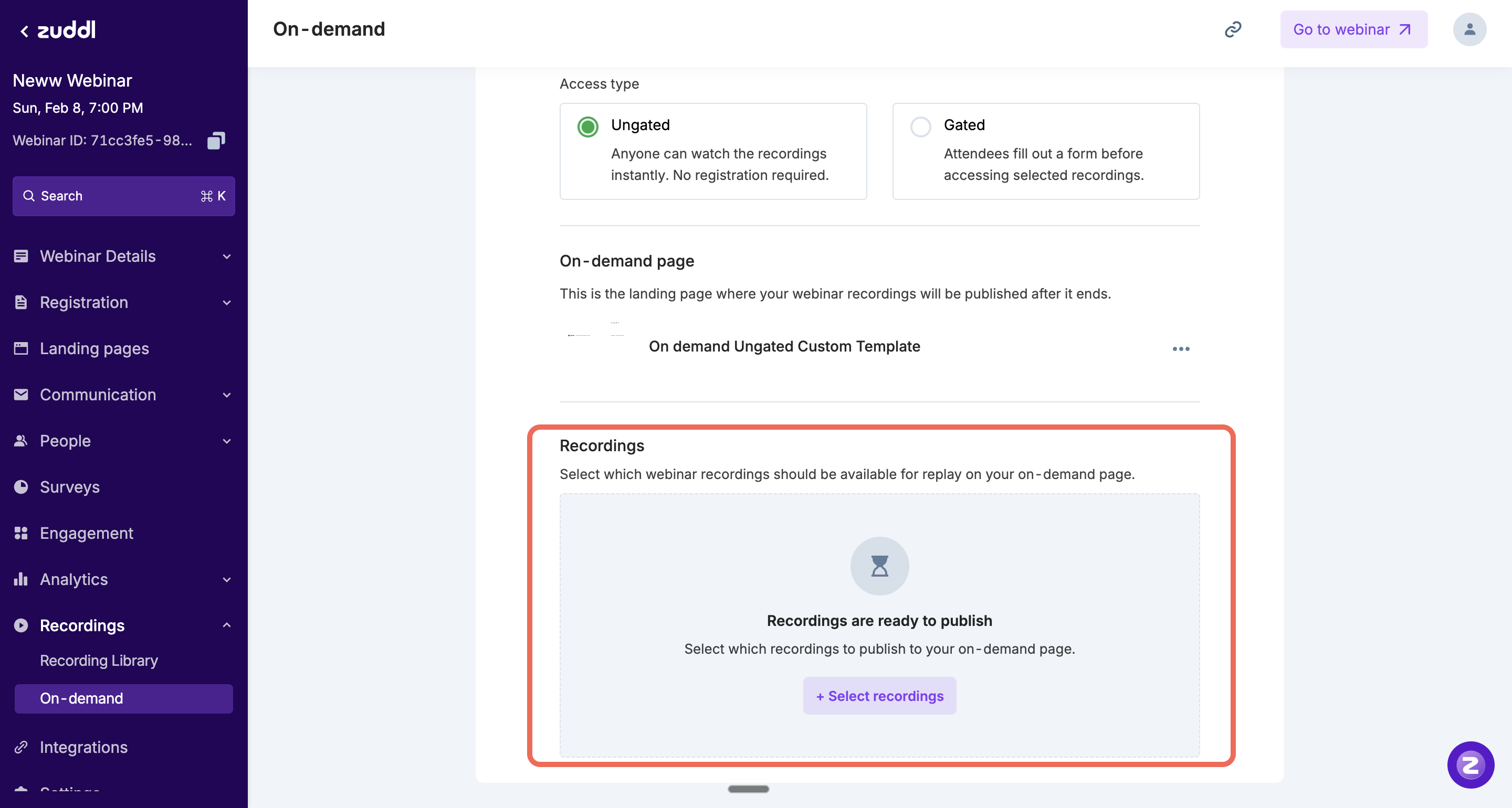
Selecting the recordings and publishing them makes them appear inside the VoD widget on the on-demand page.
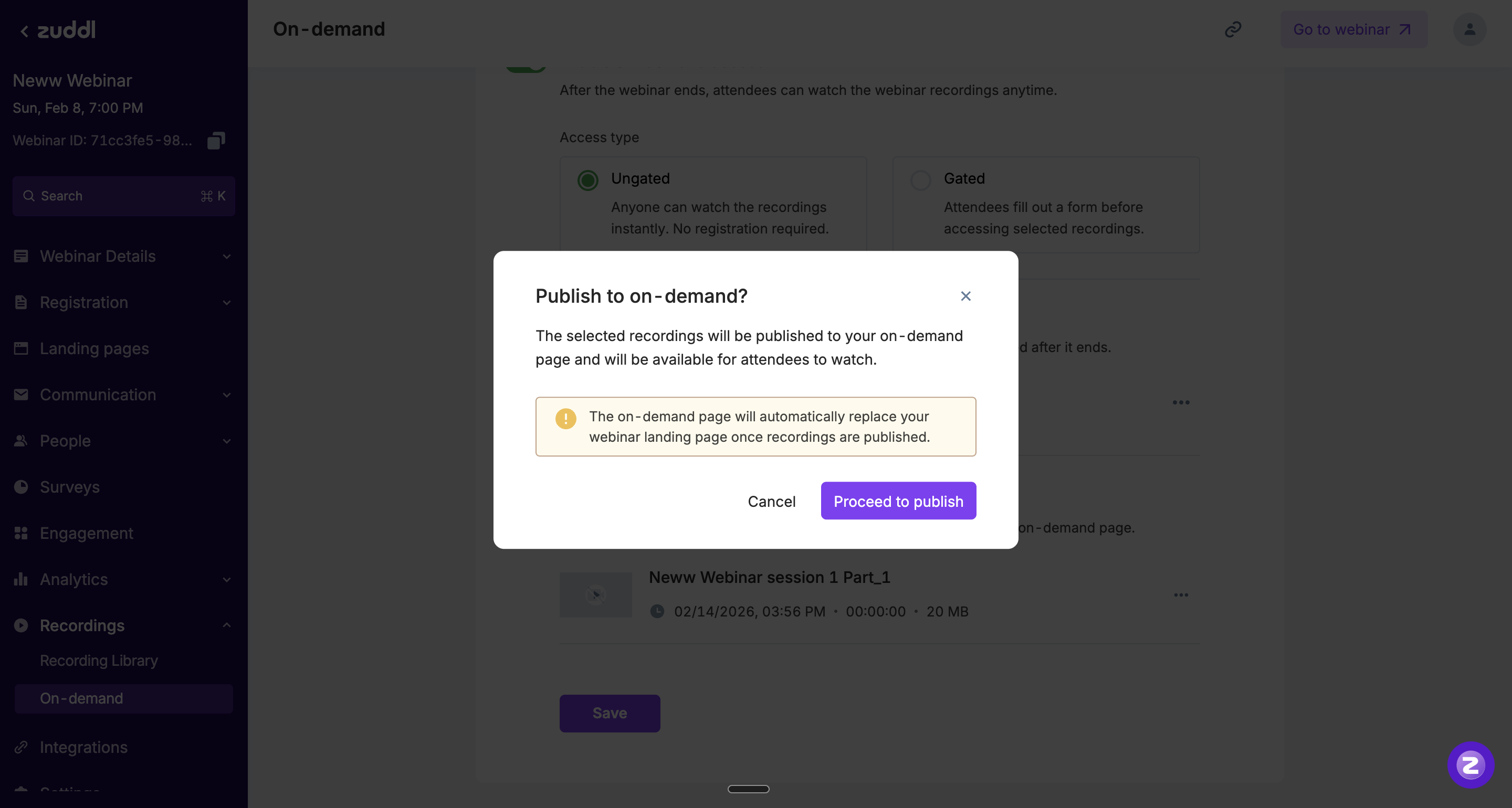
9. Gated on-demand flows:
Gated from the start:
The registration page remains live as usual. Attendees must register or log in to access the recordings.
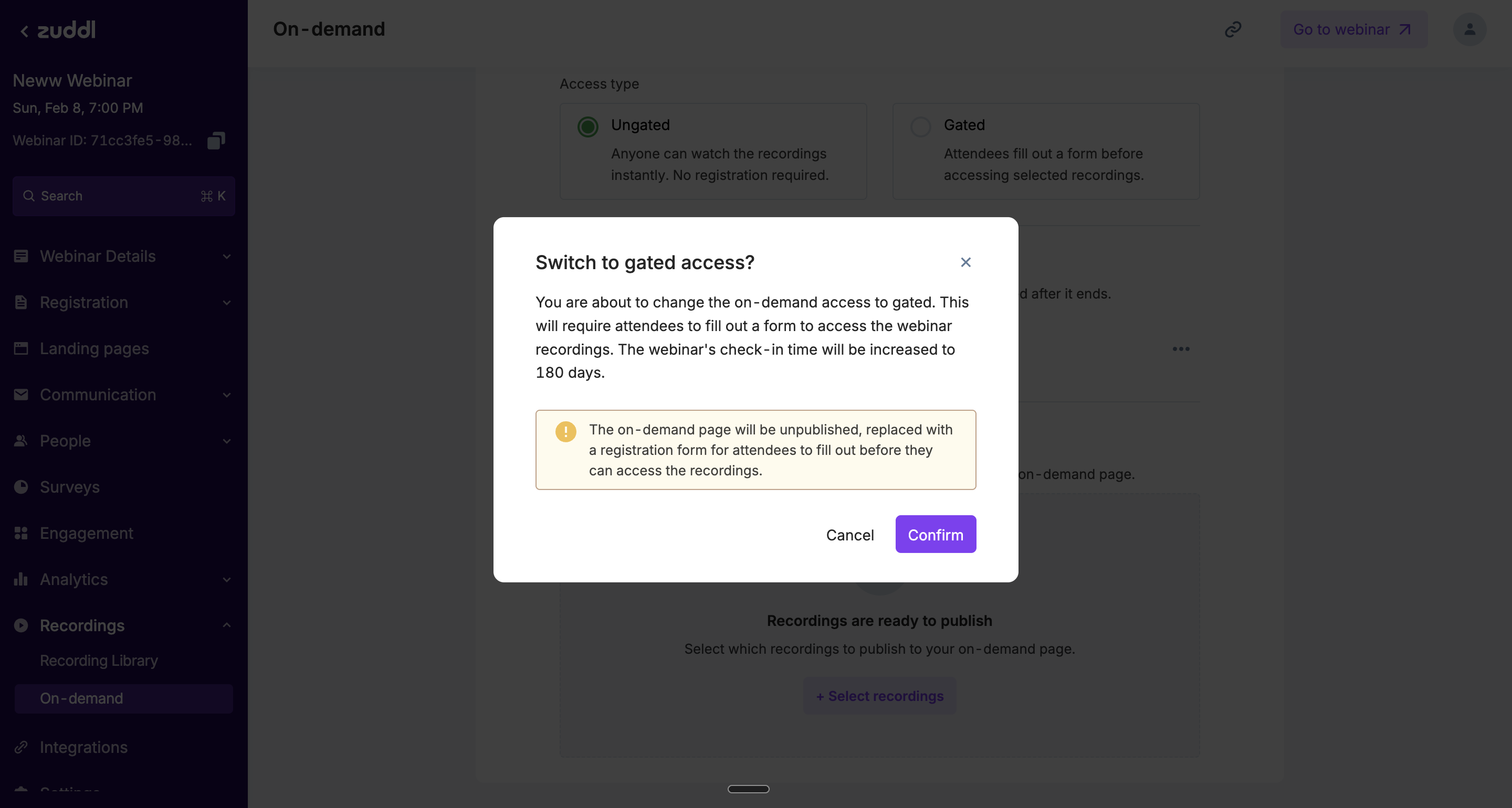
Switched from Ungated → Gated later:
The On-Demand page is automatically unpublished, and the registration page is restored.
Attendees are required to complete registration before they can access the recordings.
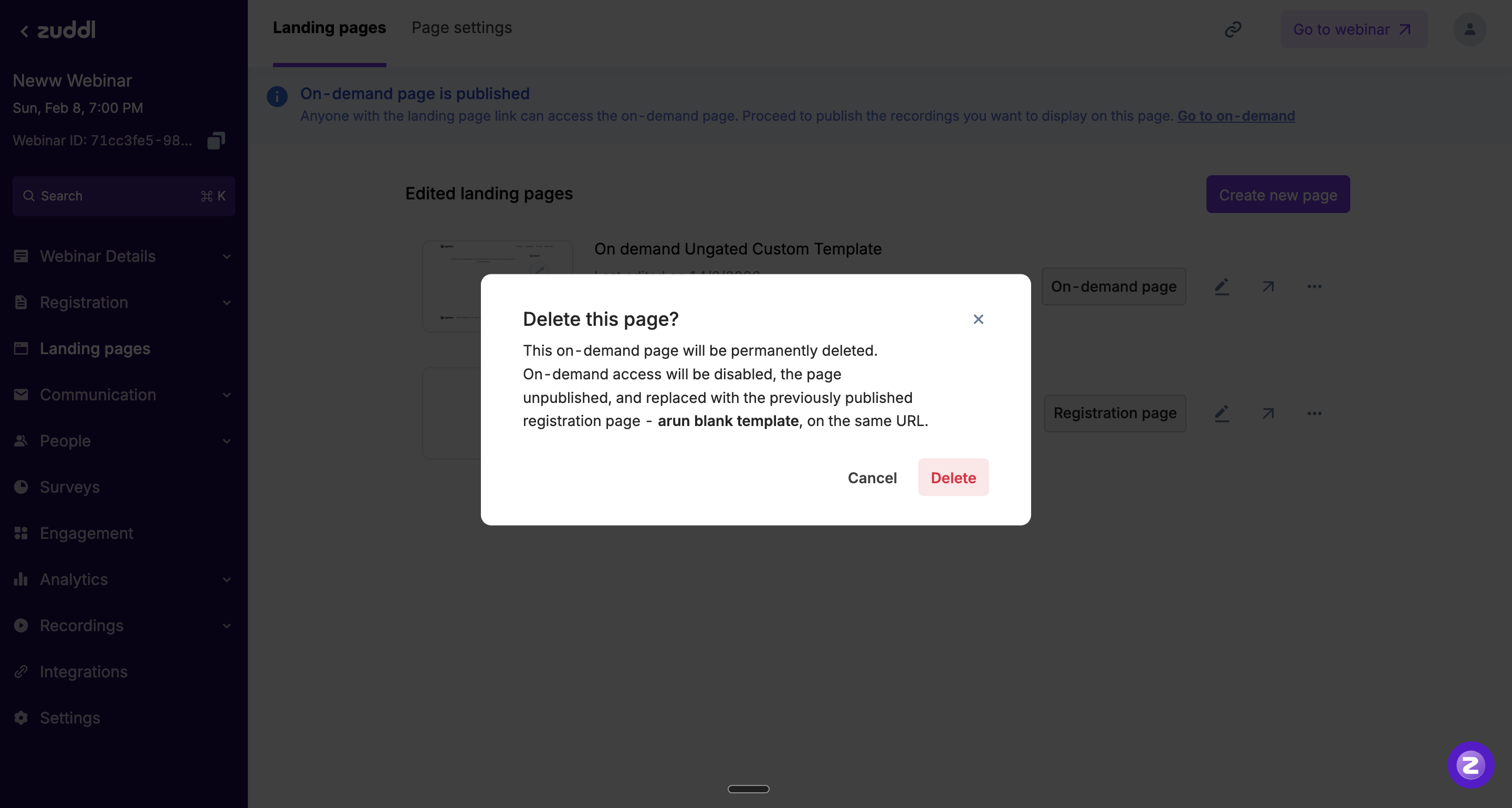
10. Deleting a live on-demand page:
Permanently deletes the on-demand page
Disables on-demand access
Restores the earlier published registration page on the same URL
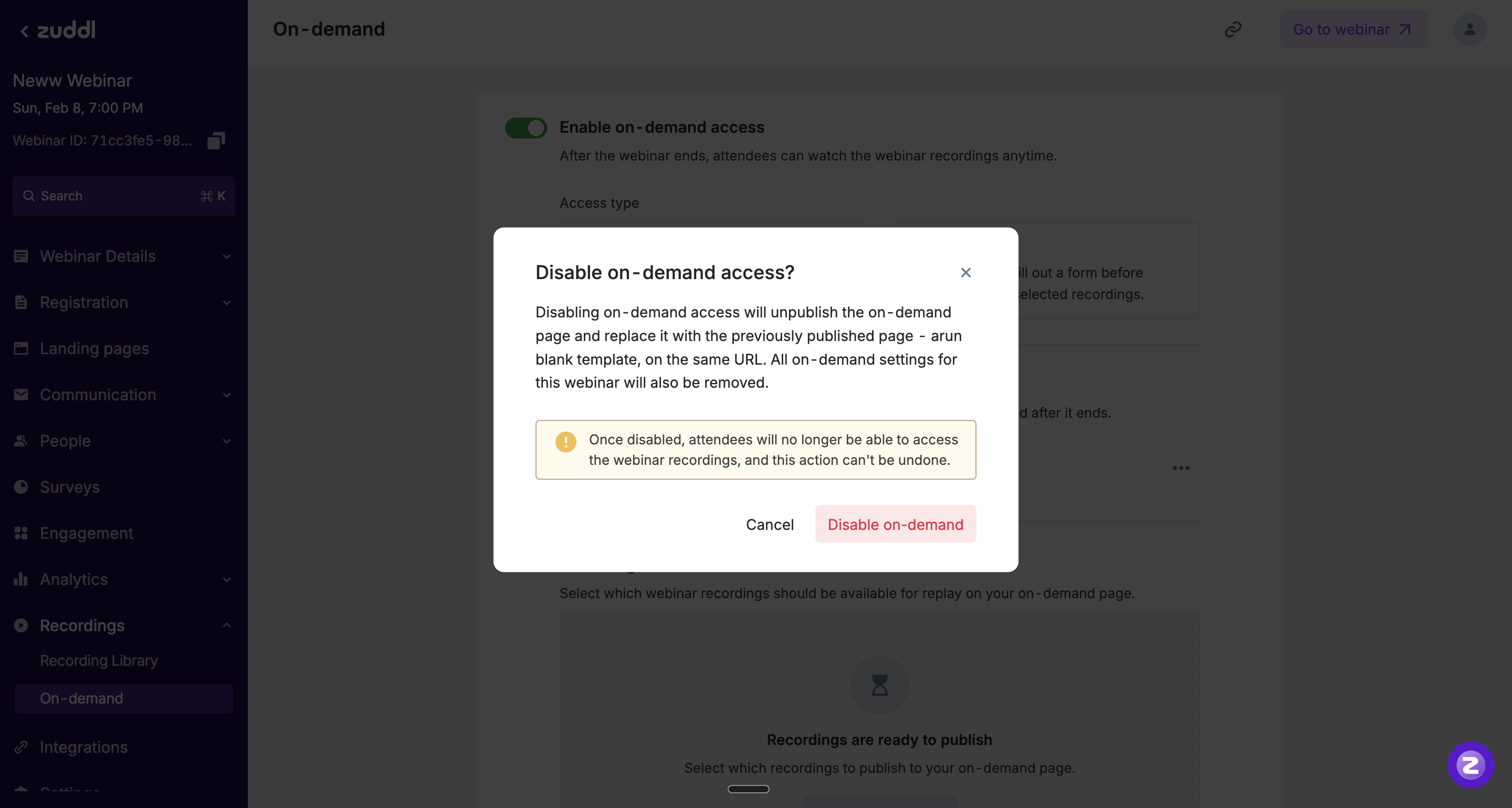
11. Turning off on-demand access after the page is live:
Unpublishes the on-demand page
Re-publishes the registration page
Removes all on-demand settings
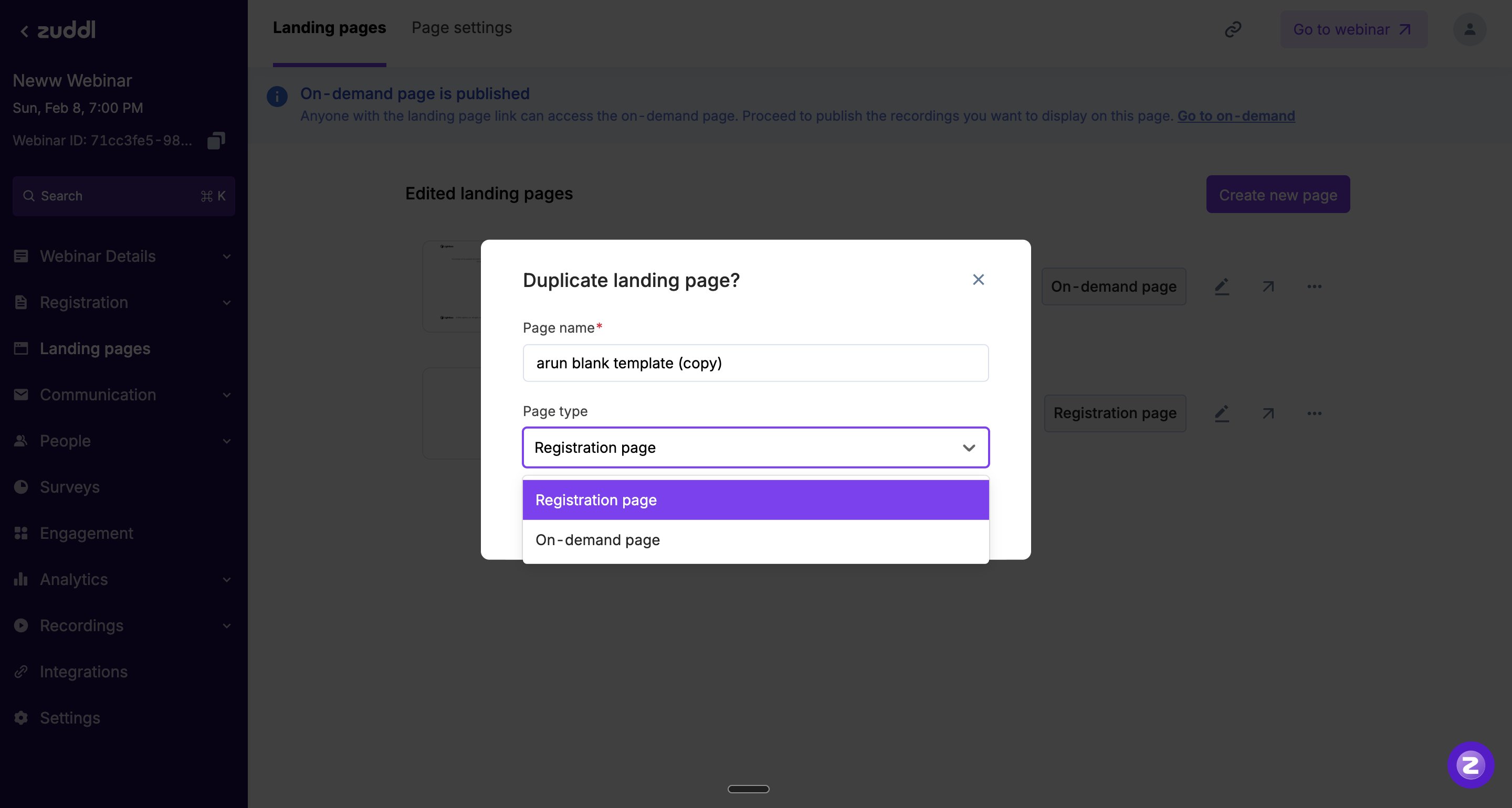
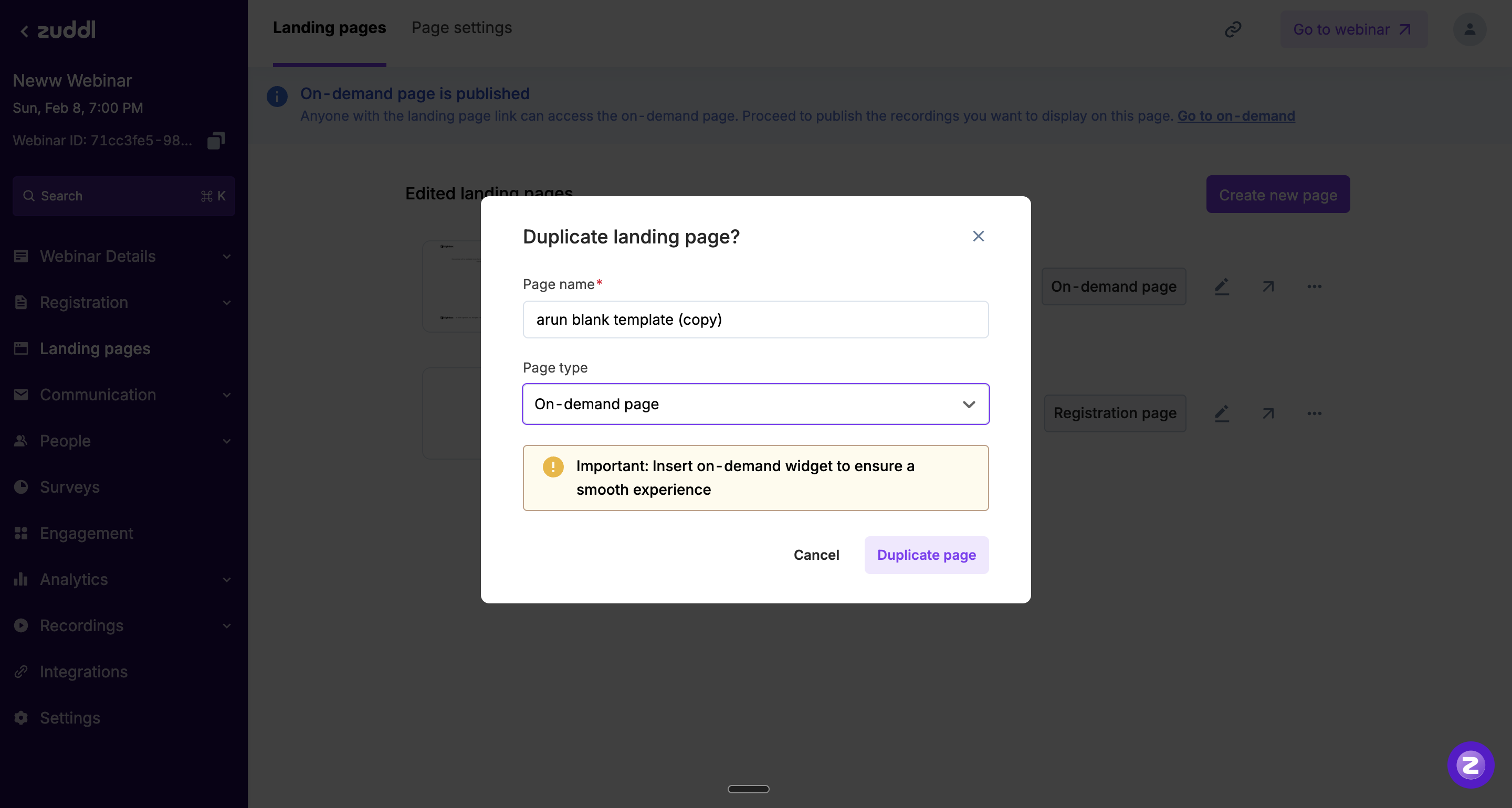
12. Duplication of On-Demand:
We also support a duplication flow, primarily for super-users who want to:
Duplicate an existing registration page
Reconfigure it as an on-demand page
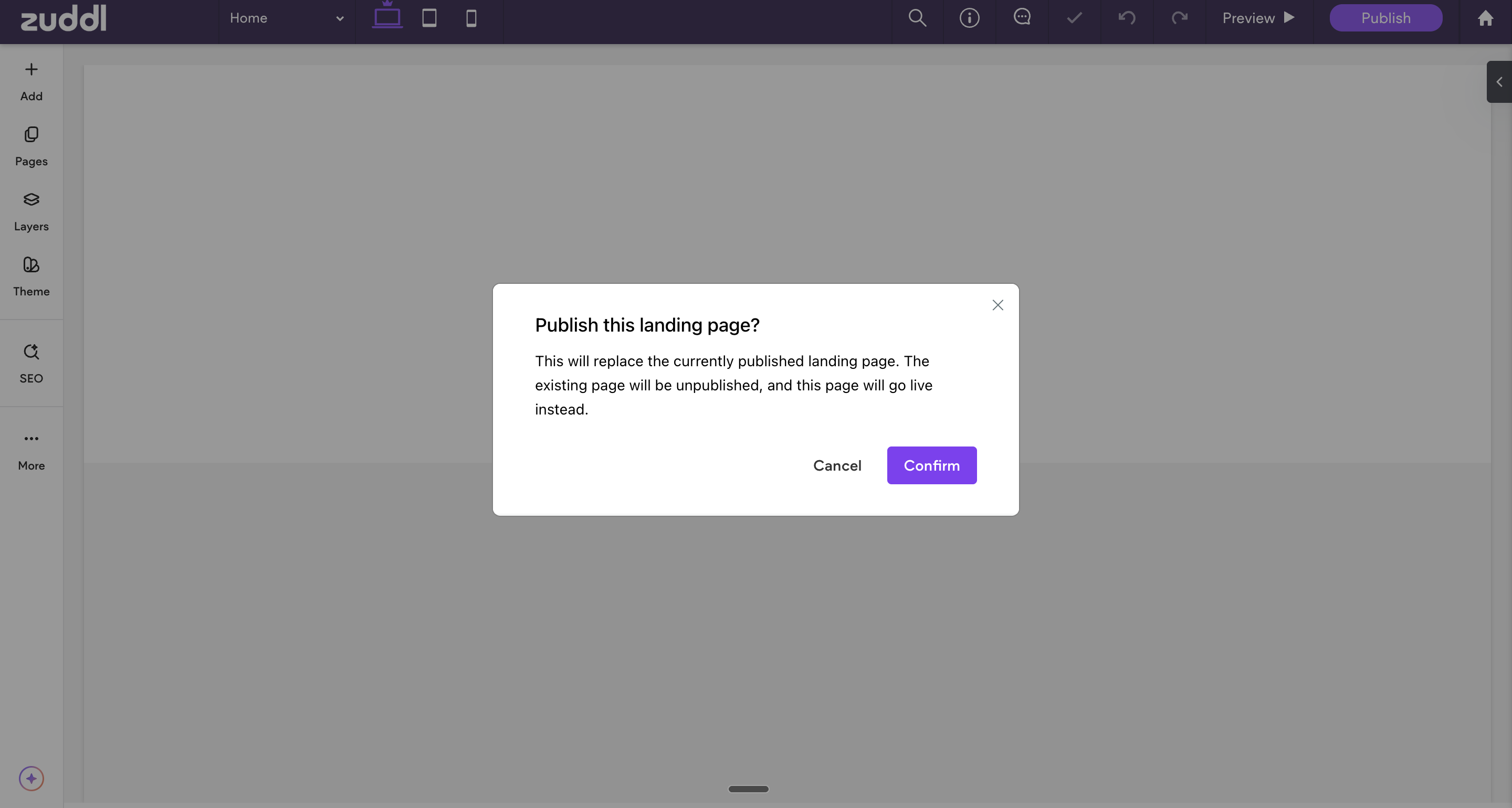
13. Manually publishing a landing page:
You can manually publish a landing page from the Duda editor. Before publishing, the system will clearly inform you that this action will automatically unpublish the currently live landing page.