Individual Speaker Recordings for Webinars
Last updated: April 28, 2026
What This Does
Individual Speaker Recordings lets you capture a separate video file for each speaker and their screenshare alongside the standard full session recording of your webinar. Instead of only getting a single composite recording, you now receive:
Full recordings - the combined session video (with and without background), same as before
Individual speaker recordings - one video file per speaker
Screenshare recordings - a separate file for any screenshare that was active during the session
This makes it easy to create highlight clips, repurpose content for social media, or edit sessions without relying on the full webinar recording.
Note: This is an add-on feature that needs to be enabled at the organisation level. Contact your Customer Success Manager to get started.
Before You Begin
You must have organiser access to the webinar.
Individual Speaker Recordings must be enabled for your organisation by your CSM.
Your webinar must use Zuddl Studio for session delivery.
Steps
Step 1: Check if the feature is enabled
Go to Recordings > Recording Library from the left sidebar of your webinar.
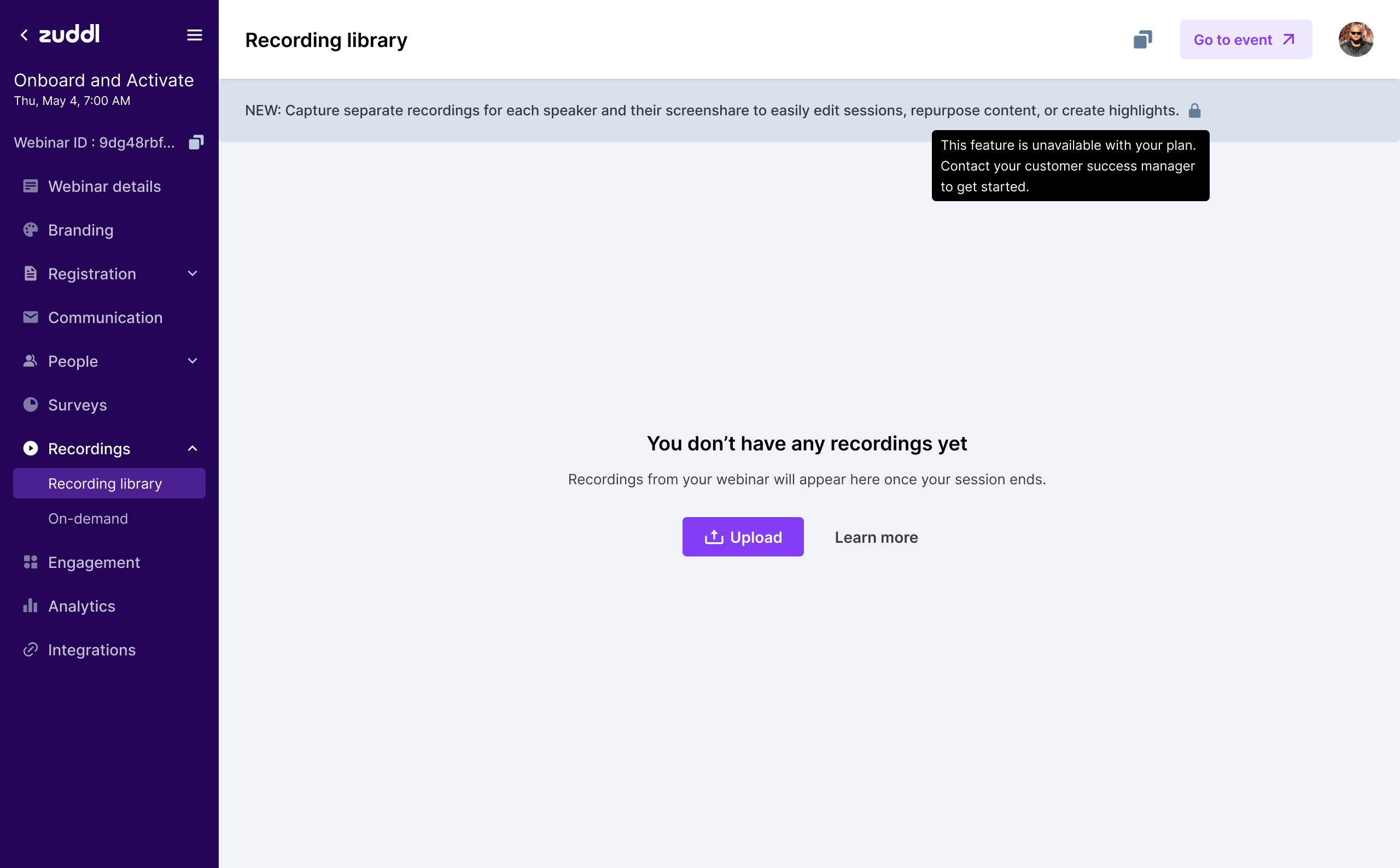
If the feature is not enabled, you will see a banner with a lock icon: "NEW: Capture separate recordings for each speaker and their screenshare to easily edit sessions, repurpose content, or create highlights." Hovering on the lock icon shows: "This feature is unavailable with your plan. Contact your customer success manager to get started."
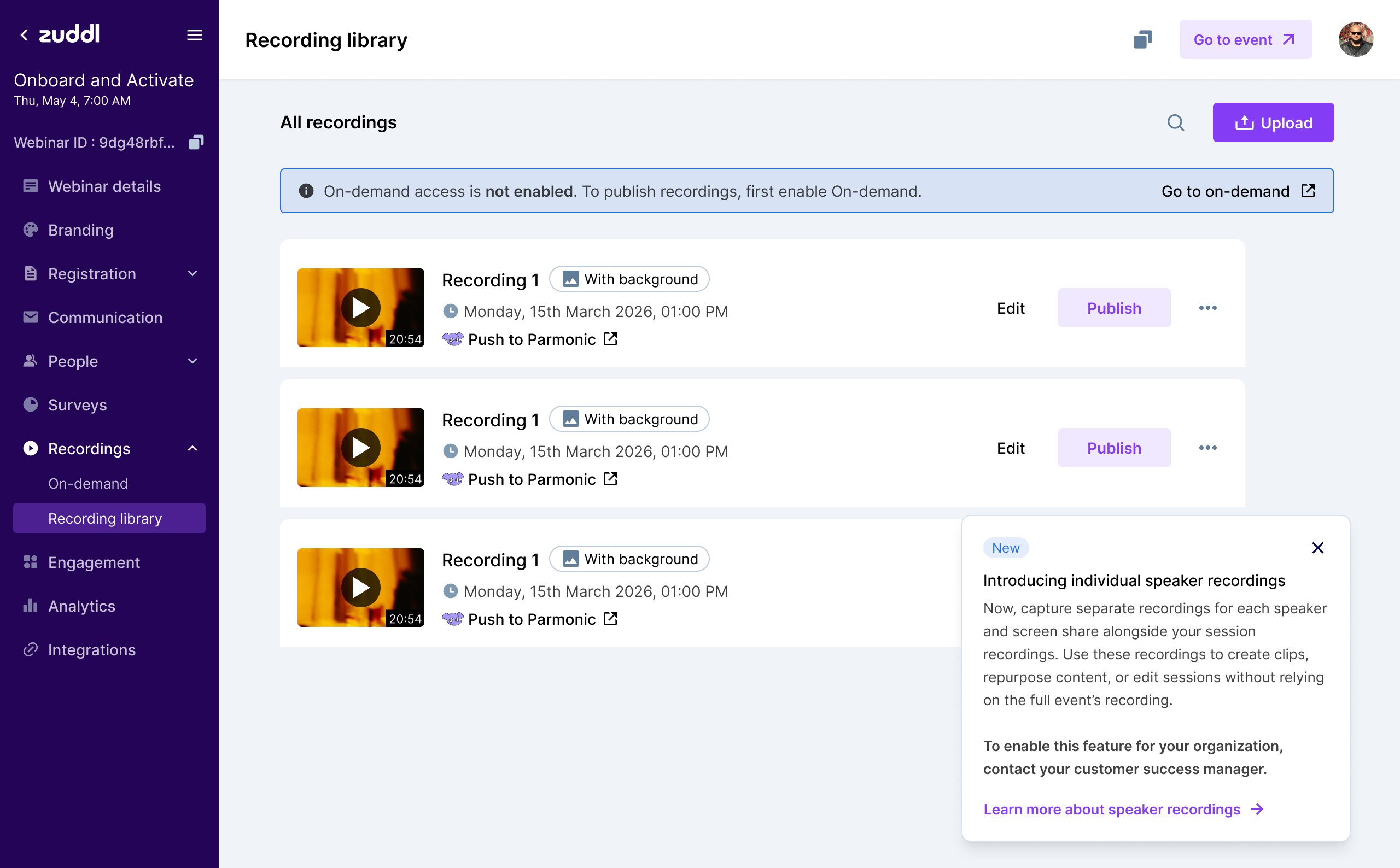
If the feature is enabled, you will see a one-time tooltip introducing the feature and explaining how to use it.
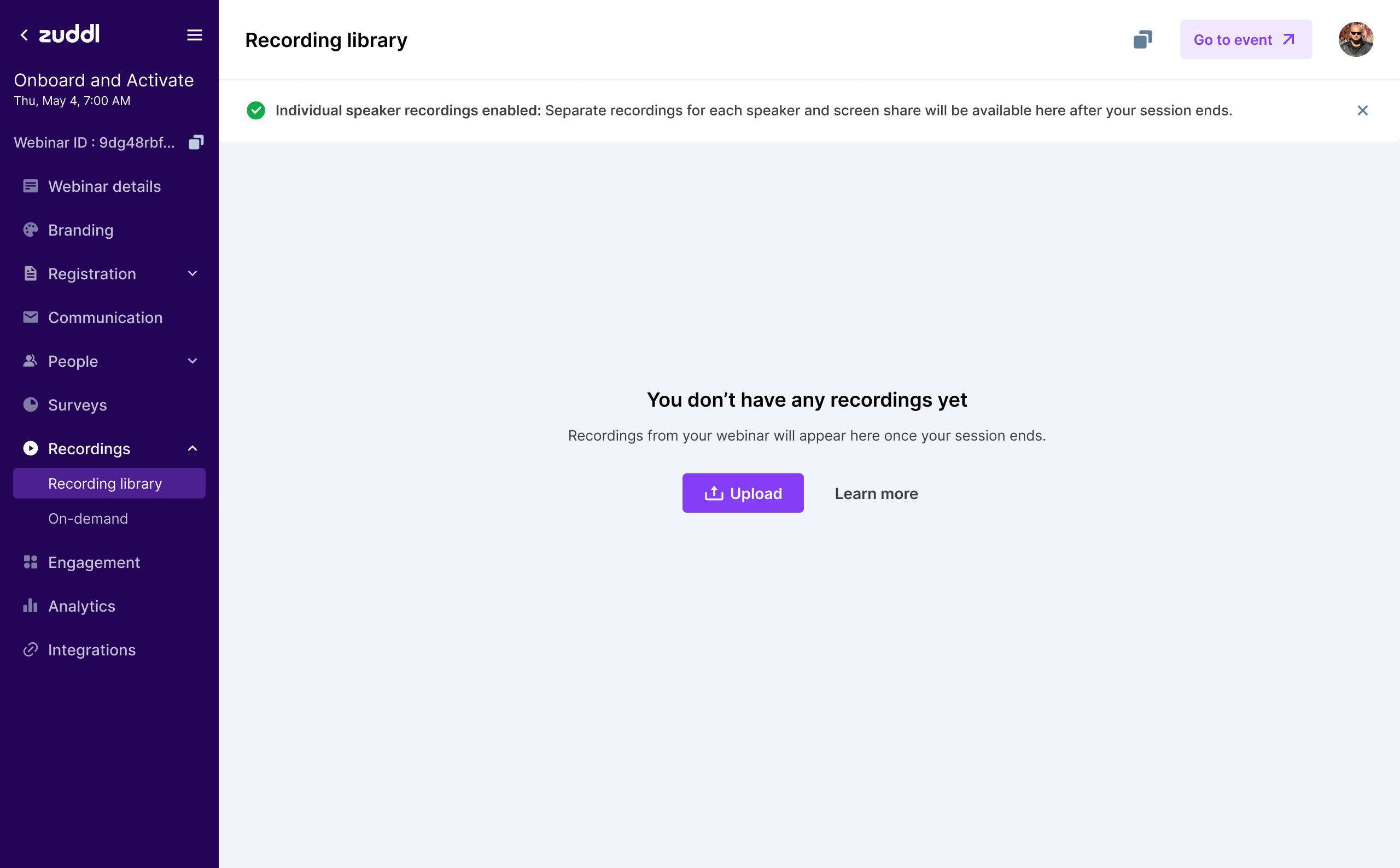
A green confirmation banner at the top confirms that individual speaker recordings are active: "Individual speaker recordings enabled: Separate recordings for each speaker and screen share will be available here after your session ends."
Step 2: Run your webinar session
No extra setup is required in Zuddl Studio. When the feature is enabled, the system automatically captures each speaker's individual video stream during recording. Producers and speakers interact with Studio exactly as before.
Step 3: Access your recordings
After your session ends, go to Recordings > Recording Library. Your recordings will appear grouped under the Studio recordings card. Expand the card to see the following sections:
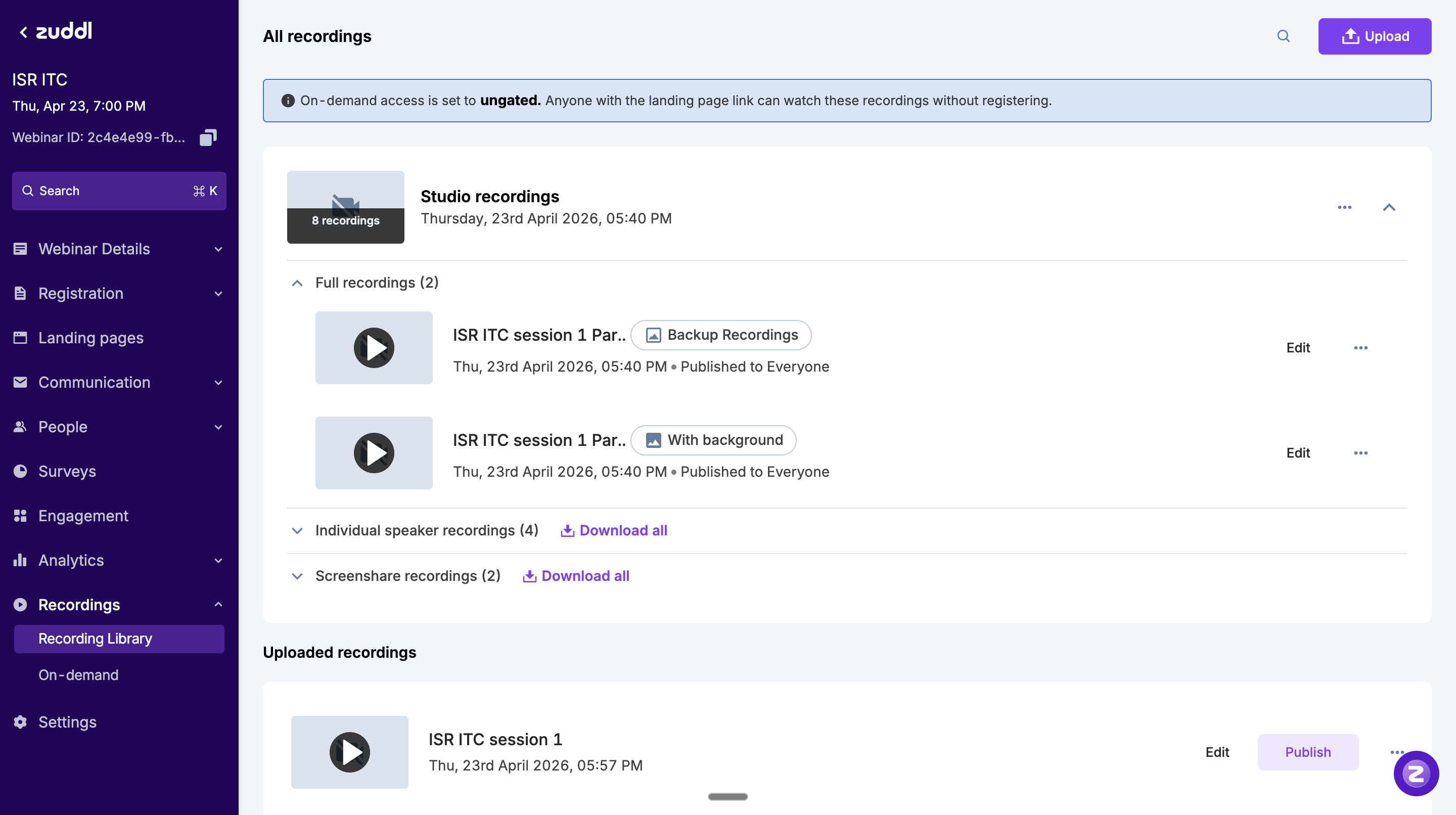
Full recordings - The composite session recordings (with background and backup). You can Edit, Publish, or view the published status.
Individual speaker recordings - One file per speaker who was on stage. Use Download all to bulk-download all speaker recordings at once.
Screenshare recordings - Separate files for any screenshare that occurred during the session. Use Download all to bulk-download.
Uploaded recordings appear in a separate Uploaded recordings section below, and are not grouped with studio recordings.
What Happens Next
After a session ends, the full session recording is typically available first. Individual speaker recordings may take a few minutes to process - a "Processing" indicator will be shown until they are ready. No action is needed on your part.
Once available, you can download, rename, copy the URL, upload a custom thumbnail, or delete any individual speaker recording using the three-dot menu (...) next to each file.
Notes
Individual speaker recordings are generated only for Studio-powered webinars.
Speaker recordings capture the raw speaker feed without branded backgrounds or overlays.
After a session ends, speaker recordings may take a few minutes to process. The full session recording is typically available first.
Uploaded recordings are kept separate from studio recordings - they appear in their own section.